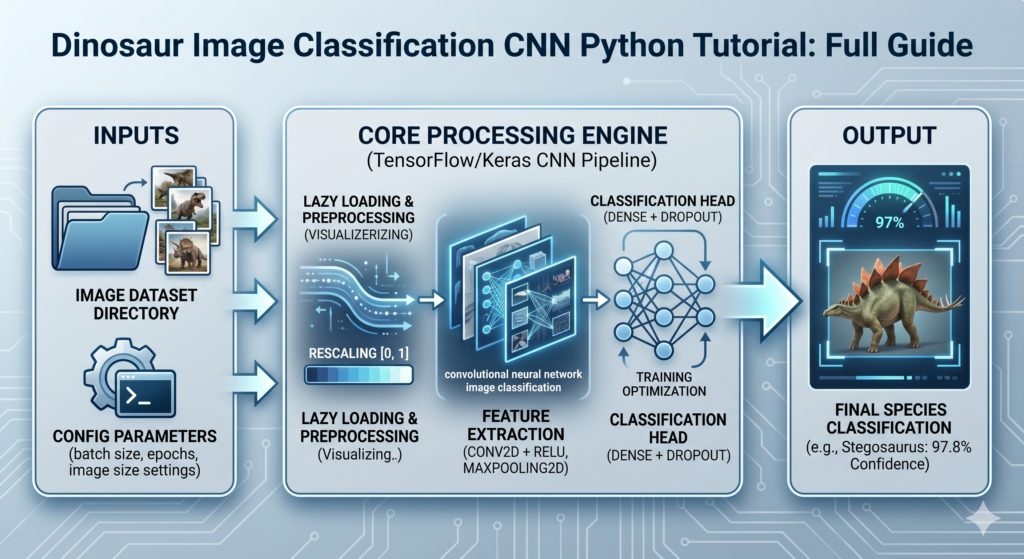
Dinosaur Image Classification with a Convolutional Neural Network (Keras/TensorFlow) / TensorFlow tutorials, Image Classification Contents hide 1 Why Custom Deep Learning Pipelines Fail Without Proper Structure 2 How Do Convolutional Neural Networks Classify Complex Visual Patterns? 2.1 What is the primary advantage of using a CNN over a standard Dense Neural Network? 2.2 How does the image_dataset_from_directory utility improve memory efficiency? 2.3 Why are activation functions like ReLU essential in this custom CNN tutorial? 2.4 Prerequisites 2.5 Want the exact dataset so your results match mine? 3 Here is the code for the project : 4 1) Setup & Data Loading 5 2) Build the CNN 6 3) Train with Checkpoints 7 4) Visualize Training 7.1 5) Next Steps & Accuracy Boosters 7.2 FAQs 8 Test The Model : 9 6) Load the model 10 7) Prepare the test images (function) 11 8) Run inference 12 9) Display the results 13 Connect : Last Updated on 23/10/2026 by Eran Feit Why Custom Deep Learning Pipelines Fail Without Proper Structure Building an accurate computer vision model from scratch requires more than just compiling code; it demands an optimized data pipeline and a robust network architecture. In this comprehensive dinosaur image classification cnn python tutorial, you will solve the specific challenge of classifying high-variance prehistoric species using deep learning. You will learn how to load a structured image dataset from local directories, apply normalization, and design a custom convolutional neural network (CNN) in TensorFlow and Keras. This workflow eliminates training bottlenecks and safeguards against overfitting, converting messy image folders into predictions you can trust. Deploying effective computer vision models requires a fine balance between rigorous data engineering and optimized neural network design. In this comprehensive dinosaur image classification cnn python tutorial, we bridge that gap by teaching you how to build a production-grade image classifier from the ground up. By using Python, TensorFlow, and custom Convolutional Neural Networks (CNNs), you will learn how to convert raw, unstructured image folders into an intelligent system capable of accurately identifying prehistoric species. Handling distinct, niche categories like dinosaur species presents unique challenges in machine learning. Unlike generic datasets like ImageNet, specialized paleontology-related image data often suffers from high variance, sparse availability, and complex background noise. Standard out-of-the-box classification workflows frequently fail because the network struggles to isolate fine-grained visual characteristics—such as specific skeletal geometry, skin textures, or cranial ridges—from their background. To overcome these data challenges, we implement a custom-built CNN architecture. A CNN leverages specialized convolutional filters that scan input pixels locally to automatically learn spatial hierarchies of features. By stacking these layers strategically alongside pooling mechanisms and activation functions, the network becomes highly adept at identifying critical dinosaur markers, even across diverse lighting conditions and viewing angles. Moreover, creating an effective deep learning script requires much more than just pasting code snippets. A thin tutorial that only provides bare code blocks without technical context often leads to poor model generalization and issues with content depth. This guide purposefully balances dense conceptual explanations with step-by-step implementations to maximize your understanding of the training pipeline. By the end of this tutorial, you will have built a complete end-to-end computer vision pipeline. You will be able to load custom image datasets from local directories, apply normalization techniques, and train a custom CNN architecture optimized for high validation accuracy. Let us examine the technical components required to construct this system effectively in Python. How Do Convolutional Neural Networks Classify Complex Visual Patterns? To build an effective computer vision model, you must understand how a CNN interprets images. Standard neural networks flatten images into a single vector, instantly destroying the spatial relationships between adjacent pixels. CNNs resolve this by processing images as 3D tensors (height, width, and color channels). As the image passes through the convolutional layers, the network applies mathematical operations using moving matrices called filters or kernels. These filters scan the input data to identify high-level features like edges, corners, and color gradients, converting raw pixel data into a dense representation of visual features. What is the primary advantage of using a CNN over a standard Dense Neural Network? The main advantage is spatial awareness. A traditional Dense (Fully Connected) network connects every single input pixel to every neuron, which causes the model’s parameters to explode in size and strips away the 2D spatial context. A CNN preserves the 2D layout of the image by using localized filters. This allows it to recognize a feature—such as a dinosaur’s tail—regardless of where it appears in the image frame. How does the image_dataset_from_directory utility improve memory efficiency? TensorFlow’s image_dataset_from_directory function creates a high-performance tf.data.Dataset object that uses lazy loading. Instead of loading thousands of high-resolution images into your system’s RAM all at once, this utility reads the images from your local disk on the fly, directly during the training loop. It automatically batches, resizes, and prepares the data, preventing your system from encountering out-of-memory errors. Why are activation functions like ReLU essential in this custom CNN tutorial? The Rectified Linear Unit (ReLU) activation function introduces non-linearity into the network. Without non-linearity, stacking multiple convolutional layers would still result in a simple linear transformation, meaning your neural network could only learn flat, direct patterns. ReLU converts negative inputs to zero and passes positive inputs forward unchanged, allowing the model to capture complex, non-linear relationships like curves, shapes, and complex textures. Let’s learn a simple way for Dinosaur lower Classifications 🦕 Check out our tutorial here : https://www.youtube.com/watch?v=ZhTGcw0C3Dk Link for the full code here : https://eranfeit.lemonsqueezy.com/buy/f4d35093-1b80-4643-821c-45b407b0b348 or here : https://ko-fi.com/s/a902042be9 This hands-on tutorial walks you through building a Convolutional Neural Network (CNN) to classify 5 dinosaur categories from images.We’ll cover dataset prep, model architecture, training, and evaluation — and finish with tips to improve accuracy. We’ll learn how use Convolutional Neural Network (CNN) to classify 5 dinosaur categories , based on 200 images : Data Preparation: We’ll begin by downloading a curated dataset of dinosaur images, neatly categorized into five distinct classes. You’ll learn how to load and preprocess the data using Python, OpenCV, and Numpy, ensuring it’s perfectly ready for training. CNN Architecture: Unravel the secrets of Convolutional Neural Networks (CNNs) as we dive into their structure and discuss the different layers—convolutional, pooling, and fully connected. Learn how these layers work together to extract meaningful features from images. Model Training : Using Tensorflow and Keras , we will define and train our custom CNN model. We’ll configure the loss function, optimizer, and evaluation metrics to achieve optimal performance during training. Evaluation Metrics: We’ll evaluate our trained model using various metrics like accuracy and confusion matrix to measure its efficiency and robustness. Predicting New Images: Finally , We put our pre-trained model to the test! We’ll showcase how to use the model to make predictions on fresh, unseen dinosaur images, and witness the magic of AI in action. You can find more tutorials, and join my newsletter here : https://eranfeit.net/ Subscription FormSend me tutorials TRY IT NOW Master Computer Vision Follow my latest tutorials and AI insights on my Personal Blog. Beginner Complete CV Bootcamp Foundation using PyTorch & TensorFlow. Get Started → Interactive Deep Learning with PyTorch Hands-on practice in an interactive environment. Start Learning → Advanced Modern CV: GPT & OpenCV4 Vision GPT and production-ready models. Go Advanced → Aerial Object Recognition How to Fine-tune YOLOv8 Open Images V7 for 43 Aircraft classes Extract specialized subsets from Open Images V7 and fine-tune YOLOv8 models to classify 43 detailed aircraft categories. Prerequisites Python 3.9+ tensorflow, keras, opencv-python, numpy, matplotlib A folder layout like: Simple Dinosaur Dataset/ ├─ ClassA/ ├─ ClassB/ ├─ ... Simple Dinosaur Dataset/ ├─ ClassA/ ├─ ClassB/ ├─ ... Want the exact dataset so your results match mine? If you want to reproduce the same training flow and compare your results to mine, I can share the dataset structure and what I used in this tutorial. Send me an email and mention the name of the tutorial / dataset , so I know what you’re requesting. 🖥️ Email: feitgemel@gmail.com TRY IT NOW dinosaur image classification cnn python tutorial Here is the code for the project : 1) Setup & Data Loading Loading images into memory without optimizing the input pipeline often creates severe CPU-to-GPU bottlenecks. By utilizing TensorFlow’s .cache() and .prefetch(buffer_size=tf.data.AUTOTUNE), the data pipeline caches image files in RAM after the first epoch and pre-fetches the next training batch while the GPU processes the current one. Pro-Tip: Always normalize your pixel values to the [0, 1] range using a Rescaling layer. This stabilizes your gradient descent and speeds up convergence, as neural networks are highly sensitive to massive fluctuations in input tensor magnitudes. import os import numpy as np import cv2 from keras.preprocessing.image import ImageDataGenerator # Path to your dataset (change to your path) path = r"E:/Data-sets/Simple Dinosaur Dataset" # Derive classes from folder names categories = sorted(os.listdir(path)) num_classes = len(categories) print("Classes:", categories, "| #:", num_classes) # Parameters BATCH_SIZE = 32 IMG_SIZE = (224, 224) # Train/valid generators with light augmentation datagen = ImageDataGenerator( rescale=1./255, validation_split=0.2, horizontal_flip=True ) train_ds = datagen.flow_from_directory( path, target_size=IMG_SIZE, batch_size=BATCH_SIZE, subset="training", class_mode="categorical", shuffle=True ) valid_ds = datagen.flow_from_directory( path, target_size=IMG_SIZE, batch_size=BATCH_SIZE, subset="validation", class_mode="categorical", shuffle=True ) import os import numpy as np import cv2 from keras.preprocessing.image import ImageDataGenerator # Path to your dataset (change to your path) path = r"E:/Data-sets/Simple Dinosaur Dataset" # Derive classes from folder names categories = sorted(os.listdir(path)) num_classes = len(categories) print("Classes:", categories, "| #:", num_classes) # Parameters BATCH_SIZE = 32 IMG_SIZE = (224, 224) # Train/valid generators with light augmentation datagen = ImageDataGenerator( rescale=1./255, validation_split=0.2, horizontal_flip=True ) train_ds = datagen.flow_from_directory( path, target_size=IMG_SIZE, batch_size=BATCH_SIZE, subset="training", class_mode="categorical", shuffle=True ) valid_ds = datagen.flow_from_directory( path, target_size=IMG_SIZE, batch_size=BATCH_SIZE, subset="validation", class_mode="categorical", shuffle=True ) Link for the full code : https://ko-fi.com/s/a902042be9 2) Build the CNN The architecture of a CNN balances spatial feature extraction with overall dimensional reduction. Convolutional layers (Conv2D) use filters to extract high-level patterns like scales, ridges, and skeletal structures, while Max Pooling layers (MaxPooling2D) reduce the spatial resolution to make the network translation-invariant. Pro-Tip: To prevent the model from memorizing training samples—a problem common with smaller, specific datasets like this—always place a Dropout layer (with a rate of 0.2 to 0.5) right before the dense classification layer. This forces the neural network to learn redundant representations rather than relying on a single subset of nodes. from keras.models import Sequential from keras.layers import Conv2D, MaxPooling2D, Dropout, Flatten, Dense model = Sequential([ Conv2D(16, 3, activation='relu', padding='same', input_shape=(IMG_SIZE[0], IMG_SIZE[1], 3)), MaxPooling2D(2), Dropout(0.25), Conv2D(32, 3, activation='relu', padding='same'), MaxPooling2D(2), Conv2D(64, 3, activation='relu', padding='same'), MaxPooling2D(2), Dropout(0.25), Flatten(), Dense(128, activation='relu'), Dropout(0.5), Dense(num_classes, activation='softmax') ]) model.summary() from keras.models import Sequential from keras.layers import Conv2D, MaxPooling2D, Dropout, Flatten, Dense model = Sequential([ Conv2D(16, 3, activation='relu', padding='same', input_shape=(IMG_SIZE[0], IMG_SIZE[1], 3)), MaxPooling2D(2), Dropout(0.25), Conv2D(32, 3, activation='relu', padding='same'), MaxPooling2D(2), Conv2D(64, 3, activation='relu', padding='same'), MaxPooling2D(2), Dropout(0.25), Flatten(), Dense(128, activation='relu'), Dropout(0.5), Dense(num_classes, activation='softmax') ]) model.summary() Link for the full code : https://ko-fi.com/s/a902042be9 3) Train with Checkpoints Evaluating your model goes far beyond just looking at the final training accuracy. Plotting the loss and accuracy curves over multiple epochs helps diagnose whether your network suffers from high variance (overfitting) or high bias (underfitting). Pro-Tip: If you see your validation loss diverge while your training loss continues to drop, implement an EarlyStopping callback monitored against val_loss with a patience setting of 3 to 5 epochs. This halts training before the network begins memorizing random noise, preserving the best generalized weights for inference. from keras.callbacks import ModelCheckpoint import math model.compile( optimizer="adam", loss="categorical_crossentropy", metrics=["accuracy"] ) steps_per_epoch = math.ceil(train_ds.samples / BATCH_SIZE) val_steps = math.ceil(valid_ds.samples / BATCH_SIZE) checkpoint = ModelCheckpoint( filepath=r"E:/temp/dino_best.h5", monitor='val_accuracy', save_best_only=True, verbose=1 ) history = model.fit( train_ds, steps_per_epoch=steps_per_epoch, epochs=50, validation_data=valid_ds, validation_steps=val_steps, callbacks=[checkpoint] ) from keras.callbacks import ModelCheckpoint import math model.compile( optimizer="adam", loss="categorical_crossentropy", metrics=["accuracy"] ) steps_per_epoch = math.ceil(train_ds.samples / BATCH_SIZE) val_steps = math.ceil(valid_ds.samples / BATCH_SIZE) checkpoint = ModelCheckpoint( filepath=r"E:/temp/dino_best.h5", monitor='val_accuracy', save_best_only=True, verbose=1 ) history = model.fit( train_ds, steps_per_epoch=steps_per_epoch, epochs=50, validation_data=valid_ds, validation_steps=val_steps, callbacks=[checkpoint] ) Link for the full code : https://ko-fi.com/s/a902042be9 4) Visualize Training import matplotlib.pyplot as plt acc = history.history['accuracy']; val_acc = history.history['val_accuracy'] loss = history.history['loss']; val_loss = history.history['val_loss'] epochs_range = range(len(acc)) plt.figure(); plt.plot(epochs_range, acc, label="Train accuracy"); plt.plot(epochs_range, val_acc, label="Val accuracy"); plt.xlabel("Epoch"); plt.ylabel("Accuracy"); plt.title("Accuracy"); plt.legend(); plt.show() plt.figure(); plt.plot(epochs_range, loss, label="Train loss"); plt.plot(epochs_range, val_loss, label="Val loss"); plt.xlabel("Epoch"); plt.ylabel("Loss"); plt.title("Loss"); plt.legend(); plt.show() import matplotlib.pyplot as plt acc = history.history['accuracy']; val_acc = history.history['val_accuracy'] loss = history.history['loss']; val_loss = history.history['val_loss'] epochs_range = range(len(acc)) plt.figure(); plt.plot(epochs_range, acc, label="Train accuracy"); plt.plot(epochs_range, val_acc, label="Val accuracy"); plt.xlabel("Epoch"); plt.ylabel("Accuracy"); plt.title("Accuracy"); plt.legend(); plt.show() plt.figure(); plt.plot(epochs_range, loss, label="Train loss"); plt.plot(epochs_range, val_loss, label="Val loss"); plt.xlabel("Epoch"); plt.ylabel("Loss"); plt.title("Loss"); plt.legend(); plt.show() Link for the full code : https://ko-fi.com/s/a902042be9 5) Next Steps & Accuracy Boosters Balance classes or use class_weight if imbalanced. Try data augmentation (rotation, zoom). Swap the base to transfer learning (e.g., EfficientNetB0) for higher accuracy. Use EarlyStopping + ReduceLROnPlateau for stability. FAQs How many images per class do I need?Start with ~200 per class; more data usually improves generalization. Can I train on CPU?Yes, but GPU is strongly recommended for speed. How do I export the model?Use model.save("dino_model.keras") and load with tf.keras.models.load_model(). Test The Model : Let’s test it on theses 2 test images : Dinosaur Image Classification with a Convolutional Neural Network (Keras/TensorFlow) 11 Dinosaur Image Classification with a Convolutional Neural Network (Keras/TensorFlow) 12 6) Load the model This section loads a pre-trained model from a specified file path and prepares the dataset for prediction by listing and sorting the categories. It also sets the batch size for running predictions. # Import necessary libraries import tensorflow as tf import os from keras.utils import img_to_array, load_img import numpy as np import cv2 # Load the pre-trained model from a specified file path model = tf.keras.models.load_model("e:/temp/dino.h5") print(model.summary()) # Print the model architecture to see its structure # Set the batch size for prediction batchSize = 32 # Get the list of categories from the dataset directory source_folder = "E:/Data-sets/Simple Dinosaur Dataset" categories = os.listdir(source_folder) categories.sort() # Sort the categories for consistent order print(categories) # Display the list of categories # Calculate the number of classes based on the number of categories numOfClasses = len(categories) print("Number of categories:") print(numOfClasses)# Import necessary libraries import tensorflow as tf import os from keras.utils import img_to_array, load_img import numpy as np import cv2 # Load the pre-trained model from a specified file path model = tf.keras.models.load_model("e:/temp/dino.h5") print(model.summary()) # Print the model architecture to see its structure # Set the batch size for prediction batchSize = 32 # Get the list of categories from the dataset directory source_folder = "E:/Data-sets/Simple Dinosaur Dataset" categories = os.listdir(source_folder) categories.sort() # Sort the categories for consistent order print(categories) # Display the list of categories # Calculate the number of classes based on the number of categories numOfClasses = len(categories) print("Number of categories:") print(numOfClasses) Link for the full code : https://ko-fi.com/s/a902042be9 7) Prepare the test images (function) This function preprocesses an image by resizing it to the required input size, converting it to an array, adding a batch dimension, and normalizing the pixel values. This ensures that the image is properly formatted for model prediction. # Define a function to prepare an image for the model def prepareImage(pathForImage): image = load_img(pathForImage, target_size=(224, 224)) # Load the image and resize to 224x224 imgResult = img_to_array(image) # Convert the image to a numpy array imgResult = np.expand_dims(imgResult, axis=0) # Add an extra dimension for batch size imgResult = imgResult / 255.0 # Normalize the pixel values to the range [0, 1] return imgResult# Define a function to prepare an image for the model def prepareImage(pathForImage): image = load_img(pathForImage, target_size=(224, 224)) # Load the image and resize to 224x224 imgResult = img_to_array(image) # Convert the image to a numpy array imgResult = np.expand_dims(imgResult, axis=0) # Add an extra dimension for batch size imgResult = imgResult / 255.0 # Normalize the pixel values to the range [0, 1] return imgResult Link for the full code : https://ko-fi.com/s/a902042be9 8) Run inference This section loads a test image, preprocesses it using the prepareImage function, and runs the prediction using the pre-trained model. It then determines the predicted class and displays the corresponding label. # Specify the path for the test image to predict testImagPath = "TensorFlowProjects/Dinosaurs-Classification/test_pterodacty.jpg" # testImagPath = "TensorFlowProjects/Dinosaurs-Classification/test2_Triceratops.jpg" # Prepare the image for prediction using the previously defined function imageForModel = prepareImage(testImagPath) # Run the prediction using the model resultArray = model.predict(imageForModel, batch_size=batchSize, verbose=1) # Get the index of the class with the highest prediction score answers = np.argmax(resultArray, axis=1) # Get the predicted category label text = categories[answers[0]] print("Predicted: " + text)# Specify the path for the test image to predict testImagPath = "TensorFlowProjects/Dinosaurs-Classification/test_pterodacty.jpg" # testImagPath = "TensorFlowProjects/Dinosaurs-Classification/test2_Triceratops.jpg" # Prepare the image for prediction using the previously defined function imageForModel = prepareImage(testImagPath) # Run the prediction using the model resultArray = model.predict(imageForModel, batch_size=batchSize, verbose=1) # Get the index of the class with the highest prediction score answers = np.argmax(resultArray, axis=1) # Get the predicted category label text = categories[answers[0]] print("Predicted: " + text) Link for the full code : https://ko-fi.com/s/a902042be9 9) Display the results This section reads the original image using OpenCV, adds the predicted class label as an overlay text, and displays the annotated image. It then saves the annotated image and waits for a user action to close the window. # Read the original test image using OpenCV img = cv2.imread(testImagPath) font = cv2.FONT_HERSHEY_COMPLEX # Set the font for displaying text on the image # Overlay the predicted text on the image cv2.putText(img, text, (0, 20), font, 1, (209, 19, 77), 2) # Display the image with the prediction cv2.imshow('img', img) # Save the annotated image to a specified path cv2.imwrite("e:/temp/1.png", img) # Wait indefinitely until a key is pressed cv2.waitKey(0) # Close all OpenCV windows cv2.destroyAllWindows()# Read the original test image using OpenCV img = cv2.imread(testImagPath) font = cv2.FONT_HERSHEY_COMPLEX # Set the font for displaying text on the image # Overlay the predicted text on the image cv2.putText(img, text, (0, 20), font, 1, (209, 19, 77), 2) # Display the image with the prediction cv2.imshow('img', img) # Save the annotated image to a specified path cv2.imwrite("e:/temp/1.png", img) # Wait indefinitely until a key is pressed cv2.waitKey(0) # Close all OpenCV windows cv2.destroyAllWindows() Link for the full code : https://ko-fi.com/s/a902042be9 Dataset Parsing & Training YOLOv8 Stanford Dogs Tutorial: XML to YOLO Labels, Train, and Predict Convert Pascal VOC XML annotations into native YOLO format and train high-accuracy multi-class canine detectors. Connect : ☕ Buy me a coffee — https://ko-fi.com/eranfeit 🖥️ Email : feitgemel@gmail.com 🌐 https://eranfeit.net 🤝 Fiverr : https://www.fiverr.com/s/mB3Pbb Planning a trip and want ideas you can copy fast?Here are three detailed guides from our travels: • 5-Day Ireland Itinerary: Cliffs, Castles, Pubs & Wild Atlantic Viewshttps://eranfeit.net/unforgettable-trip-to-ireland-full-itinerary/ • My Kraków Travel Guide: Best Places to Eat, Stay & Explorehttps://eranfeit.net/my-krakow-travel-guide-best-places-to-eat-stay-explore/ • Northern Greece: Athens, Meteora, Tzoumerka, Ioannina & Nafpaktos (7 Days)https://eranfeit.net/my-amazing-trip-to-greece/ Each guide includes maps, practical tips, and family-friendly stops—so you can plan in minutes, not hours. Enjoy, Eran








 Skip to content