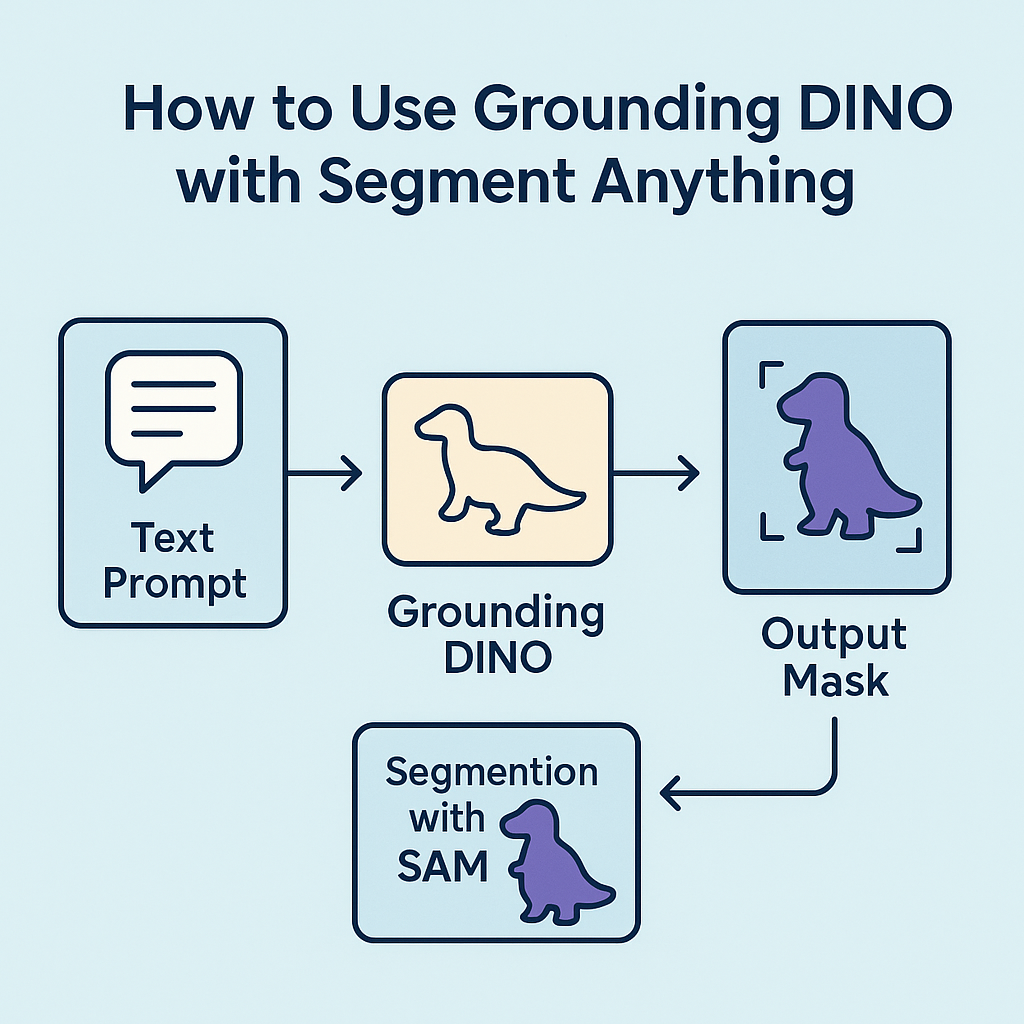
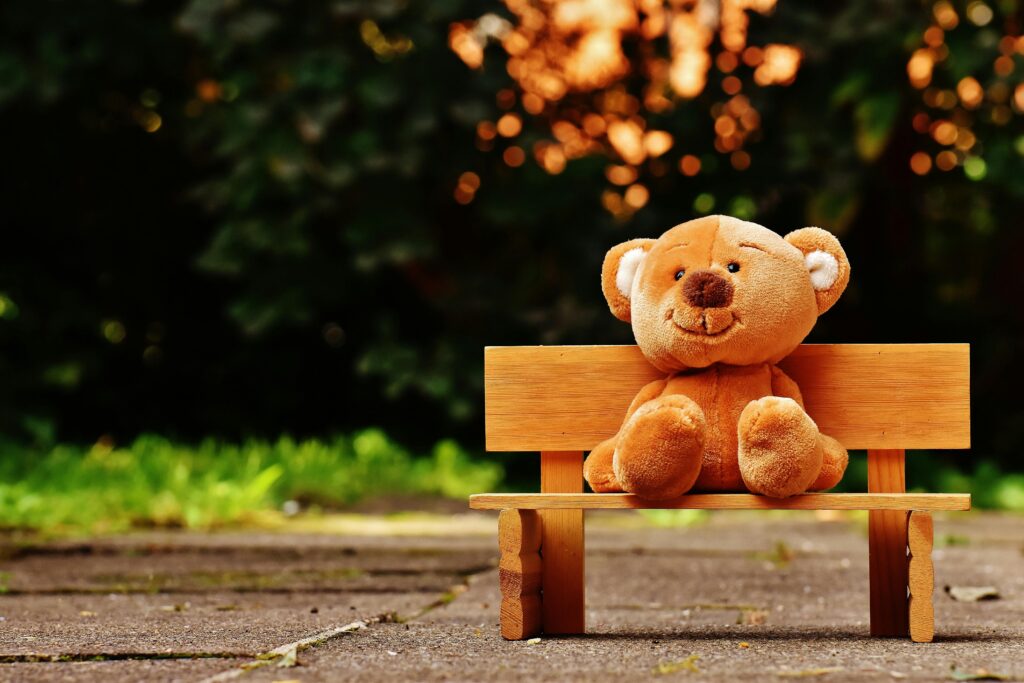
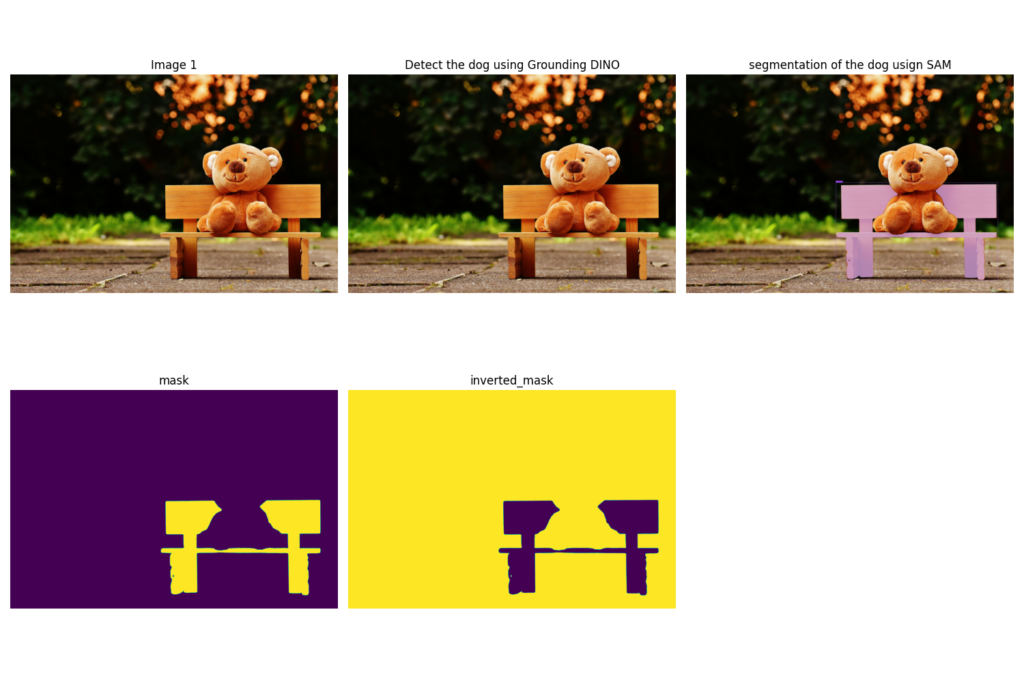
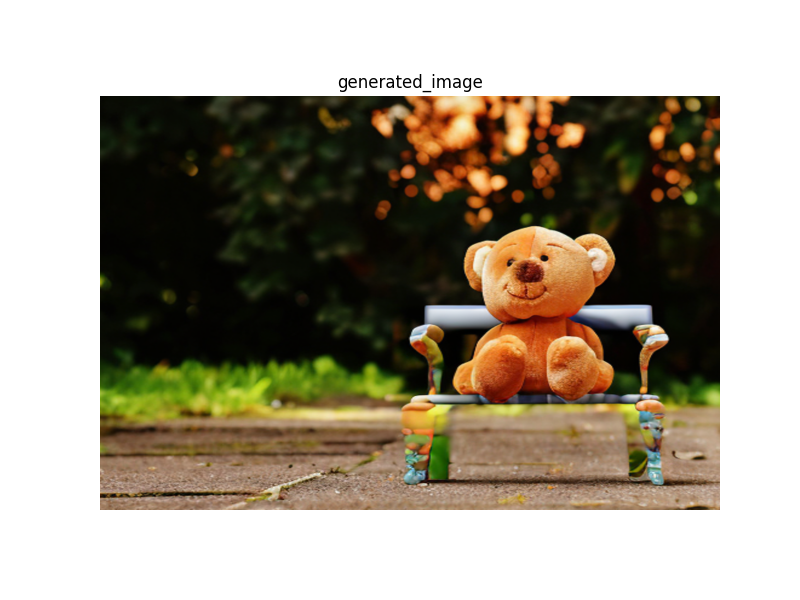
How to Use Grounding DINO with Segment Anything Tutorial / Image Segmentation, Python Cool Stuff Contents hide 1 Introduction 2 Why “grounding dino segment anything tutorial” Matters 3 Let’s Walk Through What the Code Is Actually Doing 3.1 Master Computer Vision 4 Introduction 5 Setting up the environment and installing Grounded-Segment-Anything 6 Step 1 : Loading the models and testing your first image 7 Step 2 : Detecting objects in the image with Grounding DINO 8 Step 3 : Segmenting detected objects with SAM and preparing masks 9 Step 4 – Generating a new image with Stable Diffusion inpainting 10 FAQ: Grounding DINO Segment Anything Tutorial 10.1 What is this grounding dino segment anything tutorial about? 10.2 Why use Grounding DINO for detection? 10.3 How does Segment Anything help in this workflow? 10.4 What role does Stable Diffusion play here? 10.5 Do I need to retrain any models to follow this tutorial? 10.6 Is this pipeline suitable for beginners in computer vision? 10.7 Can I use different prompts for detection and inpainting? 10.8 What if the model fails to detect my object? 10.9 Can this method be used for object removal only? 10.10 Is it possible to adapt this for batch processing of many images? 11 Wrapping Up the Grounding DINO Segment Anything Tutorial 11.1 Connect : Last Updated on 22/04/2026 by Eran Feit Introduction In the world of AI-powered computer vision, combining detection, segmentation, and creative editing in a single pipeline is a major breakthrough. The grounding dino segment anything tutorial introduces precisely such a workflow — allowing you to detect arbitrary objects described in text, segment them precisely, and even manipulate them (for example via inpainting or replacement). This opens a door to powerful applications: from automated annotation and image editing to creative content generation or smart filtering of images. At the core of this approach are two complementary models. The first is Grounding DINO, a state-of-the-art open-set object detection model that accepts free-form text prompts (e.g. “a red car”, “a person wearing a hat”) and outputs bounding boxes around matching objects — even objects that were never explicitly labeled in its training data. The second is Segment Anything Model (SAM), which takes bounding boxes (or other prompts) and generates detailed pixel-level segmentation masks. By merging Grounding DINO’s detection with SAM’s segmentation — the “grounded-segment-anything” pipeline — you get a flexible, zero-shot, prompt-driven tool: you describe what you want, and the system detects and masks it automatically. This pipeline also forms the foundation for other advanced tasks, such as automatic dataset annotation or targeted image editing. In this blog post, we’ll walk you through exactly how this pipeline works, how to install and set up all needed components (Grounding DINO, SAM, and optional inpainting tools), and show you how to run a full end-to-end example: detect → segment → mask → (optionally) edit or replace. Whether you’re building a computer-vision project, curating a dataset, or experimenting with AI-based image editing — this is your guide to get started. Why “grounding dino segment anything tutorial” Matters This “grounding dino segment anything tutorial” approach represents an important shift away from traditional, narrowly-trained object detectors and manual segmentation. Traditional models learn a fixed set of classes (e.g. “car,” “person,” “dog”), so to detect or segment a new object you typically need to collect data, label it, and retrain the model — a time-consuming, labor-intensive process. Grounding DINO changes this paradigm by making detection open-set and text-driven. That means you can ask the model to look for virtually any object the model can understand from its pre-training, using natural language — with no extra training required. When paired with SAM, the model doesn’t just draw rough boxes — it generates accurate segmentation masks. This allows for instance-level segmentation even for unseen object categories. Because of this flexibility, the pipeline is ideal for: Zero-shot dataset annotation — auto-label images without manual bounding-box drawing or mask painting Smart image editing — detect an object via text (e.g. “a dog”), isolate it, then mask, remove, or modify it using inpainting or generative models Rapid prototyping — create segmentation-based projects (e.g. background removal, object-based manipulation) with minimal data preparation In short: this tutorial enables a versatile, powerful, human-prompt driven vision pipeline — a major convenience and productivity boost for developers, artists, and researchers alike. More tutorials to get started with segmentation Segment Anything Python — No-Training Image Masks This post shows how to use SAM on its own to generate high-quality masks automatically, which is a great foundation before combining it with Grounding DINO. Segment Anything Tutorial: Fast Auto Masks in Python Here you walk through a focused Segment Anything tutorial that complements this pipeline by deepening your understanding of SAM’s mask generation. One-Click Segment Anything in Python (SAM ViT-H) This article explores a one-click SAM workflow that resonates with the segmentation step in your grounding dino segment anything tutorial. Subscription FormSend me tutorials Segment Anything When you first look at the grounding dino segment anything tutorial, it can feel like a lot of moving parts: WSL, CUDA, Conda, Grounded-Segment-Anything, Grounding DINO, SAM, Stable Diffusion and more. The goal of this tutorial is to turn that complex stack into a clear, reproducible pipeline that you can run locally. Instead of just explaining theory, the code walks you step by step from environment setup to real image results, so you can actually see objects being detected, segmented and transformed on your own machine. The heart of the tutorial is the way it stitches multiple state-of-the-art models together with Python. Grounding DINO handles the text-prompted object detection, SAM (Segment Anything) is responsible for pixel-perfect masks, and Stable Diffusion inpainting uses those masks to generate new content in place of the original object. The code you wrote is not just “run a model on an image”; it is a full pipeline that shows how to pass data between models correctly and visualize each stage. Another important focus of the tutorial is practicality. The code is written to be copy-paste friendly: from installing the right Python version in a dedicated Conda environment, to loading checkpoints from disk, to making sure everything runs on GPU when available. It includes plotting with Matplotlib and drawing with OpenCV so that every significant step—original image, detected boxes, segmentation masks, and final generated image—is displayed clearly. This makes the notebook not only a tool for experimentation, but also a teaching resource for others learning advanced computer vision workflows. Ultimately, the tutorial code turns the abstract idea of “text-prompted detection and segmentation” into something concrete and repeatable. By the end, the reader can go from a single input image and a simple phrase like “a bench” or “a teddy bear” to a complete sequence: detect that object, segment it, build a binary mask, invert it if needed and finally use inpainting to replace or redesign it. That is the real power behind this grounding dino segment anything tutorial: it teaches both what is possible and exactly how to implement it in Python. Let’s Walk Through What the Code Is Actually Doing The code in this tutorial is designed with one clear target: to build an end-to-end pipeline that detects an object from a text prompt, segments it precisely and then uses that segmentation to modify the image with inpainting. Instead of focusing on a single library, the code shows how to orchestrate several powerful tools so they behave like one coherent system. It starts from raw environment setup and ends with a side-by-side visual comparison of the original image and the generated result. First, the code prepares the environment and loads all the models you need. It configures CUDA so the GPU is used when available, clones the Grounded-Segment-Anything repository, and installs the required Python dependencies. Then it loads the Grounding DINO checkpoint and configuration, builds the detection model, and initializes SAM with the ViT-H checkpoint. At the same time, it sets up the Stable Diffusion inpainting pipeline so that, later on, the segmentation masks can be used directly as inpainting masks. This stage ensures all components are ready and agree on device placement (CPU or GPU). Next, the code focuses on detection and segmentation. For detection, it defines a helper function that takes the loaded image and a text prompt (for example, “a bench” or “a teddy bear”), runs Grounding DINO to predict bounding boxes, converts those boxes into pixel coordinates, and draws them on a copy of the original image. This gives a clear visual confirmation that the right object has been found. For segmentation, another helper function passes those same boxes into SAM, transforms them into the correct format, and requests masks corresponding to the detected object. A drawing function then overlays the mask on top of the annotated frame so you can see the segmented region clearly. Finally, the code turns segmentation into image generation. It converts the SAM mask into a binary image, optionally inverts it, and feeds both the original image and the mask into the Stable Diffusion inpainting pipeline along with a text prompt that describes the new object you want to appear (for example, a “cyberpunk sofa”). The pipeline runs, returns a generated image and the code resizes it back to the original resolution. Plotting functions display the entire story: original image, detection, segmentation, mask, inverted mask and the final generated image. At a high level, the target of the code is to teach you how to build this multi-model workflow from scratch—so that, starting from a simple prompt, you can detect, segment and transform almost any object in an image. Grounding DINO Link to the video tutorial : https://youtu.be/aqeWl5EtVt4 You can find the instructions code and the demo files here : https://eranfeit.lemonsqueezy.com/buy/9df13e7f-0125-4354-9922-7eb76e356cae or here : https://ko-fi.com/s/6c91c35e35 Link for the post for Medium users : https://medium.com/image-segmentation-tutorials/how-to-use-grounding-dino-with-segment-anything-tutorial-6a7d64306b60 TRY IT NOW Master Computer Vision Follow my latest tutorials and AI insights on my Personal Blog. Beginner Complete CV Bootcamp Foundation using PyTorch & TensorFlow. Get Started → Interactive Deep Learning with PyTorch Hands-on practice in an interactive environment. Start Learning → Advanced Modern CV: GPT & OpenCV4 Vision GPT and production-ready models. Go Advanced → Introduction When you build a full grounding dino segment anything tutorial, the real magic is not in a single model, but in the way multiple models work together.In this project, you connect Grounding DINO for text-prompted object detection, SAM (Segment Anything) for pixel-perfect masks, and Stable Diffusion for inpainting so that you can detect, segment, and then creatively modify objects inside an image.The code walks through everything from environment setup on WSL, through loading checkpoints, all the way to visualizing detections, masks, and the final generated image. This tutorial is designed so that a reader can copy the code into their own environment and reproduce your pipeline step by step.You start by configuring CUDA on a Linux subsystem, cloning the Grounded-Segment-Anything repository, and setting up a dedicated Conda environment.From there, you load Grounding DINO from Hugging Face, load the SAM ViT-H checkpoint, and initialize Stable Diffusion’s inpainting pipeline.Once everything is wired together, a simple text prompt like “a bench” or “a teddy bear” becomes a full workflow: detect the object, segment it, build a mask, invert the mask if needed, and then generate a brand-new visual result. The goal of this blog post is to make that complete journey clear and approachable.We’ll break the code into focused parts so readers can understand what each block does: environment setup, model loading, detection, segmentation, and image generation.Each Python command is explained in natural language right above it so newcomers can follow along, while advanced users can scan quickly and adapt the code to their own projects.By the end, readers will have a working pipeline and a deeper understanding of how Grounding DINO, SAM, and Stable Diffusion fit together in a modern, prompt-driven computer-vision workflow. Setting up the environment and installing Grounded-Segment-Anything In this first part, we prepare the environment needed to run your grounding dino segment anything tutorial.The focus here is practical: starting a WSL Linux machine, configuring CUDA, cloning the Grounded-Segment-Anything repository, and creating a fresh Conda environment where everything lives.You then install all the necessary Python packages, including supervision and the local GroundingDINO and segment_anything modules.Finally, you open VS Code pointed to the right folder so you can comfortably edit and run the tutorial files. ### Open PowerShell as Administrator and start your WSL Linux machine. wsl.exe ### (Comment) You can follow Microsoft’s guide to install WSL on Windows if it’s not installed yet. # How to install Linux on Windows with WSL : https://learn.microsoft.com/en-us/windows/wsl/install ### Check whether CUDA_HOME is set in your Linux shell. echo $CUDA_HOME ### If nothing is printed, set the CUDA_HOME path manually so libraries know where CUDA is. export CUDA_HOME=/usr/local/cuda ### Change directory to your chosen working folder inside WSL. cd /mnt/c/Python-Cool-Stuff/ ### Clone the Grounded-Segment-Anything repository from GitHub into your working folder. git clone https://github.com/IDEA-Research/Grounded-Segment-Anything ### Move into the Grounded-Segment-Anything project directory. cd Grounded-Segment-Anything ### Create a new Conda environment named GSA4 with Python 3.12. conda create -n GSA4 python=3.12 ### Activate the new Conda environment so all installs happen inside it. conda activate GSA4 ### Install all Python dependencies listed in the repository’s requirements file. pip install -r requirements.txt ### Install IPython to get a richer interactive Python experience. pip install Ipython ### Install the supervision library at version 0.21.0 for annotation and visualization utilities. pip install supervision==0.21.0 ### Move into the GroundingDINO subfolder so we can install it as a local package. cd Grounded-Segment-Anything/GroundingDINO ### Install GroundingDINO in editable mode so we can import it as a module. pip install -q . ### Go back up to the Grounded-Segment-Anything root directory. cd .. ### Move into the segment_anything folder to install SAM as a local package. cd Grounded-Segment-Anything/segment_anything ### Install the Segment Anything package (SAM) in editable mode. pip install -q . ### (Comment) Download the ViT-H SAM model checkpoint and place it in the main segment_anything folder. # Download the "ViT-H SAM model" model from this url , and put it in the main segment_anything folder : # https://dl.fbaipublicfiles.com/segment_anything/sam_vit_h_4b8939.pth ### Go back to the parent 'Python-Cool-Stuff' folder where you keep your projects. cd /mnt/c/Python-Cool-Stuff/ ### (Comment) Install VS Code for Linux if you haven’t already. # 7.5 Install Vscode . This is the link : https://code.visualstudio.com/docs/setup/linux ### Launch VS Code from the terminal in the current folder. code . ### Inside VS Code, choose the 'Python-Cool-Stuff' folder as your workspace. # The path in my case is : "/mnt/c/Python-Cool-Stuff/" ### Copy your Python tutorial files into the Grounded-Segment-Anything main folder and get ready to run steps 1–5. # Copy the the Python code the main folder Grounded-Segment-Anything and start run Step1 to Step 5 After this part, your environment is ready.You have WSL, CUDA, a clean Conda environment, all dependencies installed, and VS Code pointed to the right project folder.Now you can start writing and running Python code that loads models and processes images. Step 1 : Loading the models and testing your first image In this part, you load all the major models: Grounding DINO for detection, SAM for segmentation, and the Stable Diffusion inpainting pipeline.You also set up imports, device selection, and a simple visualization to confirm that the image loads correctly.This section is about wiring all the components together so later parts can just reuse the initialized models. Here is the test image : Test Image ### Import OS and sys so we can manipulate paths and Python search directories. import os, sys ### Add the GroundingDINO subfolder to the Python path so we can import it as a module. sys.path.append(os.path.join(os.getcwd(), "GroundingDINO")) ### Import argparse for potential command-line argument handling. import argparse ### Import copy in case we want to duplicate Python objects safely. import copy ### Import display to show images directly in notebooks if needed. from IPython.display import display ### Import PIL’s Image, ImageDraw, and ImageFont classes for image manipulation and drawing. from PIL import Image, ImageDraw, ImageFont ### Import box_convert from torchvision to convert bounding boxes between formats. from torchvision.ops import box_convert ### Import the transforms module from GroundingDINO for preprocessing images. import GroundingDINO.groundingdino.datasets.transforms as T ### Import the model-building function from GroundingDINO. from GroundingDINO.groundingdino.models import build_model ### Import box operations (e.g., conversions and IoU) from GroundingDINO utilities. from GroundingDINO.groundingdino.util import box_ops ### Import the SLConfig class to load model configuration files. from GroundingDINO.groundingdino.util.slconfig import SLConfig ### Import helper functions to clean state dicts and extract phrases from position maps. from GroundingDINO.groundingdino.util.utils import clean_state_dict, get_phrases_from_posmap ### Import annotate, load_image, and predict helpers for inference from GroundingDINO. from GroundingDINO.groundingdino.util.inference import annotate, load_image, predict ### Import the supervision library as sv (used for drawing annotations and overlays). import supervision as sv ### Import SAM builder and predictor classes. from segment_anything import build_sam, SamPredictor ### Import OpenCV for image reading, color conversion, and drawing. import cv2 ### Import NumPy for numerical operations on arrays and masks. import numpy as np ### Import Matplotlib for plotting images and visualizations. import matplotlib.pyplot as plt ### Import the core PIL package for compatibility. import PIL ### Import requests in case we want to fetch remote resources like images. import requests ### Import torch as the deep-learning framework backing all models here. import torch ### Import BytesIO to handle in-memory byte streams if needed. from io import BytesIO ### Import the Stable Diffusion inpainting pipeline from diffusers. from diffusers import StableDiffusionInpaintPipeline ### Import hf_hub_download to fetch weights and configs from Hugging Face Hub. from huggingface_hub import hf_hub_download ### Select the device: use CUDA if available, otherwise fall back to CPU. device = torch.device('cuda' if torch.cuda.is_available() else 'cpu') ### Define a helper to load the Grounding DINO model from Hugging Face. def load_model_hf(repo_id, filename, ckpt_config_filename, device='cpu'): ### Download the configuration file for Grounding DINO from Hugging Face. cache_config_file = hf_hub_download(repo_id=repo_id, filename=ckpt_config_filename) ### Load the configuration into an SLConfig instance. args = SLConfig.fromfile(cache_config_file) ### Set the target device in the configuration. args.device = device ### Build the Grounding DINO model from the configuration. model = build_model(args) ### Download the model checkpoint file from Hugging Face. cache_file = hf_hub_download(repo_id=repo_id, filename=filename) ### Load the checkpoint into memory, mapping it to the selected device. checkpoint = torch.load(cache_file, map_location=device) ### Clean and load the state dict into the model, capturing any log info. log = model.load_state_dict(clean_state_dict(checkpoint['model']), strict=False) ### Print a confirmation so we know the model was loaded successfully. print("Model loaded from {} \n => {}".format(cache_file, log)) ### Put the model into evaluation mode (no gradients). _ = model.eval() ### Return the ready-to-use model. return model ### Set the repository ID where the Grounding DINO model is hosted. ckpt_repo_id = "ShilongLiu/GroundingDINO" ### Set the checkpoint filename for the Grounding DINO swinb model. ckpt_filenmae = "groundingdino_swinb_cogcoor.pth" ### Set the configuration filename for the Grounding DINO SwinB model. ckpt_config_filename = "GroundingDINO_SwinB.cfg.py" ### Load the Grounding DINO model using the helper and move it to the selected device. groundingdino_model = load_model_hf(ckpt_repo_id, ckpt_filenmae, ckpt_config_filename, device) ### Define the path to the SAM ViT-H checkpoint relative to the project. sam_checkpoint = 'Grounded-Segment-Anything/sam_vit_h_4b8939.pth' ### Build a SAM model from the checkpoint and wrap it in a SamPredictor on the chosen device. sam_predictor = SamPredictor(build_sam(checkpoint=sam_checkpoint).to(device)) ### Initialize the Stable Diffusion inpainting pipeline from the specified pretrained model. sd_pipe = StableDiffusionInpaintPipeline.from_pretrained( "stabilityai/stable-diffusion-2-inpainting", torch_dtype=torch.float16, ).to(device) ### Set the path to a local test image inside the Grounded-Segment-Anything folder. local_image_path = "Grounded-Segment-Anything/a.jpg" ### Use GroundingDINO’s load_image helper to read the image and prepare it. image_source, image = load_image(local_image_path) ### Convert the loaded NumPy image to a PIL Image for quick inspection if needed. Image.fromarray(image_source) ### Read the same image with OpenCV for plotting and further processing. img = cv2.imread(local_image_path) ### Convert the OpenCV image from BGR to RGB for Matplotlib display. image1_rgb = cv2.cvtColor(img, cv2.COLOR_BGR2RGB) ### Create a square Matplotlib figure to display the image. plt.figure(figsize=(10, 10)) ### Show the RGB image on the figure. plt.imshow(image1_rgb) ### Give the plot a simple title so viewers know what they are seeing. plt.title('Image 1') ### Hide the axis ticks and labels for a cleaner visualization. plt.axis('off') ### Render the plot to the screen or notebook. plt.show() ### Close any OpenCV windows that might be open. cv2.destroyAllWindows() At this point, the models are loaded and you’ve verified that the test image can be opened and displayed.The rest of the tutorial builds on this foundation to detect objects, segment them, and finally generate new content using inpainting. Step 2 : Detecting objects in the image with Grounding DINO Now that the models are loaded, this part focuses on detection.You define a detect function that takes a text prompt (like “a teddy bear”), runs Grounding DINO, converts bounding boxes to a pixel format, and draws them onto the image using OpenCV.The resulting annotated frame lets readers see exactly which object the model has identified based on the text prompt. ### Import OS and sys again for this script so we can manage paths (kept as-is for this step file). import os, sys ### Add the GroundingDINO folder to the Python path so imports work. sys.path.append(os.path.join(os.getcwd(), "GroundingDINO")) ### Import argparse if you want to extend this script into a CLI later. import argparse ### Import copy to duplicate Python objects if needed. import copy ### Import display to show intermediate images in notebook environments. from IPython.display import display ### Import PIL primitives for image handling and drawing overlays. from PIL import Image, ImageDraw, ImageFont ### Import box_convert again to convert bounding boxes between coordinate formats. from torchvision.ops import box_convert ### Import GroundingDINO transforms for preprocessing. import GroundingDINO.groundingdino.datasets.transforms as T ### Import the GroundingDINO model builder. from GroundingDINO.groundingdino.models import build_model ### Import box operations utilities again for consistency. from GroundingDINO.groundingdino.util import box_ops ### Import SLConfig to load model configuration files. from GroundingDINO.groundingdino.util.slconfig import SLConfig ### Import helpers for cleaning state dicts and phrase extraction. from GroundingDINO.groundingdino.util.utils import clean_state_dict, get_phrases_from_posmap ### Import annotate, load_image, and predict helpers. from GroundingDINO.groundingdino.util.inference import annotate, load_image, predict ### Import supervision under the alias sv again for annotating. import supervision as sv ### Import SAM builder and predictor. from segment_anything import build_sam, SamPredictor ### Import OpenCV for drawing rectangles and displaying images. import cv2 ### Import NumPy for array manipulation. import numpy as np ### Import Matplotlib for side-by-side comparison plots. import matplotlib.pyplot as plt ### Import PIL root module for compatibility. import PIL ### Import requests in case of future network calls. import requests ### Import torch as the deep-learning framework. import torch ### Import BytesIO for in-memory byte handling. from io import BytesIO ### Import the Stable Diffusion inpainting pipeline again for this script. from diffusers import StableDiffusionInpaintPipeline ### Import hf_hub_download to fetch Grounding DINO assets. from huggingface_hub import hf_hub_download ### Choose CUDA if available, otherwise CPU for running models. device = torch.device('cuda' if torch.cuda.is_available() else 'cpu') ### Define the helper to load Grounding DINO from Hugging Face. def load_model_hf(repo_id, filename, ckpt_config_filename, device='cpu'): ### Download the configuration file for the Grounding DINO model. cache_config_file = hf_hub_download(repo_id=repo_id, filename=ckpt_config_filename) ### Load configuration into an SLConfig instance. args = SLConfig.fromfile(cache_config_file) ### Set the device in the configuration to CUDA or CPU. args.device = device ### Build the Grounding DINO model from its configuration. model = build_model(args) ### Download the checkpoint file containing trained weights. cache_file = hf_hub_download(repo_id=repo_id, filename=filename) ### Load the checkpoint into memory, mapping it to the selected device. checkpoint = torch.load(cache_file, map_location=device) ### Load the state dict into the model and log any missing or unexpected keys. log = model.load_state_dict(clean_state_dict(checkpoint['model']), strict=False) ### Print confirmation that the model has loaded correctly. print("Model loaded from {} \n => {}".format(cache_file, log)) ### Put the model into evaluation mode for inference. _ = model.eval() ### Return the ready model instance. return model ### Set repository ID for Grounding DINO. ckpt_repo_id = "ShilongLiu/GroundingDINO" ### Set checkpoint filename for the swinb model. ckpt_filenmae = "groundingdino_swinb_cogcoor.pth" ### Set config filename for the SwinB backbone. ckpt_config_filename = "GroundingDINO_SwinB.cfg.py" ### Load Grounding DINO model. groundingdino_model = load_model_hf(ckpt_repo_id, ckpt_filenmae, ckpt_config_filename, device) ### Define SAM checkpoint path. sam_checkpoint = 'Grounded-Segment-Anything/sam_vit_h_4b8939.pth' ### Initialize SAM predictor on the chosen device. sam_predictor = SamPredictor(build_sam(checkpoint=sam_checkpoint).to(device)) ### Initialize Stable Diffusion inpainting pipeline again. sd_pipe = StableDiffusionInpaintPipeline.from_pretrained( "stabilityai/stable-diffusion-2-inpainting", torch_dtype=torch.float16, ).to(device) ### Set path to the local image we want to process. local_image_path = "Grounded-Segment-Anything/a.jpg" # local_image_path= "Grounded-Segment-Anything/assets/inpaint_demo.jpg" ### Load the image using GroundingDINO helper. image_source, image = load_image(local_image_path) ### Convert the raw image source to a PIL Image for quick inspection. Image.fromarray(image_source) ### Define a function to detect objects with Grounding DINO given a text prompt. def detect(image_source, image, text_prompt, model, box_threshold=0.3, text_threshold=0.25, box_thickness=30): ### Make sure image_source is writable by creating a copy. image_source = np.array(image_source).copy() ### Run prediction with Grounding DINO using the provided caption and thresholds. boxes, logits, phrases = predict( model=model, image=image, caption=text_prompt, box_threshold=box_threshold, text_threshold=text_threshold ) ### Print raw detected boxes for debugging. print("****** Detected boxes (raw):", boxes) ### If no boxes are detected, report it and return early. if len(boxes) == 0: print("No boxes detected.") return image_source, boxes ### Convert boxes from (cx, cy, w, h) to (xmin, ymin, xmax, ymax). boxes = box_convert(boxes, in_fmt="cxcywh", out_fmt="xyxy") ### Print converted boxes for debugging. print("****** Converted boxes (xyxy):", boxes) ### Get height and width of the image for scaling. height, width, _ = image_source.shape ### Loop over each detected box. for box in boxes: ### Scale normalized box coordinates to absolute pixel coordinates. x_min, y_min, x_max, y_max = (box * torch.tensor([width, height, width, height])).tolist() ### Skip boxes that fall outside the image bounds. if x_min < 0 or y_min < 0 or x_max > width or y_max > height: print(f"Box out of bounds: {box}") continue ### Print the final coordinates of the box being drawn. print(f"Drawing box: {x_min, y_min, x_max, y_max}") ### Build the starting point (top-left) of the rectangle. start_point = (int(x_min), int(y_min)) ### Build the ending point (bottom-right) of the rectangle. end_point = (int(x_max), int(y_max)) ### Choose red as the rectangle color in BGR. color = (0, 0, 255) ### Set rectangle thickness (in pixels). thickness = box_thickness ### Draw the rectangle on the image with OpenCV. image_source = cv2.rectangle(image_source, start_point, end_point, color, thickness) ### Return the annotated frame and the raw boxes. return image_source, boxes ### Run detection on the test image using the text prompt "a teddy bear". annotated_frame, detected_boxes = detect(image_source, image, text_prompt="a teddy bear", model=groundingdino_model) ### Convert the annotated frame into a PIL image for display. Image.fromarray(annotated_frame) ### Read the original image again with OpenCV for side-by-side visualization. img = cv2.imread(local_image_path) ### Convert BGR image to RGB for plotting. image1_rgb = cv2.cvtColor(img, cv2.COLOR_BGR2RGB) ### Create a Matplotlib figure for two subplots. plt.figure(figsize=(10, 5)) ### Show the original image in the first subplot. plt.subplot(1, 2, 1) plt.imshow(image1_rgb) plt.title('Image 1') plt.axis('off') ### Show the annotated image with detection box in the second subplot. plt.subplot(1, 2, 2) plt.imshow(annotated_frame) plt.title('Image 2') plt.axis('off') ### Render the side-by-side comparison. plt.show() ### Close any OpenCV windows. cv2.destroyAllWindows() In this part, your readers learn how Grounding DINO takes a text query, finds matching objects, and overlays bounding boxes on the image.The result is a clear visual validation that the detector understands the user’s text prompt. Explore more Grounding DINO and detection workflows Automatic Image Annotation With Autodistill And YOLOv8 This tutorial uses Grounding DINO behind the scenes for automatic labeling, which pairs nicely with your text-prompted detection example here. How To Use YOLOv8 For Object Detection On YouTube Videos It shows how to build a full detection pipeline on real videos, a natural next step after learning open-set detection with Grounding DINO. YOLOv8 Small Object Detection With SAHI In Python This post covers advanced detection of tiny objects, helping you compare standard detectors with Grounding DINO’s open-set capabilities. Step 3 : Segmenting detected objects with SAM and preparing masks Once you can detect an object, the next step is to segment it precisely.This part reuses the detection logic but adds a segment function that passes the detected boxes to SAM and retrieves a mask.You then blend that mask onto the annotated frame and create both a binary mask and its inverted version so the masks can be used later for inpainting. ### Import OS and sys for path handling in this separate script file. import os, sys ### Add the GroundingDINO folder to sys.path again for imports. sys.path.append(os.path.join(os.getcwd(), "GroundingDINO")) ### Import argparse for optional CLI extensions. import argparse ### Import copy in case you want to clone objects. import copy ### Import display for notebook-friendly image display. from IPython.display import display ### Import PIL primitives for image and drawing. from PIL import Image, ImageDraw, ImageFont ### Import box_convert again for bounding box conversion. from torchvision.ops import box_convert ### Import GroundingDINO transforms. import GroundingDINO.groundingdino.datasets.transforms as T ### Import GroundingDINO model builder. from GroundingDINO.groundingdino.models import build_model ### Import GroundingDINO box operations utilities. from GroundingDINO.groundingdino.util import box_ops ### Import SLConfig configuration loader. from GroundingDINO.groundingdino.util.slconfig import SLConfig ### Import GroundingDINO utility methods for state dict cleaning and phrase extraction. from GroundingDINO.groundingdino.util.utils import clean_state_dict, get_phrases_from_posmap ### Import inference helpers from GroundingDINO. from GroundingDINO.groundingdino.util.inference import annotate, load_image, predict ### Import supervision for annotations. import supervision as sv ### Import SAM builder and predictor for segmentation. from segment_anything import build_sam, SamPredictor ### Import OpenCV again for image I/O and drawing. import cv2 ### Import NumPy for array handling. import numpy as np ### Import Matplotlib for visualization. import matplotlib.pyplot as plt ### Import PIL core module. import PIL ### Import requests if needed for remote resources. import requests ### Import torch as the deep-learning framework. import torch ### Import BytesIO for byte stream handling. from io import BytesIO ### Import Stable Diffusion inpainting pipeline again. from diffusers import StableDiffusionInpaintPipeline ### Import hf_hub_download to get model files. from huggingface_hub import hf_hub_download ### Choose device based on CUDA availability. device = torch.device('cuda' if torch.cuda.is_available() else 'cpu') ### Define the Grounding DINO loading helper again for this script. def load_model_hf(repo_id, filename, ckpt_config_filename, device='cpu'): ### Download Grounding DINO configuration file. cache_config_file = hf_hub_download(repo_id=repo_id, filename=ckpt_config_filename) ### Load configuration via SLConfig. args = SLConfig.fromfile(cache_config_file) ### Set target device in configuration. args.device = device ### Build model from configuration. model = build_model(args) ### Download checkpoint file with weights. cache_file = hf_hub_download(repo_id=repo_id, filename=filename) ### Load checkpoint mapping to the selected device. checkpoint = torch.load(cache_file, map_location=device) ### Load weights into the model, capturing any log details. log = model.load_state_dict(clean_state_dict(checkpoint['model']), strict=False) ### Print load confirmation with log of missing/unexpected keys. print("Model loaded from {} \n => {}".format(cache_file, log)) ### Switch to eval mode for inference. _ = model.eval() ### Return the model instance. return model ### Set repo ID for Grounding DINO. ckpt_repo_id = "ShilongLiu/GroundingDINO" ### Set checkpoint filename. ckpt_filenmae = "groundingdino_swinb_cogcoor.pth" ### Set config filename for SwinB model. ckpt_config_filename = "GroundingDINO_SwinB.cfg.py" ### Load Grounding DINO model. groundingdino_model = load_model_hf(ckpt_repo_id, ckpt_filenmae, ckpt_config_filename, device) ### Define SAM checkpoint path. sam_checkpoint = 'Grounded-Segment-Anything/sam_vit_h_4b8939.pth' ### Initialize SAM predictor. sam_predictor = SamPredictor(build_sam(checkpoint=sam_checkpoint).to(device)) ### Initialize Stable Diffusion inpainting pipeline. sd_pipe = StableDiffusionInpaintPipeline.from_pretrained( "stabilityai/stable-diffusion-2-inpainting", torch_dtype=torch.float16, ).to(device) ### Set local image path to be processed. local_image_path = "Grounded-Segment-Anything/a.jpg" # local_image_path= "Grounded-Segment-Anything/assets/inpaint_demo.jpg" ### Load image via GroundingDINO helper. image_source, image = load_image(local_image_path) ### Convert the NumPy array to a PIL image for quick inspection. Image.fromarray(image_source) ### Define detection function that draws rectangles and returns original boxes. def detect(image_source, image, text_prompt, model, box_threshold=0.3, text_threshold=0.25, box_thickness=30): ### Copy image_source to ensure it is writable. image_source = np.array(image_source).copy() ### Run Grounding DINO prediction with given thresholds and caption. boxes, logits, phrases = predict( model=model, image=image, caption=text_prompt, box_threshold=box_threshold, text_threshold=text_threshold ) ### Log raw detected boxes. print("****** Detected boxes (raw):", boxes) ### If there are no boxes, return the unmodified image and empty boxes. if len(boxes) == 0: print("No boxes detected.") return image_source, boxes ### Convert boxes to xyxy for later scaling. boxes2 = box_convert(boxes, in_fmt="cxcywh", out_fmt="xyxy") ### Print converted boxes for debugging. print("****** Converted boxes (xyxy):", boxes) ### Grab image height and width for scaling. height, width, _ = image_source.shape ### Loop through each box to draw it. for box in boxes2: ### Scale normalized box coordinates to absolute pixels. x_min, y_min, x_max, y_max = (box * torch.tensor([width, height, width, height])).tolist() ### Skip out-of-bounds boxes. if x_min < 0 or y_min < 0 or x_max > width or y_max > height: print(f"Box out of bounds: {box}") continue ### Log coordinates of the box being drawn. print(f"Drawing box: {x_min, y_min, x_max, y_max}") ### Define top-left corner. start_point = (int(x_min), int(y_min)) ### Define bottom-right corner. end_point = (int(x_max), int(y_max)) ### Red color in BGR format. color = (0, 0, 255) ### Thickness in pixels. thickness = box_thickness ### Draw rectangle on image_source. image_source = cv2.rectangle(image_source, start_point, end_point, color, thickness) ### Return the annotated frame and original boxes (cxcywh format). return image_source, boxes ### Run detection for "a bench" as the text prompt. annotated_frame, detected_boxes = detect(image_source, image, text_prompt="a bench", model=groundingdino_model) ### Convert annotated frame to PIL for visualization. Image.fromarray(annotated_frame) ### Define segmentation helper that uses SAM to produce masks from boxes. def segment(image, sam_model, boxes): ### Set the current image inside the SAM predictor. sam_model.set_image(image) ### Extract image height, width, and channels. H, W, _ = image.shape ### Convert boxes from center-based format to xyxy and scale with W, H. boxes_xyxy = box_ops.box_cxcywh_to_xyxy(boxes) * torch.Tensor([W, H, W, H]) ### Transform boxes into SAM’s internal coordinate system. transformed_boxes = sam_model.transform.apply_boxes_torch(boxes_xyxy.to(device), image.shape[:2]) ### Ask SAM to predict masks based on the transformed boxes. masks, _, _ = sam_model.predict_torch( point_coords = None, point_labels = None, boxes = transformed_boxes, multimask_output = False, ) ### Return masks on CPU for easier processing. return masks.cpu() ### Define helper to overlay a mask onto an image with a colored transparency. def draw_mask(mask, image, random_color=True): ### If random_color is True, sample a random color with alpha channel. if random_color: color = np.concatenate([np.random.random(3), np.array([0.8])], axis=0) else: ### Otherwise, use a fixed blue-ish color with alpha. color = np.array([30/255, 144/255, 255/255, 0.6]) ### Get mask height and width from its shape. h, w = mask.shape[-2:] ### Expand mask to (h, w, 1) and multiply by RGBA color. mask_image = mask.reshape(h, w, 1) * color.reshape(1, 1, -1) ### Convert the base image into an RGBA PIL image. annotated_frame_pil = Image.fromarray(image).convert("RGBA") ### Convert mask_image to a PIL RGBA image. mask_image_pil = Image.fromarray((mask_image.cpu().numpy() * 255).astype(np.uint8)).convert("RGBA") ### Alpha-composite the mask on top of the base image. return np.array(Image.alpha_composite(annotated_frame_pil, mask_image_pil)) ### Run SAM segmentation to produce masks from detected boxes. segmented_frame_masks = segment(image_source, sam_predictor, boxes=detected_boxes) ### Overlay the first mask onto the annotated frame. annotated_frame_with_mask = draw_mask(segmented_frame_masks[0][0], annotated_frame) ### Extract the first mask as a NumPy array. mask = segmented_frame_masks[0][0].cpu().numpy() ### Invert the mask so that background and foreground are swapped. inverted_mask = ((1 - mask) * 255).astype(np.uint8) ### Read original image again using OpenCV. img = cv2.imread(local_image_path) ### Convert BGR to RGB for visualization. image1_rgb = cv2.cvtColor(img, cv2.COLOR_BGR2RGB) ### Create a Matplotlib figure with multiple subplots. plt.figure(figsize=(15, 10)) ### Show original image. plt.subplot(2, 3, 1) plt.imshow(image1_rgb) plt.title('Image 1') plt.axis('off') ### Show detection result. plt.subplot(2, 3, 2) plt.imshow(annotated_frame) plt.title('Detect the person using Grounding DINO') plt.axis('off') ### Show segmentation overlay. plt.subplot(2, 3, 3) plt.imshow(annotated_frame_with_mask) plt.title('segmentation of the person usign SAM') plt.axis('off') ### Show binary mask. plt.subplot(2, 3, 4) plt.imshow(mask) plt.title('mask') plt.axis('off') ### Show inverted mask. plt.subplot(2, 3, 5) plt.imshow(inverted_mask) plt.title('inverted_mask') plt.axis('off') ### Improve layout so subplots don’t overlap. plt.tight_layout() ### Render all subplots. plt.show() ### Close any OpenCV windows. cv2.destroyAllWindows() After this part, your readers see the full progression from original image to detection bounding boxes, to colored mask overlays, to raw masks.They now have everything needed to feed masks into an inpainting pipeline. The Result (Working in progress ) : How to Use Grounding DINO with Segment Anything Tutorial 12 Step 4 – Generating a new image with Stable Diffusion inpainting The last part of the pipeline takes the mask produced by SAM and uses it to guide Stable Diffusion inpainting.Your code detects an object (for example, a bench), segments it, creates a mask, and then passes both the original image and the mask to the inpainting pipeline along with a text prompt describing what should appear instead.Finally, you visualize the original image, the masks, and the fully generated image. ### Import OS and sys for path handling in this final script. import os, sys ### Add GroundingDINO folder to Python path. sys.path.append(os.path.join(os.getcwd(), "GroundingDINO")) ### Import argparse for potential CLI arguments. import argparse ### Import copy to duplicate objects where necessary. import copy ### Import display for interactive environments. from IPython.display import display ### Import PIL image and drawing classes. from PIL import Image, ImageDraw, ImageFont ### Import box_convert for bounding box format changes. from torchvision.ops import box_convert ### Import GroundingDINO transforms for preprocessing. import GroundingDINO.groundingdino.datasets.transforms as T ### Import GroundingDINO model builder. from GroundingDINO.groundingdino.models import build_model ### Import box operations utilities. from GroundingDINO.groundingdino.util import box_ops ### Import SLConfig to load configuration files. from GroundingDINO.groundingdino.util.slconfig import SLConfig ### Import GroundingDINO utility functions. from GroundingDINO.groundingdino.util.utils import clean_state_dict, get_phrases_from_posmap ### Import annotate, load_image, and predict inference helpers. from GroundingDINO.groundingdino.util.inference import annotate, load_image, predict ### Import supervision for annotating outputs. import supervision as sv ### Import SAM builder and predictor. from segment_anything import build_sam, SamPredictor ### Import OpenCV for reading images and drawing rectangles. import cv2 ### Import NumPy for mask and array manipulations. import numpy as np ### Import Matplotlib for plotting. import matplotlib.pyplot as plt ### Import PIL top-level module. import PIL ### Import requests if you need to fetch remote resources. import requests ### Import torch as the core deep-learning framework. import torch ### Import BytesIO to work with in-memory byte streams. from io import BytesIO ### Import the inpainting pipeline from diffusers. from diffusers import StableDiffusionInpaintPipeline ### Import hf_hub_download to get Grounding DINO assets. from huggingface_hub import hf_hub_download ### Select device: CUDA or CPU. device = torch.device('cuda' if torch.cuda.is_available() else 'cpu') ### Define helper to load Grounding DINO model from Hugging Face. def load_model_hf(repo_id, filename, ckpt_config_filename, device='cpu'): ### Download Grounding DINO configuration file. cache_config_file = hf_hub_download(repo_id=repo_id, filename=ckpt_config_filename) ### Load configuration settings. args = SLConfig.fromfile(cache_config_file) ### Set device in configuration. args.device = device ### Build model from configuration. model = build_model(args) ### Download checkpoint file containing trained weights. cache_file = hf_hub_download(repo_id=repo_id, filename=filename) ### Load checkpoint into memory. checkpoint = torch.load(cache_file, map_location=device) ### Load weights into model, capturing any missing or unexpected keys. log = model.load_state_dict(clean_state_dict(checkpoint['model']), strict=False) ### Print message confirming successful load. print("Model loaded from {} \n => {}".format(cache_file, log)) ### Set model to evaluation mode. _ = model.eval() ### Return model instance. return model ### Set repo ID for Grounding DINO. ckpt_repo_id = "ShilongLiu/GroundingDINO" ### Set checkpoint filename. ckpt_filenmae = "groundingdino_swinb_cogcoor.pth" ### Set configuration filename. ckpt_config_filename = "GroundingDINO_SwinB.cfg.py" ### Load Grounding DINO model. groundingdino_model = load_model_hf(ckpt_repo_id, ckpt_filenmae, ckpt_config_filename, device) ### Define SAM checkpoint path. sam_checkpoint = 'Grounded-Segment-Anything/sam_vit_h_4b8939.pth' ### Build SAM model and wrap in predictor. sam_predictor = SamPredictor(build_sam(checkpoint=sam_checkpoint).to(device)) ### Initialize Stable Diffusion inpainting pipeline on selected device. sd_pipe = StableDiffusionInpaintPipeline.from_pretrained( "stabilityai/stable-diffusion-2-inpainting", torch_dtype=torch.float16, ).to(device) ### Set the path to the local image to modify. local_image_path = "Grounded-Segment-Anything/a.jpg" # local_image_path= "Grounded-Segment-Anything/assets/inpaint_demo.jpg" ### Load image using GroundingDINO helper. image_source, image = load_image(local_image_path) ### Convert the image source to a PIL image for inspection. Image.fromarray(image_source) ### Define detection helper to produce annotated frame and boxes. def detect(image, text_prompt, model, box_threshold = 0.3, text_threshold = 0.25): ### Run Grounding DINO prediction with a natural-language caption. boxes, logits, phrases = predict( model=model, image=image, caption=text_prompt, box_threshold=box_threshold, text_threshold=text_threshold ) ### Annotate the image with detected boxes and phrases. annotated_frame = annotate(image_source=image_source, boxes=boxes, logits=logits, phrases=phrases) ### Convert from BGR-like array to RGB by reversing channels. annotated_frame = annotated_frame[...,::-1] ### Return annotated frame and the raw boxes. return annotated_frame, boxes ### Run detection for "a bench" inside the image. annotated_frame, detected_boxes = detect(image, text_prompt="a bench", model=groundingdino_model) ### Convert the annotated detection result to a PIL image. Image.fromarray(annotated_frame) ### Define segmentation helper for SAM using detected boxes. def segment(image, sam_model, boxes): ### Set the current image into the SAM predictor. sam_model.set_image(image) ### Read image height and width. H, W, _ = image.shape ### Convert boxes from center format to xyxy and scale to pixel space. boxes_xyxy = box_ops.box_cxcywh_to_xyxy(boxes) * torch.Tensor([W, H, W, H]) ### Transform boxes to SAM’s coordinate space. transformed_boxes = sam_model.transform.apply_boxes_torch(boxes_xyxy.to(device), image.shape[:2]) ### Ask SAM to predict masks from these boxes without additional points. masks, _, _ = sam_model.predict_torch( point_coords = None, point_labels = None, boxes = transformed_boxes, multimask_output = False, ) ### Move masks back to CPU. return masks.cpu() ### Define helper to overlay RGBA mask onto an image. def draw_mask(mask, image, random_color=True): ### If random_color, sample random RGBA color with alpha. if random_color: color = np.concatenate([np.random.random(3), np.array([0.8])], axis=0) else: ### Otherwise, use a fixed blue-like color with alpha. color = np.array([30/255, 144/255, 255/255, 0.6]) ### Get height and width from mask shape. h, w = mask.shape[-2:] ### Build (h, w, 1) mask and multiply by RGBA color. mask_image = mask.reshape(h, w, 1) * color.reshape(1, 1, -1) ### Convert base image to RGBA PIL image. annotated_frame_pil = Image.fromarray(image).convert("RGBA") ### Convert mask image to RGBA PIL. mask_image_pil = Image.fromarray((mask_image.cpu().numpy() * 255).astype(np.uint8)).convert("RGBA") ### Composite mask on top of base image. return np.array(Image.alpha_composite(annotated_frame_pil, mask_image_pil)) ### Run SAM segmentation to obtain masks. segmented_frame_masks = segment(image_source, sam_predictor, boxes=detected_boxes) ### Overlay the first segmentation mask on top of the annotated frame. annotated_frame_with_mask = draw_mask(segmented_frame_masks[0][0], annotated_frame) ### Extract the first segmentation mask as a NumPy array. mask = segmented_frame_masks[0][0].cpu().numpy() ### Create an inverted mask by flipping foreground/background and scaling to 0–255. inverted_mask = ((1 - mask) * 255).astype(np.uint8) ### Define a helper that runs Stable Diffusion inpainting using an image and a mask. def generate_image(image, mask, prompt, negative_prompt, pipe, seed): ### Read original image size. w, h = image.size ### Resize image to 512x512 for Stable Diffusion inpainting. in_image = image.resize((512, 512)) ### Resize mask to 512x512 as well. in_mask = mask.resize((512, 512)) ### Create a torch random generator with a fixed seed for reproducibility. generator = torch.Generator(device).manual_seed(seed) ### Call the inpainting pipeline with image, mask, prompts, and generator. result = pipe(image=in_image, mask_image=in_mask, prompt=prompt, negative_prompt=negative_prompt, generator=generator) ### Extract the first generated image from the pipeline output. result = result.images[0] ### Resize the generated image back to the original size. return result.resize((w, h)) ### Define a rich prompt describing the new object we want in the image. prompt="A sofa, high quality, detailed, cyberpunk, futuristic, with a lot of details, and a lot of colors" ### Use an empty negative prompt for now. negative_prompt="" ### Set a fixed seed so the results are reproducible. seed = 33 ### Convert original image to PIL Image. image_source_pil = Image.fromarray(image_source) ### Convert mask to a PIL image. image_mask_pil = Image.fromarray(mask) ### Convert inverted mask to a PIL image (if needed later). inverted_image_mask_pil = Image.fromarray(inverted_mask) ### Run Stable Diffusion inpainting to generate a new, modified image. generated_image = generate_image(image=image_source_pil, mask=image_mask_pil, prompt=prompt, negative_prompt=negative_prompt, pipe=sd_pipe, seed=seed) ### Read original image with OpenCV for side-by-side visualization later. img = cv2.imread(local_image_path) ### Convert from BGR to RGB for Matplotlib visualization. image1_rgb = cv2.cvtColor(img, cv2.COLOR_BGR2RGB) ### Create a multi-subplot figure for original, masks, and overlays. plt.figure(figsize=(15, 10)) ### Show original image in first subplot. plt.subplot(2, 3, 1) plt.imshow(image1_rgb) plt.title('Image 1') plt.axis('off') ### Show original again (placeholder title describing detection). plt.subplot(2, 3, 2) plt.imshow(image1_rgb) plt.title('Detect the dog using Grounding DINO') plt.axis('off') ### Show annotated frame with segmentation overlay. plt.subplot(2, 3, 3) plt.imshow(annotated_frame_with_mask) plt.title('segmentation of the dog usign SAM') plt.axis('off') ### Show the raw mask. plt.subplot(2, 3, 4) plt.imshow(mask) plt.title('mask') plt.axis('off') ### Show the inverted mask. plt.subplot(2, 3, 5) plt.imshow(inverted_mask) plt.title('inverted_mask') plt.axis('off') ### Tighten layout to avoid overlaps. plt.tight_layout() ### Render the figure with all subplots. plt.show() ### Create a separate figure for the final generated image. plt.figure(figsize=(8, 6)) ### Show the generated, inpainted image. plt.imshow(generated_image) plt.title('generated_image') plt.axis('off') ### Render the generated image figure. plt.show() ### Close any OpenCV windows that might have been opened. cv2.destroyAllWindows() This final part completes the journey from detection to segmentation and then to creative image editing.Readers now see how a text description can drive detection, segmentation, and inpainting to produce a new image that replaces or redesigns an object. The result : Grounding DINO with Segment Anything Tutorial More AI object removal and mask-based workflows AI Object Removal Using Python: A Practical Guide This guide complements your inpainting pipeline by showing additional ways to remove or replace objects using AI-driven techniques. Boost Your Dataset With YOLOv8 Auto-Label Segmentation Here you learn another mask-based pipeline that uses YOLOv8 and segmentation to upgrade datasets, closely related to your Grounding DINO + SAM masks. Segment Anything Tutorial: Build Custom Masks This tutorial pairs YOLOv8 with SAM for masks, providing a parallel example to the Grounding DINO and SAM combination used in this post. FAQ: Grounding DINO Segment Anything Tutorial What is this grounding dino segment anything tutorial about? This tutorial shows how to combine Grounding DINO, Segment Anything, and Stable Diffusion into one pipeline that detects, segments, and edits objects in images from a simple text prompt. Why use Grounding DINO for detection? Grounding DINO supports open-set, text-driven detection, so you can find objects using natural language instead of relying on a fixed list of classes. How does Segment Anything help in this workflow? Segment Anything turns detected boxes into accurate segmentation masks, giving you pixel-level control over which parts of the image you want to edit or preserve. What role does Stable Diffusion play here? Stable Diffusion inpainting uses the segmentation masks to regenerate only selected regions of the image, allowing you to replace objects or change their appearance based on a text prompt. Do I need to retrain any models to follow this tutorial? No, all models are used in a pretrained, zero-shot way, so you can run detection, segmentation, and inpainting without training on your own dataset. Is this pipeline suitable for beginners in computer vision? Yes, the code is structured and explained line by line, so beginners can follow along while advanced users still benefit from the complete, ready-to-run pipeline. Can I use different prompts for detection and inpainting? Yes, you can use one prompt to detect the original object and a different, more creative prompt to guide the inpainting and generate a new object or style. What if the model fails to detect my object? If detection fails, try adjusting the thresholds or using a simpler, clearer prompt that better matches the image, and double-check that your image has enough resolution and contrast. Can this method be used for object removal only? Yes, by selecting an object with Grounding DINO and masking it with SAM, you can use inpainting prompts that reconstruct the background instead of inserting a new object. Is it possible to adapt this for batch processing of many images? Yes, you can wrap the detection, segmentation, and inpainting steps in loops or functions to process folders of images, creating automated editing or annotation pipelines. Wrapping Up the Grounding DINO Segment Anything Tutorial In this post, you built a complete, end-to-end pipeline that combines three powerful tools: Grounding DINO for open-set, text-driven object detection, Segment Anything (SAM) for precise segmentation masks, and Stable Diffusion inpainting for creative image editing.You started from a blank environment, configured WSL and CUDA, installed the Grounded-Segment-Anything repository, and then walked line by line through the code that loads and uses each model. From there, you learned how a simple text prompt such as “a teddy bear” or “a bench” can be turned into bounding boxes through Grounding DINO, and how SAM uses those boxes as prompts to create high-quality, pixel-level masks.Those masks allowed you to isolate objects cleanly, visualize them, and generate binary and inverted masks that act as precise guides for the inpainting stage. Finally, you connected everything to Stable Diffusion inpainting, using the segmentation mask as a stencil for where the model should create new content.With just a few lines of code and a descriptive prompt like “a high-quality cyberpunk sofa,” you generated a new image that blends seamlessly into the original while replacing or redesigning specific objects. This grounding dino segment anything tutorial not only gives you a powerful toolchain for image editing, but also a flexible blueprint you can reuse for automatic dataset annotation, object removal, content creation, and advanced computer vision experiments.You can now extend this pipeline to your own images, prompts, and use cases, making it a central part of your computer vision workflow. Connect : ☕ Buy me a coffee — https://ko-fi.com/eranfeit 🖥️ Email : feitgemel@gmail.com 🌐 https://eranfeit.net 🤝 Fiverr : https://www.fiverr.com/s/mB3Pbb Enjoy, Eran






 Skip to content