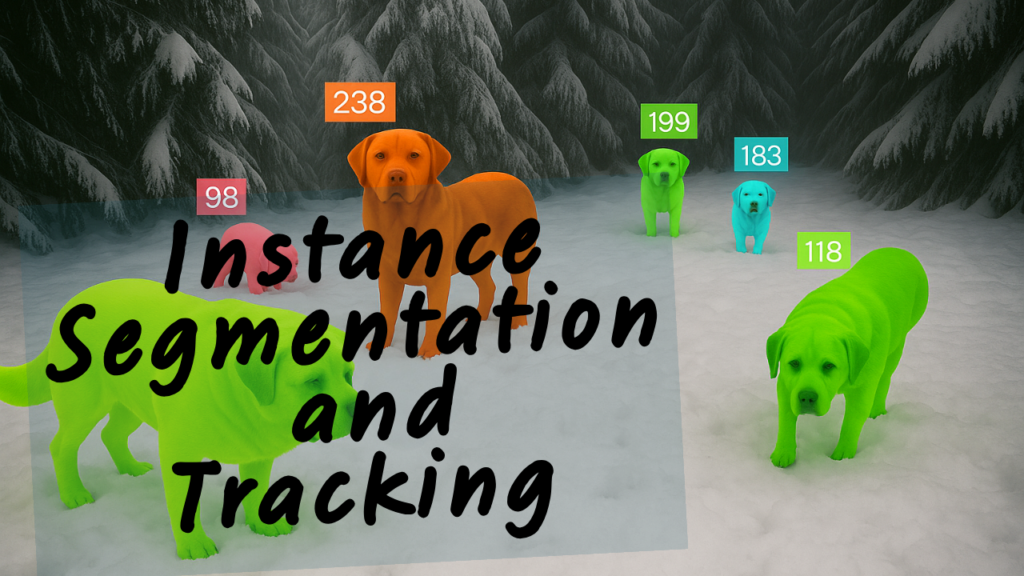
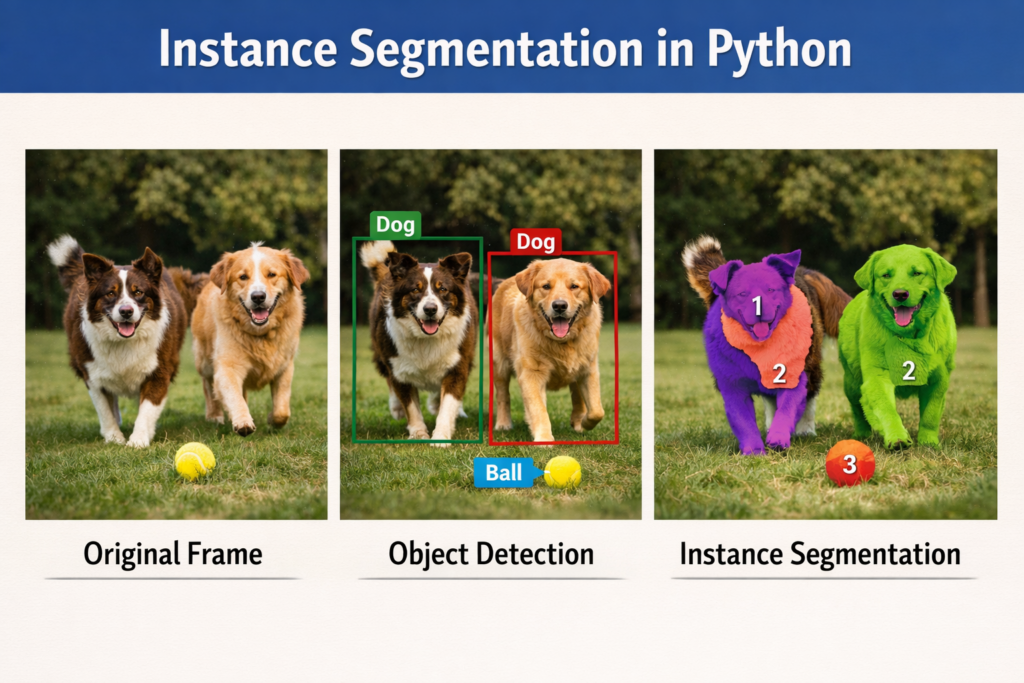
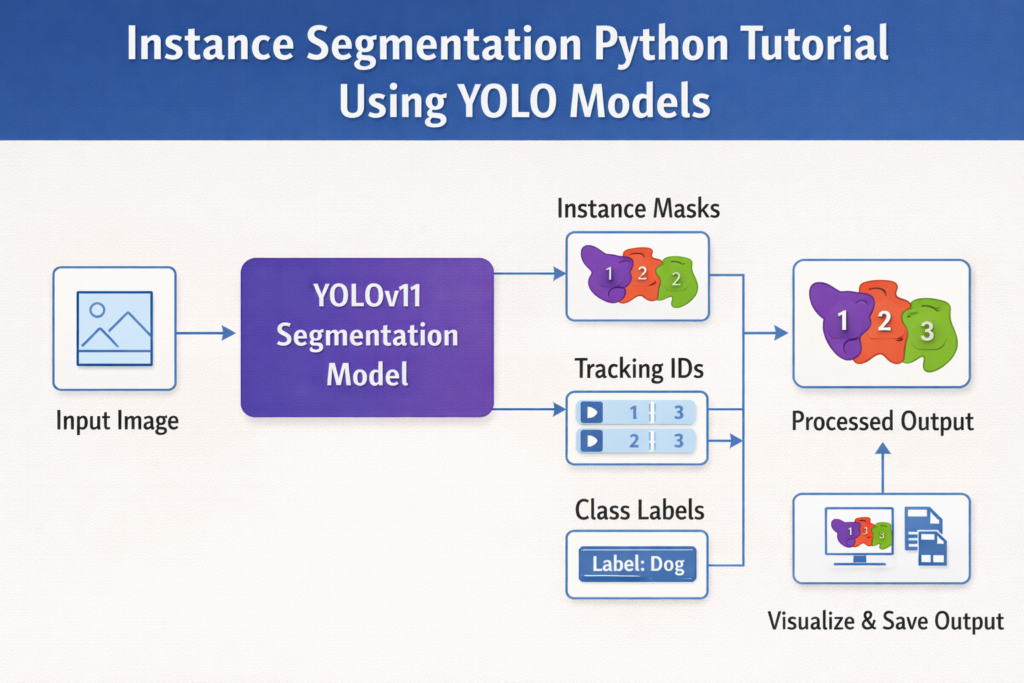
Instance Segmentation Python Tutorial Using YOLO Models in videos / Image Segmentation, OpenCV Contents hide 1 Can I Track Dogs in Real-Time with YOLOv11? 2 Instance segmentation python tutorial, explained with a practical mindset 3 Running Real-Time Instance Segmentation and Tracking with YOLO in Python 3.1 Master Computer Vision 4 Instance Segmentation Python Tutorial Using YOLO Models 5 Installing the Environment for the Instance Segmentation Python Tutorial 6 Loading the segmentation model 7 Opening the video stream and preparing output video writer 8 Running real-time segmentation and tracking on video frames 9 Saving processed frames and handling display and cleanup 10 FAQ — Instance Segmentation Python Tutorial 10.1 What is instance segmentation? 10.2 Why is segmentation better than detection? 11 Conclusion 11.1 Connect : Last Updated on 22/04/2026 by Eran Feit Can I Track Dogs in Real-Time with YOLOv11? Instance segmentation is one of the most practical upgrades you can make when object detection alone is not enough.Instead of returning just a bounding box, it predicts a precise pixel mask for every object.That means you can measure shape, area, overlap, and exact boundaries, which is essential for real-world computer vision tasks like sports analytics, robotics, medical imaging, manufacturing inspection, and video surveillance. In a typical computer vision workflow, object detection tells you “where” an object is, while instance segmentation tells you “exactly which pixels” belong to that object.This difference becomes huge when multiple objects overlap, when the background is cluttered, or when you need clean cutouts rather than rough rectangles.Once you have masks, you can do higher-level logic like counting objects accurately, tracking their motion, calculating contact or occlusion, and extracting per-object regions for downstream models. Modern YOLO models made instance segmentation much easier to use in Python because they bring fast inference and a clean API.With a few lines of code, you can load a pretrained segmentation model, run predictions on frames, and visualize the mask overlays.Because YOLO is designed for speed, it’s also a great fit for video and real-time pipelines where you want masks without sacrificing performance. A solid instance segmentation python tutorial should help you connect the big idea to an end-to-end workflow.You want to understand what the model outputs, how masks are represented, how to draw them correctly, and how to run inference on images and videos reliably.Once those pieces click, you can turn segmentation into a reusable building block in your own projects, from simple demos to production-style pipelines. Tip me and Download the code Instance segmentation python tutorial, explained with a practical mindset An instance segmentation python tutorial is most useful when it focuses on what you actually need to build something working.The goal is not just to run a model once, but to understand the full loop: read input frames, run inference, interpret masks, overlay results, and save outputs.That workflow is the foundation for almost every real computer vision application that involves segmentation. At a high level, instance segmentation models produce a few key outputs per object.You usually get a class label, a confidence score, and a segmentation mask that marks the object’s pixels.Some models also return tracking IDs when running on video, so the same object can keep a consistent identity across frames.That single detail changes the scope of what you can build, because it moves you from “frame-by-frame prediction” to “video understanding.” When you apply segmentation to video, you need to think in terms of consistency and speed.You’re processing a stream of frames, so you want stable results, reasonable FPS, and a clean way to render masks without flickering or heavy overhead.That often means resizing frames when needed, using an efficient model size, and keeping the inference loop simple.From there, you can save a new annotated video, display a live preview window, and stop safely with a keyboard shortcut. The real target of this approach is to unlock higher-level capabilities that boxes can’t provide.With masks, you can estimate object area over time, detect when objects overlap, measure how much of an object is visible, and extract clean object cutouts for classification or re-identification.In many applications, the mask is the real “measurement,” and the bounding box is just a convenient summary.Once you understand the outputs and the loop, you can adapt the same pipeline to different domains, different objects, and different videos with only small changes. Related YOLO Segmentation Tutorials Segment Multiple Objects with YOLO Python Learn another practical YOLO segmentation workflow using Python and real datasets. Make Instance Segmentation Easy with Detectron2 Understand how instance segmentation works using another popular deep learning framework. Subscription FormSend me tutorials Instance segmentation explained with dogs Running Real-Time Instance Segmentation and Tracking with YOLO in Python This tutorial code is designed to show how instance segmentation can be applied to real video data using a modern YOLO segmentation model inside a clean Python workflow.The main target of the code is to demonstrate how to take a pretrained segmentation model, connect it to a video stream, and generate per-object masks while maintaining tracking IDs across frames.Instead of focusing only on theory, the code focuses on execution: reading video frames, running inference, drawing segmentation overlays, and exporting a processed video. At a high level, the pipeline follows a practical computer vision loop used in many production systems.First, the YOLO segmentation model is loaded into memory, ready to perform inference.Then, a video file is opened frame by frame using OpenCV.Each frame is passed into the model, which returns segmentation masks and tracking IDs.Those results are then visualized and saved into a new video output file.This mirrors how real-world video analytics systems operate. One of the most important targets of this code is demonstrating persistent tracking combined with segmentation.The model does not just detect objects once — it assigns IDs that persist between frames.This allows you to follow individual objects through time while still keeping precise pixel-level segmentation masks.This combination is powerful for scenarios like behavior analysis, motion tracking, object counting, and activity monitoring. Another key goal of the tutorial is to keep the implementation readable and easy to extend.The structure separates video reading, model inference, visualization, and output writing into clear steps.Because of this design, you can easily replace the input video, switch the YOLO model size, or change visualization settings without rewriting the pipeline.This makes the code a strong starting template for real projects involving instance segmentation in video streams. Link to the video tutorial here . 📁 Full source code Here or here . TRY IT NOW Master Computer Vision Follow my latest tutorials and AI insights on my Personal Blog. Beginner Complete CV Bootcamp Foundation using PyTorch & TensorFlow. Get Started → Interactive Deep Learning with PyTorch Hands-on practice in an interactive environment. Start Learning → Advanced Modern CV: GPT & OpenCV4 Vision GPT and production-ready models. Go Advanced → YOLOv11 segmentation workflow diagram Instance Segmentation Python Tutorial Using YOLO Models Instance segmentation is one of the most powerful techniques in modern computer vision because it moves beyond simple detection and into pixel-level understanding of objects.Instead of drawing rectangular boxes, instance segmentation separates each object into its exact visible shape.This allows developers and researchers to build smarter systems that can measure, track, and analyze objects with much higher precision. In a real-world computer vision pipeline, instance segmentation is especially useful when objects overlap or when shape matters more than location.Applications include robotics navigation, medical image analysis, sports analytics, industrial automation, and smart video surveillance.With fast models like YOLO segmentation variants, instance segmentation is no longer limited to research environments and can now run in real time. This tutorial focuses on a practical implementation of instance segmentation using Python, OpenCV, and a YOLO segmentation model.The goal is to demonstrate a real video-processing workflow that reads frames, performs segmentation and tracking, visualizes results, and exports a processed video.By the end of this tutorial, you will understand how to build a reusable segmentation pipeline that can be adapted to different datasets and video streams. Installing the Environment for the Instance Segmentation Python Tutorial Before running the instance segmentation python tutorial code, you need to prepare a clean Python environment with the correct CUDA, PyTorch, and Ultralytics versions.Using a dedicated Conda environment helps avoid version conflicts and ensures GPU acceleration works correctly.This is especially important when working with segmentation models, because they rely heavily on optimized tensor operations and CUDA compatibility. The installation process includes creating a Conda environment, installing PyTorch with CUDA support, and installing Ultralytics YOLO and OpenCV.Once these dependencies are installed, you will be able to load the segmentation model and run inference on video frames without compatibility errors.If CUDA is installed correctly, the model will automatically use GPU acceleration, significantly improving inference speed. This setup is designed to match real-world development environments used in computer vision projects.Using fixed library versions ensures the tutorial is reproducible and avoids issues caused by version mismatches.After completing this installation, your system will be ready to run the full segmentation and tracking pipeline. ### Create a new Conda environment for the project conda create --name YoloV11-311 python=3.11 ### Activate the Conda environment conda activate YoloV11-311 ### Check CUDA installation version nvcc --version ### Install PyTorch with CUDA 12.4 support conda install pytorch==2.5.0 torchvision==0.20.0 torchaudio==2.5.0 pytorch-cuda=12.4 -c pytorch -c nvidia ### Install Ultralytics YOLO library pip install ultralytics==8.3.59 ### Install OpenCV for video processing pip install opencv-python==4.10.0.84 Summary:This section prepares your system to run the instance segmentation python tutorial code with GPU acceleration and correct dependencies. Loading the segmentation model After the environment is ready, the next step is importing the required libraries and loading the pretrained segmentation model.This is where the instance segmentation pipeline truly begins.The YOLO segmentation model is loaded into memory and becomes ready to process frames and generate segmentation masks. ### Import OpenCV for video reading, writing, and visualization import cv2 ### Import YOLO model class from Ultralytics for segmentation inference from ultralytics import YOLO ### Import annotation utilities for drawing masks and labels from ultralytics.utils.plotting import Annotator, colors ### Load a pretrained YOLOv11 segmentation model model = YOLO("yolo11l-seg.pt") Summary:This section prepares the core tools needed for the instance segmentation python tutorial workflow.The model is now ready to receive image frames and generate segmentation results. Opening the video stream and preparing output video writer Once the model is loaded, the next step is preparing the input video stream and output recording pipeline.The video capture object allows frame-by-frame reading from a video file.At the same time, an output writer is prepared to save processed frames into a new video file. This structure is very common in real-time computer vision systems.You read frames, process them, then immediately write results to disk or display them on screen.Maintaining this structure helps keep latency low and performance predictable. To make this instance segmentation python tutorial easier to follow, you can use the same video file that is used inside the code examples.Using the same input video allows you to reproduce the exact segmentation and tracking results shown in this tutorial.This is especially helpful if you are learning instance segmentation for the first time or validating your environment setup. If you want access to the exact video file used in this tutorial, you can request it directly by email.This ensures you receive the correct file version and avoids issues caused by different codecs, resolutions, or formats.Using a consistent input file helps eliminate troubleshooting variables when testing segmentation pipelines. When requesting the video file, include a short message mentioning the tutorial title so it is easier to identify your request.The video is intended for educational and tutorial usage related to computer vision learning and experimentation.Once you receive the file, you can place it in the same folder structure used in the code or update the path to match your local setup. To request the tutorial video file, send an email to:feitgemel@gmail.com ### Open the input video file for frame-by-frame processing cap = cv2.VideoCapture("Best-Semantic-Segmentation-models/Yolo-V11/Segmentation and Tracking using YoloV11/dogs.mp4") ### Extract video width, height, and FPS from the input video w, h, fps = (int(cap.get(x)) for x in(cv2.CAP_PROP_FRAME_WIDTH, cv2.CAP_PROP_FRAME_HEIGHT, cv2.CAP_PROP_FPS)) ### Create a VideoWriter object to save processed output video out = cv2.VideoWriter("Best-Semantic-Segmentation-models/Yolo-V11/Segmentation and Tracking using YoloV11/output_video.avi", cv2.VideoWriter_fourcc(*"MJPG"), fps, (w, h) ) Summary:This section builds the input-output backbone of the pipeline.The system is now ready to read frames, process them, and save results. Running real-time segmentation and tracking on video frames This is the core of the instance segmentation python tutorial.Each frame is read from the video stream and passed into the segmentation model.The model returns segmentation masks and tracking IDs, allowing objects to be followed across frames. Tracking combined with segmentation is extremely powerful.It allows systems to not only identify objects but also understand motion and behavior over time.This enables advanced analytics such as movement patterns, object counting, and interaction analysis. ### Start processing frames in a continuous loop while True: ### Read the next frame from the video stream ret , img = cap.read() ### Check if frame reading failed or video ended if not ret: print("Video ended or error reading video") break ### Create annotation helper object for drawing masks and labels annotator = Annotator(img, line_width=2) ### Run segmentation tracking inference on the current frame results = model.track(img , persist=True) ### Check if segmentation masks and tracking boxes exist if results[0].boxes is not None and results[0].masks is not None: ### Extract segmentation polygon masks masks = results[0].masks.xy ### Extract tracking IDs for each detected object track_ids = results[0].boxes.id.int().cpu().tolist() ### Loop through masks and track IDs together for mask , track_id in zip(masks, track_ids): ### Generate consistent color based on track ID color = colors(int(track_id) , True) ### Select readable text color for labels txt_color = annotator.get_txt_color(color) ### Draw segmentation mask and bounding overlay with tracking ID label annotator.seg_bbox(mask = mask , mask_color = color , label=str(track_id) , txt_color = txt_color) Summary:This section performs the main segmentation and tracking logic.Objects are segmented, labeled, and assigned persistent tracking IDs. Learn More About Segmentation Models Detectron2 Panoptic Segmentation Tutorial Understand how instance and semantic segmentation combine in panoptic segmentation tasks. Train Detectron2 on Custom Dataset Learn how to build segmentation models using your own dataset from scratch. Saving processed frames and handling display and cleanup After segmentation results are drawn, frames are saved into the output video and displayed in real time.A keyboard condition allows users to stop processing safely.Finally, all resources are released to avoid memory leaks or locked files. Proper cleanup is critical in video processing applications.Failing to release video handles can cause corrupted outputs or blocked hardware resources. ### Write processed frame into output video file out.write(img) ### Display the processed frame in a preview window cv2.imshow("Result", img) ### Allow exit if user presses Q key if cv2.waitKey(1) & 0xFF == ord('q'): break ### Release output video writer out.release() ### Release video capture object cap.release() ### Close all OpenCV display windows cv2.destroyAllWindows() ### Print completion message after processing finishes print("Video processing completed and saved to output_video.mp4") Summary:This final section ensures processed results are saved and resources are released safely.The pipeline is now complete and production-ready. More Computer Vision Tutorials YOLO Segmentation Full Workflow Step-by-step guide showing YOLO segmentation applied to multiple real-world scenarios. Instance Segmentation for Beginners Build a strong foundation in segmentation concepts and implementation. FAQ — Instance Segmentation Python Tutorial What is instance segmentation? Instance segmentation detects objects and generates pixel-level masks for each object. Why is segmentation better than detection? Segmentation provides precise object boundaries instead of simple bounding boxes. Conclusion Instance segmentation represents one of the most advanced yet practical techniques available in modern computer vision.By combining deep learning segmentation models with real-time video processing tools, developers can build systems that truly understand visual scenes rather than just detecting objects. This tutorial demonstrated how instance segmentation can be implemented using a clean and efficient Python workflow.By connecting YOLO segmentation models with OpenCV video processing, you can build real-world pipelines capable of handling live video, tracking objects, and generating precise segmentation masks. The real power of this workflow is flexibility.You can replace the video source, upgrade the model, or adapt the pipeline for custom datasets without redesigning the entire system.This makes instance segmentation a scalable and future-proof solution for computer vision projects across industries. As computer vision continues evolving, segmentation will become even more central to intelligent systems.Mastering this workflow now gives you a strong foundation for building advanced AI-driven applications in the future. Connect : ☕ Buy me a coffee — https://ko-fi.com/eranfeit 🖥️ Email : feitgemel@gmail.com 🌐 https://eranfeit.net 🤝 Fiverr : https://www.fiverr.com/s/mB3Pbb Enjoy, Eran






 Skip to content