Last Updated on 28/07/2026 by Eran Feit
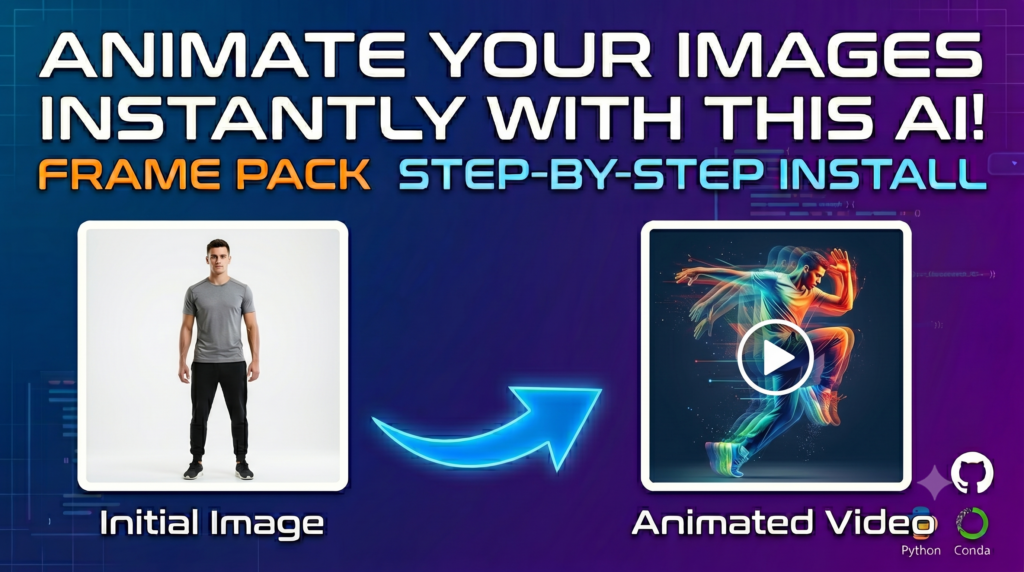
Imagine breaking free from restrictive cloud subscriptions, watermarks, and credit systems that limit your creative momentum. If you have been searching for a powerful, free open source AI video generator , this guide serves as your definitive roadmap to bypassing third-party restrictions entirely. As artificial intelligence changes the way we create media, a massive wave of creators and developers are looking for a completely local, self-hosted way to breathe motion into static photography. This article breaks down exactly how to claim absolute creative control over your pipeline by deploying a next-generation local framework on your own hardware.
You will discover how to tap into an engine that redefines standard next-frame prediction video diffusion by handling massive sequence lengths without crashing your system. By keeping your data local, you gain the freedom to iterate on complex prompt structures, extend cinematic clips into sustained cinematic sequences, and optimize your rendering pipelines without checking your wallet or a subscription dashboard.
We bridge the gap between abstract academic research and stable, production-ready desktop environments. This piece is meticulously structured to guide you from the foundational setup steps directly through advanced system optimizations. We will take a look at live cinematic visual breakdowns, configure standard quick-launch environments, and deep dive into setting up dedicated Anaconda architectures that leverage high-performance components like Flash Attention on Windows systems.
Ultimately, this tutorial transforms your hardware into a high-powered creative workstation, providing a meticulous, engineer-level breakdown that makes cutting-edge diffusion accessible. By translating complex machine learning operations into practical python commands and setting adjustments, you will gain a deep understanding of hardware memory boundaries, runtime speed increases, and prompt design frameworks. By the end of this read, you will have a fully functioning, locally accelerated workspace that turns your digital assets into cinematic, fluid motion.
Why a free open source AI video generator changes the game for local creators The shift toward open-source frameworks represents a massive turning point in how digital artists, developers, and machine learning enthusiasts approach video generation. For a long time, local hardware was pushed to its absolute limits by massive model architectures, frequently demanding enterprise-grade hardware with vast amounts of video memory just to compile a few seconds of motion. This created a massive barrier for standard development setups, rendering local experimentation slow, frustrating, or completely impossible for the average creator.
Recent developments in frame context packing change this dynamic completely. By compressing input context lengths into a constant structural size, modern open-source engines ensure that your system’s rendering workload remains stable and unchanging, regardless of how long the output video becomes. This architectural breakthrough means that a free open source AI video generator can now comfortably run deep, complex 13-billion parameter models on consumer-grade setups—even standard laptop GPUs containing a tight 6GB VRAM limit—without running out of memory.
For the community, this shift reclaims the experimental freedom that closed-source cloud platforms routinely restrict. It allows developers to build specialized tools on top of an unmetered, highly customizable codebase, while giving video creators a playground where they can generate fluid, cinematic, and large-scale motions without watermarks or arbitrary credit walls. By understanding how to manage this local power, balance processing speeds, and optimize memory pipelines, you unlock a raw, localized asset creation workflow that stays completely free and scales alongside your own system hardware.
Free open source AI video generator Getting Your Local System Ready for FramePack AI Deployment Setting up cutting-edge open-source AI locally requires a clean environment where hardware and software communicate flawlessly. The target of the deployment code is to establish a rock-solid, isolated playground on your machine to execute the official implementation of FramePack. By initializing a controlled local software architecture, the code configures the minimum dependencies, memory management hooks, and standalone high-quality sampling layers needed to run advanced video diffusion models directly on your graphics card.
At a high level, the deployment process aims to strip away the dependency conflicts that typically plague machine-learning projects. Instead of fighting with global system files, the target setup path isolates your environmental packages, matching the precise requirements for CUDA and PyTorch needed by next-frame prediction networks. This allows your system to handle 13-billion parameter models smoothly, transforming static image files and creative motion descriptions into fully compiled, unmetered video assets entirely on consumer-level GPUs.
Why is a dedicated environment necessary for running FramePack locally? Using an isolated workspace ensures that specific versions of deep learning libraries—like PyTorch, Hugging Face transformers, and Gradio—do not collide with other machine learning setups on your computer. Because next-frame-section prediction models are exceptionally sensitive to minute differences in hardware noise, software dependencies, and tensor floating-point alignments, running a clean environment guarantees stable sampling outputs. It prevents random crashes and ensures predictable drift-prevention behaviors when processing deep, section-by-section video workflows.
The standard initialization process acts as a plug-and-play foundation by utilizing a pre-packaged Windows runtime structure built around CUDA 12.6 and PyTorch 2.6. When you unpack and trigger the batch update files, the script automatically establishes the baseline parameters required to download the primary model weights from Hugging Face. It establishes a minimal desktop engine that enables immediate local validation without requiring you to manually compile complex attention kernels from scratch.
Once the baseline framework is active, the processing code spins up a local web-based Gradio user interface. This UI allows you to instantly drop in an image file, specify your motion directives, and adjust structural variables like total rendering steps and classifier-free guidance (CFG) scaling factors. Because the underlying script utilizes progressive next-frame estimation, the interface provides real-time latent previews of upcoming frame sections, letting you monitor the visual output continuously rather than forcing you to wait for a massive rendering queue to complete.
Link to the tutorial here
Download the code / instruction files for the tutorial here or here
Link for Medium users here
Master Computer Vision
Follow my latest tutorials and AI insights on my
Personal Blog .
Beginner Complete CV Bootcamp
Foundation using PyTorch & TensorFlow.
Get Started → Interactive Deep Learning with PyTorch
Hands-on practice in an interactive environment.
Start Learning → Advanced Modern CV: GPT & OpenCV4
Vision GPT and production-ready models.
Go Advanced →
FramePack AI tutorial Imagine breaking free from restrictive cloud subscriptions, watermarks, and credit systems that limit your creative momentum. If you have been searching for a powerful, free open source AI video generator , this guide serves as your definitive roadmap to bypassing third-party restrictions entirely. As artificial intelligence changes the way we create media, a massive wave of creators and developers are looking for a completely local, self-hosted way to breathe motion into static photography. This article breaks down exactly how to claim absolute creative control over your pipeline by deploying a next-generation local framework on your own hardware.
You will discover how to tap into an engine that redefines standard next-frame prediction video diffusion by handling massive sequence lengths without crashing your system. By keeping your data local, you gain the freedom to iterate on complex prompt structures, extend cinematic clips into sustained cinematic sequences, and optimize your rendering pipelines without checking your wallet or a subscription dashboard.
We bridge the gap between abstract academic research and stable, production-ready desktop environments. This piece is meticulously structured to guide you from the foundational setup steps directly through advanced system optimizations. We will take a look at live cinematic visual breakdowns, configure standard quick-launch environments, and deep dive into setting up dedicated Anaconda architectures that leverage high-performance components like Flash Attention on Windows systems.
Ultimately, this tutorial transforms your hardware into a high-powered creative workstation, providing a meticulous, engineer-level breakdown that makes cutting-edge diffusion accessible. By translating complex machine learning operations into practical python commands and setting adjustments, you will gain a deep understanding of hardware memory boundaries, runtime speed increases, and prompt design frameworks. By the end of this read, you will have a fully functioning, locally accelerated workspace that turns your digital assets into cinematic, fluid motion.
Why a free open source AI video generator changes the game for local creators The shift toward open-source frameworks represents a massive turning point in how digital artists, developers, and machine learning enthusiasts approach video generation. For a long time, local hardware was pushed to its absolute limits by massive model architectures, frequently demanding enterprise-grade hardware with vast amounts of video memory just to compile a few seconds of motion. This created a massive barrier for standard development setups, rendering local experimentation slow, frustrating, or completely impossible for the average creator.
Recent developments in frame context packing change this dynamic completely. By compressing input context lengths into a constant structural size, modern open-source engines ensure that your system’s rendering workload remains stable and unchanging, regardless of how long the output video becomes. This architectural breakthrough means that a free open source AI video generator can now comfortably run deep, complex 13-billion parameter models on consumer-grade setups—even standard laptop GPUs containing a tight 6GB VRAM limit—without running out of memory.
For the community, this shift reclaims the experimental freedom that closed-source cloud platforms routinely restrict. It allows developers to build specialized tools on top of an unmetered, highly customizable codebase, while giving video creators a playground where they can generate fluid, cinematic, and large-scale motions without watermarks or arbitrary credit walls. By understanding how to manage this local power, balance processing speeds, and optimize memory pipelines, you unlock a raw, localized asset creation workflow that stays completely free and scales alongside your own system hardware.
Setting Up Your Local AI Studio with the Baseline Installation Deploying a powerful, open-source animation engine directly on your computer doesn’t have to be a complicated technical chore. The creators of FramePack have assembled a highly efficient, standalone click package that acts as a plug-and-play foundation for Windows operating systems. By packaging critical backend dependencies like CUDA 12.6 and PyTorch 2.6 together, this quick-start solution removes the stress of dealing with broken runtime environments or mismatched system drivers.
The primary objective of this initial setup is to establish a rock-solid, isolated playground on your machine so you can instantly run advanced next-frame prediction models. Because the installer functions independently of your global machine learning libraries, you can extract it to any custom folder without messing up your existing development environments. Running the subsequent update files ensures your local code stays completely up to date with the latest official fixes and patches directly from the GitHub repository.
Once you trigger the execution script, your computer turns into a completely self-hosted generative workstation. The terminal will automatically manage the background data pipelines, pulling the heavy model weights securely to your local storage. This introductory deployment path is the most reliable way to verify your hardware capabilities and start generating fluid, watermark-free cinematic sequences with zero complex manual compilation.
Can I run this baseline quick-start installation if I don’t have python previously installed on my system? Yes, the standalone one-click package includes its own independent, embedded runtime environment, meaning it will execute flawlessly even on a clean Windows machine without any pre-existing global Python or CUDA installations.
Download the framework archive and trigger the baseline initialization scripts ### Step 1: Download the official pre-compiled standalone package archive directly from the repository releases https://github.com/lllyasviel/FramePack/releases/download/windows/framepack_cu126_torch26.7z ### Step 2: Uncompress and extract the .7z archive files into your chosen custom folder destination ### Step 3: Run the update batch file to sync code improvements and fix potential baseline bugs update.bat ### Step 4: Launch the local Gradio web application panel and initialize the machine learning weights run.bat By completing this straightforward execution loop, the framework successfully initializes its backend arrays. Your system will automatically open up a local web page in your browser, introducing an intuitive, visual dashboard where you can begin transforming static assets into dynamic video files immediately.
Setting your interface parameters for perfect motion coherence Once the initial background architecture boots up successfully, navigating the application interface requires a firm grasp of the target parameter values. Adjusting your visual variables within the interface alters how individual data tensors are managed throughout the diffusion loop. Setting these variables correctly prevents artifacts and stabilizes motion generation across variable frame lengths.
The target parameters dictate the duration, visual sharpness, and adherence parameters of the next-frame context packing engine. Setting your total sequence targets to 10 seconds while bounding the processing limits ensures that your GPU balances processing times with structural output stability. These explicit settings prevent rendering timeouts, keeping the workflow linear and highly predictable.
Configuring the system parameters properly ensures that the 13B model layers execute within safe bounds on consumer GPUs. The variable matrix explicitly limits memory usage while forcing the core sampling engine to deliver crisp, high-fidelity frame outputs. This step forms the core interface foundation before launching into advanced creative image prompting.
How does changing individual interface variables prevent rendering failures on lower VRAM hardware? By constraining the total sequence targets and limiting the batch dimensions directly within the parameter options, you prevent the neural network layers from overloading the available video memory allocation arrays. Capping these internal parameters ensures that frame blocks are processed sequentially, allowing the application to successfully generate prolonged video clips without triggering system out-of-memory errors.
Adjust the structural interface values inside the local web panel Total Video Length: 10 Seconds Inference Steps: 25 Classifier-Free Guidance (CFG): 10 GPU Memory Allocation: 6 MP4 Parallel Threads: 16
Understanding how CFG scale scales motion accuracy and visual fidelity In the realm of generative AI video and animation models, the CFG Scale (Classifier-Free Guidance) serves as the primary dial that balances prompt adherence against raw creative freedom. In simple terms, this metric dictates how strictly the model must follow your exact text instructions versus how much artistic liberty it can take during the frame diffusion process.
Adjusting this setting shapes your visual output in several distinct ways:
Low CFG Settings (1–4): The model largely ignores your motion text and prioritizes the source image’s composition. While the output looks highly creative and clean, the model will likely miss specific motion cues like “dancing” or “running” entirely.Balanced CFG Settings (5–9): This represents the sweet spot for the vast majority of local video models. It strikes an optimal balance—the model follows your motion commands perfectly while maintaining natural colors, skin tones, and fluid physical physics.High CFG Settings (12 and above): The system forces every single keyword into the frame generation process at all costs. While you will get the exact motion path requested, it often results in heavy visual artifacts, oversaturated colors, and a distorted, unnatural appearance. For high-energy animation pipelines, managing this scale correctly is absolutely critical. Since our prompts focus on powerful movements like dancing and running, your CFG choices determine your final video quality: a setting that is too low leaves your characters standing completely still, while a setting that is too high causes your animations to look distorted, jumpy, and unusable.
How does the CFG value directly alter memory allocation inside the GPU cores during execution? When you increase the CFG scale, the model runs two processing passes simultaneously—one matching your text prompt and an unconditioned pass—and calculates the difference between them. Raising this value forces the system to scale its mathematical adjustments aggressively, which can amplify background noise and cause visual distortions if your hardware parameters aren’t configured correctly.
Recommended Benchmark CFG Setting: Recommended Benchmark CFG Setting : 10 By standardizing your configurations around a stable, balanced CFG setting, you ensure that your local generation workflow consistently produces crisp, highly coherent motion without running into visual distortion or artifacts.
Mastering your workspace settings to optimize rendering configurations Our final workspace analysis deep dives into managing the secondary interface settings that control runtime behavior and output encoding. While the focus keyword highlights a free open source AI video generator , achieving maximum performance requires setting your hardware boundaries correctly inside the software. Configuring these final toggles balances your system’s rendering performance with the file compression parameters of the final export layer.
The target of this parameter layout is to optimize your background multi-threading options and GPU caching paths. Setting your thread parameters to 16 tells the CPU to handle file rendering and MP4 stitching tasks in parallel, preventing frame drops during exporting phases. Bounding the memory limit parameter to a hard value of 6 matches the hardware constraints of standard mid-range laptop graphics cards perfectly.
Configuring these settings correctly wraps up your engineering setup phase. It ensures that the Gradio dashboard distributes data processing evenly between your CPU cores and your GPU’s high-speed memory modules. This final calibration step completes your local pipeline, enabling stable generation runs over long rendering sessions.
Why do parallel export threads prevent system hanging at the end of a video generation run? Once the GPU finishes computing the raw visual frame blocks, the individual frames must be compiled and encoded into a standard video file container. By allocating dedicated parallel threads to this task, your CPU processes frame chunks simultaneously, accelerating the final compilation step and preventing interface lag or crashes.
Inference Steps : 25 GPU Memory Target : 6GB MP4 Export Threads : 16 With these final environment variables properly configured, your local deployment is fully optimized to handle intensive, high-resolution generative image-to-video pipelines with maximum speed and rock-solid system stability.
Crafting dynamic prompts using automated assistant frameworks To achieve fluid, large-scale structural motion across your generated video files, you must use highly focused, motion-centric text descriptions. Standard descriptive prompts frequently confuse next-frame prediction systems, leading to static visuals or severe structural drifting over long timelines. To overcome this limitation, deploying an automated assistant prompt structure ensures that your descriptive language prioritizes physical mechanics, kinetic energy, and active subject behaviors over static scenery.
The primary target of this prompt instruction set is to program your AI language assistant into a dedicated animation description generator. The configuration forces the assistant to analyze incoming imagery and output structured, single-sentence motion descriptions that specify subject tracking, dynamic movement, and ambient camera changes. This automation bypasses standard trial-and-error loops, giving you crisp, functional prompts instantly.
By standardizing this descriptive pipeline, you ensure that every prompt you feed into FramePack contains the exact structural components needed to unlock continuous motion. The prompt system prioritizes high-energy actions like leaping, dancing, and running, which are mathematically easier for the context packing model layers to translate into fluid transitions. This systematic approach prepares your project for your first full animation test case.
Why does a motion-first prompt structure prevent video degradation in next-frame models? Next-frame prediction models rely heavily on clear, explicit kinetic directions to compute vector trajectories between consecutive frame slices. When a prompt forces a clear focus on broad physical actions rather than complex background textures, the model computes the mathematical velocity vectors with high precision, significantly reducing visual drifting over extended runtimes.
Configure your prompting assistant with this specialized system directive You are an assistant that writes short , motion - focused prompts for animating images . When the user sends an image , respond with a single , concise prompt describing visual motion ( such as human activity , moving objects , or camera movements ). Focus only on how the scene could come alive and become dynamic using brief phrases . Larger and more dynamic motions ( like dancing , jumping , running , etc .) are preferred over smaller or more subtle ones ( like standing still , sitting , etc .) Describe subject , then motion , then other things . For example : " The girl dances gracefully, with clear movements, full of charm. " If there is something that can dance ( like a man , girl , robot , etc .), then prefer to describe it as dancing . Stay in a loop : one image in , one motion prompt out . Do not explain , ask questions , or generate multiple options . Using this system script turns any conversational language engine into a powerful production assistant, streamlining your prompt engineering steps so you can focus purely on processing raw video data.
Executing the first animation test case for concert crowd dynamics Our first live demonstration focuses on animating complex human crowd dynamics under varying, hyper-dynamic illumination conditions. Managing dozens of individual subjects within a single image layer usually causes traditional video generation tools to distort or freeze up completely. This test case proves how effectively context packing maintains individual object coherence, even within crowded visual scenes.
The target of this specific animation sequence is to generate high-energy physical choreography across an entire stadium crowd. The prompt specifies overlapping motion fields, combining the waving actions of the audience with the physical bouncing vectors of large objects moving through space. This structural layout forces the model to test its drift-prevention features under intense rendering workloads.
Running this generation step validates your baseline local installation parameters under real-world processing conditions. The script processes the image section-by-section, rendering individual frames while actively tracking the stadium lighting vectors to maintain uniform cinematic color distribution. The resulting output establishes a high baseline for what your local hardware can produce.
How does the model prevent human limbs from morphing during complex crowd animations? The core architecture uses history discretization layers to compress previous frame blocks into immutable, locked reference vectors. By referencing these packed historical states rather than guessing blindly from the previous frame alone, the model tracks individual human silhouettes across crowded areas, preventing typical AI melting or limbs dissolving over time.
Input parameters for the concert crowd video demonstration Input Image :
Guide to the Best Free Open Source AI Video Generator | FramePack 12 Motion Prompt : " The man dances energetically with his hands raised, while large beach balls bounce dynamically over a massive, cheering concert crowd under vibrant, sweeping stadium lights. " Target Render Settings : Steps = 25 , CFG = 10 , VRAM = 6
Generated Output Video:
This first rendering run demonstrates your local system’s ability to coordinate complex group movements smoothly, paving the way for our second real-world group choreography test case.
Coordinating complex group choreography without visual drift Our second operational example increases the complexity of our testing by animating a multi-person group photograph while maintaining strict facial identity constraints. When multiple facial structures execute synchronized movements, standard AI video generators often swap features or distort facial characteristics after just a few frames. This setup tracks facial coordinates systematically to ensure clean, high-energy group movements.
The operational focus here is to translate a static group portrait into a lively, coordinated dance sequence where every subject retains their original expressions and physical traits. The underlying prompt prioritizes synchronous movement vectors, allowing the engine to allocate its processing parameters uniformly across all subjects. This prevents individual focal points from degrading as the rendering timeline progresses.
Executing this tracking task demonstrates how well the model handles multiple high-level human features simultaneously. The system tracks facial expressions, physical posture, and body alignment in parallel, providing smooth movement loops across all six targets. The completed render delivers a balanced, natural-looking animation that preserves identity perfectly.
How does the processing engine preserve individual facial characteristics during broad body movements? Because the input context is packed at a constant length throughout the generation timeline, the model retains continuous access to the original high-resolution facial features of the source image. This persistent reference layer stops the facial geometry from drifting or blurring as the characters move through complex physical turns.
Input parameters for the multi-person choreographed dance demonstration input image :
Guide to the Best Free Open Source AI Video Generator | FramePack 13 Motion Prompt : " The six people dance gracefully, executing clear and dynamic choreography, full of energy, smiling happily. " Target Render Settings : Steps = 25 , CFG = 10 , VRAM = 6
Generated Output Video:
This group animation example shows how open-source local video engines can maintain multi-subject visual coherence, taking us to our final test case: photorealistic cinematic character rendering.
Generating hyper-realistic cinematic tracking shots for custom characters Our final generation example pushes the system’s structural rendering boundaries by creating a complex, photorealistic cinematic sequence featuring custom characters alongside recognizable faces. Blending a completely custom character silhouette with historical real-world figures typically causes severe texture bleeding or loss of detail. This setup applies meticulous camera lens mapping and precise lighting setups to achieve a seamless, Hollywood-style output.
The core objective of this configuration script is to animate a hand-in-hand walking motion while maintaining perfect photorealistic texture density throughout a 35mm lens tracking shot. The prompt maps explicit material and lighting instructions, defining clothing textures, ambient shadows, and facial lighting responses. This detailed setup guides the engine to prioritize lifelike human behavior over chaotic, dreamlike distortions.
Running this advanced prompt structure proves that your local workspace can generate premium, professional-grade visual assets on an open-source architecture. The system processes the intricate clothing folds and environmental shadows frame-by-frame, ensuring that tracking speeds and motion fields blend realistically. The final video file serves as the ultimate proof-of-concept for your local pipeline.
input image :
Guide to the Best Free Open Source AI Video Generator | FramePack 14
Motion Prompt : " A man and a woman, featuring the man from the original image in his blue t-shirt and grey shorts walking alongside Angelina Jolie in an elegant dark blue evening dress, they hold hands and walk together, both smiling happily, clear dynamic movements, full of charm, confident expression, cinematic lighting, photorealistic, 8k resolution, captured on a 35mm lens. " Target Render Settings : Steps = 25 , CFG = 10 , VRAM = 6
Generated Output Video:
With these three diverse visual test cases successfully completed, you have fully verified your local system’s baseline rendering capabilities, preparing you for our advanced performance optimization track.
Building an accelerated Anaconda environment for maximum hardware performance While the standalone quick-launch setup provides an excellent starting point, serious developers require an optimized, fine-grained development architecture to maximize processing speeds. Standard environment wrappers often add severe processing overhead, slowing down frame generation loops on budget graphics cards. This advanced optimization section outlines how to assemble a native Anaconda environment built from scratch for high-performance execution.
The primary target of this custom script pipeline is to align your system’s processing cores with specialized attention kernels like Flash Attention and xFormers. By isolating your dependencies inside a clean Python 3.10.6 sandbox, you remove the driver translation bottlenecks that typically slow down raw generation speeds. This advanced setup safely cuts local rendering times down across all RTX-series graphics cards.
Executing this optimization map upgrades your workspace from a basic standalone software package into an accelerated machine-learning workstation. The scripts compile high-efficiency matrix multiplication libraries that optimize tensor pathways across your GPU’s physical cores. This setup maximizes performance, ensuring your system runs long image-to-video generations at peak efficiency.
Why does compiling custom attention kernels like Flash Attention drastically reduce local rendering times? Standard attention mechanisms calculate memory matrices quadratically, which quickly floods your GPU’s cache layers and bottlenecks processing speeds. Flash Attention redesigns this pathway by computing memory blocks incrementally through high-speed GPU SRAM caches, significantly lowering memory consumption and accelerating frame generation speeds.
Initialize the custom environment and map the accelerated deep learning dependencies ### Create an isolated Python 3.10.6 sandbox via the Anaconda command line conda create - n FramePack2 python = 3.10 . 6 ### Activate the newly minted system environment space conda activate FramePack2 ### Query your local system hardware to verify your active CUDA compiler version nvcc -- version ### Install PyTorch 2.6 built specifically for CUDA 12.6 architectures pip install torch == 2.6 . 0 torchvision == 0.21 . 0 torchaudio == 2.6 . 0 -- index - url https : // download . pytorch . org / whl / cu126 ### Deploy the core machine learning library array for model management pip install accelerate == 1.6 . 0 diffusers == 0.33 . 1 transformers == 4.46 . 2 gradio == 5.23 . 0 sentencepiece == 0.2 . 0 pillow == 11.1 . 0 av == 12.1 . 0 numpy == 1.26 . 2 scipy == 1.12 . 0 requests == 2.31 . 0 torchsde == 0.2 . 6 einops opencv - contrib - python == 4.10 . 0 . 84 safetensors ### Pull down and install the pre-compiled high-performance Flash Attention binary wheels python - m pip install " c:/Users/[Your User]/Downloads/flash_attn-2.7.4%2Bcu126torch2.6.0cxx11abiFALSE-cp310-cp310-win_amd64.whl " ### Inject the xFormers memory-efficient attention layers into your active environment pip install xformers == 0.0 . 29 . post3 -- index - url https : // download . pytorch . org / whl / cu126 ### Navigate directly into your local storage directory to execute the application cd \ tutorials cd framepack_cu126_torch26 cd webui ### Launch the optimized Gradio web panel locally using custom in-browser flags python demo_gradio . py -- server 127.0 . 0 . 1 -- inbrowser Configuring this advanced environment gives your system an optimized processing pipeline, slicing rendering latency and unlocking a highly stable local workflow for long-form video projects.
FAQ : What is the minimum hardware required to run FramePack AI locally? You need an NVIDIA RTX series GPU (30XX, 40XX, or 50XX) with at least 6GB of VRAM, running on a Windows or Linux operating system environment.
Why does my video generation look like it stops after only one second in the interface? This is normal behavior for next-frame prediction models; the system generates video frame-by-frame in segments, and you simply need to wait for the progress bar to complete all sections.
Can I run this software package completely offline without an internet connection? The first startup requires an active internet connection to download the 30GB model weights from Hugging Face, but all subsequent generation runs can be executed 100% offline.
What exactly does TeaCache do when I toggle it on inside the settings? TeaCache accelerates local rendering speeds by skipping redundant calculations, though it is not completely lossless and can occasionally cause subtle visual artifacts.
How do I fix out-of-memory errors on a standard 6GB VRAM laptop GPU? Ensure your GPU parameter is locked to 6, turn off TeaCache, lower your total inference steps to 25, and run the system through an isolated Anaconda setup.
Is FramePack AI completely free to use for commercial content creation? Yes, the entire framework is distributed under an open-source Apache-2.0 license, meaning you face zero monthly subscription fees, credit limits, or watermarks.
Why do I need to download a specific flash-attention wheel file for Windows? Flash Attention does not compile natively on Windows architectures, requiring a pre-built binary wheel that matches your exact Python and PyTorch runtime versions.
What happens if my text motion prompt is too long or descriptive? Excessive descriptive words can confuse the next-frame prediction layers, which can cause characters to warp, freeze, or drift significantly over time.
Can I use input images generated by other AI models like Midjourney? Absolutely, the model processes any standard high-resolution PNG or JPEG file layer, regardless of whether it is a real photograph or digital art.
How can I safely update my local files when a new repository update drops? Simply open your main installation folder and trigger the update.bat script to automatically pull down the latest official bug fixes from GitHub.
Conclusion: Claiming Total Command of Your Video Pipeline Deploying an open-source, local image-to-video infrastructure marks a major shift away from restrictive, credit-based subscription services. Throughout this deployment guide, we have moved step-by-step from an basic standalone installation into an accelerated, fine-grained development environment. By isolating your dependencies inside a dedicated Anaconda sandbox and mapping high-performance components like Flash Attention and xFormers, you turn consumer hardware into a high-powered production workstation.
The true brilliance of this architecture lies in its frame context packing technique. By eliminating the massive memory spikes that typically crash standard budget setups during deep diffusion tasks, this open-source framework makes it completely possible to render prolonged, complex sequences using standard laptop graphics cards. Balancing your interface parameters—especially keeping your CFG scales and memory targets optimized—ensures that your motion vectors remain stable, clean, and free from visual drift over long timelines.
Ultimately, your new local workstation gives you the freedom to create unmetered, high-resolution visual assets entirely on your own terms. Whether you are animating crowded group portraits or rendering hyper-realistic cinematic sequences, your production workflow is now completely self-hosted, offline, and scalable. Keep experimenting with motion-focused prompt directives, fine-tune your internal rendering settings, and enjoy building incredible, fluid animations with your local AI engine.
Connect ☕ Buy me a coffee — https://ko-fi.com/eranfeit
🖥️ Email : feitgemel@gmail.com
🌐 https://eranfeit.net
🤝 Fiverr : https://www.fiverr.com/s/mB3Pbb
Enjoy,
Eran
 Skip to content