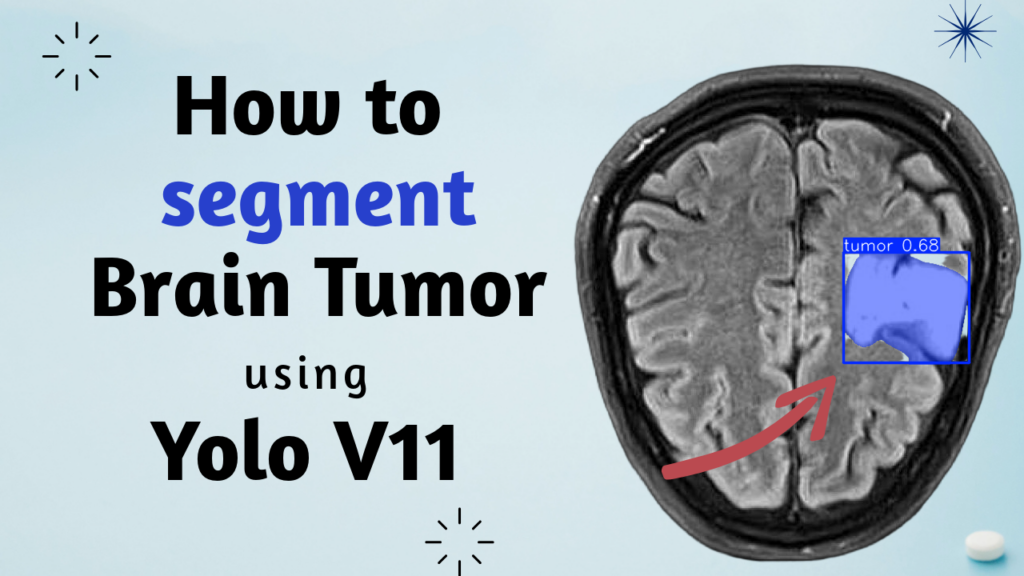
Brain Tumor Segmentation with YOLOv11 in Python / Image Segmentation, Pytorch Contents hide 1 Brain Tumor Segmentation with YOLOv11 in Python: What You’ll Build 1.1 Brain Tumor Segmentation: What It Means in Practice 2 From Training to Tumor Masks: The YOLOv11 Pipeline You’ll Run Today 3 Brain Tumor Segmentation with YOLOv11 in Python 4 Set up YOLOv11 so training runs smoothly from the start 5 Connect your Brain Tumor Segmentation dataset with a clean config.yaml 6 Fine-tune YOLOv11 segmentation so tumors become clean masks 7 Want the dataset download link for this tutorial 8 Predict tumors, export masks, and build a final segmentation map 8.1 Result – Brain Tumor Segmentation – Prediction 9 FAQ 9.1 What is Brain Tumor Segmentation in simple terms? 9.2 Why use YOLOv11 for Brain Tumor Segmentation? 9.3 What does the config.yaml file do? 9.4 Why start from a pretrained yolo11l-seg.pt checkpoint? 9.5 What does imgsz control in training? 9.6 What is patience used for during training? 9.7 Why resize masks back to the original image size? 9.8 What does np.maximum do when building final_mask? 9.9 Why save individual masks as separate PNG files? 9.10 What should I check if result.masks is None? 10 Conclusion: turning Brain Tumor Segmentation into a reusable workflow 10.1 Connect : Last Updated on 27/09/2026 by Eran Feit Brain Tumor Segmentation with YOLOv11 in Python: What You’ll Build This article walks through a complete, practical workflow for brain tumor segmentation using YOLOv11 and Python, from environment setup and training to inference and mask export.Instead of stopping at “the model predicts something,” you’ll go all the way to saving individual segmentation masks, combining them into a final segmentation map, and visualizing results with OpenCV. The value here is in turning a common research topic into an engineering-ready pipeline you can actually run and extend.You’ll see exactly how the dataset YAML connects to training, how segmentation outputs are structured in Ultralytics results, and how to convert raw masks into clean PNG files and a single unified mask you can use for overlays, evaluation, or downstream processing. Tip me and Download the code Brain Tumor Segmentation: What It Means in Practice Brain tumor segmentation is the task of identifying tumor regions at the pixel level in medical images such as MRI scans.Unlike classification, which answers “is there a tumor,” and unlike detection, which draws a bounding box, segmentation produces a mask that outlines the tumor shape. That mask is the foundation for many real workflows.It enables size and area measurements, helps compare changes across time, supports visualization overlays for review, and can be used as a structured input to other algorithms that expect region-of-interest data. In modern computer vision pipelines, segmentation is also a bridge between research and deployment.Once you have consistent masks, you can standardize post-processing, build automated reports, create datasets for follow-up models, and apply quality checks that are difficult to do with boxes alone. Commerce & Inventory Automation Automate Your TCG Business: AI Pokémon Card Identification Speed up cataloging and inventory grading using automated computer vision pipelines designed for collectible card stores. Subscription FormSend me tutorials Brain Tumor Segmentation From Training to Tumor Masks: The YOLOv11 Pipeline You’ll Run Today This tutorial is built around one clear target: take a brain MRI image, train a YOLOv11 segmentation model to recognize tumor regions, and then turn the model’s predictions into usable mask files you can actually work with.The code isn’t just about “getting a prediction.” It’s about creating a repeatable workflow that goes from dataset configuration, to training, to inference, to exporting results in a clean, engineering-friendly format. The first part of the code focuses on getting your environment stable and reproducible.That means isolating dependencies in a dedicated Conda environment, validating CUDA availability, and pinning specific versions of PyTorch and Ultralytics. When segmentation projects fail, it’s often not because the model is “bad,” but because the environment is inconsistent—this setup step prevents a lot of invisible friction. Next, the training script shows the core idea of transfer learning for segmentation.You start from a pretrained YOLOv11 segmentation checkpoint, connect it to a custom dataset through a YAML file, and train with practical settings like image size, batch size, early stopping patience, and validation enabled. This gives you a trained best.pt weight file that represents the strongest checkpoint seen during training. Finally, the inference code demonstrates two useful ways to run predictions and then goes deeper into the segmentation outputs.One path is the quick “predict and save” option when you just want results fast. The other path is the flexible “predict and post-process” option where you extract the raw masks, resize them to the original image resolution, save each detected object as its own PNG mask, and then merge all masks into one final segmentation map. By the end, you’re not only seeing segmentation overlays—you’re producing concrete artifacts: per-object masks and a combined mask that can be used for overlays, downstream analytics, evaluation scripts, or building a dataset of predicted masks for further experimentation. Link to the video tutorial here Download the code for the tutorial here or here TRY IT NOW Master Computer Vision Follow my latest tutorials and AI insights on my Personal Blog. Beginner Complete CV Bootcamp Foundation using PyTorch & TensorFlow. Get Started → Interactive Deep Learning with PyTorch Hands-on practice in an interactive environment. Start Learning → Advanced Modern CV: GPT & OpenCV4 Vision GPT and production-ready models. Go Advanced → Brain Tumor Segmentation Brain Tumor Segmentation with YOLOv11 in Python Brain Tumor Segmentation is about teaching a model to outline tumor regions pixel by pixel instead of only predicting labels or drawing boxes.This tutorial shows a complete YOLOv11 segmentation workflow in Python that you can copy, run, and adapt for your own datasets. You will set up a clean environment, train a custom segmentation model using a simple config.yaml, and then run inference on test images in two different ways.You will also extract and save individual object masks, combine them into a final segmentation map, and visualize everything with OpenCV. Set up YOLOv11 so training runs smoothly from the start A stable environment is the fastest way to avoid confusing CUDA and dependency issues.This setup isolates everything in a Conda environment and pins versions so your results stay reproducible.When readers try your tutorial months later, the same versions reduce “it works on your machine” problems. The key idea is to match your CUDA runtime with a compatible PyTorch build.Once CUDA and PyTorch agree, YOLOv11 segmentation training and inference become much more predictable.That stability matters because segmentation models are heavy and version mismatches show up quickly. This section also keeps your workflow portable.If you ever need to re-run training, you can rebuild the same environment in minutes and get consistent behavior again.That is especially useful when you are iterating on epochs, batch size, or datasets. ### Create a Conda environment with Python 3.12 to keep dependencies isolated. conda create --name YoloV11-312 python=3.12 ### Activate the environment so every install happens inside it. conda activate YoloV11-312 ### Verify your CUDA compiler version to confirm GPU tooling is available. nvcc --version ### Install a PyTorch build that matches CUDA 12.8 so GPU acceleration works correctly. # CUDA 12.8 pip install torch==2.7.1 torchvision==0.22.1 torchaudio==2.7.1 --index-url https://download.pytorch.org/whl/cu128 ### Install Ultralytics with a pinned version so YOLOv11 behavior is reproducible. # install YoloV11 pip install ultralytics==8.3.176 ### Create a Conda environment with Python 3.12 to keep dependencies isolated. conda create --name YoloV11-312 python=3.12 ### Activate the environment so every install happens inside it. conda activate YoloV11-312 ### Verify your CUDA compiler version to confirm GPU tooling is available. nvcc --version ### Install a PyTorch build that matches CUDA 12.8 so GPU acceleration works correctly. # CUDA 12.8 pip install torch==2.7.1 torchvision==0.22.1 torchaudio==2.7.1 --index-url https://download.pytorch.org/whl/cu128 ### Install Ultralytics with a pinned version so YOLOv11 behavior is reproducible. # install YoloV11 pip install ultralytics==8.3.176 Summary.You now have a clean YOLOv11 environment that supports segmentation training and inference.If something breaks later, rebuilding this environment is the quickest way to restore a working baseline. Connect your Brain Tumor Segmentation dataset with a clean config.yaml A segmentation model is only as good as the dataset connection behind it.This config.yaml is the bridge between your folder structure and YOLOv11 training.If training cannot find images, labels, or class names, this file is the first thing to verify. The goal here is clarity.You define the dataset root path once, then point to train and validation image folders relative to that root.This keeps the training script clean and prevents hard-to-debug path mistakes spread across the code. Your class definition is intentionally simple.With nc: 1 and names: ['tumor'], the model learns a single target class and your outputs stay easy to interpret.That simplicity also makes mask exporting and final-mask composition straightforward later. path: 'D:/Data-Sets-Object-Segmentation/BRAIN-TUMOR.v1i.yolov11' train: 'train/images' val: 'valid/images' nc: 1 names: ['tumor'] path: 'D:/Data-Sets-Object-Segmentation/BRAIN-TUMOR.v1i.yolov11' train: 'train/images' val: 'valid/images' nc: 1 names: ['tumor'] Summary.This YAML is the dataset contract your training script relies on.When the dataset layout and YAML agree, training becomes a predictable and repeatable process. Fine-tune YOLOv11 segmentation so tumors become clean masks This training script is built to be readable and reusable.You load a pretrained YOLOv11 segmentation checkpoint, point it to your dataset YAML, and fine-tune it for Brain Tumor Segmentation.Starting from a pretrained model usually converges faster and gives stronger masks than training from scratch. The training parameters are practical defaults you can tune later.Image size affects both speed and quality, while batch size is mostly controlled by GPU memory.Early stopping with patience helps prevent wasting epochs when validation stops improving. The output structure is also part of the workflow.By using project and an experiment name, you can compare runs without overwriting results.That makes it easier to test different epochs, image sizes, or checkpoints in a clean way. Want the dataset download link for this tutorial If you want the exact dataset package and folder layout used in this Brain Tumor Segmentation tutorial, you are welcome to email me.I will reply with a download link and quick notes on where to place the dataset so the paths match the code. When you email, mention “Brain Tumor Segmentation Dataset” in the subject line.That makes it easier to find your message quickly and send the correct download details. ### Import the YOLO class from Ultralytics so we can load a segmentation model and train it. from ultralytics import YOLO ### Wrap the training workflow in a main() function for clean execution. def main(): ### Load a pretrained YOLOv11 segmentation checkpoint as the starting point for fine-tuning. model = YOLO('yolo11l-seg.pt') # Load a pretrained model ### Define where Ultralytics will save logs, runs, and weights. project = "d:/temp/brain-tumor-segmentation" ### Name the experiment folder so you can compare multiple runs cleanly. expriment ="My-Model-L" ### Choose a batch size that fits your GPU memory. batch_size = 16 ### Point to the dataset YAML file that defines paths and class names. data_yaml = "Best-Semantic-Segmentation-models/Yolo-V11/Brain-Tumor-Segmenation/config.yaml" ### Start the YOLOv11 segmentation training loop using your dataset YAML and training settings. result = model.train(data=data_yaml, ### Set the number of fine-tuning epochs. epochs=50, ### Save outputs into the chosen project folder. project=project, ### Save this run under the chosen experiment name. name=expriment, ### Use the chosen batch size for training. batch=batch_size, ### Train on GPU 0 for faster convergence. device=0, ### Train using a 640 image size for a practical accuracy-speed balance. imgsz=640, ### Stop early if validation does not improve for several epochs. patience=5, ### Print detailed logs for debugging and transparency. verbose=True, ### Run validation during training to track generalization. val=True) ### Run the main() function only when this file is executed directly. if __name__ == "__main__": ### Launch training. main() ### Import the YOLO class from Ultralytics so we can load a segmentation model and train it. from ultralytics import YOLO ### Wrap the training workflow in a main() function for clean execution. def main(): ### Load a pretrained YOLOv11 segmentation checkpoint as the starting point for fine-tuning. model = YOLO('yolo11l-seg.pt') # Load a pretrained model ### Define where Ultralytics will save logs, runs, and weights. project = "d:/temp/brain-tumor-segmentation" ### Name the experiment folder so you can compare multiple runs cleanly. expriment ="My-Model-L" ### Choose a batch size that fits your GPU memory. batch_size = 16 ### Point to the dataset YAML file that defines paths and class names. data_yaml = "Best-Semantic-Segmentation-models/Yolo-V11/Brain-Tumor-Segmenation/config.yaml" ### Start the YOLOv11 segmentation training loop using your dataset YAML and training settings. result = model.train(data=data_yaml, ### Set the number of fine-tuning epochs. epochs=50, ### Save outputs into the chosen project folder. project=project, ### Save this run under the chosen experiment name. name=expriment, ### Use the chosen batch size for training. batch=batch_size, ### Train on GPU 0 for faster convergence. device=0, ### Train using a 640 image size for a practical accuracy-speed balance. imgsz=640, ### Stop early if validation does not improve for several epochs. patience=5, ### Print detailed logs for debugging and transparency. verbose=True, ### Run validation during training to track generalization. val=True) ### Run the main() function only when this file is executed directly. if __name__ == "__main__": ### Launch training. main() Summary.After training, the best checkpoint is typically saved under a weights/best.pt folder inside your run directory.That file is what you will load next to run Brain Tumor Segmentation inference and export masks. API & Detection Integrations How to Build a Poker Hand Scanner via Card Recognition API Integrate real-time card recognition endpoints into apps to detect card ranks, suits, and calculate poker winning combinations. Predict tumors, export masks, and build a final segmentation map This inference script is designed to teach two useful ways to run YOLOv11 segmentation.Option 1 is a fast “predict from path and save” approach that is perfect for quick validation.Option 2 is the flexible approach that lets you extract masks, save them individually, and build a final combined mask. The mask export is where the workflow becomes practical.Saving each object mask as a PNG makes results easy to inspect, share, and reuse in downstream steps.Combining masks into a single final segmentation map gives you a clean artifact for overlays, evaluation, and automation. This section also helps you understand what the model returns.YOLO results contain boxes, class IDs, and segmentation masks, and your code shows how to move those tensors to CPU and convert them into standard image arrays.Once you understand this structure, extending the pipeline becomes much easier. ### Import YOLO from Ultralytics so we can load the trained model and run segmentation inference. from ultralytics import YOLO ### Import OpenCV so we can read images, resize masks, visualize, and save outputs. import cv2 ### Import NumPy so we can combine multiple masks into a single final segmentation map. import numpy as np ### Point to the trained YOLOv11 segmentation weights produced by training. model_path = "d:/temp/brain-tumor-segmentation/My-Model-L2/weights/best.pt" ### Point to a test image that the model will segment. image_path = "D:/Data-Sets-Object-Segmentation/BRAIN-TUMOR.v1i.yolov11/test/images/y192_jpg.rf.d4ef756fbf9c0fd35dc411b61f8aa184.jpg" ### Read the test image into memory using OpenCV. img = cv2.imread(image_path) ### Extract the image height and width so masks can be resized correctly later. H, W, _ = img.shape ### Load the trained YOLOv11 segmentation model from the weights file. model = YOLO(model_path) # Load the trained model ### Segmentation - Option 1. ### Run inference using the image path and let Ultralytics save a rendered output automatically. results = model(image_path, save=True) ### Get the first result object for this single-image inference. display_img = results[0] ### Display the rendered segmentation output for quick visual validation. display_img.show() ### Segmentation - Option 2. ### Run inference directly on the image array so we can post-process masks ourselves. results = model(img) ### Get the first result object for this single-image inference. result = results[0] ### Read the model class-name mapping so class IDs become readable labels. names = model.names ### Print class names so you can confirm what the model supports. print("Classes: ", names) ### Create an empty final mask that will accumulate all predicted tumor masks. final_mask = np.zeros((H, W), dtype=np.uint8) ### Extract predicted class IDs for each detected object. preducted_classes = result.boxes.cls.cpu().numpy() ### Print predicted class IDs for debugging and transparency. print("Predicted Classes: ", preducted_classes) ### Loop over every predicted mask returned by the YOLO segmentation result. for j , mask in enumerate(result.masks.data): ### Convert the mask tensor to a NumPy array and scale it to 0-255 for saving as an image. mask = mask.cpu().numpy() * 255 ### Read the class ID for this mask so we can print the class label. classID = int(preducted_classes[j]) ### Print a readable message about what was detected. print("Object "+str(j) + " detected as class: " + str(classID) + " - " + names[classID]) ### Resize the predicted mask to the original image size. mask = cv2.resize(mask, (W, H), interpolation=cv2.INTER_LINEAR) ### Merge this object mask into the final combined mask using a pixel-wise maximum. final_mask = np.maximum(final_mask, mask) ### Build a unique filename for this object mask. file_name = "output"+str(j) + ".png" ### Save the individual object mask as a PNG file. cv2.imwrite("Best-Semantic-Segmentation-models/Yolo-V11/Brain-Tumor-Segmenation/" + file_name, mask) ### Save the final combined segmentation map as a PNG file. cv2.imwrite("Best-Semantic-Segmentation-models/Yolo-V11/Brain-Tumor-Segmenation/final_mask.png", final_mask) ### Display the final combined mask in a window for inspection. cv2.imshow("Final Mask", final_mask) ### Display the original image for comparison. cv2.imshow("Original Image", img) ### Wait for a key press so you have time to inspect the windows. cv2.waitKey(0) ### Close all OpenCV windows cleanly. cv2.destroyAllWindows() ### Print a completion message so logs clearly show the pipeline finished. print("Segmentation completed and saved.") ### Import YOLO from Ultralytics so we can load the trained model and run segmentation inference. from ultralytics import YOLO ### Import OpenCV so we can read images, resize masks, visualize, and save outputs. import cv2 ### Import NumPy so we can combine multiple masks into a single final segmentation map. import numpy as np ### Point to the trained YOLOv11 segmentation weights produced by training. model_path = "d:/temp/brain-tumor-segmentation/My-Model-L2/weights/best.pt" ### Point to a test image that the model will segment. image_path = "D:/Data-Sets-Object-Segmentation/BRAIN-TUMOR.v1i.yolov11/test/images/y192_jpg.rf.d4ef756fbf9c0fd35dc411b61f8aa184.jpg" ### Read the test image into memory using OpenCV. img = cv2.imread(image_path) ### Extract the image height and width so masks can be resized correctly later. H, W, _ = img.shape ### Load the trained YOLOv11 segmentation model from the weights file. model = YOLO(model_path) # Load the trained model ### Segmentation - Option 1. ### Run inference using the image path and let Ultralytics save a rendered output automatically. results = model(image_path, save=True) ### Get the first result object for this single-image inference. display_img = results[0] ### Display the rendered segmentation output for quick visual validation. display_img.show() ### Segmentation - Option 2. ### Run inference directly on the image array so we can post-process masks ourselves. results = model(img) ### Get the first result object for this single-image inference. result = results[0] ### Read the model class-name mapping so class IDs become readable labels. names = model.names ### Print class names so you can confirm what the model supports. print("Classes: ", names) ### Create an empty final mask that will accumulate all predicted tumor masks. final_mask = np.zeros((H, W), dtype=np.uint8) ### Extract predicted class IDs for each detected object. preducted_classes = result.boxes.cls.cpu().numpy() ### Print predicted class IDs for debugging and transparency. print("Predicted Classes: ", preducted_classes) ### Loop over every predicted mask returned by the YOLO segmentation result. for j , mask in enumerate(result.masks.data): ### Convert the mask tensor to a NumPy array and scale it to 0-255 for saving as an image. mask = mask.cpu().numpy() * 255 ### Read the class ID for this mask so we can print the class label. classID = int(preducted_classes[j]) ### Print a readable message about what was detected. print("Object "+str(j) + " detected as class: " + str(classID) + " - " + names[classID]) ### Resize the predicted mask to the original image size. mask = cv2.resize(mask, (W, H), interpolation=cv2.INTER_LINEAR) ### Merge this object mask into the final combined mask using a pixel-wise maximum. final_mask = np.maximum(final_mask, mask) ### Build a unique filename for this object mask. file_name = "output"+str(j) + ".png" ### Save the individual object mask as a PNG file. cv2.imwrite("Best-Semantic-Segmentation-models/Yolo-V11/Brain-Tumor-Segmenation/" + file_name, mask) ### Save the final combined segmentation map as a PNG file. cv2.imwrite("Best-Semantic-Segmentation-models/Yolo-V11/Brain-Tumor-Segmenation/final_mask.png", final_mask) ### Display the final combined mask in a window for inspection. cv2.imshow("Final Mask", final_mask) ### Display the original image for comparison. cv2.imshow("Original Image", img) ### Wait for a key press so you have time to inspect the windows. cv2.waitKey(0) ### Close all OpenCV windows cleanly. cv2.destroyAllWindows() ### Print a completion message so logs clearly show the pipeline finished. print("Segmentation completed and saved.") Summary.You now have both a fast “save and view” inference option and a flexible mask-extraction option.This produces individual mask PNGs plus a final combined Brain Tumor Segmentation map you can reuse anywhere. Result – Brain Tumor Segmentation – Prediction Brain Tumor Segmentation – Prediction Brain Tumor Segmentation – Prediction Medical Image Segmentation Deep Learning for Skin Melanoma Segmentation: A Res-UNet Approach Leverage residual connections inside U-Net architectures for highly accurate dermoscopic lesion boundary extraction. FAQ What is Brain Tumor Segmentation in simple terms? It marks the exact tumor pixels in an image. The output is a mask that outlines tumor shape instead of only a label or box. Why use YOLOv11 for Brain Tumor Segmentation? YOLOv11 provides a practical train-and-infer workflow in Python. It can produce segmentation masks quickly with a simple API. What does the config.yaml file do? It connects YOLO training to your dataset folders and class names. Wrong paths or class settings are a common reason training fails. Why start from a pretrained yolo11l-seg.pt checkpoint? Pretrained weights usually improve convergence and mask quality. Fine-tuning is faster than training from scratch. What does imgsz control in training? It sets the image size used for training and inference. Larger values may improve detail but require more GPU memory. What is patience used for during training? It enables early stopping when validation stops improving. This saves time and can reduce overfitting. Why resize masks back to the original image size? Model outputs may be at a different resolution than the original image. Resizing aligns masks so saved PNGs match the input correctly. What does np.maximum do when building final_mask? It merges masks by taking the strongest pixel value at each location. This creates a single combined segmentation map. Why save individual masks as separate PNG files? Per-object masks are easier to inspect and reuse. They also help when multiple tumor regions appear in one image. What should I check if result.masks is None? It often means the model produced no detections for that image. Try another image and verify dataset labels and training quality. Conclusion: turning Brain Tumor Segmentation into a reusable workflow This tutorial took Brain Tumor Segmentation from a concept to a working YOLOv11 pipeline you can run end to end.You set up a clean environment, trained a custom segmentation model from a pretrained checkpoint, and produced a best.pt you can reuse.That gives you a repeatable foundation you can improve with better data, better hyperparameters, and better evaluation. The inference workflow is where the project becomes practical.You learned how to run prediction quickly, and also how to extract masks and turn them into saved PNG files.Once you can export masks reliably, you can build evaluation scripts, overlays, dataset expansion loops, and automated analysis. If you want to push this further, focus on dataset quality and validation habits.Consistent labels, representative images, and careful visual checks will improve masks more than random parameter changes.When the pipeline is stable, you can iterate confidently and measure progress without guessing. Connect : ☕ Buy me a coffee — https://ko-fi.com/eranfeit 🖥️ Email : feitgemel@gmail.com 🌐 https://eranfeit.net 🤝 Fiverr : https://www.fiverr.com/s/mB3Pbb Enjoy, Eran








 Skip to content