 Skip to content
Last Updated on 22/02/2026 by Eran Feit
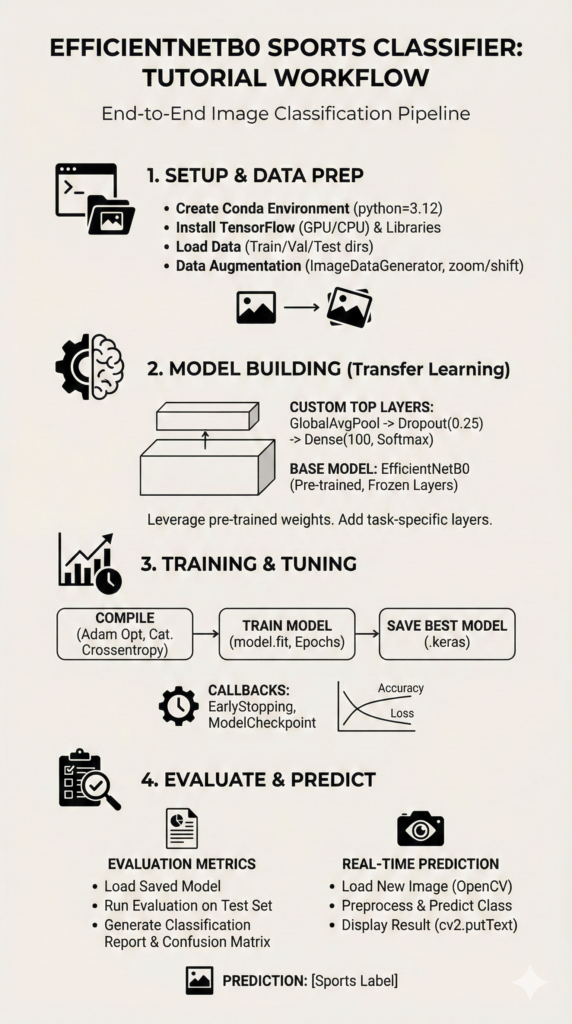
This EfficientNetB0 image classification tutorial is designed to teach you how to build a robust system capable of identifying 100 different sports categories from scratch. By utilizing the power of transfer learning and the high-efficiency architecture of the EfficientNetB0 model, you will learn how to transform raw image data into a sophisticated classification engine. This project is designed to bridge the gap between theoretical deep learning and practical, real-world deployment.
The value of this guide lies in its end-to-end approach to solving complex multi-class problems. Instead of working with simplified datasets, you will tackle a diverse 100-class challenge, gaining experience in handling data imbalances and scaling a model’s performance. Whether you are a student looking to enhance your portfolio or a developer seeking to implement high-speed recognition in an app, this roadmap provides the precise technical steps you need.
To achieve this, we will walk through a structured pipeline that begins with a clean environment setup and moves into advanced data augmentation techniques. You will see firsthand how to freeze pre-trained layers to leverage existing knowledge while training custom top layers for your specific sports dataset. This method significantly reduces training time and computational costs without sacrificing accuracy, making it an essential skill for modern AI development.
Finally, we go beyond just training by implementing a full evaluation and prediction suite. You will learn to interpret confusion matrices to identify where the model might be confusing similar sports, like “tennis” and “badminton.” By the end of this guide, you will have a functional Python script that uses OpenCV to visualize predictions on real test images, turning a static model into a dynamic tool ready for real-world use.
Why EfficientNetB0 is the Smart Choice for Your Image Classification Tutorial
When starting an EfficientNetB0 image classification tutorial, the first goal is to understand why this specific architecture has become a favorite among data scientists. EfficientNetB0 was developed by Google researchers using a method called “compound scaling,” which balances the depth, width, and resolution of the neural network. Unlike older models that simply added more layers to get better results, this model scales all dimensions uniformly, allowing it to achieve state-of-the-art accuracy while being much smaller and faster than its predecessors like ResNet or Inception.
The primary target of using this architecture is to achieve high performance on hardware with limited resources. In our sports classification project, we are dealing with 100 different categories, which requires a model that is “smart” enough to catch subtle details—like the difference between a cricket bat and a baseball bat—without requiring a massive supercomputer to train. By using a pre-trained version of this model, we are essentially “standing on the shoulders of giants,” taking the patterns the model already learned from millions of general images and fine-tuning them to recognize the specific equipment and environments found in sports.
At a high level, the process involves stripping away the final “decision-making” layer of the original model and replacing it with our own specialized layers. We keep the base of the model frozen initially so that the valuable features it already knows are not lost. This approach, known as transfer learning, is what allows us to train a high-accuracy model in a fraction of the time it would take to build one from scratch. It turns a daunting task of classifying 100 categories into a manageable, highly effective project that runs efficiently on standard GPUs.

Mastering 100 Sports: Your Guide to Building an Intelligent Image Classifier
This tutorial is centered on a high-performance Python script that bridges the gap between raw data and real-world intelligence. By the end of this guide, you will have a fully functional pipeline that can take a simple image of an athlete or a sporting arena and correctly categorize it into one of 100 distinct groups. We achieve this by leveraging EfficientNetB0, a state-of-the-art neural network architecture, and fine-tuning it to become an expert in the world of sports. The code provided is structured into a logical, modular workflow: environment preparation, data ingestion, model architecture design, training with smart callbacks, and finally, a visual prediction stage using OpenCV.
The primary target of this code is to demonstrate the immense power of transfer learning. Instead of spending weeks and massive computational resources training a model from scratch, we start with a model that already “knows” how to see shapes, edges, and colors from the ImageNet database. Our script then “teaches” this pre-trained model the specific nuances of sports—distinguishing between the equipment of bike polo and the jerseys of basketball players. This approach is not just a learning exercise; it is the industry standard for deploying high-accuracy AI models quickly and efficiently.
To ensure the model doesn’t just memorize the training photos, our code implements dynamic data augmentation via the ImageDataGenerator. By slightly zooming, shifting, and rotating the images as they are loaded, we essentially show the model thousands of slightly different “versions” of each sport. This forces the neural network to learn the actual essence of the sport rather than just the specific pixels of a single image, leading to a much more robust and “intelligent” system that performs well on brand-new, unseen photos.
Finally, the target of the tutorial extends into the evaluation and deployment phase. It isn’t enough to just train a model; we need to prove that it works. The code includes detailed plotting for accuracy and loss curves, which act as a “heart monitor” for your AI, showing you exactly how it improved over time. We wrap up the logic by using OpenCV to create a visual feedback loop, where the model’s prediction is overlaid directly onto the test image. This turns an abstract mathematical model into a tangible, visual tool that clearly communicates its findings to the user.
Link to the video tutorial here
Download the code for the tutorial here or here
Best AI Photo Tools (Backgrounds, Objects, Headshots)


My Blog
Link for Medium users here
Want to get started with Computer Vision or take your skills to the next level ?
Great Interactive Course : “Deep Learning for Images with PyTorch” here
If you’re just beginning, I recommend this step-by-step course designed to introduce you to the foundations of Computer Vision – Complete Computer Vision Bootcamp With PyTorch & TensorFlow
If you’re already experienced and looking for more advanced techniques, check out this deep-dive course – Modern Computer Vision GPT, PyTorch, Keras, OpenCV4

Build a 100-Class Sports Classifier with EfficientNetB0
This EfficientNetB0 image classification tutorial is designed to teach you how to build a robust system capable of identifying 100 different sports categories from scratch. By utilizing the power of transfer learning and the high-efficiency architecture of the EfficientNetB0 model, you will learn how to transform raw image data into a sophisticated classification engine. This project is designed to bridge the gap between theoretical deep learning and practical, real-world deployment.
The value of this guide lies in its end-to-end approach to solving complex multi-class problems. Instead of working with simplified datasets, you will tackle a diverse 100-class challenge, gaining experience in handling data imbalances and scaling a model’s performance. Whether you are a student looking to enhance your portfolio or a developer seeking to implement high-speed recognition in an app, this roadmap provides the precise technical steps you need.
To achieve this, we will walk through a structured pipeline that begins with a clean environment setup and moves into advanced data augmentation techniques. You will see firsthand how to freeze pre-trained layers to leverage existing knowledge while training custom top layers for your specific sports dataset. This method significantly reduces training time and computational costs without sacrificing accuracy, making it an essential skill for modern AI development.
Finally, we go beyond just training by implementing a full evaluation and prediction suite. You will learn to interpret confusion matrices to identify where the model might be confusing similar sports, like “tennis” and “badminton.” By the end of this guide, you will have a functional Python script that uses OpenCV to visualize predictions on real test images, turning a static model into a dynamic tool ready for real-world use.
Want the exact dataset so your results match mine?
If you want to reproduce the same training flow and compare your results to mine, I can share the dataset structure and what I used in this tutorial.
Send me an email and mention “30 Musical Instruments CNN dataset” so I know what you’re requesting.
🖥️ Email: feitgemel@gmail.com
Setting Up Your Professional AI Development Environment
Before writing a single line of deep learning logic, we must ensure our workstation is primed for heavy lifting. Creating a dedicated Conda environment is a best practice that prevents library conflicts and keeps your project portable. We specifically use Python 3.12 and TensorFlow 2.17.1 to ensure compatibility with the latest EfficientNet features.
For those lucky enough to have an NVIDIA GPU, installing the CUDA-enabled version of TensorFlow is a massive game-changer for training speed. If you are working on a standard laptop without a dedicated GPU, don’t worry—the CPU installation command provided will still allow you to run the code perfectly. We also pull in essential supporting actors like OpenCV for image processing and Matplotlib for visualizing our results.
This setup phase is the “foundation” of your project. By using specific version numbers for libraries like scikit-learn and pillow, we guarantee that the code you write today will continue to function exactly the same way in the future. Once your environment is activated in PowerShell, you are ready to launch VS Code and start building.
# Run in on PowerShell !!!! # ========================= ### Command to create a isolated virtual environment for our project conda create -n TensorFlow217 python=3.12 ### Command to activate the newly created environment conda activate TensorFlow217 ### Command to verify if your NVIDIA drivers and CUDA are detected nvcc --version ### Command to install TensorFlow with GPU support for CUDA 12.3 pip install tensorflow[and-cuda]==2.17.1 ### Alternative command for users without a dedicated GPU # pip install tensorflow==2.17.1 ### Command to install plotting and data visualization tools pip install matplotlib==3.10.0 ### Command to install dataset management utilities pip install datasets==3.3.0 ### Command to install image processing library pip install pillow==11.1.0 ### Command to install scientific computing tools pip install scipy==1.15.1 ### Command to install OpenCV for real-time computer vision pip install opencv-python==4.10.0.84 ### Command to install machine learning evaluation metrics pip install scikit-learn==1.6.1 ### Command to launch VS Code in the current directory code .Section Summary: This stage ensures all technical dependencies are correctly installed and isolated in a virtual environment, providing a stable foundation for high-performance training with GPU support.
Visualizing Data and Preparing the Training Pipeline
Understanding your data is the most critical step in any EfficientNetB0 image classification tutorial. The first part of our script includes a handy function to peek into your folders and display random images along with their labels. This “sanity check” ensures your dataset is organized correctly and gives you a feel for the visual diversity of the 100 sports we are classifying.
To make our model truly “smart,” we use the ImageDataGenerator for data augmentation. Instead of just showing the model the same static images, we rotate, zoom, and shift them on the fly. This effectively creates an infinite variety of training samples, helping the model learn the core features of a sport—like a ball or a racket—rather than just memorizing a specific photo.
We then establish our “data flows” for training, validation, and testing. By resizing all images to a standard 224×224 pixels, we match the expected input shape for EfficientNetB0. This consistency is vital for the mathematical operations happening inside the neural network layers during the training process.
import numpy as np import os import random from PIL import Image import cv2 import matplotlib.pyplot as plt from tensorflow import keras from tensorflow.keras import layers , models from tensorflow.keras.preprocessing.image import ImageDataGenerator from tensorflow.keras.layers import Dense, Input, Flatten, Dropout, GlobalAveragePooling2D from tensorflow.keras.callbacks import ModelCheckpoint, EarlyStopping, ReduceLROnPlateau from sklearn.metrics import classification_report, confusion_matrix, accuracy_score from tensorflow.keras.optimizers import Adam ### Define the paths to your local dataset folders train_dir = '/mnt/d/Data-Sets-Image-Classification/100 Sports Image Classification/train' val_dir = '/mnt/d/Data-Sets-Image-Classification/100 Sports Image Classification/valid' test_dir = '/mnt/d/Data-Sets-Image-Classification/100 Sports Image Classification/test' ### Function to display random images from the dataset to verify labels def show_random_images_wth_labels(main_folder , num_images=5): subfolders = [os.path.join(main_folder, f ) for f in os.listdir(main_folder) if os.path.isdir(os.path.join(main_folder, f))] random.shuffle(subfolders) fig, axes = plt.subplots(nrows=1, ncols=num_images, figsize=(15, 5)) for i , subfolder in enumerate(subfolders[:num_images]): image_paths = [os.path.join(subfolder, img) for img in os.listdir(subfolder) if img.lower().endswith(('.png', '.jpg', '.jpeg'))] random.shuffle(image_paths) image_path = image_paths[0] img = Image.open(image_path) axes[i].imshow(img) axes[i].axis('off') axes[i].set_title(os.path.basename(image_path) + f" ({os.path.basename(subfolder)})", fontsize=10) plt.tight_layout() plt.show() ### Execute the visualization function show_random_images_wth_labels(train_dir , num_images=5) ### Create the generator with augmentation settings for better model generalization train_dataget = ImageDataGenerator(zoom_range=0.2 , width_shift_range=0.2, height_shift_range=0.2) ### Load the training data from the directory in batches train_dg = train_dataget.flow_from_directory( train_dir, class_mode='categorical', target_size=(224,224), batch_size=32, shuffle=True, seed=42) ### Create a standard generator for validation and testing without augmentation val_datagen = ImageDataGenerator() ### Load the validation dataset validation_dg = val_datagen.flow_from_directory( val_dir, class_mode='categorical', target_size=(224,224), batch_size=32, shuffle=False, seed=42) ### Load the test dataset testing_dg = val_datagen.flow_from_directory( test_dir, class_mode='categorical', target_size=(224,224), batch_size=32, shuffle=False, seed=42)Section Summary: This part focuses on data ingestion and preprocessing, using augmentation to expand the dataset’s variety and preparing batches of 224×224 images for the model to process.
Building the Brain Using Transfer Learning
This is where the magic happens. We import the EfficientNetB0 model pre-loaded with “knowledge” from millions of images on ImageNet. By setting include_top=False, we perform a “brain transplant”—we keep the model’s ability to see and understand images but remove its old decision-making layer so we can add our own.
We “freeze” the base model layers, which means we won’t change the weights that already recognize general patterns. On top of this foundation, we add a GlobalAveragePooling2D layer to simplify the data, a Dropout layer to prevent the model from getting overconfident, and finally, a Dense layer with 100 units (one for each sport) using the softmax activation function.
Finally, we compile the model with the Adam optimizer. This optimizer helps the model find the “lowest point” of error (loss) as efficiently as possible. By using categorical cross-entropy, we tell the model exactly how to measure its mistakes when trying to choose between 100 different sports.
from tensorflow.keras.applications import EfficientNetB0 from tensorflow.keras.layers import Dense , Dropout from tensorflow.keras.models import Model ### Load EfficientNetB0 without the top layer and use pre-trained weights base_model = EfficientNetB0(weights='imagenet', include_top=False, input_shape=(224, 224, 3)) ### Freeze the base layers so we don't destroy the pre-trained knowledge for layer in base_model.layers: layer.trainable = False ### Define the custom layers for our 100 sports categories x = base_model.output ### Reduce the spatial dimensions to a single vector x = GlobalAveragePooling2D()(x) ### Add dropout to reduce overfitting during training x = Dropout(0.25)(x) ### The final layer that outputs probabilities for 100 classes predictions = Dense(100, activation='softmax')(x) ### Construct the final functional model model = Model(inputs=base_model.input, outputs=predictions) ### Set the optimizer and the loss function for training opt = Adam(learning_rate=0.005) model.compile(optimizer=opt, loss = keras.losses.categorical_crossentropy , metrics=['accuracy'])Section Summary: By leveraging transfer learning, we attach a specialized 100-class output layer to a pre-trained EfficientNetB0 core, allowing the model to learn complex sports features with minimal training time.
Training and Monitoring the Learning Process
Training a model is a delicate balance. If we train too much, it’s “overfit.” To solve this, we use Callbacks. EarlyStopping stops the training if the model stops improving, while ReduceLROnPlateau slows down the learning speed if we get stuck, allowing for more precise adjustments.
The ModelCheckpoint is your insurance policy. It automatically saves the “best version” of your model to a .keras file whenever the validation loss hits a new low. This ensures that you always have the highest-performing version saved on your disk, regardless of later training noise.
After the training finishes, we use Matplotlib to plot our “learning curves.” Seeing the accuracy go up and the loss go down provides technical insight. If the training accuracy is much higher than the validation accuracy, you know you need to go back and add more data augmentation or dropout.
### Define where to save the best version of your model best_model_path = "/mnt/d/temp/models/100-Sports-Model.keras" ### Start the training process with monitoring callbacks history = model.fit( train_dg, epochs = 50, validation_data = validation_dg, callbacks = [ ### Stops training if the model stops improving to save time EarlyStopping(monitor='val_loss', patience=5, restore_best_weights=True), ### Makes the learning rate smaller if progress slows down ReduceLROnPlateau(monitor='val_loss', factor=0.2, patience=2,mode='min') , ### Saves the best model file automatically ModelCheckpoint(best_model_path, monitor='val_loss', verbose=1, save_best_only=True) ] ) ### Extract the performance metrics for plotting train_acc = history.history['accuracy'] val_acc = history.history['val_accuracy'] train_loss = history.history['loss'] val_loss = history.history['val_loss'] epochs = range(1, len(train_acc) + 1) ### Visualize the accuracy trends over time plt.figure(figsize=(12, 4)) plt.subplot(1, 2, 1) plt.plot(epochs, train_acc, 'b', label='Training Accuracy') plt.plot(epochs, val_acc, 'r', label='Validation Accuracy') plt.title('Training and Validation Accuracy') plt.xlabel('Epochs') plt.ylabel('Accuracy') plt.legend() ### Visualize the loss trends over time plt.subplot(1, 2, 2) plt.plot(epochs, train_loss, 'b', label='Training Loss') plt.plot(epochs, val_loss, 'r', label='Validation Loss') plt.title('Training and Validation Loss') plt.xlabel('Epochs') plt.ylabel('Loss') plt.legend() plt.tight_layout() plt.show()Section Summary: This section manages the training execution, using automated callbacks to optimize learning and Matplotlib to visualize the model’s convergence through accuracy and loss plots.
Evaluating Performance on Unseen Data
The true test of an AI is how it handles data it has never seen before. In this section, we load our saved “best model” and run it against the Test Dataset. This gives us an unbiased accuracy score—it’s the “final exam” for our sports classifier.
We don’t just look at a single accuracy number, though. We use the Classification Report and Confusion Matrix. This tells us exactly which sports the model is great at and which ones are tricky. Maybe it’s perfect at “Football” but struggles to tell the difference between “Table Tennis” and “Tennis”—this level of detail is crucial for professional developers.
By setting shuffle=False on our testing generator, we ensure that the predicted labels match up perfectly with the true labels. This allows us to generate a meaningful report that lists the precision, recall, and F1-score for all 100 classes.
import tensorflow as tf from tensorflow.keras.preprocessing.image import ImageDataGenerator ### Load the previously saved best model from the disk best_model_file = "/mnt/d/temp/models/100-Sports-Model.keras" model = tf.keras.models.load_model(best_model_file) ### Display the full architecture of the loaded model print(model.summary()) test_dir= '/mnt/d/Data-Sets-Image-Classification/100 Sports Image Classification/test' ### Setup the generator for the test data val_datagen = ImageDataGenerator() testing_dg = val_datagen.flow_from_directory( test_dir, class_mode='categorical', target_size=(224,224), batch_size=32, shuffle=False, seed=42) ### Calculate the overall loss and accuracy on the test set predictions = model.evaluate(testing_dg) from sklearn.metrics import classification_report, confusion_matrix import numpy as np ### Extract true labels for comparison true_labels = testing_dg.classes ### Generate predictions for all images in the test set predicted_classes = np.argmax(model.predict(testing_dg), axis=-1) ### Print the detailed metrics for all 100 sports categories print("Classification Report:\n", classification_report(true_labels, predicted_classes, target_names=testing_dg.class_indices.keys()))Section Summary: The evaluation stage provides a rigorous check on model performance using a dedicated test set, yielding granular metrics like F1-scores to identify specific areas of classification strength and weakness.
Real-World Deployment: Predicting with OpenCV
The final and most exciting part of the code is making a prediction on a single, real image. We use a custom prepareImage function to take a standard photo and resize it so the model can process it. This simulates how an actual application would handle user-uploaded photos.
Once the model makes a prediction, we use OpenCV to provide a visual result. Instead of just printing a number in the terminal, we draw the actual name of the sport (e.g., “Bike Polo”) directly onto the image window. This is the first step toward building a real-time computer vision application.
Using cv2.imshow allows you to see the image and the model’s “opinion” side-by-side. It’s a powerful way to demonstrate your project to others and proves that your training was successful. You can now point this script at any sport photo and see your AI in action!
import tensorflow as tf import cv2 import os from keras.preprocessing import image from keras.utils import img_to_array, load_img import numpy as np ### Standard image size used during training IMAGE_SIZE = 224 ### Load the model for inference best_model_file = "/mnt/d/temp/models/100-Sports-Model.keras" model = tf.keras.models.load_model(best_model_file) ### Map the class names from the folder structure test_dir= '/mnt/d/Data-Sets-Image-Classification/100 Sports Image Classification/test' CLASSES = os.listdir(test_dir) print(f"Number of classes detected: {len(CLASSES)}") ### Function to process a single image for model prediction def prepareImage(pathForImage): image = load_img(pathForImage, target_size=(IMAGE_SIZE, IMAGE_SIZE)) imgResult = img_to_array(image) imgResult = np.expand_dims(imgResult, axis=0) return imgResult ### Choose a specific image to test testImagePath = "/mnt/d/Data-Sets-Image-Classification/100 Sports Image Classification/test/bike polo/2.jpg" ### Load the image for visual display img = cv2.imread(testImagePath) ### Prepare the image for the neural network imgForModel = prepareImage(testImagePath) ### Get the model's prediction scores resultArray = model.predict(imgForModel, verbose=1) ### Find the index with the highest probability answer = np.argmax(resultArray, axis = 1) ### Convert the numerical index back into a sports label index = answer[0] predicted_class = CLASSES[index] print(f"Predicted class: {predicted_class}") ### Overlay the predicted label onto the image using OpenCV cv2.putText(img, predicted_class , (10,30), cv2.FONT_HERSHEY_SIMPLEX, 0.7, (255,0,0), 2, cv2.LINE_AA) ### Show the final result to the user cv2.imshow("Prediction", img) cv2.waitKey(0)Section Summary: This deployment phase transforms the trained model into a functional tool, using OpenCV to overlay classification results onto real-world images for immediate visual verification.
FAQ
Why choose EfficientNetB0 for a 100-class problem?
EfficientNetB0 is optimized for both speed and accuracy, making it ideal for large-scale classification tasks without requiring massive computational resources.
What is the role of Transfer Learning in this project?
It allows us to use a model pre-trained on ImageNet to recognize basic shapes and textures, so we only need to train the final layers to understand sports-specific features.
How does the ImageDataGenerator prevent overfitting?
By applying random shifts and zooms to the training data, it forces the model to learn the general essence of the sport rather than memorizing specific pixels.
Why do we use the Softmax activation function in the final layer?
Softmax converts raw numerical outputs into a probability distribution that sums to 1.0, allowing us to interpret the model’s prediction as a confidence percentage.
What is the benefit of using the Adam optimizer?
Adam combines the benefits of adaptive learning rates and momentum, which results in faster and more stable convergence during the training process.
How does EarlyStopping improve the training workflow?
It monitors the validation loss and automatically halts training if the model stops improving, preventing wasted time and potential overfitting.
Why is target_size set to 224×224?
EfficientNetB0 was originally designed for 224×224 input images; using this specific size ensures the pre-trained weights extract features as efficiently as possible.
Can I run this code without an NVIDIA GPU?
Yes, you can run it on a CPU by installing the standard TensorFlow package, though the training time for 50 epochs will be significantly longer.
What does the Classification Report tell us?
It provides precision, recall, and F1-score for every class, helping you identify exactly which sports your model struggles to distinguish from others.
How can OpenCV be used for real-time testing?
OpenCV can be used to load a camera stream or local images, allowing the model to display its predicted class labels directly on the visual feed.
Conclusion: Final Thoughts on Your Deep Learning Journey
Building a 100-class sports classifier is no small feat, and by following this tutorial, you’ve mastered the foundational pillars of modern AI development. We’ve moved beyond simple “Hello World” examples to a complex, real-world scenario involving massive data diversity and high-efficiency architectures. The combination of EfficientNetB0 and TensorFlow provides a professional-grade framework that is used by top tech companies for edge deployment and mobile applications.
The key takeaway from this project is the importance of the “pipeline” over just the model. A model is only as good as the data fed into it, which is why our focus on ImageDataGenerator and meticulous environment setup is so vital. By understanding how to evaluate your results through confusion matrices and classification reports, you are now equipped to diagnose and solve performance issues in any future computer vision task.
As a next step, I encourage you to experiment with “fine-tuning.” Once your custom top layers are trained, try unfreezing the last few blocks of the EfficientNet base and training with a very small learning rate. This can often push your accuracy even higher. The world of AI is moving fast, but with the skills you’ve gained here, you are well on your way to building even more impressive, intelligent systems!
Connect :
☕ Buy me a coffee — https://ko-fi.com/eranfeit
🖥️ Email : feitgemel@gmail.com
🤝 Fiverr : https://www.fiverr.com/s/mB3Pbb
Enjoy,
Eran