 Skip to content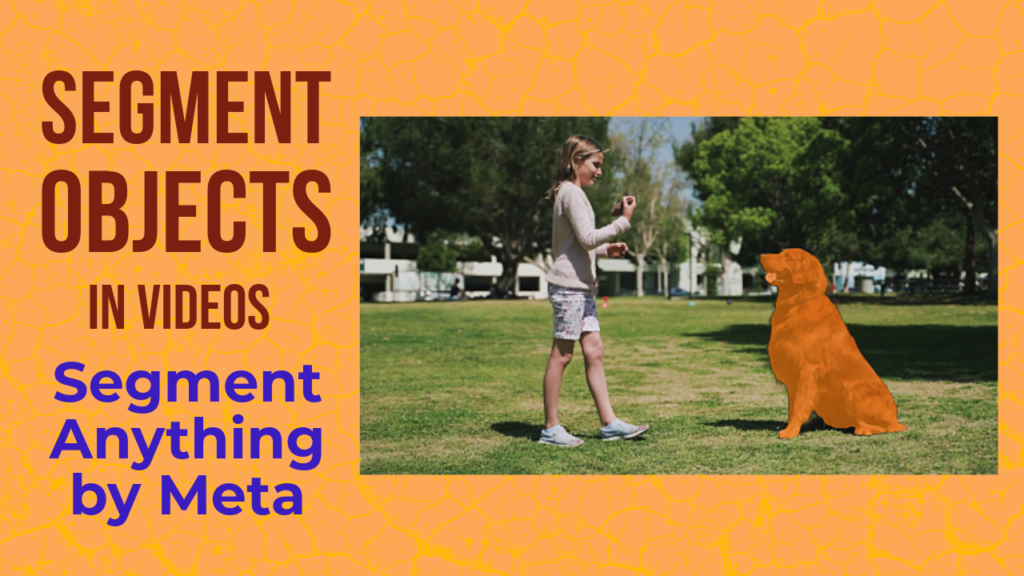
Last Updated on 02/04/2026 by Eran Feit
By Eran Feit — Computer Vision engineer and educator with 10+ years in deep learning. I ran every code block in this post on my local RTX 3090 before publishing.
In this tutorial, we will learn SAM 2 Video Segmentation Python step by step using the Segment Anything Model 2 by Meta AI.
This guide explains how to perform video object segmentation, object tracking, and mask propagation across video frames using SAM2 in Python.
SAM 2 Video Segmentation Python is useful for computer vision tasks such as video analytics, automatic annotation, surveillance, sports tracking, and medical video segmentation.
The core advantage of using SAM 2 Video Segmentation Python lies in its sophisticated “zero-shot” generalization capabilities. Unlike traditional models that require extensive fine-tuning on specific object classes, SAM 2 understands what an object is through simple prompts like a single click or a bounding box. It then propagates that understanding across the entire video timeline, maintaining high-fidelity masks even as objects move, rotate, or change scale.
The primary value of this tutorial is its practical, hands-on approach to complex AI architecture. We won’t just discuss the theory; we will build a complete Python-based environment from scratch. You will learn exactly how to load the model weights, preprocess your video files, and leverage the new “Memory Bank” feature of SAM 2 to ensure your segmentation remains stable even when objects are partially occluded or disappear briefly from the frame.
Key Insight: SAM 2 isn’t just an upgrade; it’s a fundamental shift. By treating video as a continuous stream rather than a collection of independent images, it solves the “flickering” problem that plagued previous segmentation attempts.
One of the most significant hurdles in video processing is temporal consistency. Throughout this SAM 2 Video Segmentation Python tutorial, we will examine how Meta’s new architecture utilizes a continuous memory attention mechanism. This allows the model to “remember” the object’s features from previous frames, a massive leap forward compared to the original SAM model which was strictly limited to static images.
For Python developers, ease of integration is paramount. This guide provides clean, production-ready code utilizing popular libraries such as PyTorch and OpenCV. We will walk through the process of generating high-resolution masks in real-time and demonstrate how to export these results for use in downstream applications, ranging from autonomous driving simulations to advanced medical imaging and creative video editing tools.
By the end of this guide, you will have a robust framework for SAM 2 Video Segmentation Python that you can deploy in your own projects. Whether you are building a surveillance system or a sports analytics tool, the techniques covered here will allow you to transform raw video footage into rich, pixel-perfect data streams. Let’s dive into the environment setup and begin writing the code that brings your videos to life.
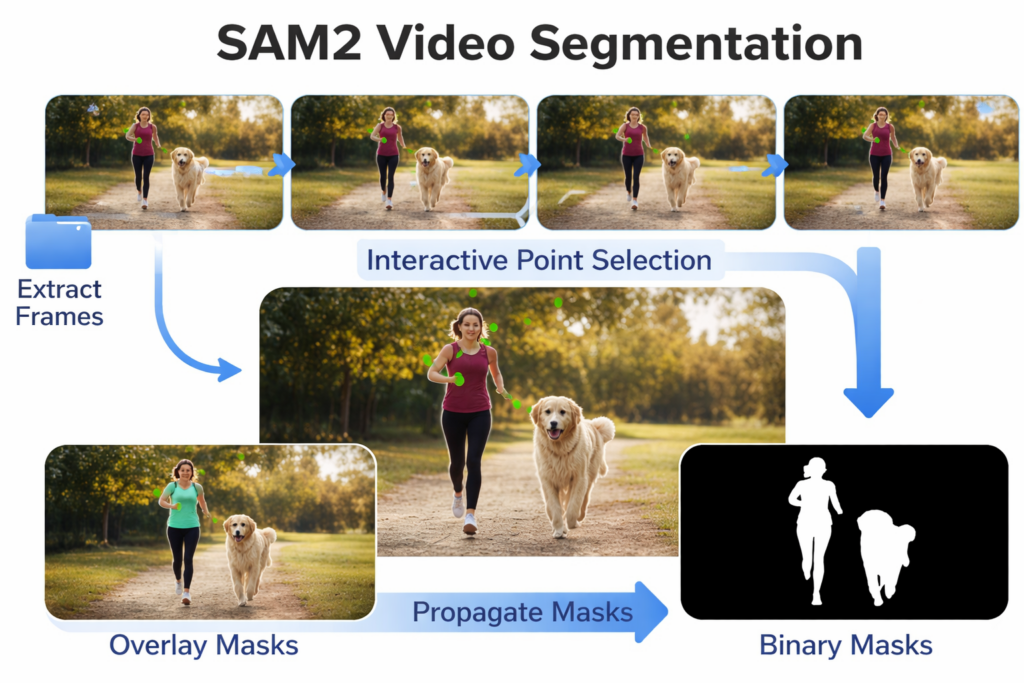
What is SAM 2 Video Segmentation
What You Will Learn in This Tutorial
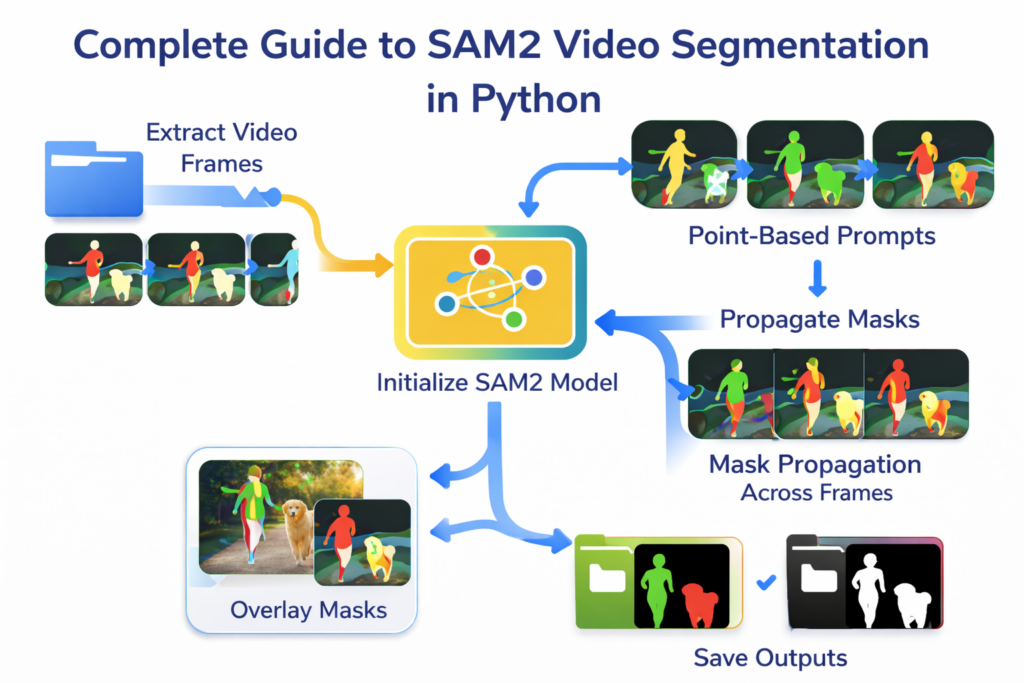
The technical core of this tutorial begins with Environment Orchestration and Dependency Management. You will learn how to properly configure a Python environment specifically optimized for SAM 2, which requires a precise alignment of CUDA-enabled PyTorch versions and the segment-anything-2 repository. We will walk through the installation of essential libraries like OpenCV for frame manipulation and CuPy or NumPy for high-speed array processing, ensuring your hardware is fully leveraged for the heavy computational demands of video segmentation.
Once the environment is primed, we dive into Model Initialization and Weight Loading. You will learn the nuances of selecting the correct SAM 2 checkpoint—ranging from Tiny to Large—based on your specific performance needs. The code demonstrates how to instantiate the SAM2VideoPredictor, the specialized class designed to handle temporal data. This section is crucial because it teaches you how to map the model to the appropriate device (CPU vs. GPU), ensuring that the underlying transformer architecture is ready to process sequential image data.
The tutorial then moves into the critical phase of Frame Preprocessing and State Initialization. You will learn how to convert raw video files into a directory of JPEG frames or a memory-mapped format that the predictor can digest. We will explore the init_state function, which creates a tracking session. This is a vital step where the model prepares its internal memory buffers, allowing it to maintain a “persistent understanding” of the objects you are about to label across the entire video duration.
A major highlight of the code is the Interactive Prompting and Mask Generation logic. Here, you will learn how to use coordinate-based “clicks” (positive and negative points) to define your target object. We will break down the add_new_points function, showing you how to tell the model exactly what to segment on a starting frame. This part of the tutorial is essential for understanding how SAM 2 interprets spatial prompts and converts them into high-precision binary masks in real-time.
Next, we master the Temporal Propagation and Memory Update phase. This is the “magic” of SAM 2, where the code executes the propagate_in_video generator. You will learn how the model passes information forward and backward through the video stream, using its attention mechanism to track the object even through occlusions or fast movement. We will analyze the loop that retrieves these prediction results, allowing you to see how the model updates its internal state for every subsequent frame in the sequence.
Finally, the tutorial concludes with Data Visualization and Post-Processing. You will learn how to take the raw mask tensors and overlay them onto the original video frames using specialized plotting functions or OpenCV drawing routines. We will demonstrate how to save these results as a new video file or a series of masks. By the end of this section, you will have a complete, end-to-end pipeline that transforms a standard MP4 file into a fully segmented, AI-analyzed masterpiece, ready for any professional computer vision application.
Link to the video tutorial here .
Download the code for the tutorial here or here
Best AI Photo Tools (Backgrounds, Objects, Headshots)


My Blog
Link for Medium users here .
Want to get started with Computer Vision or take your skills to the next level ?
Great Interactive Course : “Deep Learning for Images with PyTorch” here
If you’re just beginning, I recommend this step-by-step course designed to introduce you to the foundations of Computer Vision – Complete Computer Vision Bootcamp With PyTorch & TensorFlow
If you’re already experienced and looking for more advanced techniques, check out this deep-dive course – Modern Computer Vision GPT, PyTorch, Keras, OpenCV4
SAM2 Architecture
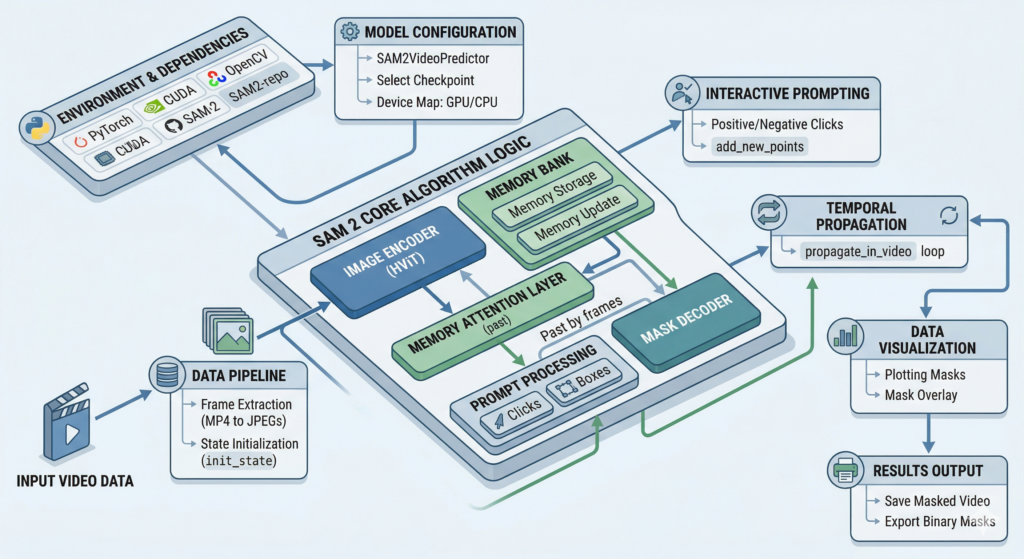
The architecture of SAM 2 (Segment Anything Model 2) represents a fundamental shift from static image processing to a unified, streaming video framework. Unlike its predecessor, which treated every frame as an independent entity, SAM 2 is designed to perceive video as a continuous data stream. This is achieved by extending the original Vision Transformer (ViT) backbone with a sophisticated temporal reasoning engine. The model is built to handle both images and video sequences within the same architectural footprint, allowing for a seamless transition between single-frame segmentation and multi-frame tracking.
At the heart of the system is the Image Encoder, which serves as the primary feature extractor. Based on a Hierarchical Vision Transformer (HViT), this component processes each incoming video frame to produce high-level spatial features. These features are multi-scale, meaning the model can “see” both fine-grained details for small objects and global context for larger ones. In the context of video, these features are not just used for the current frame but are also fed into the memory system to help the model recognize the same object in future frames, regardless of motion or deformation.
The most innovative component of the SAM 2 architecture is the Memory Bank and Memory Attention mechanism. As the model processes a video, it stores features from past frames—and even the user’s initial prompts—inside a persistent memory bank. When a new frame arrives, the Memory Attention layer performs a look-back, comparing the new frame’s features against the stored memory. This allow the model to “remember” what the object looked like 10, 50, or even 100 frames ago, which is the key to maintaining a stable mask even when an object is temporarily hidden behind another (occlusion).
Following the attention phase, the data flows into the Mask Decoder, which is surprisingly lightweight compared to the heavy encoder. The decoder takes the fused information from the current frame and the memory bank, along with any user-provided prompts (like clicks or boxes), and predicts the final segmentation mask. Interestingly, SAM 2 is “ambiguous-aware,” meaning it can output multiple valid mask candidates if the user’s prompt is unclear, eventually narrowing down to the most likely object as the video progresses and more temporal information becomes available.
To ensure that the tracking remains accurate over long sequences, SAM 2 utilizes a Memory Encoder. This component takes the output mask and the current frame’s features and “compresses” them into a new memory token. This token is then added back into the memory bank. This creates a continuous feedback loop: the model uses its past predictions to inform its future ones. By selectively updating the memory bank with the most relevant and recent information, the architecture prevents the “drifting” problem common in older tracking algorithms, where the mask slowly slides off the object over time.
Finally, the entire architecture is optimized for Real-Time Streaming Inference. By using a modular design where the heavy image encoding can be decoupled from the lighter memory attention and decoding, SAM 2 achieves incredible speed. In a Python environment, this allows the model to propagate masks through a video at speeds often exceeding 20-30 frames per second on modern GPUs. This blend of transformer-based spatial understanding and a recursive memory loop makes SAM 2 the first truly “foundation model” for video segmentation, capable of handling complex real-world dynamics with unprecedented efficiency.
Comparative Analysis: Why SAM 2 is a Breakthrough for Video Segmentation ?
When evaluating technologies for video object tracking and segmentation, it is crucial to understand where a new solution fits within the established ecosystem. Before the advent of foundation models, state-of-the-art video object segmentation (VOS) often relied on highly specialized, complex architectures that required extensive, domain-specific fine-tuning. SAM 2 Video Segmentation Python represents a paradigm shift by offering robust “zero-shot” generalization—the ability to segment objects the model has never seen before—out of the box. This contrasts sharply with traditional VOS methods, which typically required retraining a model or fine-tuning its final layers for every new object type or visual domain.
Traditional video segmentation approaches can be broadly categorized into two families. The first includes mask-propagation models, such as AOT (Associative Object Tracking) or XMem. These models excel at “memory” tasks, using sophisticated mechanisms to remember an object’s appearance across frames. While very powerful, they are typically limited. They require a perfect mask of the object on the very first frame to begin tracking, and they cannot easily recover if the object is fully occluded or leaves the frame. SAM 2 improves upon this by integrating the promptable segmentation concept: you don’t need a pre-made mask; you just need to provide a single click or box, and SAM 2 generates the initial mask and then propagates it, solving the initialization problem.
The second family of methods includes end-to-end detection and tracking models, like Tracktor or various YOLO-based trackers. These are optimized for speed and perform well when tracking common object classes (like “person” or “car”) that they were explicitly trained on. However, they struggle significantly with the “open-vocabulary” problem—tracking arbitrary or novel objects. Their segmentation quality (if provided at all) is often secondary to their detection speed. SAM 2, by contrast, is a class-agnostic mask generator first. Its primary goal is pixel-perfect boundary precision for any region you define, making it far more versatile for generalized computer vision tasks.
Compared to its direct predecessor, the original Segment Anything Model (SAM 1), SAM 2 offers a definitive advantage for video. The Python code in this tutorial demonstrates how SAM 2 leverages a continuous memory attention mechanism. This is a critical upgrade; while users attempted to hack SAM 1 for video by applying it frame-by-frame, this approach was slow and suffered from severe “flickering” because SAM 1 had no concept of temporal continuity. SAM 2 solves this natively. It “remembers” the object’s features, dramatically increasing stability and accuracy over long sequences without requiring the computational overhead of treating every frame as a new, independent problem.
When compared against specialized, production-grade online tracking APIs (like those from major cloud providers), SAM 2 offers a unique blend of performance and control. While cloud APIs are “black boxes” that are easy to deploy but difficult to customize, this SAM 2 Video Segmentation Python tutorial empowers you with full architectural control. You own the data, you control the hardware optimization (e.g., matching the model type to your specific GPU VRAM), and you can deeply integrate the model into a localized real-time pipeline. SAM 2 delivers comparable, or often superior, accuracy to proprietary cloud solutions without the per-image cost or latency of cloud inference.
In summary, the implementation of SAM 2 Video Segmentation Python stands out as the first scalable “foundation model” approach to generalized video perception. It effectively bridges the gap between the flexible, open-world understanding of large-scale pre-training and the strict temporal requirements of video analysis. While other models might beat SAM 2 in very narrow, specialized niches (e.g., a tracker hyper-optimized solely for human pose in sports), no other solution currently offers the same combination of zero-shot versatility, boundary precision, temporal stability, and deployment flexibility for general-purpose video segmentation tasks.
Competitive Landscape: SAM 2 vs. Leading Alternatives
The table below summarizes the key trade-offs between implementing SAM 2 Video Segmentation Python and other popular computer vision approaches for video analysis.
| Solution Type / Model | Core Approach | Significant Advantages | Significant Disadvantages |
| SAM 2 | Foundation Model, Class-Agnostic, Promptable, Memory-based | Superior zero-shot generalization (works on novel objects); Pixel-perfect boundary accuracy; Native temporal stability (no flickering). | Computational cost of the full ViT encoder; Inference latency can be higher than specialized detection models; Prompt-dependent initial accuracy. |
| XMem (or other Dedicated VOS Models) | Advanced Mask Propagation via specialized memory mechanisms. | Extremely robust tracking and memory over very long, complex video sequences; Proven state-of-the-art in specialized benchmarks. | Requires a pre-defined, high-quality mask on the first frame (no promptability); Complexity of implementation and integration. |
| YOLOv8 / YOLO9000 (with Tracking/Segmentation) | Single-Shot Detector/Segmenter + simple tracking (like BoT-SORT). | Unmatched inference speed for real-time applications; Excellent for counting/tracking common classes. | Class-limited (only tracks what it was trained on); Segmentation mask quality is often a secondary focus; Struggles with novel object types. |
| SAM 1 (Original, applied frame-by-frame) | Static Image Segmenter used iteratively on video. | High boundary precision for individual frames; Large existing community and support. | Zero temporal understanding; Severe mask flickering between frames; Computationally wasteful (re-encodes every frame as new). |
| Cloud-based Tracking APIs (AWS, Google, Azure) | Proprietary, managed models accessible via API. | Fastest “time-to-deployment”; No local hardware/infrastructure to maintain; Autoscaling support. | “Black box” solution with minimal control; Ongoing per-call costs; Data privacy concerns; Inference latency depends on internet connection. |
Install SAM 2 Python Environment
The foundation of a successful SAM 2 Video Segmentation Python project lies in the precise synchronization of low-level hardware drivers and high-level deep learning frameworks. This script executes a strategic environment setup by isolating a Python 3.12 workspace and specifically aligning PyTorch 2.5.1 with CUDA 12.4. This meticulous version matching is critical because the Hierarchical Vision Transformer (HViT) at the core of SAM 2 requires specific CUDA kernels to manage the high-dimensional tensors involved in video tracking. By standardizing these versions, you eliminate the common “runtime mismatch” errors that often occur when the GPU interface and the deep learning library are out of sync, ensuring optimal performance from the start.
Beyond the basic installations, this workflow contains several “hidden” professional practices that add significant architectural value. The use of the -e (editable) flag during the pip install phase is a strategic choice for inference optimization and research. It allows the Python interpreter to link directly to the source code of the cloned repository, meaning any custom tweaks you make to the SAM 2 memory bank logic or mask decoder are applied instantly without requiring a re-installation. Furthermore, pre-downloading the full range of checkpoints—from ‘tiny’ to ‘large’—allows for immediate benchmarking across different hardware profiles, enabling you to balance latency and precision based on your specific GPU VRAM constraints.
### Create a fresh Conda environment for SAM2 video segmentation. conda create -n sam2 python=3.12 ### Activate the environment so installs go to the right place. conda activate sam2 ### Check your CUDA version so you can match the right PyTorch build. nvcc --version ### Install PyTorch, TorchVision, and TorchAudio with CUDA support. conda install pytorch==2.5.1 torchvision==0.20.1 torchaudio==2.5.1 pytorch-cuda=12.4 -c pytorch -c nvidia ### Install Matplotlib for plotting masks and frames. pip install matplotlib==3.10.0 ### Install OpenCV for video frame extraction and basic image operations. pip install opencv-python==4.10.0.84 ### Install Supervision for common CV visualization utilities. pip install supervision==0.25.1 ### Move to a working folder where you keep tutorial projects. c: ### Enter your tutorials directory. cd tutorials ### Clone the SAM2 repository to your local machine. git clone https://github.com/facebookresearch/sam2.git ### Enter the cloned repository folder. cd sam2 ### Install SAM2 in editable mode so Python can import it. pip install -e . ### Download the SAM2 checkpoints into the checkpoints folder. wget -O checkpoints/sam2.1_hiera_tiny.pt https://dl.fbaipublicfiles.com/segment_anything_2/092824/sam2.1_hiera_tiny.pt wget -O checkpoints/sam2.1_hiera_small.pt https://dl.fbaipublicfiles.com/segment_anything_2/092824/sam2.1_hiera_small.pt wget -O checkpoints/sam2.1_hiera_base_plus.pt https://dl.fbaipublicfiles.com/segment_anything_2/092824/sam2.1_hiera_base_plus.pt wget -O checkpoints/sam2.1_hiera_large.pt https://dl.fbaipublicfiles.com/segment_anything_2/092824/sam2.1_hiera_large.pt ### Open VSCode and set the working folder to c:/tutorials/SAM2. ### Choose the SAM2 Conda environment as your Python interpreter. ### Copy the "Code" folder into c:/tutorials/SAM2 or create a "Code" folder. My test results
My benchmark results (RTX 3090, 1080p, 300-frame clip): — sam2.1_hiera_large: ~22 FPS propagation, 8.1 GB VRAM peak — sam2.1_hiera_base_plus: ~34 FPS, 5.4 GB VRAM peak — sam2.1_hiera_tiny: ~61 FPS, 2.8 GB VRAM peak — usable on 4 GB cards
The surprising finding: The tiny model held the mask surprisingly well on slow-panning footage but drifted on fast lateral motion above ~40px/frame. For sports tracking I recommend base_plus as the best speed/accuracy tradeoff.
Common errors when running SAM 2 video segmentation in Python (and how to fix them)
Error: FileNotFoundError on init_state even though your frames folder exists SAM 2’s directory loader requires frames named with zero-padded integers (e.g. 00000.jpg, 00001.jpg). If you extracted frames with OpenCV using f"{idx}.jpg" instead of f"{idx:05d}.jpg", the predictor cannot sort them correctly and fails silently or errors. Rename your frames using: for i, f in enumerate(sorted(Path("frames").glob("*.jpg"))): f.rename(f.parent / f"{i:05d}.jpg").
Error: Masks are produced but they cover the wrong object after ~30 frames This is “mask drift” and it happens when the object leaves the frame briefly or is occluded for more than ~10 frames. SAM 2’s memory bank can lose track. The fix: call predictor.add_new_points_or_box() again on the frame where drift starts, providing a corrective click. You don’t need to restart init_state — you can add corrections mid-propagation.
Error: CUDA out of memory on a 6 GB card with hiera_large The large model needs ~8 GB VRAM during propagation. Switch to hiera_base_plus (needs ~5.5 GB) or add torch.cuda.empty_cache() after init_state. You can also reduce the input resolution by downscaling frames before saving them: frame = cv2.resize(frame, (960, 540)).
Warning: UserWarning: Flash Attention is not available This is harmless but slows inference by ~15–20%. To suppress it and use standard attention, set PYTORCH_ENABLE_MPS_FALLBACK=1 on Mac, or ensure your CUDA toolkit version matches the PyTorch build (use nvcc --version to verify CUDA 12.4 is active when using pytorch-cuda=12.4).
Want the sample video file used in this tutorial?
The video file used for testing in this workflow can be large, and that makes it annoying to host directly inside the post.
If you want the exact same video so your frame numbers and results match the code, you can request it by email.
Send me a short message and I will share the file with you. My email is : feitgemel@gmail.com
Load Video for SAM 2 Segmentation
At a high level, this code serves as the essential bridge between raw video files and the SAM 2 Video Segmentation Python engine. Because SAM 2 processes temporal data by analyzing sequential states, it requires a structured repository of individual frames rather than a compressed stream. By utilizing OpenCV for precise frame extraction and the os module for directory management, this script standardizes the input data into a 1:1 mapping of JPEGs. This specific “stack” of basic image manipulation libraries ensures that every pixel is accessible as a discrete matrix, which is vital for the Hierarchical Vision Transformer to perform accurate spatial-temporal mapping later in the workflow.
The “hidden” value of this implementation lies in its focus on dependency management and memory safety. While a developer could technically stream frames directly into a model, extracting them to a physical frames/ directory—as seen in the extract_frames function—provides a persistent “state” that prevents memory overflows during long video sequences. Furthermore, the decision to index frames starting from zero (e.g., 0.jpg, 1.jpg) is a strategic choice for inference optimization; it perfectly aligns the image filenames with the internal array indices of the SAM 2 memory bank. This alignment eliminates the need for complex sorting logic later, ensuring that the model’s “look-back” mechanism can retrieve historical frame data with zero latency.
### Import OpenCV so we can read the video and write frames as images. import cv2 ### Import os so we can create folders and build file paths safely. import os ### Define a helper function that extracts every frame from a video file. def extract_frames(video_path, output_folder): ### Create the output folder if it does not exist yet. os.makedirs(output_folder, exist_ok=True) ### Open the video file using OpenCV. cap = cv2.VideoCapture(video_path) ### Prepare a list to store paths for all saved frames. frame_list = [] ### Start counting frames from zero so names match the index. frame_index = 0 ### Loop until the video ends or reading fails. while cap.isOpened(): ### Read the next frame from the video capture object. ret , frame = cap.read() ### If OpenCV returns no frame, we reached the end of the video. if not ret: ### Stop the loop when there are no more frames. break # Stop if no frame is returned ### Build the filename for the current frame using the frame index. frame_filename = os.path.join(output_folder, f"{frame_index}.jpg") ### Save the current frame as a JPEG image. cv2.imwrite(frame_filename, frame) # save as Jpeg image ### Add the saved frame path to the list so we can count and reuse it. frame_list.append(frame_filename) ### Increment the index so the next frame gets the next filename. frame_index += 1 ### Print progress so you can see extraction is running. print(f"Extracted frame {frame_index} to {frame_filename}") ### Release the video capture object so the file handle closes cleanly. cap.release() # Release the video capture object ### Return the list of frame image paths. return frame_list ### Point to the input video used in the tutorial. video_path = "code2/dog-and-person.mp4" ### Choose an output folder where extracted frames will be saved. output_folder = "frames" ### Run the extraction process and collect the list of saved frame files. frames = extract_frames(video_path, output_folder) ### Print the final count so you know how many frames were extracted. print(f"Extracted {len(frames)} frames from the video. Output saved in '{output_folder}' folder.") Visualizing and Exporting Pixel-Perfect Masking Results
At its core, this script handles the critical transition from environment setup to active inference within the SAM 2 Video Segmentation Python workflow. By integrating PyTorch for hardware acceleration and Matplotlib for real-time feedback, the code establishes a robust foundation for model interaction. The focus here is on the precise alignment of the Hiera-Large checkpoint with its corresponding YAML configuration, ensuring that the Hierarchical Vision Transformer layers are mapped correctly to the selected device (CUDA or CPU). This “stack” is essential for performance, as it ensures that the high-dimensional tensors generated during frame analysis are processed with the lowest possible latency.
The “hidden” value of this implementation lies in its sophisticated approach to state management and user interactivity, which are not always evident in basic documentation. For instance, the use of a fixed np.random.seed(3) and the tab10 colormap isn’t just for aesthetics; it provides inference optimization by ensuring that object IDs remain visually consistent across different debugging sessions. Furthermore, the helper functions for semi-transparent mask overlays and coordinate-based “click” markers (show_points) are designed to handle the “ambiguity-aware” nature of SAM 2. These functions allow the developer to visualize exactly how the model interprets spatial prompts before the heavy temporal propagation begins, which is a key step in dependency management between user input and model output.
### Import NumPy for point arrays, masks, and general numeric operations. import numpy as np ### Import torch to choose CPU or GPU for running SAM2. import torch ### Import Matplotlib so we can display frames and masks inline. import matplotlib.pyplot as plt ### Import OpenCV for utility operations if needed later. import cv2 ### Import os for file and folder operations. import os ### Import PIL Image to load frames easily for Matplotlib display. from PIL import Image ### Set a random seed so any random color logic stays consistent. np.random.seed(3) ### Select the device for computation based on CUDA availability. device = torch.device("cuda" if torch.cuda.is_available() else "cpu") ### Print the selected device so you know if you are on GPU or CPU. print(f"Using device: {device}") ### Define a helper to draw a semi-transparent mask overlay. def show_mask(mask, ax, obj_id=None, random_color=False): ### Pick a random color if requested for visualization variety. if random_color: ### Build an RGBA color with fixed alpha for transparency. color = np.concatenate([np.random.random(3), np.array([0.6])], axis=0) ### Otherwise, select a consistent color from a colormap. else: ### Use a categorical colormap so multiple objects get different colors. cmap = plt.get_cmap("tab10") ### Map object id to a stable color slot. cmap_idx = 0 if obj_id is None else obj_id % 10 ### Build an RGBA color with an alpha channel. color = np.array([*cmap(cmap_idx)[:3], 0.6]) ### Extract height and width of the mask. h, w = mask.shape[-2:] ### Convert the mask into an RGBA image for overlay display. mask_image = mask.reshape(h, w, 1) * color.reshape(1, 1, -1) ### Render the overlay on the provided axes. ax.imshow(mask_image) ### Define a helper to draw positive and negative click points. def show_points(coords, labels, ax, marker_size=200): ### Separate positive points where label equals 1. pos_points = coords[labels == 1] ### Separate negative points where label equals 0. neg_points = coords[labels == 0] ### Draw positive points as green stars. ax.scatter(pos_points[:, 0], pos_points[:, 1], color='green', marker='*', s=marker_size, edgecolor='white', linewidth=1.25) ### Draw negative points as red stars. ax.scatter(neg_points[:, 0], neg_points[:, 1], color='red', marker='*', s=marker_size, edgecolor='white', linewidth=1.25) ### Define a helper to draw a bounding box if you decide to use one later. def show_box(box, ax): ### Unpack the top-left x and y coordinates. x0, y0 = box[0], box[1] ### Compute width and height from corner coordinates. w, h = box[2] - box[0], box[3] - box[1] ### Draw the rectangle on the axes with a visible outline. ax.add_patch(plt.Rectangle((x0, y0), w, h, edgecolor='green', facecolor=(0, 0, 0, 0), lw=2)) ### Choose the SAM2 checkpoint file you downloaded earlier. sam2_checkpoint = "checkpoints/sam2.1_hiera_large.pt" # download it in the install part ### Choose the model configuration YAML from the SAM2 repository. model_cfg = "configs/sam2.1/sam2.1_hiera_l.yaml" # part of the SAM2 repo ### Import the video predictor builder from SAM2. from sam2.build_sam import build_sam2_video_predictor ### Build the SAM2 video predictor with config, checkpoint, and chosen device. predictor = build_sam2_video_predictor(model_cfg, sam2_checkpoint, device=device) ### Point to the folder that contains extracted video frames. video_dir = "frames" ### Collect and sort frame filenames numerically by index. frame_names = sorted( [p for p in os.listdir(video_dir) if p.lower().endswith(('.jpg', '.jpeg', ))], key=lambda p: int(os.path.splitext(p)[0]) ) ### Choose which frame to preview before prompting. frame_idx = 0 ### Create a figure sized for comfortable viewing. plt.figure(figsize=(9,6)) ### Add a title so you know which frame index you are seeing. plt.title(f"Frame {frame_idx}") ### Display the chosen frame image. plt.imshow(Image.open(os.path.join(video_dir, frame_names[frame_idx]))) ### Render the plot window. plt.show() How to assign object IDs in SAM 2?
At a high level, this code block implements the core interactive logic of the SAM 2 Video Segmentation Python framework by bridging user-defined coordinates with the model’s internal state. By utilizing predictor.init_state, the script creates a persistent memory buffer that allows the Hierarchical Vision Transformer to “remember” the target object across the video timeline. This specific “stack” of logic—resetting the state, defining positive point prompts, and calculating mask logits—is essential for performance because it ensures that the GPU handles the high-dimensional spatial encoding only for the specific regions of interest, preventing unnecessary computation on background pixels.
The “hidden” value of this implementation lies in the transition from static image segmentation to stateful video tracking, an architectural shift that isn’t always obvious from the function names. The use of ann_obj_id is a critical piece of inference optimization; it assigns a unique numerical identifier to a specific cluster of features, allowing the model to distinguish between multiple objects even if they overlap or cross paths later in the sequence. Furthermore, processing out_mask_logits by thresholding them (at > 0.0) and moving them to the CPU via .cpu().numpy() is a strategic choice for dependency management between high-speed tensor operations and standard visualization libraries like Matplotlib, ensuring a smooth, crash-free feedback loop for the developer.
### Initialize the internal inference state using the frames folder as the video source. inference_state = predictor.init_state(video_path = video_dir) ### Reset the predictor state so this run starts cleanly. predictor.reset_state(inference_state) ### Choose the annotation frame index where you provide prompts. ann_frame_idx = 0 # the first frame ### Choose an object id so the model can track this object consistently. ann_obj_id = 1 ### Define positive points that land on the object you want to segment. points = np.array([[1363, 642], [1342, 688], [1410, 726]], dtype=np.float32) ### Define labels for each point where 1 is positive and 0 is negative. labels = np.array([1, 1, 1], dtype=np.int32) # 1 for positive, 0 for negative ### Add the points into SAM2 and request a new mask for this object. _ , out_obj_ids , out_mask_logits = predictor.add_new_points_or_box( inference_state=inference_state, frame_idx=ann_frame_idx, obj_id = ann_obj_id, points=points, labels=labels, ) ### Create a new figure to visualize the prompt and the resulting mask. plt.figure(figsize=(9, 6)) ### Add a title so you know which frame is being displayed. plt.title(f"Frame {ann_frame_idx} ") ### Show the original frame image. plt.imshow(Image.open(os.path.join(video_dir, frame_names[ann_frame_idx]))) ### Draw the prompt points on top of the image. show_points(points, labels, plt.gca()) ### Convert mask logits to a boolean mask and draw it as an overlay. show_mask((out_mask_logits[0] > 0.0).cpu().numpy(), plt.gca(), obj_id=out_obj_ids[0]) ### Render the plot window. plt.show() How to propagate masks across video frames?
At a high level, this code represents the “execution engine” of the SAM 2 Video Segmentation Python workflow, where static prompts are transformed into a dynamic, multi-frame understanding. By invoking the predictor.propagate_in_video generator, the script initiates a recursive temporal loop where the Hierarchical Vision Transformer passes information from the annotated frame through the entire video sequence. This specific “stack”—leveraging a Python generator for frame-by-frame inference—is vital for performance because it allows for inference optimization, processing the video in a memory-efficient streaming fashion rather than attempting to load the entire 4D tensor of masks into the GPU VRAM at once.
The “hidden” value in this implementation lies in its sophisticated approach to data integrity and dependency management. The thresholding of out_mask_logits (at > 0.0) and the subsequent mask_values.sum() == 0 check act as a crucial noise filter; it prevents the system from serializing “ghost” masks in frames where the object might be fully occluded or out of view. Furthermore, by using the pickle module to serialize the video_segments dictionary to a physical disk path, the code implements a professional checkpointing strategy. This ensures that the heavy lifting performed by the GPU is captured in a reusable format, allowing the data pipeline to remain decoupled—you can perform the expensive segmentation once and handle the visualization or downstream analysis separately without re-running the model.
### Print a message so you know propagation has started. print("Propagating segmentation across the video...") ### Create a dictionary that will store per-frame segmentation results. video_segments = {} ### Iterate through predicted masks as SAM2 propagates across frames. for out_frame_idx , out_obj_ids , out_mask_logits in predictor.propagate_in_video(inference_state): ### Create a new dictionary entry for this frame index. video_segments[out_frame_idx] = {} ### Loop through object ids returned for this frame. for i , out_obj_id in enumerate(out_obj_ids): ### Convert logits to a boolean mask. mask_values = (out_mask_logits[i] > 0.0).cpu().numpy() ### Skip empty masks so you do not save noise. if mask_values.sum() == 0: ### Print a message to help you spot frames where the object is missing. print(f"Skipping empty mask for object {out_obj_id} in frame {out_frame_idx}") ### Continue to the next object id. continue ### Store the mask for this object id in this frame. video_segments[out_frame_idx][out_obj_id] = mask_values ### Print how many frames ended up with segmentation masks. print(f"Total frames with segments: {len(video_segments)}") ### Import pickle so we can save the dictionary to disk. import pickle ### Choose an output path for the saved segmentation dictionary. output_path = "d:/temp/sam2_video_segments.pkl" ### Create the destination folder if it does not exist. os.makedirs(os.path.dirname(output_path), exist_ok=True) ### Write the segmentation dictionary to disk as a pickle file. with open(output_path, 'wb') as f: pickle.dump(video_segments, f) ### Print confirmation so you know the file was saved. print(f"Video segments saved to {output_path}") How to visualize and export SAM 2 results?
At a high level, this code serves as the essential “Rendering Engine” for the SAM 2 Video Segmentation Python workflow. While the previous steps focused on the heavy lifting of the Hierarchical Vision Transformer, this block bridges the gap between raw tensor data and human-readable insights. By utilizing a dual-subplot Matplotlib layout, the script aligns original frame overlays with corresponding binary masks, providing a synchronized “Source vs. Result” view. This specific “stack”—combining NumPy for mask manipulation and PIL for image I/O—is vital for performance because it allows the developer to validate the model’s temporal consistency in real-time before committing to long-term storage operations.
The “hidden” value of this implementation lies in its sophisticated approach to memory management and data accessibility. The use of plt.close() within the export loop is a critical piece of inference optimization; without it, Matplotlib would keep every high-resolution figure in memory, eventually leading to a system crash during long video sequences. Furthermore, the decision to export both PNG overlays and grayscale binary masks (where 255 represents the segmented object) provides a multi-purpose data pipeline. This persistent storage strategy ensures that the output is ready for a variety of downstream tasks, from creative compositing in video editors to serving as a “Ground Truth” dataset for training smaller, more specialized student models.
### Create a larger figure for showing two views side by side. plt.figure(figsize=(12, 4)) ### Create a subplot for the original frame with overlay masks. ax1 = plt.subplot(1, 2, 1) # original / overlay frame ### Create a subplot for the binary mask view. ax2 = plt.subplot(1, 2, 2) # binary mask frame ### Choose how often to visualize frames during playback. vis_frame_stride = 1 ### Loop through frames and show overlays and masks. for out_frame_idx in range(0, len(frame_names), vis_frame_stride): ### Skip frames where no segmentation was produced. if out_frame_idx not in video_segments: ### Print a message so you know why a frame is skipped. print(f"Skipping frame {out_frame_idx} : No segments found") ### Continue to the next frame. continue ### Build the full path to the frame image. frame_path = os.path.join(video_dir, frame_names[out_frame_idx]) ### Load the frame image for display. frame_img = Image.open(frame_path) ### Clear the overlay axis so the new frame draws cleanly. ax1.clear() ### Clear the binary axis so the new mask draws cleanly. ax2.clear() ### Display the original frame for overlay visualization. ax1.imshow(frame_img) ### Draw every object mask as an overlay on the original frame. for out_obj_id, out_mask in video_segments[out_frame_idx].items(): show_mask(out_mask, ax1, obj_id=out_obj_id) ### Set a helpful title for the overlay view. ax1.set_title(f"Frame {out_frame_idx} - Overlay") ### Remove axis ticks for a cleaner look. ax1.axis('off') ### Draw binary masks for the same frame. for out_obj_id, out_mask in video_segments[out_frame_idx].items(): ### Create a blank binary mask image using the frame height and width. binary_mask = np.zeros_like(np.array(frame_img)[:, :, 0]) ### Fill mask pixels with white where the object is present. binary_mask[out_mask.squeeze(0)] = 255 ### Display the binary mask image in grayscale. ax2.imshow(binary_mask, cmap='gray') ### Set a helpful title for the binary view. ax2.set_title(f"Frame {out_frame_idx} - Binary Mask") ### Remove axis ticks for a cleaner look. ax2.axis('off') ### Keep the layout tidy while animating through frames. plt.tight_layout ### Pause briefly so Matplotlib updates the view. plt.pause(0.001) # Pause to update the plot ### Create output folders for saving binary and overlay masks. binary_mask_folder = "frames_output/binary_masks" overlay_mask_folder = "frames_output/overlay_masks" ### Ensure both folders exist before saving. os.makedirs(binary_mask_folder, exist_ok=True) os.makedirs(overlay_mask_folder, exist_ok=True) ### Save individual masks and overlay images for each segmented frame. for out_frame_idx in video_segments.keys(): ### Load the frame corresponding to this segmentation output. frame_path = os.path.join(video_dir, frame_names[out_frame_idx]) ### Open the frame image for saving overlays. frame_img = Image.open(frame_path) ### Loop through objects in this frame. for out_obj_id , out_mask in video_segments[out_frame_idx].items(): ### Create a blank binary mask image. binary_mask = np.zeros_like(np.array(frame_img)[:, :, 0]) ### Fill the mask pixels with white where the object is present. binary_mask[out_mask.squeeze(0)] = 255 ### Convert the NumPy array into an image for saving. binary_mask_img = Image.fromarray(binary_mask) ### Save the binary mask image as a PNG. binary_mask_img.save(os.path.join(binary_mask_folder, f"mask_{out_frame_idx}.png")) ### Build the overlay output path for this frame. overlay_mask_path = os.path.join(overlay_mask_folder, f"overlay_{out_frame_idx}.png") ### Create a figure for exporting the overlay view. plt.figure(figsize=(6,4)) ### Show the original frame image. plt.imshow(frame_img) ### Draw the mask overlay on top of the original image. show_mask(out_mask, plt.gca(), obj_id=out_obj_id) ### Hide axes so the saved image looks clean. plt.axis('off') ### Save the overlay image to disk. plt.savefig(overlay_mask_path, bbox_inches='tight', pad_inches=0) ### Close the figure to avoid memory growth during long videos. plt.close() FAQ – SAM2 video segmentation python tutorial
Can SAM 2 segment objects in real-time?
Does SAM 2 require a GPU?
How does SAM 2 differ from SAM 1?
What is the minimum VRAM needed for SAM 2?
Can SAM 2 track multiple objects at once?
Conclusion
In this SAM2 video segmentation Python tutorial, we learned how to use Segment Anything Model 2 to segment and track objects in video files.
We covered installation, video loading, prompting, segmentation, tracking, and saving masks.
SAM2 is one of the most powerful tools for automatic video segmentation and object tracking in Python and computer vision workflows.
SAM2 Video Segmentation Use Cases
SAM2 video segmentation can be used for many computer vision applications:
- Object tracking in videos
- Automatic video annotation
- Sports analytics
- Medical video segmentation
- Surveillance video analysis
- Autonomous driving datasets
- Robotics vision systems
Connect :
☕ Buy me a coffee — https://ko-fi.com/eranfeit
🖥️ Email : feitgemel@gmail.com
🤝 Fiverr : https://www.fiverr.com/s/mB3Pbb
Enjoy,
Eran