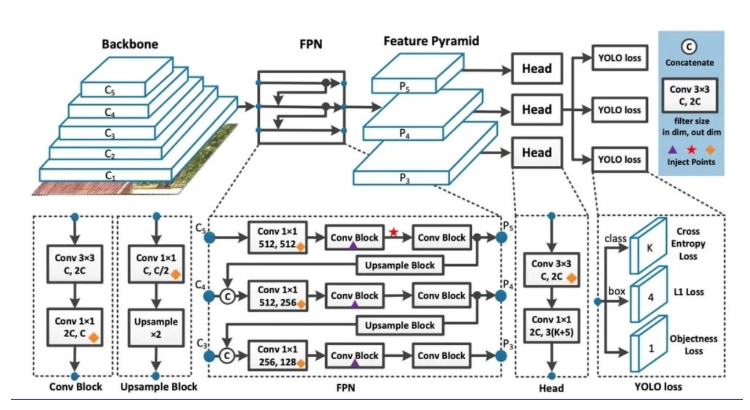
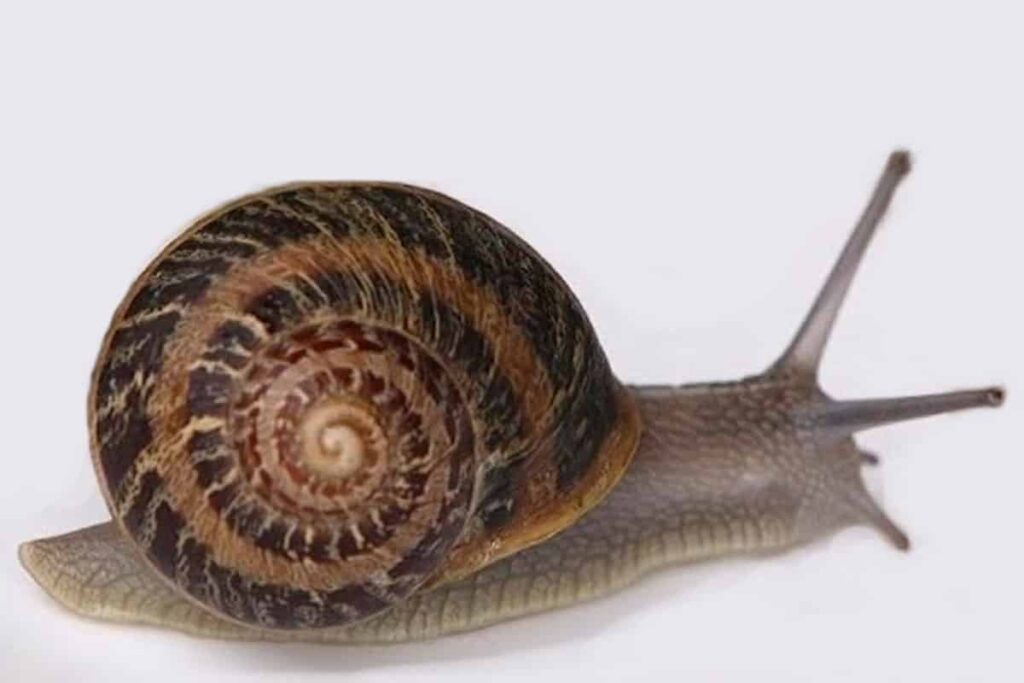
Complete YOLOv8 Classification Tutorial for Beginners / Image Classification Contents hide 1 Introduction — Understanding YOLOv8 Classification 1.1 Understanding the YOLOv8 Classification Architecture 1.2 🧠 Core Architecture Overview 1.3 🚀 Why YOLOv8 Excels in Image Classification 1.4 🧩 Typical Model Variants 2 Getting Started — Setting Up YOLOv8 2.1 Step 1: Install All Dependencies 2.2 Summary 2.3 Dataset Folder Structure for YOLOv8 Classification 2.4 Want the exact dataset so your results match mine? 3 Preparing and Splitting the Dataset 3.1 Summary 4 Training the YOLOv8 Classification Model 4.1 Summary 5 Running Inference on a New Image 5.1 Summary 6 FAQ 6.1 What is YOLOv8 classification used for? 6.2 Do I need a GPU for YOLOv8 classification? 6.3 Can I train YOLOv8 on a small dataset? 6.4 How many classes can YOLOv8 handle? 6.5 Why use YOLOv8 instead of ResNet? 6.6 Can I export YOLOv8 to ONNX? 6.7 What image size is best for YOLOv8 classification? 6.8 Is YOLOv8 open source? 7 🧩 Conclusion 7.1 Connect : Last Updated on 27/09/2026 by Eran Feit Introduction — Understanding YOLOv8 Classification Image classification is the simplest of the three tasks and involves classifying an entire image into one of a set of predefined classes. The output of an image classifier is a single class label and a confidence score. Image classification is useful when you need to know only what class an image belongs to and don’t need to know where objects of that class are located or what their exact shape is. Understanding the YOLOv8 Classification Architecture YOLOv8, developed by Ultralytics, is the latest generation in the YOLO (You Only Look Once) family—an architecture designed for real-time computer vision tasks such as detection, segmentation, and classification. While earlier YOLO versions focused primarily on object detection, YOLOv8 introduced a dedicated classification architecture (-cls models) optimized for high accuracy and efficiency in identifying image-level categories rather than bounding boxes. 🧠 Core Architecture Overview The YOLOv8 classification model follows a CNN-based encoder-only design, leveraging the core principles of feature extraction, aggregation, and classification.At a high level, it consists of three key parts: Backbone – Extracts hierarchical features from input images. Neck – Aggregates multi-scale features for better representation. Head – Produces final class probabilities. Unlike the detection model, there’s no prediction of bounding boxes or coordinates — only classification logits representing the probability of each class. Subscription FormSend me tutorials YoloV8 🚀 Why YOLOv8 Excels in Image Classification YOLOv8 classification models are fast, accurate, and easy to deploy because: They use pre-trained weights from large datasets like ImageNet, ensuring strong transfer learning performance. The architecture supports multi-GPU and mixed precision training (FP16) for speedups. They’re compatible with ONNX, TensorRT, and CoreML export formats for deployment. The modular design allows training on small custom datasets (like agricultural pests) without architectural modifications. 🧩 Typical Model Variants Ultralytics provides multiple classification model sizes: ModelInput SizeParametersUse CaseYOLOv8n-cls224×224~3.2MLightweight, fast, ideal for edge devicesYOLOv8s-cls224×224~11.2MGood balance of speed and accuracyYOLOv8m-cls224×224~25.9MMore accurate, moderate computeYOLOv8l-cls224×224~43.7MHigh accuracy, suitable for GPUsYOLOv8x-cls224×224~71.8MMaximum accuracy, heavier inference You can switch between them simply by changing the model name (e.g., yolov8s-cls.pt, yolov8l-cls.pt). In this post, we’ll explore how to use YOLOv8 classification to train a deep learning model that can identify agricultural pests automatically.YOLOv8, developed by Ultralytics, is the latest evolution of the YOLO family—offering a unified interface for object detection, segmentation, and classification.Its classification mode allows us to label entire images rather than detect bounding boxes, making it perfect for biological, agricultural, or industrial use cases. This tutorial walks you through the complete process: environment setup, dataset preparation, training a YOLOv8 model, and running inference on unseen images.By the end, you’ll know how to build and deploy your own YOLOv8 classification system on any dataset—even if you’re a beginner. Link for the video tutorial : https://youtu.be/–FPMF49Dpg You can download the code here : https://eranfeit.lemonsqueezy.com/buy/10e984f7-a7b3-4710-83f9-f907d537ddbf Another link for the code : https://ko-fi.com/s/abfa3b40fd Link to the post for Medium users : https://medium.com/image-classification-tutorials/complete-yolov8-classification-tutorial-for-beginners-ad4944a7dc26 TRY IT NOW Master Computer Vision Follow my latest tutorials and AI insights on my Personal Blog. Beginner Complete CV Bootcamp Foundation using PyTorch & TensorFlow. Get Started → Interactive Deep Learning with PyTorch Hands-on practice in an interactive environment. Start Learning → Advanced Modern CV: GPT & OpenCV4 Vision GPT and production-ready models. Go Advanced → Getting Started — Setting Up YOLOv8 Before diving into model training, let’s start by creating the right environment.YOLOv8 relies on PyTorch, CUDA, and Ultralytics — so we’ll set them up in a clean Conda environment. Step 1: Install All Dependencies # Create and activate a conda environment conda create --name YoloV8 python=3.8 conda activate YoloV8 nvcc --version # Verify CUDA installation (should be 11.8) # Install PyTorch and CUDA conda install pytorch==2.1.1 torchvision==0.16.1 torchaudio==2.1.1 pytorch-cuda=11.8 -c pytorch -c nvidia # Install YOLOv8 from Ultralytics pip install ultralytics==8.1.0 # Fix OpenCV to enable GUI display pip uninstall opencv-python-headless -y pip install opencv-python>=4.6.0 # Create and activate a conda environment conda create --name YoloV8 python=3.8 conda activate YoloV8 nvcc --version # Verify CUDA installation (should be 11.8) # Install PyTorch and CUDA conda install pytorch==2.1.1 torchvision==0.16.1 torchaudio==2.1.1 pytorch-cuda=11.8 -c pytorch -c nvidia # Install YOLOv8 from Ultralytics pip install ultralytics==8.1.0 # Fix OpenCV to enable GUI display pip uninstall opencv-python-headless -y pip install opencv-python>=4.6.0 Summary You now have a dedicated Python environment with PyTorch, CUDA, and YOLOv8 properly configured.This ensures compatibility and prevents dependency conflicts Dataset Folder Structure for YOLOv8 Classification Before training, ensure your dataset follows this structure.Each pest species (category) should have its own folder containing images for both training and validation. Want the exact dataset so your results match mine? If you want to reproduce the same training flow and compare your results to mine, I can share the dataset structure and what I used in this tutorial. Send me an email and mention the name of the tutorial / dataset , so I know what you’re requesting. 🖥️ Email: feitgemel@gmail.com 📁 data/ │ ├── 📁 train/ │ ├── 📁 category1/ │ ├── 📁 category2/ │ ├── 📁 category3/ │ └── 📁 category4/ │ └── 📁 val/ ├── 📁 category1/ ├── 📁 category2/ ├── 📁 category3/ └── 📁 category4/ 📁 data/ │ ├── 📁 train/ │ ├── 📁 category1/ │ ├── 📁 category2/ │ ├── 📁 category3/ │ └── 📁 category4/ │ └── 📁 val/ ├── 📁 category1/ ├── 📁 category2/ ├── 📁 category3/ └── 📁 category4/ ✅ Tip:The folder names automatically become class labels during training.This is how YOLOv8 knows which images belong to which class. Preparing and Splitting the Dataset In this section, we’ll take all images in the Agricultural Pests dataset and split them into training and validation sets using a Python script. import os import shutil import random import cv2 ### Define a function to split images into train and val folders def split_images(input_folder, output_folder, split_ratio=0.9): train_folder = os.path.join(output_folder, 'train') validate_folder = os.path.join(output_folder, 'val') num = 0 os.makedirs(train_folder, exist_ok=True) os.makedirs(validate_folder, exist_ok=True) ### Get all subfolders (each representing a pest class) subfolders = [f.name for f in os.scandir(input_folder) if f.is_dir()] ### Iterate over each pest category for subfolder in subfolders: subfolder_path = os.path.join(input_folder, subfolder) train_subfolder_path = os.path.join(train_folder, subfolder) validate_subfolder_path = os.path.join(validate_folder, subfolder) os.makedirs(train_subfolder_path, exist_ok=True) os.makedirs(validate_subfolder_path, exist_ok=True) images = [f.name for f in os.scandir(subfolder_path) if f.is_file()] num_images = len(images) num_validate = int(num_images * (1 - split_ratio)) ### Randomly select images for validation validate_images = random.sample(images, num_validate) ### Copy or save images into the appropriate folders for image in images: source_path = os.path.join(subfolder_path, image) img = cv2.imread(source_path) name = str(num) + ".png" if img is not None: if image in validate_images: destination_path = os.path.join(validate_subfolder_path, name) else: destination_path = os.path.join(train_subfolder_path, name) cv2.imwrite(destination_path, img) else: print("Invalid image or file not found.") num += 1 ### Run the splitting function input_folder = "E:/Data-sets/Agricultural-Pests" output_folder = "C:/Data-sets/Agricultural-Pests" split_images(input_folder, output_folder) import os import shutil import random import cv2 ### Define a function to split images into train and val folders def split_images(input_folder, output_folder, split_ratio=0.9): train_folder = os.path.join(output_folder, 'train') validate_folder = os.path.join(output_folder, 'val') num = 0 os.makedirs(train_folder, exist_ok=True) os.makedirs(validate_folder, exist_ok=True) ### Get all subfolders (each representing a pest class) subfolders = [f.name for f in os.scandir(input_folder) if f.is_dir()] ### Iterate over each pest category for subfolder in subfolders: subfolder_path = os.path.join(input_folder, subfolder) train_subfolder_path = os.path.join(train_folder, subfolder) validate_subfolder_path = os.path.join(validate_folder, subfolder) os.makedirs(train_subfolder_path, exist_ok=True) os.makedirs(validate_subfolder_path, exist_ok=True) images = [f.name for f in os.scandir(subfolder_path) if f.is_file()] num_images = len(images) num_validate = int(num_images * (1 - split_ratio)) ### Randomly select images for validation validate_images = random.sample(images, num_validate) ### Copy or save images into the appropriate folders for image in images: source_path = os.path.join(subfolder_path, image) img = cv2.imread(source_path) name = str(num) + ".png" if img is not None: if image in validate_images: destination_path = os.path.join(validate_subfolder_path, name) else: destination_path = os.path.join(train_subfolder_path, name) cv2.imwrite(destination_path, img) else: print("Invalid image or file not found.") num += 1 ### Run the splitting function input_folder = "E:/Data-sets/Agricultural-Pests" output_folder = "C:/Data-sets/Agricultural-Pests" split_images(input_folder, output_folder) Summary This script organizes your dataset automatically — splitting 90% of the data for training and 10% for validation.Each image is validated, renamed, and saved into the correct directory. Training the YOLOv8 Classification Model Now that your dataset is ready, let’s train the YOLOv8 classification model. from ultralytics import YOLO ### Define the main training function def main(): model = YOLO('e:/models/yolov8l-cls.pt') # Load the YOLOv8 Large classification model datasetPath = "c:/data-sets/Agricultural-pests" batch_size = 32 project = "c:/data-sets/Agricultural-pests" experimnet = "My-model" ### Train the model results = model.train( data=datasetPath, epochs=50, project=project, name=experimnet, batch=batch_size, device=0, imgsz=224, patience=5, verbose=True, val=True ) if __name__ == "__main__": main() from ultralytics import YOLO ### Define the main training function def main(): model = YOLO('e:/models/yolov8l-cls.pt') # Load the YOLOv8 Large classification model datasetPath = "c:/data-sets/Agricultural-pests" batch_size = 32 project = "c:/data-sets/Agricultural-pests" experimnet = "My-model" ### Train the model results = model.train( data=datasetPath, epochs=50, project=project, name=experimnet, batch=batch_size, device=0, imgsz=224, patience=5, verbose=True, val=True ) if __name__ == "__main__": main() Summary This code loads a pre-trained YOLOv8-Large (classification) model, fine-tunes it on your pest dataset, and saves the results in the My-model directory.Training continues for 50 epochs with early stopping if performance stabilizes. Running Inference on a New Image Once the model is trained, you can test it on unseen images. This is our Test Image : Snail Test Image from ultralytics import YOLO import numpy as np import cv2 ### Load the best trained weights model = YOLO("C:/Data-sets/Agricultural-Pests/My-model/weights/best.pt") imgPath = 'Best-image-classification-models/YoloV8-Agricultural-Pests-Multi-Class/Garden-Snail.jpg' results = model(imgPath) ### Extract class names and probabilities names = results[0].names probs = results[0].probs.data.tolist() print("Categories : ") print(names) print("All predictions :") print(probs) best_prediction = np.argmax(probs) best_prediction_names = names[best_prediction] print("Best prediction :") print(best_prediction_names) ### Display result on image imgDisplay = cv2.imread(imgPath) cv2.putText(imgDisplay, best_prediction_names, (10,30), cv2.FONT_HERSHEY_SIMPLEX, 1, (0,0,0), 2) cv2.imshow("img", imgDisplay) cv2.waitKey(0) cv2.destroyAllWindows() from ultralytics import YOLO import numpy as np import cv2 ### Load the best trained weights model = YOLO("C:/Data-sets/Agricultural-Pests/My-model/weights/best.pt") imgPath = 'Best-image-classification-models/YoloV8-Agricultural-Pests-Multi-Class/Garden-Snail.jpg' results = model(imgPath) ### Extract class names and probabilities names = results[0].names probs = results[0].probs.data.tolist() print("Categories : ") print(names) print("All predictions :") print(probs) best_prediction = np.argmax(probs) best_prediction_names = names[best_prediction] print("Best prediction :") print(best_prediction_names) ### Display result on image imgDisplay = cv2.imread(imgPath) cv2.putText(imgDisplay, best_prediction_names, (10,30), cv2.FONT_HERSHEY_SIMPLEX, 1, (0,0,0), 2) cv2.imshow("img", imgDisplay) cv2.waitKey(0) cv2.destroyAllWindows() Summary The trained YOLOv8 model loads the image, predicts the correct pest species, prints probabilities, and displays the classification result visually. FAQ What is YOLOv8 classification used for? YOLOv8 classification identifies entire images into categories, such as pest or vehicle types. Do I need a GPU for YOLOv8 classification? A GPU speeds up training, but inference can also run on a CPU for smaller models. Can I train YOLOv8 on a small dataset? Yes, you can fine-tune YOLOv8 on small datasets with transfer learning. How many classes can YOLOv8 handle? YOLOv8 supports hundreds of classes depending on available memory and GPU power. Why use YOLOv8 instead of ResNet? YOLOv8 provides faster inference, modern architecture, and easy deployment options. Can I export YOLOv8 to ONNX? Yes, YOLOv8 models can be exported directly to ONNX, TensorRT, or CoreML formats. What image size is best for YOLOv8 classification? Typically, 224×224 works best, balancing accuracy and performance. Is YOLOv8 open source? Yes, YOLOv8 by Ultralytics is open source and free for research and commercial use. 🧩 Conclusion In this YOLOv8 classification tutorial, we built a complete image classifier from scratch — preparing the dataset, splitting images, training the model, and visualizing predictions.You also learned about YOLOv8’s architecture and why it’s so efficient for multi-class image tasks like pest detection or species classification. The process is nearly identical for any dataset — just replace the folder path, adjust the class count, and YOLOv8 will do the rest.With proper augmentation and GPU acceleration, you can achieve state-of-the-art accuracy in hours, not days. Connect : ☕ Buy me a coffee — https://ko-fi.com/eranfeit 🖥️ Email : feitgemel@gmail.com 🌐 https://eranfeit.net 🤝 Fiverr : https://www.fiverr.com/s/mB3Pbb Enjoy,Eran






 Skip to content