 Skip to content
Last Updated on 21/02/2026 by Eran Feit
Staying ahead in computer vision means moving beyond fragmented libraries and embracing a unified ecosystem. This Keras Hub image classification tutorial breaks down the modern way to deploy high-performance models using the latest Keras 3 framework. By focusing on the modular ImageClassifier API, we bridge the gap between complex research architectures and practical, production-ready Python code.
Developers and data scientists often struggle with the boilerplate code required to initialize weights, handle preprocessing, and manage labels. Mastering a Keras Hub image classification tutorial provides a streamlined workflow that replaces dozens of lines of manual configuration with single-line presets. This approach ensures your projects are not only faster to build but also easier to maintain as model architectures evolve.
To ensure you achieve these results, this guide walks you through a complete, localized environment setup using WSL2 and Conda. By following this Keras Hub image classification tutorial, you will move from a raw terminal installation to a fully functional prediction pipeline. We don’t just stop at the math; we provide the visual tools necessary to see exactly what your model sees in real-time.
By the end of this deep dive, you will have a robust template for any future computer vision task. This Keras Hub image classification tutorial empowers you to experiment with state-of-the-art models like ResNet with zero friction. Whether you are building an automated sorting system or a personal hobby project, the techniques shared here represent the gold standard for efficiency in 2026.
Why a Keras Hub image classification tutorial is your secret weapon in 2026
The landscape of machine learning has shifted toward modularity and ease of access. The primary target for this Keras Hub image classification tutorial includes software engineers and AI enthusiasts who need to integrate visual recognition into their applications without getting bogged down in low-level tensor manipulation. It addresses the common pain point of model deployment by offering a standardized interface that works across different backends, ensuring that your code remains portable and future-proof.
At a high level, Keras Hub represents a centralized repository of pre-trained intelligence. Instead of downloading weight files manually and mapping them to class indexes, the system handles the heavy lifting through a unified API. This Keras Hub image classification tutorial focuses on “presets”—verified, ready-to-use configurations of famous architectures like ResNet. These presets include everything from the neural network structure to the specific preprocessing logic required for the ImageNet dataset, ensuring that the input data matches what the model expects.
Beyond just running a prediction, the goal is to create a bridge between raw data and human-readable insights. By utilizing a Keras Hub image classification tutorial, you learn to transform a digital array of pixels into a categorical label with high confidence. This process involves sophisticated decoding utilities that translate model output into common English terms, allowing you to build applications that can “see” and “describe” the world around them with minimal overhead and maximum accuracy.
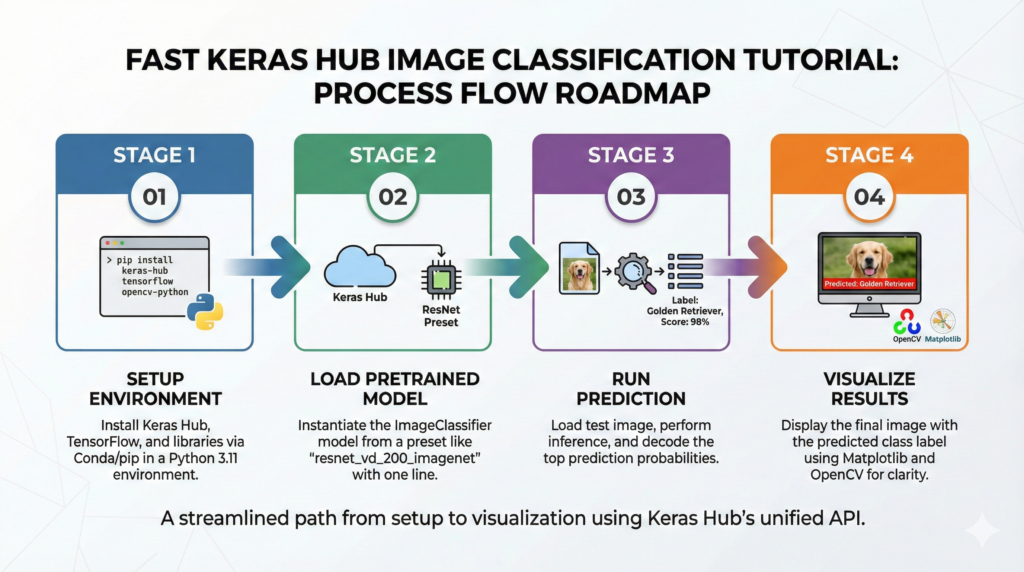
Walking through the Keras Hub image classification workflow
The primary goal of the code we are about to explore is to solve a classic computer vision challenge: handing a computer an image and having it correctly tell you what is inside. While this sounds simple to a human, it represents a complex mathematical process for a machine. By leveraging the new Keras Hub library, we can condense this immense complexity into a few straightforward and readable lines of Python, moving from raw pixels to a confident classification in seconds. The focus here is on practical application, allowing you to use state-of-the-art technology without needing a PhD in math.
Before the actual classification happens, the script ensures a solid foundation. The code is designed to run in a modern, reproducible environment, which is why we outline the steps for setting up a dedicated space using tools like WSL for Windows users and Conda for package management. This approach is crucial for preventing conflicts with other software on your machine and ensures that all the necessary heavy lifters—from TensorFlow’s calculation engine to essential image processing libraries like OpenCV and Pillow—are installed correctly and working together harmoniously.
At the heart of this pipeline is the pre-trained model. Instead of spending weeks training a deep neural network from scratch with massive datasets, our code simply calls upon a highly capable ResNet model that has already learned to recognize patterns from millions of images. The script’s core logic acts as a bridge: it loads your local image file, formats it into the precise numerical batch structure the model expects, and then passes it through the network to get a set of raw prediction scores.
The final phase of the code is all about interpreting these results for human consumption. The model initially returns a cryptic list of probabilities for thousands of potential categories, which isn’t very useful on its own. Therefore, the code includes a crucial decoding step that translates these abstract numbers into a neat list of the top predicted labels, such as “golden retriever.” To make the result instantly understandable, the script concludes by using Matplotlib and OpenCV to display the original image with the model’s top guess clearly presented as a title, providing immediate visual verification of the outcome.
Link to the video tutorial here
Download the code for the tutorial here or here
Best AI Photo Tools (Backgrounds, Objects, Headshots)


My Blog
Link for medium users here
Want to get started with Computer Vision or take your skills to the next level ?
Great Interactive Course : “Deep Learning for Images with PyTorch” here
If you’re just beginning, I recommend this step-by-step course designed to introduce you to the foundations of Computer Vision – Complete Computer Vision Bootcamp With PyTorch & TensorFlow
If you’re already experienced and looking for more advanced techniques, check out this deep-dive course – Modern Computer Vision GPT, PyTorch, Keras, OpenCV4
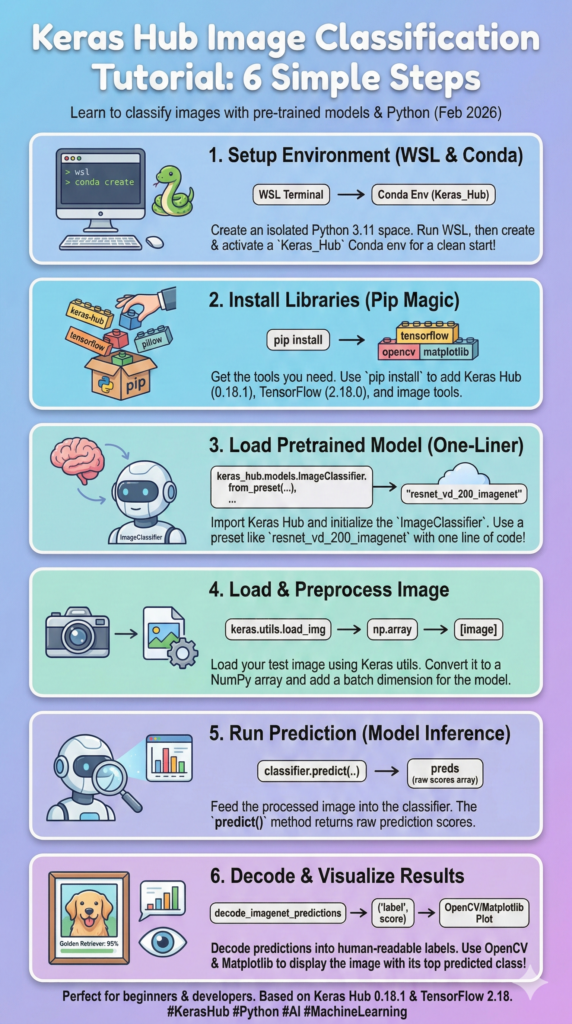
This Keras Hub image classification tutorial breaks down the modern way to deploy high-performance models using the latest Keras 3 framework. By focusing on the modular ImageClassifier API, we bridge the gap between complex research architectures and practical, production-ready Python code.
Developers and data scientists often struggle with the boilerplate code required to initialize weights, handle preprocessing, and manage labels. Mastering a Keras Hub image classification tutorial provides a streamlined workflow that replaces dozens of lines of manual configuration with single-line presets. This approach ensures your projects are not only faster to build but also easier to maintain as model architectures evolve.
To ensure you achieve these results, this guide walks you through a complete, localized environment setup using WSL2 and Conda. By following this Keras Hub image classification tutorial, you will move from a raw terminal installation to a fully functional prediction pipeline. We don’t just stop at the math; we provide the visual tools necessary to see exactly what your model sees in real-time.
By the end of this deep dive, you will have a robust template for any future computer vision task. This Keras Hub image classification tutorial empowers you to experiment with state-of-the-art models like ResNet with zero friction. Whether you are building an automated sorting system or a personal hobby project, the techniques shared here represent the gold standard for efficiency in 2026.
Building a rock-solid foundation with WSL and Conda
Creating a stable environment is the most critical step for any Keras Hub image classification tutorial. By using Windows Subsystem for Linux (WSL2), we gain the performance of a native Linux environment while staying within Windows, which is essential for high-speed GPU operations. This isolation prevents the “it works on my machine” syndrome and keeps your global Python installation clean.
Using Conda allows us to create a dedicated sandbox specifically for our Keras Hub image classification tutorial experiments. We target Python 3.11 to ensure maximum compatibility with the latest versions of TensorFlow 2.18 and Keras Hub 0.18.1. This specific versioning is important because the AI field moves fast, and pinning your libraries ensures your code remains functional for years to come.
The installation process covers everything from the core neural network engines to the visualization tools. Whether you are running on a powerful NVIDIA GPU or a standard CPU, these commands prepare your machine for heavy lifting. By the end of this setup, your VS Code will be linked to a high-performance environment ready to classify any image you throw at it.
# Step 1 : Install # 1. Run Powershell as Admin ### Start the Linux environment on Windows to enable high-performance AI tools. wsl # 3. Create Conda environment : ### Create a dedicated Python 3.11 environment to avoid library version conflicts. conda create -n Keras_Hub python=3.11 ### Enter the new environment so all subsequent installs are localized here. conda activate Keras_Hub # 4. Install : ### Ensure the package manager is up to date before installing deep learning tools. pip install --upgrade pip ### Install Keras Hub, the unified library for modern pretrained models. pip install keras-hub==0.18.1 # For GPU users ### Install TensorFlow with CUDA support for hardware acceleration on WSL2. pip install tensorflow[and-cuda]==2.18.0 # For CPU users # pip install tensorflow==2.18.0 ### Install image processing and visualization libraries required for the pipeline. pip install pillow==11.1.0 pip install opencv-python==4.10.0.84 pip install matplotlib==3.10.0 ### Open VS Code in the current directory to start writing the classification script. code .This setup section ensures that your hardware and software are perfectly aligned for deep learning. By following these precise installation steps, you avoid the common dependency errors that often plague AI projects.
Loading elite pretrained models with a single line of code
The beauty of a Keras Hub image classification tutorial lies in its simplicity when accessing world-class architectures. We begin by importing the modular Keras ecosystem, which allows us to switch backends and models with minimal effort. Instead of building millions of connections manually, we use the ImageClassifier class to pull a pre-trained “brain” directly from the Keras cloud.
We have chosen the ResNet architecture for this demonstration, specifically the massive resnet_vd_200_imagenet variant. This model has already spent thousands of hours “studying” the ImageNet dataset, meaning it can already recognize objects ranging from animals to everyday tools. By using the from_preset method, you are effectively downloading years of research and training time in a fraction of a second.
This part of the code acts as the command center for your application. By defining the activation="softmax" parameter, we ensure the model provides a clean probability distribution, telling us exactly how confident it is in its guess. It’s a clean, readable way to initialize a powerful AI that is ready to work immediately without any additional training required.
### Import the core Keras library for neural network utilities. import keras ### Import Keras Hub to access the centralized repository of pretrained models. import keras_hub ### Import NumPy for efficient numerical array operations on image data. import numpy as np ### Import Matplotlib for creating high-quality visual plots of our results. import plt as plt ### Import OpenCV for robust image loading and color space transformations. import cv2 # Load the model and use it to predict the image ### Define the specific ResNet model preset trained on the ImageNet dataset. model_name2 = "resnet_vd_200_imagenet" ### Instantiate the classifier using the selected preset with softmax activation for probabilities. classifer = keras_hub.models.ImageClassifier.from_preset(model_name2, activation="softmax")Summary: You have successfully initialized a deep learning model that is one of the most powerful for its class, ready to handle real-world image data.
Running predictions and decoding the AI thought process
Once the model is loaded, we move to the “Inference” stage of our Keras Hub image classification tutorial. The script loads a test image from your local directory and prepares it for the neural network. Keras handles the resizing and normalization internally, but we wrap the image in a NumPy array to match the “batch” format that all deep learning models expect.
The predict function is where the magic happens, as the image passes through hundreds of layers of artificial neurons. The output is a set of raw numbers, which we then pass through a specialized decode_imagenet_predictions utility. This step is vital because it converts those abstract scores into human language, giving us the top labels and confidence percentages.
In this specific snippet, we extract the label of the very first prediction. This allows us to programmatically know that the model “sees” a specific object, such as a dog or a car. This bridge between raw data and descriptive strings is what enables you to build smart applications like automated sorting systems or searchable photo galleries.
Here is the test image :

### Specify the local path to the image you want the model to analyze. img_path = "Best-image-classification-models/Keras-Hub-Image-Classification/test_img.jpg" ### Use Keras utilities to load the image file into a Python-friendly format. image = keras.utils.load_img(img_path) ### Run the classifier on the image array to generate raw prediction scores. preds = classifer.predict(np.array([image])) ### Translate the model's numerical output into human-readable ImageNet labels. decoded_preds = keras_hub.utils.decode_imagenet_predictions(preds) ### Access the text label of the highest-scoring prediction from the results. class_name = str(decoded_preds[0][0][0]) ### Print the full decoded results to the console for detailed inspection. print(decoded_preds)Summary: The model has now completed its “thinking” process, turning a file of pixels into a confirmed category with a human-readable name.
Visualizing results with OpenCV and Matplotlib
No Keras Hub image classification tutorial is complete without a professional visual output. While a text label in the console is useful for debugging, we want a result that can be presented in a report or an app. We use OpenCV to read the image again, but this time we carefully convert the color space from BGR to RGB so the colors appear natural in our plot.
Matplotlib acts as our canvas, allowing us to display the image without distracting axis lines. By overlaying the predicted class name in a large, bold font, we create an immediate visual connection between the AI’s logic and the actual visual data. This “sanity check” is essential for confirming that the model isn’t just guessing, but is actually identifying the correct features.
This final part of the code provides the “Aha!” moment for the reader. It proves that with just a few lines of Python, you have built a system that can see and understand the world. It’s a powerful conclusion to the workflow, leaving you with a clean, shareable image that summarizes the entire technical process.
# Load the image for display with OpenCV ### Read the image again using OpenCV to prepare it for visual annotation. image_cv = cv2.imread(img_path) # Convert BGR to RGB ### Switch color channels from OpenCV's BGR format to Matplotlib's RGB format. image_cv = cv2.cvtColor(image_cv, cv2.COLOR_BGR2RGB) # Use Matplotlib to display the image with the predicted class name ### Create a figure with a specific size for a clear and professional presentation. plt.figure(figsize=(8, 8)) ### Show the processed image on the screen. plt.imshow(image_cv) ### Remove the X and Y axes to keep the focus entirely on the image content. plt.axis('off') ### Add a large title to the plot showing the AI's predicted category in red. plt.title(f"Predicted: {class_name}", fontsize=20 , color='red') ### Final command to render the window and show the results to the user. plt.show()Summary: You have completed the full pipeline, from setting up a professional environment to generating a final, annotated visual result.
FAQ
What makes Keras Hub different from the old Keras CV?
Keras Hub is the unified evolution of Keras CV and NLP libraries. It provides a more streamlined, “all-in-one” API that works across different backends (TensorFlow, JAX, PyTorch) with a much simpler model loading process.
How do I fix a ‘ModuleNotFoundError’ for keras_hub?
This usually means you are not in the right Conda environment. Ensure you run ‘conda activate Keras_Hub’ before starting your script, and verify the installation using ‘pip show keras-hub’.
Can I use this tutorial for real-time video classification?
Yes! You can put the classification logic inside an OpenCV ‘while’ loop. Instead of loading a static image, you would pass each frame from ‘cv2.VideoCapture’ into the model for live predictions.
What is the advantage of using ResNet_VD_200 over ResNet_50?
The ‘VD’ stands for Visual Deep, and the ‘200’ represents the layer count. It is a much larger and more accurate model than ResNet_50, though it requires slightly more memory and compute time per prediction.
Why do we need to specify ‘softmax’ activation?
Softmax converts the model’s raw output into a probability distribution. This allows us to interpret the results as percentages (e.g., ‘98% sure it is a cat’), which is essential for decoding predictions accurately.
Does Keras Hub handle image resizing automatically?
Yes, Keras Hub’s ‘ImageClassifier’ presets include built-in preprocessing logic. When you pass an image, it automatically scales and resizes the pixels to match the input requirements of the specific model preset.
How can I see the confidence score of the prediction?
The ‘decode_imagenet_predictions’ function returns a list of tuples. The third value in each tuple (e.g., decoded_preds[0][0][2]) is the confidence score, typically as a float between 0 and 1.
Is it possible to run this code on a Mac (M1/M2/M3)?
Absolutely. Keras 3 supports the ‘metal’ backend. You would install ‘tensorflow-metal’ instead of ‘tensorflow[and-cuda]’ to get high-performance hardware acceleration on Apple Silicon.
What happens if my image path is wrong?
If ‘img_path’ is incorrect, ‘load_img’ or ‘cv2.imread’ will return an error or a ‘None’ object. Always double-check your file directory and ensure the ‘test_img.jpg’ actually exists in that folder.
Can I use Keras Hub to classify images in different languages?
The standard ImageNet labels are in English. However, since you get a ‘label’ string back, you can easily use a Python dictionary or a translation library to map those English labels to any language you prefer.
Conclusion: Bringing it all together
In this Keras Hub image classification tutorial, we’ve moved from the initial terminal setup to a fully visualized AI prediction. By leveraging the power of TensorFlow 2.18 and the unified Keras Hub API, we’ve seen how professional-grade computer vision is no longer reserved for complex research labs. Whether you are using ResNet to identify everyday objects or building a custom pipeline for your own data, the tools we used today—WSL2, Conda, and OpenCV—provide the most stable and scalable foundation available in 2026.
Mastering this workflow allows you to spend less time on “glue code” and more time on the creative aspects of your AI projects. The modular nature of Keras Hub means you can swap out models, add more complex preprocessing, or even move to real-time video analysis with minimal changes to your core logic
Connect :
☕ Buy me a coffee — https://ko-fi.com/eranfeit
🖥️ Email : feitgemel@gmail.com
🤝 Fiverr : https://www.fiverr.com/s/mB3Pbb
Enjoy,
Eran