 Skip to content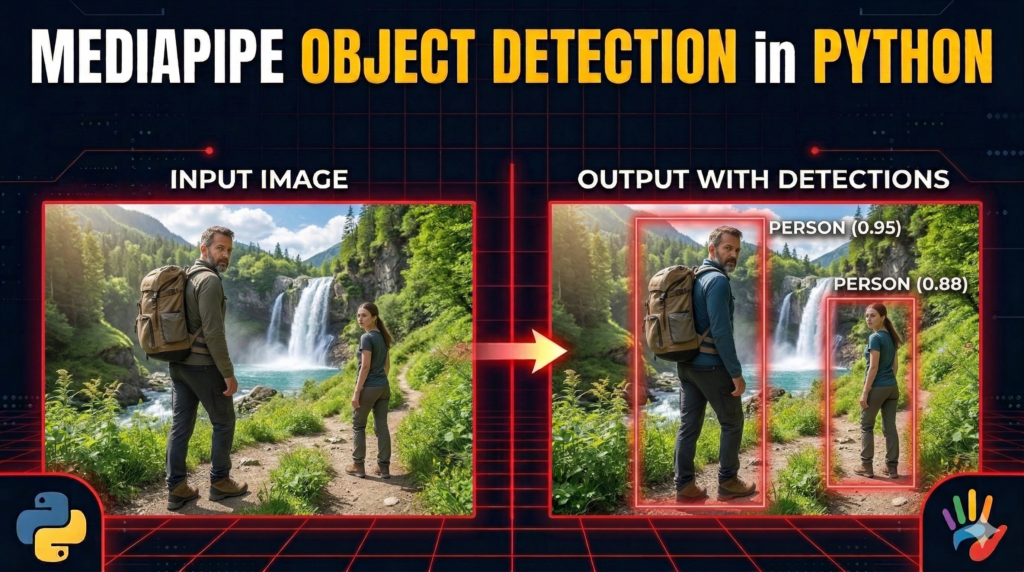
Last Updated on 07/03/2026 by Eran Feit
In the rapidly evolving landscape of computer vision, building efficient, high-performance applications often feels like a choice between heavy, resource-hungry frameworks or overly simplified tools. This article focuses on MediaPipe Object Detection Python, a powerful solution from Google designed to bridge that gap by offering professional-grade accuracy with a lightweight footprint. Whether you are a student looking to start your first AI project or an experienced developer seeking a deployment-friendly alternative to bulky models, the following guide provides a direct path to success.
The primary value of this guide lies in its focus on “applied AI,” prioritizing real-world implementation over abstract theory. By mastering MediaPipe Object Detection Python, you gain the ability to build vision-based applications that run seamlessly on standard laptops and edge devices without requiring expensive GPU clusters. This approach democratizes access to sophisticated image recognition technology, ensuring that your software remains fast, responsive, and accessible to a global audience.
We achieve this through a structured, deep-dive exploration of the MediaPipe Tasks API. We will move beyond simple theory by implementing a complete, functional script that handles everything from environment configuration to complex result visualization. By integrating the EfficientDet-Lite model—a state-of-the-art architecture optimized for speed and precision—this tutorial ensures you walk away with a production-ready understanding of how modern computer vision pipelines operate.
Finally, we will bridge the gap between raw data and human-readable results by utilizing OpenCV to visualize our AI’s findings. This article won’t just show you how to detect objects; it will teach you how to interpret detection metadata, manage confidence thresholds, and render professional bounding boxes. By the end of this read, your MediaPipe Object Detection Python skills will be sharp enough to power anything from security monitors to interactive retail experiences.
Getting started with MediaPipe Object Detection Python for your projects
The primary objective of MediaPipe Object Detection Python is to provide a standardized, low-latency framework for identifying and locating multiple objects within an image or video stream in real-time. Unlike traditional deep learning setups that require hours of configuration, this ecosystem is designed for “out-of-the-box” utility, allowing developers to focus on the creative application of AI rather than the complexities of model training. It serves as a middle ground where high-level ease of use meets low-level performance optimization.
At a high level, the process works by passing raw visual data through a specialized neural network known as a “Vision Task.” When you utilize MediaPipe Object Detection Python, the framework handles the heavy lifting of preprocessing—scaling the image, normalizing pixel values, and managing tensor formats—before the AI model makes its predictions. The model then returns a structured set of data containing “categories” (what the object is) and “bounding boxes” (where it is), which can be easily parsed and used to trigger specific software actions.
Targeting the “Edge”—meaning devices like laptops, smartphones, and IoT hardware—is the core philosophy behind this technology. By utilizing the EfficientDet architecture, the system maintains a high degree of precision while remaining incredibly “thin,” meaning it won’t drain batteries or overheat processors. For a developer, this means your AI vision apps are no longer tethered to a powerful server; they are free to run wherever your users are, providing a seamless and intelligent user experience.
Bringing your vision to life with custom object detection
The heart of this tutorial lies in its practical approach to high-speed image analysis, providing a complete roadmap to building your own detection pipeline. This article is about the specific implementation of MediaPipe Object Detection Python, taking you from a blank script to a fully functional AI application that can “see” and identify complex subjects. It adds value by removing the guesswork associated with modern computer vision, offering a stable and repeatable workflow that you can adapt for your own unique datasets and projects. By following the logic within the provided script, you will learn how to interface directly with Google’s vision tasks to achieve results that were previously reserved for high-end research environments.
We move through this process by first establishing a robust development environment using Conda and Pip to ensure all dependencies are perfectly synced. From there, we dive into the dual-stage process of configuring the EfficientDet-Lite model and preparing our source images for high-speed inference. The tutorial specifically breaks down the “black box” of AI, showing you exactly how the model processes raw pixels into structured data. Finally, we implement a visualization layer that translates these raw coordinates into the red bounding boxes and confidence scores you see in professional applications, giving you a tangible, visual output of your code’s intelligence.
How this Python script turns images into intelligent data
The main goal of this specific Python script is to demonstrate how to perform localized identification within a static image using a streamlined, deployment-ready architecture. Instead of just telling you if a person or an object is present, this code is designed to find exactly where they are located and how certain the AI is about that discovery. It targets the common developer need for a “fast-track” solution that is powerful enough for production but simple enough to maintain without a dedicated team of data scientists. By focusing on the ObjectDetector task, the script provides a template for any application that requires spatial awareness.
At a high level, the script functions as a bridge between a raw image file and a sophisticated neural network. It starts by loading the efficientdet_lite2.tflite model, which is a specialized version of the EfficientDet architecture optimized specifically for mobile and edge devices. This model has been pre-trained on a massive variety of objects, meaning it already knows what a person, a car, or a backpack looks like. When you run the code, it sends your image through this network, which then outputs a list of “detections”—each containing a category label and a set of coordinates that define a bounding box.
Once the detection phase is complete, the script shifts its focus to making that data human-readable through visualization. It uses the numpy_view of the processed image to create a canvas where it can draw. By looping through the detection results, the code calculates the precise corners of each object and uses OpenCV to render a rectangle and a text label directly onto the image. This part of the code is crucial because it allows you to verify the model’s performance and adjust parameters like the score_threshold to fine-tune how sensitive the detector should be.
The final stage of the target process is the output and preservation of the detected results. The script doesn’t just show you a window on your screen; it converts the processed image back into a standard BGR format and saves it as a new file. This ensures that the intelligence your code just generated isn’t lost once the program finishes running. Whether you’re building a security system that saves snapshots of intruders or an automated tagging system for a photo gallery, this end-to-end flow from raw pixels to saved, annotated data is the foundation of modern computer vision.
Link to the video tutorial here
Download the code for the tutorial here or here
Best AI Photo Tools (Backgrounds, Objects, Headshots)


My Blog
Link for Medium users here
Want to get started with Computer Vision or take your skills to the next level ?
Great Interactive Course : “Deep Learning for Images with PyTorch” here
If you’re just beginning, I recommend this step-by-step course designed to introduce you to the foundations of Computer Vision – Complete Computer Vision Bootcamp With PyTorch & TensorFlow
If you’re already experienced and looking for more advanced techniques, check out this deep-dive course – Modern Computer Vision GPT, PyTorch, Keras, OpenCV4
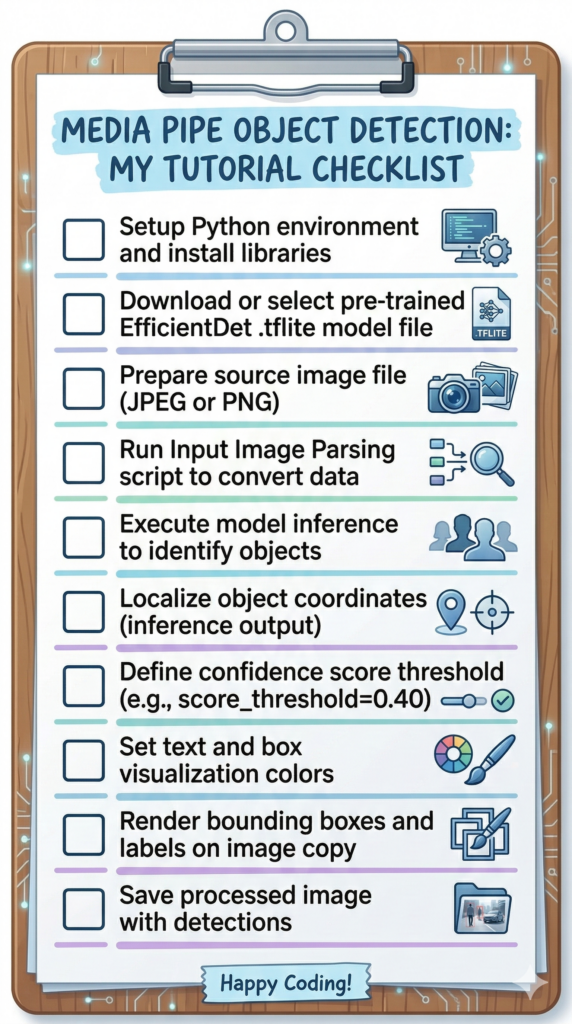
Building a robust MediaPipe Object Detection Python pipeline is one of the most efficient ways to bring high-end computer vision to your local machine. This tutorial will guide you through the transition from raw pixels to intelligent, visualized data using Google’s state-of-the-art vision tasks. By the end of this read, you will have a production-ready script capable of identifying and locating objects in real-time.
Establishing a robust Python environment for AI vision
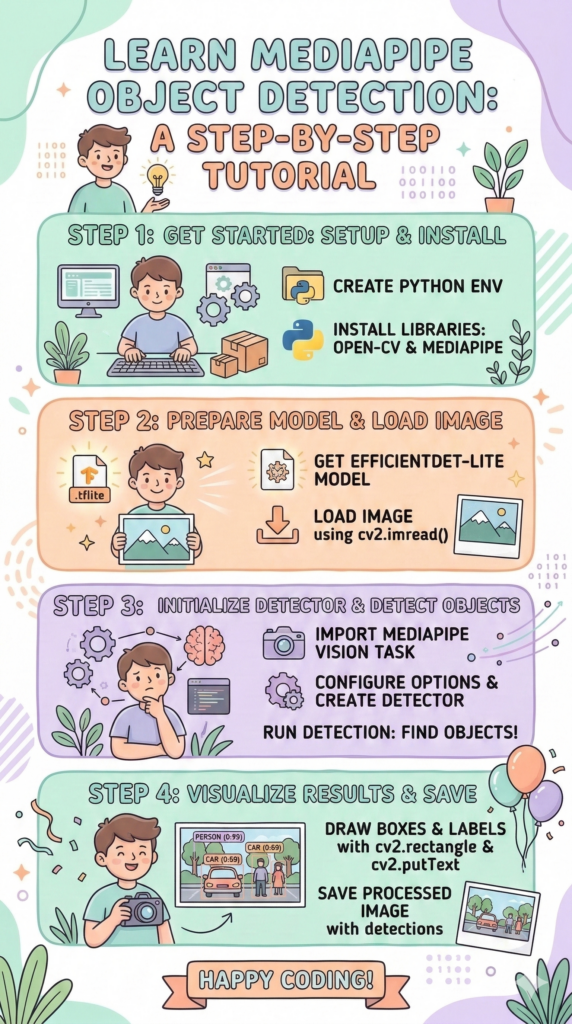
The first step in any professional AI workflow is the creation of a virtual environment. By using Conda, we create an isolated “sandbox” where we can install specific versions of Python and our required libraries without affecting the rest of your system. This practice is essential for debugging and sharing your code with other developers.
Once the environment is active, we utilize pip to install the core engines of our tutorial: OpenCV and MediaPipe. We are targeting OpenCV 4.10 for its robust image processing capabilities and MediaPipe 0.10.14 to ensure compatibility with the latest Google Vision Tasks. These versions are specifically chosen to match the modern standards of 2026 computer vision development.
Finally, we must acquire the pre-trained weights that power our detection logic. By downloading the efficientdet_lite0.tflite model, you are giving your script the “knowledge” it needs to identify hundreds of object categories. Storing these in a dedicated folder on your local drive allows the Python script to load the AI instantly during execution.
### First, create a fresh Conda environment named 'RemoveBG' using Python version 3.11. # conda create -n RemoveBG python=3.11 ### Activate your new environment to begin installing the necessary libraries. # conda activate RemoveBG ### Install the specific version of OpenCV required for image handling and visualization. pip install opencv-python==4.10.0.84 ### Install the MediaPipe library to access Google's advanced vision task modules. pip install mediapipe==0.10.14 ### Download the pre-trained EfficientDet-Lite model from Google's official storage. Link: https://storage.googleapis.com/mediapipe-models/object_detector/efficientdet_lite0/int8/1/efficientdet_lite0.tfliteSetting up your environment and preparing the foundation
To begin our MediaPipe Object Detection Python journey, we must first establish a clean workspace. Using a dedicated Conda environment ensures that your libraries remain isolated and don’t conflict with other projects on your machine. This initial phase is where we define our requirements, pulling in OpenCV for image handling and MediaPipe for the heavy AI lifting.
Installing specific versions of libraries, such as OpenCV 4.10 and MediaPipe 0.10, is a best practice for maintaining code stability. Once the environment is active, we prepare the script by importing the necessary vision tasks. These imports act as the bridge between your local Python code and Google’s high-performance machine learning backend.
At this stage, we also handle the image loading process. Using OpenCV’s imread function, we bring our target image into memory as a NumPy array. This raw data represents our “Input Image,” which the AI will later analyze to find people, cars, or other interesting objects in the scene.
### We start by importing OpenCV for image processing tasks and NumPy for data manipulation. import cv2 import numpy as np ### Define the path to our source image file so the script knows where to look. imagePath = "Best-Object-Detection-models/Media-Pipe/the-last-of-us.jpg" ### Load the image into an object using OpenCV's read function. img = cv2.imread(imagePath) ### Display the original, unprocessed image in a window to verify it loaded correctly. cv2.imshow("Original Image", img) ### Step 1: Import the specific MediaPipe modules required for vision-based AI tasks. import mediapipe as mp from mediapipe.tasks import python from mediapipe.tasks.python import visionInitializing the detector and running AI inference
With our image loaded, we now configure the “brain” of our application. The MediaPipe Object Detection Python pipeline relies on a pre-trained model file—in this case, efficientdet_lite2.tflite. This model is specifically designed to be “Edge-ready,” meaning it provides incredible speed on standard CPUs without needing a powerful graphics card.
Setting the score_threshold is a critical step in fine-tuning your results. By setting it to 0.4, we tell the computer only to report detections that have at least a 40% confidence rating. This filtering process prevents the script from showing “noisy” or false-positive results that might clutter your output.
Once the detector is initialized, we perform the actual inference. The detector.detect(image) command is the “black box” where the AI scans every pixel and identifies patterns. The output is a structured data object containing the precise coordinates and labels for every object it found in your source image.
### Step 2: Configure the base options by providing the path to our pre-trained TFLite model. base_options = python.BaseOptions(model_asset_path='D:/Temp/Models/MediaPipe/efficientdet_lite2.tflite') ### Define the detection options, including our confidence threshold to filter results. options = vision.ObjectDetectorOptions(base_options=base_options, score_threshold=0.4) ### Create the detector object from these options so it's ready to process data. detector = vision.ObjectDetector.create_from_options(options) ### Step 3: Convert our image into a MediaPipe-compatible format for analysis. image = mp.Image.create_from_file(imagePath) ### Step 4: Run the inference engine to detect objects and store the results. detection_result = detector.detect(image) ### Output the raw detection data to the console for inspection. print('Detection result: {}'.format(detection_result))Visualizing detection results with bounding boxes
The raw data from an AI model is just a series of numbers, but we need to see the results to understand them. In this part of our MediaPipe Object Detection Python script, we create a copy of our original image to draw on. We define constants like TEXT_COLOR and FONT_SIZE to ensure our final annotations look professional and clear.
The script loops through every detection, extracting the bounding_box coordinates provided by the model. Using OpenCV’s rectangle function, we draw a vivid red frame around each identified subject. This transformation is what turns abstract data into a powerful visual tool for end-users.
Beyond just drawing boxes, we also extract the category names and their confidence scores. By overlaying text like “Person (0.95)” near the bounding box, we provide instant context for the detection. This “After” image is the final product of your computer vision pipeline, proving the accuracy of the underlying model.
### Step 5: Create a copy of the image data to serve as our canvas for drawing results. image_with_detected_objects = np.copy(image.numpy_view()) ### Define visualization constants such as colors and font sizes. TEXT_COLOR = (255,0,0) # Red MARGIN = 10 ROW_SIZE = 10 FONT_SIZE = 1 FONT_THICKNESS = 1 ### Iterate through each detected object to prepare the visual markers. for detection in detection_result.detections: ### Extract the bounding box dimensions for the current object. bbox = detection.bounding_box ### Calculate the start and end coordinates for the rectangle. start_point = (bbox.origin_x, bbox.origin_y) end_point = (bbox.origin_x + bbox.width, bbox.origin_y + bbox.height) ### Draw the red bounding box directly onto the image copy. cv2.rectangle(image_with_detected_objects, start_point, end_point,(TEXT_COLOR), 3) ### Retrieve the object category and the confidence probability. category = detection.categories[0] category_name = category.category_name probability = round(category.score, 2) ### Format the result text to show both the name and the certainty score. result_text = category_name + ' (' + str(probability) + ')' text_location = (MARGIN + bbox.origin_x, MARGIN + ROW_SIZE + bbox.origin_y) ### Overlay the formatted text onto the image above the bounding box. cv2.putText(image_with_detected_objects, result_text, text_location, cv2.FONT_HERSHEY_SIMPLEX, FONT_SIZE, TEXT_COLOR, FONT_THICKNESS)Finalizing the output and saving your work
The final step in our pipeline is to display the results and save the annotated image for future use. Because MediaPipe processes images in RGB format, we must convert the image back to BGR using OpenCV’s color conversion tool. This ensures that colors appear naturally when rendered on your screen or saved to your hard drive.
Saving the file using imwrite is essential for creating a permanent record of the AI’s work. Whether you are building a dataset or a simple monitoring app, having an automated way to export results is key to scaling your project. The script ends by keeping the result window open until you press a key, allowing you to inspect the AI’s precision.
By mastering this MediaPipe Object Detection Python workflow, you have learned the full lifecycle of an AI vision task. From setting up the environment to visualizing complex results, these skills form the foundation of countless real-world applications. The simplicity and speed of this script make it an ideal starting point for your next big innovation in AI.
### Convert the color space from RGB back to BGR for correct OpenCV display. image_with_detected_objects = cv2.cvtColor(image_with_detected_objects, cv2.COLOR_RGB2BGR) ### Show the final annotated image in a new window. cv2.imshow('Object Detection Result', image_with_detected_objects) ### Save the final processed image to your local directory. cv2.imwrite('Best-Object-Detection-models/Media-Pipe/the-last-of-us-detected.jpg', image_with_detected_objects) ### Wait for a user key press before closing the display windows and exiting. cv2.waitKey(0)Summary
In this tutorial, we successfully built a complete MediaPipe Object Detection Python application. We covered the entire process: setting up a clean Python environment, initializing the Google EfficientDet-Lite model, performing AI inference on a target image, and using OpenCV to visualize the results with bounding boxes and confidence scores. This lightweight approach provides a high-performance alternative to heavier frameworks, making it perfect for real-time edge applications.
FAQ
What is MediaPipe Object Detection Python?
It is a Google-developed framework that allows developers to implement real-time object detection in Python using lightweight, pre-trained models optimized for speed and efficiency.
Why use EfficientDet-Lite for this tutorial?
EfficientDet-Lite models are designed to run on standard CPUs and mobile devices, providing a great balance between detection accuracy and low processing requirements.
Do I need a GPU to run this code?
No, one of the main advantages of MediaPipe is that its vision tasks are optimized to run very fast on standard computer processors (CPUs).
How do I change the detection sensitivity?
You can adjust the score_threshold in the code; a lower number makes the model more sensitive, while a higher number ensures only very certain detections are shown.
What image formats are supported?
Through OpenCV and MediaPipe, you can process most common formats, including JPEG, PNG, and BMP.
Can this script be used for real-time video?
Yes, the logic remains the same; you would simply put the detection and visualization code inside a loop that reads frames from a webcam or video file.
Why do we convert colors between RGB and BGR?
MediaPipe uses the standard RGB color space, while OpenCV uses BGR; converting between them ensures colors are rendered correctly in the final output.
What are bounding boxes?
Bounding boxes are the rectangular coordinates returned by the AI that define the exact location and size of a detected object within an image.
How many objects can MediaPipe detect?
Most pre-trained MediaPipe models can identify dozens of common everyday objects like people, chairs, and vehicles.
Is MediaPipe free to use?
Yes, it is an open-source project by Google, making it free for both personal and commercial computer vision projects.
Conclusion
Mastering MediaPipe Object Detection Python marks a significant step forward in your journey as an AI developer. Through this post, we’ve explored how to seamlessly bridge the gap between raw visual data and intelligent insights using Google’s efficient vision tasks. You now possess a versatile template that can be scaled for everything from simple security systems to complex, real-time tracking applications. By leveraging the speed of TFLite models and the visualization power of OpenCV, you can build tools that aren’t just accurate, but also incredibly responsive on standard consumer hardware. Keep experimenting with different models and thresholds to see just how far your new skills can take you!
Connect :
☕ Buy me a coffee — https://ko-fi.com/eranfeit
🖥️ Email : feitgemel@gmail.com
🤝 Fiverr : https://www.fiverr.com/s/mB3Pbb
Enjoy,
Eran