 Skip to content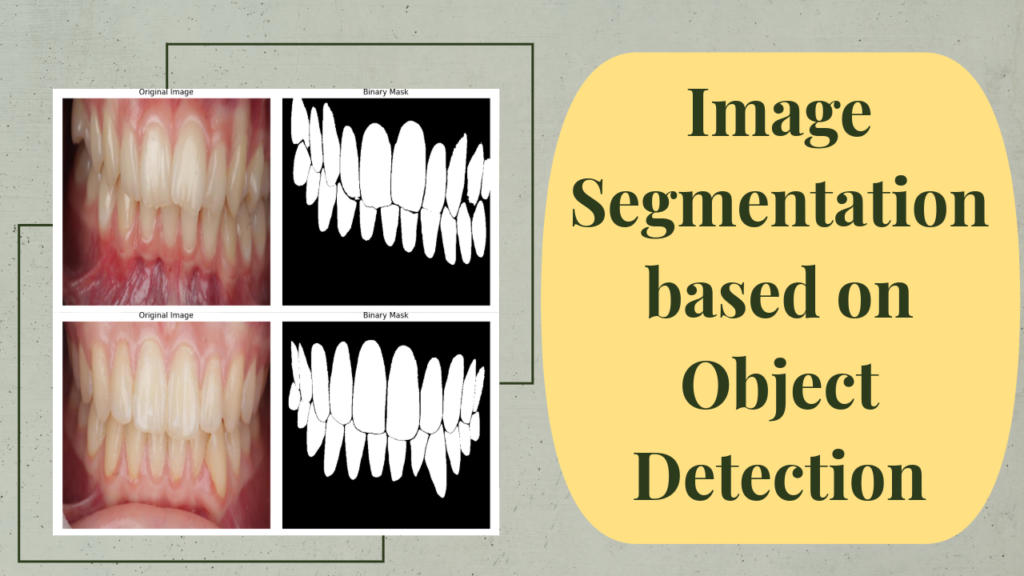
Last Updated on 19/04/2026 by Eran Feit
Building a practical teeth segmentation pipeline with YOLOv11 + SAM2
This article is about automating teeth segmentation so you can generate accurate masks without hand-drawing pixel labels for every dental image.
That matters because segmentation projects often fail at the dataset stage, where annotation time and inconsistency become the biggest bottlenecks.
The article walks through a clear, repeatable workflow: use YOLOv11 to localize the teeth region, use SAM2 to convert those detections into polygon masks, and then validate quality by visualizing random samples in Python.
By the end, you’ll understand how to go from raw images to training-ready labels, and how to apply the same process to both a public dataset and your own custom YOLO model.
Teeth segmentation is the task of identifying the exact pixels that belong to teeth in an image, producing a mask rather than a bounding box.
This pixel-level output is what makes segmentation useful for dental AI, because it preserves shape and boundary information that detection alone can’t provide.
In real-world dental images, segmentation is challenging because teeth can blend into surrounding structures, share similar textures, and appear under different lighting or imaging artifacts.
A strong workflow needs both a way to focus on the correct area and a way to refine the boundary so the final mask looks anatomically reasonable.
That’s where combining models becomes powerful.
A detector like YOLOv11 is fast and reliable at saying “the tooth is here,” while SAM2 is designed to trace object boundaries once it has a good hint about what to segment.
Together, they can produce high-quality teeth segmentation masks automatically, which is ideal when your goal is to scale dataset creation.
Teeth segmentation, in plain terms
Teeth segmentation means converting a dental image into structured labels that follow the tooth shape as closely as possible.
Instead of rectangles, you get filled regions or polygons that represent the tooth boundary, which is far more useful for training segmentation models and for precise measurement tasks.
The “target” can vary depending on the dataset and the end goal.
Some projects need a single mask that separates all teeth from background, while others need instance-level masks that separate each tooth individually, sometimes across multiple classes.
Defining that target upfront helps you choose how masks should be generated, stored, and evaluated.
A practical high-level pipeline is to localize first, then refine.
YOLOv11 narrows the problem by finding candidate regions, and SAM2 refines those regions into pixel-accurate shapes.
After mask generation, sampling and visualization are essential so you can quickly confirm that the polygons match the teeth boundaries and don’t leak into surrounding areas.

Turning YOLO detections into teeth masks automatically with SAM2
This tutorial’s code is designed to solve a very specific problem: how to generate high-quality teeth segmentation masks without manually drawing them.
Instead of starting from pixel labels, the pipeline starts from what you already have (or can train quickly), which is a YOLO detection model that knows how to localize teeth.
From there, the code uses SAM2 to convert those detections into segmentation polygons that follow the tooth boundaries.
The first target of the code is environment and reproducibility.
You set up a clean conda environment, confirm CUDA, and install fixed library versions so the exact same workflow can run again later without dependency surprises.
This matters because segmentation pipelines combine multiple frameworks, and even small version mismatches can change model loading, outputs, or file formats.
The next target is automated annotation generation using auto_annotate().
At a high level, this step takes an image folder, runs a detection model to find objects of interest, and then uses a segmentation model to trace the object shapes and export them as polygon labels.
In other words, the code is transforming raw images into a segmentation-ready dataset format you can train on, without hand-labeling.
A key goal of the workflow is validation, not just generation.
That’s why the code includes scripts that pick random images, load the polygon text labels, convert normalized points into pixel coordinates, and draw filled polygons into a binary mask.
By displaying the original image next to the generated mask, you quickly verify whether the masks look anatomically correct and whether the pipeline is producing usable labels.
Finally, the code is structured to show how the same idea transfers from a public example to your real use case.
It demonstrates the pipeline on a known dataset first, then repeats the exact process using your custom YOLO model and your custom dental dataset.
That pattern is the real takeaway: once the pipeline is working, you can scale teeth segmentation label creation across your own images and iterate faster on training and quality.
Link to the video tutorial here
Download the code for the tutorial here or here
Best AI Photo Tools (Backgrounds, Objects, Headshots)


My Blog
Link for Medium users here
Want to get started with Computer Vision or take your skills to the next level ?
Great Interactive Course : “Deep Learning for Images with PyTorch” here
If you’re just beginning, I recommend this step-by-step course designed to introduce you to the foundations of Computer Vision – Complete Computer Vision Bootcamp With PyTorch & TensorFlow
If you’re already experienced and looking for more advanced techniques, check out this deep-dive course – Modern Computer Vision GPT, PyTorch, Keras, OpenCV4

From raw dental images to teeth segmentation masks without manual labeling
This post is about building an automated pipeline that generates teeth segmentation masks using a YOLO detector plus SAM2.
The goal is to skip hand-drawing pixel labels while still getting clean, training-ready polygon masks.
You will follow a practical, reproducible workflow.
The code shows how to generate masks automatically, then verify quality by visualizing random samples so you can trust the output.
Set up a clean environment so your masks are reproducible
When you build a pipeline that chains together YOLO detection and SAM2 segmentation, your results depend heavily on having a stable environment.
Small version differences can change model downloads, inference behavior, file formats, or even whether CUDA is detected correctly.
That’s why this section focuses on locking down a clean conda environment with fixed versions, so you can rerun the tutorial later and get the same behavior.
The practical target here is simple.
You want a working GPU setup (or at least a predictable CPU fallback), a compatible PyTorch + CUDA stack, and a specific Ultralytics version that includes auto_annotate().
Once this part is done, every step after it becomes easier to debug because you’re not chasing dependency problems.
A good way to think about it is that you are building a “lab bench” first.
After the bench is stable, you can swap datasets, models, and output folders freely without the environment being the variable that breaks things.
That stability is especially important when you’re generating labels, because you want to trust that differences in output come from your data or model changes, not from a silent library update.
### Create a new Conda environment with Python 3.11 for a stable setup. conda create --name YoloV11-311 python=3.11 ### Activate the environment so all installs go into the right place. conda activate YoloV11-311 ### Check your CUDA compiler version to confirm GPU toolchain availability. nvcc --version ### Install PyTorch, TorchVision, and TorchAudio with CUDA 12.4 support. conda install pytorch==2.5.0 torchvision==0.20.0 torchaudio==2.5.0 pytorch-cuda=12.4 -c pytorch -c nvidia ### Install Ultralytics (YOLOv11 support) at a fixed version for reproducibility. pip install ultralytics==8.3.59 ### Install OpenCV for image loading and visualization steps later in the tutorial. pip install opencv-python==4.10.0.84 Short summary.
You now have a consistent environment for YOLO-based detection and SAM2-based mask generation.
This makes the rest of the tutorial easier to debug and repeat.
Let YOLO find the targets, then let SAM2 draw the masks
This section is where the pipeline becomes real.
The goal is to automatically create segmentation labels (polygons) from plain images, without manually drawing masks.
The key idea is that detection and segmentation solve different parts of the problem: detection proposes where the object is, and segmentation defines exactly which pixels belong to it.
auto_annotate() is doing the heavy lifting for you.
It runs a YOLO model to get detections, then uses SAM2 to refine those detections into object shapes.
Finally, it exports those shapes as YOLO polygon labels in a folder structure that looks like a segmentation dataset.
That output can later be used for training segmentation models, creating datasets, or just validating segmentation quality quickly.
Even though the first run uses the African Wildlife dataset, this step is about learning the workflow.
It’s a safe, well-known dataset that makes it easier to confirm your pipeline is working before you apply it to teeth segmentation.
Once you see the labels getting produced correctly, switching to your dental dataset becomes a straight swap of paths and model weights..
If you want a link to the datasets used here, send me an email at feitgemel@gmail.com.
Tell me whether you want the African Wildlife dataset link, the teeth dataset link, or both.
### Import the Ultralytics auto annotation utility that combines detection and segmentation. from ultralytics.data.annotator import auto_annotate ### Run auto_annotate to generate YOLO polygon masks using a YOLO detector and SAM2. auto_annotate( data ="D:/Data-Sets-Object-Detection/african-wildlife/train/images" , det_model="yolo11x.pt", sam_model="sam2_b.pt", imgsz=640, output_dir="d:/temp/dataset/african-wildlife-masks/train/labels") Short summary.
This step turns raw images into polygon mask labels automatically.
You now have a segmentation-style label folder without manually drawing masks.
Prove the labels are real by visualizing a random generated mask
Generating labels is only half the job.
The more important question is: do the labels actually line up with the objects in the image.
This section answers that by picking a random image, loading its polygon label file, and rendering the polygon into a binary mask so you can visually check quality.
The target here is a quick quality-control loop.
If you can validate 10–20 random samples and they look correct, you can scale annotation generation with much more confidence.
If they look wrong, this is also the fastest way to diagnose what’s broken, such as incorrect folders, missing label files, wrong image size assumptions, or coordinate conversion mistakes.
The code also teaches a core skill that shows up in lots of segmentation projects: converting normalized polygon points into pixel coordinates.
YOLO polygon labels store points in normalized coordinates (0–1), so you must multiply x by image width and y by image height.
Once you do that, cv2.fillPoly() can rasterize the polygon into a mask that you can display, save, or use for metrics.
### Import os for file and folder handling. import os ### Import random to pick a random image for quick quality checks. import random ### Import OpenCV for reading and converting images. import cv2 ### Import NumPy for building and editing mask arrays. import numpy as np ### Import Matplotlib for clean side-by-side visualization. import matplotlib.pyplot as plt ### Deifne the path to the dataset image_folder = "D:/Data-Sets-Object-Detection/african-wildlife/train/images" label_folder = "d:/temp/dataset/african-wildlife-masks/train/labels" ### get list of image files image_files = [f for f in os.listdir(image_folder) if f.endswith(('.jpg', '.png', '.jpeg'))] ### Choose a random image random_image_file = random.choice(image_files) ### Build the full path to the chosen image. image_path = os.path.join(image_folder, random_image_file) ### Load the corresponding mask label_path = os.path.join(label_folder, os.path.splitext(random_image_file)[0] + '.txt') ### Read image image = cv2.imread(image_path) ### Convert BGR to RGB so Matplotlib shows correct colors. image = cv2.cvtColor(image, cv2.COLOR_BGR2RGB) ### Create a blank mask mask = np.zeros(image.shape[:2], dtype=np.uint8) ### load the annotations from the label file if os.path.exists(label_path): ### Open the polygon label file and read it line by line. with open(label_path, 'r') as file: ### Each line describes one polygon in YOLO segmentation format. for line in file: ### Split the line into class id and polygon coordinates. data = line.strip().split() ### Convert the coordinate list into pairs of (x, y) points. points = np.array(data[1:], dtype=np.float32).reshape(-1, 2) # Yolo polygon (normalized coordinates) ### Convert to absolute pixel coordinates h, w = image.shape[:2] ### Scale normalized x values by image width. points[:, 0] *= w # x coordinates ### Scale normalized y values by image height. points[:, 1] *= h # y coordinates ### Convert coordinates to integers for drawing. points = points.astype(np.int32) ### Draw filled polygon on the mask cv2.fillPoly(mask, [points], color=255) ### Display the image and mask side by side fig , axes = plt.subplots(1, 2, figsize=(10, 5)) ### Show the original image. axes[0].imshow(image) ### Add a title for clarity. axes[0].set_title('Original Image') ### Remove axis ticks to keep the view clean. axes[0].axis('off') ### Show the generated binary mask. axes[1].imshow(mask, cmap='gray') ### Add a title for clarity. axes[1].set_title('Binary Mask') ### Remove axis ticks to keep the view clean. axes[1].axis('off') ### Improve spacing between the plots. plt.tight_layout() ### Render the figure. plt.show() Short summary.
You validated that polygon labels exist and can be rendered into masks correctly.
This is your quality control step before scaling to more data.
Switch from a demo dataset to real teeth segmentation with a custom model
Want the datasets used in this tutorial ?
This tutorial uses two datasets.
One demo dataset is the African Wildlife dataset.
The second dataset is the teeth dataset used for teeth segmentation with the custom model.
If you want a link to the datasets used here, send me an email at feitgemel@gmail.com.
Tell me whether you want the African Wildlife dataset link, the teeth dataset link, or both.
This is the part where the pipeline becomes directly useful for your actual goal: teeth segmentation.
Instead of using a pretrained detector, you point the pipeline at your custom YOLO model weights so detections match your dental domain.
That’s important because dental images look very different from general datasets, and even a strong generic detector may not localize teeth consistently.
The target of this step is to generate teeth masks using the same “detect → segment → export polygons” workflow.
YOLO provides the tooth localization signal (boxes or regions), and SAM2 converts that signal into tooth-shaped polygons.
The result is a label folder full of segmentation polygons that can be used for training, validation, or dataset bootstrapping.
Another detail that matters here is class control.
If your custom model predicts multiple tooth-related classes, the classes=[...] argument helps you limit which classes are considered for mask generation.
That keeps your label set clean and prevents unexpected categories from showing up in the output labels.
### Import the Ultralytics auto annotation utility again for clarity in this step. from ultralytics.data.annotator import auto_annotate ### Import os for building portable file paths. import os ### Build the full path to your trained YOLO model weights. model_path = os.path.join("d:/temp/models/teeth2", "My-Teeth-Model","weights", 'best.pt') ### Run auto_annotate on your custom teeth dataset using your custom detector and SAM2. auto_annotate(data="D:/Data-Sets-Object-Detection/Front-View-3/train/images", det_model=model_path, sam_model="sam2_b.pt", imgsz=640, output_dir= "D:/temp/dataset/Front-View-3/train/labels_teeth3", classes=[0, 1, 2, 3, 4, 5, 6, 7, 8]) Short summary.
You generated teeth segmentation polygon labels using your own YOLO detector plus SAM2.
This is the step that converts your dental dataset into segmentation-ready annotations.
Spot-check your teeth masks and save a clean example image
Once the teeth labels are generated, you want a fast way to validate them the same way you did for the demo dataset.
This section repeats the visualization logic on your dental images, so you can confirm that tooth boundaries look right, masks don’t leak into gums, and the overall segmentation shape matches the anatomy.
The target is quality control plus documentation.
Mask generation is not a one-time event.
You might retrain your detector, adjust confidence thresholds, change SAM2 settings, or clean your dataset, and each change can affect mask quality.
Saving a “known good” visualization to disk makes it easy to compare before and after changes.
This step also helps you catch dataset-specific issues that don’t appear in the demo set.
For example, dental images may have reflections, occlusions, lips, tongue, or extreme angles.
When you visualize random samples, you quickly learn where your pipeline is strong and where it needs improvement.
### Import os for file and folder handling. import os ### Import random to pick a random image for inspection. import random ### Import OpenCV for reading and converting images. import cv2 ### Import NumPy for mask creation and polygon filling. import numpy as np ### Import Matplotlib for plotting and saving a clean visualization. import matplotlib.pyplot as plt ### Deifne the path to the dataset image_folder = "D:/Data-Sets-Object-Detection/Front-View-3/train/images" label_folder = "D:/temp/dataset/Front-View-3/train/labels_teeth3" ### get list of image files image_files = [f for f in os.listdir(image_folder) if f.endswith(('.jpg', '.png', '.jpeg'))] ### Choose a random image random_image_file = random.choice(image_files) ### Build the full image path. image_path = os.path.join(image_folder, random_image_file) ### Load the corresponding mask label_path = os.path.join(label_folder, os.path.splitext(random_image_file)[0] + '.txt') ### Read image image = cv2.imread(image_path) ### Convert BGR to RGB for correct display. image = cv2.cvtColor(image, cv2.COLOR_BGR2RGB) ### Create a blank mask mask = np.zeros(image.shape[:2], dtype=np.uint8) ### load the annotations from the label file if os.path.exists(label_path): ### Open the label file and parse polygons. with open(label_path, 'r') as file: ### Each line contains one polygon. for line in file: ### Split into class id plus coordinates. data = line.strip().split() ### Convert coordinate list into Nx2 point array. points = np.array(data[1:], dtype=np.float32).reshape(-1, 2) # Yolo polygon (normalized coordinates) ### Convert to absolute pixel coordinates h, w = image.shape[:2] ### Scale x coordinates by width. points[:, 0] *= w # x coordinates ### Scale y coordinates by height. points[:, 1] *= h # y coordinates ### Cast points to int for drawing. points = points.astype(np.int32) ### Draw filled polygon on the mask cv2.fillPoly(mask, [points], color=255) ### Display the image and mask side by side fig , axes = plt.subplots(1, 2, figsize=(10, 5)) ### Show the original image. axes[0].imshow(image) ### Title the plot clearly. axes[0].set_title('Original Image') ### Hide axes for a cleaner look. axes[0].axis('off') ### Show the generated mask. axes[1].imshow(mask, cmap='gray') ### Title the plot clearly. axes[1].set_title('Binary Mask') ### Hide axes for a cleaner look. axes[1].axis('off') ### Tighten layout for nicer spacing. plt.tight_layout() ### Save a clean example image to disk for documentation. plt.savefig("D:/temp/mask_display.png") ### Show the figure. plt.show() Short summary.
You verified teeth segmentation masks visually and saved an example output.
This completes the “generate labels → validate quality” loop that makes auto-labeling practical.
The Teeth segmentation result :

FAQ
What is teeth segmentation in simple terms?
Teeth segmentation marks the exact tooth pixels in a dental image. It outputs a mask or polygon outline, not just a box.
Why combine YOLO with SAM2 for teeth segmentation?
YOLO finds where the teeth are quickly. SAM2 refines the boundaries into clean masks for training-ready labels.
What does auto_annotate() output?
It exports YOLO segmentation polygon labels as .txt files. Each line contains a class id and polygon points.
Do I need manual labels to start this workflow?
No. You can start with a detection model and let SAM2 generate the polygon masks automatically.
Why should I visualize random masks?
It is the fastest way to validate label quality. You can catch missing files, wrong scaling, or boundary leakage early.
What is the most common polygon conversion mistake?
YOLO polygon points are normalized. You must multiply x by width and y by height before drawing masks.
What does the classes parameter do?
It filters which detector classes are used for mask generation. This helps when your model predicts multiple classes.
Why save a mask visualization image?
It gives you a repeatable reference for debugging and comparing changes. It is also useful for documentation or blog visuals.
What if some images produce no label file?
Usually the detector found no target in that image. It can also indicate a path mismatch or an output directory issue.
How do I judge if the masks are training-ready?
Spot-check masks across diverse images. If boundaries are consistent and errors are rare, the labels are usually good enough to train on.
Conclusion
Teeth segmentation becomes dramatically easier when you stop treating mask labeling as a manual-only problem.
This workflow shows a practical way to generate polygon masks at scale by combining what YOLO does best with what SAM2 does best.
YOLO gives fast, consistent localization, and SAM2 turns that localization into boundaries you can actually train on.
The most important habit in this pipeline is validation.
Auto-labeling is powerful, but it is only useful when you build a quick feedback loop.
Random sampling plus mask visualization gives you a fast truth check, and it helps you catch issues before you generate thousands of labels.
Once the workflow is stable, you can reuse it across projects.
The same approach works for a public dataset and for your own teeth dataset with a custom YOLO model.
That repeatability is what turns this from a demo into a real dataset creation strategy you can rely on.
Connect :
☕ Buy me a coffee — https://ko-fi.com/eranfeit
🖥️ Email : feitgemel@gmail.com
🤝 Fiverr : https://www.fiverr.com/s/mB3Pbb
Enjoy,
Eran