 Skip to content
Last Updated on 12/03/2026 by Eran Feit
Implementing an OpenCV motion detection Python MOG2 tutorial is the most efficient way to build high-performance surveillance and traffic monitoring systems without the heavy computational cost of deep learning. While basic frame differencing fails under changing light conditions, the MOG2 (Mixture of Gaussians) algorithm provides a robust statistical model of the background. This tutorial solves the common problem of “noisy” detections by combining background subtraction with advanced morphological filtering. By the end of this guide, you will have a production-ready pipeline capable of isolating and localizing moving objects in real-time video streams.
When compared to deep learning, OpenCV motion detection Python scripts using MOG2 offer significantly lower latency, making them perfect for edge devices like the Raspberry Pi or Jetson Nano
If your project requires high-accuracy object classification beyond simple motion, follow my YOLOv8 Custom Object Detection: Full Code Walkthrough to train a model on your specific dataset.
The Logic of MOG2 Background Subtraction for Motion Detection
The cv2.createBackgroundSubtractorMOG2 function builds a statistical model of the background and highlights moving objects, making it effective at isolating vehicles. It accepts three key parameters:
- history – Number of frames used to construct the background model; lower values adapt quickly, higher values provide greater stability. The default history length is 500.
- varThreshold – Controls the squared Mahalanobis distance threshold between a pixel and the model to decide if it belongs to the background. Increasing this value reduces sensitivity to small variations (default is 16).
- detectShadows – Boolean flag indicating whether the algorithm should detect and mark shadows in gray; enabled by default, but may slow down processing. Set to false if shadow detection isn’t needed.
Adjust these parameters to balance processing speed, noise reduction and detection accuracy.
Morphological Operations Cheat Sheet
| Operation | Description | Purpose |
|---|---|---|
| Erosion | Removes pixels on object boundaries:contentReference[oaicite:7]{index=7}. | Eliminates small white noise and separates connected objects:contentReference[oaicite:8]{index=8}. |
| Dilation | Adds pixels to the boundaries of objects:contentReference[oaicite:9]{index=9}. | Expands the foreground and closes small holes:contentReference[oaicite:10]{index=10}. |
| Opening | Erosion followed by dilation:contentReference[oaicite:11]{index=11}. | Removes small objects while preserving overall shape. |
| Closing | Dilation followed by erosion:contentReference[oaicite:12]{index=12}. | Fills small holes in objects to produce smoother masks. |
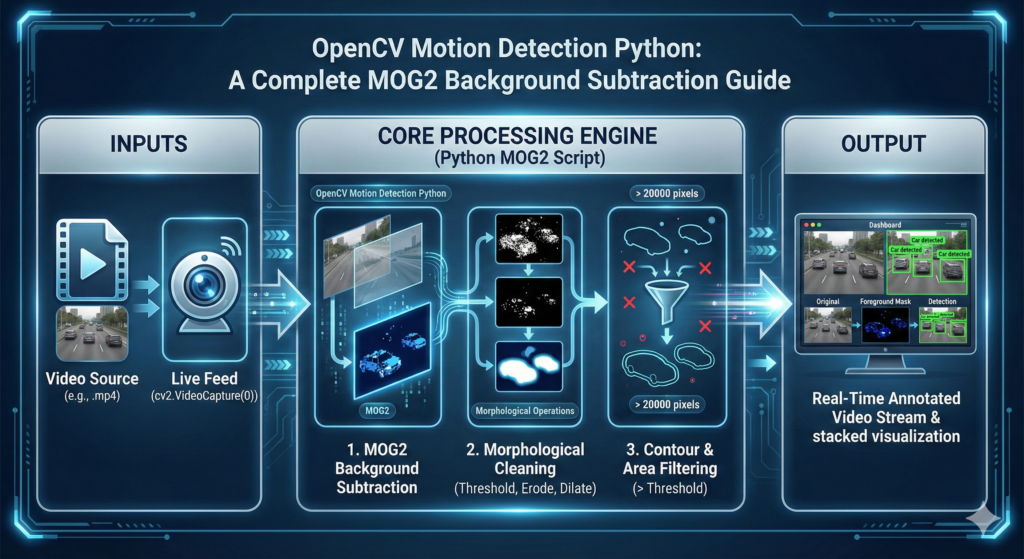
Step-by-Step OpenCV Motion Detection Python MOG2 Implementation
In this tutorial, we will dive into car detection python in videos using OpenCV and Python.
The goal of this project is to build a simple but effective computer vision pipeline that detects moving cars in a video, draws bounding boxes around them, and displays the results side by side for better visualization.
This tutorial answers the title: it shows you step by step how to transform raw video into structured object detection output using OpenCV’s background subtraction and contour detection methods.
This guide focuses specifically on car detection python techniques, ensuring a thorough understanding of the necessary tools and methods.
By the end of this post, you will have a working script that detects vehicles in real-world videos, and you’ll understand the core building blocks of video object detection: reading frames, background subtraction, morphological transformations, contour analysis, and object annotation.
We will divide the code into three parts for better understanding:
- Setting up the environment and reading the video.
- Applying background subtraction and morphological transformations.
- Detecting cars, annotating frames, and displaying results.
👉 If you’re interested in more advanced classification projects, check out my tutorial on Alien vs Predator image classification with ResNet50.
Capturing Live Video from a Webcam in OpenCV
Real-time computer vision always starts with acquiring frames from a video source. In OpenCV, this is handled using cv2.VideoCapture(), which allows us to connect to a webcam or read from a video file. When we pass 0, OpenCV opens the default system camera. If you replace it with a file path, the same logic can process recorded footage instead of live input.
The VideoCapture object streams frames one by one inside a loop. Each frame represents a snapshot in time, and our algorithm processes them sequentially. This structure allows continuous monitoring — critical for motion detection systems such as traffic cameras or security feeds.
Checking the ret variable ensures that a frame was successfully read. If it fails (for example, if the camera disconnects or the video ends), the loop safely exits. This small detail prevents crashes and improves reliability in production systems.
# Import libraries import cv2 import numpy as np # Use webcam by setting 0, or replace with video path cap = cv2.VideoCapture(0) Building the Motion Detection Pipeline: Step-by-Step Python Implementation
Background subtraction works by modeling what the scene looks like when nothing is moving. The MOG2 (Mixture of Gaussians) algorithm continuously learns pixel intensity distributions and separates foreground motion from static background.
The history parameter controls how many past frames are used to build the background model. A larger history makes the model more stable but slower to adapt. The varThreshold determines how sensitive the algorithm is to pixel changes — lower values detect subtle movement but may increase noise.
Shadow detection is disabled here (detectShadows=False) to simplify the mask. While shadow detection can improve realism, it may introduce gray regions in the foreground mask that complicate contour extraction.
history = 100 varThreshold = 25 detectShadows = False bg_subtractor = cv2.createBackgroundSubtractorMOG2( history=history, varThreshold=varThreshold, detectShadows=detectShadows) The varThreshold parameter is the heartbeat of your detection engine. In a typical OpenCV motion detection Python MOG2 tutorial, a value of 16 is standard, but for outdoor traffic where shadows and wind-blown trees occur, increasing this to 25 or 35 reduces false positives. This threshold determines the Mahalanobis distance that classifies a pixel as foreground, essentially acting as the sensitivity dial for your motion sensor.
To understand how this classical approach differs from modern neural networks, check out the guide on SSD MobileNet v3 Object Detection Explained for Beginners.
Cleaning the Foreground Mask: Mastering Morphological Operations
Raw foreground masks are often noisy. Small flickering regions may appear due to lighting changes, sensor noise, or minor background motion (like tree leaves). Morphological operations help clean these imperfections.
Erosion removes small white noise regions by shrinking foreground blobs. Dilation then expands the remaining regions to restore object size and strengthen detection stability. This erosion–dilation combination is a classic preprocessing step in motion detection pipelines.
Different structuring element shapes affect results. An elliptical kernel is gentler for erosion, preserving object contours, while a rectangular kernel strengthens expansion during dilation.
kernel_erode = cv2.getStructuringElement(cv2.MORPH_ELLIPSE, (3, 3)) kernel_dilate = cv2.getStructuringElement(cv2.MORPH_RECT, (3, 3)) Raw background subtraction often produces “salt and pepper” noise—tiny white pixels that don’t represent actual objects. By applying morphological transformations, you are essentially performing a spatial filter. This ensures that the subsequent contour detection step only processes significant, connected blobs, which drastically reduces the CPU load and prevents false-positive detections.
Localizing Moving Objects with Contour Detection and Bounding Boxes
Once the foreground mask is cleaned, we detect object boundaries using contour extraction. cv2.findContours() identifies continuous white regions in the binary mask, which represent moving objects.
We filter small contours using a minimum area threshold. This step is crucial because small blobs typically represent noise rather than meaningful motion. The min_area value should be tuned depending on camera distance and object scale.
It’s important to clarify: this method detects moving objects, not semantic “cars.” The label “Car detected” is based on the assumption that the scene contains vehicles. Without deep learning, the system cannot distinguish between cars and other moving objects.
min_area = 15000 A common pitfall in motion detection is treating the raw mask as the final output. Raw masks are often ‘noisy’ with disconnected pixels. We use morphological operations—specifically erosion followed by dilation—to act as a spatial filter. This ‘closes’ the gaps within a moving vehicle’s silhouette, ensuring that cv2.findContours identifies a single solid object rather than a cloud of scattered points.
Contour loop and annotation:
for cnt in contours: if cv2.contourArea(cnt) > min_area: x, y, w, h = cv2.boundingRect(cnt) cv2.rectangle(annotated, (x, y), (x + w, y + h), (0, 0, 255), 2) cv2.putText(annotated, "Car detected", (x, y - 10), cv2.FONT_HERSHEY_SIMPLEX, 0.5, (0, 255, 0), 1) Filtering by cv2.contourArea is what transforms a simple script into an intelligent system. By setting a minimum area threshold (e.g., 500 pixels), you effectively ignore environmental noise like birds or swaying branches. This ensures your OpenCV motion detection Python MOG2 tutorial logic focuses exclusively on significant targets like cars or pedestrians, drastically improving the precision of your bounding boxes.
Once you have mastered detection, you can visualize long-term activity patterns using an Object Detection Heatmap for Tracking Moving Dogs.
Performance Comparison: MOG2 vs. Deep Learning Models
The main advantage of using MOG2 background subtractor Python is that it does not require training data, GPUs, or large pre-trained models. Unlike deep learning approaches, the MOG2 background subtractor Python algorithm dynamically models pixel distributions and adapts to scene changes in real time.
For applications such as traffic monitoring, parking lot analysis, or industrial motion detection, MOG2 background subtractor Python offers a lightweight and computationally efficient alternative. This makes it ideal for embedded systems like Raspberry Pi or CPU-only environments.
Real-Time Processing Loop and Frame Display
Inside the main loop, each frame is processed in sequence: background subtraction, thresholding, morphology, contour detection, and visualization. This pipeline runs continuously until the user presses q.
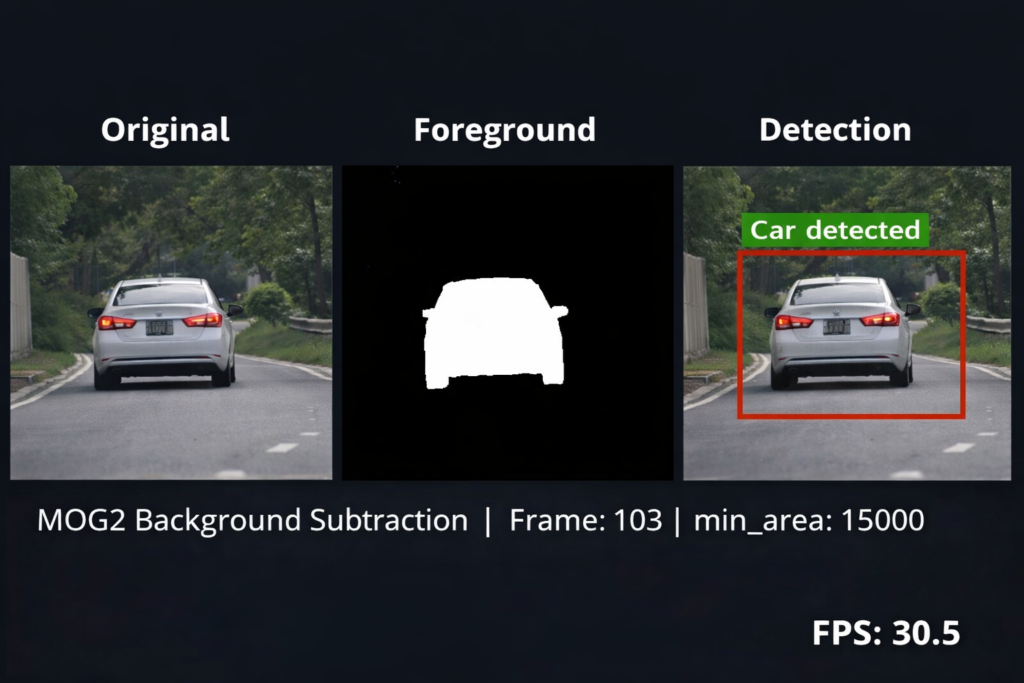
The visualization step stacks three outputs side by side:
- Original frame
- Foreground mask applied to the frame
- Annotated detection output
This comparison helps debug performance and understand how each stage contributes to the final result.
Resizing the display window reduces computational load and improves UI responsiveness. Finally, releasing the camera and destroying windows ensures system resources are properly freed.
while True: ret, frame = cap.read() if not ret: break mask = bg_subtractor.apply(frame) _, mask = cv2.threshold(mask, 20, 255, cv2.THRESH_BINARY) mask = cv2.erode(mask, kernel_erode, iterations=1) mask = cv2.dilate(mask, kernel_dilate, iterations=6) contours, _ = cv2.findContours(mask, cv2.RETR_EXTERNAL, cv2.CHAIN_APPROX_SIMPLE) annotated = frame.copy() for cnt in contours: if cv2.contourArea(cnt) > min_area: x, y, w, h = cv2.boundingRect(cnt) cv2.rectangle(annotated, (x, y), (x + w, y + h), (0, 0, 255), 2) cv2.putText(annotated, "Car detected", (x, y - 10), cv2.FONT_HERSHEY_SIMPLEX, 0.5, (0, 255, 0), 1) combined = np.hstack((frame, cv2.bitwise_and(frame, frame, mask=mask), annotated)) cv2.imshow("Original | Foreground | Detection", cv2.resize(combined, None, fx=0.4, fy=0.4)) if cv2.waitKey(1) & 0xFF == ord('q'): break cap.release() cv2.destroyAllWindows() When Should You Use Background Subtraction Instead of Deep Learning?
Background subtraction is ideal when:
- You only care about motion
- You don’t need object classification
- You want lightweight performance
- You are running on CPU-only systems
Deep learning models like YOLO are more accurate and can classify objects, but they require trained weights and more computational power.
Pro-Tip for Edge Deployment
If you are deploying this OpenCV Motion Detection Python script on a Raspberry Pi or an NVIDIA Jetson Nano, remember that MOG2 is significantly more battery-efficient than YOLO. To further boost FPS, consider resizing the input frame to a lower resolution (e.g., 640×480) before applying the background subtractor. This reduces the number of pixel-wise Gaussian calculations without sacrificing detection accuracy for large objects like vehicles
Final Thoughts
This tutorial demonstrates that effective real-time motion detection can be built without deep learning. By combining background modeling, morphology, contour filtering, and visualization, you can create a practical vehicle detection system using only OpenCV.
This approach is especially useful for:
- Traffic monitoring
- Parking lot analysis
- Security cameras
- Edge devices like Raspberry Pi or Jetson Nano
FAQ
What is background subtraction in OpenCV ?
Unlike simple frame differencing, MOG2 uses a statistical model for each pixel. This allows your OpenCV Motion Detection Python code to adapt to shadows or gradual changes in outdoor lighting, preventing “false positives” in your detection.:contentReference[oaicite:17]{index=17}.
Why use erosion and dilation in car detection?
Erosion removes small noise, while dilation grows the remaining object regions:contentReference[oaicite:18]{index=18}:contentReference[oaicite:19]{index=19}; together they clean up the mask for better detection.
Which OpenCV function creates the background subtractor?
The function cv2.createBackgroundSubtractorMOG2() builds a model to subtract the background and highlight moving cars:contentReference[oaicite:20]{index=20}.
How do I tune the detection sensitivity?
Adjust the varThreshold parameter of MOG2 for pixel variability and change the minimum contour area to filter out small blobs.
Can I run this script on a webcam feed?
Yes—replace the video path in cv2.VideoCapture() with 0 to use your webcam and process live traffic:contentReference[oaicite:21]{index=21}.
How do I stop the detection program?
Press the q key while the OpenCV window is active to break the loop and release the video capture:contentReference[oaicite:22]{index=22}.
Does this method detect multiple cars at once?
Yes—the contour loop processes every foreground blob and draws a bounding box around each car:contentReference[oaicite:23]{index=23}.
What if my video is noisy?
Increase the number of erosion iterations, choose a larger structuring element or adjust the threshold values to reduce noise:contentReference[oaicite:24]{index=24}.
Can this script be used for real-time traffic monitoring?
With appropriate hardware and optimized parameters, the background subtraction pipeline can run on live camera feeds for traffic monitoring:contentReference[oaicite:25]{index=25}.
How is this approach different from deep-learning detectors?
Background subtraction is lightweight and relies on frame differencing, whereas deep-learning detectors like YOLO require neural networks and training but handle complex scenes better.
When properly tuned, MOG2 background subtractor Python provides reliable foreground segmentation even under moderate lighting variations. Adjusting the history length and variance threshold ensures the MOG2 background subtractor Python model adapts smoothly without generating excessive noise.
Conclusion
We have successfully built a Python project that detects cars in videos using OpenCV.
The pipeline combined background subtraction, morphological transformations, contour filtering, and bounding box annotation to identify cars in motion.
This project is a strong starting point for real-world applications such as traffic monitoring, parking lot management, and smart city solutions.
You can expand it further by integrating object tracking, deep learning-based detection models, or even live video feeds from surveillance cameras.
Important links :
check out our video here here
You can find the full code here : https://ko-fi.com/s/2f2f851f93
You can find more similar tutorials in my blog posts page here : https://eranfeit.net/blog/
Connect :
☕ Buy me a coffee — https://ko-fi.com/eranfeit
🖥️ Email : feitgemel@gmail.com
🤝 Fiverr : https://www.fiverr.com/s/mB3Pbb
Enjoy,
Eran