 Skip to content
Last Updated on 10/02/2026 by Eran Feit
This tutorial focuses on EigenCAM YOLOv5 integration to reveal which image regions influence YOLOv5 object detection decisions.
EigenCAM allows us to understand what parts of an image YOLOv5 relies on when detecting objects.
Instead of treating the model as a black box, we can generate heatmaps that highlight the regions influencing each prediction.
In this tutorial you will:
- Load a pretrained YOLOv5 model
- Run inference on an image
- Generate EigenCAM visual explanations
- Overlay heatmaps on detections
- Interpret when YOLOv5 focuses on the wrong area
If you are just starting with detections, you might first enjoy my YOLOv5 object detection tutorial in 15 minutes and then come back here to see how EigenCAM explains those predictions.
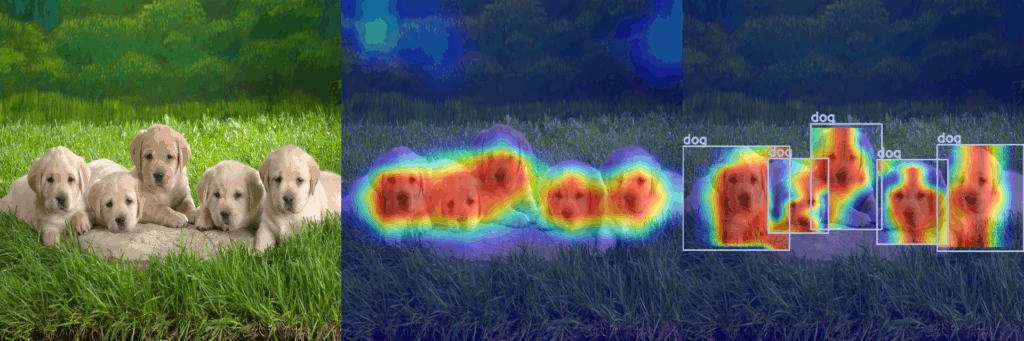
What Is EigenCAM and Why Use It with YOLOv5
EigenCAM is a visualization method that helps you understand where a deep learning model is “looking” when it makes a prediction.
Instead of only trusting bounding boxes and confidence scores, EigenCAM produces a heatmap that highlights the image regions that most influenced the model’s decision.
For object detection, this is especially useful because a detector like YOLOv5 makes many decisions at once: where the object is, what class it is, and how confident it feels about it.
With YOLOv5, EigenCAM becomes a practical tool for model debugging and model validation.
If YOLOv5 predicts “person” correctly but the heatmap concentrates on the background, the detection might be relying on context rather than the actual object.
That can explain why a model performs well on a test set but fails in real-world images where the background changes.
In real projects, EigenCAM can save you time by pointing directly to the type of problem you’re facing.
If the heatmap is too broad and spread out, it may suggest the model is undertrained or the dataset lacks consistent framing.
If it focuses on irrelevant textures, it can signal dataset bias, label noise, or a mismatch between training images and inference images.
That’s why EigenCAM is valuable not just for “cool visuals,” but as a serious explainability tool for object detection pipelines.
If you want a complete YOLOv8 YouTube object detection workflow (auto-labeling, training, and live inference), follow this step-by-step guide: https://eranfeit.net/how-to-use-yolov8-for-object-detection-on-youtube-videos/
How Class Activation Maps Explain Object Detection
Class Activation Maps, often called CAM methods, aim to explain a model’s prediction by projecting internal feature signals back onto the input image.
The goal is simple: translate hidden neural network activations into a human-readable heatmap that tells you which regions mattered most.
Different CAM variants do this in different ways, but they all connect “what the network learned internally” to “what you can see on the image.”
Object detection is trickier to explain than classification because the model is not predicting one label for the whole image.
YOLOv5 predicts multiple bounding boxes and class probabilities across a grid of locations.
A CAM method for detection needs to align explanations with detection outputs, meaning the heatmap should be interpreted in the context of where YOLOv5 placed its boxes and which class it selected for each box.
EigenCAM is popular because it can produce stable-looking explanations without requiring gradients in the same way as some other methods.
That can make it easier to apply consistently across many images and easier to compare results between runs.
Even when you don’t dive into the math, the key takeaway is that CAM methods give you a lens into the model’s decision-making process.
When you use them correctly, they help you trust your model for the right reasons, not just because the accuracy number looks good.
Once you are comfortable running basic YOLOv5 inference, you can deepen your skills with this step-by-step guide on training YOLOv5 on a custom dataset so you can apply EigenCAM explanations to your own images and classes.
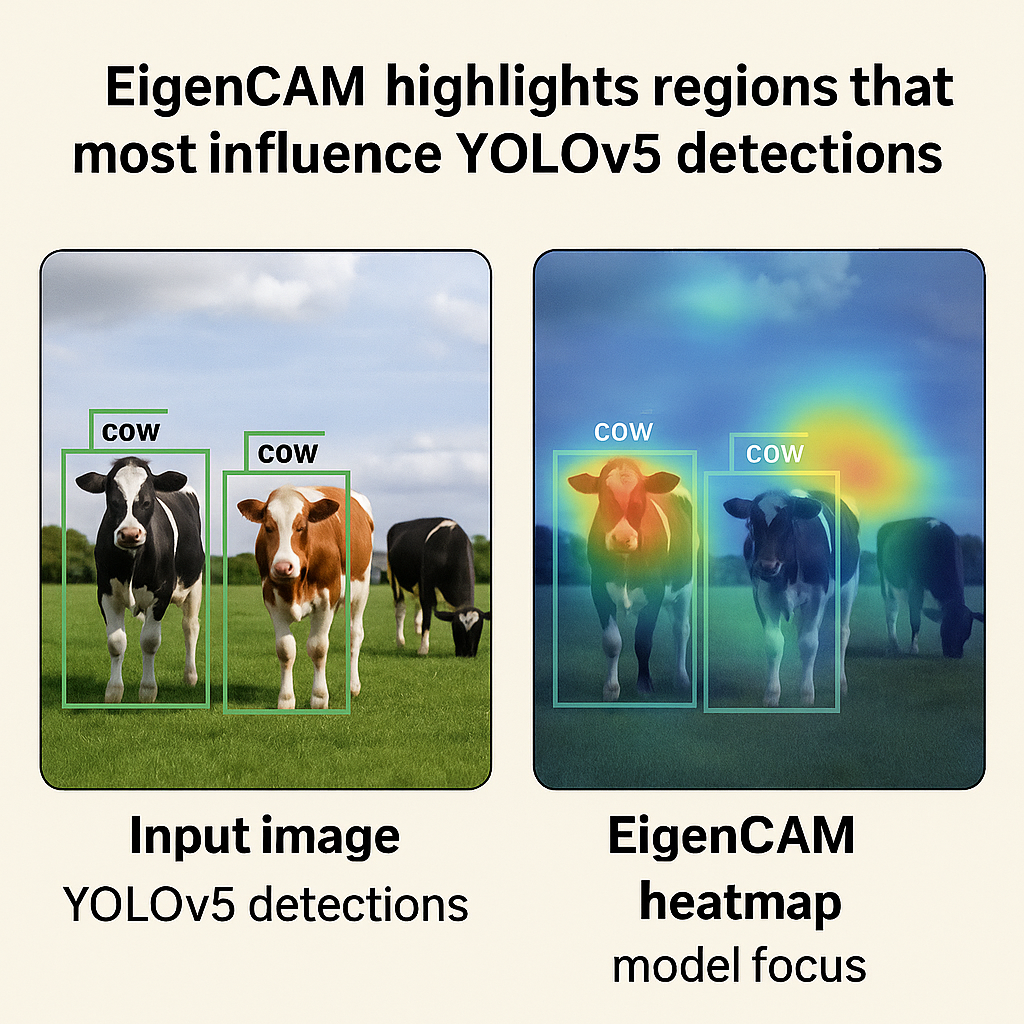
Walking Through the Tutorial Code
This tutorial walks step by step through a practical Python script that combines YOLOv5 object detection with EigenCAM visualization. The goal of the code is to load a pretrained YOLOv5 model, detect objects in an image, and then use EigenCAM to highlight the regions that most influence those detections. Instead of just seeing bounding boxes and labels, the script produces an additional heatmap overlay so it becomes clear where the model is actually “looking” in the image.
The code starts by importing the essential deep learning and computer vision libraries: PyTorch for the model, OpenCV for image handling and display, NumPy for numerical operations, and torchvision.transforms for preparing the image tensor. It also imports the EigenCAM class and the show_cam_on_image helper from the pytorch-grad-cam package. Together, these tools build a full pipeline that goes from a raw JPEG file, through YOLOv5 inference, and all the way to an interpretable EigenCAM heatmap on top of the original picture.
Next, the script defines two helper functions: parse_detections and draw_detections. parse_detections takes YOLOv5’s pandas-style output, filters out low-confidence predictions, and extracts clean bounding box coordinates, colors, and class names. draw_detections then uses OpenCV to draw those boxes and labels on a copy of the image. These functions keep the logic organized: one part of the code deals with interpreting the detection results, and another part focuses on visualization for the user.
The central part of the code shows the main workflow of the tutorial. It loads an image of cows, resizes it to the expected input size, normalizes the pixel values, and converts it into a PyTorch tensor. A pretrained YOLOv5s model is loaded from the Ultralytics hub, and inference is run to obtain object detections. Once the boxes and class names are parsed and drawn, the script moves the model to the GPU, sets up EigenCAM with a chosen target layer, and computes a grayscale CAM for the same input tensor. The show_cam_on_image function overlays this EigenCAM heatmap on the original image, creating an intuitive visualization of model focus that is displayed side by side with the normal detection output.
Overall, the target of the code is to provide a complete, runnable example of how to integrate EigenCAM into a real YOLOv5 object detection workflow. It not only demonstrates how to call the right APIs and prepare tensors, but also shows how to choose a meaningful layer for EigenCAM, how to process YOLOv5 detections, and how to present the final results in a way that is easy to understand for anyone learning about explainable AI in computer vision.
Link for the video tutorial : https://youtu.be/pcgvcIJuKnI
You can download the code here : https://eranfeit.lemonsqueezy.com/buy/7cf52aaa-3eea-4456-8567-beb2604b4296
or here : https://ko-fi.com/s/538fc343b8
Link for Medium users : https://medium.com/object-detection-tutorials/how-to-use-eigencam-for-yolov5-object-detection-07e4a386e567
You can follow my blog here : https://eranfeit.net/blog/
Want to get started with Computer Vision or take your skills to the next level ?
If you’re just beginning, I recommend this step-by-step course designed to introduce you to the foundations of Computer Vision – Complete Computer Vision Bootcamp With PyTorch & TensorFlow
If you’re already experienced and looking for more advanced techniques, check out this deep-dive course – Modern Computer Vision GPT, PyTorch, Keras, OpenCV4
Getting the environment and EigenCAM imports ready
This first part prepares the environment, imports the libraries, and sets up a color map for drawing YOLOv5 detections.
It also makes sure you have the grad-cam package that provides the EigenCAM implementation used later in the script.
### Install the pytorch-grad-cam package that contains EigenCAM and other CAM methods. # pip install grad-cam ### Import PyTorch to load the YOLOv5 model and run all tensor operations. import torch ### Import OpenCV for image loading, drawing bounding boxes, and opening display windows. import cv2 ### Import NumPy to handle numerical arrays and random color generation for detections. import numpy as np ### Import torchvision transforms to convert the NumPy image into a PyTorch tensor. import torchvision.transforms as trasforms ### Import the EigenCAM class from pytorch-grad-cam to generate class activation maps without gradients. from pytorch_grad_cam import EigenCAM ### Import the helper function that overlays the EigenCAM heatmap on top of the original image. from pytorch_grad_cam.utils.image import show_cam_on_image ### Create a random color table for up to 80 classes so each detection can have a distinct bounding box color. COLORS = np.random.uniform(0, 255 , size=(80,3)) This section ensures your Python environment has all the tools needed for EigenCAM and YOLOv5.
You end up with clean imports and a convenient color map to visually distinguish different object classes.
Loading YOLOv5 Model for Explainability
Before you generate explanations, you need a YOLOv5 model loaded in a way that supports inference and access to internal layers.
From a practical perspective, this means ensuring the model is in evaluation mode, running on the correct device (CPU or GPU), and producing consistent outputs.
Explainability methods often assume that the model behaves deterministically, so you want to avoid training-mode behavior like dropout or batch norm updates.
The explainability workflow also benefits from a clear separation between preprocessing, inference, and visualization.
YOLOv5 typically handles preprocessing internally, but for explanation tools it’s helpful to know exactly what image size is being used, whether letterboxing occurs, and how the input tensor is formed.
Small details like resizing can change where heatmaps appear, because the model “sees” a transformed version of your image, not the raw pixels.
Another important point is choosing which part of the model to explain.
In many neural networks, later layers capture more semantic information, while earlier layers focus on edges and textures.
For YOLOv5, you usually want to target deeper layers that are more aligned with object-level decisions.
Loading the model properly sets the stage for selecting those layers and getting heatmaps that are meaningful rather than noisy or overly generic.
Parsing YOLOv5 detections into clean boxes and labels
Here you define a helper function that turns YOLOv5’s Pandas output into Python lists of bounding boxes, colors, and class names.
The function also filters out low-confidence detections so your visualization stays clean and focused.
### Define a function to convert YOLOv5 results into simple Python lists of boxes, colors, and class names. def parse_detections(results): ### Extract the first predictions table from YOLOv5 as a Pandas DataFrame. detections = results.pandas().xyxy[0] ### Convert the DataFrame to a dictionary so we can iterate over columns easily. detections = detections.to_dict() ### Initialize empty lists for bounding boxes, their colors, and their class names. boxes , colors , names = [] , [], [] ### Loop over every detected object in the results. for i in range(len(detections["xmin"])): ### Read the confidence score for the current detection. confidence = detections["confidence"][i] ### Skip this detection if the confidence is below our threshold of 0.4. if confidence < 0.4: continue ### Extract the left coordinate of the bounding box and cast it to an integer. xmin = int(detections["xmin"][i]) ### Extract the top coordinate of the bounding box and cast it to an integer. ymin = int(detections["ymin"][i]) ### Extract the right coordinate of the bounding box and cast it to an integer. xmax = int(detections["xmax"][i]) ### Extract the bottom coordinate of the bounding box and cast it to an integer. ymax = int(detections["ymax"][i]) ### Grab the class name predicted by YOLOv5 for this detection. name = detections["name"][i] ### Grab the numeric class index and convert it to an integer. category = int(detections["class"][i]) ### Use the class index to pick a color from our COLORS table. color = COLORS[category] ### Store the bounding box coordinates as a tuple. boxes.append((xmin , ymin, xmax, ymax)) ### Store the color associated with this detection. colors.append(color) ### Store the class name so we can draw it later. names.append(name) ### Return the lists of boxes, colors, and names for further processing. return boxes, colors, names This function cleans up YOLOv5’s raw output into simple Python structures that are easy to use later for both drawing and EigenCAM interpretation.
Filtering by confidence helps keep only the most reliable detections in your visualization.
Generating EigenCAM Heatmaps in Python
Once the model is ready, generating EigenCAM heatmaps is about connecting a CAM method to a target layer and then passing an image through the pipeline.
You provide an input image, run it through the model, and the EigenCAM method returns a heatmap that represents the regions most associated with the detection decision.
The output is usually a 2D map that you can resize to match the original image dimensions.
In an educational workflow, you want to treat the heatmap like a diagnostic signal rather than a final “truth.”
A strong heatmap on the object area can indicate the model is using relevant visual evidence.
A heatmap that is consistently off-target can indicate that the model learned shortcuts from the dataset, like focusing on water when detecting boats or focusing on snow when detecting skis.
It’s also important to generate heatmaps across a variety of images, not just one example that looks good.
Try easy cases, hard cases, different backgrounds, different lighting, and different object sizes.
If EigenCAM only looks reasonable in a narrow set of conditions, that’s a sign your model might not generalize well.
By treating heatmap generation as part of evaluation, you turn explainability into a repeatable method rather than a one-time visualization.
### Define a function that draws bounding boxes and class labels on the image using OpenCV. def draw_detections(boxes, colors, names, img): ### Loop through each detection and its associated color and name at the same time. for box, color, name in zip(boxes, colors, names) : ### Unpack the bounding box coordinates into separate variables. xmin , ymin , xmax , ymax = box ### Draw the rectangle around the detected object with the chosen color and line thickness of 2. cv2.rectangle(img , (xmin , ymin), (xmax, ymax), color , 2) ### Put the class name text just above the top-left corner of the bounding box. cv2.putText(img, name , (xmin , ymin-5), cv2.FONT_HERSHEY_SIMPLEX, 0.8 , color, 2, lineType=cv2.LINE_AA) ### Return the image with all YOLOv5 detections drawn on it. return img Once this function is defined, you have an easy way to generate a detection image that shows what YOLOv5 found.
Later you will compare this to the EigenCAM heatmap overlay to understand model focus.
Running YOLOv5 detection and visualizing the results
This section loads the input image, prepares a tensor for PyTorch, loads the pretrained YOLOv5 model, and runs object detection.
It then uses the helper functions to parse the detections and draw bounding boxes so you can see the raw predictions before applying EigenCAM.
Here is the test image : Cows.jpg

### Define the path to the input image that we want to analyze with YOLOv5 and EigenCAM. imgPath = "images/cows.jpg" ### Read the image from disk using OpenCV in BGR format. img = cv2.imread(imgPath) ### Resize the image to 640x640 pixels so it matches the expected YOLOv5 input size. img = cv2.resize(img , (640, 640)) ### Keep a copy of the original resized image in RGB order for YOLOv5 inference and visualization. rgb_img = img.copy() ### Convert the image data to float32 and scale pixel values to the range [0, 1]. img = np.float32(img) / 255 ### Create a torchvision transform that converts a NumPy image into a PyTorch tensor. transform = trasforms.ToTensor() ### Apply the transform and add a batch dimension so the shape is [1, C, H, W]. tensor = transform(img).unsqueeze(0) ### Load a pretrained YOLOv5s model from the Ultralytics Torch Hub. model = torch.hub.load('ultralytics/yolov5', 'yolov5s', pretrained=True) ### Optionally print the model in evaluation mode for debugging or inspection. # print(model.eval()) ### Optionally print the CPU version of the model for debugging device issues. # print(model.cpu()) ### Select the target layer from the YOLOv5 model that will be used by EigenCAM for generating the heatmap. target_layers = [model.model.model.model[-2]] ### Run YOLOv5 inference on the original RGB image inside a list to match the model’s expected input format. results = model([rgb_img]) ### Optionally print the full detection results object for inspection or debugging. # print(results) ### Parse YOLOv5 results into lists of bounding boxes, colors, and class names. boxes , colors , names = parse_detections(results) ### Print the list of bounding boxes to the console for quick checking. print(boxes) ### Print the list of class names to the console to see what YOLOv5 detected. print(names) ### Draw the parsed detections on a copy of the original image using our helper function. detections = draw_detections(boxes, colors, names, rgb_img.copy()) ### Display the YOLOv5 detections window so we can visually confirm bounding boxes and labels. cv2.imshow("Detections", detections) At this point you already have a working YOLOv5 object detection pipeline that shows bounding boxes on the image.
The next step is to add EigenCAM so you can visualize where the model is focusing when it makes those detections.
Overlaying Heatmaps on YOLOv5 Predictions
A raw heatmap is hard to interpret without context, so overlaying it on the original image is where it becomes useful.
You typically blend the heatmap with the image and then display YOLOv5’s bounding boxes on top.
This lets you answer a specific question: “Is the model focusing on the same region where it claims the object is located?”
When you overlay, pay attention to alignment and scaling.
If the model input was resized or letterboxed, your heatmap needs to be mapped correctly back to the original image.
Misalignment can lead you to wrong conclusions, like thinking the model focused on the background when the issue is actually a coordinate mismatch in visualization.
A good overlay pipeline ensures the heatmap and the detection boxes share the same coordinate system.
Once you have consistent overlays, you can use them to compare models and training strategies.
For example, after fine-tuning YOLOv5 on a custom dataset, you can compare EigenCAM overlays before and after training.
If the heatmaps become more concentrated on the true object regions, that’s a strong qualitative signal that the model learned better features.
This kind of visual validation is valuable in tutorials and real deployments because it communicates model behavior in a way that accuracy tables cannot.
### Move the YOLOv5 model to the CUDA device so EigenCAM computations run on the GPU. model.to('cuda') ### Create an EigenCAM instance using the YOLOv5 model and the selected target layers. cam = EigenCAM(model, target_layers) ### Run EigenCAM on the input tensor and take the first heatmap in the batch. grayscale_cam = cam(tensor)[0, : , : ] ### Overlay the EigenCAM heatmap on top of the original normalized image to create a colorful explanation. cam_image = show_cam_on_image(img , grayscale_cam, use_rgb=True) ### Display the EigenCAM visualization window so we can see where YOLOv5 is focusing. cv2.imshow("cam image", cam_image) ### Wait indefinitely for a key press to keep both the detection and EigenCAM windows open. cv2.waitKey(0) This final block turns your YOLOv5 detector into an explainable model by combining detections with EigenCAM.
You can now inspect both the bounding boxes and the corresponding heatmap to understand how YOLOv5 “sees” the scene.
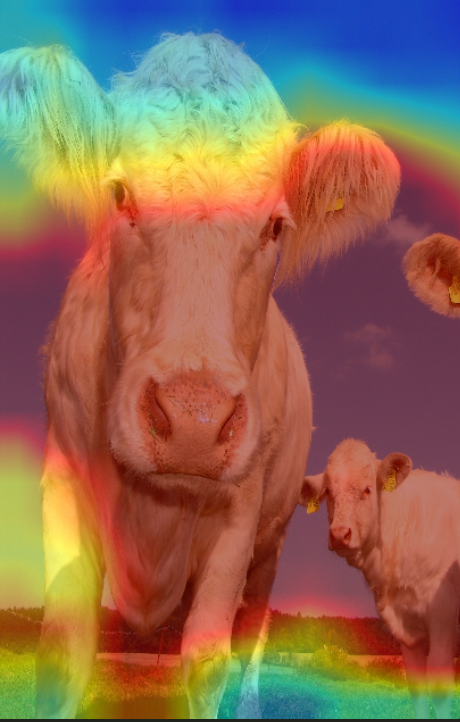
EigenCAM : The result
Common Misinterpretations and Debugging Tips
A very common mistake is assuming the brightest region of the heatmap is always “correct.”
In reality, a model can make a correct detection for the wrong reason, and CAM methods can reveal that.
If YOLOv5 detects a person but EigenCAM highlights a skateboard or a background logo, it may mean the model is relying on context correlations from the training set.
That is exactly the type of hidden weakness that can cause failures in new environments.
Another misinterpretation is comparing heatmaps between images without keeping conditions consistent.
Different image sizes, different preprocessing, or different layers can produce heatmaps that look very different even if the model behavior is similar.
For reliable comparisons, keep the same input size, the same layer target, and the same overlay settings.
If you change multiple variables at once, you won’t know whether a difference in heatmaps reflects model improvement or just a visualization change.
For debugging, treat EigenCAM patterns as clues that point you to the next experiment.
If heatmaps are too spread out, try increasing training quality: more data, better labels, longer training, or improved augmentation.
If heatmaps focus on background textures, diversify your dataset backgrounds and reduce consistent “shortcut” patterns.
If heatmaps focus on object parts inconsistently, consider improving annotation consistency or testing different model sizes.
The best mindset is: EigenCAM doesn’t replace metrics, it complements them by showing you why the model behaves the way it does.
FAQ
What is EigenCAM in YOLOv5 object detection?
EigenCAM is a gradient-free class activation map method that highlights the regions in an image that most influence YOLOv5's internal feature maps, producing an intuitive heatmap over the input.
How does EigenCAM differ from Grad-CAM?
Grad-CAM uses gradients of a specific class score to create class-focused heatmaps, while EigenCAM uses principal components of feature maps and does not require gradients, making it class-agnostic and easier to apply.
Do I need to modify the YOLOv5 architecture to use EigenCAM?
You do not need to change the YOLOv5 architecture; EigenCAM works on the existing feature maps by tapping into a chosen layer and computing a heatmap from its activations.
Which images work best for EigenCAM visualizations?
EigenCAM works well on images where YOLOv5 produces clear detections, such as scenes with distinct objects and reasonable lighting, because strong feature activations translate into clearer heatmaps.
Can EigenCAM help debug poor YOLOv5 predictions?
Yes, EigenCAM highlights where the model is focusing, so if the heatmap sits on the wrong region you can suspect dataset noise, label issues, or model bias and adjust your training accordingly.
Is a GPU required to run EigenCAM efficiently?
A GPU is not mandatory but strongly recommended, because running EigenCAM on large images and deep models is significantly faster with CUDA acceleration than on a CPU alone.
Can EigenCAM be used during model training?
You can periodically run EigenCAM on validation images during training to visually inspect how the model's focus evolves and catch problems early, although it is usually done outside the training loop.
Does EigenCAM support other object detection models?
EigenCAM is model-agnostic and can be applied to many convolutional detectors, including YOLOX, SSD, and Faster R-CNN, as long as you can access the intermediate feature maps.
How should I choose the confidence threshold in parse_detections?
A threshold around 0.4 is a good starting point, but you can raise it for cleaner visualizations or lower it to inspect borderline detections when analyzing EigenCAM heatmaps.
Can I save the EigenCAM heatmap images for documentation?
Yes, after generating the cam_image you can use OpenCV or PIL to save it as a PNG or JPEG file, making it easy to include EigenCAM visualizations in reports and presentations.
Conclusion
EigenCAM transforms YOLOv5 from a pure prediction engine into an explainable object detector that you can truly understand and trust.
By projecting the dominant activation patterns of a deep layer back onto the input image, EigenCAM produces intuitive heatmaps that show where the model is focusing when it draws each bounding box.
In this tutorial you built a complete, end-to-end pipeline that loads a pretrained YOLOv5 model, parses detections, draws bounding boxes, and overlays an EigenCAM heatmap on the same image.
Along the way you saw how helper functions like parse_detections and draw_detections keep the code clean, and how a single target layer and a few lines of EigenCAM code are enough to add powerful visual explanations.
You can now extend this script in many directions.
You might run EigenCAM on your own custom YOLOv5 models, process entire video streams, or export heatmaps for reports and presentations.
Combining strong detectors with clear visual explanations is a key step toward deploying computer vision systems that are both accurate and transparent, whether you are working on research projects, real-world applications, or educational content.
If you would like to explore more modern detectors and segmentation workflows after EigenCAM, check out my YOLOX object detection tutorial , my quick YOLOv5 segmentation guide , and the Segment Anything tutorial with YOLOv8 masks to see how different models can be combined with explainability tools.
Connect :
☕ Buy me a coffee — https://ko-fi.com/eranfeit
🖥️ Email : feitgemel@gmail.com
🤝 Fiverr : https://www.fiverr.com/s/mB3Pbb
Enjoy,
Eran