 Skip to content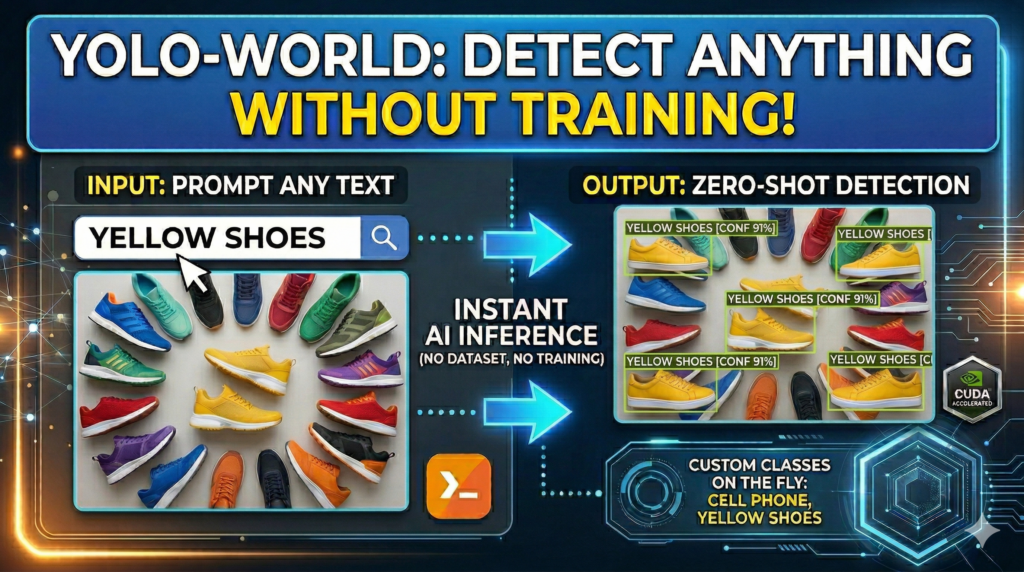
Last Updated on 11/04/2026 by Eran Feit
In this YOLO-World tutorial, we explore the groundbreaking shift in computer vision from supervised learning to zero-shot inference. We are moving away from the tedious days of manual bounding box labeling and toward a future where natural language prompts define detection logic in real-time. This transition allows for an unprecedented level of flexibility in how we interact with visual data, transforming text descriptions directly into actionable detection coordinates.
For developers and data scientists, the most significant bottleneck in AI project deployment has always been data curation and the high cost of human annotation. By adopting the methods described here, you can prototype and deploy object detection models in minutes rather than weeks. This drastically reduces the barrier to entry for complex vision projects, allowing you to focus on high-level application logic and rapid iteration rather than repetitive manual tasks.
We achieve this efficiency by walking through a complete technical implementation, starting from a high-performance environment setup using PyTorch 2.9.1 and CUDA 12.8. You will learn how to configure the Ultralytics framework to run zero-shot inference, define dynamic classes for specific niche use cases—such as identifying “Yellow shoes”—and ultimately save a serialized model that is ready for production without ever needing a custom training dataset.
This comprehensive guide is designed to bridge the gap between theoretical open-vocabulary research and practical, real-world engineering. Whether you are building a smart surveillance system or an automated retail solution, mastering this zero-shot workflow provides a significant competitive edge. It empowers you to respond to new detection requirements instantly, making your AI pipeline more resilient and adaptable to changing business needs.
Why this YOLO-World tutorial is the key to mastering open-vocabulary detection
YOLO-World represents a massive leap in “Open-Vocabulary” object detection. Unlike traditional models that are strictly limited to the specific categories they were trained on—such as the standard COCO or ImageNet classes—this architecture uses a vision-language model to understand the relationship between pixels and text. By feeding the model a list of names or descriptions, it dynamically reconfigures its detection capabilities to find those specific items, essentially making it a “universal” detector that can recognize objects it has never officially “seen” during a traditional training phase.
The primary target of this technology is the modern engineer who needs to detect niche, rare, or highly specific objects that do not have massive, pre-labeled datasets available. Instead of hunting for thousands of images to train a custom classifier for a specific “bag” or “cell phone” brand, you can simply describe the object in plain English. This makes the model incredibly versatile for edge cases where traditional supervised learning is too slow, too expensive, or simply impossible due to a lack of available data.
At a high level, the system works by mapping visual features and textual embeddings into a shared latent space. When you provide a custom prompt, the model searches for regions in the image that align most closely with the linguistic representation of that phrase. By following this approach, you are learning how to harness this alignment to build vision systems that are not just smart, but contextually aware of the specific environment they are deployed in. This allows for a “detect-anything” capability that was previously restricted to massive, slow-running research models, now optimized for real-time performance.

The code provided in this YOLO-World tutorial is designed to bridge the gap between complex research and production-ready automation. By focusing on a clean, scriptable workflow, the tutorial provides a blueprint for bypassing the most expensive part of AI development: manual data annotation. This programmatic approach ensures that you aren’t just running a demo, but building a foundation for a scalable vision system that can adapt to new objects with just a few lines of Python.
Let’s Break Down the Code: Setting Up Your Zero-Shot Vision Pipeline
Wait, how does this code actually detect objects without any training?
By utilizing open-vocabulary embeddings, the code converts your text prompts into mathematical vectors. The model then performs a real-time search across the image to find visual patterns that match those linguistic descriptions—essentially “searching” for pixels that look like your words.
The technical foundation of this setup relies on a highly optimized environment featuring PyTorch 2.9.1 and CUDA 12.8. In the world of computer vision, the “plumbing” of your environment is just as critical as the model itself. By pinning these specific versions in a dedicated Conda environment, we ensure that the GPU-accelerated kernels are running at peak efficiency. This setup is the “engine room” that allows the zero-shot model to process high-resolution frames with the low latency required for real-time applications.
Once the environment is primed, the code initializes the YOLOWorld class, which is the heart of our detection logic. Unlike standard YOLO models that come with a fixed set of “knowledge,” this model acts as a blank slate ready to be molded by your specific requirements. The target of this section of the code is to load pre-trained open-vocabulary weights that understand the general relationship between objects and language, providing the intelligence needed to interpret your custom prompts later in the script.
The real magic happens when we reach the set_classes function. Here, the code redefines the model’s classification head on the fly. By passing a list like “cell phone,” “bag,” or “Yellow shoes,” you are essentially performing a “brain transplant” on the model, telling it to ignore everything else and focus exclusively on your items of interest. This capability is the primary target of the tutorial: giving you the power to create a custom-purpose detector in seconds that can be saved as a standard .pt file for future deployment.
Finally, the implementation focuses on making the raw data human-readable through the Supervision library. Raw detection arrays (coordinates and confidence scores) are difficult to interpret at a glance, so the code utilizes a BoxAnnotator and LabelAnnotator to draw professional, clear overlays. This final step is crucial for verification; it allows you to visually confirm that the “Yellow shoes” detected by the AI match the physical objects in your test image, providing a vital feedback loop for refining your prompts and confidence thresholds.
Link to the tutorial here .
Download the code for the tutorial here or here .
Link for Medium users here
Best AI Photo Tools (Backgrounds, Objects, Headshots)


Master Computer Vision
Follow my latest tutorials and AI insights on my Personal Blog.
Deep Learning for Images with PyTorch
An interactive environment to sharpen your PyTorch skills through hands-on practice.
Complete Computer Vision Bootcamp
A step-by-step guide to the foundations using PyTorch & TensorFlow.
Modern CV: GPT & OpenCV4
Deep-dive into advanced techniques, Vision GPT, and production-ready models.

How to Use YOLO-World for Zero-Shot Object Detection
In this YOLO-World tutorial, we explore the groundbreaking shift in computer vision from supervised learning to zero-shot inference. We are moving away from the tedious days of manual bounding box labeling and toward a future where natural language prompts define detection logic in real-time. This transition allows for an unprecedented level of flexibility in how we interact with visual data, transforming text descriptions directly into actionable detection coordinates.
For developers and data scientists, the most significant bottleneck in AI project deployment has always been data curation and the high cost of human annotation. By adopting the methods described here, you can prototype and deploy object detection models in minutes rather than weeks. This drastically reduces the barrier to entry for complex vision projects, allowing you to focus on high-level application logic and rapid iteration rather than repetitive manual tasks.
We achieve this efficiency by walking through a complete technical implementation, starting from a high-performance environment setup using PyTorch 2.9.1 and CUDA 12.8. You will learn how to configure the Ultralytics framework to run zero-shot inference, define dynamic classes for specific niche use cases—such as identifying “Yellow shoes”—and ultimately save a serialized model that is ready for production without ever needing a custom training dataset.
This comprehensive guide is designed to bridge the gap between theoretical open-vocabulary research and practical, real-world engineering. Whether you are building a smart surveillance system or an automated retail solution, mastering this zero-shot workflow provides a significant competitive edge. It empowers you to respond to new detection requirements instantly, making your AI pipeline more resilient and adaptable to changing business needs.
Build Your Powerhouse: Installing the Zero-Shot AI Stack
Establishing a robust local environment is the first step toward high-performance computer vision. By using a dedicated Conda environment, we isolate our dependencies and ensure that the specific versions of PyTorch and CUDA do not conflict with other system libraries. This stability is essential for reproducing results and maintaining a professional development workflow.
The core of our installation focuses on PyTorch 2.9.1 paired with CUDA 12.8 support. This cutting-edge combination ensures that the YOLO-World model can leverage the full parallel processing power of your NVIDIA GPU. Without proper GPU acceleration, zero-shot inference—which involves complex vision-language mappings—would be too slow for anything beyond static testing.
In addition to the deep learning framework, we install the Ultralytics and Supervision libraries. Ultralytics provides the high-level API for interacting with the YOLO-World model, while Supervision acts as the “Swiss Army Knife” for post-processing and visualizing our detections. Together, these tools form a seamless pipeline that takes you from environment creation to actionable AI insights.
Do I really need specific versions of PyTorch and CUDA for YOLO-World?
Yes, using specific versions like PyTorch 2.9.1 and CUDA 12.8 ensures that the pre-trained weights and internal open-vocabulary kernels run with maximum compatibility and speed.
Get the Test Images
If you want me to send you the test images, send me an email with the name of this tutorial.
🖥️ Email: feitgemel@gmail.com
### Create a new Conda environment named YoloV11-Torch291 with Python version 3.11. conda create --name YoloV11-Torch291 python=3.11 ### Activate the newly created Conda environment to start installing packages. conda activate YoloV11-Torch291 ### Check the installed CUDA compiler version to ensure compatibility with PyTorch. nvcc --version ### Install PyTorch 2.9.1 with specific CUDA 12.8 support via the official PyTorch wheel index. pip install torch==2.9.1 torchvision==0.24.1 torchaudio==2.9.1 --index-url https://download.pytorch.org/whl/cu128 ### Install version 8.4.33 of the Ultralytics framework for model management and inference. pip install ultralytics==8.4.33 ### Install OpenCV for handling image I/O and standard vision operations. pip install opencv-python==4.10.0.84 ### Install the Supervision library version 0.27.0.post2 for advanced result visualization. pip install supervision==0.27.0.post2 ### Install lapx for optimized linear assignment tracking in complex vision scenes. pip install lapx==0.9.4 ### Install the CLIP library for vision-language feature extraction. pip install clip==0.2.0 ### Install the latest version of the OpenAI CLIP library directly from its GitHub repository. pip install git+https://github.com/openai/CLIP.gitInstant Recognition: Running Your First Open-Vocabulary Test
The beauty of YOLO-World lies in its ability to detect objects “out of the box” without any traditional fine-tuning. By initializing the YOLOWorld class with pre-trained weights like yolov8s-world.pt, we gain immediate access to a model that understands a vast array of generic objects. This initial inference step allows you to verify that your GPU setup is functioning correctly and that the model can see the world as intended.
In this stage, the code processes a raw image—such as a picture of an airplane or a train—and outputs a raw detection tensor. This data contains the bounding box coordinates, class confidence, and class ID for every object the model recognizes. It is the first “spark of intelligence” where the AI interprets the pixels of your source image and maps them to its internal knowledge base.
By using the .show() method provided by Ultralytics, we can quickly preview the results on the screen. This provides a visual sanity check, confirming that the model’s default “vocabulary” is sufficient for basic tasks. While the default classes are impressive, the real power of this framework is the ability to narrow this focus to exactly what you need in the next steps.
What is the “World” version of YOLO, and how is it different?
YOLO-World is an open-vocabulary version of YOLO that uses text embeddings to detect objects based on names you type, rather than being restricted to a fixed list of classes from a specific training set. This allows for unprecedented zero-shot capabilities where the model generalizes to new categories instantly.
Here is the test image :

### Import the specialized YOLOWorld class from the Ultralytics library. from ultralytics import YOLOWorld ### Initialize the model with pre-trained small YOLO-World weights to enable zero-shot capabilities. model = YOLOWorld('yolov8s-world.pt') ### Set the file path to the training image used for the initial inference test. img_path = "Best-Object-Detection-models/YOLO-World/Method1-Build-custom-Object-detection-model/train.jpg" ### Execute the prediction on the image using GPU acceleration for fast processing. results = model.predict(img_path, device='cuda') ### Iterate through the detection results and print the raw bounding box data to the console. for result in results: print(result.boxes.data) ### Display the first result image with default detection overlays in a GUI window. results[0].show()Programming the AI: Setting Custom Classes and Exporting Models
This section of the code represents the core innovation of the YOLO-World architecture. By using the set_classes function, we essentially “prompt” the model with a specific vocabulary tailored to our exact needs. If your project requires finding specific items like “Yellow shoes” or a particular type of “bag,” you simply pass those strings into the model, and it reconfigures its internal weights to focus only on those categories.
This “prompting” process transforms a general-purpose detector into a highly specialized tool in milliseconds. It completely bypasses the need to gather thousands of images of yellow shoes or write complex annotation files. The model uses its understanding of language to “know” what those objects look like, allowing for instant adaptation to new business requirements or niche detection tasks.
Once the custom classes are set and verified with a prediction, the code saves the newly “re-programmed” model as a .pt file. This saved file is now a dedicated weights file that exclusively contains the knowledge of your custom prompts. Saving the model ensures that you don’t have to re-prompt the heavy vision-language kernels every time you run the application, making your production pipeline significantly faster and more portable.
Can I prompt the model with specific descriptions like “Person with a blue hat”?
Yes, YOLO-World supports descriptive prompts, allowing you to narrow down detections based on color, attributes, and even actions within the text string. The model uses semantic alignment to match your specific linguistic description to the visual features in the frame.
### Create a separate model instance for defining custom, prompted object classes. model2 = YOLOWorld('yolov8s-world.pt') ### Reprogram the model's vocabulary on the fly to detect bags, cell phones, and yellow shoes. model2.set_classes(["cell phone", "bag", "Yellow shoes"]) ### Run inference using the custom prompts with a high confidence threshold of 0.85. results2 = model2.predict(img_path, device='cuda', conf=0.85) ### Save the custom-prompted weights to a permanent file for use in production environments. model2.save("d:/temp/models/my-yolov8s-world.pt") ### Preview the detection results specifically for your new custom classes on screen. results2[0].show()Here is the result :


Production Visualization: Loading Custom Models and Drawing Results
In a production scenario, you want to load your pre-prompted model quickly and visualize the data with professional clarity. This final part of the tutorial shifts from the YOLOWorld class to the standard YOLO class to load the specialized .pt file we saved earlier. This demonstrates how your zero-shot prompted model can be integrated into standard YOLO workflows just like any traditionally trained model.
To make the detection data useful for end-users, we utilize the Supervision library to draw high-quality annotations. By extracting the bounding boxes, confidence scores, and class IDs from the results, we create a structured Detections object. This allows us to use advanced visualizers like the BoxAnnotator and LabelAnnotator to render colorful, labeled boxes directly onto the image with precise control over text scale and thickness.
This workflow provides a complete end-to-end pipeline: from setting up your environment to deploying a specialized, visualized detection app. The result is a highly readable “final image” that clearly highlights the objects you defined earlier, such as the “Yellow shoes.” This level of visual feedback is crucial for building trust in AI systems and ensuring your application meets the specific needs of your project.
Why use the Supervision library instead of just standard OpenCV?
Supervision provides a more structured and modern way to handle detections, making it easier to filter, track, and visualize objects with consistent styling across different projects. It abstracts away the tedious pixel-math of drawing bounding boxes and labels manually with OpenCV.
Here is the test image :

### Import the standard YOLO class for loading saved custom model files. from ultralytics import YOLO ### Import OpenCV for reading the final test image from the local disk. import cv2 ### Define the path to your previously saved custom-prompted YOLO-World model. pathForSavedModel = "d:/temp/models/my-yolov8s-world.pt" ### Load your specialized model into memory using the standard Ultralytics YOLO interface. model = YOLO(pathForSavedModel) ### Set the path for the final test image to verify your custom classes. testImage = "Best-Object-Detection-models/YOLO-World/Method1-Build-custom-Object-detection-model/test_image.jpg" ### Execute inference on the test image with a confidence threshold of 0.6. results = model.predict(testImage, device='cuda', conf=0.6) ### Show the raw inference output using the built-in Ultralytics viewer for quick checking. results[0].show() ### Import the supervision library to create high-quality, professional annotations. import supervision as sv ### Initialize a box annotator to draw standard rectangles around detected objects. box_annotator = sv.BoxAnnotator() ### Initialize a label annotator with custom text size, thickness, and color styles. label_annotator = sv.LabelAnnotator(text_scale=8, text_thickness=10, text_color=sv.Color.BLUE, color=sv.Color.YELLOW) ### Extract the bounding box coordinates from the first result and move them to CPU memory as a NumPy array. xyxy = results[0].boxes.xyxy.cpu().numpy() ### Extract the confidence scores from the results and move them to a NumPy array. confidence = results[0].boxes.conf.cpu().numpy() ### Extract the class identifiers and convert them to integers for labeling. class_id = results[0].boxes.cls.cpu().numpy().astype(int) ### Construct a Supervision Detections object from the extracted boxes, confidence, and class IDs. detections = sv.Detections(xyxy=xyxy, confidence=confidence, class_id=class_id) ### Read the test image using OpenCV to prepare it for drawing the annotations. image = cv2.imread(testImage) ### Generate a list of text labels by mapping the class IDs to their names in the model. labels = [model.model.names[class_id] for class_id in detections.class_id] ### Print the detected labels to the console for verification. print(labels) ### Apply the box annotations to a copy of the original image scene. finalImage1 = box_annotator.annotate(scene=image.copy(), detections=detections) ### Overlay the custom text labels onto the image with the defined annotator settings. finalImage1 = label_annotator.annotate(scene=finalImage1, detections=detections, labels=labels) ### Use the Supervision plotting tool to display the final, fully annotated image. sv.plot_image(finalImage1, (10,10))Here is the result :

FAQ
Can YOLO-World run on a CPU, or is a GPU required?
While it can run on a CPU, a GPU with CUDA 12.8 is highly recommended for zero-shot tasks involving heavy vision-language calculations.
Do I need to provide images of my custom classes?
No, you only provide text names (e.g., ‘Yellow shoes’), and the model uses its pre-trained language understanding to find them without training.
Is the saved .pt file a full YOLO model?
Yes, once saved, it acts like a standard YOLOv8 weights file but with a customized classification head specifically for your prompts.
How many custom classes can I set at once?
There is no strict limit, but keeping the list under 50 classes helps maintain high performance in real-time applications.
Can I use descriptive prompts like ‘Person with a blue hat’?
Yes, YOLO-World supports descriptive prompts, allowing you to narrow down detections based on color and attributes.
What is the best confidence threshold to use?
A threshold between 0.4 and 0.6 is a good starting point for zero-shot tasks, providing a balance between precision and recall.
Does it work with live video files?
Absolutely. You can use the same prediction logic inside a frame loop to perform real-time zero-shot detection on videos.
Why use Supervision instead of standard OpenCV?
Supervision provides a cleaner, modern API for handling detections, filtering, and high-quality drawing with less code.
Can YOLO-World detect abstract states like ‘broken’?
It can often detect visual states, but performance is most reliable when identifying physical objects and their clear attributes.
Is YOLO-World better than standard YOLOv8?
YOLO-World is better for flexibility and new objects, while standard YOLOv8 is better for optimized performance on fixed, labeled categories.
Conclusion: The New Era of Labelless Vision
Mastering the YOLO-World tutorial workflow marks a significant turning point in your journey as a computer vision engineer. By moving away from the “data-first” mindset of traditional training, you are embracing a “prompt-first” approach that prioritizes speed, flexibility, and real-world applicability. The ability to detect virtually any object by simply naming it is not just a technical convenience; it is a superpower that allows you to solve problems that were previously too niche or too dynamic for standard AI models.
Throughout this guide, we have established a professional environment, implemented zero-shot inference, and learned how to “re-program” a model for specific tasks on the fly. Whether you are building retail analytics, smart security, or medical imaging tools, these techniques provide the foundation for apps that can “see” and “understand” the world with minimal friction. I encourage you to experiment with your own custom prompts and see how this revolutionary technology can transform your unique datasets into intelligent, actionable data.
Connect :
☕ Buy me a coffee — https://ko-fi.com/eranfeit
🖥️ Email : feitgemel@gmail.com
🤝 Fiverr : https://www.fiverr.com/s/mB3Pbb
Enjoy,
Eran