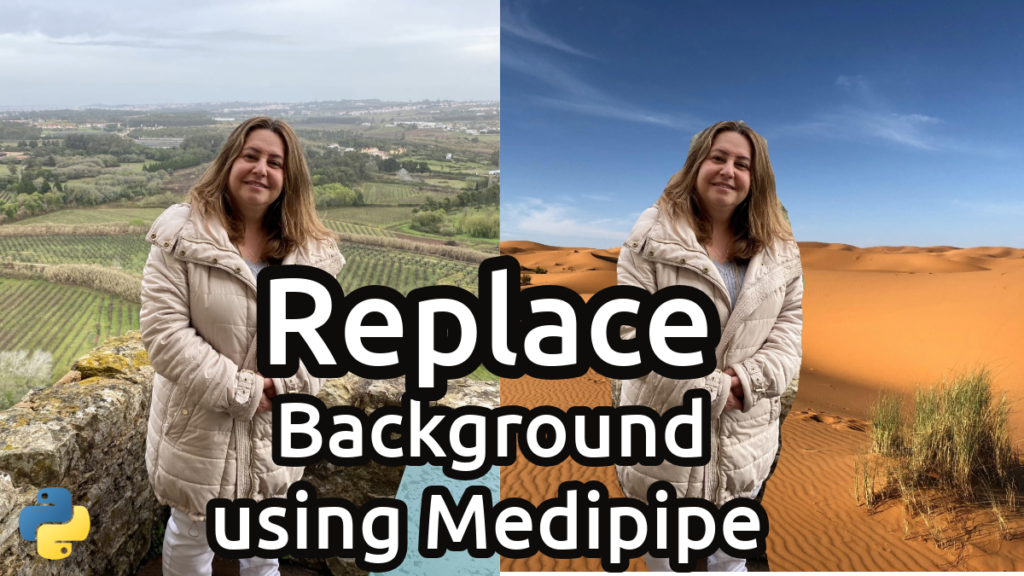
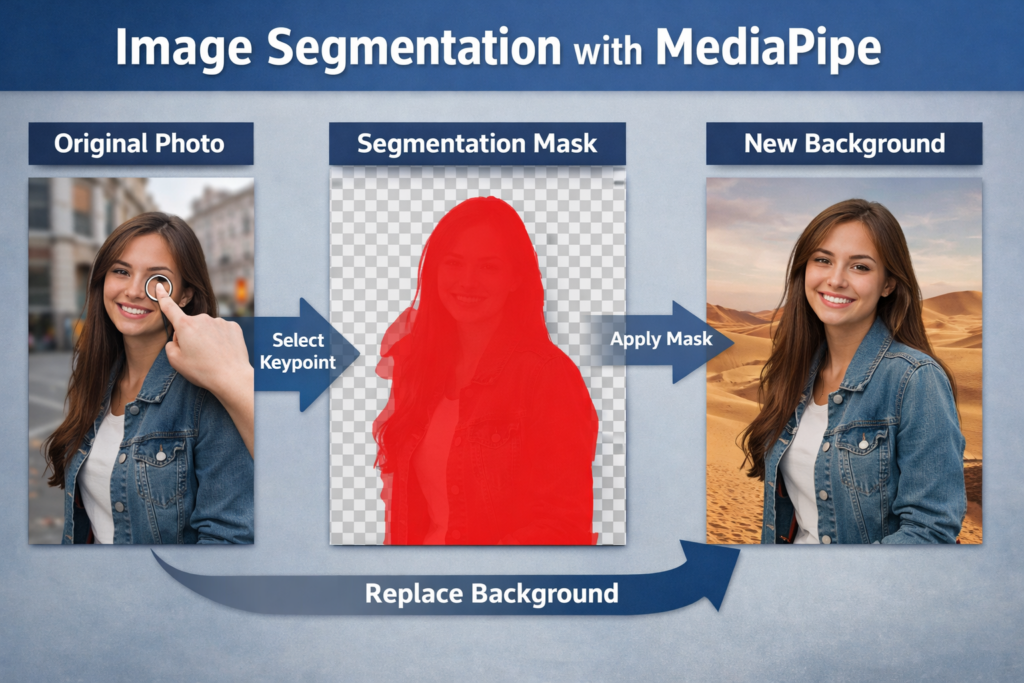
Image Segmentation with MediaPipe: Replace Background / Image Segmentation, OpenCV Contents hide 1 Introduction 2 Image segmentation with MediaPipe in a simple, hands-on workflow 3 Segmenting an Object and Replacing the Background Step by Step 4 Replace the Background with New Image 5 Setting up the environment and downloading the models 6 Loading the input image and preparing a new background 7 Choosing the keypoint and loading the MediaPipe task components 8 Configuring the InteractiveSegmenter and defining overlay settings 9 Running interactive segmentation and creating a mask overlay preview 10 Replacing the background and saving the final result 11 Summary 12 FAQ 12.1 What does image segmentation with mediapipe actually output? 12.2 Why do we use a normalized keypoint (0 to 1) instead of pixels? 12.3 What model is used in this tutorial and why? 12.4 What does output_category_mask=True give you? 12.5 Why do we convert BGR to RGB for the overlay preview? 12.6 How do I improve segmentation if the selection is wrong? 12.7 What does the 0.1 threshold control? 12.8 Why do we stack the mask three times with np.stack? 12.9 Why do we resize the new background to img.shape? 12.10 What is the safest way to reuse this code for many images? 13 Conclusion 13.1 Connect : Last Updated on 22/04/2026 by Eran Feit Introduction Image segmentation with mediapipe is a practical way to separate a subject from its surroundings at the pixel level.Instead of drawing a rectangle around an object, segmentation creates a mask that follows the object’s real outline.That makes edits like background replacement look much cleaner and more realistic. In this tutorial idea, the goal is to take a normal photo and turn it into something you can “edit” like layers.Once you have a foreground mask, you can keep the subject, change the background, or apply effects only to the selected region.This is useful for thumbnails, product photos, profile images, and quick visual experiments. The workflow is simple but powerful.You load an image, run a segmentation model, convert the model output into a usable mask, then blend pixels using that mask.OpenCV and NumPy make the blending step fast and flexible. What makes this approach feel interactive is the ability to guide the model with a single point.Instead of trying to segment the whole scene, you tell the model “this is the object I care about.”That keeps the result focused and makes the code easier to reuse across many different images. Image segmentation with MediaPipe in a simple, hands-on workflow Image segmentation with mediapipe becomes very approachable when you think of it as a three-part pipeline.First you prepare the inputs: read the image, load a replacement background, and make sure both images share the same size.That way, every pixel in the original image has a matching pixel in the new background. Next comes the segmentation step, where the model produces a category mask.A mask is basically a map that says which pixels belong to the selected object and which pixels belong to everything else.Even if the mask values are soft probabilities, you can turn them into a clean selection by applying a threshold. Then you create a visualization overlay so you can instantly verify the selection.This is where alpha blending helps: you mix the original image with a solid color overlay only where the mask is active.It’s a fast way to debug and tune the threshold before doing the actual background replacement. Finally, the background replacement becomes a single clean operation.Where the mask is “true,” you keep the original pixels, and where the mask is “false,” you swap in pixels from the new background.This creates a result that looks like the subject was photographed in a new scene, without manual editing. Subscription FormSend me tutorials Image segmentation with MediaPipe explained Segmenting an Object and Replacing the Background Step by Step This tutorial focuses on building a complete, practical pipeline that takes an image and replaces its background using image segmentation with mediapipe.The code is designed to stay simple and readable while still showing how modern segmentation models can be used in real projects.Instead of relying on heavy frameworks or complex training steps, everything is done with pre-trained models and a few clear processing stages. The main target of the code is to isolate a single object in an image using a user-defined keypoint.By selecting one point inside the object, the segmentation model understands which region should be treated as the foreground.This approach avoids segmenting unnecessary parts of the image and keeps the output focused on what actually matters. Once the segmentation mask is generated, the code demonstrates two important ideas.First, it visualizes the mask by blending a colored overlay with the original image, making it easy to inspect the quality of the segmentation.Second, it uses the same mask as a condition to decide which pixels come from the original image and which come from a new background. The final result is a clean background replacement that looks natural and consistent.The subject keeps its original shape and boundaries, while the surrounding pixels are swapped with a completely different scene.This makes the code useful for learning purposes, experimentation, and as a foundation for more advanced image editing workflows. Link to the video tutorial : https://youtu.be/I08RgncbDJs You can download the code here or here TRY IT NOW Master Computer Vision Follow my latest tutorials and AI insights on my Personal Blog. Beginner Complete CV Bootcamp Foundation using PyTorch & TensorFlow. Get Started → Interactive Deep Learning with PyTorch Hands-on practice in an interactive environment. Start Learning → Advanced Modern CV: GPT & OpenCV4 Vision GPT and production-ready models. Go Advanced → Background replacement with MediaPipe tutorial Replace the Background with New Image Image segmentation with mediapipe lets you separate a subject from the background at the pixel level.Instead of working with rectangles or rough selections, you get a mask that follows the object’s real shape.That mask becomes the key for effects like highlighting a subject, blurring the background, or swapping the entire scene. In this tutorial, the goal is simple and practical.You will load an image, pick a single keypoint, segment the object around that point, and replace the background with a new image.You will also generate an overlay preview so you can visually confirm that the mask is selecting the right region. Related tutorials you may like MediaPipe Image Segmentation Using DeepLabV3 This post expands on DeepLabV3 segmentation in MediaPipe and helps you understand how masks are generated and used in real workflows. How to Highlight Object in Image with MediaPipe and Python This tutorial focuses on overlay and mask visualization techniques that match the same blending concept used in this post. K-Means Image Segmentation With OpenCV In Python This is a classic OpenCV segmentation approach that complements deep learning segmentation and helps build intuition about masks and regions. Setting up the environment and downloading the models A clean environment helps you avoid version conflicts and makes your setup reproducible.This tutorial uses a dedicated conda environment with Python 3.11 and two main packages: OpenCV and MediaPipe.Keeping the exact versions ensures the MediaPipe Tasks API works as expected. You also need the segmentation model file used by the code.The DeepLabV3 TFLite model is loaded from disk, so downloading it once is enough.After that, you can reuse it for any number of images. ### Create a new conda environment for this tutorial. conda create -n RemoveBG python=3.11 ### Activate the environment so installs go into the right place. conda activate RemoveBG ### Install OpenCV for image I/O, resizing, and display. pip install opencv-python==4.10.0.84 ### Install MediaPipe for InteractiveSegmenter and image segmentation tasks. pip install mediapipe==0.10.14 ### Download the models. ### Put them in your favorite folder. https://storage.googleapis.com/mediapipe-models/image_segmenter/deeplab_v3/float32/1/deeplab_v3.tflite https://storage.googleapis.com/mediapipe-models/interactive_segmenter/magic_touch/float32/1/magic_touch.tflite ### Create a new conda environment for this tutorial. conda create -n RemoveBG python=3.11 ### Activate the environment so installs go into the right place. conda activate RemoveBG ### Install OpenCV for image I/O, resizing, and display. pip install opencv-python==4.10.0.84 ### Install MediaPipe for InteractiveSegmenter and image segmentation tasks. pip install mediapipe==0.10.14 ### Download the models. ### Put them in your favorite folder. https://storage.googleapis.com/mediapipe-models/image_segmenter/deeplab_v3/float32/1/deeplab_v3.tflite https://storage.googleapis.com/mediapipe-models/interactive_segmenter/magic_touch/float32/1/magic_touch.tflite Loading the input image and preparing a new background The first step in the Python script is reading the main image you want to edit.OpenCV loads images as NumPy arrays, which makes it easy to manipulate pixels later.This is also where you define the path to your replacement background image. To replace the background cleanly, both images must have the same width and height.The code resizes the new background to match the original image shape.This ensures that every pixel position aligns correctly when you apply the segmentation mask. Test image (Lilach) : Background image (desert) : Lilach Feit Desert – Background ### Import OpenCV for reading and processing images. import cv2 ### Define the path to the input image you want to segment. PathToImage = "Best-Semantic-Segmentation-models/Media Pipe Segmentation/Image Segmentation using Media-pipe - Replace the background with new image/lilach.jpg" ### Read the image from disk into memory. img = cv2.imread(PathToImage) ### Define the path to the replacement background image. new_bg_path = "Best-Semantic-Segmentation-models/Media Pipe Segmentation/Image Segmentation using Media-pipe - Replace the background with new image/Desert.jpg" ### Read the new background image from disk. new_bg = cv2.imread(new_bg_path) ### Resize the new background to match the original image dimensions. new_bg = cv2.resize(new_bg, (img.shape[1], img.shape[0])) ### Display the original image to confirm it loaded correctly. cv2.imshow("img", img) ### Import OpenCV for reading and processing images. import cv2 ### Define the path to the input image you want to segment. PathToImage = "Best-Semantic-Segmentation-models/Media Pipe Segmentation/Image Segmentation using Media-pipe - Replace the background with new image/lilach.jpg" ### Read the image from disk into memory. img = cv2.imread(PathToImage) ### Define the path to the replacement background image. new_bg_path = "Best-Semantic-Segmentation-models/Media Pipe Segmentation/Image Segmentation using Media-pipe - Replace the background with new image/Desert.jpg" ### Read the new background image from disk. new_bg = cv2.imread(new_bg_path) ### Resize the new background to match the original image dimensions. new_bg = cv2.resize(new_bg, (img.shape[1], img.shape[0])) ### Display the original image to confirm it loaded correctly. cv2.imshow("img", img) Choosing the keypoint and loading the MediaPipe task components Interactive segmentation needs a point that tells the model what you want to segment.In this code, the point is given as normalized coordinates, meaning values between 0 and 1.A value of 0.5, 0.5 points to the center of the image, which is often a good starting guess. This section also loads the MediaPipe Tasks modules used later.You import the task API, vision interfaces, and the keypoint container type.That setup is what allows you to create a RegionOfInterest and run the InteractiveSegmenter. ### Choose a normalized X coordinate for the keypoint. x = 0.5 ### Choose a normalized Y coordinate for the keypoint. y = 0.5 ### Import NumPy for mask stacking and pixel-level operations. import numpy as np ### Import MediaPipe for task-based image handling. import mediapipe as mp ### Import the MediaPipe Tasks Python API. from mediapipe.tasks import python ### Import the vision task interfaces. from mediapipe.tasks.python import vision ### Import container types such as NormalizedKeypoint. from mediapipe.tasks.python.components import containers ### Alias the RegionOfInterest type for interactive segmentation. RegionOfInterest = vision.InteractiveSegmenterRegionOfInterest ### Alias the NormalizedKeypoint type used inside the ROI. NormalizedKeypoint = containers.keypoint.NormalizedKeypoint ### Choose a normalized X coordinate for the keypoint. x = 0.5 ### Choose a normalized Y coordinate for the keypoint. y = 0.5 ### Import NumPy for mask stacking and pixel-level operations. import numpy as np ### Import MediaPipe for task-based image handling. import mediapipe as mp ### Import the MediaPipe Tasks Python API. from mediapipe.tasks import python ### Import the vision task interfaces. from mediapipe.tasks.python import vision ### Import container types such as NormalizedKeypoint. from mediapipe.tasks.python.components import containers ### Alias the RegionOfInterest type for interactive segmentation. RegionOfInterest = vision.InteractiveSegmenterRegionOfInterest ### Alias the NormalizedKeypoint type used inside the ROI. NormalizedKeypoint = containers.keypoint.NormalizedKeypoint Configuring the InteractiveSegmenter and defining overlay settings MediaPipe Tasks use an options object that describes which model to load and what outputs you want.Here, the code loads the DeepLabV3 model from a local file path.It also enables output_category_mask so the segmentation result includes a mask you can apply to pixels. A good tutorial workflow includes visualization, not just the final saved result.That is why the code defines an overlay color and creates a blended preview image.This preview helps you confirm mask quality before committing to background replacement. ### Create the options that will be used for InteractiveSegmentation ### Define the base options and point to the local TFLite model file. base_options = python.BaseOptions(model_asset_path="D:/Temp/Models/MediaPipe/deeplab_v3.tflite") ### Define interactive segmenter options and request the category mask output. options = vision.InteractiveSegmenterOptions(base_options=base_options, output_category_mask=True) ### Generate another visualation image where we highlist the selected object ### Define the overlay color used for mask visualization. OVERLAY_COLOR = (255,0,0) # Blue ### Create the options that will be used for InteractiveSegmentation ### Define the base options and point to the local TFLite model file. base_options = python.BaseOptions(model_asset_path="D:/Temp/Models/MediaPipe/deeplab_v3.tflite") ### Define interactive segmenter options and request the category mask output. options = vision.InteractiveSegmenterOptions(base_options=base_options, output_category_mask=True) ### Generate another visualation image where we highlist the selected object ### Define the overlay color used for mask visualization. OVERLAY_COLOR = (255,0,0) # Blue More segmentation workflows to compare How to Highlight Object in Image with MediaPipe and Python This post dives deeper into overlay visualization and alpha blending, which is the same idea used here to validate the segmentation mask. YOLOv8 Segmentation Tutorial: Learn Precise Object Masks This tutorial shows how segmentation masks can be generated with YOLOv8 and used for background replacement across images and video. Deep Learning Image Segmentation with U-Net This is a full deep learning segmentation tutorial that gives you a strong foundation for how masks are learned and evaluated. Running interactive segmentation and creating a mask overlay preview This section is where image segmentation with mediapipe actually happens.The segmentor is created from the options, and the input file is loaded into a MediaPipe Image object.Then a RegionOfInterest is built using the keypoint, which tells the model what object you want. After segmentation, the category mask is converted into a condition using a threshold.That condition is used to build an alpha mask and blend a colored overlay onto the original image.The overlay preview is a fast way to see if your keypoint selection worked well. ### Create a segnentor with python.vision.InteractiveSegmenter.create_from_options(options) as segmentor: ### Create the media pipe Image image2 = mp.Image.create_from_file(PathToImage) ###retrieve the category masks for the image roi = RegionOfInterest(format=RegionOfInterest.Format.KEYPOINT , keypoint = NormalizedKeypoint(x,y)) segmenation_result = segmentor.segment(image2,roi) category_mask = segmenation_result.category_mask ### Convert the BGR to RGB image_data = cv2.cvtColor(image2.numpy_view(), cv2.COLOR_BGR2RGB) ### Create an overlay image with the desired color overlay_image = np.zeros(image_data.shape, dtype=np.uint8) overlay_image[:] = OVERLAY_COLOR ### Create the condition from the category_masks array alpha = np.stack((category_mask.numpy_view(),) * 3, axis=-1) > 0.1 ### Create an alpha channal from the condition with the desired opacty (70%) alpha = alpha.astype(float) * 0.7 ### Blend the original image with the overlay image using the alpha channel output_image2 = image_data * (1-alpha) + overlay_image * alpha output_image2 = output_image2.astype(np.uint8) ### Create a segnentor with python.vision.InteractiveSegmenter.create_from_options(options) as segmentor: ### Create the media pipe Image image2 = mp.Image.create_from_file(PathToImage) ###retrieve the category masks for the image roi = RegionOfInterest(format=RegionOfInterest.Format.KEYPOINT , keypoint = NormalizedKeypoint(x,y)) segmenation_result = segmentor.segment(image2,roi) category_mask = segmenation_result.category_mask ### Convert the BGR to RGB image_data = cv2.cvtColor(image2.numpy_view(), cv2.COLOR_BGR2RGB) ### Create an overlay image with the desired color overlay_image = np.zeros(image_data.shape, dtype=np.uint8) overlay_image[:] = OVERLAY_COLOR ### Create the condition from the category_masks array alpha = np.stack((category_mask.numpy_view(),) * 3, axis=-1) > 0.1 ### Create an alpha channal from the condition with the desired opacty (70%) alpha = alpha.astype(float) * 0.7 ### Blend the original image with the overlay image using the alpha channel output_image2 = image_data * (1-alpha) + overlay_image * alpha output_image2 = output_image2.astype(np.uint8) Replacing the background and saving the final result Now that you have a mask, background replacement becomes a clean pixel selection problem.The code creates a boolean condition from the mask and applies np.where to choose pixels.Foreground pixels come from the original image, and background pixels come from the resized new background. Finally, the script saves the result to disk and displays both preview windows.This makes it easy to confirm you got both the overlay visualization and the final composited image.When you are done, the script waits for a key press and closes the windows cleanly. ### replace the background with the new image condition = np.stack((category_mask.numpy_view(),) * 3, axis=-1) > 0.1 image_with_new_bg = np.where(condition, img , new_bg) # Replace the background using the mask cv2.imwrite("Best-Semantic-Segmentation-models/Media Pipe Segmentation/Image Segmentation using Media-pipe - Replace the background with new image/image_with_new_bg.jpg", image_with_new_bg) # Save the overlay image cv2.imshow("output_image2", output_image2) # Show the overlay image cv2.imshow("image_with_new_bg", image_with_new_bg) # Show the image with new background cv2.waitKey(0) cv2.destroyAllWindows() ### replace the background with the new image condition = np.stack((category_mask.numpy_view(),) * 3, axis=-1) > 0.1 image_with_new_bg = np.where(condition, img , new_bg) # Replace the background using the mask cv2.imwrite("Best-Semantic-Segmentation-models/Media Pipe Segmentation/Image Segmentation using Media-pipe - Replace the background with new image/image_with_new_bg.jpg", image_with_new_bg) # Save the overlay image cv2.imshow("output_image2", output_image2) # Show the overlay image cv2.imshow("image_with_new_bg", image_with_new_bg) # Show the image with new background cv2.waitKey(0) cv2.destroyAllWindows() The result : Image with replaced background Summary You set up a clean Python environment and loaded a pretrained segmentation model.You segmented an object using a single keypoint and generated a category mask.You visualized the selection with an overlay preview and replaced the image background using the mask. If you want to go deeper Image Segmentation Category This category page helps you discover more segmentation tutorials on the site, including different models and practical use cases. OpenCV Tutorials Category This category collects OpenCV-focused posts that pair well with MediaPipe pipelines for visualization and image editing tasks. Eran Feit Blog Posts This page lists recent tutorials so you can find more related computer vision projects and keep exploring new workflows. FAQ What does image segmentation with mediapipe actually output? It outputs a mask where each pixel has a value indicating how likely it belongs to the selected region. You can threshold it to create a clean foreground versus background selection. Why do we use a normalized keypoint (0 to 1) instead of pixels? Normalized coordinates make the code independent of image resolution. The same x and y values still refer to the same relative position after resizing. What model is used in this tutorial and why? The code loads a pretrained DeepLabV3 TFLite model. It’s fast, widely used for segmentation, and works well for foreground separation. What does output_category_mask=True give you? It ensures the segmentation result includes a category mask output. That mask is what you use for overlays and background replacement. Why do we convert BGR to RGB for the overlay preview? OpenCV reads images as BGR, while many pipelines expect RGB for correct color handling. Converting prevents colors from looking swapped in the preview. How do I improve segmentation if the selection is wrong? Try moving the keypoint deeper inside the object you want. Small changes can shift the region the interactive model selects. What does the 0.1 threshold control? It decides which pixels are considered part of the object. Lower thresholds include more pixels, while higher thresholds produce tighter masks. Why do we stack the mask three times with np.stack? The mask is single-channel, but your image is three-channel. Stacking makes the shapes match so you can apply the condition across channels. Why do we resize the new background to img.shape? Background replacement requires both images to have the same dimensions. This keeps pixel alignment correct when applying the mask. What is the safest way to reuse this code for many images? Wrap the segmentation and replacement logic into a function. Then process a folder of images and save outputs with unique filenames. Conclusion Image segmentation with mediapipe is one of the fastest ways to turn a normal photo into an editable foreground and background.With a single keypoint, you can guide the model toward the object you care about and avoid messy full-scene segmentation.That makes the workflow feel interactive, practical, and easy to reuse. The overlay step is not just a nice visualization, it is a debugging tool.Seeing the mask blended over the original image helps you tune the threshold and confirm the selection before saving results.This small preview step can save a lot of time when you process many images. Once the mask looks right, background replacement becomes a clean pixel operation.Using a boolean condition and a resized background image, you can create consistent results with just a few NumPy operations.From here, you can extend the same pipeline to blur backgrounds, apply stylized effects, or batch-process a full folder of images. Connect : ☕ Buy me a coffee — https://ko-fi.com/eranfeit 🖥️ Email : feitgemel@gmail.com 🌐 https://eranfeit.net 🤝 Fiverr : https://www.fiverr.com/s/mB3Pbb Enjoy, Eran








 Skip to content