 Skip to content
Last Updated on 01/02/2026 by Eran Feit
Mask R-CNN has become one of the most practical ways to get high-quality instance segmentation results without needing to design a custom model from scratch.
When people search for a mask rcnn tutorial, they usually want a clear path from “I have an image” to “I can see accurate object masks overlaid on that image,” using a reliable pretrained model.
That’s exactly the sweet spot where Mask R-CNN shines.
It combines object detection and pixel-level segmentation in one pipeline, so you don’t just know what is in the image, you also get the exact shape of each object.
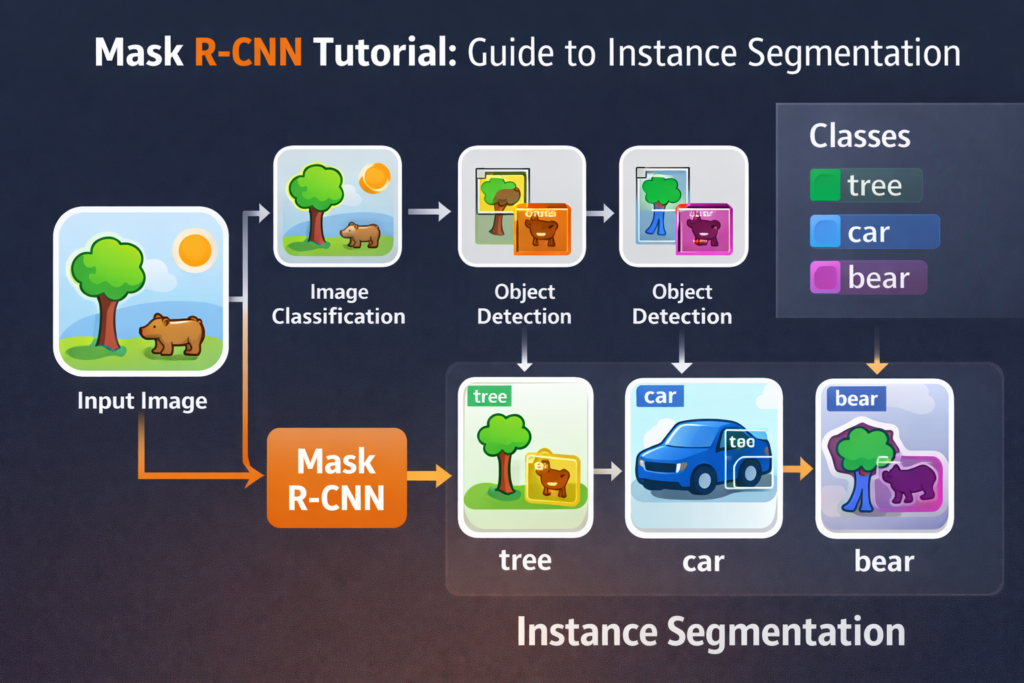
A good mask rcnn tutorial should also explain why instance segmentation is different from the other common computer vision tasks.
Image classification tells you what exists in a whole image.
Object detection tells you where objects are using bounding boxes.
Instance segmentation goes one step further and produces a separate mask for every object instance, even when multiple objects share the same class.
From a Python workflow perspective, Mask R-CNN is especially approachable because you can run it directly from widely used libraries.
With a pretrained model, you skip training entirely and jump straight into inference.
That makes it perfect for prototyping, automation, and building real projects where you need segmentation output quickly.
Once you have masks, you can visualize them, filter them by confidence, label them with COCO classes, and export the results for downstream steps.
In real-world use, instance segmentation is often about presentation and usability as much as accuracy.
You want clean overlays, readable labels, and predictable output that you can save and reuse.
That’s why pairing the model output with practical tools like OpenCV matters.
It lets you draw boxes, blend colored masks, display the final result, and save an image that’s ready to share or debug.
A friendly mask rcnn tutorial for instance segmentation in Python
A mask rcnn tutorial is most useful when it keeps the goal simple and concrete.
Take an input image, run a pretrained Mask R-CNN model, and return three things you can work with immediately: masks, bounding boxes, and class labels.
This setup makes the output easy to reason about and easy to visualize.
Instead of thinking in abstract tensors, you can treat the result like a set of detected objects, each with a shape and a name.
The main target of this kind of tutorial is building a clean inference pipeline.
That means putting the model into evaluation mode, preparing the input image in the format the model expects, and running a forward pass safely and consistently.
It also means setting a confidence threshold so you can keep only the detections you actually trust.
Once the thresholding is in place, you’re no longer overwhelmed by low-confidence guesses, and the results look much more professional.
At a high level, the pipeline has three layers.
First, load the pretrained model and move it to the best device available, usually a GPU when possible.
Second, convert the image into a tensor and run inference to get predictions, including scores, labels, boxes, and masks.
Third, turn those predictions into something visual and human-readable, like colored overlays and labeled rectangles.
The visualization step is where instance segmentation becomes immediately useful.
A mask is more informative than a bounding box because it follows the object boundary instead of drawing a rough rectangle around it.
When you blend a semi-transparent colored mask onto the original image, you can see both the object and its exact shape at the same time.
Adding a label from the COCO class list helps you understand what the model believes the object is, and saving the final result makes the workflow repeatable for more images later.

Running a Complete Mask R-CNN Pipeline in Python
This tutorial code is designed to help you go from a raw image to a fully visualized instance segmentation result using a pretrained Mask R-CNN model.
The main target of the code is not training or dataset preparation, but building a clean and reusable inference pipeline that works out of the box.
By focusing only on inference, the code stays practical, readable, and easy to adapt to different images and use cases.
At a high level, the code loads a Mask R-CNN model that was trained on the COCO dataset and prepares it for evaluation.
Once the model is ready, images can be provided either from a local file or directly from a URL.
The image is converted into the format expected by the model, sent through the network, and processed to extract masks, bounding boxes, confidence scores, and class labels.
This approach makes it easy to experiment with different inputs without changing the core logic.
A key goal of the code is turning raw model output into something visually meaningful.
Predicted masks are thresholded, converted into binary form, and overlaid onto the original image using randomly generated colors.
Bounding boxes and class labels are drawn on top of the image so each detected instance is clearly identified.
This step bridges the gap between deep learning output and human-friendly visualization.
The final stage of the pipeline focuses on usability and repeatability.
The segmented image is displayed using OpenCV and can also be saved directly to disk for later use.
Because all steps are wrapped into clear helper functions, the code can easily be reused in scripts, notebooks, or larger computer vision projects.
The result is a complete end-to-end Mask R-CNN inference workflow that demonstrates how instance segmentation can be applied in real Python applications.
Link to the video tutorial here
Code for the tutorial here or here
Best AI Photo Tools (Backgrounds, Objects, Headshots)


My Blog
Link to the post for Medium users here .
Want to get started with Computer Vision or take your skills to the next level ?
Great Interactive Course : “Deep Learning for Images with PyTorch” here
If you’re just beginning, I recommend this step-by-step course designed to introduce you to the foundations of Computer Vision – Complete Computer Vision Bootcamp With PyTorch & TensorFlow
If you’re already experienced and looking for more advanced techniques, check out this deep-dive course – Modern Computer Vision GPT, PyTorch, Keras, OpenCV4
Mask R-CNN is one of the most practical ways to get high-quality instance segmentation without training a model from scratch.
This mask rcnn tutorial focuses on inference.
That means you load a pretrained model, run it on any image, and visualize the results in a way that’s easy to understand.
The goal is simple.
Take an input image and return three things that matter in real projects: pixel masks, bounding boxes, and readable class labels.
Once you have those, you can overlay colored masks, draw rectangles, and save a final result you can reuse anywhere.
This approach is perfect for prototyping.
You can test ideas quickly, validate what the model can detect, and build a reusable pipeline that works on local images or URL images.
You also learn the core structure of an instance segmentation workflow: preprocessing, inference, post-processing, and visualization.
By the end of the code walkthrough, you will have a clean end-to-end script.
It installs the right libraries, loads the TorchVision Mask R-CNN model, runs predictions, overlays masks with OpenCV, and writes the output image to disk.
Everything is designed to be copy-paste friendly and easy to adapt.
Setting up the environment so the code runs cleanly
This part is all about creating a stable Python environment that matches the exact versions used in the tutorial.
When you work with PyTorch, TorchVision, and CUDA, small version mismatches can cause confusing errors.
A clean Conda environment keeps things predictable.
You are also installing OpenCV for visualization and saving results.
That matters because the code does more than inference.
It creates an output image with masks, boxes, and labels, then displays and saves it.
### Create a fresh Conda environment named Pytorch251 with Python 3.12 so the tutorial dependencies stay isolated. conda create --name Pytorch251 python=3.12 ### Activate the new environment so all installations apply to it. conda activate Pytorch251 ### Check your CUDA compiler version to confirm CUDA support on your machine. nvcc --version ### Install PyTorch, TorchVision, and TorchAudio with CUDA 12.4 support so inference can run on GPU when available. # Cuda 12.4 conda install pytorch==2.5.1 torchvision==0.20.1 torchaudio==2.5.1 pytorch-cuda=12.4 -c pytorch -c nvidia ### Install OpenCV for image loading, drawing masks, showing windows, and saving results. # install pip install opencv-python==4.10.0.84Loading a Pretrained Mask R-CNN Model for Inference
This code block is the setup step that makes the whole Mask R-CNN pipeline possible.
It loads everything you need to run instance segmentation inference in Python, without training a model or preparing a dataset.
Once this part is done, the model is ready to accept an image tensor and output masks, boxes, labels, and confidence scores.
The first goal here is importing the right libraries.
PyTorch handles tensors and device placement, while TorchVision provides the pretrained Mask R-CNN architecture.
By using the official MaskRCNN_ResNet50_FPN_Weights enum, you make sure the correct pretrained weights and configuration are loaded safely and consistently.
Next, the code selects the default pretrained weights and creates the Mask R-CNN model with those weights.
This specific model uses a ResNet-50 backbone with an FPN feature pyramid, which is a strong and widely used baseline for instance segmentation.
The key benefit is that you get a model that already “knows” many common objects from COCO, so you can focus on inference and visualization.
Finally, the code puts the model into evaluation mode and moves it to the GPU if possible.model.eval() is important because it disables training behavior and ensures the model runs deterministically for inference.
Then, checking torch.cuda.is_available() lets the same script work on both GPU and CPU machines while automatically taking advantage of faster CUDA inference when it exists.
### Import PyTorch for tensors, device handling, and running inference. import torch ### Import TorchVision for pretrained detection and segmentation models. import torchvision ### Import the official Mask R-CNN weights enum so we can load pretrained weights safely. from torchvision.models.detection import MaskRCNN_ResNet50_FPN_Weights ### Choose the default pretrained weights for Mask R-CNN ResNet50-FPN. weights = MaskRCNN_ResNet50_FPN_Weights.DEFAULT ### Load the pretrained Mask R-CNN model from TorchVision using the selected weights. model = torchvision.models.detection.maskrcnn_resnet50_fpn(weights=weights) ### Switch the model to evaluation mode so it behaves correctly for inference. model.eval() # Set the model to evaluation mode ### If CUDA is available, move the model to GPU for faster predictions. if torch.cuda.is_available(): model = model.to('cuda') # Move the model to GPU if availableThe environment is now ready and reproducible.
The model is loaded in inference mode and will use GPU if possible.
Loading COCO labels and building a prediction function
This part prepares the label map so your results have readable class names.
The pretrained model predicts numeric label IDs, and the COCO label list converts those IDs into names like person, car, and dog.
That makes your visual output immediately understandable.
You also build the core inference function that takes an image and returns masks, bounding boxes, and class labels.
The function supports both local paths and URLs.
It applies the correct tensor transform, runs the model, filters by confidence threshold, and returns only the detections you want.
### Define the full COCO instance category list so predicted label IDs can be converted into readable class names. COCO_INSTLANCE_CATEGORY_NAMES = [ '__background__', 'person', 'bicycle', 'car', 'motorcycle', 'airplane', 'bus', 'train', 'truck', 'boat', 'traffic light', 'fire hydrant', 'N/A', 'stop sign', 'parking meter', 'bench', 'bird', 'cat', 'dog', 'horse', 'sheep', 'cow', 'elephant', 'bear', 'zebra', 'giraffe', 'N/A', 'backpack', 'umbrella', 'N/A', 'N/A', 'handbag', 'tie', 'suitcase', 'frisbee', 'skis', 'snowboard', 'sports ball', 'kite', 'baseball bat', 'baseball glove', 'skateboard', 'surfboard', 'tennis racket', 'bottle', 'N/A', 'wine glass', 'cup', 'fork', 'knife', 'spoon', 'bowl', 'banana', 'apple', 'sandwich', 'orange', 'broccoli', 'carrot', 'hot dog', 'pizza', 'donut', 'cake', 'chair', 'couch', 'potted plant', 'bed', 'N/A', 'dining table', 'N/A', 'N/A', 'toilet', 'N/A', 'tv', 'laptop', 'mouse', 'remote', 'keyboard', 'cell phone', 'microwave', 'oven', 'toaster', 'sink', 'refrigerator', 'N/A', 'book', 'clock', 'vase', 'scissors', 'teddy bear', 'hair drier', 'toothbrush' ] ### Print the number of classes to confirm the label list is loaded correctly. print(len(COCO_INSTLANCE_CATEGORY_NAMES)) # Print the number of categories ### Import PIL Image for loading images in a TorchVision-friendly format. from PIL import Image ### Import TorchVision transforms for converting PIL images into tensors. from torchvision import transforms as T ### Import NumPy for array operations when converting masks and handling image data. import numpy as np ### Import requests to download images from URLs when url=True. import requests ### Import BytesIO to convert downloaded bytes into a file-like object for PIL. from io import BytesIO ### The io and requests libraries are used to handle image data from URLs ### Define a helper function that runs Mask R-CNN and returns masks, boxes, and class labels above a threshold. def get_prediction(img_path, threshold=0.5 , url=False): ### If url=True, download the image and open it using PIL. if url: # we have requested an image from a URL response = requests.get(img_path) img = Image.open(BytesIO(response.content)) ### Otherwise, load the image from the local filesystem. else: # we have a local image file img = Image.open(img_path) ### Convert the image into a tensor so the model can process it. transform = T.Compose([T.ToTensor()]) # Define the transformation to convert the image to a tensor ### Apply the transform to the image. img = transform(img) # Apply the transformation to the image ### Move the tensor to GPU for faster inference. img = img.cuda() ### Run inference by passing a list containing the image tensor. pred = model([img]) # Send the image to the model for prediction ### Extract confidence scores for each detected instance. pred_score = list(pred[0]['scores'].detach().cpu().numpy()) # Get the prediction scores ### Find the last index where score > threshold, so we keep only confident detections. pred_t = [pred_score.index(x) for x in pred_score if x > threshold][-1] ### Convert predicted masks into a boolean mask array and move it back to CPU. masks = (pred[0]['masks'] > 0.5).squeeze().detach().cpu().numpy() # Get the masks from the predictions ### Convert predicted label IDs into readable COCO class names. pred_class = [COCO_INSTLANCE_CATEGORY_NAMES[i] for i in list(pred[0]['labels'].detach().cpu().numpy())] # Get the predicted classes ### Convert predicted bounding boxes into coordinate pairs for drawing rectangles later. pred_boxes = [[(i[0], i[1]), (i[2], i[3])] for i in list(pred[0]['boxes'].detach().cpu().numpy())] # Get the bounding boxes ### Keep only detections up to the last index that passed the threshold. masks = masks[:pred_t + 1] # Select the masks up to the threshold ### Keep only the matching bounding boxes. pred_boxes = pred_boxes[:pred_t + 1] # Select the bounding boxes up to the threshold ### Keep only the matching class labels. pred_class = pred_class[:pred_t + 1] # Select the classes up to the threshold ### Return the filtered masks, boxes, and class labels. return masks, pred_boxes, pred_class # Return the masks, bounding boxes, and classes You now have a reusable prediction function.
It supports local images and URL images and returns clean, filtered outputs for visualization.
Turning masks into a clean OpenCV overlay
This part is where the results become visually meaningful.
Raw masks are just arrays, but with color overlays you can immediately see object shapes and boundaries.
This is the moment where instance segmentation feels “real” because you can compare the mask to the pixels underneath it.
The code also adds a simple color strategy and a helper for URL-to-OpenCV conversion.
That keeps the pipeline flexible.
Whether your image comes from disk or the internet, you end up with the same OpenCV-ready image that can be drawn on and saved.
### Import Matplotlib in case you want additional plotting or debugging visuals. import matplotlib.pyplot as plt ### Import OpenCV for reading images, drawing boxes, blending masks, and saving output. import cv2 ### Import random so each instance mask can receive a different color. import random ### Import urlopen to fetch raw bytes from an image URL when using OpenCV decoding. from urllib.request import urlopen ### Define a helper that downloads an image from a URL and decodes it into an OpenCV array. def url_to_image(url , readFlag=cv2.IMREAD_COLOR): ### Open the URL stream and read the bytes. resp = urlopen(url) ### Convert bytes into a NumPy array. image = np.asarray(bytearray(resp.read()), dtype="uint8") ### Decode the image bytes into an OpenCV image matrix. image = cv2.imdecode(image, readFlag) # Decode the image from the URL ### Return the OpenCV image. return image # Return the decoded image ### Create a colored mask image by assigning a random RGB color to mask pixels. def random_color_masks(image): ### Define a palette of preset colors so masks look consistent and readable. # List of random colors for the masks colors= [[0, 255, 0],[0, 0, 255],[255, 0, 0],[0, 255, 255],[255, 255, 0],[255, 0, 255],[80, 70, 180], [250, 80, 190],[245, 145, 50],[70, 150, 250],[50, 190, 190]] ### Create empty channels for building a colored overlay. r = np.zeros_like(image, dtype=np.uint8) # Create a red channel for the mask g = np.zeros_like(image, dtype=np.uint8) # Create a green channel for the mask b = np.zeros_like(image, dtype=np.uint8) # Create a blue channel for the mask ### Paint mask pixels with a randomly selected color from the palette. r[image==1], g[image==1], b[image==1] = colors[random.randrange(0, 10)] ### Stack channels into a 3-channel color mask. colored_mask = np.stack([b, g, r], axis=2) ### Return the colored mask overlay. return colored_mask # Stack the channels to create a color mask ### Build the full instance segmentation pipeline that runs inference and draws overlays. def instance_segmentation(img_path , threshold=0.6, rect_th=1, text_size=1, text_th=1, url=False): ### Run the model and get masks, boxes, and class labels. masks , boxes , pred_cls = get_prediction(img_path, threshold=threshold, url=url) # Get the predictions ### Load the image using a URL loader when url=True. if url: img = url_to_image(img_path) # Load the image from the URL ### Otherwise read from disk using OpenCV. else: img = cv2.imread(img_path) # Read the image from the local path ### Convert BGR to RGB so the visualization looks correct. img = cv2.cvtColor(img, cv2.COLOR_BGR2RGB) # Convert the image to RGB format ### Loop through each detected instance and draw its mask, box, and label. for i in range(len(masks)): ### Convert the i-th mask into a random colored overlay. rgb_mask = random_color_masks(masks[i]) # Get a random color mask for the instance ### Blend the colored mask with the original image. img = cv2.addWeighted(img, 1, rgb_mask, 0.5, 0) # Overlay the mask on the image ### Convert predicted box coordinates into integer tuples for OpenCV. pt1 = tuple(int(x) for x in boxes[i][0]) # Get the top-left corner of the bounding box ### Convert predicted box coordinates into integer tuples for OpenCV. pt2 = tuple(int(x) for x in boxes[i][1]) # Get the bottom-right corner of the bounding box ### Draw the rectangle around the detected instance. cv2.rectangle(img, pt1, pt2, (0, 255, 0), thickness=rect_th) # Draw the bounding box on the image ### Put the class name text near the top-left of the box. cv2.putText(img, pred_cls[i], pt1, cv2.FONT_HERSHEY_SIMPLEX, text_size, (0, 255, 0), thickness=text_th) # Add the class label to the image ### Return the final image plus the class list and the last mask. return img, pred_cls, masks[i] You now have a full visualization pipeline.
It overlays masks, draws bounding boxes, and prints readable labels directly on the image.
Running the script and saving the final segmented image
This final part shows the “end of the pipeline” behavior.
You point the script at an image path, run instance segmentation, and display the result in an OpenCV window.
This is the fastest way to confirm everything is working.
It also saves the final output image to disk.
Saving matters because it turns the tutorial into a reusable tool.
Once you are happy with results, you can run the same pipeline on many images and automatically generate segmented outputs.
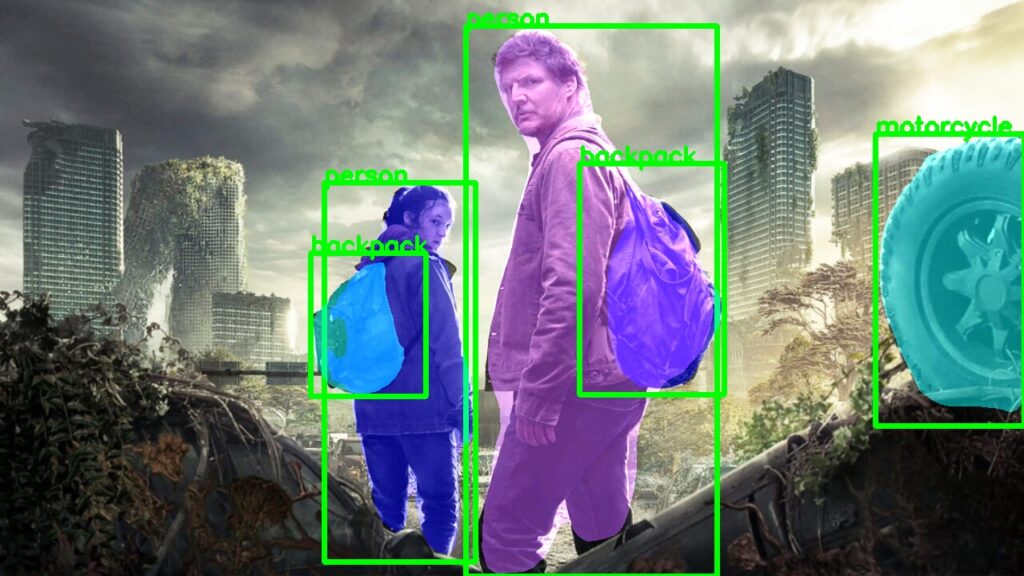
Here is the test image :

### Set the input image path you want to segment. # Run the Segmenation img_path = "Best-Semantic-Segmentation-models\Mask RCNN/the-last-of-us.jpg" ### Run the instance segmentation pipeline and control rectangle and text thickness for visibility. img , pred_classes , masks = instance_segmentation(img_path, rect_th=5 , text_th=4) ### Convert RGB to BGR because OpenCV expects BGR when showing images. img = cv2.cvtColor(img, cv2.COLOR_BGR2RGB) # Convert the image to RGB format ### Display the final instance segmentation result. cv2.imshow("Instance Segmentation", img) # Display the segmented image ### Wait for a key press so the window stays open. cv2.waitKey(0) # Wait for a key press ### Close all OpenCV windows cleanly. cv2.destroyAllWindows() # Close all OpenCV windows ### Save the final segmented output image to disk. # Save the segmented image cv2.imwrite("d:/temp/instance_segmentation_result.jpg", img) # Save the segmented image to disk At this point, the script is fully end-to-end.
You can load an image, run Mask R-CNN inference, visualize instance masks, and save a clean result.
Here is the result :
Quick wrap-up
This mask rcnn tutorial code demonstrates a practical instance segmentation workflow that you can reuse immediately.
You load a pretrained TorchVision Mask R-CNN model, run inference on any image, overlay colored masks with OpenCV, and save the final output.
FAQ – R‑CNN Tutorial
What is instance segmentation in Mask R-CNN?
Instance segmentation predicts a separate pixel mask for every object instance. Mask R-CNN outputs both the mask and the bounding box for each detection.
Do I need training data for this mask rcnn tutorial?
No. This tutorial uses a pretrained TorchVision model and runs inference only.
Why does the code use COCO class names?
The model outputs label IDs. The COCO list converts those IDs into readable names for drawing text on the image.
What does the threshold parameter actually do?
It filters detections by confidence score. Raising the threshold reduces false positives but can remove smaller objects.
Why is the mask threshold set to 0.5?
Mask R-CNN predicts probabilities per pixel. A 0.5 cutoff is a common default to convert probabilities into a binary mask.
Why does the code move the image tensor to CUDA?
Inference is much faster on GPU. The model and the input tensor must be on the same device to avoid runtime errors.
Why does OpenCV color look wrong without conversion?
OpenCV loads images as BGR by default. Converting to RGB keeps colors correct when blending masks and displaying output.
How can I improve readability of boxes and labels?
Increase rect_th and text_th to make lines bolder. You can also increase text_size for higher-resolution images.
Can I run this mask rcnn tutorial on CPU only?
Yes, but you must avoid calling .cuda() on the image tensor. For CPU-only runs, keep both the model and tensors on CPU.
What is the easiest way to test URL images?
Set url=True and pass a direct image URL into the function. The helper downloads and decodes the image before visualization.
Conclusion
This mask rcnn tutorial gives you a complete instance segmentation pipeline that is ready to reuse.
Instead of spending time on training and datasets, you focus on what most people need first: reliable inference and clean visualization.
You load a pretrained TorchVision Mask R-CNN model, run it on any image, and turn predictions into masks, boxes, and readable labels.
The real value is the structure.
The code separates responsibilities into clear helper functions so you can swap inputs, tune thresholds, and customize overlays without rewriting everything.
Once you understand this baseline, you can extend it to batch processing, video frames, custom labeling, or more advanced post-processing.
This is the kind of foundation that makes instance segmentation feel practical, not abstract.
Connect :
☕ Buy me a coffee — https://ko-fi.com/eranfeit
🖥️ Email : feitgemel@gmail.com
🤝 Fiverr : https://www.fiverr.com/s/mB3Pbb
Enjoy,
Eran