 Skip to content
Last Updated on 20/01/2026 by Eran Feit
Introduction
MediaPipe image segmentation is a practical computer vision technique that allows separating foreground objects from the background at the pixel level.
Instead of relying on bounding boxes or simple color thresholds, segmentation classifies every pixel in the image, making it ideal for background removal, background blur, and visual effects.
With MediaPipe, image segmentation becomes accessible even without deep machine learning infrastructure.
Pretrained lightweight models such as DeepLabV3 can run efficiently on a local machine while still producing high-quality segmentation masks suitable for real-world applications.
This approach is especially useful for developers working with Python and OpenCV who want immediate, visual results.
Tasks like isolating people, smoothing backgrounds, or preparing images for further processing can be achieved with minimal setup and clear, readable code.
By combining MediaPipe image segmentation with OpenCV, it is possible to both visualize segmentation masks and apply effects such as background blurring.
This makes the technique valuable not only for research but also for practical projects such as photo editing, automation pipelines, and AI-powered applications.
Understanding MediaPipe Image Segmentation in Practice
MediaPipe image segmentation focuses on identifying meaningful regions within an image by assigning each pixel to a category.
Rather than detecting objects as rectangles, segmentation creates a detailed mask that accurately follows object boundaries, including complex shapes like hair or clothing edges.
At a high level, the process starts by loading a pretrained segmentation model, such as DeepLabV3, which has already learned how to distinguish foreground objects from background regions.
The model analyzes the image and produces a category mask, where each pixel represents the likelihood of belonging to a specific class.
This pixel-level output allows flexible post-processing.
The segmentation mask can be converted into a solid foreground image, a background replacement, or a selective blur effect while keeping the main subject sharp and clear.
The main target of MediaPipe image segmentation is simplicity with strong visual accuracy.
It is designed for developers who want reliable segmentation results without training custom neural networks, while still maintaining enough control to integrate the output into larger computer vision workflows.
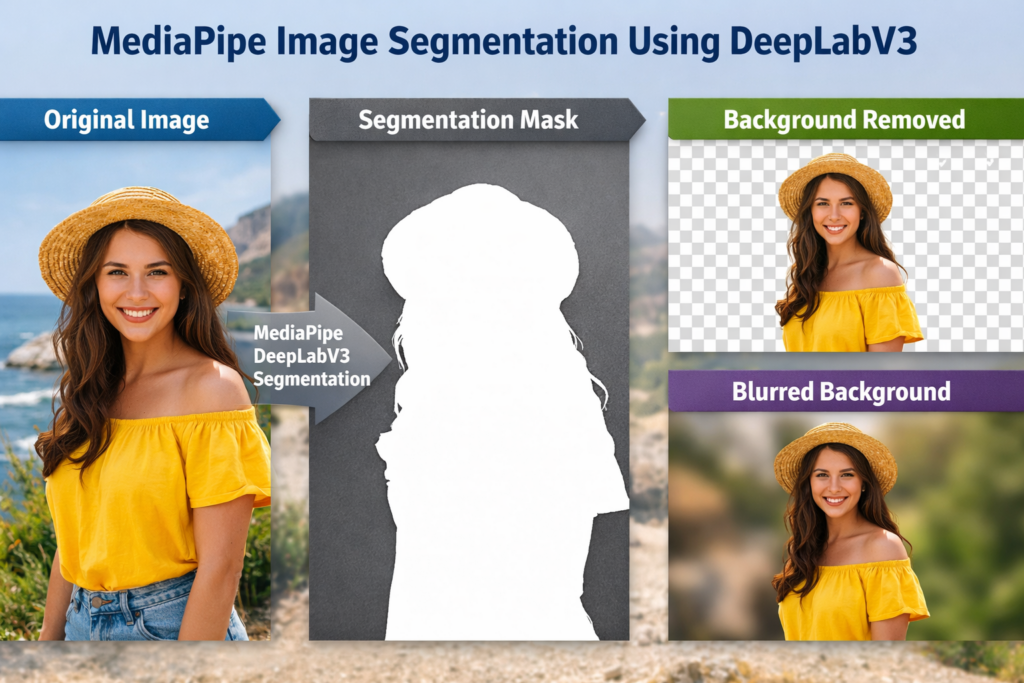
Building MediaPipe Image Segmentation with DeepLabV3 in Python
This tutorial focuses on turning MediaPipe image segmentation into a working Python pipeline that produces clear, visual results.
The goal of the code is to take a single image as input, apply a pretrained DeepLabV3 segmentation model, and generate a pixel-accurate mask that separates the main subject from the background.
The code is designed to be simple and practical, without relying on training or fine-tuning a neural network.
By loading a lightweight TFLite DeepLabV3 model, the segmentation step runs efficiently while still producing a detailed category mask that can be reused for multiple visual effects.
A key target of this implementation is understanding how segmentation output can be transformed into meaningful results.
The generated mask is used both to visualize the segmented foreground and to control where image processing effects are applied, such as keeping the subject sharp while blurring the background.
This tutorial also emphasizes integration with OpenCV for real-time visualization.
Displaying the original image, the segmentation mask, and the final processed output helps clarify how MediaPipe image segmentation works internally and how the results can be adapted for background removal, image enhancement, or further computer vision workflows.
Link to the video tutorial : https://youtu.be/XANyL43KsJo
You can download the code here : https://eranfeit.lemonsqueezy.com/checkout/buy/08339262-a5d9-432f-aa18-d19bd7676564 or here : https://ko-fi.com/s/5d82d7c6ea
Best AI Photo Tools (Backgrounds, Objects, Headshots)
✅ Phot-AI packs more than 30 AI‑powered tools into one place—covering background and object removal/replacement, image extension and a suite of creative generators for art, icons and logos.
follow the link and start creating here
✅ Pixelcut uses AI to help you create professional photos and videos. You can instantly remove backgrounds, retouch, expand and upscale images, or generate new images and even videos from a simple text prompt or reference picture.
tap the link and start creating today!
✅ PhotoGPT AI acts as your personal photographer—just describe what you need and the platform generates high‑quality headshots or casual images within minutes.
Its built‑in photo editor lets you remove objects, replace backgrounds and make studio‑quality corrections with a single click.
You can even train your own AI model using a few selfies, receive context‑aware prompt suggestions and upscale images for print‑ready results.
Dive into this all‑in‑one AI photo studio here
Best AI Photo Tools (Backgrounds, Objects, Headshots)
✅ Phot-AI packs more than 30 AI‑powered tools into one place—covering background and object removal/replacement, image extension and a suite of creative generators for art, icons and logos.
follow the link and start creating here
✅ Pixelcut uses AI to help you create professional photos and videos. You can instantly remove backgrounds, retouch, expand and upscale images, or generate new images and even videos from a simple text prompt or reference picture.
tap the link and start creating today!
✅ PhotoGPT AI acts as your personal photographer—just describe what you need and the platform generates high‑quality headshots or casual images within minutes.
Its built‑in photo editor lets you remove objects, replace backgrounds and make studio‑quality corrections with a single click.
You can even train your own AI model using a few selfies, receive context‑aware prompt suggestions and upscale images for print‑ready results.
Dive into this all‑in‑one AI photo studio here
My blog
Link to the post for Medium.com users : https://medium.com/@feitgemel/mediapipe-image-segmentation-using-deeplabv3-fb237f79c5fb
Want to get started with Computer Vision or take your skills to the next level ?
Great Interactive Course : “Deep Learning for Images with PyTorch” here : https://datacamp.pxf.io/zxWxnm
If you’re just beginning, I recommend this step-by-step course designed to introduce you to the foundations of Computer Vision – Complete Computer Vision Bootcamp With PyTorch & TensorFlow
If you’re already experienced and looking for more advanced techniques, check out this deep-dive course – Modern Computer Vision GPT, PyTorch, Keras, OpenCV4
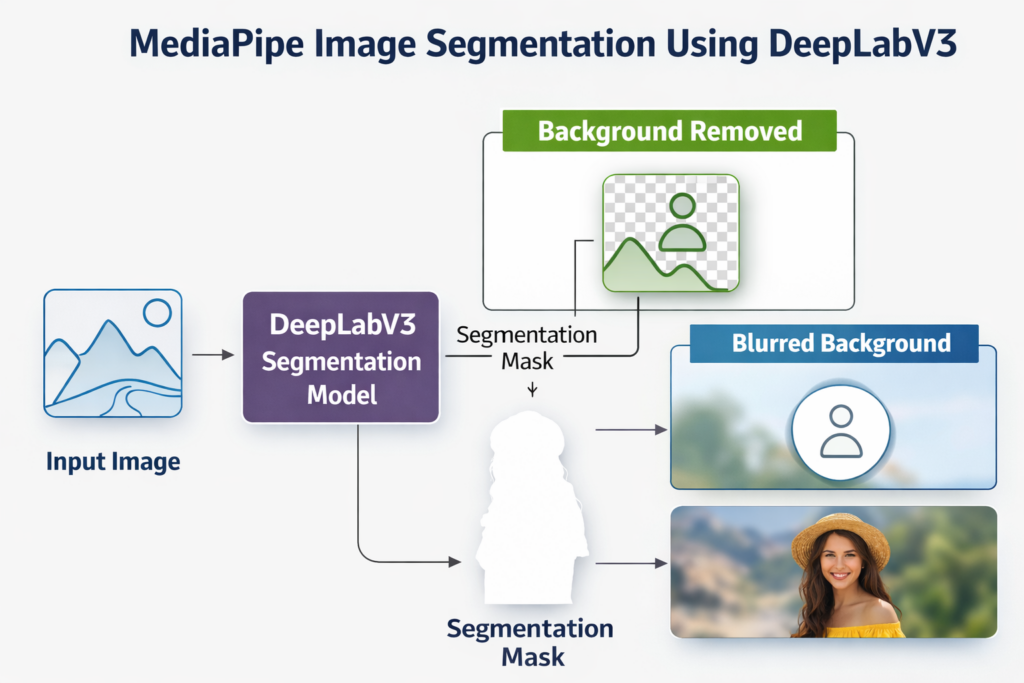
Turning MediaPipe DeepLabV3 Code into a Practical Segmentation Workflow
This tutorial is built around a complete, working Python script that demonstrates how MediaPipe image segmentation can be applied in a real scenario.
The main target of the code is to take a single image, run it through a pretrained DeepLabV3 model, and produce a clean segmentation mask that separates the subject from the background.
Rather than focusing on theory alone, the code shows how each stage of the process connects together.
From loading the image and initializing the MediaPipe segmenter to generating the category mask, every step is designed to be clear, reproducible, and easy to adapt for other projects.
A key objective of this workflow is to demonstrate how segmentation results can be used immediately.
The mask produced by DeepLabV3 is not just displayed but reused to create visual effects, such as isolating the foreground or applying a background blur while keeping the subject sharp.
By the end of this section, the reader understands how a compact Python script can combine MediaPipe, NumPy, and OpenCV into a functional image segmentation pipeline.
This makes the code suitable as both a learning resource and a starting point for more advanced applications like batch processing, image editing tools, or real-time computer vision systems.
Setup Environment and Imports
Before we dive into the heart of media segmentation, we need a clean environment.
This part installs everything necessary and prepares Python to load and visualize images.
We create a dedicated Conda environment so that segmentation libraries don’t conflict with other Python packages.
Then we install OpenCV for image display and Mediapipe for model inference.
### Create a new Conda environment named RemoveBG with Python 3.11. conda create -n RemoveBG python=3.11 ### Activate the newly created Conda environment. conda activate RemoveBG ### Install OpenCV to handle image reading, display, and basic operations. pip install opencv-python==4.10.0.84 ### Install Mediapipe library for advanced vision models like DeepLabV3. pip install mediapipe==0.10.14 Summary
This sets up a clean workspace and installs the two key libraries: OpenCV for visualization and MediaPipe for segmentation.
After this step, your system is ready to run the segmentation code in the following parts.
Downloading the DeepLabV3 Models for MediaPipe Image Segmentation
Before running the segmentation code, the DeepLabV3 models must be downloaded manually.
MediaPipe uses lightweight TensorFlow Lite models that are loaded locally, which gives you full control over where the files are stored and how they are used.
The first model is the DeepLabV3 image segmenter, responsible for generating the pixel-wise segmentation mask.
This model performs semantic segmentation and identifies foreground regions with high accuracy.
The second model is Magic Touch, which is optional and used for interactive segmentation workflows.
While not required for the core tutorial, downloading it allows you to expand the project later.
### Download the DeepLabV3 segmentation model. https://storage.googleapis.com/mediapipe-models/image_segmenter/deeplab_v3/float32/1/deeplab_v3.tflite ### Download the Magic Touch interactive segmentation model. https://storage.googleapis.com/mediapipe-models/interactive_segmenter/magic_touch/float32/1/magic_touch.tflite After downloading, place the .tflite files in a dedicated folder on your system.
Make sure the file path used in the code matches the actual location of the downloaded model.
Summary
This step ensures MediaPipe can load the DeepLabV3 model locally without errors.
Once the models are in place, the segmentation code can run immediately and produce consistent results.
Loading and Displaying the Input Image
In this part of the code, we load an input image from disk so we can process it with DeepLabV3.
We also display it in a window so the user can verify the correct image before segmentation begins.

### Import OpenCV so we can read and display images. import cv2 ### Set the path to the image you want to segment. pathToImage = "Best-Semantic-Segmentation-models/Media Pipe Segmentation/Image Segmentation using Media-pipe DeepLabV3/Inbal-Midbar 768.jpg" ### Use OpenCV’s imread to load the image file from disk. img = cv2.imread(pathToImage) ### Show the original image in a GUI window titled “img”. cv2.imshow("img", img) Summary
This code loads the chosen image and brings up a window that shows it.
This step ensures the segmentation model looks at the correct input before any processing happens.
Initializing the MediaPipe DeepLabV3 Model
Here we bring in Mediapipe tools to create an image segmentation pipeline.
This part focuses on setting options and preparing the DeepLabV3 model to analyze the input.
### Import Mediapipe core library for access to advanced vision models. import mediapipe as mp ### Import NumPy to manipulate image arrays and masks. import numpy as np ### Bring in the MediaPipe Python tasks module which contains the vision API. from mediapipe.tasks import python from mediapipe.tasks.python import vision ### Define a neutral gray background color for masked visuals. BG_COLOR = (192, 192, 192) ### Define white as the mask highlight color. MASK_COLOR = (255, 255, 255) ### Configure base options with the path to the DeepLabV3 TFLite model. base_options = python.BaseOptions(model_asset_path='D:/Temp/Models/MediaPipe/deeplab_v3.tflite') ### Create segmentation options requesting a category mask output. options = vision.ImageSegmenterOptions(base_options=base_options, output_category_mask=True) ### Instantiate the segmentation model from the configured options. with vision.ImageSegmenter.create_from_options(options) as segmenter: image = mp.Image.create_from_file(pathToImage) Summary
This section sets up the DeepLabV3 model with MediaPipe and defines how it should run.
The mask output option instructs the system to generate pixel-wise foreground/background masks.
Running Segmentation and Applying Effects
This is where the segmentation model gets put to work.
We generate a mask, show it, and then demonstrate two visual effects: a plain segmentation mask and a blurred background.
### Segment the loaded image using the MediaPipe segmenter. segmentation_result = segmenter.segment(image) ### Extract the category mask array from the result. category_mask = segmentation_result.category_mask ### Convert input image to a NumPy view for manipulation. image_data = image.numpy_view() ### Make a blank image filled with the mask color. fg_image = np.zeros(image_data.shape, dtype=np.uint8) fg_image[:] = MASK_COLOR ### Make a blank image filled with the background color. bg_image = np.zeros(image_data.shape, dtype=np.uint8) bg_image[:] = BG_COLOR ### Build a boolean condition array where mask probability is strong. condition = np.stack((category_mask.numpy_view(),) *3 , axis=-1) > 0.2 ### Use the mask to combine the foreground on gray background. output_image = np.where(condition , fg_image, bg_image) ### Display the segmentation mask result. cv2.imshow("Segmentation Mask", output_image) ### Convert original image data from RGB to BGR for OpenCV. image_data = cv2.cvtColor(image.numpy_view(), cv2.COLOR_RGB2BGR) ### Apply Gaussian blur with a large kernel to the full image. blurred_image = cv2.GaussianBlur(image_data, (55, 55), 0) ### Build a boolean mask for the blur application. condition = np.stack((category_mask.numpy_view(),) * 3, axis=-1) > 0.1 ### Keep original pixels where mask is true, blur where mask is false. blur_image = np.where(condition, image_data, blurred_image) ### Display the blurred background version. cv2.imshow("Blurred Background", blur_image) ### Wait for a key press to close the windows. cv2.waitKey(0) ### Destroy all OpenCV GUI windows. cv2.destroyAllWindows() Summary
This code runs the model, pulls out the segmentation output, and uses it to generate two visuals:
a clear segmentation mask, and a version of the image with a blurred background controlled by the mask.
FAQ
What is MediaPipe image segmentation?
MediaPipe image segmentation labels pixels as foreground or background, producing a mask you can use for background removal, blur effects, and more.
What does DeepLabV3 do in this tutorial?
DeepLabV3 is the pretrained segmentation model that generates the category mask used to separate the subject from the background.
Do I need to train a model to use this code?
No. The tutorial uses a ready-to-run TFLite DeepLabV3 model, so you can perform segmentation without training anything.
Where should I place the .tflite model files?
Place the .tflite files in a local folder you control, then set model_asset_path to the exact file location on your machine.
What is category_mask in MediaPipe segmentation?
category_mask is the model output that stores per-pixel probabilities, letting you decide which pixels belong to the foreground using a threshold.
Why does the code use a threshold like 0.2 or 0.1?
Thresholds control how strict the mask is. Higher values keep only very confident foreground pixels, while lower values include more borderline areas.
Why convert RGB to BGR before showing results?
MediaPipe images are typically RGB, but OpenCV displays in BGR. Converting ensures colors look correct in cv2.imshow windows.
Can I use this workflow to remove the background entirely?
Yes. You can use the mask to keep only the foreground pixels and replace the background with a solid color, blur, or transparent output.
How can I process a folder of images instead of one image?
Wrap the segmentation steps in a loop over image paths, and save each output image to disk instead of only displaying it.
What should I check if the model fails to load?
Verify the model_asset_path points to the correct .tflite file, confirm the file exists, and ensure mediapipe is installed in the active environment.
Conclusion
In this tutorial, we walked through a practical MediaPipe image segmentation pipeline using the DeepLabV3 model from setup to effects.
You learned how to install the necessary libraries, load and display images, initialize the segmentation model, generate pixel-wise masks, and apply creative visual effects like background blurring.
This guided experience illuminates how segmentation outputs can be used for real projects, from simple visualization to advanced image editing pipelines.
By blending MediaPipe’s efficient model handling with OpenCV’s visualization tools, you gain both a strong conceptual foundation and a usable, extendable codebase.
Connect :
☕ Buy me a coffee — https://ko-fi.com/eranfeit
🖥️ Email : feitgemel@gmail.com
🤝 Fiverr : https://www.fiverr.com/s/mB3Pbb
Enjoy,
Eran