Last Updated on 22/08/2026 by Eran Feit
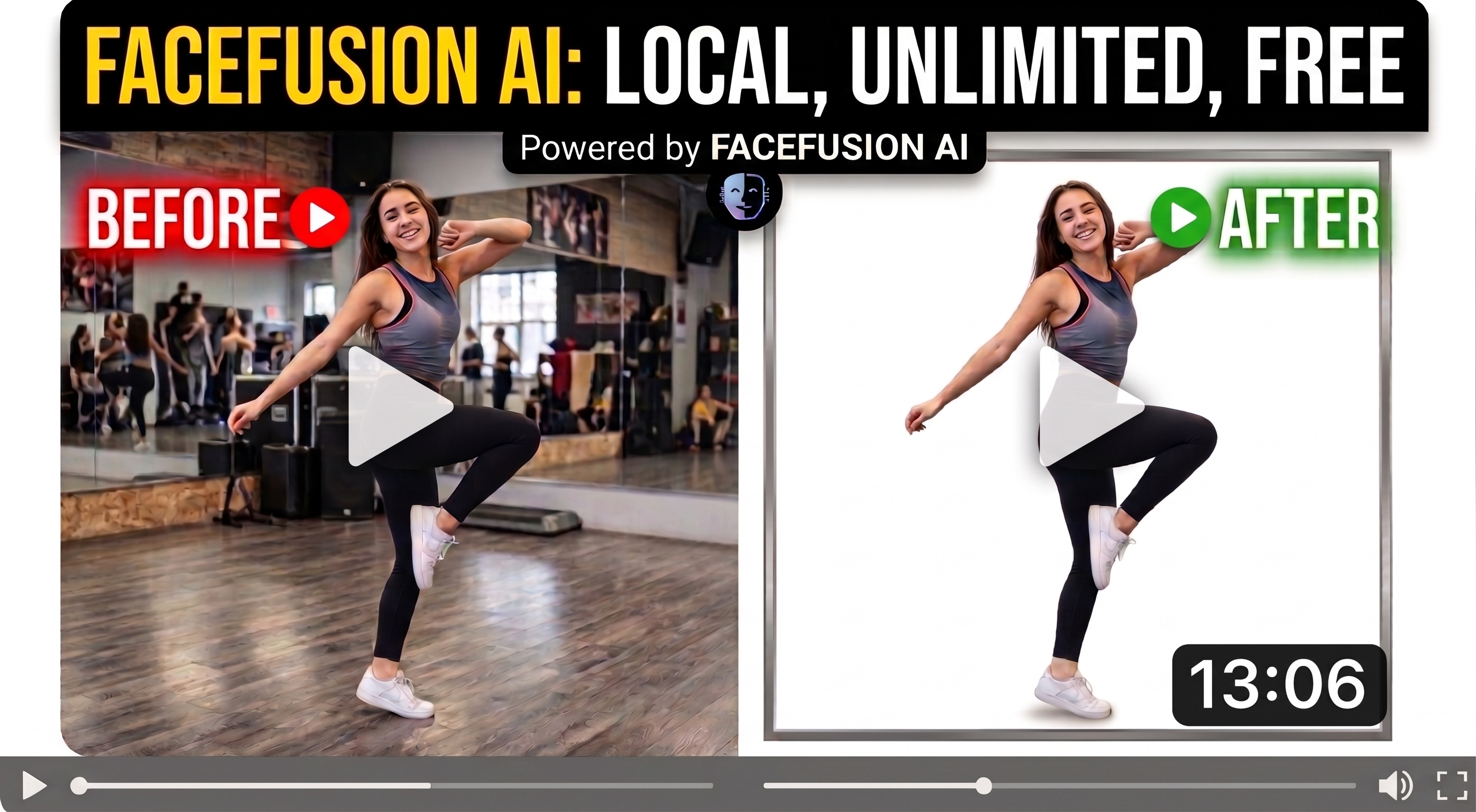
Learning how to remove background from video files without relying on tedious manual masking, chroma key studios, or expensive subscriptions gives creators complete creative freedom. This guide focuses on mastering automated neural matting techniques to swap video backdrops seamlessly using open-source tools running entirely on your local machine.
Finding practical ways to remove background from video without sacrificing output quality or handing personal media over to cloud services ensures total privacy and control. By leveraging open-source computer vision repositories, you bypass artificial paywalls, export length limits, and intrusive watermarks while keeping your processing pipeline offline.
This walkthrough demonstrates the setup from start to finish, beginning with a clean local installation and moving directly to processing real footage. You will examine the core architecture parameters, understand background segmentation models, and learn how to swap out messy backgrounds for clean solid colors or custom assets.
Every stage emphasizes optimal parameter selection to eliminate artifacting, flickering edges, and edge halos. By following this practical workflow, you will have a production-ready, repeatable pipeline configured locally on your system for all future video projects.
Discover How to Replace Background in Video Free Using Modern AI Traditional video production required dedicated physical studios, lighting kits, and high-contrast green screens to isolate a subject from their environment. If a creator recorded footage in an untreated bedroom, office, or outdoor setting, removing the backdrop meant frame-by-frame rotoscoping, an exhausting manual task that took hours for a few seconds of footage. Modern computer vision models have rewritten this dynamic by introducing semantic segmentation and automated portrait matting directly into local workflows.
The primary objective of automated video background replacement is isolating human subjects from dynamic or cluttered backgrounds in real time or near-real-time. These models analyze edge boundaries, hair strands, and lighting transitions frame by frame, generating dynamic alpha masks without requiring chroma key backdrops. Understanding how to configure these processors enables you to take raw, unedited footage and instantly substitute distracting elements with solid studio colors, custom image assets, or clean gradients.
Running these processes locally shifts control entirely to your hardware. Instead of relying on web-based SaaS platforms that compress your exports, charge monthly credit fees, or impose strict resolution limits, open-source repositories process high-resolution video using your dedicated GPU. Mastering the underlying settings—such as model selection, masking precision, and color blending—ensures your final video looks crisp, natural, and professionally graded.
The Best Free Way to Remove Video Background in 2026 9 How to Remove Background from Video Locally Using FaceFusion Why Run Background Removal Code Locally Instead of Cloud Tools? Running the code directly on your local system gives you total data privacy, eliminates subscription fees, removes video duration limits, and prevents watermarks while leveraging your hardware for maximum rendering quality.
Automating background segmentation through local code execution bridges the gap between complex deep learning models and practical daily video editing. Instead of uploading large video files to remote servers or dealing with monthly export quotas, running an open-source pipeline locally grants you direct access to the underlying segmentation weights. The code coordinates frame extraction, neural mask prediction, and pixel-level alpha matting all within a self-contained runtime environment.
The core script is designed to process incoming video frames sequentially, isolating human subjects from their surrounding environment without requiring physical green screens or manual rotoscoping. By passing your raw footage into the application, the underlying architecture deploys portrait matting networks that identify edge contours, hair strands, and movement dynamics. It then generates precise alpha mattes that separate foreground subjects from arbitrary background elements in high definition.
Beyond simple background extraction, the script enables automated backdrop replacement with custom assets or solid RGB color values. You can easily adjust key arguments—such as processor pipelines, execution providers for your GPU, and threshold tolerances—to control how aggressively the model removes edge artifacts. This modular approach allows you to seamlessly substitute cluttered home offices, studios, or outdoor settings with clean, solid backdrops ready for final production.
Integrating this code into your editing workflow gives you a completely free, offline solution that scales across any number of video clips. Once configured in a virtual environment with proper CUDA or CPU bindings, the script handles batch processing efficiently. You gain full programmatic control over output resolutions, frame rates, and visual fidelity, ensuring your finished footage remains sharp and artifact-free.
Link to the tutorial here .
Download the code for the tutorial here or here .
Link for Medium users here .
Master Computer Vision
Follow my latest tutorials and AI insights on my
Personal Blog .
Beginner Complete CV Bootcamp
Foundation using PyTorch & TensorFlow.
Get Started → Interactive Deep Learning with PyTorch
Hands-on practice in an interactive environment.
Start Learning → Advanced Modern CV: GPT & OpenCV4
Vision GPT and production-ready models.
Go Advanced →
The Best Free Way to Remove Video Background in 2026 10 Setting Up Your Clean Environment and Cloning FaceFusion Preparing an isolated environment ensures that complex computer vision dependencies do not conflict with existing system packages. Using Conda provides full control over Python versions and makes runtime isolation effortless. This clean baseline guarantees seamless execution for advanced background removal and facial processing pipelines.
Cloning the official repository directly into a designated working directory downloads all required processor scripts and neural asset configs. Having a local copy allows you to modify configuration files, switch branches, and update dependencies whenever new releases drop. It keeps your workspace organized and reproducible across different machines.
Once inside the cloned directory, your system is ready to receive hardware acceleration runtimes and specialized neural matting libraries. Taking the time to isolate these libraries avoids breaking local environments and keeps GPU paths clean. This setup lays the groundwork for high-throughput video processing.
Why Is an Isolated Conda Environment Necessary for FaceFusion? An isolated Conda environment prevents package conflicts between deep learning frameworks, CUDA runtime libraries, and graphical interface dependencies while allowing you to run specific Python versions safely.
Step 1: Create a dedicated Conda environment named facefusion38 with Python 3.12. ### Create a fresh, isolated Conda virtual environment specifically for Python 3.12. conda create -n facefusion38 python= 3.12 ### Activate the newly created environment to direct all future package installations here. conda activate facefusion38 ### Create a dedicated working directory to keep all tutorial projects structured and organized. md tutorials ### Navigate directly into your newly created tutorials directory. cd tutorials ### Clone the official FaceFusion source repository from GitHub to your local machine. git clone https://github.com/facefusion/facefusion ### Enter the cloned FaceFusion root directory containing the source code and configuration files. cd facefusion Configuring Hardware Acceleration and Deep Learning Dependencies Achieving real-time frame rates and smooth neural portrait matting requires matching the repository with your specific GPU architecture. NVIDIA cardholders can leverage CUDA and cuDNN runtimes to handle tensor computations across thousands of shader cores simultaneously. TensorRT support unlocks deep inference optimizations, drastically cutting rendering durations during video exports.
Users with Intel Arc or integrated setups can deploy OpenVINO bindings instead to get optimized performance on non-NVIDIA silicon. This flexibility ensures that you do not need an enterprise GPU cluster just to eliminate green screens from your workflow. Selecting the matching accelerator maximizes efficiency while keeping power consumption balanced.
Installing the remaining dependencies links the visual UI elements, numerical arrays, and neural execution layers together. Packages like ONNX Runtime, OpenCV, and Gradio handle everything from frame buffers to dynamic parameter sliders. Once installed, your local machine possesses a complete background segmentation studio.
How Does Hardware Acceleration Improve Background Removal Speed? Hardware acceleration delegates tensor computations and neural mask predictions directly to GPU tensor cores, dramatically increasing processing frame rates compared to CPU inference.
### Install NVIDIA CUDA 12.9 runtime and cuDNN 9.10 acceleration packages directly via Conda channels. conda install nvidia/label/cuda-12.9.1::cuda-runtime nvidia/label/cudnn-9.10.0::cudnn ### Install TensorRT 10.12 directly from the official NVIDIA Python package repository for maximum inference speed. pip install tensorrt== 10.12 .0.36 --extra-index-url https://pypi.nvidia.com ### Alternatively, install Intel OpenVINO 2025.3 if running on Intel Arc or Intel integrated graphics instead of NVIDIA. conda install conda-forge::openvino= 2025.3 .0 ### Install Gradio RangeSlider extension to handle custom UI range selection elements smoothly. pip install gradio-rangeslider== 0.0 .8 ### Install Gradio 5.50 to build and serve the interactive local browser interface. pip install gradio== 5.50 .0 ### Install NumPy 2.4.6 to manage high-speed multidimensional array manipulations and image matrices. pip install numpy== 2.4 .6 ### Install the core ONNX library to parse and manage open neural network exchange formats. pip install onnx== 1.22 .0 ### Install the ONNX Runtime execution engine to drive GPU and CPU inference pipelines. pip install onnxruntime== 1.28 .0 ### Install headless OpenCV to read, manipulate, and encode video streams without desktop UI dependencies. pip install opencv-python-headless== 5.0 .0.93 ### Install tqdm to render clean visual progress bars in the command terminal during file processing. pip install tqdm== 4.70 .0 ### Install SciPy 1.18 to handle advanced scientific calculations and spatial transformations. pip install scipy== 1.18 .0 Launching the Application and Replacing Video Backgrounds Refreshing the environment variables ensures all newly compiled binaries and execution provider paths are registered correctly. A quick deactivation and reactivation re-reads system variables to prevent missing dynamic link library errors during startup. This guarantees the graphical interface picks up CUDA or OpenVINO seamlessly.
Launching the main script opens an intuitive web-based dashboard directly in your default browser. From the interface, you can load your target video clip, activate background replacement modules, and select solid color backdrops or custom replacements. You get real-time previews to inspect edge feathering and mask tightness across sample frames.
Executing locally lets you adjust segmentation thresholds without cloud upload latency or watermarks on your final media. Once fine-tuned, the rendering engine processes your video frame-by-frame and exports high-definition footage straight to your disk. You now command an entirely private, professional video editing workflow powered by AI.
How Does the Background Replacement Processor Isolate Subjects? The processor deploys deep neural matting networks to evaluate foreground boundaries, calculates dynamic alpha masks per frame, and blends the subject seamlessly onto your chosen backdrop.
### Deactivate the current environment to reset shell paths and dynamically linked binaries. conda deactivate ### Reactivate the facefusion38 environment to reload all newly installed packages and environment variables. conda activate facefusion38 ### Launch the FaceFusion execution script and automatically open the interactive WebUI in your default browser. python facefusion.py run --open-browser Frequently Asked Questions Do I need an NVIDIA GPU to run FaceFusion for video background removal? No, while an NVIDIA GPU provides optimal speed via CUDA and TensorRT, you can also run it using Intel Arc graphics with OpenVINO or standard CPU execution mode.
Can I replace video backgrounds with a solid color instead of another image? Yes, the background replacement processor includes color fill options that allow you to set specific RGB values or solid color backdrops directly.
Does FaceFusion add watermarks to exported videos? No, because FaceFusion is open-source and runs locally on your computer, all processed video files are exported at full fidelity without watermarks.
Why do I need to reload the Conda environment after installing dependencies? Deactivating and reactivating the environment ensures that newly installed system paths, CUDA binaries, and dynamic link libraries are correctly initialized by your shell.
How does AI background removal differ from traditional green screen keying? AI portrait matting models identify subject boundaries and hair contours automatically without requiring dedicated backdrops, high-contrast studio lights, or chroma keying.
Can I use FaceFusion to process long video files? Yes, running locally removes cloud export length limits, though total processing duration will depend directly on your video resolution and hardware performance.
What should I do if my GPU runs out of memory during rendering? You can reduce the execution thread count, downscale the processing resolution inside the interface, or process videos in shorter segmented clips.
What video formats are supported as input? FaceFusion supports all major standard formats via OpenCV and FFmpeg, including MP4, MOV, MKV, and WebM container files.
Yes, the semantic segmentation processors evaluate portrait mattes across all human subjects detected within each video frame.
Is an internet connection required while processing video files? No, an internet connection is only needed during initial setup to download model weights; all video inference occurs 100% offline.
Conclusion Deploying local neural background removal shifts video post-production power straight to your desktop. By avoiding cloud subscriptions, you eliminate recurring costs and keep all sensitive video materials private. The open-source FaceFusion ecosystem provides fine-grained control over neural alpha matting, solid color fills, and acceleration backends. With your virtual environment configured and your execution providers active, you have a production-grade AI rotoscoping pipeline ready for any creative task.
Connect : ☕ Buy me a coffee — https://ko-fi.com/eranfeit
🖥️ Email : feitgemel@gmail.com
🌐 https://eranfeit.net
🤝 Fiverr : https://www.fiverr.com/s/mB3Pbb
Enjoy,
Eran
 Skip to content