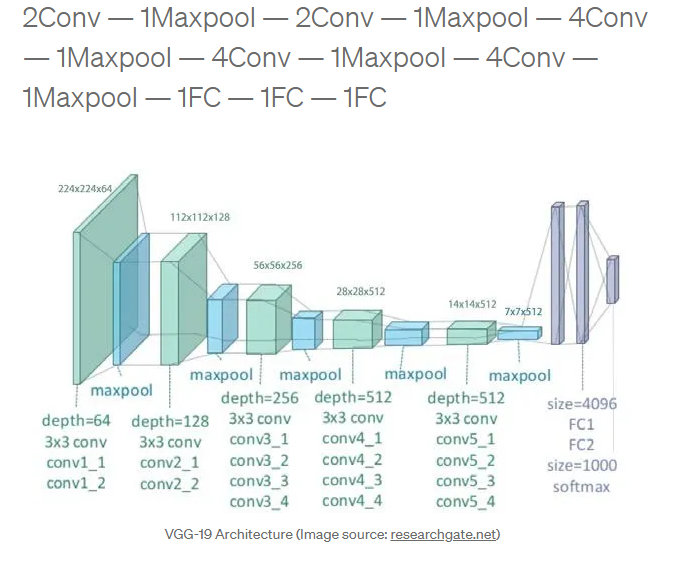
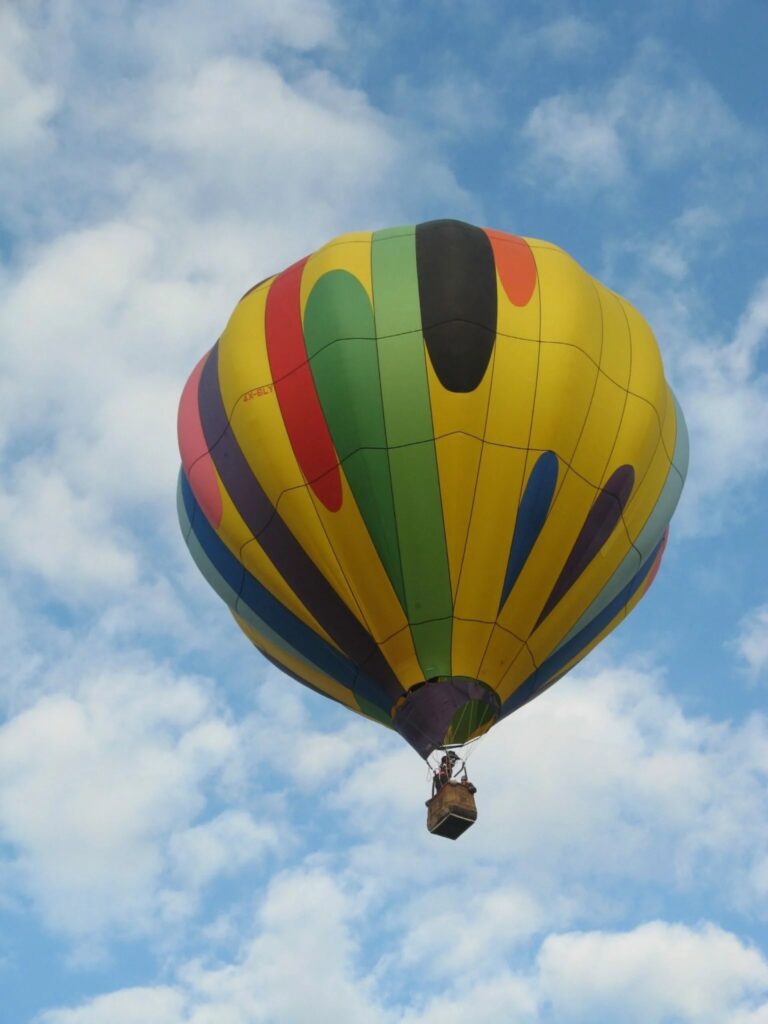
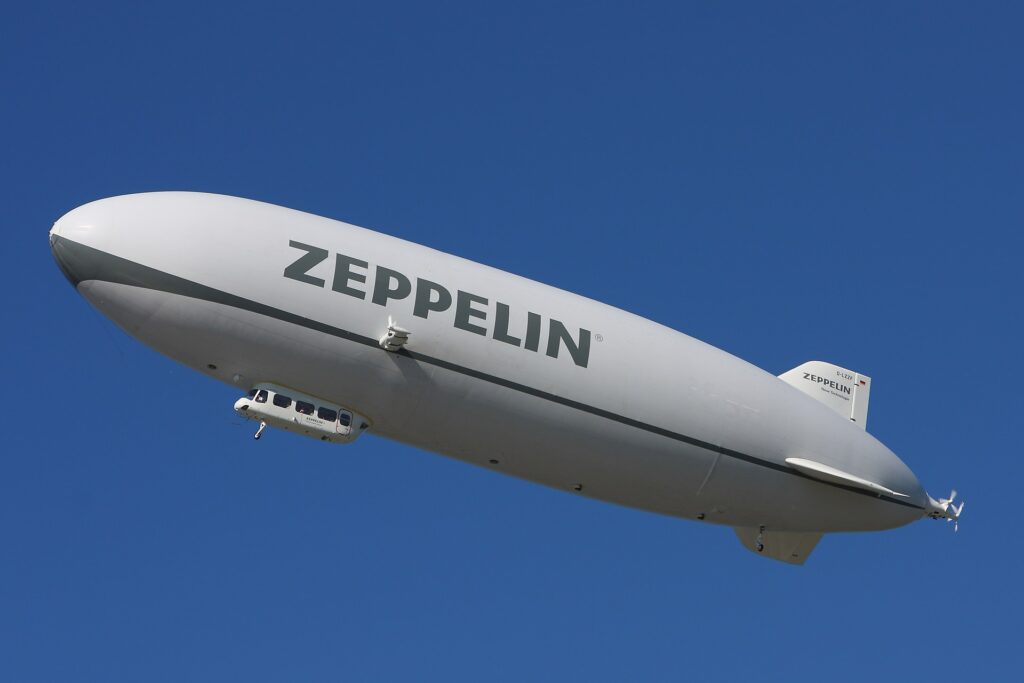
VGG19 Transfer Learning Explained for Beginners / Image Classification Contents hide 1 Introduction — Understanding the Power of VGG19 Transfer Learning 1.1 What is VGG19? 1.2 Why Use VGG19 for Transfer Learning? 1.3 What You’ll Learn in This Tutorial 2 Loading and Preparing the Aerospace Dataset 2.1 Explanation 3 Defining Image Shape and Categories 3.1 Explanation 4 Loading the Pretrained VGG19 Base 4.1 Explanation 5 Building the Classification Head 5.1 Explanation 6 Compiling the Model 6.1 Explanation 7 Training the Model 7.1 Explanation 8 Visualizing Training Performance 8.1 Explanation 9 Saving the Trained Model 9.1 Explanation 10 Testing the Model on New Images 11 Loading and Running Inference 11.1 Explanation 12 Summary 13 FAQ 13.1 What is transfer learning? 13.2 Why use VGG19? 13.3 When should I fine-tune the model? 13.4 How to prevent overfitting? 13.5 What optimizer works best? 13.6 Why normalize images? 13.7 Can I use grayscale images? 13.8 What batch size is recommended? 13.9 How many epochs should I train? 13.10 How can I improve accuracy further? 14 Conclusion 15 Connect Last Updated on 27/09/2026 by Eran Feit Introduction — Understanding the Power of VGG19 Transfer Learning Transfer learning has become one of the most effective techniques in deep learning for achieving great accuracy without starting from scratch.In this tutorial, we’ll explore how to apply VGG19 transfer learning using TensorFlow and Keras on an Aerospace Images dataset — a collection of aircraft, balloons, and flying machines that’s perfect for demonstrating image classification. What is VGG19? VGG19 is a deep convolutional neural network developed by the Visual Geometry Group (VGG) at the University of Oxford.It became famous after achieving top performance in the 2014 ImageNet Large Scale Visual Recognition Challenge (ILSVRC). VGG19 consists of 19 layers — 16 convolutional and 3 fully connected — and is known for its simplicity: small (3×3) convolution filters stacked together.This design captures spatial hierarchies effectively, making it ideal for transfer learning and image classification tasks. Subscription FormSend me tutorials VGG19 Transfer Learning Explained for Beginners 10 Why Use VGG19 for Transfer Learning? Pretrained power – VGG19 comes pretrained on over a million ImageNet images. Generalizable features – Its low-level filters detect edges, textures, and shapes that generalize well to new tasks. Easy customization – You can freeze early layers and train only the classification head on your custom data. Reliable baseline – Even though newer models like ResNet or EfficientNet may outperform it in speed, VGG19 remains an excellent, stable model for experimentation. What You’ll Learn in This Tutorial We’ll go step by step through: Loading and preprocessing the Aerospace dataset Setting up the data pipeline using Keras ImageDataGenerator Building a model with pretrained VGG19 layers Training, evaluating, and visualizing results Making predictions on new images By the end, you’ll be able to apply VGG19 transfer learning to your own datasets confidently. Link for the video tutorial : https://youtu.be/exaEeDfbFuI Full blog for Medium users : https://medium.com/image-classification-tutorials/vgg19-transfer-learning-explained-for-beginners-7f1164a14fc8 You can download the code here : https://eranfeit.lemonsqueezy.com/buy/15ee8365-7294-489d-b2cf-28bd4a90285c or here : https://ko-fi.com/s/83478a3493 Link for the dataset ? Send me an email and get it for free TRY IT NOW Master Computer Vision Follow my latest tutorials and AI insights on my Personal Blog. Beginner Complete CV Bootcamp Foundation using PyTorch & TensorFlow. Get Started → Interactive Deep Learning with PyTorch Hands-on practice in an interactive environment. Start Learning → Advanced Modern CV: GPT & OpenCV4 Vision GPT and production-ready models. Go Advanced → Loading and Preparing the Aerospace Dataset To begin, we’ll import libraries, set the dataset path, and prepare image generators for training and validation. ### Import TensorFlow import tensorflow as tf ### Define dataset path path = "C:/Data-sets/aerospace_images" ### Define batch size for training batch_size = 16 ### Import ImageDataGenerator for augmentation from tensorflow.keras.preprocessing.image import ImageDataGenerator ### Create data generator with scaling and augmentation image_generator = ImageDataGenerator(rescale=1/255., horizontal_flip=True, zoom_range=0.2, validation_split=0.2) ### Prepare training dataset train_dataset = image_generator.flow_from_directory( batch_size=batch_size, directory=path, shuffle=True, target_size=(224,224), subset="training", class_mode="categorical") ### Prepare validation dataset validation_dataset = image_generator.flow_from_directory( batch_size=batch_size, directory=path, shuffle=True, target_size=(224,224), subset="validation", class_mode="categorical") Explanation We first scale pixel values between 0–1 using rescale=1/255. to stabilize learning.Data augmentation such as flipping and zooming helps prevent overfitting.The dataset is split into training (80%) and validation (20%) using validation_split=0.2. Defining Image Shape and Categories Next, we define image dimensions and the number of categories to classify. ### Define input shape and number of classes IMG_SHAPE = (224,224,3) num_of_categories = 7 Explanation VGG19 expects 224×224×3 input tensors.Here, we assume the Aerospace dataset has 7 classes — for example, airplane, balloon, helicopter, satellite, zeppelin, drone, and rocket. Loading the Pretrained VGG19 Base We now load the pretrained model and freeze its weights. ### Load pretrained VGG19 model without the top layers base_model = tf.keras.applications.VGG19( input_shape=IMG_SHAPE, include_top=False, weights='imagenet') ### Freeze base layers base_model.trainable = False Explanation Setting include_top=False removes the original ImageNet classification layers, allowing us to add our own.Freezing ensures we don’t retrain millions of weights during early training — saving time and avoiding overfitting. Building the Classification Head We attach new layers to classify Aerospace images. ### Create new model head model = tf.keras.Sequential([ base_model, tf.keras.layers.Dropout(0.2), tf.keras.layers.GlobalAveragePooling2D(), tf.keras.layers.Dense(num_of_categories, activation='softmax') ]) ### Name the model model._name = "Air_VGG19" ### Print model summary print(model.summary()) Explanation Dropout(0.2) helps reduce overfitting. GlobalAveragePooling2D compresses spatial features efficiently. The final Dense layer predicts one of the seven categories. Compiling the Model We configure optimization and loss functions. ### Compile the model model.compile(optimizer=tf.keras.optimizers.Adam(learning_rate=0.0001), loss='categorical_crossentropy', metrics=['accuracy']) Explanation We use the Adam optimizer for fast convergence.Categorical cross-entropy is ideal for multi-class classification problems. Training the Model Now we train the model for 50 epochs and validate performance. ### Train the model hist = model.fit( train_dataset, epochs=50, validation_data=validation_dataset, verbose=1) Explanation This will display the training and validation accuracy and loss for each epoch.You can stop early if validation accuracy stabilizes to prevent overfitting. Visualizing Training Performance We can now visualize training curves for deeper insights. ### Import matplotlib for visualization import matplotlib.pyplot as plt ### Plot loss and accuracy plt.plot(hist.history["loss"]) plt.plot(hist.history["accuracy"]) plt.plot(hist.history["val_loss"]) plt.plot(hist.history["val_accuracy"]) plt.title("Model Accuracy") plt.ylabel("Accuracy") plt.xlabel("Epoch") plt.legend(["Loss", "Accuracy", "Validation loss", "Validation Accuracy"]) plt.show() Explanation Graphs help detect overfitting — if validation loss starts increasing while training loss decreases, you may need more augmentation or dropout. Saving the Trained Model We’ll save our trained model for future inference. ### Save the model model.save("e:/temp/air-vgg19.h5") Explanation This saves the architecture, weights, and optimizer state into a single HDF5 file (.h5), which you can reload anytime. Testing the Model on New Images The test images from your dataset (e.g., Balloon.jpg and Zeppelin.jpg) in the project folder to test predictions. Baloon Zeppellin Loading and Running Inference Now, let’s load the saved model and classify new images. ### Import dependencies import tensorflow as tf import cv2 import os from keras.preprocessing import image from keras.utils import load_img, img_to_array import numpy as np ### Define constants IMAGE_SIZE = 224 ImagesFolder = "C:/Data-sets/aerospace_images" CLASSES = os.listdir(ImagesFolder) num_classes = len(CLASSES) print(CLASSES) ### Load the trained model best_model_file = "e:/temp/air-vgg19.h5" model = tf.keras.models.load_model(best_model_file) print(model.summary()) ### Function to preprocess image def prepareImage(pathForImage): image = load_img(pathForImage, target_size=(IMAGE_SIZE, IMAGE_SIZE)) imgResult = img_to_array(image) imgResult = np.expand_dims(imgResult, axis=0) imgResult = imgResult / 255. return imgResult ### Test image path testImagePth = "Best-image-classification-models/VGG19-Classify-Aerospace/Baloon.JPG" ### Read and prepare image img = cv2.imread(testImagePth) imgForModel = prepareImage(testImagePth) ### Run prediction resultArray = model.predict(imgForModel, verbose=1) answer = np.argmax(resultArray, axis=1) ### Display results index = answer[0] className = CLASSES[index] print("The predicted class is : " + className) cv2.putText(img, className, (10,20), cv2.FONT_HERSHEY_SIMPLEX, 1, (0,255,0), 2, cv2.LINE_AA) cv2.imshow("image", img) cv2.waitKey(0) Explanation This loads your saved model, preprocesses the test image, and predicts the most likely class.OpenCV displays the image with the predicted label overlayed. Summary You’ve successfully:✅ Built and trained a VGG19 transfer learning model✅ Applied it on the Aerospace Images dataset✅ Visualized model accuracy✅ Saved and tested your model on new data This tutorial provides a strong foundation for any image classification task using VGG19 transfer learning. FAQ What is transfer learning? Transfer learning lets you adapt pretrained models for new tasks, saving training time and resources. Why use VGG19? VGG19 is stable, simple, and effective for small to medium image datasets, making it ideal for transfer learning. When should I fine-tune the model? Fine-tune once validation accuracy plateaus to improve feature adaptation. How to prevent overfitting? Use data augmentation, dropout layers, and regularization techniques. What optimizer works best? Adam optimizer is widely used for its adaptive learning rate and fast convergence. Why normalize images? Normalization scales pixel values, improving model stability and accuracy. Can I use grayscale images? Yes, but convert grayscale to 3 channels or modify the input layer. What batch size is recommended? Batch sizes of 16 or 32 often provide stable training with limited GPU memory. How many epochs should I train? Train for 20–50 epochs, using validation metrics for early stopping. How can I improve accuracy further? Add more data, fine-tune deeper layers, or use learning rate scheduling. Conclusion VGG19 remains one of the most beginner-friendly yet powerful models for transfer learning.With its balance between simplicity and accuracy, it’s ideal for tasks like classifying aerospace images or any multi-category image dataset.Once you master VGG19, you’ll have a solid foundation for experimenting with more advanced architectures like ResNet50, EfficientNet, or Vision Transformers. Keep experimenting — the beauty of deep learning is how quickly you can adapt proven architectures to new ideas. Connect ☕ Buy me a coffee — https://ko-fi.com/eranfeit 🖥️ Email: feitgemel@gmail.com 🌐 https://eranfeit.net 🤝 Fiverr: https://www.fiverr.com/s/mB3Pbb Enjoy,Eran






 Skip to content