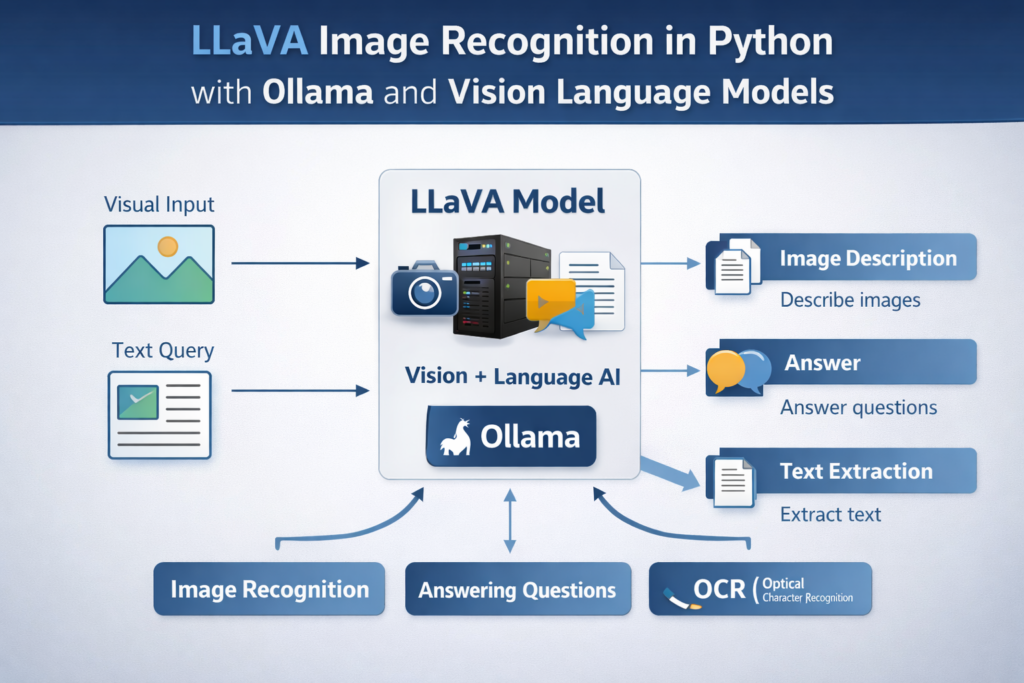
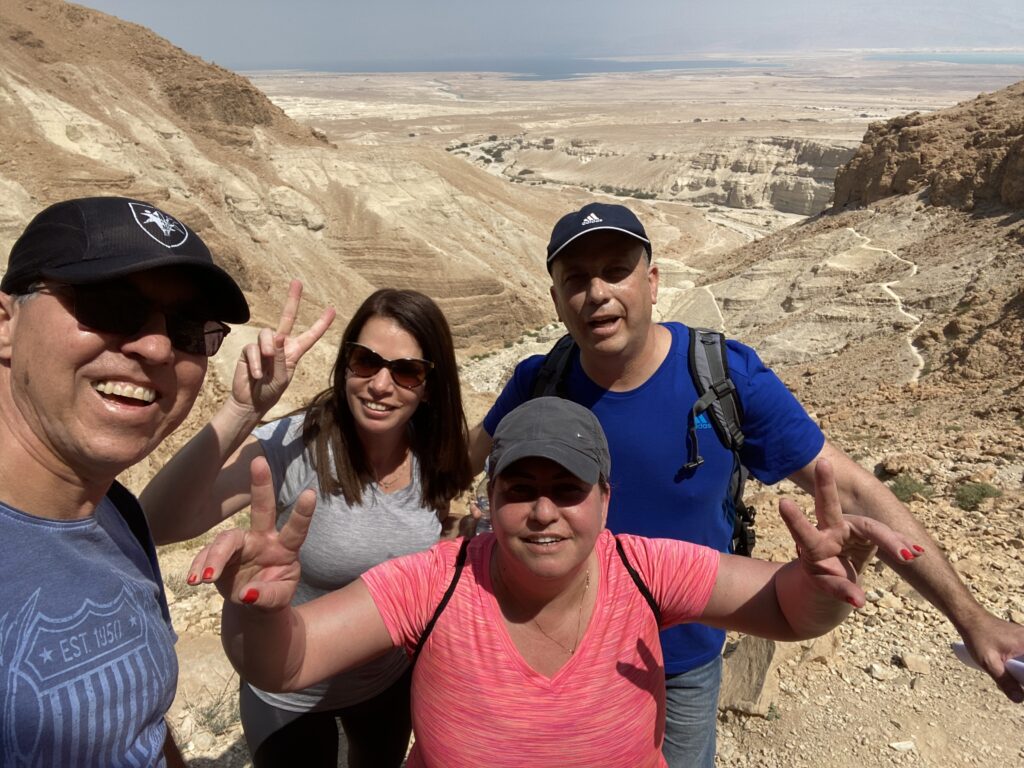
LLaVA Image Recognition in Python with Ollama and Vision Language Models / VIT Contents hide 1 Introduction 2 Exploring LLaVA Image Recognition Python — What It Is and Why It Matters 3 A Hands-On Python Tutorial for LLaVA Image Recognition 4 LLaVA Image Recognition in Python with Ollama and Vision Language Models 5 Setting up Python and preparing the environment 6 Sending images to LLaVA and generating visual descriptions 7 Asking targeted visual questions and extracting details 8 Generating keywords and reading text from images 9 FAQ 9.1 What does LLaVA do in Python? 9.2 Is LLaVA running locally? 10 Conclusion 10.1 Connect Last Updated on 22/04/2026 by Eran Feit Introduction Understanding LLaVA image recognition Python opens the door to running powerful multimodal artificial intelligence directly from your code. This emerging technology enables developers to combine image inputs with natural language instructions, allowing Python programs to see and understand images the way humans do. Rather than relying solely on traditional computer vision tools, LLaVA merges visual perception and language comprehension into a single intelligent system that can describe, analyze, and answer questions about images. At its core, LLaVA stands for Large Language and Vision Assistant, a type of large multimodal AI model designed to interpret both images and text in a unified way. These models process input images through a vision encoder that converts visual data into abstract features, which are then combined with text prompts and passed through a powerful language model to produce human-readable responses. This means you can ask questions about an image — like identifying objects, describing scenes, or generating keywords — and receive understandable, detailed outputs. In Python, integrating LLaVA for image recognition lets you harness these capabilities in your own projects, whether you are building vision-enabled applications or experimenting with cutting-edge AI workflows. Using Python clients like Ollama, you can run LLaVA models locally, avoiding cloud dependencies and maintaining full control over your data and execution environment. Because LLaVA is open-source and compatible with various local setups, it has become an accessible option for developers interested in deploying advanced visual AI without needing massive infrastructure or complex backend services. This makes LLaVA image recognition Python both a practical and innovative approach to expanding what your applications can understand and do with visual content. Exploring LLaVA Image Recognition Python — What It Is and Why It Matters Deep diving into LLaVA image recognition Python reveals a fascinating blend of computer vision and natural language processing tailored for real-world use. Traditional image recognition systems often rely on isolated vision models that can only classify or localize objects. In contrast, LLaVA integrates a vision encoder with a language model so that once an image is presented, you can interact with it through text — asking questions, describing scenes, or extracting meaningful insights. The main target of this approach is to build a system that sees and tells in a more human-like manner. Instead of just producing a label like “cat” or “car,” LLaVA can explain context, answer questions like “What color is the shirt this person is wearing?”, or even generate descriptive captions and keywords that help downstream applications understand image content. This type of multimodal scene understanding enhances everything from accessibility features to content search and automation. In practice, Python developers leverage libraries that interface with local multimodal models such as LLaVA. Using Python code, an image can be loaded, passed to the model, and paired with a natural language query — all in a seamless workflow. The model interprets both input forms and responds with text that aligns with the developer’s prompts. This makes LLaVA crucial for applications involving visual intelligence, like smart assistants, interactive image bots, or integrated analytics tools. Beyond just recognition, LLaVA models also support reasoning and contextual responses, enabling deeper insights than typical classification systems. For example, you can ask follow-up questions based on previous responses, making the interaction more intuitive and flexible for complex visual tasks. This combination of visual and textual reasoning makes LLaVA image recognition Python a high-impact tool in the evolving world of AI-driven applications. Subscription FormSend me tutorials LLaVA image recognition process explained A Hands-On Python Tutorial for LLaVA Image Recognition This tutorial focuses on the practical Python code used to run LLaVA for image recognition in a local environment. Instead of discussing theory alone, the goal here is to walk through a working script that sends real images to a vision-language model and receives meaningful text responses. The code demonstrates how Python can act as the control layer between your images, prompts, and the LLaVA model running through Ollama. At a high level, the target of this code is to show how images and text prompts are combined into a single request. Each Python call sends an image path together with a natural-language question to the model. The model then analyzes the visual content and returns a text-based answer. This approach makes it possible to describe images, answer visual questions, extract text from signs, or generate keywords — all using the same unified interface. The tutorial also emphasizes local execution, which is a key design goal of the code. By running LLaVA locally through Ollama, the script avoids external APIs and cloud dependencies. This gives full control over model selection, data privacy, and performance tuning. From a developer’s perspective, this makes the setup ideal for experimentation, prototyping, and building offline or self-hosted AI applications. Another important aspect of the code is its prompt flexibility. The same image can be reused with different questions, demonstrating how the model’s output changes based on the instruction provided. One prompt may ask for a general description, while another focuses on colors, text in the image, or keyword generation. This highlights how vision-language models extend far beyond traditional image classification and behave more like interactive visual assistants. Overall, the target of this Python tutorial is to provide a clear, repeatable pattern for working with LLaVA: load images, define prompts, send them to the model, and handle the responses in a clean and readable way. Once this structure is understood, it can be easily extended to more advanced workflows such as batch processing, automated image analysis, or integration into larger Python systems. LLaVA Image Recognition Link for the video tutorial : https://youtu.be/u4tHeaOykEI Code for the tutorial : https://eranfeit.lemonsqueezy.com/buy/2a235299-9e7a-4053-a665-2500737bee58 or here : https://ko-fi.com/s/957e1a21d6 Link to the post for Medium users : https://medium.com/vision-transformers-tutorials/llava-image-recognition-in-python-with-ollama-and-vision-language-models-1ac5ee82ff18 TRY IT NOW Master Computer Vision Follow my latest tutorials and AI insights on my Personal Blog. Beginner Complete CV Bootcamp Foundation using PyTorch & TensorFlow. Get Started → Interactive Deep Learning with PyTorch Hands-on practice in an interactive environment. Start Learning → Advanced Modern CV: GPT & OpenCV4 Vision GPT and production-ready models. Go Advanced → LLaVA Image Recognition in Python with Ollama and Vision Language Models Running LLaVA image recognition Python locally opens a powerful and flexible way to combine computer vision with natural language understanding.Instead of relying on cloud APIs, this approach shows how Python can directly interact with a vision-language model to describe images, answer visual questions, and extract text.The workflow is simple but highly expressive, making it ideal for tutorials, experiments, and real-world automation tasks. This post walks through a complete Python script that uses LLaVA through Ollama.The focus is practical and code-driven, showing how images and prompts are passed together and how the model responds in natural language.Each section breaks the code into logical parts so you can clearly understand the purpose of every step and reuse the structure in your own projects. More Vision and Language AI Tutorials How to Run BLIP-2 Image Analysis with Python This tutorial explores another powerful multimodal vision-language model, great context for understanding LLaVA workflows. Image Captioning Using PyTorch and Transformers in Python An example of image + language AI that helps readers grasp how multimodal models turn visual inputs into text output. Free AI Image Generator — Text to Image AI Made Easy This post focuses on text-to-image generation, another form of multimodal AI that complements recognition tasks. Setting up Python and preparing the environment Before running any image recognition code, the Python environment must be prepared correctly.This part focuses on creating a clean Conda environment and installing the Ollama Python client that communicates with the local LLaVA model.The goal here is reliability and isolation, ensuring the code runs consistently without dependency conflicts. # Instructions : 1. Goto https://ollama.com , and Click Download button , and download the software 2. Goto the Models menu in the Ollama.com website and search the Model "llava" <No need for enter> 3. Click on the llava model : 4. You can see that this model has 7b , 13B and 34B Models , lets choose the 13Bilion model 5. go to the ollama App and choose a folder for download 6. copy the command "ollama pull llava:13b" and run it for download. It will store it on Ollma folders : Where are models stored: macOS: ~/.ollama/models. Linux: /usr/share/ollama/.ollama/models. Windows: C:\Users<username>.ollama\models. # Article how to change the folder location for storing models https://dev.to/hamed0406/how-to-change-place-of-saving-models-on-ollama-4ko8 7. Install : ### This command creates a new Conda environment dedicated to Ollama and LLaVA. conda create -n ollama python=3.11 ### This command activates the newly created environment so all packages install into it. conda activate ollama ### This command installs the Ollama Python client used to communicate with the LLaVA model. pip install ollama==0.4.7 # Instructions : 1. Goto https://ollama.com , and Click Download button , and download the software 2. Goto the Models menu in the Ollama.com website and search the Model "llava" <No need for enter> 3. Click on the llava model : 4. You can see that this model has 7b , 13B and 34B Models , lets choose the 13Bilion model 5. go to the ollama App and choose a folder for download 6. copy the command "ollama pull llava:13b" and run it for download. It will store it on Ollma folders : Where are models stored: macOS: ~/.ollama/models. Linux: /usr/share/ollama/.ollama/models. Windows: C:\Users<username>.ollama\models. # Article how to change the folder location for storing models https://dev.to/hamed0406/how-to-change-place-of-saving-models-on-ollama-4ko8 7. Install : ### This command creates a new Conda environment dedicated to Ollama and LLaVA. conda create -n ollama python=3.11 ### This command activates the newly created environment so all packages install into it. conda activate ollama ### This command installs the Ollama Python client used to communicate with the LLaVA model. pip install ollama==0.4.7 This setup ensures Python can send images and prompts to the model running locally.Once this environment is ready, the rest of the tutorial focuses entirely on image recognition logic. Sending images to LLaVA and generating visual descriptions The first practical use case of LLaVA image recognition Python is asking the model to describe an image.This section shows how an image path and a natural language prompt are combined into a single request.The model analyzes the image and returns a descriptive sentence in plain text. Test image : Parrot ### This line imports the Ollama library so Python can communicate with the local model. import ollama ### This variable stores the path to the first image used for recognition. imagePath1 = "Visual-Language-Models-Tutorials/Image Recognition with LLaVa/Parrot.jpg" ### This function sends the image and prompt to the LLaVA model. result = ollama.chat( model="llava:13b", messages=[ { 'role': 'user', 'content': "Describe this image", 'images': [imagePath1] } ] ) ### This line prints a label before displaying the model response. print("Describe this image : ") ### This extracts the generated text from the model response. resultText = result['message']['content'] ### This prints the description returned by LLaVA. print(resultText) ### This line prints a visual separator in the console output. print("**********************************************************************") ### This line imports the Ollama library so Python can communicate with the local model. import ollama ### This variable stores the path to the first image used for recognition. imagePath1 = "Visual-Language-Models-Tutorials/Image Recognition with LLaVa/Parrot.jpg" ### This function sends the image and prompt to the LLaVA model. result = ollama.chat( model="llava:13b", messages=[ { 'role': 'user', 'content': "Describe this image", 'images': [imagePath1] } ] ) ### This line prints a label before displaying the model response. print("Describe this image : ") ### This extracts the generated text from the model response. resultText = result['message']['content'] ### This prints the description returned by LLaVA. print(resultText) ### This line prints a visual separator in the console output. print("**********************************************************************") This pattern forms the foundation of all further interactions.By changing only the prompt, the same image can be analyzed in many different ways. Install & Run Vision AI Tools Locally FaceFusion Face Swap Is WILD (Full Installation and Tutorial) A practical local AI workflow guide that shares installation and GPU setup patterns with LLaVA usage. AI Video Restoration Made Simple for Old Videos This post teaches another AI vision tool install and run pattern that reinforces working with local models. Free Face Swap Tips: Get Realistic Results Easily Helpful for readers who want to improve their local model outputs — fitting extension after explaining LLaVA installation. Asking targeted visual questions and extracting details LLaVA becomes especially powerful when the prompt targets a specific visual detail.Instead of generating a full description, the model can answer focused questions about the image content.This section demonstrates how prompt phrasing directly controls the output. Test Image 2 : LLaVA Image Recognition in Python with Ollama and Vision Language Models 11 ### This variable stores the path to a second image used for more targeted questions. imagePath2 = "Visual-Language-Models-Tutorials/Image Recognition with LLaVa/Rahaf.jpg" ### This request asks a specific question about clothing color in the image. result = ollama.chat( model="llava:13b", messages=[ { 'role': 'user', 'content': "What is the color of the shirt of the woman in the center ?", 'images': [imagePath2] } ] ) ### This prints the question being asked. print("What is the color of the shirt of the woman in the center ? ") ### This extracts the answer from the model response. resultText = result['message']['content'] ### This prints the answer returned by the model. print(resultText) ### This prints a separator for readability. print("**********************************************************************") ### This variable stores the path to a second image used for more targeted questions. imagePath2 = "Visual-Language-Models-Tutorials/Image Recognition with LLaVa/Rahaf.jpg" ### This request asks a specific question about clothing color in the image. result = ollama.chat( model="llava:13b", messages=[ { 'role': 'user', 'content': "What is the color of the shirt of the woman in the center ?", 'images': [imagePath2] } ] ) ### This prints the question being asked. print("What is the color of the shirt of the woman in the center ? ") ### This extracts the answer from the model response. resultText = result['message']['content'] ### This prints the answer returned by the model. print(resultText) ### This prints a separator for readability. print("**********************************************************************") This approach is useful for visual inspection, accessibility tools, and automated image analysis pipelines.The same structure can be reused for countless question types. Generating keywords and reading text from images Beyond descriptions and questions, LLaVA image recognition Python also supports keyword generation and text extraction.This makes it possible to summarize images or read visible text such as signs or labels.Both tasks rely on prompt design rather than separate vision models. ### This request asks the model to generate keywords that summarize the image. result = ollama.chat( model="llava:13b", messages=[ { 'role': 'user', 'content': "Generate 5 keywords describing this image", 'images': [imagePath2] } ] ) ### This prints a label for the keyword output. print("Generate 5 keywords describing this image : ") ### This extracts the keyword list from the response. resultText = result['message']['content'] ### This prints the generated keywords. print(resultText) ### This prints a separator. print("**********************************************************************") ### This request asks the model to read text visible in the image. result = ollama.chat( model="llava:13b", messages=[ { 'role': 'user', 'content': "What is written on the sign behind the man ?", 'images': [imagePath1] } ] ) ### This prints the OCR-style question. print("What is written on the sign behind the man ? ") ### This extracts the text from the model output. resultText = result['message']['content'] ### This prints the extracted text. print(resultText) ### This prints a final separator. print("**********************************************************************") ### This request asks the model to generate keywords that summarize the image. result = ollama.chat( model="llava:13b", messages=[ { 'role': 'user', 'content': "Generate 5 keywords describing this image", 'images': [imagePath2] } ] ) ### This prints a label for the keyword output. print("Generate 5 keywords describing this image : ") ### This extracts the keyword list from the response. resultText = result['message']['content'] ### This prints the generated keywords. print(resultText) ### This prints a separator. print("**********************************************************************") ### This request asks the model to read text visible in the image. result = ollama.chat( model="llava:13b", messages=[ { 'role': 'user', 'content': "What is written on the sign behind the man ?", 'images': [imagePath1] } ] ) ### This prints the OCR-style question. print("What is written on the sign behind the man ? ") ### This extracts the text from the model output. resultText = result['message']['content'] ### This prints the extracted text. print(resultText) ### This prints a final separator. print("**********************************************************************") These capabilities turn LLaVA into a general-purpose visual assistant.All functionality is driven by prompts rather than specialized pipelines. Extend Your Vision AI Knowledge One-Click Segment Anything in Python (SAM ViT-H) This post teaches segmentation techniques that pair well with multimodal vision tools like LLaVA. AI Object Removal Using Python: A Practical Guide Shows how to refine visual outputs using object removal, a useful skill after performing image recognition tasks. Python Cool Stuff (Category) A collection of fun and advanced Python AI projects that help readers broaden their vision-AI toolkit. FAQ What does LLaVA do in Python? It analyzes images and responds in natural language using a vision-language model. Is LLaVA running locally? Yes, Ollama enables fully local execution without cloud APIs. Conclusion LLaVA image recognition in Python demonstrates how modern AI systems can move beyond traditional vision pipelines.By combining images and language in a single workflow, developers gain a flexible tool for understanding visual content.Running the model locally through Ollama adds privacy, control, and reproducibility to the process. This tutorial showed how simple Python code can describe images, answer questions, generate keywords, and extract text.Once this pattern is understood, it can be expanded into larger applications such as automation tools, visual assistants, or AI-powered analysis systems. Connect ☕ Buy me a coffee — https://ko-fi.com/eranfeit 🖥️ Email : feitgemel@gmail.com 🌐 https://eranfeit.net 🤝 Fiverr : https://www.fiverr.com/s/mB3Pbb Enjoy, Eran







 Skip to content