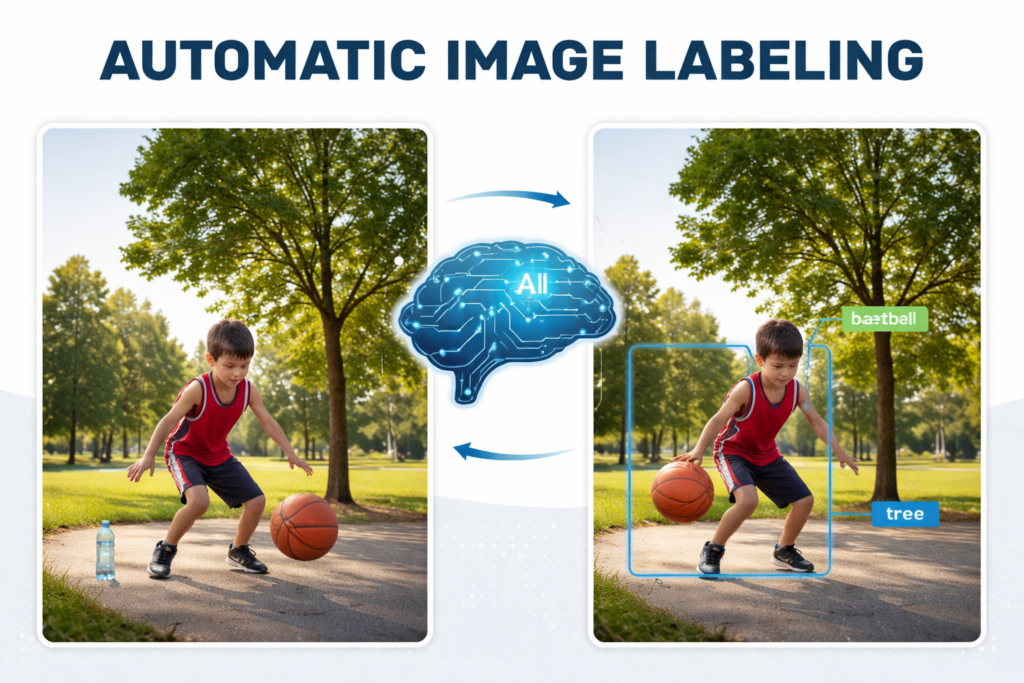
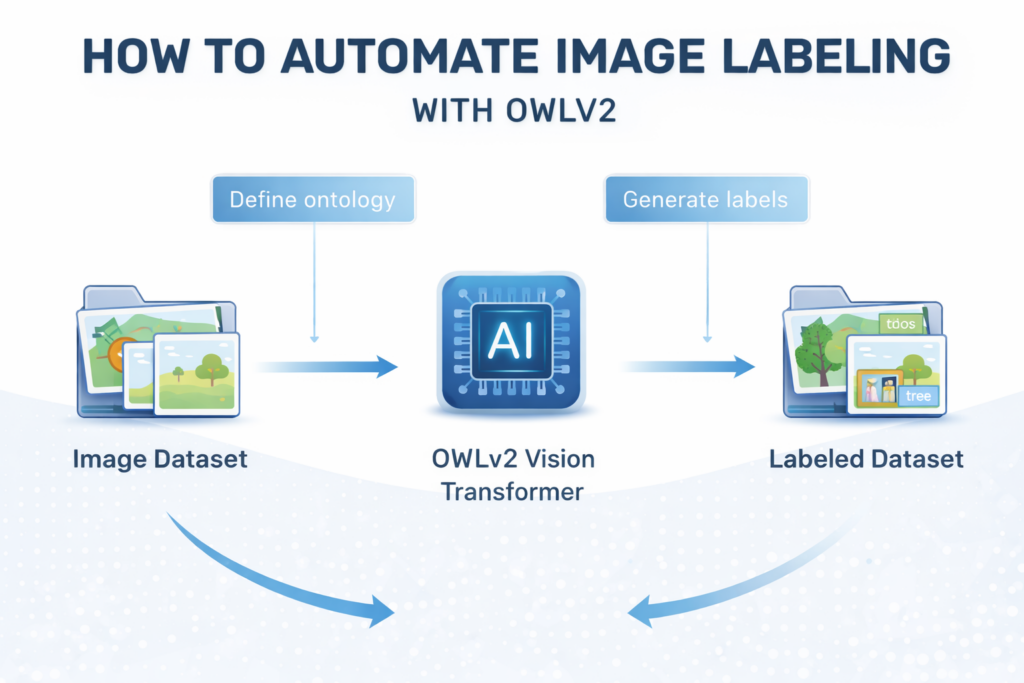
Masterclass: Automate Image Labeling with OWL-v2 and Zero-Shot Detection / VIT, Object Detection, Pytorch Contents hide 1 Understanding OWL-v2: The Power of Open-World Localization Transformers 2 Let’s Talk About Automatic Image Labeling in a Simple Way 3 Introduction — Building Automatic Image Labeling Step-By-Step in Python 4 Let’s Walk Through the Code Together and See What It Really Does 4.1 🚀 Recommended for You: 4.2 Master Computer Vision 5 A Practical Guide to Automatic Image Labeling with OWLv2 6 Setting Up Your Python Environment for OWL-v2 and Transformers 7 Setting Up OWLv2 and Labeling a Single Image Automatically 8 Scaling Up — Automatic Image Labeling for an Entire Folder 9 Visualizing YOLO Annotations Created Automatically 9.1 Reviewing Your Automated Dataset 10 FAQ — Automatic Image Labeling & OWLv2 10.1 What is automatic image labeling? 10.2 What role does OWLv2 play here? 10.3 Do I need a GPU? 10.4 Can I customize the labels? 10.5 What format does the dataset export? 10.6 Is this tutorial beginner friendly? 10.7 Can I use my own images? 10.8 Is automatic image labeling accurate? 10.9 Can I retrain models on labeled data? 10.10 Does this save time? 11 Scaling Your AI Workflow: Next Steps in Automated Data Annotation 11.1 Connect : Last Updated on 22/04/2026 by Eran Feit Understanding OWL-v2: The Power of Open-World Localization Transformers Manual data annotation is the primary bottleneck in modern computer vision. Spending hundreds of hours drawing bounding boxes manually is not only expensive but prevents rapid model iteration. In this guide, you will learn how to Automate Image Labeling with OWL-v2 and Zero-Shot Object Detection. By leveraging Google’s Open-World Localization (OWL) transformer, we can detect virtually any object using simple natural language prompts without any task-specific training. We will walk through the technical logic of using Python and Hugging Face to transform raw image directories into labeled datasets instantly. With automatic image labeling, you can dramatically reduce the effort required to prepare data for object detection and classification tasks. The workflow becomes faster, more scalable, and far more efficient than traditional manual labeling. This is especially valuable when working with large datasets or when frequent updates are needed. Another major benefit is consistency. Human-labeled datasets often include bias, errors, or variations in how different annotators tag the same object. Automatic image labeling applies the same logic uniformly across every image, improving dataset reliability. Today, powerful AI models like OWLv2 make this process accessible to anyone working in Python and computer vision. By combining automatic image labeling with tools like Autodistill, you can create clean, structured datasets from raw images — without writing complex detection pipelines or manually tagging every file. More AI Tutorials You May Like How to Run BLIP-2 Image Analysis with Python This post explains how to use BLIP-2 for image analysis, which pairs nicely with automatic image labeling workflows. LLaVA Image Recognition in Python Learn how multimodal models recognize images — great background when working with OWLv2. Vision Transformer Image Classification Tutorial This tutorial will help you better understand how transformer-based vision models work. Let’s Talk About Automatic Image Labeling in a Simple Way Automatic image labeling is all about teaching AI systems to look at an image and automatically identify what objects appear inside it. Instead of a human reviewing every file and typing labels, the model predicts the correct class names and even draws bounding boxes. This makes dataset preparation much easier, especially for object detection workflows. The main target of automatic image labeling is to reduce manual workload while increasing accuracy and speed. Data scientists, developers, and AI enthusiasts can replace repetitive annotation tasks with automated pipelines. This is incredibly powerful when working with thousands of images or building new datasets from scratch. At a high level, automatic labeling uses pre-trained AI models that already understand many object categories. When you feed images into the model, it analyzes patterns, shapes, colors, and context, then assigns the correct labels. In some workflows, you can also define your own ontology, meaning you tell the model what types of objects you care about, and it maps its predictions to your desired class names. Using a Vision Transformer model like OWLv2 makes this process even smarter. These models learn relationships between image regions and natural-language labels, which means they can detect objects using text prompts rather than fixed training datasets. This opens the door to flexible, open-vocabulary detection — a major breakthrough compared to traditional models limited to fixed label sets. Automating the labeling process is just one part of the pipeline; explore more Object Detection with Python techniques to see how different architectures handle various data types. Subscription FormSend me tutorials Automatic image labeling Introduction — Building Automatic Image Labeling Step-By-Step in Python In this tutorial, we take the idea of automatic image labeling and turn it into a fully working Python pipeline. Instead of just talking about theory, the code shows exactly how to install the right libraries, configure OWLv2 with Autodistill, and run object detection on real images. Each block of the tutorial builds on the previous one so you can follow along smoothly, even if you’re not an expert in Vision Transformers yet. The tutorial begins with environment setup so everything runs cleanly and reproducibly. From there, we move into defining an ontology — the mapping between natural-language prompts and the class names you want in your dataset. This is a crucial step because it allows OWLv2 to understand what you care about detecting in each image. Next, the code demonstrates how to run automatic image labeling on a single image and visualize the predictions. You’ll see bounding boxes, class names, and confidence scores drawn directly on the image. After that, the workflow scales up: the same model automatically labels an entire folder of images and exports YOLO-formatted annotation files. Finally, the tutorial shows how to load those annotations back into Python and display the labeled results. This closes the loop — from raw images, through automated detection, to structured labeled data you can use for computer vision projects. If you want a complete YOLOv8 YouTube object detection workflow (auto-labeling, training, and live inference), follow this step-by-step guide: https://eranfeit.net/how-to-use-yolov8-for-object-detection-on-youtube-videos/ Let’s Walk Through the Code Together and See What It Really Does The goal of the code is simple: use OWLv2 to automate the entire image labeling process, from raw images to annotated datasets. Instead of manually labeling every object in every image, the model analyzes your images and generates labels and bounding boxes automatically. This turns hours of manual work into a repeatable, automated workflow that runs in minutes. The first part of the code focuses on installation and setup. You create a clean Conda environment, install PyTorch with CUDA support, and add all required libraries such as Transformers, Autodistill, and OWLv2. This ensures the pipeline runs smoothly and avoids version conflicts that can interrupt deep-learning projects. Then the tutorial shifts into defining an ontology — a lightweight but powerful mapping that tells the model which objects you want to detect and what names to assign them. This makes the workflow flexible, because you’re no longer locked into fixed categories. You decide what matters, and OWLv2 adapts to your prompts. From there, the code runs predictions on a single image, extracts bounding boxes, confidence scores, and class IDs, and overlays that information visually. This is the moment where automatic image labeling becomes real — the AI detects your objects without any human annotation. The final step scales everything up. The code labels an entire folder of images automatically and saves YOLO-format annotation files. Another script then reloads these annotations, draws them on sample images, and displays the results. At a high level, the code gives you a complete, end-to-end labeling pipeline that is efficient, repeatable, and ready to plug into your training workflow. 🚀 Recommended for You: Ready to take your object detection skills to the next level? Learn how to handle live data with our latest guide: YouTube Stream Frame Extraction and Real-Time YOLOv8 Detection . Eliminate stream lag with advanced buffer management. Connect YOLOv8 directly to any YouTube URL. Optimized for low-latency real-time inference. Link to the video tutorial : https://youtu.be/rpF9BKwDtBM Link for the code : https://eranfeit.lemonsqueezy.com/checkout/buy/95d1fa56-3d74-411c-8cd3-a2a3cf25d60e or here https://ko-fi.com/s/aaefd3dccf Link to the post for Medium users : https://medium.com/vision-transformers-tutorials/how-to-automate-image-labeling-with-owlv2-db238055b00b TRY IT NOW Master Computer Vision Follow my latest tutorials and AI insights on my Personal Blog. Beginner Complete CV Bootcamp Foundation using PyTorch & TensorFlow. Get Started → Interactive Deep Learning with PyTorch Hands-on practice in an interactive environment. Start Learning → Advanced Modern CV: GPT & OpenCV4 Vision GPT and production-ready models. Go Advanced → A Practical Guide to Automatic Image Labeling with OWLv2 Automating image labeling process In this tutorial we’ll walk together through a complete, working pipeline for automatic image labeling using OWLv2 and Autodistill in Python. Instead of manually drawing bounding boxes and assigning class names, you’ll see how AI can detect objects and generate clean YOLO-style labels for you. This doesn’t just save time — it also helps create consistent, reusable datasets for your future computer vision projects. The tutorial begins with a simple environment setup so you can follow along safely in your own Conda environment. Then we move into OWLv2 itself, where you define the ontology — the mapping from natural-language prompts to the actual labels saved into your dataset. The great thing here is flexibility: you choose what matters, and the AI does the hard work. We’ll start small by labeling a single image and visualizing the detections. Then we scale the same approach to an entire folder so multiple images are labeled automatically. Finally, you’ll load those generated YOLO annotation files and display the resulting bounding boxes back on the images. Everything is explained step-by-step so you can understand what the code is doing and why, keeping the whole flow natural, educational, and accessible — while still being powerful enough for real-world work with automatic image labeling. Setting Up Your Python Environment for OWL-v2 and Transformers Before we can start working with automatic image labeling, we first need a clean and reliable Python environment. This ensures that all libraries work together smoothly without version conflicts getting in the way. By creating a dedicated Conda environment, installing PyTorch with CUDA support, and adding the right supporting tools like Transformers and Autodistill, we prepare the perfect foundation for our OWLv2 workflow. Think of this step as building the workspace where your AI model will live. Once everything here is set up correctly, the rest of the pipeline becomes much easier — from running inference to exporting labels. This also makes your workflow repeatable, so you can recreate the same setup anytime or even across different machines. ### Create a new Conda environment named AutoLabel2 with Python 3.11 conda create -n AutoLabel2 python=3.11 ### Activate the new environment so we can install packages in it conda activate AutoLabel2 ### Check the CUDA version available on your machine nvcc --version ### Install PyTorch 2.5.0 and related packages with CUDA 12.4 support conda install pytorch==2.5.0 torchvision==0.20.0 torchaudio==2.5.0 pytorch-cuda=12.4 -c pytorch -c nvidia ### Install the SymPy library for symbolic mathematics support pip install sympy==1.13.1 ### Install Hugging Face Transformers for model loading and inference pip install transformers==4.46.2 ### Install Transformers with PyTorch support enabled pip install transformers[torch]==4.46.2 ### Install Autodistill core library pip install autodistill==0.1.29 ### Install OWLv2 support for Autodistill pip install autodistill-owlv2==0.1.1 ### Install scikit-learn for data utilities pip install scikit-learn==1.6.0 ### Install Roboflow client library pip install roboflow==1.1.50 ### Create a new Conda environment named AutoLabel2 with Python 3.11 conda create -n AutoLabel2 python=3.11 ### Activate the new environment so we can install packages in it conda activate AutoLabel2 ### Check the CUDA version available on your machine nvcc --version ### Install PyTorch 2.5.0 and related packages with CUDA 12.4 support conda install pytorch==2.5.0 torchvision==0.20.0 torchaudio==2.5.0 pytorch-cuda=12.4 -c pytorch -c nvidia ### Install the SymPy library for symbolic mathematics support pip install sympy==1.13.1 ### Install Hugging Face Transformers for model loading and inference pip install transformers==4.46.2 ### Install Transformers with PyTorch support enabled pip install transformers[torch]==4.46.2 ### Install Autodistill core library pip install autodistill==0.1.29 ### Install OWLv2 support for Autodistill pip install autodistill-owlv2==0.1.1 ### Install scikit-learn for data utilities pip install scikit-learn==1.6.0 ### Install Roboflow client library pip install roboflow==1.1.50 This section ensures everything is properly installed so that OWLv2 can process images and perform automatic image labeling without dependency issues. Setting Up OWLv2 and Labeling a Single Image Automatically Now that our environment is ready, we can load OWLv2 and configure it for automatic image labeling. In this section, we define an ontology — a mapping between the natural language prompts and the final class names we want in our dataset. Then we feed an image into the model, run inference, and extract bounding box coordinates, class IDs, and confidence scores. The best part is seeing the results visually. We draw the predicted boxes and labels directly onto the image so you can clearly see what the AI detected. This gives you an instant, intuitive understanding of how OWLv2 interprets the image — and acts as the foundation for scaling up to full-dataset labeling later on. ### Import the PyTorch library import torch ### Import CaptionOntology class from autodistill detection module from autodistill.detection import CaptionOntology ### Import the OWLv2 model wrapper for autodistill from autodistill_owlv2 import OWLv2 ### Import OpenCV for handling image processing tasks import cv2 ### Import NumPy for numerical operations import numpy as np ### Import Matplotlib for displaying the results import matplotlib.pyplot as plt ### Initialize the OWLv2 model and define ontology mapping prompt to label base_model = OWLv2( ontology=CaptionOntology( { "a basketball": "ball", "a tree": "tree" } ) ) ### Set the path to the input image image_path = "Visual-Language-Models-Tutorials/Auto Label Custom Images using Transformer Owlv2/Basketball.jpg" ### Load the image using OpenCV original_image = cv2.imread(image_path) ### Convert the image color space from BGR to RGB image = cv2.cvtColor(original_image, cv2.COLOR_BGR2RGB) # convert BGR to RGB ### Run inference using the OWLv2 base model results = base_model.predict(image_path) ### Print the raw detection results print(results) ### Create a dictionary of detection outputs detections = { "xyxy": results.xyxy, # Bounding box coordinates "confidence": results.confidence, # Confidence score "class_id" : results.class_id, # Class ID } ### Define mapping from numeric class ids to readable names class_mapping = { 0: "basketball", 1: "tree" } ### Copy original image for annotation annotated_image = image.copy() ### Loop through detections and draw bounding boxes and labels for box , confidence , class_id in zip(detections["xyxy"], detections["confidence"], detections["class_id"]): x_min , y_min , x_max , y_max = map(int, box) label = f"{class_mapping[class_id]}: {confidence:.2f}" color = (255,0,0) if class_id == 0 else (0,255,0) # Blue for basket ball , Green for tree ### Draw bounding rectangle around object cv2.rectangle(annotated_image, (x_min, y_min), (x_max, y_max), color, thickness=6) ### Draw the label text near the bounding box cv2.putText(annotated_image, label, (x_min, y_min-10), cv2.FONT_HERSHEY_SIMPLEX, 1, color, 2) ### Set up figure size for displaying images plt.figure(figsize=(20,10)) ### Show original image in first subplot plt.subplot(1,2,1) plt.imshow(image) plt.title("Original Image") plt.axis("off") ### Show annotated image in second subplot plt.subplot(1,2,2) plt.imshow(annotated_image) plt.title("Annotated Image") plt.axis("off") ### Display the output images plt.show() ### Import the PyTorch library import torch ### Import CaptionOntology class from autodistill detection module from autodistill.detection import CaptionOntology ### Import the OWLv2 model wrapper for autodistill from autodistill_owlv2 import OWLv2 ### Import OpenCV for handling image processing tasks import cv2 ### Import NumPy for numerical operations import numpy as np ### Import Matplotlib for displaying the results import matplotlib.pyplot as plt ### Initialize the OWLv2 model and define ontology mapping prompt to label base_model = OWLv2( ontology=CaptionOntology( { "a basketball": "ball", "a tree": "tree" } ) ) ### Set the path to the input image image_path = "Visual-Language-Models-Tutorials/Auto Label Custom Images using Transformer Owlv2/Basketball.jpg" ### Load the image using OpenCV original_image = cv2.imread(image_path) ### Convert the image color space from BGR to RGB image = cv2.cvtColor(original_image, cv2.COLOR_BGR2RGB) # convert BGR to RGB ### Run inference using the OWLv2 base model results = base_model.predict(image_path) ### Print the raw detection results print(results) ### Create a dictionary of detection outputs detections = { "xyxy": results.xyxy, # Bounding box coordinates "confidence": results.confidence, # Confidence score "class_id" : results.class_id, # Class ID } ### Define mapping from numeric class ids to readable names class_mapping = { 0: "basketball", 1: "tree" } ### Copy original image for annotation annotated_image = image.copy() ### Loop through detections and draw bounding boxes and labels for box , confidence , class_id in zip(detections["xyxy"], detections["confidence"], detections["class_id"]): x_min , y_min , x_max , y_max = map(int, box) label = f"{class_mapping[class_id]}: {confidence:.2f}" color = (255,0,0) if class_id == 0 else (0,255,0) # Blue for basket ball , Green for tree ### Draw bounding rectangle around object cv2.rectangle(annotated_image, (x_min, y_min), (x_max, y_max), color, thickness=6) ### Draw the label text near the bounding box cv2.putText(annotated_image, label, (x_min, y_min-10), cv2.FONT_HERSHEY_SIMPLEX, 1, color, 2) ### Set up figure size for displaying images plt.figure(figsize=(20,10)) ### Show original image in first subplot plt.subplot(1,2,1) plt.imshow(image) plt.title("Original Image") plt.axis("off") ### Show annotated image in second subplot plt.subplot(1,2,2) plt.imshow(annotated_image) plt.title("Annotated Image") plt.axis("off") ### Display the output images plt.show() The core strength of OWL-v2 lies in its “dual-encoder” architecture. It utilizes a vision transformer (ViT) to process image patches and a text transformer to encode your labeling prompts. Unlike traditional models like YOLO, which are restricted to predefined classes (e.g., “dog,” “cat”), OWL-v2 computes the similarity between image embeddings and text embeddings in a shared latent space. This allows the model to identify “new” objects it has never seen in a labeled dataset, making it the perfect tool for niche industrial or medical labeling tasks. Object Detection & Computer Vision Guides How to Use Vision Transformer for Image Classification A great foundation if you’re new to transformer-based vision models. BLIP-2 Image Analysis in Python Understand visual-language models that relate closely to open-vocabulary detection. Scaling Up — Automatic Image Labeling for an Entire Folder Once automatic image labeling works for a single image, the next logical step is applying it across a whole directory. This is where the process becomes truly scalable and practical. Instead of labeling images one at a time, the same ontology and model can now process dozens — or even thousands — of images automatically. This section shows how easy it is to point OWLv2 and Autodistill at a folder and let the AI handle the rest. Each image gets evaluated, predictions are generated, and YOLO-formatted annotation files are saved neatly inside the output folder. This transforming raw image collections into fully structured datasets with minimal effort. ### Import the PyTorch library import torch ### Import CaptionOntology for mapping prompts to labels from autodistill.detection import CaptionOntology ### Import OWLv2 model for autodistill from autodistill_owlv2 import OWLv2 ### Import OpenCV import cv2 ### Import NumPy import numpy as np ### Import Matplotlib for plotting import matplotlib.pyplot as plt ### Initialize OWLv2 model with ontology mapping base_model = OWLv2( ontology=CaptionOntology( { "a basketball": "ball", "a tree": "tree" } ) ) ### Define mapping numeric class ids to readable labels class_mapping = { 0: "basketball", 1: "tree" } ### Define input folder containing raw images input_path = "Visual-Language-Models-Tutorials/Auto Label Custom Images using Transformer Owlv2/sample-images" ### Define output folder where labeled results will be stored output_path = "Visual-Language-Models-Tutorials/Auto Label Custom Images using Transformer Owlv2/output" ### Run automatic labeling on all images in the folder base_model.label(input_folder=input_path, output_folder=output_path, extension=".jpg") ### Import the PyTorch library import torch ### Import CaptionOntology for mapping prompts to labels from autodistill.detection import CaptionOntology ### Import OWLv2 model for autodistill from autodistill_owlv2 import OWLv2 ### Import OpenCV import cv2 ### Import NumPy import numpy as np ### Import Matplotlib for plotting import matplotlib.pyplot as plt ### Initialize OWLv2 model with ontology mapping base_model = OWLv2( ontology=CaptionOntology( { "a basketball": "ball", "a tree": "tree" } ) ) ### Define mapping numeric class ids to readable labels class_mapping = { 0: "basketball", 1: "tree" } ### Define input folder containing raw images input_path = "Visual-Language-Models-Tutorials/Auto Label Custom Images using Transformer Owlv2/sample-images" ### Define output folder where labeled results will be stored output_path = "Visual-Language-Models-Tutorials/Auto Label Custom Images using Transformer Owlv2/output" ### Run automatic labeling on all images in the folder base_model.label(input_folder=input_path, output_folder=output_path, extension=".jpg") After running this, your dataset now contains images and YOLO annotation text files — automatically generated. While OWL-v2 is excellent for zero-shot tasks, for real-time edge deployment you might want to look at How to Train YOLOv8 on a Custom Dataset to achieve higher FPS. Visualizing YOLO Annotations Created Automatically After automatic labeling completes, YOLO annotation files are created — but it’s always a good idea to visually verify the results. This section reads the saved label files, converts the normalized YOLO coordinates into pixel values, and draws the predicted bounding boxes back onto the corresponding images. By randomly sampling a few images and plotting them, you get a quick quality check of your dataset. This step helps confirm that bounding boxes align properly and that the class IDs match expectations. It’s also a great confidence-building moment seeing your automatically labeled images displayed clearly. ### Import OS for directory handling import os ### Import random module for random selection of sample images import random ### Import OpenCV for image processing import cv2 ### Import Matplotlib for display import matplotlib.pyplot as plt ### Define image directory path image_dir = "Visual-Language-Models-Tutorials/Auto Label Custom Images using Transformer Owlv2/output/train/images" ### Define annotation directory path annotation_dir = "Visual-Language-Models-Tutorials/Auto Label Custom Images using Transformer Owlv2/output/train/labels" ### Build a list of all images in directory image_files = [f for f in os.listdir(image_dir) if f.endswith(('.jpg', '.png'))] ### Randomly select 4 sample images selected_images = random.sample(image_files, 4) ### Define helper function to read YOLO formatted bounding boxes def read_yolo_annotations(annot_path, img_width, img_height): boxes = [] if os.path.exists(annot_path): with open(annot_path, "r") as file: for line in file: values = line.strip().split() class_id = int(values[0]) # First value is class ID x_center, y_center, width, height = map(float, values[1:]) ### Convert normalized YOLO format to pixel coordinates x1 = int((x_center - width / 2) * img_width) y1 = int((y_center - height / 2) * img_height) x2 = int((x_center + width / 2) * img_width) y2 = int((y_center + height / 2) * img_height) boxes.append((class_id, x1, y1, x2, y2)) return boxes ### Create figure for displaying results fig, axes = plt.subplots(2, 2, figsize=(10, 10)) ### Loop through selected images for ax, img_name in zip(axes.flatten(), selected_images): img_path = os.path.join(image_dir, img_name) annot_path = os.path.join(annotation_dir, img_name.replace('.jpg', '.txt').replace('.png', '.txt')) ### Load the image img = cv2.imread(img_path) img = cv2.cvtColor(img, cv2.COLOR_BGR2RGB) img_height, img_width, _ = img.shape ### Read and parse annotations boxes = read_yolo_annotations(annot_path, img_width, img_height) ### Draw bounding boxes on image for class_id, x1, y1, x2, y2 in boxes: cv2.rectangle(img, (x1, y1), (x2, y2), (255, 0, 0), 5) # Blue bounding box cv2.putText(img, str(class_id), (x1, y1 - 5), cv2.FONT_HERSHEY_SIMPLEX, 0.5, (255, 0, 0), 2, cv2.LINE_AA) # Class label ### Show final annotated image ax.imshow(img) ax.set_title(f"Image: {img_name}") ax.axis("off") ### Adjust layout plt.tight_layout() ### Display the figure plt.show() ### Import OS for directory handling import os ### Import random module for random selection of sample images import random ### Import OpenCV for image processing import cv2 ### Import Matplotlib for display import matplotlib.pyplot as plt ### Define image directory path image_dir = "Visual-Language-Models-Tutorials/Auto Label Custom Images using Transformer Owlv2/output/train/images" ### Define annotation directory path annotation_dir = "Visual-Language-Models-Tutorials/Auto Label Custom Images using Transformer Owlv2/output/train/labels" ### Build a list of all images in directory image_files = [f for f in os.listdir(image_dir) if f.endswith(('.jpg', '.png'))] ### Randomly select 4 sample images selected_images = random.sample(image_files, 4) ### Define helper function to read YOLO formatted bounding boxes def read_yolo_annotations(annot_path, img_width, img_height): boxes = [] if os.path.exists(annot_path): with open(annot_path, "r") as file: for line in file: values = line.strip().split() class_id = int(values[0]) # First value is class ID x_center, y_center, width, height = map(float, values[1:]) ### Convert normalized YOLO format to pixel coordinates x1 = int((x_center - width / 2) * img_width) y1 = int((y_center - height / 2) * img_height) x2 = int((x_center + width / 2) * img_width) y2 = int((y_center + height / 2) * img_height) boxes.append((class_id, x1, y1, x2, y2)) return boxes ### Create figure for displaying results fig, axes = plt.subplots(2, 2, figsize=(10, 10)) ### Loop through selected images for ax, img_name in zip(axes.flatten(), selected_images): img_path = os.path.join(image_dir, img_name) annot_path = os.path.join(annotation_dir, img_name.replace('.jpg', '.txt').replace('.png', '.txt')) ### Load the image img = cv2.imread(img_path) img = cv2.cvtColor(img, cv2.COLOR_BGR2RGB) img_height, img_width, _ = img.shape ### Read and parse annotations boxes = read_yolo_annotations(annot_path, img_width, img_height) ### Draw bounding boxes on image for class_id, x1, y1, x2, y2 in boxes: cv2.rectangle(img, (x1, y1), (x2, y2), (255, 0, 0), 5) # Blue bounding box cv2.putText(img, str(class_id), (x1, y1 - 5), cv2.FONT_HERSHEY_SIMPLEX, 0.5, (255, 0, 0), 2, cv2.LINE_AA) # Class label ### Show final annotated image ax.imshow(img) ax.set_title(f"Image: {img_name}") ax.axis("off") ### Adjust layout plt.tight_layout() ### Display the figure plt.show() When automating labels, setting the right score_threshold is a balancing act between precision and recall. For high-speed automated labeling, I recommend starting with a low threshold (e.g., 0.1) to see all potential detections, then using a Non-Maximum Suppression (NMS) layer to filter overlaps. If you are generating a “Silver Standard” dataset for training a smaller model, prioritize a higher threshold (0.4+) to ensure your labels are highly accurate and require minimal human verification. Reviewing Your Automated Dataset At this point, your dataset has evolved from raw, unlabeled images into a structured machine-learning resource. Every image now has a matching YOLO label file generated automatically through OWLv2 and Autodistill. This is the exact type of dataset format used in many real-world computer vision training pipelines. The key advantage here is repeatability. You can now run the same pipeline on new folders, different domains, or expanding datasets — without restarting from scratch or manually labeling each image. It’s a clean, scalable workflow designed for both experimentation and production-level tasks. More Tutorials for Your AI Toolkit YOLOv5 Image Classification Tutorial Once your images are labeled, this post shows how to use YOLOv5 with your dataset. Vision Transformer with PyTorch Learn how to build and train transformer-based image classifiers in PyTorch. FAQ — Automatic Image Labeling & OWLv2 What is automatic image labeling? It’s the use of AI to detect and label objects in images automatically. What role does OWLv2 play here? OWLv2 performs open-vocabulary object detection using your prompts. Do I need a GPU? A GPU helps speed things up but CPU still works at a slower pace. Can I customize the labels? Yes — edit the ontology mapping inside the code. What format does the dataset export? The labels are exported in YOLO format for training workflows. Is this tutorial beginner friendly? Yes, it is written in a simple, educational, and friendly way. Can I use my own images? Yes — just update the input folder path in the code. Is automatic image labeling accurate? Accuracy is strong but results should still be reviewed if quality matters. Can I retrain models on labeled data? Yes — the YOLO format is ideal for training detection models. Does this save time? Yes, it replaces hours of manual annotation work with AI automation. Scaling Your AI Workflow: Next Steps in Automated Data Annotation This tutorial brought you full-circle through the world of automatic image labeling — from installing tools, defining an ontology, labeling images, and finally validating the results visually. Each section built on the previous one so you not only ran the code, but also understood the reasoning behind every step. With this workflow in place, you can confidently create labeled datasets faster, more consistently, and with far less manual effort. Whether you continue into model training or dataset expansion, you now have a powerful AI-driven pipeline ready for real projects. Automatic image labeling unlocks a completely new level of productivity for anyone working with computer vision. Instead of spending hours manually tagging images, you can now rely on powerful models like OWLv2 to detect objects and generate high-quality YOLO labels automatically. This workflow is flexible, repeatable, and scalable — meaning you can apply it to small experiments or full production datasets. In this tutorial, you built a complete end-to-end pipeline. You created a clean environment, installed the right tools, defined an ontology, labeled a single image, scaled to a full folder, and finally visualized the output. Each stage of the process showed how OWLv2 and Autodistill work together to make automatic image labeling simple and intuitive. Whether you’re a beginner exploring AI for the first time or an experienced developer building advanced applications, this approach can save time, improve dataset consistency, and unlock entirely new workflows. And the best part — once it’s set up, you can reuse it again and again across your projects. Feel free to experiment, change the classes, try different datasets, and keep exploring how automatic image labeling can boost your AI journey. To turn this script into a production-grade labeling tool, you should consider exporting the results into standardized formats like COCO JSON or YOLO .txt files. This involves normalizing the bounding box coordinates (dividing pixel values by image width/height) to ensure compatibility with training frameworks. Integrating this OWL-v2 script as a “pre-labeling” step can reduce manual annotation time by up to 80% by giving human annotators a “starting point” rather than a blank canvas. If you are new to manipulating image arrays in Python, check out my guide on Getting Started with OpenCV to understand how images are processed before they reach the transformer. Connect : ☕ Buy me a coffee — https://ko-fi.com/eranfeit 🖥️ Email : feitgemel@gmail.com 🌐 https://eranfeit.net 🤝 Fiverr : https://www.fiverr.com/s/mB3Pbb Enjoy, Eran






 Skip to content