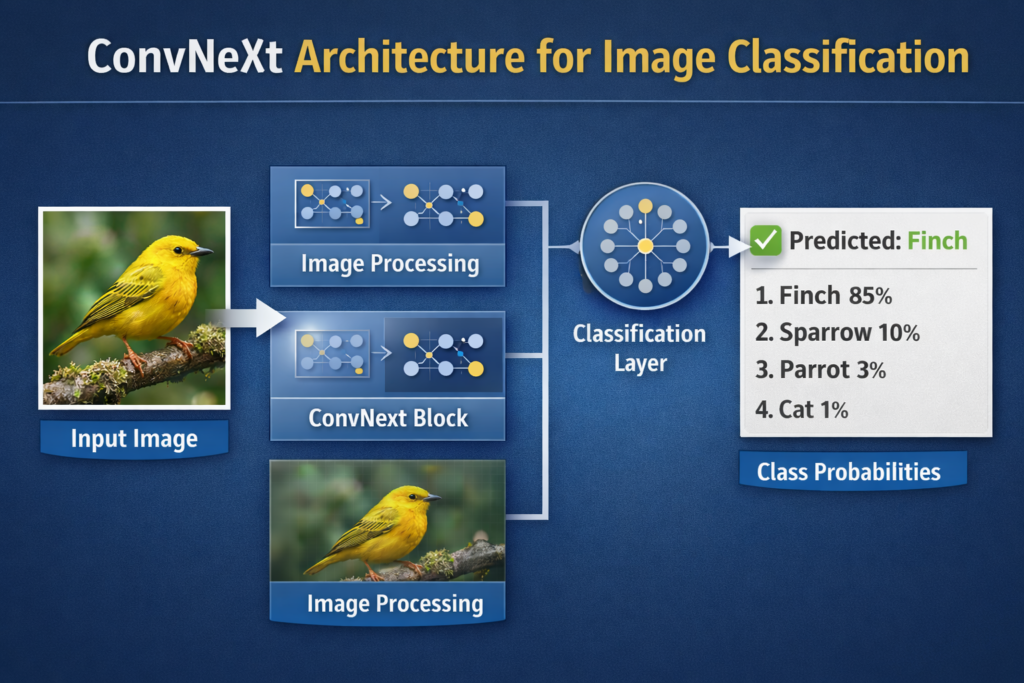
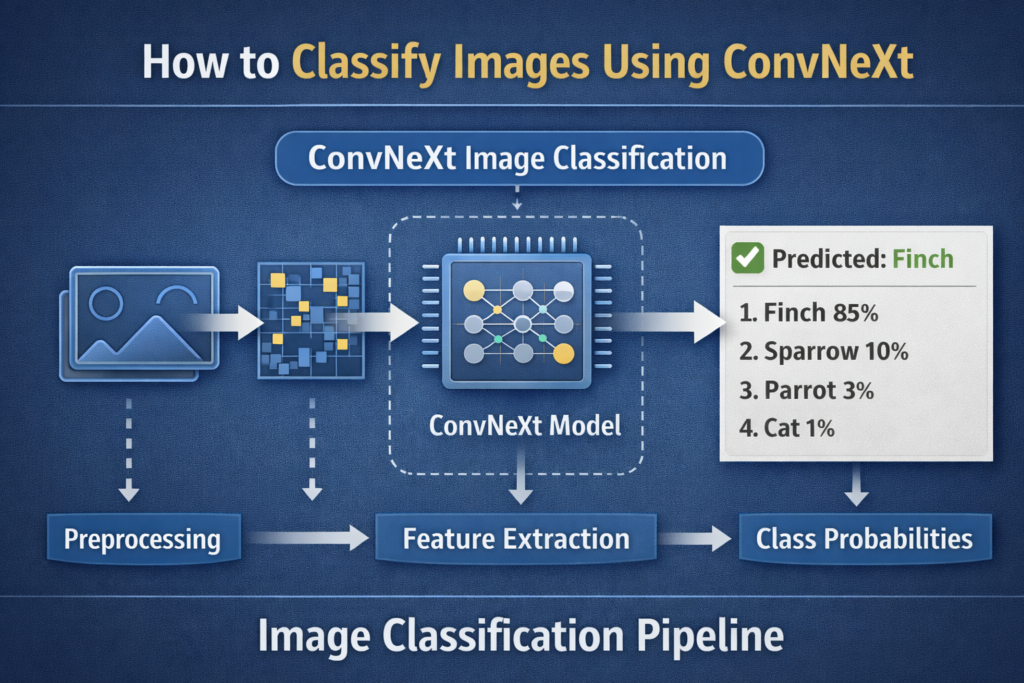
How to classify images using ConvNext | Easy tutorial / VIT, Image Classification, Pytorch Contents hide 1 Introduction 2 Understanding ConvNeXt Image Classification 3 About the tutorial : 4 Let’s Talk Through the Code and What It’s Trying to Achieve 4.1 Master Computer Vision 5 Setting Up the Environment Before Running ConvNeXt 5.1 Short summary 6 ConvNeXt image classification pipeline 7 Preparing the Image for ConvNeXt 8 Running Inference and Displaying the Prediction 9 FAQ — ConvNeXt Image Classification 9.1 What is ConvNeXt used for? 9.2 Do I need to train ConvNeXt from scratch? 9.3 Why is image preprocessing required? 9.4 Can ConvNeXt run without a GPU? 9.5 Which library includes ConvNeXt models? 9.6 What dataset is ConvNeXt trained on? 9.7 Can I classify multiple images at once? 9.8 What does argmax mean in predictions? 9.9 Can ConvNeXt be fine tuned? 9.10 Do I need experience to use ConvNeXt? 10 Conclusion 10.1 Connect : Last Updated on 22/04/2026 by Eran Feit Introduction ConvNeXt image classification is a powerful approach for teaching computers to recognize what appears inside images by using a modern deep-learning architecture. Instead of relying on hand-crafted rules, the model learns directly from large datasets and discovers the visual patterns that define objects, scenes, or categories. This makes ConvNeXt a flexible and accurate foundation for real-world applications such as medical imaging, retail automation, and visual search. ConvNeXt belongs to a family of neural networks inspired by advances in vision transformers, yet it keeps the efficiency and structure of classic convolutional networks. This hybrid design allows it to perform exceptionally well on large-scale benchmarks like ImageNet while remaining efficient enough for practical deployment. Developers can load pretrained ConvNeXt models and fine-tune them for their own projects, dramatically reducing training time. When using ConvNeXt image classification, the workflow typically involves loading a pretrained model, preparing images with the right transformations, and feeding them into the network for prediction. The model outputs a probability distribution over possible classes, which allows us to determine the most likely label. This forms the backbone of many AI-powered image solutions. ConvNeXt image classification continues to grow in popularity because it strikes a strong balance between accuracy, speed, and ease of use. Whether you are working in research, industry, or learning computer vision for the first time, ConvNeXt provides a modern and reliable architecture for tackling image classification problems. More Python Image Classification Tutorials How to Use Vision Transformer for Image Classification This post walks through using Vision Transformers for image classification, making it a great companion to ConvNeXt. Vision Transformer Image Classification PyTorch Tutorial A step-by-step tutorial showing how to classify images using ViT in PyTorch. Understanding ConvNeXt Image Classification ConvNeXt image classification focuses on processing digital images and assigning them meaningful labels such as “cat,” “car,” or “sunflower.” This process relies on a deep neural network trained on millions of example images, enabling it to recognize patterns such as textures, shapes, and colors. Once trained, the network can generalize and classify new images it has never seen before. ConvNeXt takes this idea further by modernizing the convolutional network design. It simplifies and refines the architecture while incorporating ideas from transformer-based models. The result is a clean, efficient network that performs extremely well on visual recognition tasks. This design also makes it easier to integrate into popular deep-learning stacks like PyTorch and timm. At a high level, an image flows through several processing stages inside the model. Each stage extracts deeper and more abstract features, progressing from simple edges toward complex object structures. These features are then aggregated and passed through a classification layer that predicts the final label. With pretrained weights, this process works out of the box and can also be fine-tuned for custom datasets. The ultimate target of ConvNeXt image classification is to enable accurate, scalable, and automated visual understanding. From classifying products in e-commerce to supporting advanced analytics in healthcare and environmental monitoring, ConvNeXt provides a modern toolset for anyone building intelligent image-based applications. Subscription FormSend me tutorials ConvNeXt image classification process About the tutorial : In this tutorial, we walk through a complete, practical workflow for ConvNeXt image classification using Python, PyTorch, and the timm library. Instead of staying at the theory level, the goal here is to show you exactly how the code works step-by-step, from loading the model to making real predictions. You’ll see how a pretrained ConvNeXt model can recognize the content of an image and return the most likely label from the ImageNet dataset. The code begins by setting up the right Python environment and installing the required libraries. This ensures everything runs smoothly and you have full GPU support where available. Once the environment is ready, the script loads a ConvNeXt model that has already been trained on millions of images, so you don’t need to train anything yourself. Then the tutorial focuses on preparing images correctly before sending them into the model. This includes resizing, normalizing, and converting them into tensors. These preprocessing steps are essential because the model expects input in a very specific format. Once the image is processed, the code performs inference and returns the predicted class index. Finally, the script maps that numeric prediction back to a human-readable label and displays the image along with its predicted category. The flow is clear, logical, and easy to follow, making it a great starting point for anyone who wants to understand how image classification pipelines work in practice. Explore More Computer Vision Guides How to Run BLIP-2 Image Analysis with Python This guide shows how to use BLIP-2 for image understanding and captioning using Python. LLaVA Image Recognition in Python A practical tutorial explaining how to use LLaVA for multimodal image recognition. Let’s Talk Through the Code and What It’s Trying to Achieve The main target of this code is simple: take an image and classify it automatically using a pretrained ConvNeXt model. The reason ConvNeXt is used here is because it’s one of the strongest convolutional-based models available today, offering excellent performance while remaining efficient and straightforward to deploy. By relying on a pretrained model, the script allows you to benefit from powerful ImageNet knowledge without spending time or compute on training. The first part of the script focuses on loading the ConvNeXt model from the timm library. This automatically downloads the pretrained weights and prepares the model in evaluation mode. Running in evaluation mode ensures that the model behaves consistently and does not update any parameters while processing your images. This is the typical setup for inference-only workflows. Next, the code defines a transformation pipeline for input images. It resizes the image, applies a center crop, converts it to a tensor, and normalizes it using the same mean and standard deviation values used during model training. This alignment is critical because even a well-trained model will perform poorly if the input format does not match what it was trained on. The processed image is then wrapped into a batch tensor and passed through the model to generate raw output predictions. The code extracts the index of the most likely class, retrieves the corresponding ImageNet label, and prints it. To make things more intuitive, the image is displayed with the predicted label shown as a title. Altogether, this code demonstrates a clean, professional pipeline for image classification using ConvNeXt, and it forms a great template for real-world AI applications. Link to the video tutorial : https://youtu.be/Udgj8tnu1M4 Link to the code : https://eranfeit.lemonsqueezy.com/checkout/buy/190ef394-f1fb-443a-89e9-6fdef02cfb9b or here : https://ko-fi.com/s/12458132a1 Link to the post for Medium users : https://medium.com/vision-transformers-tutorials/how-to-classify-images-using-convnext-easy-tutorial-48abf1336ee4 TRY IT NOW Master Computer Vision Follow my latest tutorials and AI insights on my Personal Blog. Beginner Complete CV Bootcamp Foundation using PyTorch & TensorFlow. Get Started → Interactive Deep Learning with PyTorch Hands-on practice in an interactive environment. Start Learning → Advanced Modern CV: GPT & OpenCV4 Vision GPT and production-ready models. Go Advanced → ConvNeXt image classification diagram Setting Up the Environment Before Running ConvNeXt Before running the code, it’s important to prepare a clean and stable Python environment.We do this using Conda, which helps isolate dependencies so different projects don’t interfere with each other. In this tutorial, we create a new Conda environment dedicated to ConvNeXt and install Python 3.11 inside it. This keeps the setup predictable and easier to maintain. Once the environment is active, we install PyTorch with CUDA support so the model can run efficiently on a GPU if one is available. CUDA is optional — if you don’t have an NVIDIA GPU, PyTorch will still run on CPU. After that, we install the required Python libraries such as timm, datasets, opencv-python, and matplotlib. These packages handle the pretrained models, data loading, image handling, and visualization. The script below contains everything you need to prepare your system to run the ConvNeXt image classification tutorial smoothly.Simply run each command in order inside your terminal or Anaconda Prompt. # 1. Create Conda environment conda create -n ConvNeXt python=3.11 conda activate ConvNeXt # 2. Install Pytorch # check Cuda version (optional) nvcc --version # Install Pytorch 2.5.0 with Cuda 12.4 conda install pytorch==2.5.0 torchvision==0.20.0 torchaudio==2.5.0 pytorch-cuda=12.4 -c pytorch -c nvidia # 3. Install Libraries pip install sympy==1.13.1 pip install transformers==4.46.2 pip install transformers[torch]==4.46.2 pip install datasets==3.2.0 pip install opencv-python==4.10.0.84 pip install matplotlib==3.10.0 # 1. Create Conda environment conda create -n ConvNeXt python=3.11 conda activate ConvNeXt # 2. Install Pytorch # check Cuda version (optional) nvcc --version # Install Pytorch 2.5.0 with Cuda 12.4 conda install pytorch==2.5.0 torchvision==0.20.0 torchaudio==2.5.0 pytorch-cuda=12.4 -c pytorch -c nvidia # 3. Install Libraries pip install sympy==1.13.1 pip install transformers==4.46.2 pip install transformers[torch]==4.46.2 pip install datasets==3.2.0 pip install opencv-python==4.10.0.84 pip install matplotlib==3.10.0 Short summary These commands create a fresh environment, install PyTorch with CUDA support, and add all the supporting libraries you’ll need to load ConvNeXt, process images, and visualize predictions ConvNeXt image classification pipeline In this tutorial, we’ll build a complete ConvNeXt image classification pipeline using Python, PyTorch, and the timm library.The idea is simple but powerful: load a pretrained ConvNeXt model, pass in an image, and let the model predict the most likely label. We’ll break the code into three natural parts and explain each step in a friendly, conversational way.By the end, you’ll fully understand how the model loads, how the image is prepared, and how the prediction is generated and displayed. Let’s walk through the code together. ### Import the core PyTorch deep learning framework import torch ### Import torchvision transforms for image preprocessing from torchvision import transforms as T ### Import the timm library containing pretrained models import timm ### Import PIL to open and work with image files from PIL import Image ### Print the list of all available timm model names print(timm.list_models()) ### Store the name of the ConvNeXt pretrained model we're going to use model_name = "convnext_base_384_in22ft1k" ### Create a ConvNeXt model instance with pretrained weights model = timm.create_model(model_name, pretrained=True) ### Put the model into evaluation mode for inference model.eval() # set to inference mode ### Import the core PyTorch deep learning framework import torch ### Import torchvision transforms for image preprocessing from torchvision import transforms as T ### Import the timm library containing pretrained models import timm ### Import PIL to open and work with image files from PIL import Image ### Print the list of all available timm model names print(timm.list_models()) ### Store the name of the ConvNeXt pretrained model we're going to use model_name = "convnext_base_384_in22ft1k" ### Create a ConvNeXt model instance with pretrained weights model = timm.create_model(model_name, pretrained=True) ### Put the model into evaluation mode for inference model.eval() # set to inference mode Short summary:Here we load ConvNeXt from timm, inspect available models, and prepare the network for inference so it’s ready to classify images. Preparing the Image for ConvNeXt In this section, we define the preprocessing pipeline.ConvNeXt expects a very specific input size and normalization format, so we resize, crop, convert, and normalize the image properly. We also load the image from disk and transform it into a tensor batch.This makes it compatible with PyTorch so the model can process it. ### Create a transformation pipeline for resizing, cropping, tensor conversion and normalization trans_ = T.Compose([ T.Resize(256), T.CenterCrop(224), T.ToTensor(), T.Normalize(timm.data.IMAGENET_DEFAULT_MEAN, timm.data.IMAGENET_DEFAULT_STD) ]) ### Open the image file from the local directory using PIL image = Image.open('Visual-Language-Models-Tutorials/Image Classification using ConvNeXt/Fintch.jpg') #image = Image.open('Visual-Language-Models-Tutorials/Image Classificatrion using ConvNeXt/basketball.jpg') ### Apply the preprocessing pipeline to the image transformed = trans_(image) ### Add a batch dimension to the image tensor batch_of_img = transformed.unsqueeze(0) ### Create a transformation pipeline for resizing, cropping, tensor conversion and normalization trans_ = T.Compose([ T.Resize(256), T.CenterCrop(224), T.ToTensor(), T.Normalize(timm.data.IMAGENET_DEFAULT_MEAN, timm.data.IMAGENET_DEFAULT_STD) ]) ### Open the image file from the local directory using PIL image = Image.open('Visual-Language-Models-Tutorials/Image Classification using ConvNeXt/Fintch.jpg') #image = Image.open('Visual-Language-Models-Tutorials/Image Classificatrion using ConvNeXt/basketball.jpg') ### Apply the preprocessing pipeline to the image transformed = trans_(image) ### Add a batch dimension to the image tensor batch_of_img = transformed.unsqueeze(0) Short summary:We resize, crop, normalize, and convert the image into a proper tensor batch so it matches the format ConvNeXt expects. Running Inference and Displaying the Prediction This final section performs the actual prediction, looks up the ImageNet label, and displays the image with the predicted class title.We disable gradient tracking during inference for efficiency and safety. We download the ImageNet class list, convert the index to a human-readable label, and finally display everything nicely using Matplotlib. ### Disable gradient computation since we're only doing inference with torch.no_grad(): out = model(batch_of_img) ### Get the class index with the highest prediction probability pred = out.argmax(dim=1) ### Print the raw predicted class index print("Predicion value: ") print(pred) ### URL pointing to JSON file containing ImageNet class labels URL = "https://raw.githubusercontent.com/SharanSMenon/swin-transformer-hub/main/imagenet_labels.json" ### Import json module to parse label file import json ### Import urlopen to fetch the label file from the web from urllib.request import urlopen ### Download and read the label JSON file res = urlopen(URL) ### Convert the JSON content to a Python list classes = json.loads(res.read()) ### Print how many labels exist print(len(classes)) ### Convert the predicted index into a readable label predicted_label = classes[pred.item()] ### Print the final predicted label print(predicted_label) ### Import Matplotlib to display the image import matplotlib.pyplot as plt ### Create a figure window for the image plt.figure(figsize=(8,8)) ### Display the original image plt.imshow(image) ### Remove axis borders for a cleaner look plt.axis('off') ### Set the window title to show the predicted label plt.title(f"Predicted label: {predicted_label}" , fontsize=16) ### Render the chart window visually plt.show() ### Disable gradient computation since we're only doing inference with torch.no_grad(): out = model(batch_of_img) ### Get the class index with the highest prediction probability pred = out.argmax(dim=1) ### Print the raw predicted class index print("Predicion value: ") print(pred) ### URL pointing to JSON file containing ImageNet class labels URL = "https://raw.githubusercontent.com/SharanSMenon/swin-transformer-hub/main/imagenet_labels.json" ### Import json module to parse label file import json ### Import urlopen to fetch the label file from the web from urllib.request import urlopen ### Download and read the label JSON file res = urlopen(URL) ### Convert the JSON content to a Python list classes = json.loads(res.read()) ### Print how many labels exist print(len(classes)) ### Convert the predicted index into a readable label predicted_label = classes[pred.item()] ### Print the final predicted label print(predicted_label) ### Import Matplotlib to display the image import matplotlib.pyplot as plt ### Create a figure window for the image plt.figure(figsize=(8,8)) ### Display the original image plt.imshow(image) ### Remove axis borders for a cleaner look plt.axis('off') ### Set the window title to show the predicted label plt.title(f"Predicted label: {predicted_label}" , fontsize=16) ### Render the chart window visually plt.show() Short summary:We run inference, map the predicted class index to a readable label, and display the image together with the model’s prediction. More Tutorials You May Enjoy How to Run YOLOv8 Image Classification in Python Learn how to classify images using Ultralytics YOLOv8 with a simple Python workflow. Fine Tune Vision Transformer on Your Own Dataset This tutorial shows how to fine-tune ViT models on custom image datasets. FAQ — ConvNeXt Image Classification What is ConvNeXt used for? ConvNeXt is a deep learning model architecture used mainly for image classification and computer vision tasks. Do I need to train ConvNeXt from scratch? No, you can use pretrained ConvNeXt models that are already trained on ImageNet. Why is image preprocessing required? Preprocessing ensures that the image format matches the model’s training input. Can ConvNeXt run without a GPU? Yes, ConvNeXt models can run on CPU or GPU, though GPU is faster. Which library includes ConvNeXt models? ConvNeXt models are available in the timm library for PyTorch. What dataset is ConvNeXt trained on? Most pretrained ConvNeXt models are trained on ImageNet. Can I classify multiple images at once? Yes, you can stack tensors into a batch and feed them to the model. What does argmax mean in predictions? Argmax returns the class with the highest probability score. Can ConvNeXt be fine tuned? Yes, ConvNeXt models can be fine tuned using custom labeled datasets. Do I need experience to use ConvNeXt? Basic Python and PyTorch knowledge is usually enough to get started. Conclusion ConvNeXt image classification offers a clean, modern, and high-performing way to recognize what appears inside images using deep learning.In this tutorial, you learned how to install the required tools, load a pretrained ConvNeXt model, preprocess images properly, and generate predictions in Python. What makes this workflow truly powerful is that you don’t need to train anything from scratch.You benefit from ImageNet-trained models immediately, which saves both time and compute while still delivering excellent accuracy. From here, you can extend this pipeline into real-world apps such as automated tagging, product recognition, medical imaging assistance, or research tools.ConvNeXt gives you a strong foundation — and with PyTorch and timm, the code stays clean, flexible, and easy to maintain. Connect : ☕ Buy me a coffee — https://ko-fi.com/eranfeit 🖥️ Email : feitgemel@gmail.com 🌐 https://eranfeit.net 🤝 Fiverr : https://www.fiverr.com/s/mB3Pbb Enjoy, Eran






 Skip to content