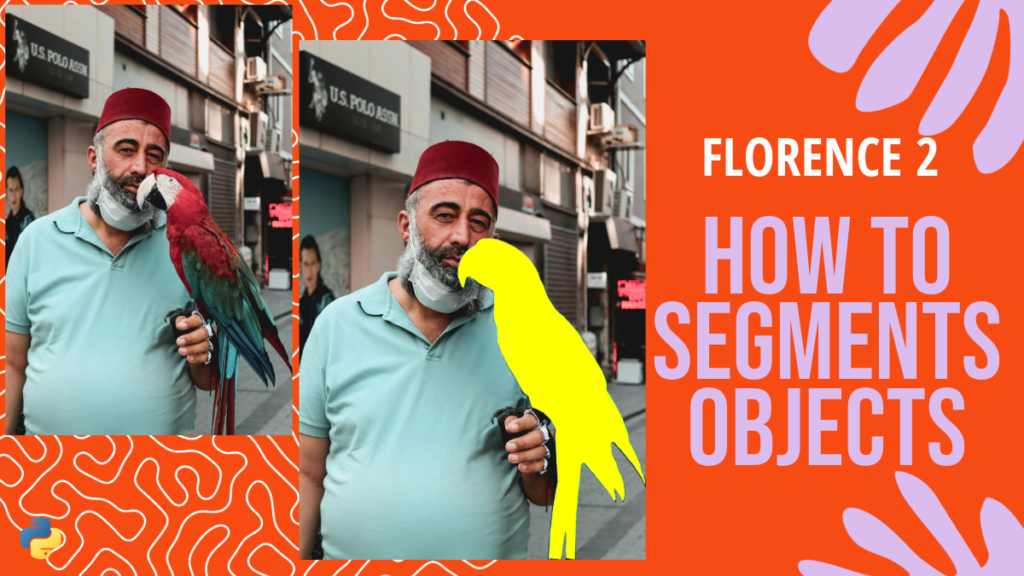
How to Perform Florence-2 segmentation on Images / Image Segmentation, Pytorch Contents hide 1 Florence-2 segmentation, explained in a practical way 2 Walking through the Florence-2 segmentation pipeline in Python 3 How to Perform Florence-2 Segmentation on Images 4 Setting up a clean Florence-2 segmentation environment 5 Loading Florence-2 and preparing the inference tools 6 Running Florence-2 segmentation with a text prompt 7 Visualizing the polygons and saving the segmented output 8 FAQ 8.1 What is Florence-2 segmentation in simple terms? 8.2 What does referring expression segmentation mean? 8.3 Why do we use a task prompt string for Florence-2 segmentation? 8.4 Why does the code convert the image to OpenCV format? 8.5 What causes an “Invalid polygon” message? 8.6 How do I change the text prompt for a different object? 8.7 How can I draw only the outline instead of filling the mask? 8.8 Why is inference slow when I run Florence-2 segmentation? 8.9 How do I run this on many images instead of one? 9 Conclusion 9.1 Connect : Last Updated on 22/04/2026 by Eran Feit Florence-2 segmentation, explained in a practical way Florence-2 segmentation is a workflow where you give a model an image and a short natural-language phrase, and it returns the region of the image that matches your phrase.Instead of training a custom segmentation model, you can often get useful masks right away by prompting something simple like “a parrot” or “the red car.” The goal is to make segmentation feel like a normal Python function call.You load the Florence-2 model and processor, choose the task prompt for referring expression segmentation, and then run inference to get structured outputs.Those outputs usually include polygon points that describe the object mask and a label for what was segmented. From there, the rest of the pipeline is classic computer vision.You convert the PIL image to an OpenCV array, draw the polygons as an outline or as a filled mask, and optionally place the label text near the first polygon point.Finally, you resize for display, save the result to disk, and preview it with OpenCV. What makes this approach especially useful is how “interactive” it feels.You can iterate quickly by changing only the text prompt and immediately seeing how the mask changes.That’s great for building demos, lightweight annotation tools, and fast prototyping when you don’t want to label a dataset or train anything yet. Subscription FormSend me tutorials Florence-2 segmentation of a parrot Walking through the Florence-2 segmentation pipeline in Python This tutorial code is built to take a single image and a short text prompt, and turn that prompt into a clean segmentation mask you can actually see and save.Instead of training a segmentation model, you load Florence-2 once, send it the image and the task prompt, and let it return the object region as polygons that describe the mask shape. At a high level, the script has three goals.First, it shows how to initialize the Florence-2 model and processor with Hugging Face Transformers and run everything on GPU when available.Second, it demonstrates how to call the model using the referring expression segmentation task so the prompt “a parrot” becomes a structured segmentation result.Third, it visualizes the result in a practical way using OpenCV, so you end up with a saved output image that contains a highlighted mask overlay and a readable label. The core of the workflow is the run_florence2 function.It builds the final prompt string, uses the processor to convert both the text and image into tensors, and then calls model.generate to produce the model output.After decoding the generated tokens, the processor post-processes the output into a dictionary that includes polygons and labels, which is exactly what you need for drawing. The visualization section is designed like a small utility you can reuse in many projects.It converts the PIL image into OpenCV format, loops through every polygon, fills it when you want a solid mask, and always draws an outline so the boundary is clear.It also places the label near the first polygon point, resizes the final image for display, saves it to disk, and shows it in a window so you can quickly confirm the result. Once this works on a single image, the next natural step is scaling it up.You can wrap the same code in a loop over a folder of images, swap prompts dynamically, or turn it into a small annotation helper for creating masks faster.The important part is that the script already gives you the full pipeline end-to-end: model inference, structured mask extraction, and clean OpenCV rendering. Link to the video tutorial here . You can download the code here or here . TRY IT NOW Master Computer Vision Follow my latest tutorials and AI insights on my Personal Blog. Beginner Complete CV Bootcamp Foundation using PyTorch & TensorFlow. Get Started → Interactive Deep Learning with PyTorch Hands-on practice in an interactive environment. Start Learning → Advanced Modern CV: GPT & OpenCV4 Vision GPT and production-ready models. Go Advanced → How to Perform Florence-2 Segmentation on Images Test Image : Parrot Florence-2 segmentation is a practical way to turn a simple text prompt into a pixel-level mask on top of an image.Instead of training a segmentation model, you can use a pretrained Florence-2 vision-language model and ask it to segment “a parrot” or any other phrase you care about.This makes it ideal for quick demos, fast prototyping, and lightweight visual tools where you want segmentation without a dataset. In this tutorial, the target is to run Florence-2 segmentation end to end in Python.You will set up a clean environment, load the model with Hugging Face Transformers, run a referring expression segmentation task prompt, and then draw the returned polygons as a visible overlay using OpenCV.By the end, you will save an output image that clearly shows the segmented object with an outline and an optional filled mask. More segmentation workflows to compare YOLO Segmentation Tutorial Python: Segment Multiple Objects This post helps you understand masks and polygon overlays in a classic segmentation pipeline. It is useful when you want to compare Florence-2 segmentation to a fast YOLO segmentation workflow. Grounding DINO Segment Anything Tutorial – Full Guide This guide shows a popular prompt-driven segmentation approach using detection plus SAM. It is a great reference when thinking about text-guided segmentation patterns and visualization. Hair Segmentation Using Transformers | UNETR Image Segmentation This tutorial adds extra context about transformer-based segmentation models. It is helpful if you want to understand how Florence-2 segmentation fits into the wider transformer segmentation ecosystem. Setting up a clean Florence-2 segmentation environment A clean environment makes Florence-2 segmentation feel smooth instead of frustrating.The goal here is to isolate versions so your GPU setup, PyTorch build, and Transformers dependencies match what the tutorial expects. This setup also makes the tutorial easier to reproduce later.When your environment is consistent, the same code keeps working across machines, and debugging becomes much simpler. # ### Create a fresh Conda environment for Florence-2 segmentation using Python 3.12.3. conda create -n florence2 python=3.12.3 # ### Activate the environment so every install happens inside it. conda activate florence2 # ### Check your CUDA compiler version so you know what PyTorch build to install. nvcc --version # ### Install PyTorch with CUDA 12.4 support for GPU acceleration. conda install pytorch==2.5.0 torchvision==0.20.0 torchaudio==2.5.0 pytorch-cuda=12.4 -c pytorch -c nvidia # ### Install Hugging Face Transformers for loading Florence-2 and running inference. pip install transformers==4.45.2 # ### Install timm because many vision backbones depend on it. pip install timm==1.0.11 # ### Install packaging for clean version parsing across libraries. pip install packaging==24.2 # ### Install wheel to support building and installing packages cleanly. pip install wheel==0.44.0 # ### Install ninja to speed up certain builds on your machine. pip install ninja==1.11.1.1 # ### Install flash attention for faster attention kernels when supported by your GPU and setup. pip install flash_attn==2.6.3 # ### Install einops for readable tensor reshaping patterns used by some model components. pip install einops==0.8.0 # ### Install accelerate for smoother device placement and performance helpers. pip install accelerate==1.1.1 # ### Install matplotlib for optional plotting and debugging visuals. pip install matplotlib==3.9.2 # ### Install OpenCV for drawing polygons, saving images, and previewing the final result. pip install opencv-python==4.10.0.84 Short summary.You now have a dedicated environment with the exact versions needed for Florence-2 segmentation.This reduces version conflicts and helps your GPU run inference reliably. Loading Florence-2 and preparing the inference tools This part loads the Florence-2 model and places it on the correct device.The target is to keep the workflow simple so the rest of the tutorial only focuses on prompts, images, and masks. You will also initialize the processor that converts the image and text into tensors.Once both the model and processor are ready, you can reuse them for many images without reloading every time. # ### Import NumPy for image array conversion and polygon reshaping. import numpy as np # ### Import Matplotlib for optional plotting utilities. import matplotlib.pyplot as plt # ### Import Matplotlib patches for optional visual overlays. import matplotlib.patches as patches # ### Import PIL Image for loading images in a model-friendly format. from PIL import Image # ### Import the Hugging Face processor and causal LM wrapper used by Florence-2. from transformers import AutoProcessor, AutoModelForCausalLM # ### Import OpenCV for drawing filled masks, outlines, and labels. import cv2 # ### Import PyTorch for device selection and running inference on GPU when available. import torch # ### Choose the Florence-2 model identifier from Hugging Face. model_id = "microsoft/florence-2-large" # ### Select CUDA if available, otherwise fall back to CPU. device = torch.device("cuda" if torch.cuda.is_available() else "cpu") # ### Initialize the Florence-2 model from pretrained weights. model = AutoModelForCausalLM.from_pretrained(model_id, trust_remote_code=True) # ### Move the model to the selected device so inference runs on GPU when possible. model.to(device) # Move the model to the device (GPU or CPU) # ### Switch the model to evaluation mode to disable training-only behavior. model.eval() # ### Initialize the processor that prepares text and images as tensors. processor = AutoProcessor.from_pretrained(model_id, trust_remote_code=True) Short summary.The model and processor are now loaded and ready for Florence-2 segmentation.This is the foundation for running prompt-driven segmentation on any image you load next. More Hugging Face vision workflows Image Captioning using PyTorch and Transformers in Python This post reinforces the same Hugging Face workflow style of loading models and processors. It is useful if you want another practical example of vision tasks with Transformers in Python. How to Use Vision Transformer for Image Classification This tutorial explains a clean image inference pipeline with Transformers. It is helpful if you want to compare classic vision inference to Florence-2 segmentation behavior. Automatic Image Labeling With OWLv2: Simple Guide This guide focuses on open-vocabulary vision labeling. It connects well to Florence-2 segmentation because both workflows use language prompts to guide what the model should find. Running Florence-2 segmentation with a text prompt This section is where Florence-2 segmentation becomes a reusable function.The target is to feed the model a task prompt plus optional text input, and get back structured results that include polygons and labels. You will also load a local image and run the referring expression segmentation task.Once you see the printed output, you will know exactly what keys the model returns and what data you can draw on the image. # ### Define a helper function that runs Florence-2 on an image and task prompt. def run_florence2(task_prompt , images , text_input=None): # ### If no extra text is provided, use only the task prompt. if text_input is None: # If no text was send to the function prompt = task_prompt # ### Otherwise, combine the task prompt with the user text to form the final instruction. else: prompt = task_prompt + text_input # ### Run the processor to convert text and image into model tensors. inputs = processor(text=prompt, images=image, return_tensors="pt") # The output will be tensors # ### Move tensors to GPU or CPU based on the selected device. inputs.to(device) # Move the tensors to the device (GPU or CPU) # ### Generate the output token IDs using the model generation API. generated_ids = model.generate( # ### Provide tokenized prompt IDs to the model. input_ids=inputs["input_ids"], # ### Provide image pixel tensors to the model. pixel_values=inputs["pixel_values"], # ### Allow enough space for the model to output full structured results. max_new_tokens = 1024, # ### Keep generation running until it naturally finishes. early_stopping=False , # ### Disable sampling for more deterministic outputs. do_sample=False, # ### Use beam search to improve output quality. num_beams=3, ) # ### Decode the generated token IDs into readable text. generated_text = processor.batch_decode(generated_ids, skip_special_tokens=False)[0] # ### Post-process the generated output into structured data like polygons and labels. parsed_answer = processor.post_process_generation( generated_text, task=task_prompt, image_size=(image.width, image.height)) # ### Return the structured answer dictionary. return parsed_answer # ### Load the input image from disk using PIL. image = Image.open("Best-Semantic-Segmentation-models/Florence-2/Object Segmenataion using Florence-2/Parrot.jpg") # ### Choose the model task prompt for referring expression segmentation. task_prompt = "<REFERRING_EXPRESSION_SEGMENTATION>" # The task prompt for the model # ### Run Florence-2 segmentation with the task prompt and a natural language phrase. results = run_florence2(task_prompt, image, text_input="a parrot") # Run the model with the image and the the task prompt # ### Extract the specific task output dictionary from the results. data = results["<REFERRING_EXPRESSION_SEGMENTATION>"] # ### Print the raw output so you can see polygons and labels. print(data) Short summary.You now have segmentation results that include polygon coordinates and labels.This is the exact information you need to draw a filled mask and a clean outline on the original image. Visualizing the polygons and saving the segmented output This final part turns Florence-2 segmentation output into a readable image overlay.The target is to convert the input image to OpenCV format, draw polygons as a filled mask or outline, place a label, and save the final result. You will also resize the output for quick preview.This helps you validate results fast and reuse the same drawing logic for many images later. # ### Convert the PIL image into a NumPy array so OpenCV can work with it. open_cv_image = np.array(image) # ### Convert RGB to BGR because OpenCV uses BGR channel order by default. open_cv_image = cv2.cvtColor(open_cv_image, cv2.COLOR_RGB2BGR) # ### Set the line thickness for polygon outlines. thickness = 2 # ### Choose a font for drawing labels on the image. font = cv2.FONT_HERSHEY_SIMPLEX # ### Set the font size for label text. font_scale = 0.5 # ### Decide whether to fill the mask area or draw only an outline. fill_mask = True # ### Loop through each segmentation result and its label. for polygons, label in zip(data['polygons'], data['labels']): # ### Each object may contain multiple polygons, so loop through them as well. for _polygon in polygons: # ### Convert the polygon list into a NumPy array shaped as point pairs. _polygon = np.array(_polygon).reshape(-1,2).astype(int) # ### Skip invalid polygons that do not have enough points to form a shape. if len(_polygon) < 3: print("Invlid polygon", _polygon) continue # ### Ensure polygon data is integer typed for OpenCV drawing functions. _polygon = (_polygon).astype(int) # ### Fill the polygon area when you want a solid segmentation mask overlay. if fill_mask: # Should be True for fill and False for only outline cv2.fillPoly(open_cv_image, [np.array(_polygon)] ,color=(0,255,255)) # ### Draw the outline of the polygon to make boundaries crisp and visible. cv2.polylines(open_cv_image, [np.array(_polygon)] ,color=(255,255,0), thickness=thickness, isClosed=True) # ### Compute a readable label position near the first polygon point. text_postion_x = _polygon[0][0] + 8 text_postion_y = _polygon[0][1] + 2 text_position = (text_postion_x, text_postion_y) # ### Draw the label text on the image so the mask is easy to interpret. cv2.putText(open_cv_image, label, text_position, font, font_scale,color= (0, 0, 0), thickness=thickness) # ### Choose a resize scale percentage for display and saving a smaller preview. scale_precent = 30 # The scale percent to resize the image # ### Compute the new width from the scale percentage. width = int(open_cv_image.shape[1] * scale_precent / 100) # ### Compute the new height from the scale percentage. height = int(open_cv_image.shape[0] * scale_precent / 100) # ### Build the target resize dimension tuple. dim = (width, height) # ### Resize the final image for faster display and smaller output size. open_cv_image = cv2.resize(open_cv_image, dim, interpolation = cv2.INTER_AREA) # ### Save the final image with the segmentation overlay to disk. cv2.imwrite("Best-Semantic-Segmentation-models/Florence-2/Object Segmenataion using Florence-2/Parrot_with_mask.jpg",open_cv_image) # ### Display the final image in a window. cv2.imshow("Image", open_cv_image) # Display the image # ### Wait for a key press so the window does not close instantly. cv2.waitKey(0) # Wait for a key press to close the image # ### Clean up OpenCV windows after viewing. cv2.destroyAllWindows() Short summary.You have a complete Florence-2 segmentation pipeline that produces a visible mask overlay.You can now reuse the same drawing logic for other prompts and other images. The result : Test image Segmented image Next steps after you can draw masks How to Highlight Object in Image with MediaPipe and Python This post focuses on visual highlighting techniques and mask-like effects. It pairs well with Florence-2 segmentation when you want clean UI-style overlays and attention effects. Image Segmentation with MediaPipe: Replace Background This tutorial shows a practical use case for segmentation masks in real edits. It is a natural next step after Florence-2 segmentation when you want to swap or blur backgrounds. YOLO Segmentation Tutorial Python: Segment Multiple Objects This is a great comparison reference for multi-object segmentation and mask handling. It helps you understand how different segmentation outputs look and how to visualize them. FAQ What is Florence-2 segmentation in simple terms? Florence-2 segmentation lets you segment an object by providing an image and a short text phrase. The model returns mask polygons you can draw on the image. What does referring expression segmentation mean? It means the text prompt points to a specific object in the image. The model segments the region that matches that phrase. Why do we use a task prompt string for Florence-2 segmentation? The task prompt tells the model what output format to produce. For segmentation tasks, it helps generate structured polygons and labels. Why does the code convert the image to OpenCV format? OpenCV makes it easy to draw filled masks, outlines, and label text. Converting from PIL to a NumPy array enables those drawing functions. What causes an “Invalid polygon” message? A polygon needs at least three points to draw a shape. The code skips polygons that do not have enough points to avoid errors. How do I change the text prompt for a different object? Replace the text_input value with a new phrase that matches something visible in the image. Short, concrete phrases usually work best. How can I draw only the outline instead of filling the mask? Set fill_mask to False. The outline drawing will still run, giving you a clean boundary without covering pixels inside the object. Why is inference slow when I run Florence-2 segmentation? The most common reason is running on CPU instead of GPU. CUDA and PyTorch version mismatches can also prevent GPU acceleration. How do I run this on many images instead of one? Loop over your image paths, call the same inference function, and save each output with a unique filename. Keep the model loaded once for speed. Conclusion Florence-2 segmentation is a strong example of how modern vision-language models can turn plain text into practical visual outputs.With a small Python script, you can load a pretrained model, send a short prompt, and get back segmentation polygons that you can draw and save immediately. The key idea is that the tutorial is not only about running inference.It is about building a complete pipeline that includes environment setup, model loading, task prompting, post-processing, and visualization.That full workflow is what makes the results repeatable and useful in real projects. Once you have this working, you can expand it in many directions.You can loop over a folder of images, test many prompts per image, or use the masks as a lightweight labeling helper for creating datasets faster.You can also experiment with different visualization styles to make masks easier to read in demos and blog screenshots. Connect : ☕ Buy me a coffee — https://ko-fi.com/eranfeit 🖥️ Email : feitgemel@gmail.com 🌐 https://eranfeit.net 🤝 Fiverr : https://www.fiverr.com/s/mB3Pbb Enjoy, Eran









 Skip to content