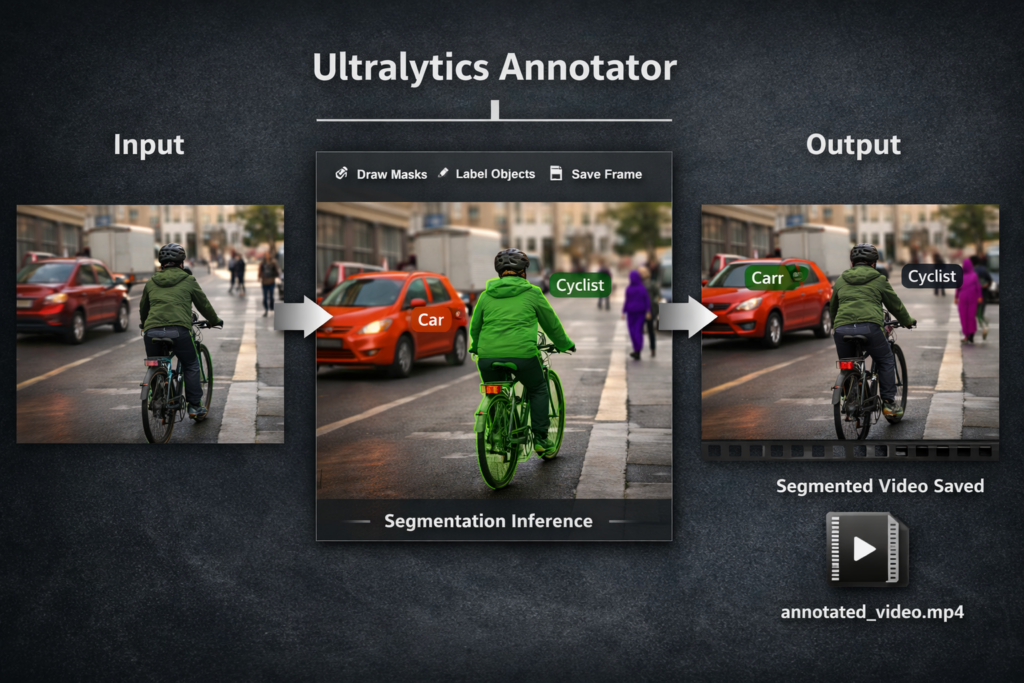
Ultralytics Annotator: Segment and Label Videos in Python / Image Segmentation, Pytorch Contents hide 1 Why Use Ultralytics Annotator for Video Segmentation? 2 Ultralytics Annotator in a real segmentation workflow 3 Automatically Segment and Label Objects in Video with Python 3.1 Master Computer Vision 4 Automatically Segment Any Object in Video with YOLOv11 + Ultralytics Annotator 5 Environment Setup: Libraries for YOLO11 & Video Handling 6 Initializing YOLO11 Segmentation Weights for Real-Time Inference 7 Building the OpenCV Video Processing Loop with YOLO Predictions 8 Visualizing Masks and Labels with the Ultralytics Annotator Class 9 FAQ : 9.1 What does Ultralytics Annotator do in this code? 9.2 Why do we check results[0].masks is not None? 9.3 What is stored in masks.xy? 9.4 Why do we use results[0] for a video frame? 9.5 How can I make segmentation faster? 9.6 Why does the output video sometimes fail to play? 9.7 How do I add confidence scores to labels? 9.8 Why does cap.read() return no frames? 9.9 Why are saved instance images full frames? 9.10 What is the easiest way to reduce mask flicker? 10 Optimizing Your Video Segmentation Pipeline: Next Steps 10.1 Connect : 10.2 Best AI Photo Tools (Backgrounds, Objects, Headshots) Last Updated on 09/05/2026 by Eran Feit Why Use Ultralytics Annotator for Video Segmentation? Manually labeling video frames for computer vision can be a bottleneck, but visualizing model predictions shouldn’t be. In this guide, you will learn how to use the ultralytics annotator video segmentation python utility to transform raw model outputs into professional-grade annotated videos. Whether you are debugging a YOLO11 model or building a production-ready demo, we solve the problem of messy visualization by implementing a clean, efficient pipeline that overlays precise masks and class labels onto every frame of your footage. In modern segmentation pipelines, you often deal with multiple instances per frame, each with its own polygon mask and class name.A clean annotation layer helps you confirm that masks are aligned, classes are correct, and object boundaries look reasonable.It also makes it much easier to communicate results to others, because a segmented overlay is immediately understandable, even without reading logs or digging into arrays.This is particularly useful when you process video frame-by-frame and need consistent visuals across thousands of frames. When paired with YOLO segmentation models, Ultralytics Annotator becomes part of a fast feedback loop.You run inference, overlay masks and labels, save outputs, and immediately spot issues like missed detections, swapped classes, or messy boundaries.Instead of guessing whether your segmentation looks good, you can visually validate it in a repeatable way.That visual validation is a big deal when you’re building reliable demos, tutorials, or real-world applications. In video segmentation workflows, annotation isn’t only for viewing results on-screen.It’s also about producing a polished output video that preserves the segmentation overlays and labels.That makes your final result shareable and measurable, and it helps you compare different models or settings over the same footage.The Annotator approach keeps the pipeline simple while still giving you professional-looking visualization. Ultralytics Annotator in a real segmentation workflow Ultralytics Annotator is designed to sit right inside your inference loop and handle the visualization layer without making the pipeline complicated.In a typical workflow, your model returns predicted classes and segmentation masks, and the annotator takes that information and renders it on the current frame.Instead of writing custom drawing code for every project, you get a consistent way to overlay masks, set colors, and place readable labels.This consistency matters when you want repeatable results across different videos and datasets. The main target in a segmentation video pipeline is speed and clarity at the same time.You want the overlay to be fast enough to run on every frame, but also clean enough to understand what the model predicted.With segmentation, the mask is often the most important output, because it shows the object’s exact shape instead of just a rectangle.A good annotator makes those masks visible, distinguishes overlapping objects, and keeps labels readable while the video is playing. At a high level, Ultralytics Annotator helps you answer the most important debugging questions quickly.Are masks snapped correctly to object boundaries.Are class names consistent with what you expect.Are there repeated false positives on similar background textures.When you can see masks and labels instantly, you can iterate on model choice, confidence thresholds, and input resolution much faster. In a complete “segment any object in video” script, the annotator also supports a polished output workflow.You can write the annotated frames into a new video file and optionally save per-instance images for inspection or dataset building.This turns a raw inference script into a usable tool for demos and experiments.The result is a practical pipeline where model predictions become visual outputs you can validate, share, and improve. Subscription FormSend me tutorials Ultralytics annotator Automatically Segment and Label Objects in Video with Python Tip me and Download the code This tutorial focuses on building a complete video-segmentation pipeline in Python, where every frame is processed, segmented, and annotated automatically.The core goal of the code is to take a raw video file, run a YOLOv11 segmentation model on each frame, and visually explain the results by drawing masks and class labels directly on the video.Instead of working with single images, the workflow is designed for continuous video streams, which is far more representative of real-world computer vision applications. At a high level, the code loads a pretrained YOLOv11 segmentation model and uses it to perform inference frame-by-frame.For each frame, the model predicts both object classes and precise segmentation masks.Those predictions are then passed to the Ultralytics Annotator, which overlays colored masks and readable labels on top of the original frame.This creates an immediate visual confirmation of what the model sees and how it understands the scene. A key target of this script is automation.Once the video capture starts, the entire process runs without manual intervention.Frames are read, segmented, annotated, displayed, and written to a new output video in a continuous loop.This makes the approach suitable for long videos, experiments, and demonstrations where consistency and repeatability matter. Beyond visualization, the code also supports saving segmented instances to disk.Each detected object can be stored as an image, organized by class name, which is useful for inspection, debugging, or building new datasets.By combining real-time visualization with structured output, the script turns segmentation inference into a practical tool rather than a one-off experiment. Link to the video tutorial here You can download the code here or here . TRY IT NOW Master Computer Vision Follow my latest tutorials and AI insights on my Personal Blog. Beginner Complete CV Bootcamp Foundation using PyTorch & TensorFlow. Get Started → Interactive Deep Learning with PyTorch Hands-on practice in an interactive environment. Start Learning → Advanced Modern CV: GPT & OpenCV4 Vision GPT and production-ready models. Go Advanced → Automatic object segmentation in video Automatically Segment Any Object in Video with YOLOv11 + Ultralytics Annotator Automatic video segmentation is one of the fastest ways to turn raw footage into structured visual data.Instead of drawing masks by hand, a segmentation model can generate pixel-accurate shapes for every object it detects in each frame.That makes it useful for dataset creation, video analytics, scene understanding, and content editing workflows. In this tutorial, the main focus is the Ultralytics Annotator.It gives you a clean way to draw colored mask overlays and readable labels directly on top of video frames.Once you combine it with a YOLOv11 segmentation model, you can build a full “read video → segment → overlay → export” pipeline in a compact Python script. The goal of the code is practical and production-like.You load a segmentation checkpoint, process the video frame by frame, visualize results live, and save the final segmented video to disk.You also export per-class instance images to folders, which is useful when you want training-ready outputs or quick inspection of what the model found. More segmentation tutorials that match this workflow How to segment multiple objects with YOLO Python This post uses a very similar YOLO segmentation flow and helps you understand masks, classes, and visualization at a comfortable pace. Boost Your Dataset With YOLOv8 Auto-Label Segmentation A great companion when you want to export masks and organize outputs into folders for dataset building and reuse. Fast YOLOv8 Dog Segmentation Tutorial for Video & Images Another end-to-end segmentation pipeline that focuses on real video and practical output saving. Environment Setup: Libraries for YOLO11 & Video Handling A stable environment is the difference between a smooth tutorial and hours of dependency issues.This setup creates a dedicated Conda environment, verifies your CUDA compiler, and installs a GPU-compatible PyTorch build.When you match PyTorch, CUDA, and Ultralytics versions, your segmentation inference will be faster and more predictable. The code below also pins Ultralytics and Pillow versions.Pinning is helpful when you want reproducible results across machines or when you are recording a tutorial and want zero surprises.After this step, you are ready to run YOLOv11 segmentation on video frames with OpenCV. ### Create a new Conda environment using Python 3.11 for this YOLOv11 project. conda create --name YoloV11-311 python=3.11 ### Activate the Conda environment so all installs stay isolated. conda activate YoloV11-311 ### Verify that CUDA is available by printing the nvcc compiler version. nvcc --version ### Install GPU-enabled PyTorch that matches CUDA 12.4 for faster inference. # Cuda 12.4 conda install pytorch==2.5.0 torchvision==0.20.0 torchaudio==2.5.0 pytorch-cuda=12.4 -c pytorch -c nvidia ### Install the Ultralytics package version that includes YOLOv11 support. # install YoloV11 pip install ultralytics==8.3.59 ### Install Pillow for image saving and general image handling utilities. pip install pillow==11.1.0 Summary:You now have a dedicated environment that is ready for YOLOv11 segmentation work.If CUDA is installed correctly, inference will run significantly faster than CPU-only mode. Initializing YOLO11 Segmentation Weights for Real-Time Inference This section connects all the core building blocks.You import the required libraries, load the YOLOv11 segmentation checkpoint, and fetch the class names so labels stay readable.This is also where you define your input video path and your output directory. The VideoWriter configuration matters more than people expect.If you mismatch the resolution, codec, or FPS, you can get corrupted output files or videos that do not play smoothly.The code uses the input video’s width and height so the exported result stays consistent with the original footage. ### Import OpenCV so we can read video frames, display results, and write output video files. import cv2 ### Import YOLO from Ultralytics to load the segmentation model and run predictions. from ultralytics import YOLO ### Import Annotator and colors to draw masks and labels using the Ultralytics Annotator utilities. from ultralytics.utils.plotting import Annotator, colors ### Import os so we can create folders and build safe output paths. import os ### Load a custom YOLOv11 model trained for segmentation. model = YOLO("yolo11l-seg.pt") # Load a custom YOLOv11 model trained for segmentation ### Read the class-name mapping from the loaded model so labels match the model training. names = model.model.names # Get the class names from the model ### Print class names once so you can confirm what the model is able to detect. print("Class Names:", names) ### Open the input video file using OpenCV VideoCapture. cap = cv2.VideoCapture("Best-Semantic-Segmentation-models/Yolo-V11/Auto segment any Object/town.mp4") ### Choose the output folder where the segmented video and instance frames will be saved. output_folder = "d:/temp/output_segment_yoloV11" ### Create the output folder if it does not exist so saving never fails later. os.makedirs(output_folder, exist_ok=True) # Create output folder if it doesn't exist ### Create a VideoWriter to export the final segmented video with the same resolution as the input video. out = cv2.VideoWriter(os.path.join(output_folder, "output_segment_yoloV11.mp4"), cv2.VideoWriter_fourcc(*'MJPG'), 30 , (int(cap.get(3)), int(cap.get(4)))) # Define the codec and create VideoWriter object Summary:You have a loaded YOLOv11 segmentation model and a working video I/O pipeline.At this point, the only missing piece is the per-frame segmentation loop and visualization. Technical Logic: When initializing the YOLO model (e.g., YOLO("yolo11n-seg.pt")), the -seg suffix is critical. Unlike standard detection models that only return bounding box coordinates, segmentation models include a proto-layer that generates pixel-level masks. Loading the correct weights ensures that the results object populated in the loop contains the necessary contour data for the Annotator to draw. Useful video-processing patterns to reuse Real-time Youtube video stream extraction and object detection Shows a frame-by-frame pipeline on streaming video, which is a great extension after you master local MP4 processing. Object Detection Heatmap For Tracking Moving Dogs Turns frame-level detections into a higher-level visualization, which pairs nicely with segmentation outputs for analytics. OpenCV Car Detection : Background Subtraction Tutorial A classic OpenCV video pipeline that helps you understand frame handling, masks, and visualization even without deep learning. Building the OpenCV Video Processing Loop with YOLO Predictions This is the heart of the tutorial.You read frames in a loop, send each frame into the model, and then extract masks and classes from the results.When masks exist, you use the Ultralytics Annotator to draw segmentation overlays and labels right on the frame. A useful mental model is to treat each frame as a standalone image inference.YOLOv11 returns a results list, and for a single frame you usually access results[0].From there, you check whether masks exist, pull polygon coordinates, and render them with consistent colors per class. Pro-Tip: Video processing can be computationally expensive. To maintain a high FPS (frames per second), ensure you are moving the model tensors to the GPU (.cuda() or .to('cuda')). The Annotator class is highly efficient, but the bottleneck usually lies in the mask-to-polygon conversion happening behind the scenes in results[0].masks.xy. ### Start an infinite loop to process the video frame by frame until the video ends or the user quits. while True: ### Read one frame from the input video. ret , im0 = cap.read() # Read a frame from the video ### If OpenCV fails to read a frame, the video is over or the path is invalid, so we exit cleanly. if not ret: print("No frame read from video. Exiting...") break # Break the loop if no frame is read ### Run YOLOv11 segmentation on the current frame. results = model.predict(im0) ### Continue only if the model produced segmentation masks for this frame. if results[0].masks is not None: ### Extract class IDs for each detected instance and move them to CPU for easy handling. clss = results[0].boxes.cls.cpu().tolist() # ### Extract polygon mask coordinates for each instance. masks = results[0].masks.xy ### Create an Ultralytics Annotator so we can draw masks and labels onto the frame. annotator = Annotator(im0, line_width=2) ### Loop over each predicted instance mask and its class ID. for idx , (mask, cls) in enumerate(zip(masks, clss)): ### Convert the class ID into a human-readable label using the model's class name map. det_label = names[int(cls)] # Get the class name for the detected object #print(int(cls)) ### Draw the segmentation mask overlay and the label using a consistent class-based color. annotator.seg_bbox(mask = mask , mask_color=colors(int(cls), True), label = det_label) ### Save each instance segmented object instance_folder = os.path.join(output_folder, det_label) os.makedirs(instance_folder, exist_ok=True) instance_path = os.path.join(instance_folder, f"{det_label}_{idx}.png") cv2.imwrite(instance_path, im0) Summary:Your frames are now being segmented and annotated in real time using Ultralytics Annotator.Each detected object gets a mask overlay, a readable label, and an exported frame saved into a class-based folder. Visualizing Masks and Labels with the Ultralytics Annotator Class After segmentation and overlays, you still need two practical features.You want a live preview window so you can validate results while the script runs.You also want an exported video file so you can share results or reuse them in later steps. This final part writes each annotated frame to the VideoWriter and shows it with OpenCV.It also adds a keyboard exit so you can stop early without killing the Python process.Finally, it releases resources cleanly so the output video is properly finalized and not corrupted. ### Display the annotated frame in a live OpenCV window so you can inspect segmentation quality. cv2.imshow("Result", im0) # Display the result ### Write the annotated frame into the output video so the final MP4 contains the overlays. out.write(im0) # Write the frame to the output video ### Allow quitting the loop by pressing the 'q' key while the window is active. if cv2.waitKey(1) & 0xFF == ord('q'): break ### Release the input video so the file handle closes properly. cap.release() # Release the video capture object ### Release the writer so OpenCV finalizes and saves the output video correctly. out.release() # Release the video writer object ### Close all OpenCV windows to end the session cleanly. cv2.destroyAllWindows() # Close all OpenCV windows Summary:You now have a full pipeline that previews segmentation live and exports the final segmented video.The script exits safely and releases resources so your output file is saved correctly. Technical Insight: Properly releasing the cv2.VideoWriter object is often overlooked. If the script crashes or is terminated without out.release(), the video file header may not be written correctly, resulting in a corrupted .mp4 or .avi file that cannot be opened. Always wrap your loop in a try-finally block to ensure resource cleanup. Good next steps after YOLO video segmentation Segment Anything Tutorial: Fast Auto Masks in Python Shows a fast auto-mask workflow that complements YOLO segmentation when you want flexible prompt-based masking. One-Click Segment Anything in Python (SAM ViT-H) Great when you want interactive segmentation, and a different way to think about masks compared to model-only inference. Detectron2 Panoptic Segmentation Made Easy for Beginners Helps you compare instance masks to full-scene segmentation concepts when you want richer outputs than instance-only masks. FAQ : What does Ultralytics Annotator do in this code? It draws segmentation overlays and labels on the frame. This gives you clean visualization without manual polygon drawing code. Why do we check results[0].masks is not None? Some frames have no detections, so there are no masks to draw. The check prevents errors and keeps the loop stable. What is stored in masks.xy? It contains polygon points outlining each instance mask. These polygons are convenient for fast drawing and lightweight storage. Why do we use results[0] for a video frame? Ultralytics returns a list of results, one per input image. With one frame input, the first item contains the prediction data. How can I make segmentation faster? Use a smaller model, resize frames, and run on a GPU. You can also process every Nth frame if you do not need every frame. Why does the output video sometimes fail to play? Codec and resolution mismatches are common causes. Ensure the VideoWriter resolution matches the frames you write. How do I add confidence scores to labels? Read confidence values from the result boxes and format them into the label string. This is helpful for debugging detection quality. Why does cap.read() return no frames? It usually means the video ended, the path is wrong, or the codec is unsupported. Verifying the path and file playback is a quick check. Why are saved instance images full frames? The script writes the annotated frame for each instance index. For true object crops, you would mask and crop per instance. What is the easiest way to reduce mask flicker? Increase confidence thresholds and reduce input blur by resizing thoughtfully. For stronger stability, add lightweight tracking across frames. Optimizing Your Video Segmentation Pipeline: Next Steps To move beyond a basic implementation, you must focus on inference latency. While the Ultralytics Annotator provides a convenient wrapper for visualization, processing high-definition video in real-time requires leveraging half-precision floating-point format (FP16). By calling model.predict(source, half=True), you significantly reduce the memory bandwidth required by the GPU, often doubling your throughput on modern NVIDIA hardware without a perceptible loss in segmentation mask accuracy. Beyond hardware acceleration, the logic of mask post-processing can greatly impact the “helpfulness” of your output. Raw model predictions can sometimes result in “flickering” masks between consecutive frames. Implementing a simple temporal filter or a Kalman filter to track object centroids can stabilize these annotations. This ensures that the ultralytics annotator video segmentation python workflow produces a professional, steady stream of labels that are suitable for high-end presentation or further temporal data analysis. Another critical area for optimization is the Text-to-Code ratio of your metadata. If you are deploying this pipeline at scale, consider separating the inference logic from the rendering logic. By saving the raw prediction tensors to a lightweight format like JSON or Protobuf, you can run the segmentation on a high-power server while performing the actual annotation on a client-side device. This decoupled architecture prevents the UI from lagging while the model processes heavy frames, providing a much smoother user experience. Finally, consider the semantic integration of your classes. Standard YOLO models are trained on general datasets like COCO, but for industry-specific tasks—such as medical imaging or autonomous driving—you should fine-tune your model to recognize niche objects. Integrating custom class names directly into the Annotator’s label parameter allows you to provide more context to the end-user. This transition from generic object detection to specialized domain-aware segmentation is what ultimately transforms a simple script into an indispensable tool for technical stakeholders. Connect : ☕ Buy me a coffee — https://ko-fi.com/eranfeit 🖥️ Email : feitgemel@gmail.com 🌐 https://eranfeit.net 🤝 Fiverr : https://www.fiverr.com/s/mB3Pbb Enjoy, Eran Best AI Photo Tools (Backgrounds, Objects, Headshots) Over 30 AI-powered tools in one place for editing and creating photos. Create professional photos using AI-powered background removal and retouching. Your personal AI photographer for headshots and profile images.








 Skip to content