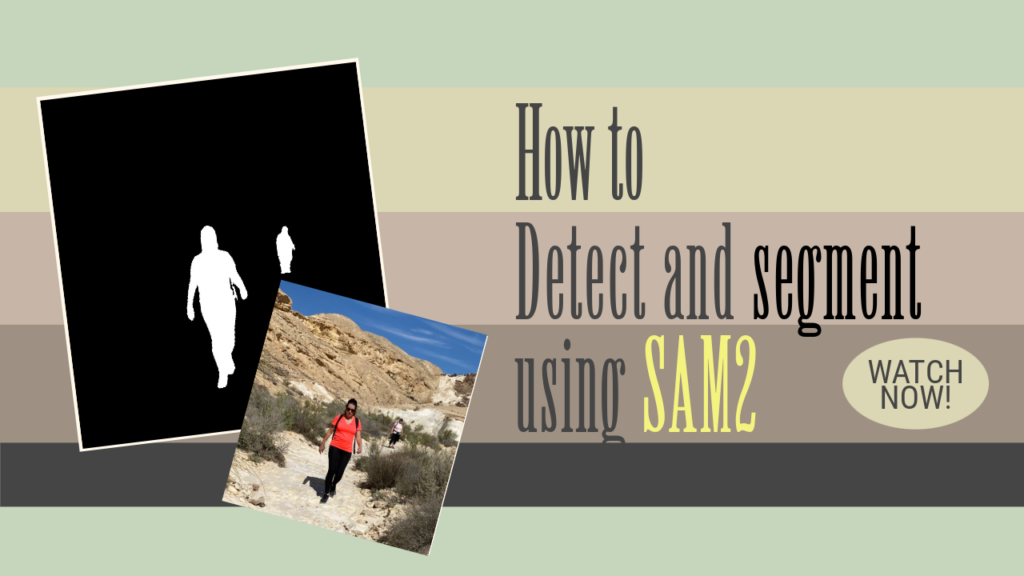
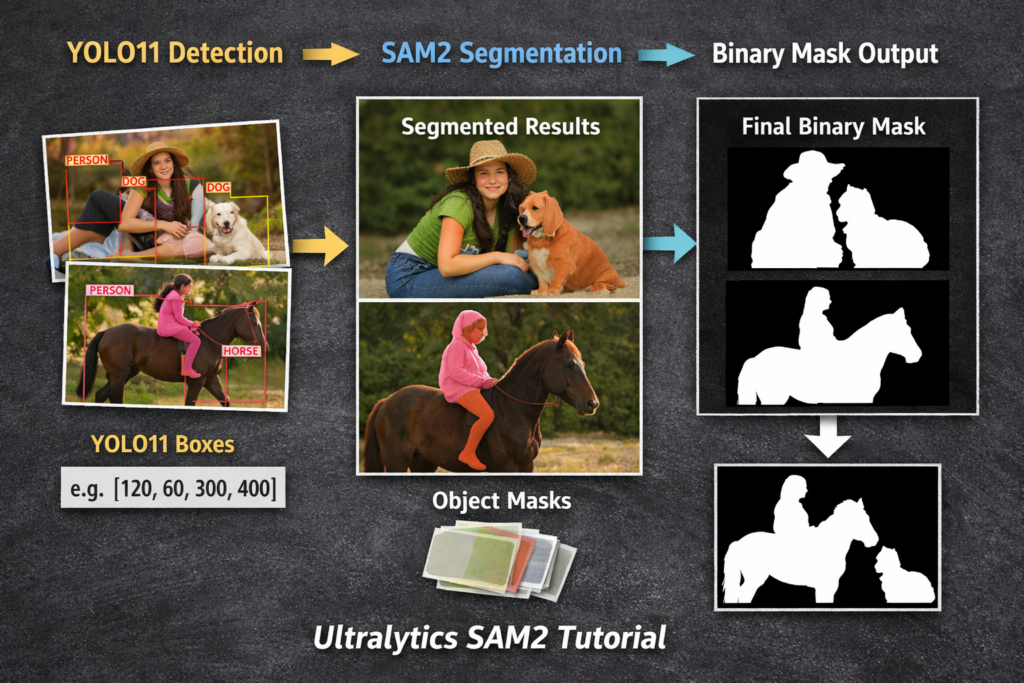
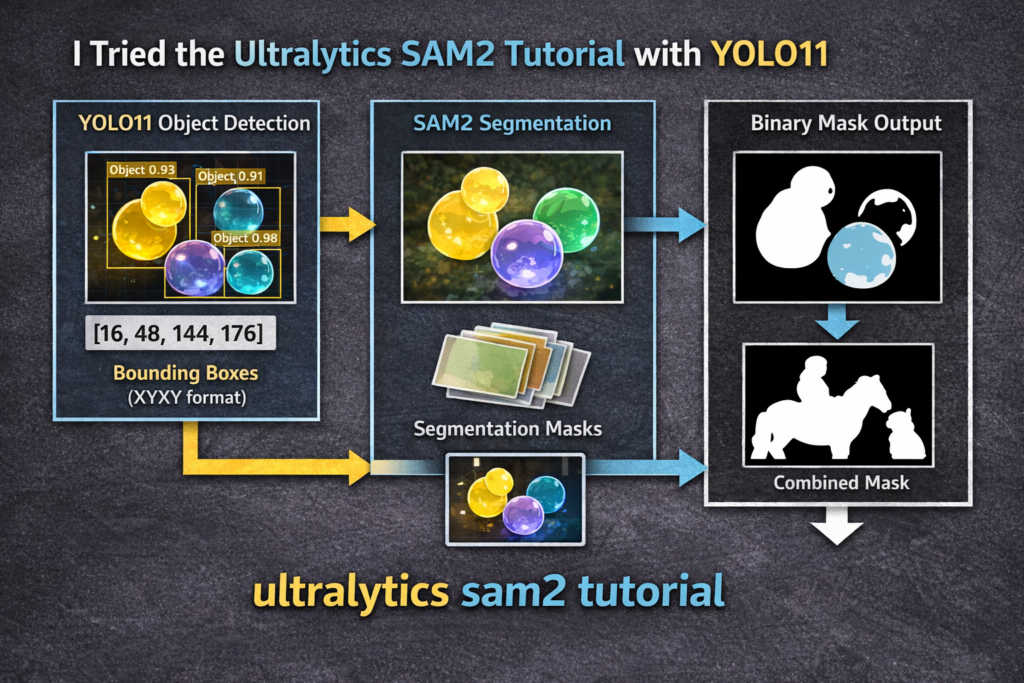
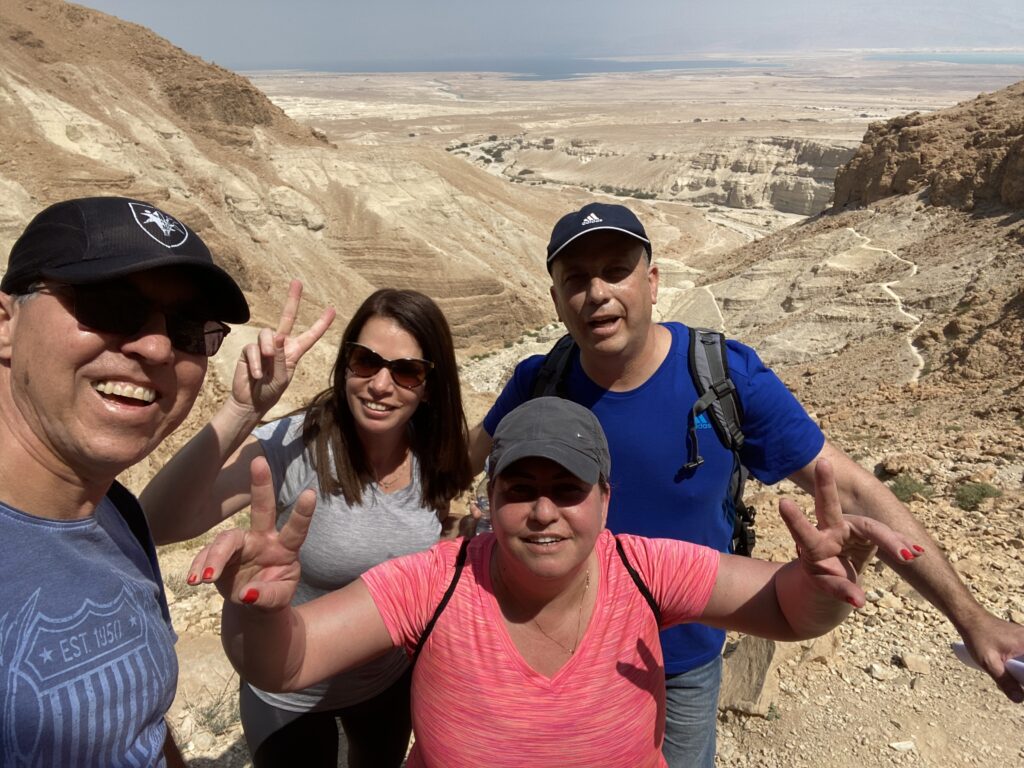
I tried the Ultralytics SAM2 tutorial with YOLO11. Here’s what happened. / Image Segmentation, Pytorch Contents hide 1 Ultralytics SAM2 Tutorial, Explained Like You’d Code It 1.1 More info about the tutorial : 2 The Code We’re Building: From YOLO11 Boxes to Clean SAM2 Masks 3 I tried the Ultralytics SAM2 tutorial with YOLO11. Here’s what happened. 4 Set up a clean Ultralytics environment that won’t fight you later 5 Load YOLO11 and point it at real images 6 Turn YOLO detections into bounding boxes you can reuse 7 Feed YOLO’s boxes into SAM2 and get real object masks 8 Merge multiple SAM2 masks into one clean binary mask 9 Visualize the mask, save it, and make the pipeline feel real 9.1 The Result : 10 FAQ 10.1 What does “ultralytics sam2 tutorial” usually mean in practice? 10.2 Why combine YOLO11 with SAM2? 10.3 What box format is used for SAM2 prompts? 10.4 What causes poor masks most often? 10.5 Can this run without a GPU? 10.6 Why merge all masks into one binary mask? 10.7 How do I save masks per object instead? 10.8 What if cv2.imread returns None? 10.9 How can I reduce noisy fragments in masks? 10.10 How do I scale this to many images? 11 Conclusion 11.1 Connect : Last Updated on 22/04/2026 by Eran Feit Ultralytics SAM2 Tutorial, Explained Like You’d Code It An ultralytics sam2 tutorial is really about one idea: using a strong detector to tell SAM2 “where to look,” then letting SAM2 handle the hard part—drawing object boundaries.In this pipeline, YOLO11 produces bounding boxes for each image, and those boxes become box prompts for SAM2.1.This is a clean division of labor: detection handles localization, segmentation handles precision. The target outcome is a mask you can trust for real work.Bounding boxes are great for counting and quick overlays, but they don’t capture shape.SAM2 gives you pixel-level masks, and the code turns them into a single binary mask per image by combining all predicted masks into one black-and-white output. At a high level, the flow looks like this: load images → run YOLO11 → extract xyxy boxes → run SAM2.1 with those boxes → merge masks → visualize and save.This structure is flexible: you can swap the YOLO model size, change the SAM2 checkpoint, filter boxes by confidence or class, or save per-object masks instead of a combined mask.But the core pattern stays the same, and it’s the pattern you’ll reuse in most “detect-then-segment” systems. Tip me and Download the code More info about the tutorial : This article walks through a practical computer-vision pipeline that starts with object detection and ends with clean, usable segmentation masks.You’ll see how to run YOLO11 on multiple images, extract bounding boxes in XYXY format, and then use those boxes as prompts for SAM2.1 to generate masks that follow object shapes instead of just rectangles. The workflow is designed to be copy-friendly and easy to adapt.By the end, you’ll know exactly how to connect Ultralytics YOLO and SAM2 in one Python script, how to combine multiple masks into a single binary mask with OpenCV, and how to visualize and save the results for downstream tasks like labeling, analytics, or post-processing. The main keyword for this post is ultralytics sam2 tutorial, and that’s intentional because this is one of the most useful “bridge workflows” right now: detection gives you reliable object locations, and SAM2 turns those locations into high-quality masks without training a custom segmentation model.If you’ve ever wanted segmentation outputs but didn’t want to annotate polygons or train a heavy model, this approach gives you a fast path to results. A solid ultralytics sam2 tutorial should do more than show “how to run a model.”It should show how to feed SAM2 meaningful prompts, how to structure outputs, and how to turn those outputs into something you can actually use—like a binary mask image that works for filtering, cropping, measuring area, or building datasets. This is also a realistic workflow for batch processing.Instead of testing on just one image, the code loads multiple images, runs inference in one call, collects boxes per image, and then segments each image with its own set of prompts—exactly the pattern you’ll want when you scale from a demo to a real project. Build intuition for SAM before SAM2 Segment Anything Python — No-Training Image Masks This is a clean starting point for understanding promptable segmentation and what “no training” really means in practice. Segment Anything Tutorial: Fast Auto Masks in Python Great background for automatic mask generation so you can compare “auto masks” vs “box-prompt masks” in this tutorial. Segment Anything tutorial: Generate YOLOv8 Masks Fast If you like the detect-then-segment idea, this is a close cousin that helps reinforce the same pattern with a different YOLO setup. Subscription FormSend me tutorials Ultralytics SAM2 Tutorial The Code We’re Building: From YOLO11 Boxes to Clean SAM2 Masks This tutorial is focused on one practical goal: take a few images, detect the objects inside them with YOLO11, and then turn those detections into accurate segmentation masks using SAM2.Instead of stopping at rectangles, the code pushes one step further and produces pixel-level shapes you can actually use. The pipeline is intentionally “hands-on” and modular.First, YOLO runs inference on a list of images in one go, returning predictions per image.Then we extract the bounding boxes in XYXY format, because that’s the most direct format to feed into the next stage. Next comes the key idea: using those YOLO boxes as prompts for SAM2.SAM2 takes each bounding box and predicts a segmentation mask that follows the object boundaries inside that region.That means you get object-shaped masks without writing your own segmentation model or training anything new. Finally, the code turns the segmentation results into a single binary mask per image.It loops through the masks returned by SAM2, converts them into a black-and-white format, and combines them into one mask using OpenCV bitwise operations.At the end, you both visualize the mask and save it to disk, making the output ready for dataset creation, image editing workflows, measurements, or any downstream computer-vision step that expects clean mask images. Link to the video tutorial here . Download the code for the tutorial here or here . TRY IT NOW Master Computer Vision Follow my latest tutorials and AI insights on my Personal Blog. Beginner Complete CV Bootcamp Foundation using PyTorch & TensorFlow. Get Started → Interactive Deep Learning with PyTorch Hands-on practice in an interactive environment. Start Learning → Advanced Modern CV: GPT & OpenCV4 Vision GPT and production-ready models. Go Advanced → Ultralytics SAM2 tutorial I tried the Ultralytics SAM2 tutorial with YOLO11. Here’s what happened. YOLO11 is extremely good at finding objects fast.SAM2 is extremely good at turning a rough prompt into a clean object mask.This tutorial shows how the two fit together in a simple Python workflow. Instead of training a segmentation model from scratch, you use YOLO11 to detect objects first.Then you pass YOLO’s bounding boxes into SAM2 as prompts.That single design choice is what makes the ultralytics sam2 tutorial workflow feel so practical. By the end, you will have a repeatable pipeline that reads images, detects objects, segments them, merges masks, and saves a clean binary result.It’s the kind of code you can adapt to dataset building, QA checks, background removal, or any “mask-first” computer vision project.And it stays readable enough that you can extend it without turning it into a framework. Set up a clean Ultralytics environment that won’t fight you later This tutorial works best when your environment is predictable.A dedicated Conda environment makes version issues easier to avoid and easier to debug.It also makes it simpler for you to recreate the same results later. The install section is doing three key things.It creates an isolated Python environment, confirms your CUDA toolchain, and installs GPU-ready PyTorch.That’s the foundation that lets YOLO11 and SAM2 run smoothly on the same machine. Finally, you install the exact Ultralytics and OpenCV versions used by the code.Matching versions reduces “works on my machine” problems, especially around model loading and inference.That stability is worth it when you’re building a pipeline you plan to reuse. ### Create a dedicated Conda environment for this tutorial. conda create --name YoloV11-311 python=3.11 ### Activate the new environment so installs stay isolated. conda activate YoloV11-311 ### Verify the CUDA compiler version so you know what you’re working with. nvcc --version ### Install a CUDA 12.4 compatible PyTorch stack for GPU acceleration. conda install pytorch==2.5.0 torchvision==0.20.0 torchaudio==2.5.0 pytorch-cuda=12.4 -c pytorch -c nvidia ### Install Ultralytics for YOLO11 and SAM2 support. pip install ultralytics==8.3.59 ### Install OpenCV for image I/O and mask processing. pip install opencv-python==4.10.0.84 ### Create a dedicated Conda environment for this tutorial. conda create --name YoloV11-311 python=3.11 ### Activate the new environment so installs stay isolated. conda activate YoloV11-311 ### Verify the CUDA compiler version so you know what you’re working with. nvcc --version ### Install a CUDA 12.4 compatible PyTorch stack for GPU acceleration. conda install pytorch==2.5.0 torchvision==0.20.0 torchaudio==2.5.0 pytorch-cuda=12.4 -c pytorch -c nvidia ### Install Ultralytics for YOLO11 and SAM2 support. pip install ultralytics==8.3.59 ### Install OpenCV for image I/O and mask processing. pip install opencv-python==4.10.0.84 Summary.You now have a clean environment with GPU-ready PyTorch, Ultralytics, and OpenCV.That setup is the fastest way to keep the rest of the tutorial focused on the pipeline, not dependency issues. Load YOLO11 and point it at real images This part is about getting to a first successful inference quickly.You import the libraries, load a YOLO11 checkpoint, and prepare a list of image paths.Keeping the input as a list is a practical choice because it makes batching easy. YOLO11 is used here as the “locator.”It’s responsible for telling you where objects are, not for drawing perfect shapes.That distinction matters because it keeps detection and segmentation responsibilities cleanly separated. Once images are loaded, you run inference in one line.That call returns per-image results you can inspect, display, and extract bounding boxes from.Everything after this point depends on having reliable box coordinates. Here are the two test images : Test image I tried the Ultralytics SAM2 tutorial with YOLO11. Here’s what happened. 15 ### Import the YOLO API from Ultralytics so we can run detection. from ultralytics import YOLO ### Import OpenCV for image loading from file paths. import cv2 ### Import NumPy for array handling and mask processing later. import numpy as np # Load the YOLO model ### Load a pretrained YOLO11 model checkpoint for object detection. model = YOLO("yolo11n.pt") # load images ### Define the image paths we want to run detection and segmentation on. image_paths = [ "Best-Semantic-Segmentation-models/Yolo-V11/Detect-and-Segments-Objects-using-Sam2-Ultralytics/Inbal-Midbar 768.jpg", "Best-Semantic-Segmentation-models/Yolo-V11/Detect-and-Segments-Objects-using-Sam2-Ultralytics/Rahaf.jpg" ] ### Read all images into memory using OpenCV so we can batch inference. imgs = [cv2.imread(path) for path in image_paths] ### Print a simple progress message so it’s obvious when inference starts. print("Start object Detection and Segmentation") # Run the detection ### Run YOLO inference on the list of images and store the results. resuls = model(imgs) ### Import the YOLO API from Ultralytics so we can run detection. from ultralytics import YOLO ### Import OpenCV for image loading from file paths. import cv2 ### Import NumPy for array handling and mask processing later. import numpy as np # Load the YOLO model ### Load a pretrained YOLO11 model checkpoint for object detection. model = YOLO("yolo11n.pt") # load images ### Define the image paths we want to run detection and segmentation on. image_paths = [ "Best-Semantic-Segmentation-models/Yolo-V11/Detect-and-Segments-Objects-using-Sam2-Ultralytics/Inbal-Midbar 768.jpg", "Best-Semantic-Segmentation-models/Yolo-V11/Detect-and-Segments-Objects-using-Sam2-Ultralytics/Rahaf.jpg" ] ### Read all images into memory using OpenCV so we can batch inference. imgs = [cv2.imread(path) for path in image_paths] ### Print a simple progress message so it’s obvious when inference starts. print("Start object Detection and Segmentation") # Run the detection ### Run YOLO inference on the list of images and store the results. resuls = model(imgs) Summary.You loaded YOLO11, read multiple images, and ran detection in a single batch.From here, the most important output is the bounding boxes you will pass into SAM2. Go deeper on YOLO detection and results handling YOLOv8 Custom Object Detection: Full Code Walkthrough This is helpful when you want to understand result objects, confidence thresholds, and how to make detection output more controllable. How to Detect Small Objects with YOLOv8 and SAHI If your images contain small targets, this post gives practical ideas for improving detection before you move on to segmentation. How to segment multiple objects with YOLO Python A strong reference for thinking about multi-object outputs and how to keep results readable when the scene gets busy. Turn YOLO detections into bounding boxes you can reuse This section is about extracting the most valuable thing YOLO gives you.The bounding boxes are the bridge between detection and segmentation.If the boxes are wrong, the masks will usually be wrong too. The code collects boxes per image into a list.That structure makes it easy to match each image to its own box array later.It also makes the SAM2 loop cleaner because you can index boxes by image. You also display YOLO results to visually confirm detection quality.That quick sanity check is worth doing before moving forward.It saves time by catching path issues, bad images, or unexpected detections early. # Extract bounding boxes and conver to XYXY format ### Create a list that will store one bounding-box array per image. bboxes_list = [] ### Loop over YOLO results so we can extract boxes for each image. for result in resuls: ### Convert YOLO bounding boxes to a NumPy array in XYXY format. boxes = result.boxes.xyxy.cpu().numpy() # Convert to numpy array ### Store the boxes for this image in our list. bboxes_list.append(boxes) ### Show YOLO’s visualization so we can sanity-check detections. result.show() # Display the results # Print extracted bounding boxes ### Loop over the saved box arrays and print them for debugging and verification. for i , bboxes in enumerate(bboxes_list): ### Print which image we are currently inspecting. print(f"Image {i+1} bounding boxes( XYXY format):") ### Print each bounding box row so you can see raw coordinates. for bbox in bboxes: print(f" {bbox}") # Extract bounding boxes and conver to XYXY format ### Create a list that will store one bounding-box array per image. bboxes_list = [] ### Loop over YOLO results so we can extract boxes for each image. for result in resuls: ### Convert YOLO bounding boxes to a NumPy array in XYXY format. boxes = result.boxes.xyxy.cpu().numpy() # Convert to numpy array ### Store the boxes for this image in our list. bboxes_list.append(boxes) ### Show YOLO’s visualization so we can sanity-check detections. result.show() # Display the results # Print extracted bounding boxes ### Loop over the saved box arrays and print them for debugging and verification. for i , bboxes in enumerate(bboxes_list): ### Print which image we are currently inspecting. print(f"Image {i+1} bounding boxes( XYXY format):") ### Print each bounding box row so you can see raw coordinates. for bbox in bboxes: print(f" {bbox}") Summary.You extracted XYXY bounding boxes per image and confirmed detections visually.Those boxes are now ready to be used as prompts for SAM2 segmentation. Feed YOLO’s boxes into SAM2 and get real object masks This is the key move in the ultralytics sam2 tutorial workflow.YOLO tells you “where” the object is, and SAM2 tells you “which pixels” belong to it.Together, they turn a rectangle into a real shape. You load SAM2 using Ultralytics’ SAM API and a pretrained checkpoint.Then you loop over images and pass the bounding boxes into SAM2 as bboxes.That tells SAM2 exactly what region to focus on for segmentation. The result is a list of SAM outputs per image.Those outputs contain masks for the detected objects.In the next steps, you’ll convert those masks into a binary image you can save and reuse. # Use the SAM2 model for segmentation ### Import the SAM wrapper from Ultralytics so we can run SAM2 segmentation. from ultralytics import SAM ### Import Matplotlib so we can visualize masks clearly. import matplotlib.pyplot as plt # load the model ### Load the SAM2 checkpoint using the Ultralytics SAM interface. sam_model = SAM("sam2.1_b.pt") ### Print a progress message so it’s obvious when segmentation starts. print("Start object Segmentation using SAM2") # Run the segmentation using extracted bounding boxes ### Create a list to store SAM2 results per image. sam_results = [] ### Loop over image paths so each image is segmented with its own YOLO boxes. for i , img_path in enumerate(image_paths): ### Run SAM2 segmentation using YOLO bounding boxes as prompts. result = sam_model(img_path, bboxes=bboxes_list[i]) # result is a list of segmentation masks ### Store the SAM2 result for this image. sam_results.append(result) # Use the SAM2 model for segmentation ### Import the SAM wrapper from Ultralytics so we can run SAM2 segmentation. from ultralytics import SAM ### Import Matplotlib so we can visualize masks clearly. import matplotlib.pyplot as plt # load the model ### Load the SAM2 checkpoint using the Ultralytics SAM interface. sam_model = SAM("sam2.1_b.pt") ### Print a progress message so it’s obvious when segmentation starts. print("Start object Segmentation using SAM2") # Run the segmentation using extracted bounding boxes ### Create a list to store SAM2 results per image. sam_results = [] ### Loop over image paths so each image is segmented with its own YOLO boxes. for i , img_path in enumerate(image_paths): ### Run SAM2 segmentation using YOLO bounding boxes as prompts. result = sam_model(img_path, bboxes=bboxes_list[i]) # result is a list of segmentation masks ### Store the SAM2 result for this image. sam_results.append(result) Summary.You loaded SAM2 and ran segmentation using YOLO bounding boxes as prompts.Now you have mask results that can be merged into a single binary output per image. Merge multiple SAM2 masks into one clean binary mask SAM2 can return multiple masks for a single image.That is normal when multiple objects are detected and segmented.To make the output easier to save and reuse, the code merges them into one binary mask. The function creates an empty mask image the same size as the original image.Then it loops through all SAM results and combines every mask using a bitwise OR.This produces a single “anything segmented is white” output. This approach is simple and surprisingly useful.It creates a mask you can use for quick background removal, dataset bootstrapping, or quality checks.If you want per-object masks later, you can adapt this function to save masks individually. # function to create a binary mask ### Define a helper function that converts SAM2 mask outputs into one binary image. def create_binary_mask(image_path , results): ### Load the original image so we can match the mask shape to it. img = cv2.imread(image_path) # load the image ### Read the image height and width for mask allocation. h , w, _ = img.shape # get the image shape ### Create an empty binary mask image initialized to zeros. mask_img = np.zeros((h, w), dtype=np.uint8) # create a mask image with zeros ### Iterate over the SAM2 results list for this image. for result in results: # iterate over the results ### Ensure masks exist before trying to access them. if result.masks is not None: # check if masks are available ### Iterate through mask tensors and convert them to NumPy for OpenCV operations. for mask in result.masks.data.cpu().numpy(): # convert masks to numpy array ### Convert the mask from 0–1 values into 0–255 uint8 pixels. mask =(mask * 255).astype(np.uint8) # convert mask to white ### Merge the current mask into the accumulated mask image. mask_img = cv2.bitwise_or(mask_img, mask) # combine the masks into a single mask image ### Return the final merged binary mask for this image. return mask_img # function to create a binary mask ### Define a helper function that converts SAM2 mask outputs into one binary image. def create_binary_mask(image_path , results): ### Load the original image so we can match the mask shape to it. img = cv2.imread(image_path) # load the image ### Read the image height and width for mask allocation. h , w, _ = img.shape # get the image shape ### Create an empty binary mask image initialized to zeros. mask_img = np.zeros((h, w), dtype=np.uint8) # create a mask image with zeros ### Iterate over the SAM2 results list for this image. for result in results: # iterate over the results ### Ensure masks exist before trying to access them. if result.masks is not None: # check if masks are available ### Iterate through mask tensors and convert them to NumPy for OpenCV operations. for mask in result.masks.data.cpu().numpy(): # convert masks to numpy array ### Convert the mask from 0–1 values into 0–255 uint8 pixels. mask =(mask * 255).astype(np.uint8) # convert mask to white ### Merge the current mask into the accumulated mask image. mask_img = cv2.bitwise_or(mask_img, mask) # combine the masks into a single mask image ### Return the final merged binary mask for this image. return mask_img Summary.You converted SAM2 outputs into a single merged binary mask per image.This is the simplest “saveable” representation of the segmentation result. Visualize the mask, save it, and make the pipeline feel real This last part is where the tutorial becomes satisfying.You take the masks you generated and actually view them as proper images.Seeing the final binary result makes it much easier to trust the pipeline. The code shows each mask using Matplotlib in grayscale mode.It also saves the mask to disk next to the original image path by adding _mask.That naming strategy is simple, consistent, and easy to batch process later. Once you have saved masks, you have something reusable.You can feed these masks into training pipelines, apply them for editing, or compute object areas.And because everything is automated, scaling to many images is mostly about looping over more paths. # Process and display the results ### Loop over SAM2 results per image so we can build and export the final masks. for i , resuls in enumerate(sam_results): ### Create a binary mask for the current image using the helper function. binary_mask = create_binary_mask(image_paths[i], resuls) # create binary mask # Display the binary mask ### Create a figure so the mask is large enough to inspect visually. plt.figure(figsize=(6,6)) ### Display the binary mask in grayscale so white pixels represent segmented regions. plt.imshow(binary_mask, cmap='gray') ### Remove axes to keep the output clean. plt.axis('off') ### Add a simple title so you can see which image the mask belongs to. plt.title(f"Binary Mask for Image {i+1}") ### Render the mask figure to the screen. plt.show() # Optional: Save the mask ### Build a save path by appending _mask to the original filename. mask_save_path = image_paths[i].replace(".jpg", "_mask.jpg") ### Save the binary mask image to disk using OpenCV. cv2.imwrite(mask_save_path, binary_mask) # Process and display the results ### Loop over SAM2 results per image so we can build and export the final masks. for i , resuls in enumerate(sam_results): ### Create a binary mask for the current image using the helper function. binary_mask = create_binary_mask(image_paths[i], resuls) # create binary mask # Display the binary mask ### Create a figure so the mask is large enough to inspect visually. plt.figure(figsize=(6,6)) ### Display the binary mask in grayscale so white pixels represent segmented regions. plt.imshow(binary_mask, cmap='gray') ### Remove axes to keep the output clean. plt.axis('off') ### Add a simple title so you can see which image the mask belongs to. plt.title(f"Binary Mask for Image {i+1}") ### Render the mask figure to the screen. plt.show() # Optional: Save the mask ### Build a save path by appending _mask to the original filename. mask_save_path = image_paths[i].replace(".jpg", "_mask.jpg") ### Save the binary mask image to disk using OpenCV. cv2.imwrite(mask_save_path, binary_mask) Summary.You visualized the segmentation result and saved a binary mask file for each input image.At this point, the detect-then-segment workflow is complete and ready to reuse. The Result : I tried the Ultralytics SAM2 tutorial with YOLO11. Here’s what happened. 16 I tried the Ultralytics SAM2 tutorial with YOLO11. Here’s what happened. 17 Test image I tried the Ultralytics SAM2 tutorial with YOLO11. Here’s what happened. 18 If you want to turn masks into real projects Boost Your Dataset With YOLOv8 Auto-Label Segmentation This is a natural next step when you want to store segmentation outputs in a dataset-friendly way for training. Fast YOLOv8 Dog Segmentation Tutorial for Video & Images Useful if you want to move from single images into workflows that handle lots of frames and more visual outputs. Detectron2 Custom Dataset Training Made Easy A strong reference point for the “traditional” way to do segmentation so you can compare it with SAM-style no-training pipelines. FAQ What does “ultralytics sam2 tutorial” usually mean in practice? It means running SAM2 through Ultralytics and generating masks from prompts like boxes or points. This tutorial uses YOLO11 boxes as prompts. Why combine YOLO11 with SAM2? YOLO11 finds objects quickly, and SAM2 refines object boundaries into pixel masks. The combo avoids training a segmentation model. What box format is used for SAM2 prompts? The script extracts XYXY boxes using result.boxes.xyxy. That format is easy to pass into SAM2 as bboxes. What causes poor masks most often? Poor detections create poor prompts. If the YOLO box is wrong, SAM2 usually segments the wrong region. Can this run without a GPU? Yes, it can run on CPU, but it will be slower. GPU helps a lot when images are large or batches are big. Why merge all masks into one binary mask? A merged binary mask is easy to save and reuse. It’s a quick “foreground vs background” output for many workflows. How do I save masks per object instead? Save each mask in the inner loop before merging. Use a filename suffix based on object index to keep outputs organized. What if cv2.imread returns None? That usually means the path is wrong or the file is missing. Print the path and verify it exists on disk. How can I reduce noisy fragments in masks? Filter masks by area or apply simple morphological cleanup after merging. Start with an area threshold and iterate. How do I scale this to many images? Generate image_paths from a directory and run detection in batches. Keep boxes aligned per image before calling SAM2. Conclusion This tutorial shows why the YOLO11 + SAM2 pairing feels so practical.You get fast localization from YOLO and clean object boundaries from SAM2.And you do it without training a segmentation model or hand-labeling masks. The main idea is simple but powerful.Treat detection boxes as segmentation prompts, and keep the pipeline modular.That makes it easy to debug, easy to scale, and easy to adapt. If you want to extend this, the next upgrades are straightforward.Batch over folders, store per-object masks, and add post-processing for cleanup.Once you have reliable masks, a lot of computer vision projects suddenly become easier to build. Connect : ☕ Buy me a coffee — https://ko-fi.com/eranfeit 🖥️ Email : feitgemel@gmail.com 🌐 https://eranfeit.net 🤝 Fiverr : https://www.fiverr.com/s/mB3Pbb Enjoy, Eran









 Skip to content