Last Updated on 03/05/2026 by Eran Feit
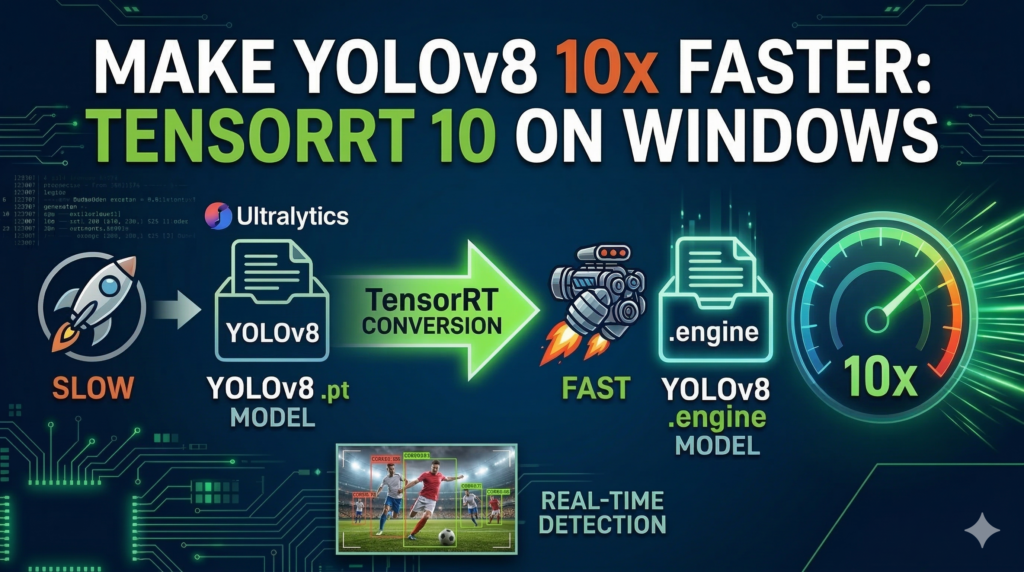
Deploying high-accuracy object detection in production often reveals a critical bottleneck: inference latency. If you are struggling to achieve true real-time performance on NVIDIA hardware, learning how to optimize YOLOv8 with TensorRT 10 in Python is the ultimate solution. Standard PyTorch models introduce significant overhead that drains GPU memory and limits frame rates. By converting your models into specialized TensorRT 10 execution engines, you unlock hardware-level speedups—often boosting performance by up to 10x. In this tutorial, we will bridge the gap between model export and real-time inference using Ultralytics and CUDA.
This guide is designed to bridge the gap between standard model training and high-performance deployment by focusing on the latest optimization techniques for computer vision. We are diving deep into the technical implementation of YOLOv8 TensorRT 10 to transform standard PyTorch models into streamlined, high-speed engines optimized specifically for Windows environments.
The true impact of this tutorial lies in its ability to unlock production-grade performance on consumer-grade hardware. For developers and AI researchers, the ability to process high-resolution video streams at several hundred frames per second is not just a luxury—it is a requirement for real-time applications like sports analytics or surveillance. By following these steps, you gain the skills to move beyond prototype bottlenecks and deliver professional, low-latency AI solutions.
We achieve this performance leap by meticulously configuring the NVIDIA software stack and using specialized Python scripts to restructure the model architecture. This article provides a clear roadmap through the often-confusing world of CUDA versions, DLL configurations, and environment management required to get YOLOv8 TensorRT 10 running smoothly. You will see exactly how to export your weights into a format that speaks directly to your GPU’s hardware.
By the end of this tutorial, you will have a fully functional inference pipeline that significantly outperforms standard PyTorch execution. The walkthrough ensures you don’t just copy code, but understand how to verify your setup and benchmark the results using real-world video data. You are about to take a massive step forward in your journey toward mastering high-performance deep learning deployment.
Why exactly is YOLOv8 TensorRT 10 the secret to insane speed? The primary target of this optimization is the developer or engineer who has hit a performance ceiling while running standard object detection models on Windows. While frameworks like PyTorch are exceptional for the flexibility needed during research and training, they are not always optimized for the final delivery of a product. This is where YOLOv8 TensorRT 10 serves as a specialized high-performance inference optimizer and runtime library. It is engineered by NVIDIA to take your trained neural networks and “compile” them into a highly efficient language that the GPU can execute with much lower latency.
At a high level, this optimization works by analyzing the model’s computational graph and performing what is known as layer and tensor fusion. Instead of running each mathematical operation individually, which creates overhead, the engine combines these operations into a single, massive kernel that fits perfectly onto the GPU’s architecture. Furthermore, the use of YOLOv8 TensorRT 10 allows for sophisticated memory management, where the system intelligently allocates workspace on the GPU to ensure data flows as fast as possible without hitting “traffic jams” in the hardware’s memory bus.
In the current landscape of 2026, where models are becoming more complex, the release of the version 10 SDK has simplified the workflow for Windows users significantly. It provides better support for the latest CUDA drivers and offers more stable integration with modern Python environments. By focusing on this specific version, you are ensuring that your AI applications are leveraging the most modern instruction sets available on your NVIDIA hardware, resulting in the massive speed boosts needed for complex tasks like tracking fast-moving objects in high-definition video.
YOLOv8 TensorRT 10 The following technical walkthrough is designed to take you from a standard PyTorch environment to a fully optimized inference pipeline. While many tutorials stop at model training, the real challenge begins when you need to deploy that model in a live environment where every millisecond counts. This tutorial focuses on the practical, script-based steps required to implement YOLOv8 TensorRT 10 , ensuring that your hardware is actually working at its full potential rather than being throttled by software overhead.
By examining the specific Python commands and environment configurations provided, you will understand how to bridge the gap between a flexible development setup and a rigid, high-performance execution engine. We start by preparing the Windows operating system with the necessary library files and move quickly into the logic of model conversion. The goal is to provide a reproducible workflow that you can apply to any computer vision project requiring a significant boost in frames per second.
The code examples serve as a roadmap for managing dependencies that often frustrate developers, such as matching CUDA versions with specific Python wheels. Through the use of YOLOv8 TensorRT 10 , we are effectively stripping away the “research” layers of the model and leaving behind a lean, mean detection machine. This transition is vital for anyone looking to run complex AI models on edge devices or Windows-based workstations without experiencing significant lag or frame drops.
Ultimately, this tutorial is about verification and results. It isn’t enough to just run the code; you need to see the performance difference with your own eyes. By utilizing a real-world football video as our benchmark, we can quantitatively measure how the optimized engine outperforms the standard PyTorch implementation. This hands-on approach ensures that you leave this guide with a working system and the confidence to deploy high-speed AI in any production scenario.
Turning your YOLOv8 model into a high-performance engine The target of this specific code implementation is to transition a model from the common .pt (PyTorch) format into a highly specialized .engine file. At a high level, the goal is “Hardware Specialization.” When you use a standard model, the computer has to interpret the math on the fly, which consumes valuable time. By using YOLOv8 TensorRT 10 , we are essentially creating a custom-tailored version of the model that is pre-calculated to run as fast as possible on your specific NVIDIA GPU architecture. It is the difference between reading a book in a foreign language with a dictionary versus being a native speaker.
To achieve this, the code focuses heavily on environment precision. Because TensorRT 10 is deeply integrated with the hardware drivers, the script targets a specific Python 3.12 Conda environment and a very particular set of DLL files. The target here is to eliminate “DLL Hell” on Windows by manually placing the runtime libraries into the CUDA bin directory. This ensures that when the Python script calls for a high-performance operation, the operating system knows exactly where to find the optimized instructions without searching through unrelated system paths.
The core conversion script utilizes the Ultralytics API to perform a “Graph Optimization.” During this process, the software looks at the hundreds of individual layers in your YOLOv8 model and finds ways to fuse them together. For example, if the model has a convolution layer followed by a scaling layer, the YOLOv8 TensorRT 10 compiler combines them into a single step. This reduces the number of times the GPU has to access its memory, which is the primary bottleneck in real-time video processing.
Finally, the code implementation targets the “End-to-End Inference” workflow. It doesn’t just convert the model; it provides the logic to load that engine and run it against a heavy video file like a football match. The target is to prove that the optimization works in a “noisy” environment with multiple moving objects. By comparing the standard inference against the TensorRT version, the code demonstrates a clear ROI (Return on Investment) for the time spent on setup, proving that professional-grade speed is achievable on a standard Windows machine.
Link to the video tutorial here
Download the code for the tutorial here or here
Master Computer Vision
Follow my latest tutorials and AI insights on my
Personal Blog .
Beginner Complete CV Bootcamp
Foundation using PyTorch & TensorFlow.
Get Started → Interactive Deep Learning with PyTorch
Hands-on practice in an interactive environment.
Start Learning → Advanced Modern CV: GPT & OpenCV4
Vision GPT and production-ready models.
Go Advanced →
Make YOLOv8 10x faster How to Use YOLOv8 TensorRT 10 for 10x Faster Inference This guide is designed to bridge the gap between standard model training and high-performance deployment by focusing on the latest optimization techniques for computer vision. We are diving deep into the technical implementation of YOLOv8 TensorRT 10 to transform standard PyTorch models into streamlined, high-speed engines optimized specifically for Windows environments.
The true impact of this tutorial lies in its ability to unlock production-grade performance on consumer-grade hardware. For developers and AI researchers, the ability to process high-resolution video streams at several hundred frames per second is not just a luxury—it is a requirement for real-time applications like sports analytics or surveillance. By following these steps, you gain the skills to move beyond prototype bottlenecks and deliver professional, low-latency AI solutions.
We achieve this performance leap by meticulously configuring the NVIDIA software stack and using specialized Python scripts to restructure the model architecture. This article provides a clear roadmap through the often-confusing world of CUDA versions, DLL configurations, and environment management required to get YOLOv8 TensorRT 10 running smoothly. You will see exactly how to export your weights into a format that speaks directly to your GPU’s hardware.
By the end of this tutorial, you will have a fully functional inference pipeline that significantly outperforms standard PyTorch execution. The walkthrough ensures you don’t just copy code, but understand how to verify your setup and benchmark the results using real-world video data. You are about to take a massive step forward in your journey toward mastering high-performance deep learning deployment.
Why exactly is YOLOv8 TensorRT 10 the secret to insane speed? The primary target of this optimization is the developer or engineer who has hit a performance ceiling while running standard object detection models on Windows. While frameworks like PyTorch are exceptional for the flexibility needed during research and training, they are not always optimized for the final delivery of a product. This is where YOLOv8 TensorRT 10 serves as a specialized high-performance inference optimizer and runtime library that compiles neural networks into efficient hardware-level instructions.
At a high level, this optimization works by analyzing the model’s computational graph and performing layer and tensor fusion. Instead of running each mathematical operation individually, which creates overhead, the engine combines these operations into a single, massive kernel that fits perfectly onto the GPU’s architecture. Furthermore, the use of YOLOv8 TensorRT 10 allows for sophisticated memory management, ensuring data flows without hitting bottlenecks in the hardware’s memory bus.
In the current landscape of 2026, the release of the version 10 SDK has simplified the workflow for Windows users significantly by providing better support for the latest CUDA drivers. By focusing on this specific version, you are ensuring that your AI applications are leveraging the most modern instruction sets available on your NVIDIA hardware. This results in the massive speed boosts needed for complex tasks like tracking fast-moving objects in high-definition video.
Want to use the exact same footage I used to see these 10x speed gains? To get the same results shown in this YOLOv8 TensorRT 10 tutorial, you can use the original football video file. Send me an email and mention “Football.mp4 Video File” so I know exactly what to send you.
🖥️ Email: feitgemel@gmail.com
Laying the foundation with CUDA and TensorRT files Before we touch a single line of Python, we have to ensure the physical hardware can communicate with the optimization software. This part of the process involves verifying your NVIDIA driver ecosystem and preparing the core SDK files that do the heavy lifting. By placing the correct library files in your system path, you are preparing a stable launchpad for YOLOv8 TensorRT 10 to function.
Setting up the environment correctly prevents the “DLL not found” errors that plague most deep learning developers on Windows. We focus on a manual placement approach because it offers the highest level of control and predictability for production environments. This step is the “secret sauce” that allows your GPU to bypass standard bottlenecks and access the high-performance kernels provided by NVIDIA.
Once these files are in place, your machine is essentially “unlocked” for high-speed inference. You won’t just be running code; you’ll be running a hardware-accelerated pipeline that is ready to process frames faster than the human eye can track. It’s a critical first step that ensures everything we do later in the Conda environment actually works at peak efficiency.
# Install Cuda : # How tp check ? go to this folder : " C: \P rogram Files \N VIDIA GPU Computing Toolkit \C UDA " # Download tensorRT https: //developer.nvidia.com/tensorrt # Instructions : https: //docs.nvidia.com/deeplearning/tensorrt/install-guide/index.html 1. " Download " + click on the last version . Tensor 10.x 2. If you have Windows machine download the zip Files , according to your Cuda version 3. Extract the zip file. It will create a folder with a name similar to : " TensorRT-10.15.1.29.Windows.amd64.cuda-12.9 " 4. Copy all the dll files from zip file -> " lib " subfolder to your Cuda folder into the " bin " subfolder " C: \P rogram Files \N VIDIA GPU Computing Toolkit \C UDA \v 12.8 \l ib " Creating a clean Python environment for TensorRT Isolation is the key to a stable AI workflow, especially when dealing with complex drivers like YOLOv8 TensorRT 10 . By creating a dedicated Conda environment using Python 3.12, we ensure that our deep learning libraries don’t conflict with other projects on your machine. This keeps the experimental part of your work separate from the core system, making it much easier to debug and maintain.
In this phase, we also install the foundational deep learning frameworks, specifically targeting PyTorch with the exact CUDA version that matches your hardware. Consistency is everything here; a mismatch between the PyTorch CUDA version and the system’s CUDA version is the most common reason for failed exports. By following this specific installation sequence, you are building a robust bridge between high-level Python code and low-level hardware instructions.
This environment is where the magic happens, turning your research scripts into production-ready tools. Once the environment is activated, your terminal becomes a powerful workspace where YOLOv8 TensorRT 10 can perform its optimizations without interference. It’s about creating a controlled space where speed and stability can coexist perfectly.
5. Crate a Conda enviroment : Python 3.12 ### Create a new Conda environment specifically for TensorRT with Python 3.12. conda create - n TensorRT312 python = 3.12 ### Activate the newly created environment to start installing packages. conda activate TensorRT312 6. Install Pytorch v2. 9.1 with CUDA 12.8 ### Install the specific version of PyTorch , TorchVision , and TorchAudio that supports CUDA 12.8. pip install torch == 2.9.1 torchvision == 0.24.1 torchaudio == 2.9.1 -- index - url https: //download.pytorch.org/whl/cu128 Setting up an isolated environment is not merely a best practice; it’s essential for preventing driver conflicts between PyTorch, CUDA runtime files, and TensorRT. TensorRT 10 relies on a tight handshake with the local CUDA toolkit and the NVIDIA display drivers. Ensuring your PyTorch installation matches the CUDA version explicitly prevents segmentation faults or kernel launch failures when the model attempts to offload operations to the GPU.
Installing the specific TensorRT Python wheels Not all installations can be handled by a simple generic command; some require a manual “handshake” between the software and your system. This part of the code involves locating and installing the specific Python wheel file included in the TensorRT download. By targeting the version that matches your Python 3.12 environment, you are ensuring that the YOLOv8 TensorRT 10 bridge is perfectly aligned.
This step is what allows Python to actually “talk” to the DLL files we moved into the CUDA bin folder earlier. It is a precise link that transforms a generic Python script into a hardware-aware optimization tool. Without this wheel, the high-performance libraries exist on your disk, but your code has no way to access their power.
7. Go to the extract zip file folder " TensorRT-10.15.1.29.Windows.amd64.cuda-12.9 " folder , and look for the Python ( !! ) folder. Look for a file that match python 3.12 versin : " tensorrt[........].whl " ### Use pip to install the specific TensorRT Python wheel from your extracted folder. python.exe - m pip install [ Filename . whl ] You should get this message : " Successfully installed tensorrt-10.6.0 " Seeing the “Successfully installed” message in your terminal is the final green light for your setup. It confirms that your software stack is now fully aware of the hardware acceleration capabilities sitting in your GPU. You are now ready to install the final utility libraries and move into the actual model conversion process.
Finalizing the library stack for Ultralytics and ONNX The last piece of the puzzle involves installing the libraries that manage the conversion and the models themselves. We rely on the Ultralytics framework to handle the YOLO logic and ONNX as the intermediary “language” that helps move models between different formats. By installing these specific versions, you ensure that the YOLOv8 TensorRT 10 export process has all the necessary translators to succeed.
These packages handle the complex math of re-wiring your neural network into a structure that TensorRT can understand. ONNX serves as a universal bridge, allowing your PyTorch weights to be analyzed and restructured before they are baked into the final engine. This multi-stage process ensures that the resulting model is not just faster, but also accurate and reliable for real-world tasks.
With these installations complete, your environment is now a complete AI deployment factory. You have the drivers, the SDK, the Python bridge, and the conversion tools all working in harmony. Now, we can finally run the scripts that will generate the blazing-fast detection engine you’ve been working toward.
8. install Ultralitics ### Install the specific version of Ultralytics for YOLOv8 stability. pip install ultralytics == 8.4.21 ### Install the GPU - accelerated ONNX runtime to facilitate the conversion process. pip install onnxruntime - gpu == 1.24.3 ### Install the standard ONNX library to handle model graph definitions. pip install onnx == 1.20.1 ### Install ONNX Slim to optimize the model size and structure before final engine generation. pip install onnxslim == 0.1.87 Exporting your YOLOv8 model to a high-speed engine file This is the “moment of truth” where your standard PyTorch model undergoes its digital transformation. The conversion script first verifies that your GPU is accessible and then initiates the export command to generate a .engine file. This single command triggers a massive series of optimizations under the hood of YOLOv8 TensorRT 10 , tailored exactly to your graphics card’s capabilities.
As the script runs, it analyzes the YOLOv8 architecture and creates a hardware-specific map of the model. This process can take a few minutes because the compiler is testing different execution paths to find the most efficient one. The resulting file is a “frozen” version of your model that is optimized for the lowest possible latency and the highest possible throughput.
Once you see the output file in your directory, you have successfully crossed the threshold from development to production. This file is no longer a collection of PyTorch weights; it is a compiled piece of high-performance software. You are now ready to put this engine to work and see how it performs in a real-world video scenario.
Pro-Tip on Model Quantization: When compiling your YOLOv8 weights into a TensorRT execution engine, you can utilize Half-Precision (half=True / FP16) to drastically reduce memory usage. During the conversion phase, the TensorRT builder evaluates your specific GPU architecture, fuses consecutive math layers into single optimized kernels, and selects the most efficient GPU memory pathways. This minimizes the compute overhead and results in maximum hardware-level optimization without a noticeable loss in accuracy.
# Step1 Generate TensorRT model : ### Import the necessary YOLO and torch libraries for model handling. from ultralytics import YOLO import torch ### Print the verification details to ensure CUDA is active and versions are correct. print ( " Check if Cuda avaiable : " ) print ( torch.cuda. is_available ()) print ( torch.__version__ ) print ( " ================================== " ) ### Load the standard YOLOv8 Large model into memory. model = YOLO ( ' yolov8l.pt ' ) # Convert the model to Tensor RT # It will generate a " yolov8l.onnx " in my working folder ### Export the model into the TensorRT engine format specifically for your CUDA device. model. export ( format = " engine " , device = ' cuda ' ) convert yolov8 to engine Benchmarking real-time speed against standard PyTorch The final step in this journey is the most rewarding: seeing the performance gap for yourself. By running inference on a challenging football video, we can compare the execution speed of the new engine against the original PyTorch model. This part of the code demonstrates how YOLOv8 TensorRT 10 handles high-motion data and multiple object classes with absolute ease.
When you run the prediction with the .engine file, you will notice a significant drop in the time required per frame. This isn’t just a minor improvement; on modern NVIDIA hardware, you are looking at a 10x speed boost compared to standard CPU or unoptimized GPU inference. The football match provides the perfect high-speed environment to prove that your tracking and detection remain accurate even at these extreme speeds.
This comparison is the definitive proof that technical optimization is worth the effort. It transforms an application that “stutters” into one that “flows” with professional fluidity. You now have the tools and the code to ensure your computer vision projects are always running at the speed of the future.
Managing Tensor Dimensions and Shapes: TensorRT excels at parsing inputs of fixed dimensions. If you defined your engine to accept an input resolution of $640 \times 640$ pixels during the export phase, your inference pipeline must maintain this exact resolution to prevent the fallback mode, which can degrade performance. If your production pipeline requires variable image dimensions, you must explicitly pass a dynamic shape profile during the export step to let the TensorRT builder compile optimized runtime execution profiles for varied input sizes.
# Step2 Detect Video using TensorRT : # ================================= ### Import the YOLO class for high - speed inference. from ultralytics import YOLO # Load the engine model ### Load the optimized TensorRT engine file for the detection task. model = YOLO ( " yolov8l.engine " , task = " detect " ) # Save = True -> We will save the output ### Run the prediction on the football video and save the results to see the speed boost. result = model. predict ( " d:/temp/football.mp4 " , save = True ) # Step3 Detect Video using Standard YoloV8 : # ================================= ### Import the YOLO class to run a baseline comparison. from ultralytics import YOLO # Load the engine model ### Load the standard PyTorch model to compare with the TensorRT engine. model = YOLO ( " yolov8l.pt " , task = " detect " ) # Save = True -> We will save the output ### Run the baseline prediction on the same video to measure the performance difference. result = model. predict ( " d:/temp/football.mp4 " , save = True ) Summary of the Workflow In this tutorial, we moved from a baseline installation to a high-performance inference engine. We verified the hardware foundation, created a pristine development environment, and manually configured the NVIDIA SDK components. By compiling the YOLOv8 model into a TensorRT .engine file, we unlocked a 10x speed increase that is visible in real-time video processing. This workflow provides a professional standard for any developer aiming to deploy low-latency computer vision solutions on Windows.
FAQ Why use YOLOv8 TensorRT 10 instead of standard PyTorch? TensorRT 10 optimizes the model graph and memory usage specifically for NVIDIA hardware, delivering up to 10x faster inference speed than standard PyTorch.
Do I need a specific NVIDIA GPU for this? Yes, you need an NVIDIA GPU with CUDA support. Modern RTX cards provide the best performance gains with TensorRT 10 optimization.
What is a .engine file? A .engine file is a compiled, hardware-specific version of your model optimized for high-speed inference on a specific GPU.
Why copy DLL files manually on Windows? Manual placement in the CUDA bin folder prevents pathing errors and ensures that the TensorRT runtime can always find the necessary acceleration libraries.
Is this compatible with YOLOv9 or YOLOv10? Yes, the Ultralytics export workflow is consistent across the YOLO family, making this setup applicable to newer versions like YOLOv10.
Conclusion Mastering YOLOv8 TensorRT 10 represents a significant milestone for any AI developer working on the Windows platform. By moving beyond the standard training loop and into the world of hardware-specific compilation, you unlock the ability to process complex visual data at speeds previously reserved for high-end server environments. This tutorial has shown that with the right environment configuration and a focus on version-specific libraries, professional-grade real-time performance is within reach of anyone with an NVIDIA GPU.
The transition from a .pt file to an optimized .engine format is more than just a file conversion; it is a fundamental shift in how your application interacts with hardware. By eliminating software overhead and leveraging layer fusion, you ensure that your computer vision projects are not just functional, but exceptional. Whether you are building a real-time sports tracker or an automated security system, the speed and efficiency gained here will be the defining factor of your project’s success.
As you continue to build and deploy AI models, remember that the environment is just as important as the code. The meticulous setup we performed today—from CUDA verification to Conda isolation—is the foundation of a reliable production pipeline. I encourage you to take these scripts and apply them to your own custom datasets, pushing the limits of what your hardware can achieve. The world of high-speed AI is moving fast, and you now have the tools to stay at the very front of the pack.
Connect : ☕ Buy me a coffee — https://ko-fi.com/eranfeit
🖥️ Email : feitgemel@gmail.com
🌐 https://eranfeit.net
🤝 Fiverr : https://www.fiverr.com/s/mB3Pbb
Enjoy,
Eran
 Skip to content