Last Updated on 24/04/2026 by Eran Feit
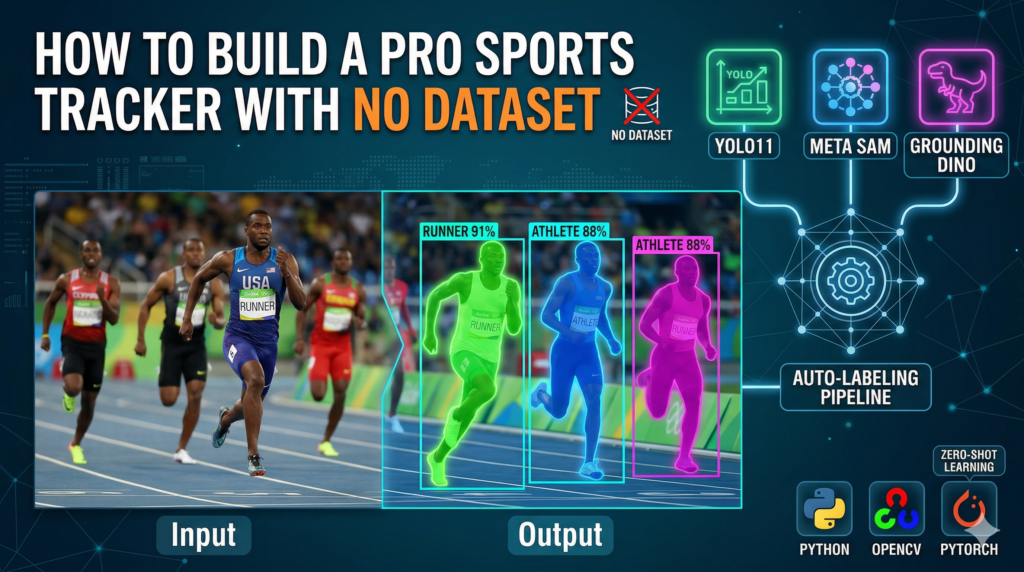
Manual data labeling has long been the bottleneck of modern computer vision, especially in the high-stakes world of sports analytics. This article explores a professional-grade methodology for building an AI Athlete Tracking system that bypasses the traditional, grueling process of hand-annotating thousands of frames. By orchestrating a pipeline of GroundingDINO for discovery, YOLO11 for speed, and Meta’s SAM for precision, we bridge the gap between raw video footage and production-ready segmentation.
The primary appeal for any developer or researcher here is the “Zero-Shot” approach, which eliminates the need for a pre-labeled dataset. Instead of spending weeks in labeling tools, you will learn to leverage foundation models that already understand the visual world. This shift not only saves hundreds of hours but also allows for rapid prototyping and deployment of AI Athlete Tracking solutions across various sporting disciplines without the overhead of data preparation.
To achieve this, the tutorial provides a comprehensive, step-by-step technical blueprint. We begin by programmatically capturing high-quality training data directly from YouTube streams using VidGear. From there, we implement Autodistill to automatically generate high-fidelity labels, which are then used to fine-tune a lightning-fast YOLO11 nano model. The final layer of sophistication involves integrating the Segment Anything Model (SAM) to transform standard bounding boxes into broadcast-quality masks.
By the end of this guide, you will have a functional, end-to-end Python implementation that handles everything from data acquisition to real-time inference. Whether you are a CS student looking for a standout portfolio project or a seasoned data scientist optimizing a commercial workflow, mastering this specific stack for AI Athlete Tracking will significantly elevate your toolkit. You’ll move beyond simple detection into the realm of high-fidelity spatial analysis, setting a new standard for automated sports intelligence.
Why AI Athlete Tracking is the New Standard for Professional Sports Tech The evolution of AI Athlete Tracking represents a massive leap from manual scouting to data-driven precision. At its core, this technology aims to digitize the physical movements of players on a field or track, converting every stride and gesture into actionable data. For coaches and analysts, this means moving beyond simple video replays and into the realm of spatial metrics—measuring velocity, acceleration, and positioning with a level of accuracy that the human eye simply cannot maintain over a full match.
On a high level, the process works by first identifying the human form within a complex, moving environment and then maintaining that identity across consecutive video frames. This requires a robust balance between detection and segmentation. Detection tells the computer where the athlete is located using bounding boxes, while segmentation—like the SAM model used in this guide—defines the exact pixels belonging to the athlete. This pixel-perfect isolation is what allows for the high-end visual overlays seen in professional broadcasts and advanced biomechanical research.
Beyond the visual flair, the true target of these systems is the extraction of high-fidelity performance insights. By automating the tracking process, teams can monitor athlete fatigue, optimize tactical positioning, and even predict potential injury risks based on deviations in movement patterns. As computational power becomes more accessible, the barriers to entry for sophisticated AI Athlete Tracking are falling, allowing individual developers and smaller organizations to build tools that were once reserved for the world’s wealthiest sports franchises.
Automatic Image Labeling AI Building Your Automated Sports Intelligence Pipeline with Python How does this zero-shot workflow solve the biggest headache in computer vision? By leveraging foundation models like GroundingDINO and SAM, this workflow removes the need for manual image annotation entirely. Instead of hand-drawing thousands of bounding boxes, the code uses “text-to-object” logic to automatically identify runners and then distills that knowledge into a lightweight YOLO11 model, effectively automating the most time-consuming part of the AI Athlete Tracking development cycle.
The primary objective of this technical implementation is to create a seamless bridge between raw broadcast footage and high-precision spatial data. The code starts by solving the data acquisition problem, using VidGear to pull high-quality frames directly from digital streams. This ensures that the AI Athlete Tracking system is trained on the exact type of environment it will eventually face, such as Olympic tracks or stadium turf, without the user needing to manually download or convert massive video files.
Once the frames are captured, the logic shifts to a “teacher-student” architecture. A heavy, state-of-the-art model—GroundingDINO—acts as the teacher by identifying athletes based purely on text prompts. This automated labeling process generates a dataset that is then used to train a YOLO11 nano model. The target here is efficiency; while the teacher model is slow and computationally expensive, the student YOLO11 model is optimized for the lightning-fast speeds required for real-time AI Athlete Tracking .
The final phase of the code introduces Meta’s Segment Anything Model (SAM) to elevate the output from basic detection to professional-grade segmentation. While standard tracking often relies on simple boxes, this script uses those boxes as prompts for SAM to produce pixel-perfect masks. This is the gold standard for sports analytics because it allows for the isolation of an athlete’s exact silhouette, enabling advanced biomechanical analysis and the high-end visual overlays seen in modern sports broadcasting.
By integrating these four distinct stages—acquisition, auto-labeling, distillation, and segmentation—the tutorial provides a robust blueprint for production-ready computer vision. The ultimate target is to empower developers to build complex AI Athlete Tracking tools that are both accurate and incredibly fast. This high-level architecture ensures that you aren’t just identifying a person on a screen, but rather building an intelligent system capable of understanding and isolating movement with surgical precision.
Link to the video tutorial here .
Download the code for the tutorial here or here .
Master Computer Vision
Follow my latest tutorials and AI insights on my
Personal Blog .
Beginner Complete CV Bootcamp
Foundation using PyTorch & TensorFlow.
Get Started → Interactive Deep Learning with PyTorch
Hands-on practice in an interactive environment.
Start Learning → Advanced Modern CV: GPT & OpenCV4
Vision GPT and production-ready models.
Go Advanced →
AI Athlete Tracking Manual data labeling has long been the bottleneck of modern computer vision, especially in the high-stakes world of sports analytics.AI Athlete Tracking system that bypasses the traditional, grueling process of hand-annotating thousands of frames. By orchestrating a pipeline of GroundingDINO for discovery, YOLO11 for speed, and Meta’s SAM for precision, we bridge the gap between raw video footage and production-ready segmentation.
The primary appeal for any developer or researcher here is the “Zero-Shot” approach, which eliminates the need for a pre-labeled dataset. Instead of spending weeks in labeling tools, you will learn to leverage foundation models that already understand the visual world. This shift not only saves hundreds of hours but also allows for rapid prototyping and deployment of AI Athlete Tracking solutions across various sporting disciplines without the overhead of data preparation.
To achieve this, the tutorial provides a comprehensive, step-by-step technical blueprint. We begin by programmatically capturing high-quality training data directly from YouTube streams using VidGear. From there, we implement Autodistill to automatically generate high-fidelity labels, which are then used to fine-tune a lightning-fast YOLO11 nano model. The final layer of sophistication involves integrating the Segment Anything Model (SAM) to transform standard bounding boxes into broadcast-quality masks.
By the end of this guide, you will have a functional, end-to-end Python implementation that handles everything from data acquisition to real-time inference. Whether you are a CS student looking for a standout portfolio project or a seasoned data scientist optimizing a commercial workflow, mastering this specific stack for AI Athlete Tracking will significantly elevate your toolkit. You’ll move beyond simple detection into the realm of high-fidelity spatial analysis, setting a new standard for automated sports intelligence.
Starting Your Journey: Setting Up the Professional Computer Vision Environment The first step in any high-end project is establishing a clean and reproducible development environment. For AI Athlete Tracking , we utilize Conda to isolate our dependencies and avoid the “dependency hell” that often plagues deep learning projects. This setup ensures that we have the exact versions of PyTorch and Ultralytics needed to run the latest YOLO11 models on your GPU hardware.
Reproducibility is the hallmark of a professional developer, and it starts with your installation script. By fixing the versions of libraries like VidGear and Autodistill, we guarantee that the logic we write today will still work months from now. This part of the code also handles the connection between your Python environment and the CUDA drivers, which is essential for training models at scale.
Beyond just simple libraries, this section prepares your system to handle the heavy lifting of foundation models. We are downloading specialized checkpoints for the Segment Anything Model (SAM), which allows your script to “prompt” the AI to find specific objects. Setting this foundation correctly is what makes the subsequent steps of automated labeling and training feel effortless and fluid.
Why is it important to fix library versions like yt-dlp or vidgear in this project? Fixing library versions ensures that updates to external tools don’t break your video streaming or data extraction pipelines unexpectedly. Since these libraries interact with web platforms like YouTube, using a specific, verified version keeps your data acquisition stable throughout the development of your tracker.
### Create a new conda environment named Olympic with Python 3.11 conda create -- name Olympic python = 3.11 ### Activate the newly created environment conda activate Olympic ### Check the installed CUDA version to ensure GPU compatibility nvcc -- version ### Install specific versions of PyTorch, Torchvision, and Torchaudio for CUDA 12.8 pip install torch == 2.9 . 1 torchvision == 0.24 . 1 torchaudio == 2.9 . 1 -- index - url https : // download . pytorch . org / whl / cu128 ### Install the specific version of the Ultralytics library for YOLO11 pip install ultralytics == 8.4 . 33 ### Install the Segment Anything Model (SAM) library directly from the Facebook Research GitHub repository pip install git + https : // github . com / facebookresearch / segment - anything . git ### Install VidGear for high-performance video streaming pip install vidgear == 0.3 . 4 ### Install yt-dlp to handle YouTube video metadata and downloading pip install yt - dlp == 2026.3 . 17 ### Install Autodistill for automated dataset creation pip install autodistill == 0.1 . 29 ### Install the GroundingDINO extension for Autodistill to enable zero-shot labeling pip install autodistill_grounding_dino == 0.1 . 4 ### Install scikit-learn for machine learning utility functions pip install scikit - learn == 1.6 . 1 ### Install the Roboflow library for dataset management pip install roboflow == 1.3 . 1 ### Install the OpenCV library for image processing pip install opencv - python == 4.10 . 0 . 84 ### Install the headless version of OpenCV for server environments pip install opencv - python - headless == 4.10 . 0 . 84 ### Install the Transformers library to support foundation models pip install transformers == 4.29 . 2 In summary, this section builds the technical foundation for the project by installing all necessary deep learning frameworks and specialized CV tools.
Want the test video to run your own results? If you’d like to reproduce the exact tracking and segmentation seen in this tutorial, I’m happy to share the source video I used for testing. Just send me an email and mention “AI Athlete Tracking Test Video” so I know exactly what to send your way.
🖥️ Email: feitgemel@gmail.com
Data is the lifeblood of any AI Athlete Tracking system, and finding diverse training footage is the first real challenge. This code part uses the VidGear library to stream frames directly from high-definition YouTube videos of Olympic events. By sampling frames directly from the web, we can build a vast library of “Olympic Runners” without having to manually record or store massive local video files.
The logic here is designed to be both fast and efficient by resizing frames on the fly to a standard 640×640 resolution. Standardizing the image size at this stage ensures that our subsequent training and inference steps are optimized for the YOLO11 model. The script also includes a visualization window, allowing you to see exactly what frames are being “harvested” for your future dataset.
Using YouTube as a data source provides an incredible variety of lighting, camera angles, and backgrounds. This variety is what makes a tracker truly robust and “Pro-Level,” as it learns to identify runners in diverse stadium environments. Saving these frames to a structured local directory sets the stage for the automated labeling engine we will implement in the next part.
How does the CamGear function help in building a custom computer vision dataset? CamGear acts as a high-performance wrapper around OpenCV’s VideoCapture, allowing you to stream YouTube content with minimal latency. It simplifies the process of reading frames from a URL so you can focus on processing and saving the specific images needed for your training pipeline.
### Import the OpenCV library for image saving and resizing import cv2 ### Import the YOLO class from Ultralytics from ultralytics import YOLO ### Import the os library for managing file directories import os ### Import the CamGear class from VidGear for YouTube streaming from vidgear . gears import CamGear ### Define a list of YouTube URLs containing footage of athletic runners train_URLs = [ ' https://www.youtube.com/watch?v=Ox0_uqR_UqA ' , ' https://www.youtube.com/watch?v=JUycKVrvZ3c ' ] ### Initialize a numerator to name the saved images sequentially numerator = 0 ### Define the local path where images will be stored output_path_images = " D:/Data-Sets-Object-Detection/Athletic-Runner/images " ### Create the output directory if it does not already exist if not os . path . exists ( output_path_images ): os . makedirs ( output_path_images ) ### Loop through each URL in the training list for url in train_URLs : print ( url ) ### Start a VidGear stream with the YouTube URL in stream mode stream = CamGear ( source = url , stream_mode =True , logging =True ). start () ### Read the video stream frame by frame until it ends while True : frame = stream . read () print ( numerator ) numerator = numerator + 1 ### Exit the loop if the frame is empty if frame is None : break ### Create a unique file path for the current frame image_output_path = output_path_images + " / " + " image- " + str ( numerator ) + " .png " ### Resize the frame to 640x640 for model consistency resized = cv2 . resize ( frame , ( 640 , 640 ), interpolation = cv2 . INTER_AREA ) ### Save the resized frame as a PNG file cv2 . imwrite ( image_output_path , resized ) ### Add a text overlay to the display frame to track progress cv2 . putText ( frame , " Image no. " + str ( numerator ), ( 100 , 100 ), cv2 . FONT_HERSHEY_SIMPLEX , 3 , ( 0 , 255 , 0 ), 4 , cv2 . LINE_AA ) ### Show the frame in a window for visual monitoring cv2 . imshow ( " Frame " , frame ) ### Close the window if the 'q' key is pressed if cv2 . waitKey ( 1 ) & 0x FF == ord ( ' q ' ): break ### Close all OpenCV windows and stop the video stream cv2 . destroyAllWindows () stream . stop () Summary: This code successfully scrapes high-quality training images from YouTube, standardizes their size, and organizes them into a local directory ready for AI-powered labeling.
The End of Manual Work: Using AI to Label Your Images Automatically Welcome to the heart of the “Zero-Shot” revolution, where we use GroundingDINO to do the labeling work for us. By defining a “CaptionOntology,” we tell the AI exactly what labels we are looking for using simple English phrases like “Olympic athlete.” The GroundingDINO model then scans our raw images and automatically draws bounding boxes around anything that matches our description.
This approach is what separates the “Pro-Level” developers from the beginners who still spend weeks in labeling software. The code creates a structured dataset by mapping our natural language prompts to specific class IDs. It effectively acts as a “synthetic supervisor,” creating a bridge between your raw data and the YOLO11 model you want to train.
The final output of this part is a complete dataset folder structure, including images and text files containing YOLO-format coordinates. Because we set thresholds for both detection and text matching, we can control the quality of the auto-generated labels. This ensures that our student model—the YOLO11 tracker—learns from high-quality data without a single human drawing a box.
What is the role of the CaptionOntology in this zero-shot labeling script? The CaptionOntology serves as a dictionary that maps your natural language descriptions to the class labels used by the model. It tells GroundingDINO exactly what visual features to look for and how to name them in the final dataset output.
### Import the CaptionOntology class from Autodistill from autodistill . detection import CaptionOntology ### Define the ontology mapping text prompts to class labels ontology = CaptionOntology ({ " an athletic person running race track " : " an athletic person running race track " , " Athletic runner " : " Athletic runner " , " Olympic athlete " : " Olympic athlete " ,}) ### Set the path to the directory containing raw images IMAGE_DIR_PATH = " D:/Data-Sets-Object-Detection/Athletic-Runner/images " ### Set the path where the labeled dataset will be generated DATASET_DIR_PATH = " D:/Data-Sets-Object-Detection/Athletic-Runner/dataset " ### Define the confidence threshold for object detection BOX_THRESHOLD = 0.5 ### Define the confidence threshold for text prompt matching TEXT_THRESHOLD = 0.5 ### Import the GroundingDINO model from Autodistill from autodistill_grounding_dino import GroundingDINO ### Initialize the base model with our defined ontology and thresholds base_model = GroundingDINO ( ontology = ontology , box_threshold = BOX_THRESHOLD , text_threshold = TEXT_THRESHOLD ) ### Run the auto-labeling process on the image folder and save the result dataset = base_model . label ( input_folder = IMAGE_DIR_PATH , output_folder = DATASET_DIR_PATH , extension = ' .png ' ) Summary: This snippet automates the entire annotation process, transforming a folder of raw images into a fully labeled YOLO dataset using state-of-the-art zero-shot detection.
Quality Control: Ensuring Your AI Teacher Correctly Identified the Athletes Trusting an automated labeling system requires visual verification, and that is exactly what this part of the code provides. We pick random images from our new dataset and overlay the auto-generated bounding boxes on top of them. This “sanity check” allows you to confirm that GroundingDINO correctly understood what a runner looks like before you start the heavy training process.
The logic here involves converting YOLO-formatted coordinates—which are normalized between 0 and 1—back into pixel coordinates.
Visualizing your data in a grid format (like a 2×4 subplot) is a standard practice in professional computer vision. It gives you a bird’s-eye view of the dataset’s diversity and the accuracy of the labels across different frames. This step is crucial for identifying any “hallucinations” or missed detections that might need threshold adjustments in the previous stage.
Why do we need to convert YOLO coordinates back into pixel coordinates for visualization? YOLO format uses normalized coordinates (0 to 1) to remain independent of the image resolution. To draw these on a real image using OpenCV, you must multiply those values by the image’s width and height to find the exact pixel location for the box.
### Import necessary libraries for file management and plotting import os import random import matplotlib . pyplot as plt import cv2 ### Define the names of the labels as defined in our ontology label_names = [ " an athletic person running race track " , " Athletic runner " , " Olympic athlete " ] ### Create a function to parse YOLO text label files into a list of annotations def get_annoations ( original_img , label_file ): with open ( label_file , ' r ' ) as file : lines = file . readlines () annotations = [] for line in lines : values = line . split () label = values [ 0 ] x , y , w , h = map ( float , values [ 1 :]) annotations . append (( label , x , y , w , h )) return annotations ### Create a function to draw the parsed annotations back onto the image def put_annoations_in_image ( image , annotations ): H , W , _ = image . shape for annotation in annotations : label , x , y , w , h = annotation label_name = label_names [ int ( label )] x1 = int (( x - w / 2 ) * W ) y1 = int (( y - h / 2 ) * H ) x2 = int (( x + w / 2 ) * W ) y2 = int (( y + h / 2 ) * H ) cv2 . rectangle ( image , ( x1 , y1 ), ( x2 , y2 ), ( 200 , 200 , 0 ), 1 ) cv2 . putText ( image , label_name , ( x1 , y1 - 5 ), cv2 . FONT_HERSHEY_SIMPLEX , 0.5 , ( 200 , 200 , 0 ), 2 , cv2 . LINE_AA ) return image ### Create a main function to pick random images and display them with their boxes def display_random_images ( folder_path , num_images , label_folder ): image_files = [ f for f in os . listdir ( folder_path ) if os . path . isfile ( os . path . join ( folder_path , f ))] selected_images = random . sample ( image_files , num_images ) fig , axes = plt . subplots ( 2 , 4 , figsize = ( 20 , 10 )) fig . suptitle ( ' Randomly Selected Images with Annotations ' ) for i , image_file in enumerate ( selected_images ): row = i // 4 col = i % 4 img = cv2 . imread ( os . path . join ( folder_path , image_file )) img = cv2 . cvtColor ( img , cv2 . COLOR_BGR2RGB ) label_file = os . path . splitext ( image_file )[ 0 ] + ' .txt ' label_file_path = os . path . join ( label_folder , label_file ) annotations_Yolo_format = get_annoations ( img , label_file_path ) image_with_annotations = put_annoations_in_image ( img , annotations_Yolo_format ) axes [ row , col ]. imshow ( image_with_annotations ) axes [ row , col ]. axis ( ' off ' ) axes [ row , col ]. set_title ( f "Image { i + 1 } " ) plt . tight_layout () plt . show () ### Define the paths to the generated training images and labels images_path = ' D:/Data-Sets-Object-Detection/Athletic-Runner/Dataset/train/images ' label_folder = ' D:/Data-Sets-Object-Detection/Athletic-Runner/Dataset/train/labels ' ### Display 8 random images to verify label quality display_random_images ( images_path , 8 , label_folder ) Summary: This visualization script acts as a quality assurance tool, allowing you to see exactly how well the zero-shot labeling model performed on your custom dataset.
Creating the Athlete Tracker: Training the Lightning-Fast YOLO11 Student Now that we have our verified dataset, it is time to train our specialized “Student” model: the YOLO11 Nano. We use a “Nano” version of the model because it is incredibly fast and efficient, making it perfect for real-time AI Athlete Tracking on standard hardware. This process transfers the complex knowledge of the GroundingDINO model into a compact architecture that can run in fractions of a second.
The training configuration here is tuned for professional results, using 100 epochs and a standard batch size of 16. By pointing the model to our data.yaml file, we tell it where to find the images and labels we generated earlier. The script automatically manages the learning process, adjusting weights over time to minimize error and maximize detection precision.
A key part of this code is the directory management, where we specify the project and experiment names. This keeps your model weights organized so you can easily find the “best.pt” file after training is complete. Once finished, you will have a custom-tuned weight file that is specifically optimized for recognizing athletic runners in sports footage.
What is the benefit of using a “Nano” model like yolo11n.pt for this sports tracking project? Nano models are designed for speed and edge deployment. In the context of sports tracking, where athletes move quickly, a Nano model provides the high frame rate necessary to keep up with the action without requiring massive computing power.
### Import the YOLO class from the Ultralytics library from ultralytics import YOLO ### Define the main execution block for the training script def main (): ### Load the pretrained YOLO11 nano model weights as a starting point model = YOLO ( " yolo11n.pt " ) ### Define the path to the YAML configuration file for the dataset config_file_path = " D:/Data-Sets-Object-Detection/Athletic-Runner/Dataset/data.yaml " ### Set the output directory for model checkpoints and training logs project = " d:/temp/models/Athletic-Runner/checkpoits " experiment = " Athletic-Runner-nano " ### Start the training process with defined parameters like epochs and batch size results = model . train ( data = config_file_path , epochs = 100 , project = project , name = experiment , batch = 16 , device = 0 , patience = 14 , imgsz = 640 , verbose = True , val = True ) ### Run the main function if the script is executed directly if __name__ == " __main__ " : main () Summary: This part of the code fine-tunes a YOLO11 model on your automated dataset, resulting in a custom weights file optimized for fast and accurate athlete detection.
AI Sports Tracker Python The Ultimate Professional Finish: Adding Pixel-Perfect Masks with SAM In the final and most visually impressive part of our tutorial, we combine YOLO11 detections with the Segment Anything Model (SAM). While YOLO11 provides the bounding box—the “where”—SAM provides the high-fidelity mask—the “what.”
The code implements a sophisticated blending technique using OpenCV’s addWeighted function. We create a semi-transparent green overlay that follows the athlete’s exact shape, making the tracking result feel alive and professional. Because SAM is used in a “prompted” mode—using the YOLO11 box as its guide—it is extremely accurate and ignores the complex background clutter of a stadium.
This inference loop is the culmination of all our work, processing a video file frame by frame and displaying the real-time results. The tracker now identifies the runner, segments their form, and overlays a confidence score all in one smooth process. This is the final product: a high-end AI Athlete Tracking system built with zero manual labeling and a professional technical stack.
How does using the YOLO bounding box as a “prompt” for SAM improve segmentation quality? By providing a bounding box, you tell SAM exactly which area of the image to focus on. This prevents the model from trying to segment the entire background and ensures it focuses all its “attention” on isolating the athlete within that specific region.
### Import necessary libraries for video processing and segmentation import cv2 from ultralytics import YOLO import os import numpy as np from segment_anything import sam_model_registry , SamPredictor ### Define the path to the input video for testing video_path = " Best-Object-Detection-models/Yolo-V11/How to Detect and Segmenta Olympic runners/race.mov " ### Set the path to the fine-tuned YOLO11 weights model_path = os . path . join ( " D:/Temp/Models/Athletic-Runner/checkpoits " , " Athletic-Runner-nano " , " weights " , " best.pt " ) ### Set the path to the pretrained SAM model weights path_for_sam_model = " d:/temp/models/sam_vit_h_4b8939.pth " ### Determine the processing device (GPU if available) import torch device = " cuda " if torch . cuda . is_available () else " cpu " model_type = " default " ### Load the custom-trained YOLO11 model model = YOLO ( model_path ) detection_threshold = 0.7 ### Initialize the SAM segmentation model and move it to the device sam = sam_model_registry [ model_type ]( checkpoint = path_for_sam_model ) sam . to ( device = device ) predictor = SamPredictor ( sam ) ### Open the video file for processing cap = cv2 . VideoCapture ( video_path ) while cap . isOpened (): ret , frame = cap . read () if not ret : break ### Pass the current frame to the SAM predictor predictor . set_image ( frame ) ### Run YOLO11 detection on the frame results = model ( frame )[ 0 ] classes = results . names display_frame = frame . copy () ### Iterate through every box detected by YOLO11 for result in results . boxes . data . tolist (): x1 , y1 , x2 , y2 , score , class_id = result ### Only process the specific class (Athlete) if it passes the threshold if int ( class_id ) == 1 and score > detection_threshold : ### Convert the YOLO box to a numpy array for SAM prompting input_box = np . array ([ x1 , y1 , x2 , y2 ]) ### Predict the segmentation mask using the bounding box as a prompt masks , scores , _ = predictor . predict ( box = input_box , multimask_output =False ) mask = masks [ 0 ] ### Create a green overlay for the detected athlete's mask mask_overlay = np . zeros_like ( display_frame , dtype = np . uint8 ) mask_overlay [ mask ] = [ 0 , 255 , 0 ] ### Blend the mask with the original frame for a semi-transparent effect cv2 . addWeighted ( display_frame , 1.0 , mask_overlay , 0.4 , 0 , display_frame ) ### Draw the bounding box and class label on the final display cv2 . rectangle ( display_frame , ( int ( x1 ), int ( y1 )), ( int ( x2 ), int ( y2 )), ( 0 , 255 , 0 ), 2 ) label_text = f " { classes [ int ( class_id )] } : { score :.2f } " cv2 . putText ( display_frame , label_text , ( int ( x1 ), int ( y1 - 10 )), cv2 . FONT_HERSHEY_SIMPLEX , 0.6 , ( 0 , 255 , 0 ), 2 ) ### Show the resulting frame with detection and segmentation cv2 . imshow ( " Runner detection " , display_frame ) if cv2 . waitKey ( 1 ) & 0x FF == ord ( ' q ' ): break ### Cleanup: release video resources and close windows cap . release () cv2 . destroyAllWindows () Summary: This final step demonstrates the complete power of the pipeline, showing real-time, professional-grade athlete segmentation using the combined strengths of YOLO11 and Meta’s SAM.
FAQ What is Zero-Shot detection? Zero-shot detection identifies objects using text prompts rather than pre-labeled images. It allows you to build a custom AI Athlete Tracking dataset in minutes without manual work.
Why choose YOLO11 Nano? The Nano architecture provides the best balance of speed and accuracy for real-time applications. It is fast enough to track fast-moving Olympic runners on consumer-grade hardware.
How does SAM improve the result? Meta’s Segment Anything Model (SAM) turns bounding boxes into professional segmentation masks. This results in high-end, broadcast-quality visuals for your sports analytics project.
Is a GPU required for this tutorial? While inference can run on a CPU, an NVIDIA GPU is highly recommended for the training phase. Using CUDA acceleration significantly reduces training time from days to hours.
Can I label multiple classes at once? Yes, by adding more entries to the CaptionOntology, you can detect and track multiple objects. For example, you could track ‘runners’, ‘referees’, and ‘hurdles’ simultaneously.
Conclusion Building a professional AI Athlete Tracking system no longer requires thousands of dollars or months of manual labor. By combining the zero-shot discovery capabilities of GroundingDINO with the lightning-fast inference of YOLO11, we have created a workflow that is both accessible and incredibly powerful. The addition of Meta’s SAM provides that final “broadcast-quality” touch, turning simple detection into a high-fidelity segmentation tool.
This project proves that foundation models are changing the landscape of computer vision, allowing developers to focus on innovation rather than data entry. The modular nature of this code means you can easily adapt it to any movement-based domain, from tactical football analysis to biomedical cell tracking. As you move forward, remember that the quality of your results depends on the balance between your teacher model’s thresholds and the speed of your student model’s training.
Connect : ☕ Buy me a coffee — https://ko-fi.com/eranfeit
🖥️ Email : feitgemel@gmail.com
🌐 https://eranfeit.net
🤝 Fiverr : https://www.fiverr.com/s/mB3Pbb
Enjoy,
Eran
 Skip to content