Last Updated on 27/04/2026 by Eran Feit
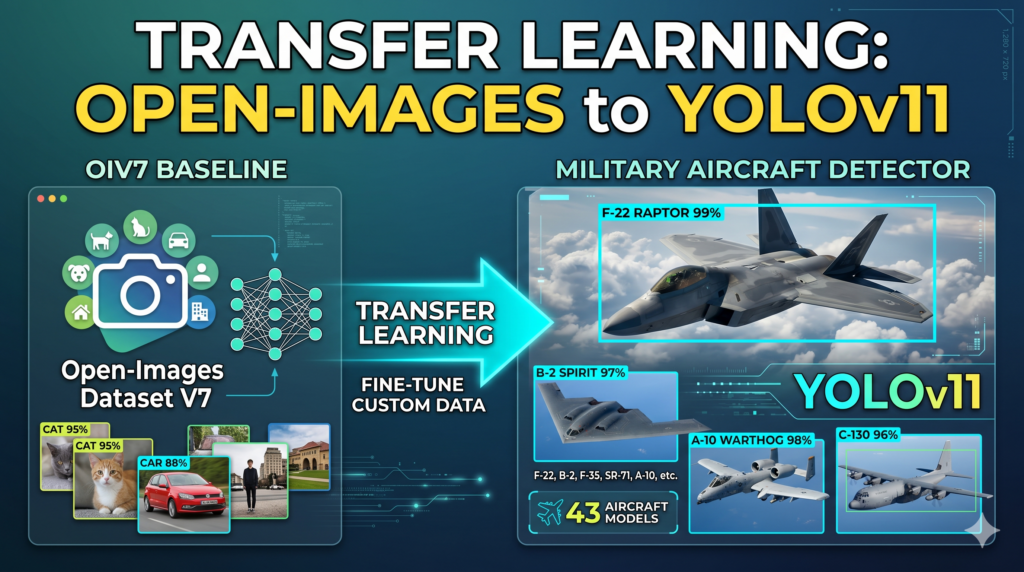
This guide dives deep into the practical implementation of computer vision by showing you how to Fine-tune YOLOv8 Open Images V7 specifically for the complex task of identifying military aircraft. While generic object detection is a common starting point for many developers, moving into a high-precision niche requires a more nuanced approach to model training and dataset handling. We will bridge the gap between theory and deployment by using a modern tech stack involving PyTorch 2.9.1 and CUDA 12.8, ensuring your environment is ready for the latest deep learning standards.
Mastering this specific workflow empowers you to build robust, specialized AI systems that go far beyond standard pre-trained models. Instead of settling for general labels, you will gain the ability to distinguish between 43 different military aircraft models, ranging from the A10 Thunderbolt to the F35 Lightning II. This level of granularity is essential for professional-grade applications in aviation tracking and defense analytics, where accuracy and specific classification are non-negotiable requirements for a successful project.
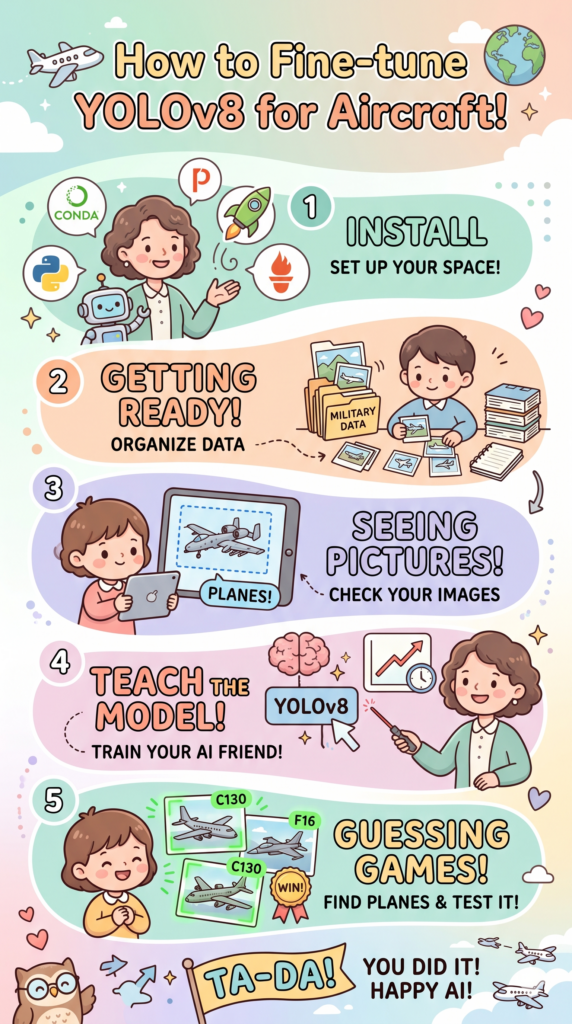
We achieve these results through a structured, five-step tutorial designed to take you from a raw dataset to a fully functioning predictor. We begin by configuring a modern development environment and move quickly into restructuring the Open Images V7 dataset to meet strict YOLO compatibility standards. By following this roadmap, you will develop a custom-weighted model that has been rigorously trained and validated, ready to identify complex assets in real-world imagery with high confidence scores.
Beyond just providing code snippets, this article offers a comprehensive look at the logic behind every step—from adjusting batch sizes for memory efficiency on an RTX 3060 Ti to visualizing ground truth versus predictions using Matplotlib. Whether you are looking to Fine-tune YOLOv8 Open Images V7 for your own research or a commercial application, this tutorial ensures you have a reproducible, scalable framework that can be adapted to any specialized detection task you encounter in the future.
Getting Started with Fine-tuning: Why Open Images V7 and YOLOv8 are a Perfect Match Fine-tuning a model allows you to leverage the “knowledge” already stored in a pre-trained neural network and specialize it for a new, specific domain. In this tutorial, the focus is on the Open Images V7 dataset, which is a massive collection of millions of images annotated with bounding boxes, making it one of the most diverse resources available to developers today. By selecting this as our base, we ensure that our model has already seen a vast variety of visual features, which significantly reduces the amount of time and computational power required to reach high accuracy compared to training a model from scratch.
The primary target of this operation is to refine the YOLOv8 architecture—a model renowned for its speed and efficiency in real-time detection—to recognize 43 distinct classes of military aircraft. This process involves updating the weights of the model so that it becomes an “expert” at identifying the specific shapes, silhouettes, and structural features of planes like the B-52 or the Su-57. It is a high-level orchestration of data science where we align the model’s predictive power with a very narrow, specialized set of visual data, ensuring that the resulting AI is both fast and incredibly precise.
On a technical level, the workflow centers on creating a bridge between the raw data and the model’s training loops. We utilize a YAML configuration to map our classes and define file pathing, then initiate a training session that iterates through the dataset multiple times. Throughout this process, the model learns to minimize error by comparing its guesses against the ground truth labels provided in the Open Images dataset. This results in a specific weights file—a concentrated file of intelligence that can be deployed into any Python environment to perform sophisticated detection in just a few milliseconds.
Military Aircraft Object Detection Building the Aircraft Brain: A High-Level Look at Our Training Pipeline Why is specialized fine-tuning better than using a generic pre-trained model? While a standard pre-trained model can recognize a “plane,” it lacks the specific intelligence to distinguish between a stealth fighter and a cargo transport. By choosing to Fine-tune YOLOv8 Open Images V7 on this specific dataset, we are essentially giving the AI an “expert education” in aviation. This process allows the model to retain its general knowledge of shapes and edges while mastering the unique structural nuances of 43 different military aircraft, resulting in professional-grade classification accuracy that out-of-the-box models simply cannot achieve.
The technical backbone of this project starts with a rigorous environment setup designed for maximum performance. By leveraging the latest PyTorch 2.9.1 and CUDA 12.8 capabilities, the code ensures that your GPU can handle the heavy mathematical lifting required for deep learning. The initial steps of the script focus on the “Data Plumbing” phase—automating the movement of thousands of high-resolution images and their corresponding label files into a structured directory. This organization is critical because it creates a clear separation between training data and validation data, which is the only way to objectively measure how well the model is learning.
Once the data is organized, the code moves into the “Mapping and Visualization” phase. This is where we bridge the gap between raw text files and visual bounding boxes. By reading the data.yaml file and converting normalized YOLO coordinates into pixel-based rectangles using OpenCV, the script allows us to visually verify that our labels are accurate before a single epoch of training begins. This step is a vital “sanity check” that ensures the model is being fed high-quality information, which is the foundation of any successful computer vision project.
The core of the execution is the training loop, where the actual “Fine-tune YOLOv8 Open Images V7” process occurs. Here, the script loads pre-trained weights from the Open Images V7 dataset and begins a process called transfer learning. Instead of the model starting from scratch, it uses its existing knowledge of the world and refines its internal neural connections to prioritize aircraft features. We have tuned the script to handle specific constraints like batch size and image resolution, making it possible to achieve high-tier results even on mid-range hardware like the NVIDIA RTX 3060 Ti.
Finally, the script concludes with a comprehensive inference and validation suite. It doesn’t just save a model file; it puts that model to the test by running it against images it has never seen before. By comparing the “Ground Truth” annotations from the dataset against the “Predictions” generated by our newly trained AI, the code provides a side-by-side visual report. This allows you to see exactly how confident the model is when it identifies an A10 or an F-35, giving you the empirical proof that your fine-tuned weights are ready for real-world deployment.
Link to the tutorial here .
Download the code for the tutorial here or here
Link for Medium users here
Master Computer Vision
Follow my latest tutorials and AI insights on my
Personal Blog .
Beginner Complete CV Bootcamp
Foundation using PyTorch & TensorFlow.
Get Started → Interactive Deep Learning with PyTorch
Hands-on practice in an interactive environment.
Start Learning → Advanced Modern CV: GPT & OpenCV4
Vision GPT and production-ready models.
Go Advanced → Fine-tune YOLOv8 Open Images V7 Mastering the Complexity: Building an Expert System for 43 Aircraft Types Setting up a workspace to handle 43 distinct military aircraft classes is a significant engineering task that requires stability above all else. When you Fine-tune YOLOv8 Open Images V7 for such a specialized niche, you aren’t just training a general detector; you are teaching a model to recognize the subtle silhouettes and structural nuances of specific platforms like the F-22, Su-57, and B-52. Because of this high level of complexity, a dedicated and isolated Conda environment is essential to ensure your system can manage the intense computational load required for a multi-hour training session.
A training run that lasts 10 hours or more is a heavy-duty operation that puts constant stress on your hardware and software stack. By utilizing PyTorch 2.9.1 and CUDA 12.8, we are configuring a high-precision pipeline that allows your GPU to process these thousands of high-resolution aircraft images without running into memory bottlenecks. This specific setup is designed to maintain accuracy across all 43 classes, ensuring that the model doesn’t lose focus on smaller categories as it iterates through the massive Open Images V7 dataset.
The true value of this preparation lies in its ability to handle “class interference”—a common problem when dealing with many similar-looking objects. By integrating the Ultralytics and OpenCV libraries within a clean environment, we provide the model with the best possible framework to distinguish between an F-15 and an F-16. This section of the tutorial ensures that your technical foundation is strong enough to support the deep learning “heavy lifting” that follows, turning a complex challenge into a manageable, reproducible project.
Why is a stable environment setup so critical for a model with 43 distinct classes? Distinguishing between 43 different aircraft types requires the model to learn extremely fine-grained visual features, which demands consistent performance over a long training duration. A rock-solid environment prevents system crashes or driver conflicts during these 10-hour sessions, ensuring that the model successfully converges on the optimal weights needed to identify each specific aircraft model with high confidence.
How do I ensure my environment can utilize the full power of my GPU? To maximize your hardware’s potential, you must verify that your installed PyTorch version matches your system’s CUDA toolkit version. Running nvcc --version allows you to identify your local driver capability, and matching it with the correct --index-url during the pip installation ensures that PyTorch can successfully detect and utilize your GPU’s cores for training.
### Create a new conda environment specifically for this YOLO training project conda create -- name YoloV11 - Torch291 python = 3.11 ### Activate the environment to ensure all subsequent installs are isolated conda activate YoloV11 - Torch291 ### Check your local CUDA compiler version to ensure compatibility nvcc -- version ### Install the specific versions of PyTorch, TorchVision, and TorchAudio for CUDA 12.8 pip install torch == 2.9 . 1 torchvision == 0.24 . 1 torchaudio == 2.9 . 1 -- index - url https : // download . pytorch . org / whl / cu128 ### Install the essential computer vision and YOLO training libraries pip install ultralytics == 8.4 . 33 pip install opencv - python == 4.10 . 0 . 84 Want the exact dataset so your results match mine? If you want to reproduce the same training flow and compare your results to mine, I can share the dataset structure and what I used in this tutorial. Send me an email and mention the name of this tutorial, so I know what you’re requesting.
🖥️ Email: feitgemel@gmail.com
Organizing Massive Aircraft Datasets with Surgical Precision Handling over 100,000 images is a logistical challenge that requires a scripted approach to avoid human error. To effectively Fine-tune YOLOv8 Open Images V7 , your data must be structured in a specific hierarchy that separates training images from validation sets. This script automates the creation of a “dataset” directory, moving thousands of aircraft files into their respective homes while ensuring that every image is perfectly paired with its corresponding label file.
The value of this automated data prep lies in its repeatability and scale. Instead of manually dragging files, we use Python’s shutil and os libraries to perform a deep-scan of your local military folders. The code iterates through each file, identifies valid images, and creates a mirrored structure for the text-based annotations, which contain the critical bounding box coordinates used by the model during the learning phase.
By maintaining this rigid structure, you prevent “data leakage,” where the model might accidentally see validation data during its training session. A clean dataset is the most influential factor in achieving a high mAP (mean Average Precision). Once this script finishes, you will have a production-ready data pipeline that can be easily pointed to by the YOLO training configuration file in the next steps.
What is the most common mistake made during the data preparation phase? The most frequent error is a “mismatch” between the image filenames and their label files, which causes the training process to fail or produce inaccurate results. This script solves that problem by using the os.path.splitext function to verify that a .txt label exists for every .jpg image before performing the copy, ensuring a 1:1 relationship between visual data and ground truth annotations.
### Import essential libraries for file manipulation and progress tracking import os import shutil from tqdm import tqdm ### Define the source folders where your raw aircraft images and labels are stored main_folder = " D:/Data-Sets-Object-Detection/military " images_folder = os . path . join ( main_folder , " images " ) labels_folder = os . path . join ( main_folder , " labels " ) train_images_folder = os . path . join ( images_folder , " aircraft_train " ) val_images_folder = os . path . join ( images_folder , " aircraft_val " ) train_labels_folder = os . path . join ( labels_folder , " aircraft_train " ) val_labels_folder = os . path . join ( labels_folder , " aircraft_val " ) dataset_folder = os . path . join ( main_folder , " dataset " ) ### Set up the internal YOLO directory structure for training and validation train_dataset_folder = os . path . join ( dataset_folder , " train " ) valid_dataset_folder = os . path . join ( dataset_folder , " valid " ) folders_to_create = [ os . path . join ( train_dataset_folder , " images " ), os . path . join ( train_dataset_folder , " labels " ), os . path . join ( valid_dataset_folder , " images " ), os . path . join ( valid_dataset_folder , " labels " ), ] ### Create the folders on your disk if they do not already exist for folder in folders_to_create : os . makedirs ( folder , exist_ok =True ) ### Define a helper function to move images and their matching labels to the new dataset folder def copy_files ( source_images_folder , target_images_folder , source_labels_folder , target_labels_folder ): image_files = [ f for f in os . listdir ( source_images_folder ) if f . endswith (( ' .jpg ' , ' .png ' , ' .jpeg ' ))] for image_file in tqdm ( image_files , desc = f "Copying files from { source_images_folder } " ): src_image_path = os . path . join ( source_images_folder , image_file ) dst_image_path = os . path . join ( target_images_folder , image_file ) shutil . copy2 ( src_image_path , dst_image_path ) label_file = os . path . splitext ( image_file )[ 0 ] + " .txt " src_label_path = os . path . join ( source_labels_folder , label_file ) if os . path . exists ( src_label_path ): dst_label_path = os . path . join ( target_labels_folder , label_file ) shutil . copy2 ( src_label_path , dst_label_path ) ### Execute the data migration for both training and validation sets copy_files ( train_images_folder , os . path . join ( train_dataset_folder , " images " ), train_labels_folder , os . path . join ( train_dataset_folder , " labels " )) copy_files ( val_images_folder , os . path . join ( valid_dataset_folder , " images " ), val_labels_folder , os . path . join ( valid_dataset_folder , " labels " )) ### Notify the user that the data pipeline is ready print ( " Dataset structure created and files copied successfully! " )
Verifying Your Visual Labels to Ensure Reliable Predictions Before committing hours of GPU time to a training run, you must perform a “sanity check” to ensure your labels are correctly aligned. This section of the code provides a crucial visualization bridge, reading the raw YOLO text files and overlaying the bounding boxes onto the actual images. If the boxes are shifted or the labels are incorrect, your model will learn the wrong patterns; this visual step catches those errors before they become costly.
The script processes normalized coordinates—values between 0 and 1 that represent relative positions—and translates them back into pixel coordinates based on the image’s height and width. By utilizing the class names defined in our data.yaml file, the code also draws the specific aircraft model name (like “F-22” or “Mig-31”) directly above the box. This turns abstract data into a clear, visual representation of what the model is expected to learn.
Seeing your data through the “eyes” of the computer is a transformative moment in the development process. It confirms that your 43 military aircraft classes are mapped correctly and that the bounding boxes tightly encompass the aircraft. This layer of quality control is what separates amateur projects from high-performance vision systems.
Why do we need to convert YOLO coordinates to pixel coordinates? YOLO stores annotations in a format where the center X, center Y, width, and height are divided by the total image dimensions to stay resolution-independent. To draw these on a screen using OpenCV, we must multiply these fractions by the actual width and height of the image to find the specific pixel locations of the top-left and bottom-right corners.
### Load required libraries for image display and configuration parsing from ultralytics import YOLO import cv2 import yaml ### Set the paths for a sample image and its corresponding annotation file img_path = " D:/Data-Sets-Object-Detection/military/dataset/train/images/0a66768d2d566e9bbbc426354db65277.jpg " img_label = " D:/Data-Sets-Object-Detection/military/dataset/train/labels/0a66768d2d566e9bbbc426354db65277.txt " ### Load the dataset configuration to retrieve human-readable class names data_yaml_file = " Best-Object-Detection-models/Yolo-V8/FIne-tune Open Images V7 model to Aircraft dataset/data.yaml " with open ( data_yaml_file , ' r ' ) as file : data = yaml . safe_load ( file ) label_names = data [ ' names ' ] ### Read the image and get its dimensions for coordinate conversion img = cv2 . imread ( img_path ) H , W , _ = img . shape ### Parse the raw YOLO label file to extract class IDs and coordinates with open ( img_label , ' r ' ) as file : lines = file . readlines () annotations = [] for line in lines : values = line . split () label , x , y , w , h = map ( float , values ) annotations . append (( label , x , y , w , h )) ### Loop through annotations to draw bounding boxes and labels on the image for annotation in annotations : label , x , y , w , h = annotation label_name = label_names [ int ( label )] ### Convert normalized YOLO coordinates back into absolute pixel values x1 = int (( x - w / 2 ) * W ) y1 = int (( y - h / 2 ) * H ) x2 = int (( x + w / 2 ) * W ) y2 = int (( y + h / 2 ) * H ) ### Draw the visual rectangle and the class name using OpenCV cv2 . rectangle ( img , ( x1 , y1 ), ( x2 , y2 ), ( 200 , 200 , 0 ), 1 ) cv2 . putText ( img , label_name , ( x1 , y1 - 5 ), cv2 . FONT_HERSHEY_SIMPLEX , 0.5 , ( 200 , 200 , 0 ), 2 ) ### Display the result in a window and wait for a key press to close cv2 . imshow ( " Label Verification " , img ) cv2 . waitKey ( 0 ) cv2 . destroyAllWindows ()
Here is the result :
How to Fine-tune YOLOv8 Open Images V7 for 43 Aircraft classes 13 The Master Map: Mapping 43 Aircraft Classes via the Configuration File The data.yaml file acts as the central nervous system of your training project, providing the essential “map” that the YOLO architecture uses to navigate your dataset. When you Fine-tune YOLOv8 Open Images V7 , the model doesn’t inherently know what an “F-35” or a “C-130” looks like; it only understands numerical indices and data paths. This configuration file bridges that gap by explicitly defining where your training and validation images are stored and exactly which human-readable names correspond to each of the 43 numerical classes.
In a complex project like military aircraft detection, precision in this file is absolutely non-negotiable. The file structure is divided into two primary parts: the directory paths and the class names list. By pointing the model to the absolute paths of your “train” and “val” folders, you ensure that the training engine can fetch images and labels without interruption during the long 10-hour training session. Any typo in these paths or a missing class name will cause the training to fail immediately, making this small text file the most critical piece of documentation in your pipeline.
Beyond just pathing, the names section is where you define the identity of your model. We have meticulously listed 43 specific aircraft models, ensuring that the index numbers assigned during the data preparation phase align perfectly with the labels the model will eventually predict. This organization allows the model to differentiate between visually similar airframes by associating specific visual features with unique ID numbers. Once this file is saved, it serves as the final set of instructions that tells the YOLO engine exactly what its mission is for the upcoming training run.
Why must the class names be in a specific numbered order in this file? The order of the names must strictly match the class IDs used in your .txt label files because YOLO identifies objects by their position in this list. If ‘A10’ is at index 0 in your labels but index 1 in your YAML, your model will consistently misidentify every aircraft it sees, highlighting why the 1:1 mapping between data and configuration is the foundation of accuracy.
### This file tells YOLO where to find your data and what to call each of the 43 aircraft types train : D : / Data - Sets - Object - Detection / military / images / aircraft_train val : D : / Data - Sets - Object - Detection / military / images / aircraft_val test : ### The numbered list of aircraft classes that the model will learn to identify names : 0 : A10 1 : A400M 2 : AG600 3 : AV8B 4 : B1 5 : B2 6 : B52 7 : Be200 8 : C130 9 : C17 10 : C2 11 : C5 12 : E2 13 : E7 14 : EF2000 15 : F117 16 : F14 17 : F15 18 : F16 19 : F18 20 : F22 21 : F35 22 : F4 23 : J20 24 : JAS39 25 : MQ9 26 : Mig31 27 : Mirage2000 28 : P3 29 : RQ4 30 : Rafale 31 : SR71 32 : Su34 33 : Su57 34 : Tornado 35 : Tu160 36 : Tu95 37 : U2 38 : US2 39 : V22 40 : Vulcan 41 : XB70 42 : YF23 Summary The data.yaml file is the ultimate authority for your training run. It ensures that the 10-hour training process remains on track by providing clear directions to your data and a consistent naming convention for all 43 aircraft classes. With this file correctly configured, you are now ready to ignite the training engine and begin the deep learning process
Igniting the Neural Network Training Process This is where the magic happens: transforming a generic pre-trained model into a specialized aircraft detection expert. By calling the model.train() function, you initiate the fine-tuning process, where the model’s weights are iteratively updated to recognize the specific features of our 43 aircraft classes. We use the pre-trained “OpenImages V7” weights as a starting point, which gives our model a massive “head start” compared to training from zero.
The code is configured to be hardware-aware, utilizing a batch size that balances memory constraints with training speed. We set the imgsz to 224 to keep the computational load manageable on mid-tier GPUs like the RTX 3060 Ti, while still maintaining enough detail for the model to distinguish between different jet silhouettes. The inclusion of a patience parameter is a professional touch; it automatically stops training if the model stops improving, saving you time and preventing “overfitting.”
Every epoch of training is a step toward a more intelligent system. As the script runs, it continuously monitors the “loss” (the difference between its guess and reality) and adjusts itself accordingly. The output of this process is a .pt weights file—the distilled “intelligence” of your project—which can be used later for real-time inference on any new image or video feed.
How does the ‘patience’ parameter improve my training efficiency? The patience parameter monitors the validation loss and will terminate the training session if no improvement is detected for a specified number of epochs (in our case, 30). This prevents the model from wasting hours of GPU energy once it has already reached its peak accuracy, ensuring you don’t over-train the model on specific quirks of the training data.
### Load the YOLO model class for training from ultralytics import YOLO def main (): ### Load the specific pre-trained weights file for the OpenImages V7 base model path_model = " D:/Temp/Models/yolov8l-oiv7.pt " model = YOLO ( path_model ) ### Path to your configuration file defining the dataset and class names config_file_path = " Best-Object-Detection-models/Yolo-V8/FIne-tune Open Images V7 model to Aircraft dataset/data.yaml " ### Define where the trained model weights and logs will be saved project = " D:/Temp/Models/Military Aircraft Detection " experiment = " My-Model-224 " batch_size = 16 ### Launch the training process with customized hyperparameters for best results results = model . train ( data = config_file_path , epochs = 200 , project = project , name = experiment , batch = batch_size , device = 0 , patience = 30 , imgsz = 224 , verbose =True , val =True ) if __name__ == " __main__ " : main ()
Seeing the Results with Real-Time Model Inference After the training is complete, the ultimate test is how the model performs on a single, unseen image. This part of the code loads your newly created best.pt weights and runs a prediction pass to see if it can correctly identify aircraft. By setting a threshold of 0.5, we tell the model only to show us detections where it is at least 50% confident, filtering out weak or uncertain guesses.
The script doesn’t just output data; it creates a side-by-side visual comparison. On one side, it draws the “Predicted” boxes generated by your AI, and on the other, it shows the “Ground Truth” annotations from the original dataset. This visual feedback is essential for understanding the model’s strengths and where it might still be struggling with visually similar aircraft models.
Using OpenCV to resize and display the images makes this a lightweight tool for quick quality checks. You can immediately see if the model’s bounding boxes are tight and if the classification labels match the reality of the image. This is the moment where your code turns into a functional tool that can actually “see” and understand the world.
What does the ‘threshold’ value actually control in object detection? The threshold is a filter for the model’s confidence scores; any detection with a score below this value is discarded and not displayed. Adjusting this value allows you to balance between “precision” (being very sure about what you find) and “recall” (finding every object possible, even if some guesses are uncertain).
Here is the test image :
How to Fine-tune YOLOv8 Open Images V7 for 43 Aircraft classes 14 ### Import necessary tools for loading the model and image processing from ultralytics import YOLO import cv2 import os ### Set paths for the test image and the custom weights you just trained img_test = " Best-Object-Detection-models/Yolo-V8/FIne-tune Open Images V7 model to Aircraft dataset/test.jpg " model_path = os . path . join ( " D:/Temp/Models/Military Aircraft Detection " , " My-Model-224 " , " weights " , " best.pt " ) ### Load the image and resize it for better viewing on standard displays img = cv2 . imread ( img_test ) img = cv2 . resize ( img , None , fx = 0.3 , fy = 0.3 , interpolation = cv2 . INTER_AREA ) H , W , _ = img . shape ### Load your fine-tuned aircraft detection model model = YOLO ( model_path ) threshold = 0.5 ### Run the model inference on the test image results = model ( img )[ 0 ] ### Iterate through the detections and draw boxes for those above our threshold img_predict = img . copy () for result in results . boxes . data . tolist (): x1 , y1 , x2 , y2 , score , class_id = result if score > threshold : cv2 . rectangle ( img_predict , ( int ( x1 ), int ( y1 )), ( int ( x2 ), int ( y2 )), ( 0 , 255 , 0 ), 5 ) cv2 . putText ( img_predict , results . names [ int ( class_id )]. upper (), ( int ( x1 ), int ( y1 - 20 )), cv2 . FONT_HERSHEY_SIMPLEX , 2 , ( 255 , 0 , 0 ), 3 , cv2 . LINE_AA ) ### Display the predicted results in a new window cv2 . imshow ( " AI Model Prediction " , img_predict ) cv2 . waitKey ( 0 ) cv2 . destroyAllWindows ()
Here is the result :
How to Fine-tune YOLOv8 Open Images V7 for 43 Aircraft classes 15 YOLOv11 Tutorial PyTorch Validating Performance with Randomized Stress Tests To truly trust your model, you need to see how it performs across a diverse set of examples, not just one. This final section of the tutorial automates the validation process by randomly selecting 10 images from your validation folder and running predictions on all of them. This “stress test” helps you identify if the model has any blind spots, such as struggling with specific lighting conditions or aircraft silhouettes.
The code utilizes matplotlib and numpy to create a professional, combined visualization where the original labels and the AI’s guesses are shown side-by-side. This layout makes it incredibly easy to spot “False Positives” (where the model thinks it sees a plane that isn’t there) or “False Negatives” (where it misses a plane entirely). It provides a statistical and visual overview of the model’s reliability.
By the end of this script, you will have a clear gallery of results that demonstrate the success of your project. Whether you are building this for a portfolio or a production environment, having these side-by-side validation visuals is the “gold standard” for proving that your Fine-tune YOLOv8 Open Images V7 approach was successful. You now have a fully trained, validated, and deployable aircraft detection system.
Why use randomized sampling for model validation? Randomized sampling ensures that you are getting an unbiased look at the model’s performance rather than just cherry-picking the “best” results. By looking at a random cross-section of the validation set, you gain a realistic understanding of how the model will behave when it encounters truly new data in the field.
### Load libraries for random sampling and professional image plotting import os import cv2 import random import matplotlib . pyplot as plt from ultralytics import YOLO import numpy as np ### Define paths for validation data and the final trained weights images_folder = " D:/Data-Sets-Object-Detection/military/dataset/valid/images " labels_folder = " D:/Data-Sets-Object-Detection/military/dataset/valid/labels " model_path = os . path . join ( " D:/Temp/Models/Military Aircraft Detection " , " My-Model-224 " , " weights " , " best.pt " ) ### Initialize the model and select 10 random images for the test model = YOLO ( model_path ) images = [ img for img in os . listdir ( images_folder ) if img . endswith (( ' .jpg ' , ' .png ' ))] selected_images = random . sample ( images , min ( 10 , len ( images ))) ### Process each selected image and generate a comparison view for img_name in selected_images : img_path = os . path . join ( images_folder , img_name ) img = cv2 . imread ( img_path ) img = cv2 . cvtColor ( img , cv2 . COLOR_BGR2RGB ) ### Run the prediction and visualize alongside the ground truth results = model ( img )[ 0 ] img_predict = img . copy () for result in results . boxes . data . tolist (): x1 , y1 , x2 , y2 , score , class_id = result if score > 0.5 : cv2 . rectangle ( img_predict , ( int ( x1 ), int ( y1 )), ( int ( x2 ), int ( y2 )), ( 0 , 255 , 0 ), 5 ) ### Plot the results using Matplotlib for a clear side-by-side comparison plt . figure ( figsize = ( 15 , 8 )) plt . imshow ( np . hstack (( img , img_predict ))) plt . title ( f "Comparison: Ground Truth vs Prediction - { img_name } " ) plt . axis ( ' off ' ) plt . show () FAQ What is the main benefit of fine-tuning YOLOv8 on Open Images V7? Fine-tuning leverages a pre-trained model’s existing knowledge to specialize it for aircraft detection, drastically reducing training time and data requirements.
Why do I need to create a separate Conda environment? Isolating dependencies ensures that specific versions of PyTorch and CUDA work correctly without interfering with other software on your machine.
How does ‘imgsz’ affect performance? Smaller image sizes (like 224) allow for faster training and lower VRAM usage, making it possible to train models on consumer-grade GPUs.
What happens if I don’t use a ‘patience’ parameter? Training may continue indefinitely without further accuracy gains, potentially leading to overfitting and wasted computational energy.
Is the ‘best.pt’ file different from ‘last.pt’? Yes, ‘best.pt’ saves the weights from the specific moment the model achieved the highest accuracy, while ‘last.pt’ is simply the final state of training.
Conclusion: Mastering Specialized Detection in a Modern AI Workflow Successfully completing this tutorial means you have mastered one of the most practical workflows in modern computer vision. By learning how to Fine-tune YOLOv8 Open Images V7 , you’ve moved beyond generic object detection and entered the realm of high-precision domain specialization. You have built a complete end-to-end pipeline—from setting up a high-performance PyTorch environment to visualizing and validating 43 distinct classes of military aircraft. This foundation is not just about planes; it’s a blueprint you can now apply to any specialized detection task, whether in industrial automation, security, or scientific research.
The transition from raw data to a functional, intelligent system requires a careful balance of software engineering and data science. You’ve seen firsthand how a clean dataset and proper label verification are just as important as the model architecture itself. By using latest-gen tools like CUDA 12.8 and the Ultralytics API, you have ensured that your skills remain at the absolute cutting edge of the industry. This tutorial proves that with the right structure and a modern tech stack, building a sophisticated AI model is achievable, repeatable, and highly effective. Keep experimenting with different thresholds and datasets to continue refining your expertise in the field!
Connect ☕ Buy me a coffee — https://ko-fi.com/eranfeit
🖥️ Email : feitgemel@gmail.com
🌐 https://eranfeit.net
🤝 Fiverr : https://www.fiverr.com/s/mB3Pbb
Enjoy,
Eran
 Skip to content