Last Updated on 28/09/2026 by Eran Feit
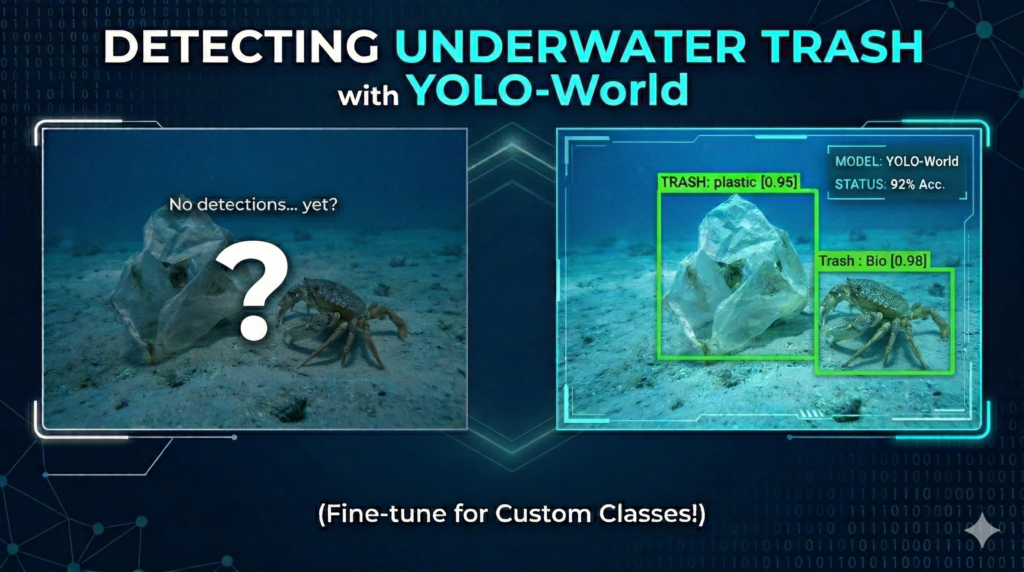
Modern object detection has reached a pivotal moment with the release of open-vocabulary models that can identify objects they have never seen during training. This tutorial focuses on bridging the gap between general AI capabilities and specialized industrial applications by showing you how to train YOLO-World on custom dataset files. While YOLO-World is renowned for its zero-shot performance, the true power for professional-grade projects lies in fine-tuning the model to recognize niche objects—like underwater debris—with the surgical precision required for real-world deployment.
The ability to detect specific, non-standard objects in challenging environments is a highly sought-after skill in the current AI landscape. Readers will gain a significant competitive advantage by mastering the transition from “out-of-the-box” inference to a customized, high-accuracy pipeline. By focusing on a specific use case like marine conservation and underwater trash detection, this guide provides the technical blueprint needed to solve complex visual problems where generic pre-trained models often struggle with low contrast and specialized object classes.
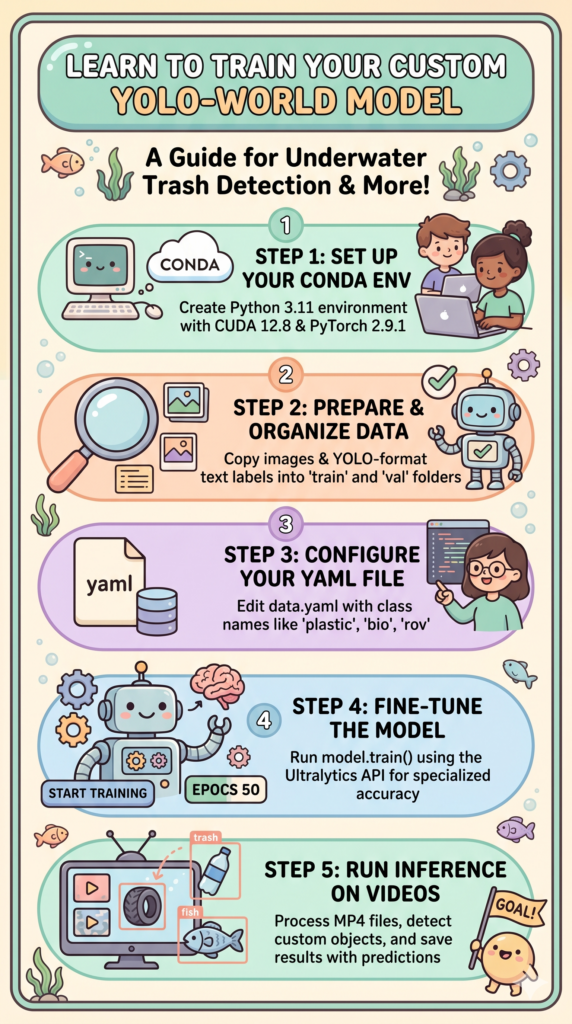
The technical journey ahead is designed to be comprehensive and production-ready, moving beyond simple theory into a fully functional implementation. We dive deep into the latest environment configurations, ensuring your local machine is optimized with the newest versions of PyTorch and CUDA for maximum training efficiency. By following this workflow, you will transform a state-of-the-art open-vocabulary model into a dedicated expert system tailored specifically to your unique data requirements.
To achieve these results, we will systematically walk through the entire development lifecycle. This includes the initialization of a robust Conda environment, the precise organization of YOLO-format annotations, and the actual execution of the training process using the Ultralytics API. We conclude with a practical demonstration of the model’s performance, running inference on video files to visualize how the fine-tuned weights handle real-world motion and environmental noise.
Why Training YOLO-World on Your Own Data is a Game-Changer Traditional object detection models are often “locked” into the classes they were trained on, requiring a complete retraining cycle just to add a single new category. YOLO-World changed this paradigm by introducing an open-vocabulary architecture that uses a Vision-Language Model (VLM) to understand descriptive texts. However, for specialized tasks like identifying various types of plastic or biological waste on the ocean floor, the “general knowledge” of the model isn’t always enough. When you train YOLO-World on custom dataset samples, you are essentially teaching the model the fine-grained nuances of your specific environment, significantly reducing false positives and increasing the confidence of the detections.
The primary target for this fine-tuning approach is the developer or researcher who needs more than just a “guess” from an AI. In professional settings—ranging from autonomous underwater vehicles (AUVs) to industrial quality control—the cost of a missed detection is high. By leveraging the pre-trained “world knowledge” already inside the model and then refining it with a domain-specific dataset, you achieve a “best of both worlds” scenario. The model retains its broad understanding of shapes and textures while becoming an expert in your specific labels, such as ‘plastic’, ‘bio’, or ‘rov’ components.
From a high-level perspective, the training process involves modifying the model’s internal “embeddings” to align more closely with your visual data. Instead of starting from a blank slate, the fine-tuning process uses the rich features already learned by YOLO-World during its massive pre-training phase. This means you can often achieve incredible results with much smaller datasets than were previously required for older YOLO versions. By the end of this process, the model transitions from a generalist that understands “trash” to a specialist that can distinguish between a degraded plastic bottle and organic seafloor matter in real-time.
Train YOLO-World on custom dataset Building the Custom Detection Engine: A Deep Dive into the Python Pipeline Why is fine-tuning necessary if YOLO-World already supports open-vocabulary detection? While zero-shot detection is impressive for identifying common objects using text prompts, it often lacks the surgical precision required for niche environments like the ocean floor or specific industrial assembly lines. By choosing to train YOLO-World on custom dataset samples, you are optimizing the model’s neural weights to recognize the unique visual signatures of your specific classes—such as ‘plastic’, ‘bio’, or ‘rov’—within the context of your specific lighting and background conditions. This process essentially transforms a generalist model into a domain expert, ensuring professional-grade reliability and significantly higher confidence scores in real-world applications.
The technical core of this tutorial is built around a streamlined Python implementation designed to bridge the gap between raw data and a deployable AI model. The primary target of the provided code is to automate the labor-intensive stages of machine learning: data organization, validation, and the fine-tuning of the YOLO-World architecture. By leveraging the Ultralytics framework and PyTorch 2.9.1, the scripts provide a robust backbone that handles the heavy lifting of gradient descent and weight optimization, allowing you to focus on the quality of your underwater imagery and the accuracy of your annotations.
At a high level, the logic begins with a rigorous data preparation phase. Before the model ever sees an image, the script ensures that your “trash_ICRA19” dataset is correctly partitioned into training, validation, and testing subsets. This organizational step is critical because it prevents “data leakage,” ensuring that the model’s performance metrics are grounded in its ability to generalize to new, unseen underwater environments rather than simply memorizing the training images. This foundation is what allows the subsequent training phase to be so effective.
The actual training routine utilizes the YOLOWorld class, specifically starting with the “yolov8s-world.pt” pre-trained weights. This is an example of transfer learning, where we take a model that already “understands” basic shapes, edges, and colors, and then refine its top layers to specialize in our underwater categories. The code is configured to run for 50 epochs with a specialized patience setting, which means the system will automatically stop training if it detects that the accuracy is no longer improving. This prevents overfitting and saves significant computational time on your NVIDIA hardware.
Finally, the pipeline transitions from training to real-time application through an inference loop. Once you train YOLO-World on custom dataset files and save the ‘best.pt’ weights, the script demonstrates how to load these weights to process high-definition video files. The code handles frame-by-frame detection, drawing bounding boxes and labels in real-time. This end-to-end approach ensures that you aren’t just left with a model file, but with a fully functional vision system capable of monitoring underwater debris or identifying ROV components in a live stream.
Link to the tutorial here .
Download the code for the tutorial here or here
Link for Medium users here
Master Computer Vision
Follow my latest tutorials and AI insights on my
Personal Blog .
Beginner Complete CV Bootcamp
Foundation using PyTorch & TensorFlow.
Get Started → Interactive Deep Learning with PyTorch
Hands-on practice in an interactive environment.
Start Learning → Advanced Modern CV: GPT & OpenCV4
Vision GPT and production-ready models.
Go Advanced → YOLO-World fine-tuning tutorial How to Train YOLO-World on Custom Dataset | Underwater trash dataset Setting up a robust development environment is the cornerstone of any successful computer vision project. When you decide to train YOLO-World on custom dataset files, you need to ensure that your hardware and software are perfectly synced. This involves creating a dedicated Conda environment to keep your dependencies isolated and stable. By using Python 3.11 and the latest PyTorch 2.9.1 with CUDA 12.8 support, you leverage the full power of your NVIDIA GPU for lightning-fast training.
Isolation is key when working with cutting-edge libraries like Ultralytics and OpenCV. A clean environment prevents version conflicts that often plague complex AI installations. In this section, we initialize our workspace and install the specific versions of Torch and TorchVision required for YOLO-World’s open-vocabulary architecture. Following these steps ensures that the code runs smoothly without the dreaded “ModuleNotFoundError” or “CUDA version mismatch” errors.
Once the environment is active, we bring in the essential libraries that drive our detection pipeline. Ultralytics serves as our main API for the YOLO-World model, while OpenCV handles the critical task of image processing and visualization. We also include Scikit-learn to provide additional utilities for data handling and evaluation. By the end of this setup, your machine will be a professional-grade AI workstation ready for the deep learning tasks ahead.
Why is using a specific Conda environment and CUDA version so important for this tutorial? Using a dedicated Conda environment and specific CUDA/PyTorch versions ensures that all technical dependencies are perfectly aligned with the YOLO-World architecture. This prevents software conflicts and allows the code to utilize the GPU’s hardware acceleration for efficient training and real-time inference.
### Create a new Conda environment named YoloV11-Torch291 with Python 3.11 conda create -- name YoloV11 - Torch291 python = 3.11 ### Activate the newly created environment conda activate YoloV11 - Torch291 ### Check the installed NVCC version to ensure CUDA compatibility nvcc -- version ### Install PyTorch 2.9.1, TorchVision, and TorchAudio for CUDA 12.8 pip install torch == 2.9 . 1 torchvision == 0.24 . 1 torchaudio == 2.9 . 1 -- index - url https : // download . pytorch . org / whl / cu128 ### Install the Ultralytics library version 8.4.33 for YOLO-World support pip install ultralytics == 8.4 . 33 ### Install OpenCV-Python for image and video processing pip install opencv - python == 4.10 . 0 . 84 ### Install Scikit-learn for additional data processing utilities pip install scikit - learn == 1.8 . 0 Want the exact dataset so your results match mine? If you want to reproduce the same training flow and compare your results to mine, I can share the dataset structure and what I used in this tutorial. Send me an email and mention the name of this tutorial, so I know what you’re requesting.
🖥️ Email: feitgemel@gmail.com
Organizing Your Trash Data for Maximum Training Impact Effective data management is often what separates a working prototype from a professional production model. To successfully train YOLO-World on custom dataset structures, you must organize your images and labels into a format the model can ingest. This part of the code introduces an automated way to copy and sort your raw data into specific folders for training, validation, and testing. Using the shutil and tqdm libraries allows us to move thousands of files while keeping a close eye on the progress.
We define a specialized copy_files function that acts as the gatekeeper for our dataset. It intelligently identifies image files like JPG and PNG, and separates them from the YOLO-format text labels. By automating this process, we eliminate the risk of human error that occurs during manual file dragging. Properly separated folders ensure that the YOLO-World trainer knows exactly which images to learn from and which ones to use for measuring accuracy.
The logic concludes by setting up a clear TARGET_FOLDER that mirrors the standard YOLO directory structure. We replicate the “train”, “val”, and “test” splits required by the Ultralytics API. Having a clean, standardized dataset directory is not just a best practice; it is a requirement for the .train() function we will call later. This structural clarity makes it much easier to debug your model if the results aren’t meeting your expectations.
How does the copy_files function ensure the dataset is ready for YOLO-World? The copy_files function iterates through your source directory and uses file extensions to sort images and labels into their respective subfolders. It automatically creates the necessary directory structure for training, validation, and testing, which is essential for the YOLO model to correctly locate data during the training phase.
import os import shutil from tqdm import tqdm ### Define a function to copy images and labels into their respective destination folders def copy_files ( source , dest_images , dest_labels ) : ### Create the images and labels directories if they do not already exist os . makedirs ( dest_images , exist_ok =True ) os . makedirs ( dest_labels , exist_ok =True ) ### Iterate through each file in the source folder with a progress bar for file in tqdm ( os . listdir ( source )) : src_file = os . path . join ( source , file ) ### Check if the file is an image and copy it to the images folder if file . endswith (( " .jpg " , " .png " , " .jpeg " )): shutil . copy ( src_file , os . path . join ( dest_images , file )) ### Check if the file is a text label and copy it to the labels folder elif file . endswith ( " .txt " ): shutil . copy ( src_file , os . path . join ( dest_labels , file )) ### Define the source paths for the trash_ICRA19 dataset SOURCE_FOLDER = " D:/Data-Sets-Object-Detection/trash_ICRA19/dataset/ " TARGET_FOLDER = " D:/Data-Sets-Object-Detection/trash_ICRA19/yolo_dataset/ " ### Ensure the target root folder is created os . makedirs ( TARGET_FOLDER , exist_ok =True ) ### Execute the copy function for the training split print ( " Train data copy ...... " ) copy_files ( os . path . join ( SOURCE_FOLDER , " train " ) , os . path . join ( TARGET_FOLDER , ' train ' , ' images ' ), os . path . join ( TARGET_FOLDER , ' train ' , ' labels ' )) ### Execute the copy function for the validation split print ( " Validation data copy ...... " ) copy_files ( os . path . join ( SOURCE_FOLDER , " val " ) , os . path . join ( TARGET_FOLDER , ' val ' , ' images ' ), os . path . join ( TARGET_FOLDER , ' val ' , ' labels ' )) ### Execute the copy function for the test split copy_files ( os . path . join ( SOURCE_FOLDER , " test " ) , os . path . join ( TARGET_FOLDER , ' test ' , ' images ' ), os . path . join ( TARGET_FOLDER , ' test ' , ' labels ' )) print ( " Done " )
The Secret Map of Your AI: Mastering the Data.yaml Configuration The data.yaml file serves as the critical bridge between your raw images and the training logic of your neural network. Without this configuration, the model has no way of knowing where your data lives or what the numeric labels actually represent in the real world. When you train YOLO-World on custom dataset files, this small text file acts as the primary roadmap that guides the Ultralytics engine through your local file system. By defining the exact paths for your training, validation, and testing sets, you create a controlled environment where the AI can learn and evaluate itself effectively.
Inside this file, we define the “vocabulary” that your model will master during its fine-tuning phase. For our underwater trash project, we specify that the model should look for exactly three classes: ‘plastic’, ‘bio’, and ‘rov’. The nc parameter (number of classes) must perfectly match the length of the names list to avoid index errors during the training loop. This structured approach allows the model to map the abstract mathematical features it finds in the pixels back to the human-readable categories we care about.
One of the most common pitfalls in custom object detection is a “Path Not Found” error caused by incorrect relative or absolute paths within this file. It is essential that the path variable points to the root of your dataset directory, while the train, val, and test variables point to the specific image folders inside. Getting this right ensures that when the training script starts, it can immediately begin loading images without interruption. A well-configured YAML file is the silent partner in your pipeline that keeps the entire training process organized and professional.
What happens if the paths or class names in my data.yaml file are incorrect? If the paths in your data.yaml file are incorrect, the Ultralytics trainer will be unable to locate your images, resulting in an immediate crash or an “Empty Dataset” warning. Similarly, if the class names are mismatched or the number of classes is wrong, the model will either fail to initialize or produce nonsensical detections that do not correspond to the actual objects in your images.
Here the data.yaml file : ### Root path where the entire YOLO dataset is stored path : D : / Data - Sets - Object - Detection / trash_ICRA19 / YOLO_dataset ### Path to the training images relative to the root path train : train / images ### Path to the validation images relative to the root path val : val / images ### Path to the test images relative to the root path test : test / images ### Number of unique object classes in the dataset nc : 3 ### List of class names that match the label indices in the .txt files names : [ ' plastic ' , ' bio ' , ' rov ' ] Seeing is Believing: Visualizing Your Labels with OpenCV Before hitting the “Train” button, it is vital to verify that your annotations match your visual data. This part of the code demonstrates how to open your data.yaml configuration and draw bounding boxes onto your images using OpenCV. If you train YOLO-World on custom dataset samples with misaligned labels, the model will learn incorrect features, leading to poor real-world performance. Visual verification is the ultimate “sanity check” for every computer vision engineer.
The code reads the raw YOLO coordinates (which are normalized between 0 and 1) and converts them into actual pixel coordinates. We use the image height and width to calculate the exact corners of the bounding boxes for our ‘plastic’, ‘bio’, and ‘rov’ classes. This transformation is crucial because OpenCV requires integer pixel values to draw rectangles and text on the screen. By overlaying these boxes, you can immediately see if your data preparation script worked as intended.
Beyond just technical verification, this step allows you to understand the “difficulty” of your dataset. You might notice that some underwater objects are obscured by sand or have very low contrast. Seeing how your ground-truth labels sit on these challenging images helps you set realistic expectations for the model. Once you see the green boxes accurately surrounding the trash in your display window, you are ready to proceed to the training phase with confidence.
Why do we need to convert the values from the .txt file into pixel coordinates? YOLO labels are stored as normalized center coordinates and relative widths (0 to 1), but OpenCV drawing functions require absolute pixel values. By multiplying the normalized values by the image’s height and width, we correctly position the bounding boxes over the objects for visual verification.
import cv2 import yaml ### Define the paths to a specific test image and its corresponding label file imgPath = " D:/Data-Sets-Object-Detection/trash_ICRA19/YOLO_dataset/train/images/obj1672_frame0000134.jpg " imgAnot = " D:/Data-Sets-Object-Detection/trash_ICRA19/YOLO_dataset/train/labels/obj1672_frame0000134.txt " ### Load the data.yaml file to retrieve the custom class names data_yaml_file = " Best-Object-Detection-models/YOLO-World/Method2-Build-Model-Based-on-Your-custom-dataset/data.yaml " with open ( data_yaml_file , ' r ' ) as file : data = yaml . safe_load ( file ) ### Extract class names from the YAML data label_names = data [ ' names ' ] print ( label_names ) ### Read the image using OpenCV and get its dimensions img = cv2 . imread ( imgPath ) H , W , _ = img . shape ### Open and read the label file lines with open ( imgAnot , ' r ' ) as file : lines = file . readlines () ### Parse each line into a list of annotations annotations = [] for line in lines : values = line . split () label = values [ 0 ] x , y , w , h = map ( float , values [ 1 :]) annotations . append (( label , x , y , w , h )) ### Iterate through annotations and draw boxes on the image for annotation in annotations : label , x , y , w , h = annotation label_name = label_names [ int ( label )] ### Convert normalized Yolo coordinates into absolute pixel coordinates x1 = int (( x - w / 2 ) * W ) y1 = int (( y - h / 2 ) * H ) x2 = int (( x + w / 2 ) * W ) y2 = int (( y + h / 2 ) * H ) ### Draw a green rectangle for the bounding box cv2 . rectangle ( img , ( x1 , y1 ), ( x2 , y2 ), ( 0 , 255 , 0 ), 1 ) ### Place the class name text above the bounding box cv2 . putText ( img , label_name , ( x1 , y1 - 5 ) , cv2 . FONT_HERSHEY_SIMPLEX , 1 , ( 0 , 255 , 0 ), 2 ) ### Show the visualized image and wait for a key press to close cv2 . imshow ( " img " , img ) cv2 . waitKey ( 0 ) cv2 . destroyAllWindows () The Main Event: Fine-Tuning YOLO-World on Custom Classes This is the core of the tutorial where we initiate the actual learning process for our AI. To train YOLO-World on custom dataset parameters, we use the YOLOWorld class from the Ultralytics library. We start with a pre-trained “yolov8s-world.pt” model, which already possesses a broad understanding of the visual world. Fine-tuning allows us to steer that existing intelligence toward our specific underwater objects, saving us from having to train a model from absolute zero.
The model.train() function is where you define the “rules” of the training session. We specify the path to our data.yaml file, set the number of epochs to 50, and define the batch size based on our GPU memory. We also use a “patience” setting of 5, which is a smart feature that stops the training early if the model stops improving. This ensures we get the most accurate weights possible without wasting electricity or hardware life on unnecessary iterations.
Running this script will generate a “weights” folder containing the best.pt file. This file is the “brain” of your custom trash detector, containing all the learned patterns and features from your dataset. The console will output a detailed log of the loss functions and accuracy metrics (mAP50) for every epoch. Watching these numbers improve is the most rewarding part of the development cycle, as it proves your model is becoming a specialized expert.
What is the role of the patience parameter in the training function? The patience parameter serves as an early-stopping mechanism that halts the training process if the model’s performance does not improve for 5 consecutive epochs. This prevents overfitting and ensures that you are left with the weights that provided the best generalization on your validation data.
from ultralytics import YOLOWorld ### Define the main function to run the training process def main (): ### Initialize the YOLO-World model with pre-trained weights model = YOLOWorld ( " yolov8s-world.pt " ) ### Set the path to your data configuration YAML file config_file_path = " Best-Object-Detection-models/YOLO-World/Method2-Build-Model-Based-on-Your-custom-dataset/data.yaml " ### Define the output directory and experiment name for saving results project = " D:/temp/models/Underwater-Trash " experiment = " My-YoloWorld-Model-S " ### Set the number of images per batch for training batch_size = 16 ### Start the fine-tuning process with specified hyperparameters results = model . train ( data = config_file_path , epochs = 50 , project = project , name = experiment , batch = batch_size , device = 0 , patience = 5 , imgsz = 480 , verbose =True , val =True ) ### Print the final results of the training session print ( results ) ### Standard Python entry point to execute the main function if __name__ == " __main__ " : main () Validating Success: Testing the Model on Real-World Images With training complete, it is time to put your new “best.pt” model to the test. In this section, we load the fine-tuned weights and run a side-by-side comparison between the model’s predictions and the ground truth. If you train YOLO-World on custom dataset images correctly, the “Predict” window should closely match the “imgTrue” window. This step is critical for evaluating how well your model handles the specific lighting and texture of the underwater environment.
We use a confidence threshold (0.5) to filter out weak detections and ensure we only see high-confidence results. The script loops through the detection results and draws rectangles around every ‘plastic’, ‘bio’, or ‘rov’ object it finds. By displaying both the prediction and the ground truth simultaneously, you can identify if the model is missing certain objects or creating “ghost” detections. This visual audit is the best way to understand the practical reliability of your custom AI.
This script also makes use of the results.names attribute to dynamically map the numeric class IDs back to their human-readable labels. It is an elegant way to handle multi-class detection without hard-coding labels into your inference script. Seeing your model correctly identify a piece of trash that it has never seen before is the ultimate proof that the fine-tuning process was a success. You are now ready to move from static images to full-motion video analysis.
How does the confidence threshold impact the results of the image prediction? The confidence threshold acts as a filter that only displays detections where the model is more than 50% sure of its accuracy. Lowering this value will show more potential detections but may increase false positives, while raising it will show fewer but more reliable results.
from ultralytics import YOLOWorld import cv2 import os import yaml ### Define paths for the test image and ground truth label imgTest = " D:/Data-Sets-Object-Detection/trash_ICRA19/YOLO_dataset/test/images/obj0319_frame0000035.jpg " imgAnot = " D:/Data-Sets-Object-Detection/trash_ICRA19/YOLO_dataset/test/labels/obj0319_frame0000035.txt " ### Create a copy of the image for prediction visualization img = cv2 . imread ( imgTest ) imgPredict = img . copy () model_path = os . path . join ( " D:/Temp/Models/Underwater-Trash " , " My-YoloWorld-Model-S " , " weights " , ' best.pt ' ) ### Load the fine-tuned YOLO-World model weights model = YOLOWorld ( model_path ) threshold = 0.5 ### Run inference on the test image results = model ( imgPredict )[ 0 ] ### Iterate through detected boxes and draw them if they exceed the threshold for result in results . boxes . data . tolist () : x1 , y1 , x2 , y2 , score , class_id = result if score > threshold : cv2 . rectangle ( imgPredict , ( int ( x1 ), int ( y1 )), ( int ( x2 ) , int ( y2 )) ,( 0 , 255 , 0 ) , 1 ) cv2 . putText ( imgPredict , results . names [ int ( class_id )]. upper () , ( int ( x1 ), int ( y1 + 30 )) , cv2 . FONT_HERSHEY_SIMPLEX , 0.5 , ( 0 , 255 , 0 ), 1 ) ### Load data.yaml to visualize ground truth labels for comparison data_yaml_file = " Best-Object-Detection-models/YOLO-World/Method2-Build-Model-Based-on-Your-custom-dataset/data.yaml " with open ( data_yaml_file , ' r ' ) as file : data = yaml . safe_load ( file ) label_names = data [ ' names ' ] imgTrue = img . copy () H , W , _ = imgTrue . shape with open ( imgAnot , ' r ' ) as file : lines = file . readlines () ### Draw the ground truth boxes on the second image copy for line in lines : values = line . split () label , x , y , w , h = values [ 0 ], map ( float , values [ 1 :]) x1 , y1 = int (( x - w / 2 ) * W ), int (( y - h / 2 ) * H ) x2 , y2 = int (( x + w / 2 ) * W ), int (( y + h / 2 ) * H ) cv2 . rectangle ( imgTrue , ( x1 , y1 ), ( x2 , y2 ), ( 0 , 255 , 0 ), 1 ) cv2 . putText ( imgTrue , label_names [ int ( label )], ( x1 , y1 + 30 ) , cv2 . FONT_HERSHEY_SIMPLEX , 0.5 , ( 0 , 255 , 0 ), 1 ) ### Display both prediction and ground truth side-by-side cv2 . imshow ( " Predict " , imgPredict ) cv2 . imshow ( " imgTrue " , imgTrue ) cv2 . waitKey ( 0 ) cv2 . destroyAllWindows () Ultralytics YOLO-World Python Bringing It All to Life: Real-Time Detection on Video The final frontier of this tutorial is applying your custom model to a video file to see how it performs in motion. When you train YOLO-World on custom dataset samples, the ultimate goal is often real-time monitoring or post-processing of recorded footage. This code segment opens an MP4 video, processes it frame-by-frame, and saves the output with bounding boxes drawn over every detected piece of trash. It is the most visually impressive way to showcase your project to stakeholders or a community.
We use OpenCV’s VideoWriter to ensure our results are saved in a high-quality format. This allows you to share the detection results without needing to run the Python script every time. The script captures the FPS and dimensions of the input video to ensure the output remains synchronized and correctly scaled. By processing the video in a while loop, the model effectively performs thousands of inferences in a single run.
This video inference stage also helps you identify temporal issues, such as detection flickering. If the model sees a piece of plastic in one frame but loses it in the next, you might need more diverse training data or a different confidence threshold. However, once you see the ‘plastic’ label smoothly tracking a bottle as it floats across the screen, you will know that you have successfully built a professional-grade detection system. This marks the completion of your journey from a raw dataset to a fully functional AI video processor.
How does the VideoWriter allow us to save and share our detection results? The VideoWriter object captures each processed frame, including the bounding boxes and labels drawn by OpenCV, and encodes them into a new MP4 file. This allows the final output to be played on any standard video player, making it easy to present and share your model’s performance on dynamic footage.
from ultralytics import YOLOWorld import cv2 import os ### Define paths for the input video and the output saved video video_path = " D:/Data-Sets-Object-Detection/trash_ICRA19/dataset/videos_for_testing/manythings.mp4 " output_path = " D:/Data-Sets-Object-Detection/trash_ICRA19/dataset/videos_for_testing/output_video.mp4 " ### Load the custom best.pt weights from the training session model_path = os . path . join ( " D:/Temp/Models/Underwater-Trash " , " My-YoloWorld-Model-S " , " weights " , ' best.pt ' ) model = YOLOWorld ( model_path ) threshold = 0.25 ### Initialize video capture from the source file cap = cv2 . VideoCapture ( video_path ) ### Retrieve video properties for the output writer fps = cap . get ( cv2 . CAP_PROP_FPS ) width = int ( cap . get ( cv2 . CAP_PROP_FRAME_WIDTH )) height = int ( cap . get ( cv2 . CAP_PROP_FRAME_HEIGHT )) ### Define the VideoWriter with the mp4v codec fourcc = cv2 . VideoWriter_fourcc ( * ' mp4v ' ) out = cv2 . VideoWriter ( output_path , fourcc , fps , ( width , height )) ### Process the video frame-by-frame until the end while cap . isOpened (): ret , frame = cap . read () if not ret : break ### Run prediction on the current frame copy imgPredict = frame . copy () results = model ( imgPredict )[ 0 ] ### Draw bounding boxes and labels on the frame for detections above threshold for result in results . boxes . data . tolist (): x1 , y1 , x2 , y2 , score , class_id = result if score > threshold : cv2 . rectangle ( imgPredict , ( int ( x1 ), int ( y1 )), ( int ( x2 ), int ( y2 )), ( 0 , 255 , 0 ), 2 ) cv2 . putText ( imgPredict , results . names [ int ( class_id )]. upper (), ( int ( x1 ), int ( y1 + 30 )), cv2 . FONT_HERSHEY_SIMPLEX , 0.5 , ( 0 , 255 , 0 ), 1 ) ### Show the processed frame in a window and write it to the output file cv2 . imshow ( " Prediction " , imgPredict ) out . write ( imgPredict ) ### Allow for manual exit by pressing 'q' if cv2 . waitKey ( 1 ) & 0x FF == ord ( ' q ' ): break ### Release all video resources and close OpenCV windows cap . release () out . release () cv2 . destroyAllWindows () Tutorial Summary In this guide, we successfully navigated the entire pipeline required to train YOLO-World on custom dataset files for underwater trash detection. Starting with a clean environment setup using PyTorch 2.9.1 and CUDA 12.8, we moved through automated data organization and visual verification using OpenCV. We then fine-tuned the YOLO-World open-vocabulary model, transforming it into a specialized detector for plastic and ROV components. Finally, we validated the results on test images and produced a professional detection video, proving the model’s effectiveness in real-world scenarios.
FAQ Can I train YOLO-World on a CPU instead of a GPU? While technically possible, it is discouraged. Training on an NVIDIA GPU with CUDA 12.8 is significantly faster and more efficient.
What is the benefit of fine-tuning YOLO-World over zero-shot? Fine-tuning optimizes the model for your specific data, yielding much higher accuracy and fewer false positives than zero-shot detection.
Why use PyTorch 2.9.1 and CUDA 12.8? These versions provide the latest performance and compatibility for modern RTX GPUs, ensuring fast training in 2026.
How many images do I need for good results? You can start with 100-500 high-quality images. YOLO-World’s pre-training makes it very efficient for small custom datasets.
My video detections are flickering. How do I fix it? Try lowering the confidence threshold or adding more diverse training images to help the model stay confident in various frames.
What does the .yaml file do? The YAML file maps your dataset paths and links class IDs to human-readable names like ‘plastic’ or ‘bio’.
Can I use this for objects other than trash? Yes, the workflow is universal. Just swap the dataset and labels for any custom objects you need to detect.
Is YOLO-World faster than YOLOv8? Inference speeds are comparable, but YOLO-World offers more flexibility for open-vocabulary tasks.
What happens if I set epochs too high? High epochs can lead to overfitting, but our ‘patience’ parameter stops the training automatically if accuracy stops improving.
How do I export my model for mobile? Use the model.export() function in the Ultralytics API to convert your best.pt file to ONNX or TFLite formats.
Conclusion Building a custom object detection system used to require massive datasets and weeks of compute time. However, as we have seen in this tutorial, the ability to train YOLO-World on custom dataset files has made professional AI development more accessible and powerful than ever. By utilizing the open-vocabulary foundations of YOLO-World and refining them with your specific domain data, you can achieve world-class results with surprising efficiency. Whether you are monitoring underwater environments for trash or building industrial automation tools, the pipeline developed today provides a scalable, modern foundation for your vision projects in 2026.
Connect : ☕ Buy me a coffee — https://ko-fi.com/eranfeit
🖥️ Email : feitgemel@gmail.com
🌐 https://eranfeit.net
🤝 Fiverr : https://www.fiverr.com/s/mB3Pbb
Enjoy,
Eran
 Skip to content