Last Updated on 15/05/2026 by Eran Feit
Object detection has evolved rapidly, moving beyond simple static image recognition to the complex world of real-time spatial intelligence. This article explores the implementation of the latest YOLO11 architecture to create a sophisticated tracking system that handles live video streams with precision. Instead of just identifying objects, we are focusing on the professional application of these models, specifically how to extract meaningful analytics and present them through a high-end visual interface.
In a crowded field of basic tutorials, many developers find themselves stuck with models that are too slow for production or outputs that lack professional polish. By moving into the realm of real-time analytics, you gain the ability to transform raw detection data into a functional tool suitable for security, broadcasting, or industrial monitoring. This transition from “detection” to “analytics” is what separates experimental code from software that solves real-world problems, providing you with a competitive edge in the computer vision landscape.
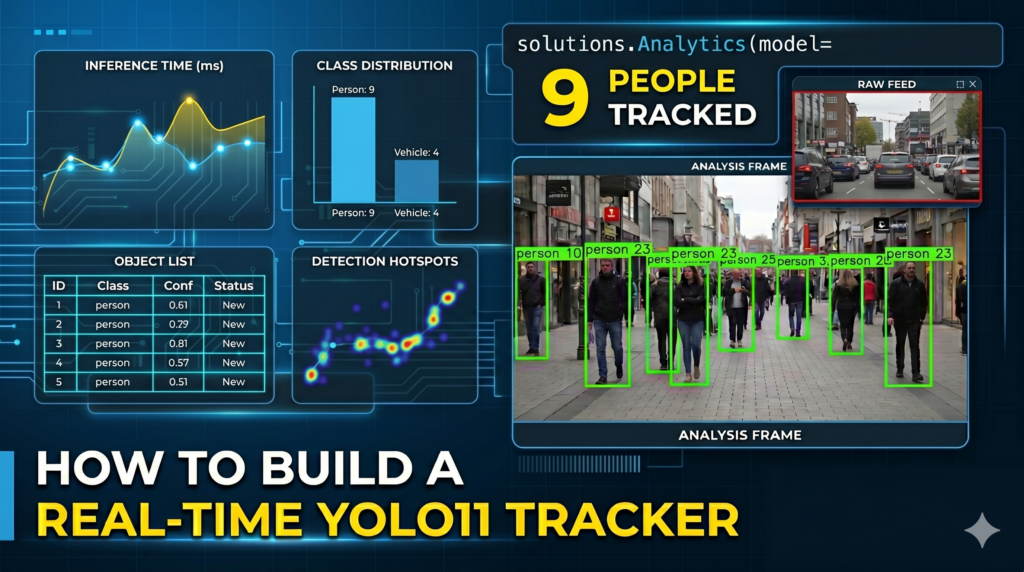
We will achieve this by combining the streamlined efficiency of the Ultralytics API with the versatile power of OpenCV for custom visual rendering. The guide breaks down the process of environment configuration using Conda and CUDA 12.8, ensures your hardware is fully optimized for speed, and provides a step-by-step code walkthrough. You will learn how to initialize the analytics module, process frames efficiently, and implement a “Picture-in-Picture” (PiP) overlay that allows for simultaneous viewing of the raw feed and the processed data.
By the end of this Ultralytics YOLO11 analytics guide , you will have a deep understanding of how to manage high-speed inference while maintaining a responsive user interface. This technical roadmap is designed to simplify the complexities of modern tracking algorithms while giving you the freedom to customize the visual output. Whether you are building an automated surveillance system or a research tool, the methods shared here will help you deliver high-performance vision solutions with confidence.
Why the Ultralytics YOLO11 Analytics Guide is a Game Changer for Developers The release of YOLO11 marks a significant milestone in the balance between inference speed and accuracy, but the real power lies in how we interpret that data. The target of this implementation is to move past the “bounding box” phase of computer vision and into “behavioral understanding.” By utilizing the dedicated solutions module, developers can now track specific classes—like people or vehicles—across frames with minimal boilerplate code. This high-level abstraction allows you to focus on the logic of your application rather than the underlying mathematics of object re-identification.
At its core, this approach is designed for scalability and professional integration. Traditional tracking methods often struggle with frame-rate drops when additional visual layers are added. However, by leveraging optimized PyTorch weights and hardware-aware processing, we can maintain real-time performance even while generating complex analytics overlays. This makes the system ideal for edge devices and high-demand environments where every millisecond counts and visual clarity is paramount for the end-user.
Beyond the technical benchmarks, the true value of this guide lies in the “Picture-in-Picture” (PiP) functionality, which is a staple in professional monitoring software. This feature allows an operator or a system to see the “clean” original footage alongside the “AI-enhanced” analytical frame. Implementing this requires a deep understanding of frame manipulation and coordinate mapping within OpenCV. By mastering these visual techniques, you aren’t just building a script; you are crafting a high-fidelity user experience that meets the standards of modern enterprise-grade vision applications.
Real-time object detection Python OpenCV Let’s Break Down the Logic: Turning Raw Video into Real-Time Visual Intelligence What makes this specific implementation different from a standard detection script? While many scripts stop at identifying an object, this codebase focuses on persistent tracking and contextual visualization . By leveraging the specialized solutions module within the YOLO11 ecosystem, the script transitions from simply drawing boxes to maintaining a continuous analytical thread across frames, allowing for features like line-based tracking and class-specific filtering that are essential for professional-grade monitoring.
The foundation of this tutorial is built on a modern technical stack, utilizing Python 3.12 and PyTorch 2.9.1 optimized for CUDA . This specific configuration ensures that the YOLO11n (nano) model runs at peak performance, providing the low-latency inference required for real-time applications. By focusing on a “clean” environment setup, we eliminate the common bottlenecks associated with library version conflicts, allowing the deep learning architecture to communicate seamlessly with your GPU hardware.
At the heart of the script is the Ultralytics Solutions Analytics engine. This module is more than just a wrapper; it handles the complex math behind object re-identification and movement analytics. In the provided code, we specifically target the “person” class (class index 0) to demonstrate how to filter out background noise and focus purely on human movement within a frame. This level of abstraction allows developers to build high-level logic without getting bogged down in the underlying tensor manipulations that typically define computer vision projects.
One of the most valuable features of this code is the implementation of the Picture-in-Picture (PiP) visual effect . This is achieved by creating a “snapshot” of the raw, clean frame before it is processed by the AI. This thumbnail is then resized to 30% of the original dimensions and precisely overlaid back onto the annotated frame using OpenCV coordinate mapping. This dual-view approach is a staple in professional security software, as it provides the viewer with both the AI’s analytical “opinion” and the raw, unfiltered truth of the scene simultaneously.
Finally, the code ensures production-ready stability through rigorous resolution matching and resource management . Before the final frame is written to the output file or displayed on the screen, the script checks if the annotated frame’s dimensions match the original video properties. This step is crucial because various tracking solutions or resizing operations can occasionally shift frame sizes, which would cause errors in standard video writers. By automating this check and release cycle, the script provides a reliable template for long-term video processing tasks that require both visual flair and technical precision.
Link to the tutorial here
Download the code for the tutorial here or here
Link for Medium users here
Master Computer Vision
Follow my latest tutorials and AI insights on my
Personal Blog .
Beginner Complete CV Bootcamp
Foundation using PyTorch & TensorFlow.
Get Started → Interactive Deep Learning with PyTorch
Hands-on practice in an interactive environment.
Start Learning → Advanced Modern CV: GPT & OpenCV4
Vision GPT and production-ready models.
Go Advanced → Ultralytics YOLO11 analytics guide To build a production-grade vision system, you need more than just raw detections; you need structured data and intuitive visuals. This Ultralytics YOLO11 analytics guide walks you through the entire process of transforming a standard video feed into a high-performance tracking solution with a professional “Picture-in-Picture” (PiP) overlay. By combining the speed of the latest YOLO architecture with custom visual logic, you can create tools that are both technically robust and visually impressive for any security or monitoring application.
Setting the Foundation with a Clean Development Environment How do I ensure my GPU is actually being used for YOLO11 tracking? To verify GPU acceleration, you should check your CUDA version using nvcc --version and ensure you install the PyTorch build that specifically matches that version. The commands provided in this tutorial install the whl/cu128 version, which tells the YOLO11 model to utilize your NVIDIA hardware for lightning-fast inference.
Part 1: Installation Building a state-of-the-art vision pipeline starts with a stable and isolated workspace.
### Create a new Conda environment with Python 3.12 for maximum compatibility # conda create - n YoloV11 - 312 python = 3.12 # conda activate YoloV11 - 312 ### Verify your CUDA version to match the PyTorch installation # nvcc -- version ### Install PyTorch with CUDA 12.8 support for high - speed GPU processing # pip install torch == 2.9.1 torchvision == 0.24.1 torchaudio == 2.9.1 -- index - url https: //download.pytorch.org/whl/cu128 ### Install the Ultralytics library and required spatial dependencies # pip install ultralytics == 8.4.21 # pip install shapely == 2.1.2 # pip install lap == 0.5.13
Part 2 : Video Initialization Once the environment is ready, the code begins by initializing the communication link with your video source. We use OpenCV’s VideoCapture to pull frames into memory and immediately extract the dimensions and frame rate. This metadata is critical because it allows us to configure the VideoWriter correctly, ensuring the final saved file perfectly matches the quality and speed of the original input.
The initial block also handles the file path validation to prevent common “file not found” errors early in the process. Using assertions to check if the video is opened correctly saves time during debugging and ensures a smooth execution flow. This careful preparation of inputs and outputs is the “secret sauce” behind any reliable computer vision application.
import cv2 from ultralytics import solutions ### Open the input video file and prepare the capture object cap = cv2 . VideoCapture ( ' Best-Object-Detection-models/Yolo-V11/Realtime analysis using Yolo11/people.mp4 ' ) ### Verify the video file was loaded successfully to avoid runtime crashes assert cap . isOpened (), " Error reading video file " ### Extract core video properties including width, height, and frames per second w , h , fps = ( int ( cap . get ( x )) for x in ( cv2 . CAP_PROP_FRAME_WIDTH , cv2 . CAP_PROP_FRAME_HEIGHT , cv2 . CAP_PROP_FPS )) ### Initialize the video writer to save the processed output with identical properties out = cv2 . VideoWriter ( " Best-Object-Detection-models/Yolo-V11/Realtime analysis using Yolo11/output_video.mp4 " , cv2 . VideoWriter_fourcc ( * " mp4v " ), fps , ( w , h ),) Deploying the Intelligent Analytics Solution Engine The real magic happens when we initialize the YOLO11 solutions module. Instead of manually coding complex tracking algorithms, we use the solutions.Analytics class to handle the heavy lifting of persistent object tracking. This specific configuration uses the “line” analytics type, which is perfect for monitoring movement across specific zones or pathways in a scene.
We pass the yolo11n.pt model weights to this engine, which is the nano version optimized for extreme speed and efficiency. By specifying classes=[0], we instruct the AI to focus exclusively on human detection, ignoring cars, trees, or other background noise. This focused approach reduces the computational load and increases the accuracy of the tracking data for our specific use case.
This analytics object acts as a persistent memory for our loop. As the video progresses, it remembers the identities of the people in the frame, allowing it to draw smooth tracking lines and calculate real-time metrics. Setting up this “brain” before entering the main processing loop ensures that every frame is handled with consistent logic and precision.
What is the benefit of using the “solutions” module instead of standard detection? The solutions module provides a high-level abstraction that automatically manages object ID assignment and visual overlays. It simplifies the code significantly by bundling detection, tracking, and annotation into a single process method, allowing you to focus on the high-level logic of your application.
Part 3: Initializing the Analytics Solution ### Initialize the analytics solution with the YOLO11 model and line-tracking logic analytics = solutions . Analytics ( model = " yolo11n.pt " , analytics_type = " line " , show =False , classes = [ 0 ] # 0 -> a person. You can add more classes by adding their IDs here ) ### Set the frame counter to zero to keep track of video progress during processing frame_count = 0 YOLO11 object tracking tutorial Managing the Real Time Video Processing Loop Entering the processing loop is where the raw data is transformed into actionable intelligence. The script reads frames sequentially, ensuring that we capture a “clean” copy of the image before any annotations are drawn. This clean copy is essential for our Picture-in-Picture effect, as it provides the raw visual context that operators need alongside the AI results.
The analytics engine processes each frame using the model weights and the current frame count. It returns an “annotated_frame” which contains all the detections, tracking lines, and analytics labels generated by YOLO11. This single call to analytics.process is the engine room of the entire script, handling detection and tracking simultaneously in real-time.
To maintain a professional output, we include a resolution check. If the processing engine shifts the frame size during annotation, we automatically resize it back to the original video dimensions. This ensures that our video writer doesn’t encounter errors and that the final output maintains a consistent aspect ratio and quality.
Why do we need to copy the frame before processing it? We create raw_thumbnail = im0.copy() to preserve the original, un-edited pixels of the video. This allows us to display the “real” footage in the PiP overlay while showing the AI detections in the larger, main view of the output.
Part 4: The Main Processing Loop ### Start the continuous loop to read frames until the end of the video file while cap . isOpened (): success , im0 = cap . read () if success : frame_count += 1 ### Take a snapshot of the clean frame to use for the visual PiP thumbnail raw_thumbnail = im0 . copy () ### Send the current frame to the analytics engine for detection and tracking results = analytics . process ( im0 , frame_count ) annotated_frame = results . plot_im if annotated_frame is not None : ### Match the annotated resolution back to the original video dimensions if they differ if ( annotated_frame . shape [ 1 ] != w ) or ( annotated_frame . shape [ 0 ] != h ): annotated_frame = cv2 . resize ( annotated_frame , ( w , h )) Mastering Professional Visual Overlays and Cleanup The final touch that makes this tool professional is the Picture-in-Picture (PiP) effect. By resizing the clean frame to exactly 30% of its original size, we create a non-obtrusive thumbnail that sits in the corner of the video. This overlay is strategically positioned using precise margin adjustments, ensuring it doesn’t block the primary tracking data in the center of the frame.
The script uses NumPy array slicing to “paste” the thumbnail onto the annotated frame. This is a computationally efficient way to blend two images without the overhead of complex graphic libraries. The resulting frame is then written to the disk and displayed in a window, giving you immediate visual feedback on the system’s performance and accuracy.
Once the video ends, it is vital to release the resources back to the operating system. The release() calls close the video files and clear the memory buffers, preventing memory leaks. This cycle of opening, processing, and cleaning up is the gold standard for production-level computer vision scripts.
How do I change the position of the PiP overlay? You can adjust the start_y and start_x variables in the code. For example, changing start_x to a smaller value would move the thumbnail toward the left side of the screen instead of the right.
Part 5: The PiP Effect and Resource Cleanup ### Define the scale for the Picture-in-Picture effect at 30% of original size scale_precent = 0.3 thumb_w , thumb_h = int ( w * scale_precent ), int ( h * scale_precent ) ### Resize the clean raw frame to create the thumbnail overlay thumbnail = cv2 . resize ( raw_thumbnail , ( thumb_w , thumb_h )) ### Calculate the position of the overlay with a 20-pixel right margin margin_right = 20 start_y = int ( h * 0.35 ) start_x = w - thumb_w - margin_right ### Overlay the clean thumbnail onto the frame containing AI annotations annotated_frame [ start_y : start_y + thumb_h , start_x : start_x + thumb_w ] = thumbnail ### Save the combined frame to the output file and display it in a real-time window out . write ( annotated_frame ) cv2 . imshow ( " Analysis " , annotated_frame ) ### Exit the processing loop if the user presses the 'q' key if cv2 . waitKey ( 1 ) & 0x FF == ord ( " q " ): break else : break ### Properly release the video capture and writer resources to clear memory cap . release () out . release () ### Close all active OpenCV windows before terminating the script cv2 . destroyAllWindows () FAQ : What is the best Python version for YOLO11? Python 3.12 is recommended for 2026 as it provides the best balance of speed and stability for modern deep learning frameworks.
Can I track more than one class at a time? Yes, simply add multiple class IDs to the classes list, such as classes=[0, 2, 5], to track various objects simultaneously.
Why does the script resize the frame after processing? Resizing ensures that the annotated frame matches the expected dimensions of the VideoWriter, preventing file corruption or errors.
How does the PiP effect impact performance? The PiP effect uses fast NumPy slicing, which has virtually no impact on the overall frame rate compared to the AI inference.
Can I use a live webcam instead of a video file? Yes, replace the video file path with the integer 0 in the VideoCapture command to access your local camera feed.
Conclusion: Elevating Computer Vision Beyond Basic Detections This tutorial has demonstrated that a truly professional vision system is about more than just accurate models; it’s about how you present that data to the end-user. By following this Ultralytics YOLO11 analytics guide , you have learned to bridge the gap between academic research and production-ready tools. The combination of efficient tracking, robust resolution management, and creative PiP visual effects transforms a simple detection script into a high-fidelity monitoring dashboard.
As you continue to build your vision applications, remember that performance optimization and visual clarity are equally important. Whether you are scaling this for thousands of cameras or refining it for a single research project, the principles of environment isolation and resource management will keep your systems stable. I encourage you to experiment with different classes, analytics types, and visual layouts to make this tool uniquely yours.
Connect : ☕ Buy me a coffee — https://ko-fi.com/eranfeit
🖥️ Email : feitgemel@gmail.com
🌐 https://eranfeit.net
🤝 Fiverr : https://www.fiverr.com/s/mB3Pbb
Enjoy,
Eran
 Skip to content