Last Updated on 20/05/2026 by Eran Feit
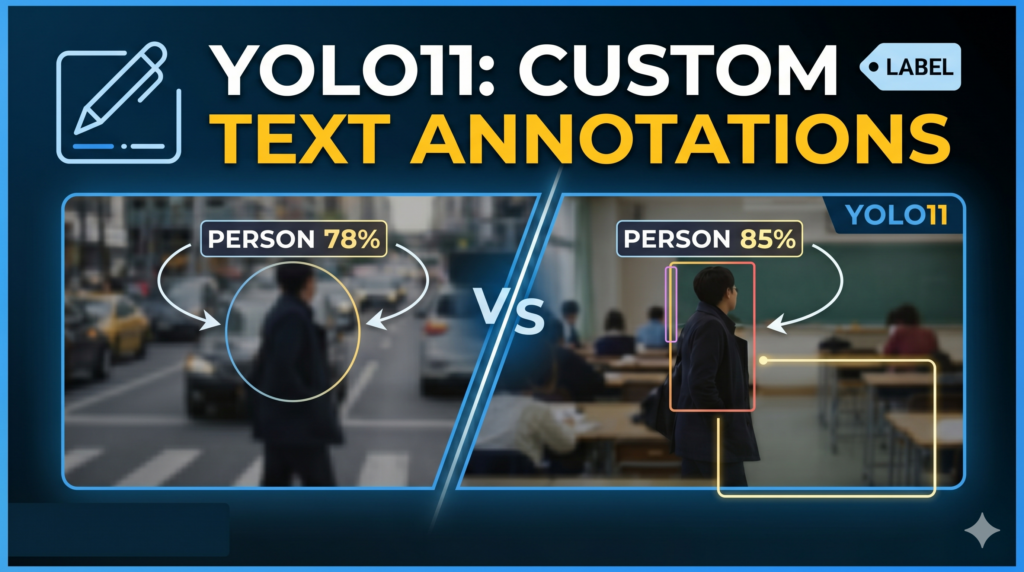
The world of computer vision moves fast, and the release of YOLO11 has brought incredible speed and accuracy to real-time object detection. However, raw model predictions are only half the battle; how you visualize and communicate those predictions inside your application matters just as much. This article explores how to break away from generic, rigid bounding boxes by utilizing the fresh capabilities found in the latest Python deep learning ecosystem. We will dive deep into modifying visual outputs directly on video streams, giving you complete control over your model’s presentation.
If you have ever found yourself restricted by standard rectangular overlays, this guide will expand your development toolkit. It provides practical value by shifting the focus from basic deployment to advanced visualization, showing you how to tailor detection graphics for specific industry use cases—such as medical imaging tracking or sports analytics. By mastering these techniques, you will be able to build cleaner, more professional computer vision applications that clearly highlight data insights without cluttering the screen.
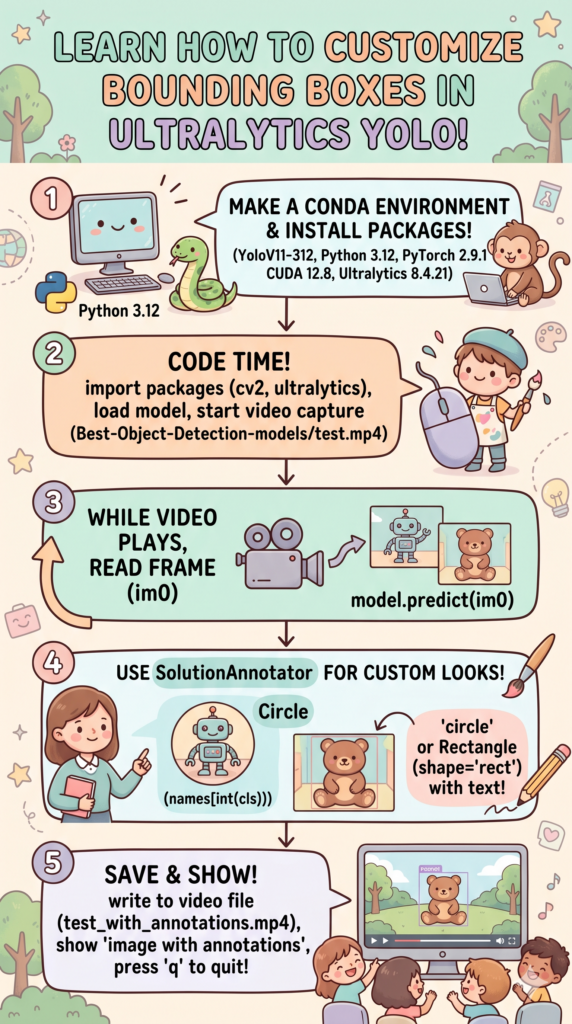
We achieve this by walking through a complete, production-ready script that integrates OpenCV with the core tracking logic. We will start by configuring a clean virtual environment using Conda and installing PyTorch configured for NVIDIA GPU acceleration. From there, we dissect the script line-by-line, demonstrating exactly how to intercept prediction tensors and leverage specific drawing utilities to dynamically render shapes like circles and adaptive labels directly onto your video frames.
By the end of this tutorial, you will fully understand how to implement the Ultralytics YOLO annotation tool within your own custom pipelines. Whether you are building an interactive dashboard or optimizing a video processing script, the steps outlined below will give you the precise programmatic control needed to manipulate bounding box geometry, handle colors dynamically, and export the finalized annotated video seamlessly.
Getting Started with the Ultralytics YOLO Annotation Tool The Ultralytics YOLO annotation tool represents a major shift in how developers handle real-time computer vision visualizations. Historically, drawing bounding boxes, labels, and custom shapes meant writing long, tedious OpenCV scripts to extract coordinates, format text strings, and manually calculate line thicknesses. The introduction of built-in solution annotators streamlines this entire workflow, mapping object detection outputs directly to high-level visualization classes that handle the heavy lifting behind the scenes.
At its core, this framework acts as a bridge between raw model tensors and clear visual data. When a model processes a video frame, it outputs complex arrays containing bounding box coordinates, class IDs, and confidence scores. This specialized annotation tool allows you to pass those raw results directly into structured methods, which automatically compute scaling, position labels intelligently, and apply adaptive styling based on the specific objects detected in the scene.
The ultimate target of mastering this tool is to build intuitive, context-aware visual overlays that adapt to your specific dataset. For instance, instead of covering a small, round object with a massive rectangular box, you can configure the system to draw tight, precise circular boundaries. This flexibility significantly improves user experience in downstream applications, making it an essential skill for data scientists and engineers looking to deploy polished, production-grade computer vision systems.
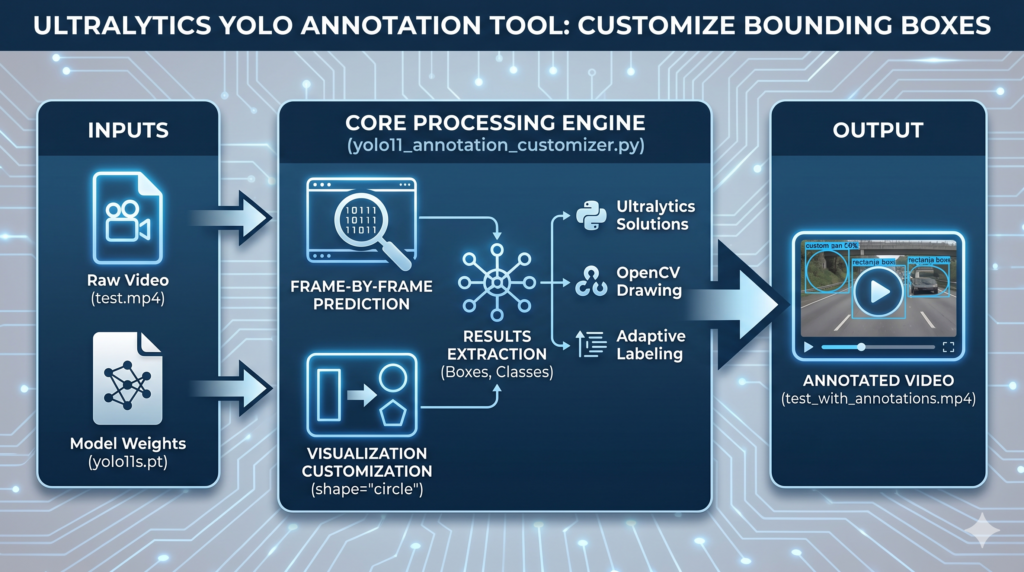
How to draw bounding box in YOLO Crafting Custom Annotations for Real-Time Object Detection The provided Python script delivers a practical, hands-on blueprint for developers looking to move beyond rigid, default bounding box configurations in modern computer vision tasks. Built directly on top of the newly optimized YOLO11 object detection architecture and standard OpenCV (cv2) utilities, this implementation demonstrates how to capture a raw video file, process its frames sequentially, and intercept prediction tensors mid-stream. The ultimate target of this code is to give you complete programmatic flexibility over how detected objects are highlighted and labeled before being compiled back into a clean, standalone video output.
At a high level, the application initializes a lightweight YOLO11 model to automatically classify and locate items across every frame of a target video stream. Rather than letting the framework draw its standard rectangular boxes, the logic loops over the raw coordinates, object class names, and tensor data extracted from the model’s prediction results. This allows the script to override traditional behaviors dynamically, shifting the visualization to alternative geometries—such as tight, circular labels—while automatically managing complex background tasks like tracking color consistency for separate object classes.
By integrating a structured video capture and writer loop, the code serves as an end-to-end framework suitable for production-grade pipelines, digital marketing assets, or media optimization. Every frame read by the script is transformed in real time using specialized, high-level drawing classes designed to scale annotations seamlessly based on the size of the target object. This programmatic control eliminates the need to write complex, manual math calculations inside your drawing functions, simplifying the development process while ensuring that the visual output remains highly professional.
Understanding this architecture is crucial for anyone building context-aware camera feeds, data visualization dashboards, or niche tracking solutions where traditional overlapping boxes fail to properly represent raw structural insights. This code acts as a reusable template that balances execution speed with dynamic display adjustments, empowering you to adapt your detection graphics to fit the precise aesthetic or technical requirements of your personal computer vision project.
Why use circular annotations instead of standard rectangles? Traditional rectangular bounding boxes can often overlap significantly in dense scenes or clutter the frame when tracking smaller, rounded objects, making the overall video feedback difficult to analyze. By utilizing alternative geometries like circular annotations, you can minimize visual noise and draw a tighter, more precise boundary around target subjects, which drastically improves clarity in industries like sports analytics, manufacturing line inspection, and medical imaging.
Link to the tutorial here
Download the code for the tutorial here or here or here
Link for Medium users here
Master Computer Vision
Follow my latest tutorials and AI insights on my
Personal Blog .
Beginner Complete CV Bootcamp
Foundation using PyTorch & TensorFlow.
Get Started → Interactive Deep Learning with PyTorch
Hands-on practice in an interactive environment.
Start Learning → Advanced Modern CV: GPT & OpenCV4
Vision GPT and production-ready models.
Go Advanced → Ultralytics YOLO annotation tool The world of computer vision moves fast, and the release of YOLO11 has brought incredible speed and accuracy to real-time object detection. However, raw model predictions are only half the battle; how you visualize and communicate those predictions inside your application matters just as much. This article explores how to break away from generic, rigid bounding boxes by utilizing the fresh capabilities found in the latest Python deep learning ecosystem. We will dive deep into modifying visual outputs directly on video streams, giving you complete control over your model’s presentation.
If you have ever found yourself restricted by standard rectangular overlays, this guide will expand your development toolkit. It provides practical value by shifting the focus from basic deployment to advanced visualization, showing you how to tailor detection graphics for specific industry use cases—such as medical imaging tracking or sports analytics. By mastering these techniques, you will be able to build cleaner, more professional computer vision applications that clearly highlight data insights without cluttering the screen.
We achieve this by walking through a complete, production-ready script that integrates OpenCV with the core tracking logic. We will start by configuring a clean virtual environment using Conda and installing PyTorch configured for NVIDIA GPU acceleration. From there, we dissect the script line-by-line, demonstrating exactly how to intercept prediction tensors and leverage specific drawing utilities to dynamically render shapes like circles and adaptive labels directly onto your video frames.
By the end of this tutorial, you will fully understand how to implement the Ultralytics YOLO annotation tool within your own custom pipelines. Whether you are building an interactive dashboard or optimizing a video processing script, the steps outlined below will give you the precise programmatic control needed to manipulate bounding box geometry, handle colors dynamically, and export the finalized annotated video seamlessly.
Getting Started with the Ultralytics YOLO Annotation Tool The Ultralytics YOLO annotation tool represents a major shift in how developers handle real-time computer vision visualizations. Historically, drawing bounding boxes, labels, and custom shapes meant writing long, tedious OpenCV scripts to extract coordinates, format text strings, and manually calculate line thicknesses. The introduction of built-in solution annotators streamlines this entire workflow, mapping object detection outputs directly to high-level visualization classes that handle the heavy lifting behind the scenes.
At its core, this framework acts as a bridge between raw model tensors and clear visual data. When a model processes a video frame, it outputs complex arrays containing bounding box coordinates, class IDs, and confidence scores. This specialized annotation tool allows you to pass those raw results directly into structured methods, which automatically compute scaling, position labels intelligently, and apply adaptive styling based on the specific objects detected in the scene.
The ultimate target of mastering this tool is to build intuitive, context-aware visual overlays that adapt to your specific dataset. For instance, instead of covering a small, round object with a massive rectangular box, you can configure the system to draw tight, precise circular boundaries. This flexibility significantly improves user experience in downstream applications, making it an essential skill for data scientists and engineers looking to deploy polished, production-grade computer vision systems.
Crafting Custom Annotations for Real-Time Object Detection The provided Python script delivers a practical, hands-on blueprint for developers looking to move beyond rigid, default bounding box configurations in modern computer vision tasks. Built directly on top of the newly optimized YOLO11 object detection architecture and standard OpenCV (cv2) utilities, this implementation demonstrates how to capture a raw video file, process its frames sequentially, and intercept prediction tensors mid-stream. The ultimate target of this code is to give you complete programmatic flexibility over how detected objects are highlighted and labeled before being compiled back into a clean, standalone video output.
At a high level, the application initializes a lightweight YOLO11 model to automatically classify and locate items across every frame of a target video stream. Rather than letting the framework draw its standard rectangular boxes, the logic loops over the raw coordinates, object class names, and tensor data extracted from the model’s prediction results. This allows the script to override traditional behaviors dynamically, shifting the visualization to alternative geometries—such as tight, circular labels—while automatically managing complex background tasks like tracking color consistency for separate object classes.
By integrating a structured video capture and writer loop, the code serves as an end-to-end framework suitable for production-grade pipelines, digital marketing assets, or media optimization. Every frame read by the script is transformed in real time using specialized, high-level drawing classes designed to scale annotations seamlessly based on the size of the target object. This programmatic control eliminates the need to write complex, manual math calculations inside your drawing functions, simplifying the development process while ensuring that the visual output remains highly professional.
Understanding this architecture is crucial for anyone building context-aware camera feeds, data visualization dashboards, or niche tracking solutions where traditional overlapping boxes fail to properly represent raw structural insights. This code acts as a reusable template that balances execution speed with dynamic display adjustments, empowering you to adapt your detection graphics to fit the precise aesthetic or technical requirements of your personal computer vision project.
Why use circular annotations instead of standard rectangles? Traditional rectangular bounding boxes can often overlap significantly in dense scenes or clutter the frame when tracking smaller, rounded objects, making the overall video feedback difficult to analyze. By utilizing alternative geometries like circular annotations, you can minimize visual noise and draw a tighter, more precise boundary around target subjects, which drastically improves clarity in industries like sports analytics, manufacturing line inspection, and medical imaging.
Want that your results match mine? Want to ensure your custom annotations look exactly like the ones in this tutorial? If you would like to test your code using the identical source video I used, I am more than happy to share the raw media asset with you. Simply drop me a line via email, mention the name of this guide in your subject line, and I will send the file straight to your inbox so you can get your environment up and running with perfectly matching results.
🖥️ Email: feitgemel@gmail.com
Setting Up Your Clean Python Environment and GPU Backends Preparing a reliable development environment is the foundation of any high-performance deep learning pipeline. By isolating your dependencies inside a dedicated package manager manager, you eliminate library version conflicts that frequently break code execution. This initial step focuses entirely on establishing your working directory, locking in target system configurations, and preparing your workspace to handle complex frame computations effortlessly.
To unlock the maximum throughput of your hardware acceleration layers, verifying the alignment of your local computing platform driver is completely necessary. Building on top of explicit engine architectures guarantees that your model evaluations are computed directly inside the GPU processing cores instead of bogging down your general system processor. This ensures fluid video playback processing speeds during real-time inference tasks.
The concluding step of this workspace layout brings together the vital computer vision frameworks and optimization modules needed to execute drawing pipelines. By targeting explicit revision builds of core tracking tools, you ensure complete compatibility with high-level visualization layers. This layout step configures everything required to smoothly translate prediction matrices into visible bounding shapes.
Which command checks your local hardware acceleration layers? Running the system command line utility nvcc --version allows developers to inspect their precise local CUDA driver engine deployment to confirm it is fully prepared for deep learning workloads.
### Create a clean, isolated virtual environment running the target Python interpreter version. conda create - n YoloV11 - 312 python = 3.12 ### Activate the newly isolated environment to begin deploying targeted development packages. conda activate YoloV11 - 312 ### Verify the exact version of the local CUDA driver engine available on your host system. nvcc -- version ### Install the accelerated deep learning framework aligned with your system graphic drivers. pip install torch == 2.9 . 1 torchvision == 0.24 . 1 torchaudio == 2.9 . 1 -- index - url https : // download . pytorch . org / whl / cu128 ### Deploy the core object intelligence framework containing the model architectures and layout tools. pip install ultralytics == 8.4 . 21 oading the Target Intelligence Models and Core Modules Injecting the required structural layers into your script is the first phase of the execution layout. By drawing components from standard rendering toolkits and advanced model repositories, the pipeline gains access to optimized matrix manipulation scripts. This step establishes the foundational imports needed to link image reading utilities directly with neural prediction arrays.
Once the packages are active within the runtime layer, the script instantiates the main model structure using optimized weighting coefficients. This step acts as the primary logical component, loading predefined names and class registries directly into the active application layout. It prepares the system to evaluate incoming pixel streams against recognized object signatures.
With the network loaded, the application pulls the descriptive class lists directly out of the architecture metadata. These index keys convert numerical prediction indexes into human-readable strings like person, car, or sports ball. Having these identities ready allows the backend drawing mechanisms to apply contextual labels across varying video layers later on.
How does the model parse its default class name dictionaries? The application reads the structural metadata properties using model.names, which maps internal prediction indices directly to human-readable strings.
### Import the core video manipulation utility package to control input and output frames. import cv2 ### Extract the fundamental neural architecture module from the deep learning workspace framework. from ultralytics import YOLO ### Load the specialized visualization utility designed to manage custom tracking layers. from ultralytics . solutions . solutions import SolutionAnnotator ### Reference the dynamic color generator to map unique visual spectrums across varying classes. from ultralytics . utils . plotting import colors ### Initialize the pre-trained tracking network using optimized weight parameters from disk. model = YOLO ( " yolo11s.pt " ) ### Extract the human-readable text identifiers associated with the network class definitions. names = model . names Initializing Video Ingestion and Setting Output Streams Configuring proper input pathways ensures that your data matrices are read correctly frame by frame. By passing target media strings into structural capture drivers, the application creates an active data pipeline to feed the neural network. This setup establishes the exact media properties required to track frame intervals smoothly.
To preserve the fidelity of the modified media output, the pipeline must programmatically discover the precise dimensions of the source stream. By pulling structural keys like height, width, and frames-per-second, the backend builds a template container. This operational data ensures that your output file matches the exact timeline of the input stream.
The initialization phase wraps up by building a persistent file writer stream targeting a specific compression format. This asset compiler locks in the physical dimensions and structural encoding guidelines needed to write modified data matrices back to the disk. It sets up the system to record drawing enhancements as a new standalone file.
The capture driver uses explicit properties like cap.get(cv2.CAP_PROP_FRAME_WIDTH) to discover exact structural pixel attributes programmatically.
### Establish an active stream capture pathway targeting the specific source video file directory. cap = cv2 . VideoCapture ( " Best-Object-Detection-models/Yolo-V11/How to display Text and Circle Annotations/test.mp4 " ) ### Programmatically extract the width, height, and refresh intervals from the source stream. w , h , fps = ( int ( cap . get ( x )) for x in ( cv2 . CAP_PROP_FRAME_WIDTH , cv2 . CAP_PROP_FRAME_HEIGHT , cv2 . CAP_PROP_FPS )) ### Instantiate the target media exporter tool using explicit positional configurations and encoding formats. writer = cv2 . VideoWriter ( " Best-Object-Detection-models/Yolo-V11/How to display Text and Circle Annotations/test_with_annotations.mp4 " , cv2 . VideoWriter_fourcc ( * " mp4v " ), fps , ( w , h )) Driving the Core Frame Ingestion Loop Safely Processing continuous video files demands a reliable, infinite operational loop designed to isolate individual array updates safely. This processing layer grabs sequential frame matrices from the input stream, evaluating each image chunk separately. This mechanism forms the primary engine that keeps memory usage stable throughout long media file executions.
To prevent execution failures when hitting the end of your target media file, the engine checks tracking flags after every read. If an empty data frame is detected, the workflow breaks out of the loops elegantly instead of crashing your execution environment. This step guarantees that video endings are handled cleanly without memory leaks.
With a valid image frame verified, the loop initializes the advanced presentation compiler directly over the active data matrix. This core visualization engine establishes an overlay layer that links prediction coordinates directly to drawing outputs. It sets up the processing workspace for real-time visualization enhancements.
Why must you immediately evaluate frame retrieval Boolean flags? Checking the return flag if not ret: prevents the code from passing invalid data blocks into the model weights, ensuring a clean exit when the file finishes.
### Initiate the persistent processing loop to handle video frames sequentially. while True : ### Extract the next image block along with its retrieval confirmation flag from the stream. ret , im0 = cap . read () ### Intercept empty video frames at the end of the file to break execution loops gracefully. if not ret : break ### Bind the specialized visualization compiler layer directly to the current image frame. annotator = SolutionAnnotator ( im0 ) YOLO custom annotation python Interacting with Prediction Tensors and Drawing Shapes Running live data blocks through the core network triggers object detection calculations on the current frame. This operational step outputs multi-dimensional prediction arrays containing spatial boundaries and index classifications. These raw matrices provide the necessary spatial tracking indicators used by down-stream visual formatting functions.
Once prediction tensors are captured, the pipeline extracts bounding coordinates and transforms them into standard system arrays. By migrating target data directly into system memory, the script isolates structural indexes and location values. This step organizes your data, making it ready to be processed by individual custom drawing commands.
The visual customization happens within a tight iteration loop that maps extracted labels directly to alternative geometric layouts. By calling the solution annotator’s adaptive methods, you can switch from standard boxes to tight, circular trackers. This gives you direct control over shape choices, label text, and color palettes on a per-object basis.
Which setting toggles alternative drawing geometries inside the annotator? Setting the parameter shape="circle" tells the underlying layout class to bypass standard box boundaries in favor of refined circular points.
### Run the active frame matrix through the neural network to calculate current predictions. results = model . predict ( im0 ) ### Extract raw spatial coordinates from the tensor output and move them to memory blocks. boxes = results [ 0 ]. boxes . xyxy . cpu () ### Convert the class prediction identifiers into standard system list formats for quick parsing. clss = results [ 0 ]. boxes . cls . cpu (). tolist () ### Iterate through synchronized coordinate sets and classification IDs frame by frame. for box , cls in zip ( boxes , clss ): ### Render a dynamic, color-coded circular tracker overlay directly onto the target object area. annotator . adaptive_label ( box , label = names [ int ( cls )] , color = colors ( cls , True ), shape = " circle " ) # Rectangle annotation #annotator.adaptive_label(box, label=names[int(cls)] , color=colors(cls,True), shape="rect") Exporting Modified Media and Cleaning Up Resources Recording your visual updates ensures that your custom tracking overlays are saved properly to disk. By passing the modified frame data back into the file compiler, the system appends each updated frame to your target file. This recording step builds a polished, standalone video file ready for review.
To provide immediate visual feedback during development, the code renders the active image frame inside an interactive desktop window. This display step updates your screen at regular intervals, letting you monitor your custom adjustments in real time. It serves as an incredibly helpful tool for testing your drawing logic on the fly.
The final block of code handles proper system resource management once your processing loops complete. By releasing hardware capture tracks, closing file writers, and destroying active desktop display containers, the environment stays clean and stable. This step prevents background memory leaks and leaves your system ready for its next deep learning run.
Which shortcut key allows developers to manual stop the execution loops? Evaluating the keyboard matrix via cv2.waitKey(1) & 0xFF == ord("q") gives you an instant manual exit switch during live playback.
### Append the completely modified frame array directly into your target video file structure. writer . write ( im0 ) ### Render the active annotated frame inside a standalone interactive desktop display window. cv2 . imshow ( " image with anotations " , im0 ) ### Intercept explicit keystroke inputs to allow developers to terminate loops instantly. if cv2 . waitKey ( 1 ) & 0x FF == ord ( " q " ): break ### Disconnect the active video capture streams to free system hardware connections cleanly. cap . release () ### Finalize and lock the newly recorded media file structure on the local disk drive. writer . release () ### Terminate all active desktop video visualization panels from your system workspace. cv2 . destroyAllWindows () This complete tutorial guides you through using advanced visualization tools within the modern YOLO11 computer vision ecosystem. By building a reliable Conda environment, setting up PyTorch with CUDA acceleration, and utilizing the SolutionAnnotator class, you can break free from standard bounding box layouts. Modifying shape attributes to alternatives like circles gives you the programmatic flexibility needed to deliver professional, production-grade video tracking applications tailored for any unique dataset.
FAQ : What is the primary purpose of the SolutionAnnotator class in this script? It simplifies drawing workflows by automatically mapping raw object detection coordinates and labels directly to custom shapes, eliminating manual calculations.
How do I switch the visual tracking overlays from circles back to classic rectangles? You simply change the shape property string from shape=”circle” to shape=”rect” inside the annotator.adaptive_label function loop.
Why is it necessary to check the return flag if not ret: inside the video loop? This check verifies that frame data was successfully read, allowing the script to break out of the loop cleanly instead of crashing when the video ends.
What role does the .cpu() method play when handling bounding box coordinates? It moves prediction tensors off your GPU hardware memory and into standard host system memory so Python libraries can parse them.
Can I run this exact code pipeline on standard computer hardware without an NVIDIA graphics card? Yes, you can run it on a CPU by adjusting your PyTorch installation commands, though video processing frame rates will be significantly slower.
How does colors(cls, True) help make video tracking clearer? It automatically assigns unique, high-contrast colors to distinct object classes, ensuring the tracking overlays remain organized and easy to read.
What video compression format is used to export the final annotated file? The code utilizes the “mp4v” fourcc codec to compile individual updated frame matrices into a clean, standalone MP4 file container.
Why use Python version 3.12 instead of older environment releases for this guide? Python 3.12 provides optimized runtime performance and fully matches the dependency guidelines required by modern deep learning libraries.
What does the expression cv2.waitKey(1) & 0xFF == ord("q") do? It monitors keyboard inputs during video playback, giving developers an instant manual way to exit processing loops by pressing ‘q’.
Where can I find the class names associated with index integers like class 0 or class 1? The indices are matched directly to human-readable strings stored inside the dictionary accessible through the model.names attribute.
Conclusion Customizing your model visualizations is a powerful way to make your computer vision applications look polished and professional. Throughout this tutorial, we moved past default bounding boxes to explore the flexible drawing options available inside the modern Ultralytics framework. By intercepting raw prediction tensors and pairing them with OpenCV’s stable video loops, we built an end-to-end processing pipeline that gives you complete control over your final output style.
Using alternative geometries, like circular tracking points, does much more than just change the look of your app—it fixes real-world usability challenges in complex monitoring environments. Whether you are highlighting items on a fast-moving production line or tracking athletes in a crowded sports field, clear and structured overlays prevent visual clutter. This ensures your end users can easily focus on the most important data points in the scene.
With your environment properly configured and your drawing loops running smoothly, you now have a solid template ready to scale up for more advanced tracking projects. You can easily adapt these scripts to handle live camera streams, apply custom branding layouts, or connect specialized analytics dashboards. Taking complete control of your visual presentation layers allows you to turn raw model predictions into clean, production-ready computer vision products.
Connect ☕ Buy me a coffee — https://ko-fi.com/eranfeit
🖥️ Email : feitgemel@gmail.com
🌐 https://eranfeit.net
🤝 Fiverr : https://www.fiverr.com/s/mB3Pbb
Enjoy,
Eran
 Skip to content