Last Updated on 17/05/2026 by Eran Feit
Computer vision is evolving rapidly, and the release of Ultralytics YOLO11 brings unprecedented speed and accuracy to real-time video analytics. This article provides a hands-on, production-ready guide to implementing a yolo11 object counting python workflow capable of detecting, tracking, and logging specific moving entities. By combining state-of-the-art deep learning models with practical frame-by-frame processing, we bridge the gap between theoretical machine learning and functional, real-world computer vision applications.
Navigating the nuances of multi-object tracking often leaves developers trapped in a maze of high-latency pipelines and inaccurate bounding box associations. Mastering a streamlined yolo11 object counting python setup empowers you to build the highly efficient analytical tools required by modern industries like smart retail, traffic monitoring, and automated security. Instead of relying on generic, resource-heavy frameworks, you will gain the specialized skill set needed to optimize inference speed and extract clean, actionable telemetry from raw video feeds.
We achieve this by dismantling a complete, standalone Python script from the initial environment configuration to the final frame render. You will see exactly how to initialize the large-scale YOLO11 architecture, run persistent state tracking across sequential video frames, and isolate specific target classes using model parameters. Beyond the raw neural network inference, the guide walks you through calculating coordinate centroids and deploying a mathematical line-crossing trigger using custom OpenCV visual overlays.
By the end of this tutorial, you won’t just have a collection of copy-pasted code snippets; you will possess a functional asset that can be seamlessly adapted to your own datasets. From managing a clean Conda environment with PyTorch and CUDA acceleration to building custom pixel-boundary counters, this step-by-step breakdown ensures you can confidently ship computer vision solutions that are both lightweight and remarkably precise.
Getting Started with YOLO11 Object Counting Python for Real-World Analytics Implementing a yolo11 object counting python pipeline represents a massive leap forward from traditional frame-by-frame object detection. Standard detection algorithms analyze an isolated image and tell you what is present, but they completely lack memory. In dynamic environments—such as monitoring foot traffic in a storefront or managing vehicle flow on a highway—knowing an object exists is only half the battle. You need a system that remembers unique objects across frames, assigning persistent tracking IDs so that individual entities are logged exactly once as they pass through your target area.
At its core, this architecture pairs the cutting-edge feature extraction of the YOLO11 model with a tracking algorithm that calculates spatial continuity. When a video frame is processed, the model predicts bounding boxes and confidence scores, while the tracking module matches these detections with historical coordinates from preceding frames. By writing a Python script that targets specific class indices and calculates center points, you can create pixel-perfect trigger boundaries. When a tracked ID’s center point changes coordinates relative to a user-defined line, the software registers a crossing event, permanently incrementing the count for that specific class.
The true beauty of utilizing yolo11 object counting python frameworks lies in its extreme customizability and resource efficiency. Developers can filter out background noise by restricting inference to specific objects, ensuring the processor doesn’t waste cycles tracking irrelevant elements. Whether your target is counting livestock on a ranch, identifying anomalies on a factory conveyor belt, or monitoring urban traffic patterns, this lightweight approach eliminates the need for massive cloud compute infrastructure, allowing for robust edge deployment and real-time visualization.
opencv object counting tutorial Breaking Down the Python Script: How We Coordinate YOLO11 and OpenCV for Precise Object Counting Why use a custom line-crossing mechanism instead of an out-of-the-box counting tool? Pre-built counting utilities often operate as rigid black boxes, making it exceptionally difficult to isolate specific categories, modify spatial triggers, or deploy custom mathematical filters. By building a manual line-crossing routine directly within a standard frame processing loop, you gain pixel-level control over your tracking logic, allowing you to easily adapt the code for unique industrial, agricultural, or security environments without relying on bulky third-party dependencies.
To build a high-performance yolo11 object counting python pipeline, everything begins with establishing a robust, hardware-accelerated development environment. By creating a dedicated Conda workspace running Python 3.12 and installing PyTorch 2.9.1 paired with CUDA 12.8, the underlying execution engine can offload intensive matrix multiplications straight to your NVIDIA graphics hardware. This preparation ensures that when the script initializes the large-scale yolo11l.pt architecture via the Ultralytics framework, the system is primed to handle high-resolution video arrays without bottlenecking your CPU cycles or dropping critical frames.
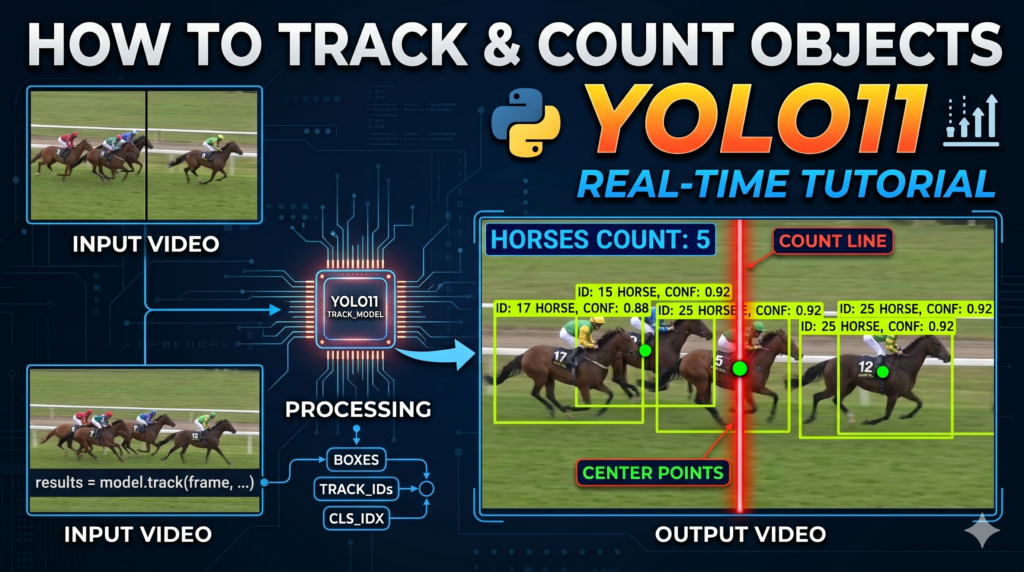
Once the environment is active, the script establishes a structural bridge between video stream ingestion and deep learning inference. Using OpenCV’s cv2.VideoCapture, raw frames are systematically read from your local media file and passed directly into the tracking engine using the model.track() method. A key element here is setting persist=True, which instructs the model to retain visual memory of previously identified targets across sequential frames. Furthermore, by passing the argument classes=[17], we explicitly instruct the neural network to ignore all background noise and irrelevant entities, focusing its predictive power solely on tracking horses with a strict confidence threshold above 60%.
The true geometric magic happens inside the execution loop, where spatial tracking coordinates are translated into actionable telemetry. For every frame processed, the script extracts the boundary box coordinates (xyxy) and calculates the exact mathematical midpoint, or centroid, of the detected object using basic pixel averaging ($cx = (x1 + x2) // 2$). This dynamic center point is evaluated against a fixed horizontal boundary set at line_y_red = 600. Simultaneously, the script utilizes OpenCV drawing functions to render clear green bounding boxes, unique identifier text labels, and a bright red tracking dot on the center of each target, making the internal mechanics instantly visible to the user.
To prevent the algorithm from counting the same entity multiple times as it lingers over the line, the script introduces a highly efficient state management system. By using a native Python set() named crossed_ids, the system cross-references the unique tracking ID assigned to an object against a historical log of elements that have already breached the boundary. If a new ID crosses the threshold ($cy > line_y_red$), it is permanently added to the set, and the corresponding class counter inside a defaultdict is incremented. These accumulated metrics are then drawn directly onto the top-left corner of the video stream in real-time, providing an elegant, automated visual dashboard of your analytics.
Link to the tutorial here
Download the code for the tutorial here here
Link for Medium users here
Master Computer Vision
Follow my latest tutorials and AI insights on my
Personal Blog .
Beginner Complete CV Bootcamp
Foundation using PyTorch & TensorFlow.
Get Started → Interactive Deep Learning with PyTorch
Hands-on practice in an interactive environment.
Start Learning → Advanced Modern CV: GPT & OpenCV4
Vision GPT and production-ready models.
Go Advanced → yolo11 object counting python Laying the Fast Foundation with a Hardware-Accelerated Development WorkspaceBuilding a reliable object analytics system requires a rock-solid, isolated runtime architecture. By using an isolated local virtual ecosystem, you guarantee that version conflicts won’t break your underlying source modules. This step removes all environment clutter and ensures clean deployment across developer environments.
Checking your system graphics driver configurations establishes the baseline for deep learning speeds. Utilizing hardware acceleration transfers intensive deep learning matrix operations directly from your CPU to your GPU core processors. This change results in an exponential boost in operational tracking efficiency during high-resolution processing tasks.
Installing highly optimized computer vision frameworks links your code logic with cutting-edge object tracking systems. These unified modern tools handle intricate bounding vector mathematics effortlessly behind the scenes. This approach leaves you entirely free to build custom business insights instead of writing raw model algorithms from scratch.
Want the source video file , so your results match mine? If you want to achieve the exact same tracking results and test the python script using the identical source video featured in this tutorial, I am happy to share it with you.
🖥️ Email: feitgemel@gmail.com
Why is configuring a dedicated virtual environment necessary before writing AI code? Configuring a dedicated virtual environment prevents package dependencies from conflicting with your system’s global software configurations. It ensures complete reproducibility, allowing you to confidently share and run your new yolo11 object counting python app across multiple hardware setups without encountering breaking library versions.
### Create a clean, isolated Conda development workspace specifically running Python 3.12 to avoid version conflicts. conda create - n YoloV11 - 312 python = 3.12 ### Activate your newly configured Conda development workspace to prepare it for subsequent library dependencies. conda activate YoloV11 - 312 ### Query the system's terminal to find your local NVIDIA CUDA compiler driver version for hardware compatibility checks. nvcc -- version ### Use pip to install PyTorch version 2.9.1 pre-configured with native CUDA 12.8 GPU acceleration paths. pip install torch == 2.9 . 1 torchvision == 0.24 . 1 torchaudio == 2.9 . 1 -- index - url https : // download . pytorch . org / whl / cu128 ### Install the official Ultralytics framework version 8.4.21 to access the cutting-edge YOLO11 computer vision models. pip install ultralytics == 8.4 . 21 This initialization stage sets up your computing hardware and deep learning frameworks properly. It provides the massive computing baseline required for high-frequency yolo11 object counting python models to perform frame-by-frame calculations efficiently.
Igniting the Visual Engine by Ingesting Video Matrices and Loading Advanced Weightsmporting foundational video libraries brings native matrix ingestion capabilities right inside your application script. These core development components handle complex video rendering frameworks and data storage elements cleanly. This workflow lets you import your modules cleanly before running a yolo11 object counting python configuration.
Loading advanced large-scale deep learning weights gives your workspace immediate access to high-fidelity spatial telemetry data. This pre-trained network model has already mastered thousands of challenging visual patterns across complex training sets. This foundational step loads the model brains needed to run yolo11 object counting python pipelines successfully.
Opening local video stream pointers coordinates your local media datasets with live model detection components. This pipeline reads incoming frames sequentially and processes image metrics at rapid speeds. This source capture setup streams frame arrays directly into your active yolo11 object counting python pipeline.
How to Track and Filter Custom Classes with YOLO11 Object Counting 12 How to Track and Filter Custom Classes with YOLO11 Object Counting 13 How do pre-trained network weights speed up real-time vision application development? Pre-trained weights act as an established structural matrix that already knows how to detect shapes, edges, and objects without needing manual training. Loading these parameters grants your script immediate access to high-accuracy configurations when executing a yolo11 object counting python workflow.
### Import OpenCV to handle video file reading, frame manipulations, and graphical visual overlays. import cv2 ### Import the core YOLO model class from the official Ultralytics framework for deep learning inference. from ultralytics import YOLO ### Import defaultdict from the collections module to cleanly initialize and manage our running class counter tallies. from collections import defaultdict ### Instantiate and load the heavy-duty pre-trained YOLO11 large neural network tracking architecture into memory. model = YOLO ( " yolo11l.pt " ) ### Extract the complete list of target class names recognized natively by the pre-trained model. class_list = model . names ### Print out the full list of available class labels to the system console for tracking verification. print ( class_list ) ### Establish a video capture streaming pipeline using OpenCV to read the target asset file frame by frame. cap = cv2 . VideoCapture ( " Best-Object-Detection-models/Yolo-V11/Real-Time objects-Counting-and-Tracking/Horses.mp4 " ) This stage links your computer vision system with advanced model weights and establishes a stable stream to pull video arrays smoothly into memory.
Locking on the Target with Selective Filtering and Persistent Identity StatesEstablishing precise pixel coordinates defines the physical measurement criteria within your visual playground canvas. This step creates a clear division line that cuts directly across your frame matrix coordinates. This tracking layout provides the mathematical trigger boundary required inside a yolo11 object counting python script.
Setting up high-speed memory hashing tracking sets provides a lightweight cache layer to manage state tracking logic. These lookups guarantee that your software can verify historical entry numbers in constant time cycles. This optimization keeps memory pools running fast when executing complex yolo11 object counting python configurations.
Running live model tracking parameters across sequential frames updates target tracking identifiers without dropping continuity. Activating selective class arguments filters out background noise so the model only processes your targeted categories. This tracking filter block acts as the computational engine driving your yolo11 object counting python script.
What occurs when the persist parameter is activated during model tracking loops? The persist parameter forces the tracking model to retain its memory state across sequential video frames. This feature prevents the algorithm from assigning a totally new identity number to an object if it gets temporarily blocked from view when using a yolo11 object counting python workflow.
### Define the absolute vertical Y-coordinate line threshold position in pixels where crossing triggers will activate. line_y_red = 600 ### Initialize a dynamic default dictionary to automatically manage and track numerical count states by class name. class_counts = defaultdict ( int ) ### Initialize an empty hash set to keep track of persistent individual object IDs that have already crossed the threshold. crossed_ids = set () ### Open a continuous loop to ingest and analyze each frame of the video file as long as the capture pipeline remains open. while cap . isOpened (): ### Read the current video frame along with a boolean validation flag indicating successful ingestion. ret , frame = cap . read () ### Evaluate the boolean validation flag and break out of the processing loop if the video stream finishes. if not ret : break ### Execute live YOLO tracking optimization on the current frame using persistent states and exclusive class filtering parameters. results = model . track ( frame , persist =True , classes = [ 17 ], conf = 0.6 ) # Only horeses with confidence above 60% This structural setup creates trigger boundaries and initializes target class filters cleanly. It helps to maintain absolute tracking identity continuity over time within the yolo11 object counting python app.
yolo11 object tracking Unleashing Spatial Mathematics to Log Line Crossings and Draw Live DashboardsVerifying incoming data structures protects your program execution from encountering null value errors during running sequences. Extracting tracking arrays pulls down box boundaries, class index keys, and identification flags straight from host processors. This structured data layout gives you complete control over drawing custom indicators and calculating coordinate vectors.
Calculating center coordinate vectors allows you to map entire objects down to a single physical pixel location. Evaluating these points against tracking limits detects exactly when an element moves beyond your defined region. This step handles the critical transaction layer where visual tracking coordinates become valuable statistical analytical tallies.
Rendering bright bounding rectangles and dynamic statistics text onto your streaming frames builds a live analytic interface. Updating layout positions dynamically keeps information rows from overwriting previous text data layers. This visual monitoring panel displays real-time processing results right on your screen for immediate data validation.
How does the line crossing logic translate pixel positions into reliable system count states? The script continually measures the moving object’s vertical midpoint coordinate against the static line threshold. When the midpoint value surpasses the line and its unique tracking ID isn’t found in the registry, it logs a crossing event within the yolo11 object counting python app.
### Ensure the returned object tracking results data object contains valid bounding box information before processing pixel geometry. if results [ 0 ]. boxes . data is not None : ### Pull down the spatial bounding box top-left and bottom-right corner tensors to local host CPU memory. boxes = results [ 0 ]. boxes . xyxy . cpu () ### Extract the persistent historical identification numbers assigned by the tracking algorithm and convert them to a list. track_ids = results [ 0 ]. boxes . id . int (). cpu (). tolist () ### Retrieve the specific class index integers for each detected item and format them into an iterable list. class_indices = results [ 0 ]. boxes . cls . int (). cpu (). tolist () ### Fetch the statistical confidence scores for each prediction out of the tensor array. confidences = results [ 0 ]. boxes . conf . cpu () ### Draw a solid horizontal red marker line onto the video canvas matrix at the predefined boundary coordinate. cv2 . line ( frame , ( 200 , line_y_red ),( 1500 , line_y_red ), ( 0 , 0 , 255 ) , 3 ) ### Iterate over every detected object in the frame to break out individual bounding vectors, identities, and confidence states. for box , track_id , class_idx , conf in zip ( boxes , track_ids , class_indices , confidences ): ### Unpack the bounding box edge array and explicitly convert the values into standard integer coordinates. x1 , y1 , x2 , y2 = map ( int , box ) ### Calculate the exact horizontal midpoint coordinate of the target box using pixel center-point averaging. cx = ( x1 + x2 ) // 2 ### Calculate the exact vertical midpoint coordinate of the target box using pixel center-point averaging. cy = ( y1 + y2 ) // 2 ### Lookup the human-readable class text name corresponding to the numerical tracking index from the model array. class_name = class_list [ class_idx ] ### Render a solid red tracking indicator dot on the canvas matrix at the exact center coordinate of the target item. cv2 . circle ( frame , ( cx , cy ), 4 , ( 0 , 0 , 255 ), - 1 ) ### Draw custom tracking status text labels above the object's upper boundary displaying its persistent ID number and name. cv2 . putText ( frame , f "ID: { track_id } { class_name } " , ( x1 , y1 - 10 ), cv2 . FONT_HERSHEY_SIMPLEX , 0.6 , ( 0 , 255 , 255 ), 2 ) ### Render a bright green bounding rectangle around the outer limits of the object to frame it visually. cv2 . rectangle ( frame , ( x1 , y1 ), ( x2 , y2 ), ( 0 , 255 , 0 ), 2 ) ### Evaluate if the center coordinate has bypassed the vertical threshold and confirm it has not been logged previously. if cy > line_y_red and track_id not in crossed_ids : ### Insert the unique tracking identification number into the crossed set to prevent any future duplicate registry. crossed_ids . add ( track_id ) ### Log a crossing event and increment the dynamic tally tracking dictionary for that unique class type. class_counts [ class_name ] += 1 ### Initialize a vertical spacing offset variable to position the printed dashboard metrics neatly down the frame canvas. y_offset = 150 ### Loop through each monitored class name and corresponding count to print current statistics on the screen. for class_name , count in class_counts . items (): ### Draw the human-readable count statistics text directly onto the video matrix background frame using high-visibility sizing. cv2 . putText ( frame , f " { class_name } : { count } " , ( 50 , y_offset ), cv2 . FONT_HERSHEY_SIMPLEX , 3 , ( 255 , 0 , 0 ), 3 ) ### Step down the vertical coordinate spacing to ensure next class print logs do not overwrite the previous data row. y_offset += 30 ### Display the fully annotated video frame matrix instantly on the system screen inside a named graphical rendering window. cv2 . imshow ( " YoloV11 object tracking & counting " , frame ) ### Monitor system keyboard interrupts continuously and halt execution instantly if the operator strikes the lower-case 'q' key. if cv2 . waitKey ( 1 ) & 0x FF == ord ( " q " ): break ### Release the video file handle allocation safely back to the operating system after termination of the loop. cap . release () ### Safely tear down and close all active graphical rendering windows opened by OpenCV during video visualization playback. cv2 . destroyAllWindows () This final component handles the mathematical logic of our yolo11 object counting python workspace, evaluating center boundaries, caching logged values to prevent double entries, and projecting tracking statistics dynamically onto the final rendering window.
FAQ : How do I configure this script to run on a standard CPU instead of a GPU? If you do not have an NVIDIA GPU, simply change the PyTorch installation command to a standard CPU wheel, and the Ultralytics framework will automatically fall back to CPU execution without needing changes in your code.
What does the class filter value [17] stand for inside the track command? The index value 17 represents the “horse” class within the pre-trained COCO dataset layout that YOLO11 uses out of the box.
Can I track and count multiple different object classes at the exact same time? Yes, you can pass a list of multiple integers to the classes argument, such as classes=[2, 3, 5, 7] to track cars, motorcycles, busses, and trucks concurrently.
Why is using a set container better than a standard list for storing tracking IDs? A set container enforces absolute mathematical uniqueness and features O(1) lookup performance, which keeps your script from slowing down as more tracking items are logged.
How can I shift the vertical line placement to adjust my counting trigger zone? Simply modify the numerical integer value assigned to the line_y_red variable to re-position your trigger boundary line higher or lower in the frame matrix.
What should I do if my video capture stream fails to load or open properly? Double-check that the file directory path string inside cv2.VideoCapture() matches your local system folder layout exactly and verify that your file extension is correct.
Why does the script execute .cpu() transformations before converting data arrays? Moving PyTorch tensors from high-performance GPU VRAM memory space down into host CPU system RAM is mandatory before converting arrays into native Python lists or running OpenCV operations.
How does the persist parameter help manage brief target occlusions? The persist=True configuration flag tells the internal object tracker to use optical flow or Kalman filter historical predictions to retain item identification numbers when targets are temporarily blocked from view.
What is the function of the defaultdict container from the collections library? The defaultdict(int) automatically initializes missing dictionary keys with a base integer value of 0, avoiding manual key existence verification errors when incrementing category tallies.
Can this setup handle live security camera feeds or RTSP video streams? Yes, you can easily swap out the video file path string for an active webcam index integer like 0 or an RTSP network address stream link to achieve live monitoring.
Conclusion Mastering a yolo11 object counting python pipeline completely transforms how you build real-world spatial intelligence workflows. By migrating beyond plain frame-by-frame static detection models and implementing persistent identification states, your code establishes a reliable long-term historical context of the scene geometry. By defining exact pixel trigger limits using custom OpenCV drawings and state registries, you bypass complex software wrappers to run low-latency automation tools on local consumer computer infrastructure. This lightweight script is fully production-ready and serves as an excellent reference point for deploying scalable analytics in retail analytics, hardware automation, and urban monitoring projects.
Connect ☕ Buy me a coffee — https://ko-fi.com/eranfeit
🖥️ Email : feitgemel@gmail.com
🌐 https://eranfeit.net
🤝 Fiverr : https://www.fiverr.com/s/mB3Pbb
Enjoy,
Eran
 Skip to content