Last Updated on 12/06/2026 by Eran Feit
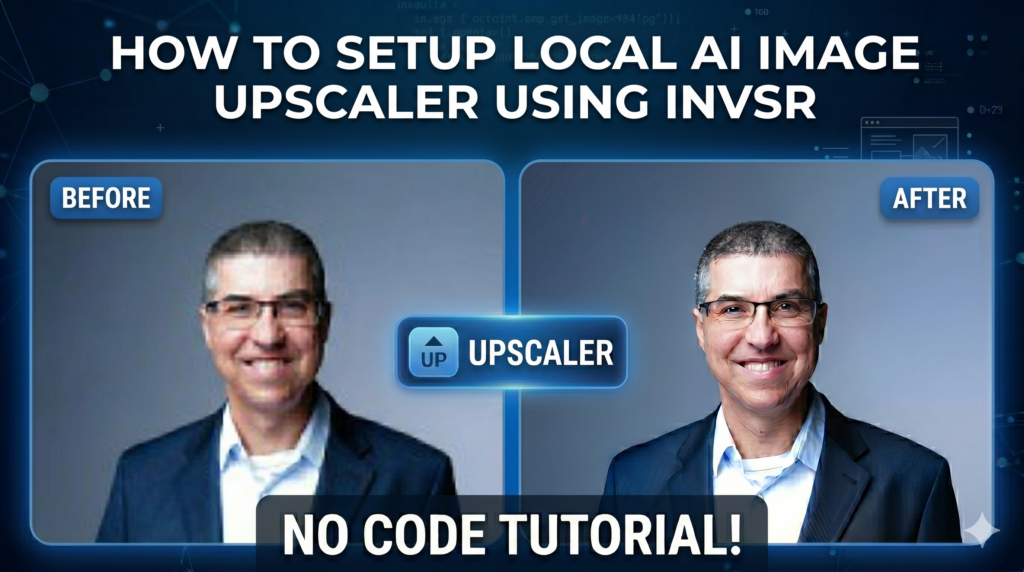
If you are looking for a completely free local ai image upscaler that lets you bypass expensive monthly subscriptions and data privacy concerns, you have come to the right place. This article provides a comprehensive, hands-on installation guide to setting up your own private, open-source super-resolution system directly on your desktop. We will be breaking down the technical barriers to deploying InvSR (Invertible Super-Resolution), a cutting-edge generative model that breathes new life into blurry pictures, compressed graphics, and low-resolution artwork without sending a single byte of data to an external server.
The primary value of mastering this setup lies in achieving absolute creative and computational freedom. Instead of dealing with restrictive daily usage limits or compressed file outputs from commercial platforms, you will gain a permanent production asset that scales with your hardware. Whether you are an AI hobbyist looking to expand your local software stack, a developer working on generative media workflows, or a digital artist needing crisp 4K outputs, this guide saves you both time and money by replacing premium SaaS alternatives with an unconstrained workflow.
To deliver this value, the guide completely demystifies the deployment process by breaking down advanced machine learning concepts into digestible, reproducible steps. We do not assume you have a PhD in data science; instead, we approach the configuration systematically so you can see exactly how the software layers interact. You will learn the exact terminal commands required to insulate your system dependencies, connect the necessary AI framework libraries, and prepare your system for accelerated GPU processing.
By the end of this read, you will have moved entirely past theory and into execution. The article walks you through configuring an isolated environment, downloading the specialized pre-trained model weights from Hugging Face, and executing the core backend logic. Ultimately, you will launch an elegant, intuitive Gradio web browser interface that allows you to drag, drop, and upscale your image assets through a local web app with just a single click.
Why running a free local ai image upscaler is a game changer for your workflow Deploying a free local ai image upscaler directly on your own machine fundamentally changes your relationship with generative media tools. Traditionally, achieving high-fidelity image reconstruction required renting time on massive cloud servers or purchasing restrictive software licenses. By shifting the computational workload to your local graphics card, you unlock an infinite playground for texturing, upscaling, and restorative design work. The ultimate target of this approach is absolute autonomy: giving you a high-performance utility that runs completely offline, costs nothing to operate, and respects your data privacy.
At a high level, this system bridges the gap between raw programmatic power and daily usability. The underlying engine leverages the deep structural knowledge found in advanced diffusion models—specifically optimized variations like SD-Turbo—to intelligently guess and redraw the missing pixels in low-resolution files. Rather than simply stretching the pixels and blurring the edges like traditional bicubic interpolation, a local neural network analyzes the textures, lighting, and semantic shapes within your original photo to synthesize genuine, photorealistic detail from scratch.
What makes this particular workflow so incredible is its accessibility through a browser-based dashboard. Once the initial infrastructure is aligned, you do not have to interact with code or look at a command prompt to enhance your files. The application generates a localized, user-friendly interface that acts exactly like a traditional website, allowing you to fine-tune your parameters, adjust sampling steps, and witness incredible transformations instantly. It transforms a highly technical CVPR research breakthrough into a functional, everyday desktop application suited for any creative or engineering pipeline.
how to upscale images locally Getting Your Hands Dirty with the InvSR Local Environment Setup To transition from high-level AI theory to a working application on your desktop, you need a robust, isolated playground where your libraries can interact without causing conflicts across your operating system. This specific terminal sequence provides the exact foundation required to launch the open-source InvSR framework locally. The target of this installation script is simple yet powerful: it safely pulls down the CVPR 2025 source code, wires up your local graphics card hardware acceleration using PyTorch and CUDA, and provisions a browser-based Gradio app interface so you can process low-resolution photos directly on your machine.
At a high level, the configuration routine strips away dependency head scratching by freezing specific versions of critical data science libraries. By pinning exact builds of core packages like Python 3.10, PyTorch 2.4.0, and xformers, the setup script ensures that the underlying neural network layers communicate flawlessly with your GPU’s tensor cores. This isolation prevents the common runtime errors associated with floating-point calculations or mismatched graphic memory drivers, giving you an optimized environment explicitly tuned for heavy generative workloads.
Why do we need an isolated Conda environment instead of a standard global installation? Using an isolated Conda environment ensures that your project dependencies remain completely sandboxed. Standard global Python installations often suffer from “dependency hell,” where updating a library for one script inadvertently breaks a completely separate tool on your computer. By carving out a dedicated, virtual container named InvSR running Python 3.10, you gain the freedom to install specific, legacy versions of PyTorch and deep learning utilities required by the CVPR 2025 research code without altering your global machine configurations.
Once the isolated runtime boundary is established, the workflow systematically initializes the physical code footprint using standard version control commands. By executing a clean clone of the official repository, you mirror the precise directory tree structured by the model’s engineers. This ensures that when the system attempts to reference custom script modules or localized configurations later during runtime, all structural paths line up exactly as intended.
The heavy lifting concludes with the delivery of the deep neural weights file directly into your local storage paths. Moving the .pth weight maps into the dedicated subfolder acts as the spark that brings the script to life; it provides the billion-parameter brain that the inference pipeline queries to execute its spatial reasoning. When you finally trigger the main file execution, the system ties your local processing pipeline directly to an elegant web interface, giving you a private, offline super-resolution workspace that runs right inside your web browser.
Link to the tutorial here .
Download the code / instruction files for the tutorial here or here
Link for Medium users here
Master Computer Vision
Follow my latest tutorials and AI insights on my
Personal Blog .
Beginner Complete CV Bootcamp
Foundation using PyTorch & TensorFlow.
Get Started → Interactive Deep Learning with PyTorch
Hands-on practice in an interactive environment.
Start Learning → Advanced Modern CV: GPT & OpenCV4
Vision GPT and production-ready models.
Go Advanced →
free local ai image upscaler If you are looking for a completely free local ai image upscaler that lets you bypass expensive monthly subscriptions and data privacy concerns, you have come to the right place. This article provides a comprehensive, hands-on installation guide to setting up your own private, open-source super-resolution system directly on your desktop. We will be breaking down the technical barriers to deploying InvSR (Invertible Super-Resolution), a cutting-edge generative model that breathes new life into blurry pictures, compressed graphics, and low-resolution artwork without sending a single byte of data to an external server.
The primary value of mastering this setup lies in achieving absolute creative and computational freedom. Instead of dealing with restrictive daily usage limits or compressed file outputs from commercial platforms, you will gain a permanent production asset that scales with your hardware. Whether you are an AI hobbyist looking to expand your local software stack, a developer working on generative media workflows, or a digital artist needing crisp 4K outputs, this guide saves you both time and money by replacing premium SaaS alternatives with an unconstrained workflow.
To deliver this value, the guide completely demystifies the deployment process by breaking down advanced machine learning concepts into digestible, reproducible steps. We do not assume you have a PhD in data science; instead, we approach the configuration systematically so you can see exactly how the software layers interact. You will learn the exact terminal commands required to insulate your system dependencies, connect the necessary AI framework libraries, and prepare your system for accelerated GPU processing.
By the end of this read, you will have moved entirely past theory and into execution. The article walks you through configuring an isolated environment, downloading the specialized pre-trained model weights from Hugging Face, and executing the core backend logic. Ultimately, you will launch an elegant, intuitive Gradio web browser interface that allows you to drag, drop, and upscale your image assets through a local web app with just a single click.
Why running a free local ai image upscaler is a game changer for your workflow Deploying a free local ai image upscaler directly on your own machine fundamentally changes your relationship with generative media tools. Traditionally, achieving high-fidelity image reconstruction required renting time on massive cloud servers or purchasing restrictive software licenses. By shifting the computational workload to your local graphics card, you unlock an infinite playground for texturing, upscaling, and restorative design work. The ultimate target of this approach is absolute autonomy: giving you a high-performance utility that runs completely offline, costs nothing to operate, and respects your data privacy.
At a high level, this system bridges the gap between raw programmatic power and daily usability. The underlying engine leverages the deep structural knowledge found in advanced diffusion models—specifically optimized variations like SD-Turbo—to intelligently guess and redraw the missing pixels in low-resolution files. Rather than simply stretching the pixels and blurring the edges like traditional bicubic interpolation, a local neural network analyzes the textures, lighting, and semantic shapes within your original photo to synthesize genuine, photorealistic detail from scratch.
What makes this particular workflow so incredible is its accessibility through a browser-based dashboard. Once the initial infrastructure is aligned, you do not have to interact with code or look at a command prompt to enhance your files. The application generates a localized, user-friendly interface that acts exactly like a traditional website, allowing you to fine-tune your parameters, adjust sampling steps, and witness incredible transformations instantly. It transforms a highly technical CVPR research breakthrough into a functional, everyday desktop application suited for any creative or engineering pipeline.
What core technologies drive this local upscaling architecture? The core architecture combines three main technological layers to achieve super-resolution. First, Python acts as the general integration language handling software environments, file transfers, and web hosting parameters. Second, the PyTorch execution platform manages complex matrix math operations on your physical graphics hardware via Nvidia CUDA acceleration libraries. Third, the InvSR network applies a specialized diffusion inversion process that extracts descriptive image details out of pre-trained SD-Turbo weights, yielding sharp 4K outputs without computational overhead.
Setting Up Your Isolated Machine Learning Environment Fast Building an enterprise-grade AI system starts by clearing away potential software path conflicts on your computer. This initial command configuration sequence handles the foundational sandboxing tasks required to isolate your deep learning libraries cleanly. By targeting a precise version of Python within a protected container, you ensure that future environment updates on your PC will never break your local super-resolution asset.
The script starts by provisioning an isolated workspace where specific versions of PyTorch and deep learning utilities can run side by side. Following environment creation, terminal control jumps directly into the newly constructed folder structure to download the official InvSR source code files from GitHub. This creates a stable local ecosystem on your hard drive, positioning all tracking metrics and script modules exactly where the main executor expects them.
Mastering this setup gives you complete environment stability across all future Python machine learning projects.
Why do we need an isolated Conda environment instead of a standard global installation? Using an isolated Conda environment ensures that your project dependencies remain completely sandboxed. Standard global Python installations often suffer from dependency path collisions, where updating an imagery library for one app inadvertently breaks a completely separate tool on your computer. By carving out a dedicated virtual container running a fixed Python version, you gain the freedom to run specialized research code safely.
### Create a new, completely isolated virtual environment running Python 3.10 named InvSR to prevent package conflicts. conda create - n InvSR python = 3.10 - y ### Activate the newly created environment to direct all subsequent library installations into this specific container. conda activate InvSR ### Change directories into your workspace folder and clone the official InvSR source repository from GitHub. cd tutorials git clone https : // github . com / zsyOAOA / InvSR . git cd InvSR Summary: This initial segment ensures your development environment is locked down, isolated, and populated with the correct source repository files before running advanced network builds.
Installing Core PyTorch Libraries and Downloading Model Weights Once your code repository is structured, you must install the heavy computational frameworks that enable your graphics hardware to process large neural network layers. This phase handles the exact installation configuration for PyTorch matched alongside specific Nvidia CUDA compiler builds. Getting these version pairings right is critical to enabling acceleration on your physical hardware.
The sequence installs advanced tensor processing libraries along with web interface layers that turn command scripts into point-and-click graphics apps. After the environmental tools are fully loaded, the script connects to Hugging Face to obtain the pre-compiled generative weights file. Placing this neural map directly into your local directory structures acts as the key piece that unlocks high-fidelity super-resolution tasks.
Always check your local disk destination pathing carefully to ensure the heavy configuration weights are detected on engine initialization.
What role do xformers play inside a local generative super-resolution model pipeline? The xformers package introduces highly optimized attention mechanisms that slash graphics card memory consumption during upscaling runs. By optimizing the math equations used inside diffusion layers, it prevents out-of-memory errors when processing major upscaling tasks like converting a standard 1K texture up into a clean 4K layout.
### Install the specific PyTorch 2.4.0 execution platform configured to communicate directly with Nvidia CUDA 12.1 drivers. pip install torch == 2.4 . 0 torchvision == 0.19 . 0 torchaudio == 2.4 . 0 -- index - url https : // download . pytorch . org / whl / cu121 ### Download and upgrade the xformers library to apply optimized attention mechanisms directly to your graphics hardware. pip install - U xformers == 0.0 . 27 . post2 -- index - url https : // download . pytorch . org / whl / cu121 ### Install the current directory repo as an editable project package with full PyTorch capability. pip install - e " .[torch] " ### Install the complete list of system library requirements defined by the original engineering research team. pip install - r requirements . txt ### Install a specialized background variation of the OpenCV framework to handle graphic manipulation without head-end server requirements. pip install " opencv-python-headless<4.10 " ### Force numerical array processing tasks to execute via a highly stable, predictable version of NumPy. pip install numpy == 1.26 . 4 ### Deploy the Gradio application library to serve up a localized browser interface for easy app controls. pip install gradio == 6.17 . 3 Summary: Executing this bundle completes your engine build, installs structural array libraries, registers web dashboards, and triggers your final offline application workspace.
Running the Interactive Gradio Interface and Parameters Guide Once you launch the local pipeline by running python app.py, the terminal will output a local network address (typically http://127.0.0.1:7860). Open this URL in any web browser to access your interactive, free local ai image upscaler user interface. The screen layout is highly intuitive, designed to handle raw files through simple drag-and-drop actions.
### Trigger python application script execution to launch your local browser window interface dashboard. python app . py
To load your target file, simply drag any compressed image directly into the main input module window box or click the upload icon to browse your local hard drives. Once your photo is staged, you will see parameter options to control how the underlying generative diffusion network reconstructs the missing pixels. Understanding these inputs ensures you get the absolute best visual output possible.
Sampling Steps (Range 1-5): This slider dictates how many passes the diffusion inversion model takes over your file. Thanks to the unique partial noise prediction mechanism of InvSR, set this parameter to 1 or 2 for ultra-fast processing that retains strong structural boundaries. If your image contains heavily degraded backgrounds or complex organic patterns, bump this slider up to 4 or 5 steps to let the SD-Turbo priors synthesize rich, ultra-realistic texture details from scratch.Chopping Size (Recommended: 256): This value defines the spatial tile dimensions processed by your graphics card concurrently. When dealing with extreme upscaling workflows (like scaling an asset from 1080p up into full 4K quality), setting the chopping size to 256 chops your image into manageable blocks. This technique preserves your physical VRAM and prevents your machine from crashing during heavy inferencing runs. The main app : You can try our method through the main app :
Run a Free Local AI Image Upscaler with Python & InvSR 13
The test image : Upload the 512/512 low resolution image image :
Run a Free Local AI Image Upscaler with Python & InvSR 14 Drug and drop the image into the single image area :
Run a Free Local AI Image Upscaler with Python & InvSR 15 Click the Process button , and wait for the result
You can follow the progress using the prompt window
The result : Run a Free Local AI Image Upscaler with Python & InvSR 16
FAQ : What hardware is required to run this local upscaler smoothly? You need a dedicated Nvidia graphics card with support for CUDA 12.1 and a minimum of 4GB VRAM. If your card has limited memory, make sure to enable the chopping option to process images in smaller tiles.
Can I run this system completely without an active internet connection? Yes, once the initial installation commands finish and you save the .pth weights file from Hugging Face into your local subfolders, the model performs full execution completely offline.
Why am I getting a module error during the PyTorch setup process? This usually happens when your command prompt executes installations outside your virtual workspace. Ensure you run conda activate InvSR before running any package installations.
How does diffusion inversion differ from old bicubic upscaling applications? Traditional bicubic tools simply stretch existing pixels and apply mathematical smoothing filters, resulting in blurry edges. Diffusion inversion intelligently analyzes textures and generates entirely new, sharp pixel information based on advanced AI models.
Is this software truly free for commercial use? This specific implementation runs on your own hardware using open-source packages and the NTU S-Lab License. Check the repo license file details for specific distribution terms regarding commercial services.
Final Thoughts on Your Private Creative Software Pipeline Deploying an offline, open-source super-resolution framework marks a huge milestone in taking control of your creative software production assets. By moving past restrictive cloud interfaces and building an optimized Python backend infrastructure on your home computer, you unlock unrestricted 4K production values completely on your own terms.
As models like InvSR continue to advance within the research community, running these tasks locally guarantees that your data stays secure, your software bills drop to zero, and your workflows remain independent of corporate pricing models. Keep exploring new checkpoints, customize your local parameters, and enjoy building an elite, fully decentralized computer vision workstation right from your home office.
Connect ☕ Buy me a coffee — https://ko-fi.com/eranfeit
🖥️ Email : feitgemel@gmail.com
🌐 https://eranfeit.net
🤝 Fiverr : https://www.fiverr.com/s/mB3Pbb
Enjoy,
Eran
 Skip to content