 Skip to content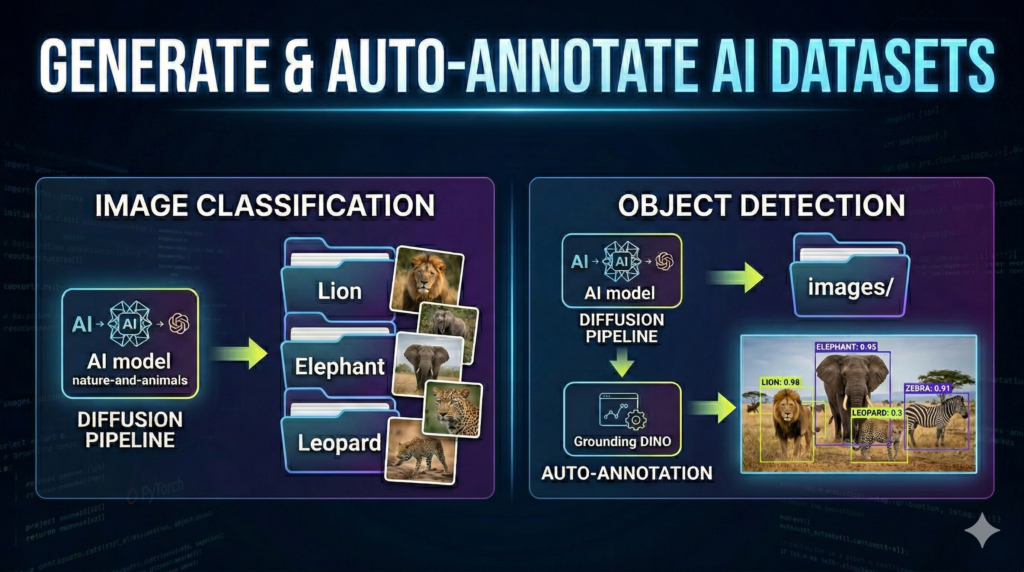
Last Updated on 05/03/2026 by Eran Feit
The process of manual data annotation has long been the most significant bottleneck in developing high-performance machine learning models. This tutorial focuses on a revolutionary shift in the industry: leveraging Synthetic Data for Computer Vision to bypass the tedious weeks spent in labeling software. By combining the generative power of Stable Diffusion with the intelligent labeling capabilities of GroundingDINO, you will learn how to create a self-sustaining data factory that produces training-ready datasets in minutes rather than months.
The value of this workflow lies in its ability to solve the “data scarcity” problem that many developers and researchers face when working on niche or custom object detection tasks. Instead of searching for the perfect dataset or hiring a team of annotators, you gain the freedom to generate high-fidelity images that perfectly match your specific requirements. This guide provides a production-ready Python pipeline that handles everything from environment setup to final dataset exportation, ensuring you can scale your projects without increasing your manual workload.
To achieve this, we bridge the gap between two of the most powerful advancements in AI: Generative Models and Foundation Detection Models. We will start by configuring a Diffusion pipeline to synthesize photorealistic images of specific objects, such as African wildlife, based on text prompts. By controlling the generation process, we ensure that the visual variety—lighting, angles, and backgrounds—is optimized for training robust models that generalize well in real-world scenarios.
Once the images are generated, the pipeline utilizes Autodistill and GroundingDINO to perform zero-shot object detection. This means the system “looks” at the synthetic images and automatically draws precise bounding boxes around the objects based on text definitions you provide. By the end of this article, you will have a complete, labeled dataset ready for YOLO training, having successfully automated the most expensive and time-consuming part of the computer vision lifecycle.
Why Synthetic Data for Computer Vision is the Future of AI Development
The traditional approach of “collect, clean, and label” is rapidly becoming obsolete as the demand for massive, high-quality datasets outpaces human capacity. Synthetic Data for Computer Vision offers a scalable alternative that allows developers to simulate rare edge cases, controlled environments, and diverse lighting conditions that are often impossible to capture in the wild. By shifting the focus from manual data collection to algorithmic data generation, teams can iterate on their models much faster, testing new classes and scenarios with almost zero marginal cost.
At its core, the goal is to create “digital twins” of the objects or environments your model needs to understand. When we use tools like Stable Diffusion, we aren’t just making pretty pictures; we are generating mathematically complex visual information that serves as a ground-truth foundation for neural networks. This approach is particularly effective for classification and object detection, where the model needs thousands of examples to distinguish between similar categories. By generating this data synthetically, you ensure that your dataset is balanced, diverse, and completely free from the human errors often found in manual annotations.
On a high level, this methodology represents a transition toward “Data-Centric AI,” where the quality and programmatic control of your data are prioritized. Using foundational models like GroundingDINO to label synthetic images creates a closed-loop system where the AI essentially teaches itself. This pipeline allows you to move from a concept to a functional, trained model in a single afternoon. Whether you are building a system to monitor industrial equipment or a mobile app for wildlife identification, mastering these automated pipelines is the most effective way to stay competitive in the modern AI landscape.
Building an Automated Data Factory: From Pixels to Labels
The technical core of this tutorial is centered around a multi-stage Python pipeline designed to eliminate the manual labor traditionally associated with building Computer Vision datasets. The primary target of the code is to create a seamless bridge between Generative AI and Object Detection. By the end of the script execution, you move from having nothing but a list of category names to possessing a fully structured, labeled dataset ready for training state-of-the-art models like YOLOv8 or EfficientDet.
This workflow is achieved by first leveraging the diffusers library to tap into specialized Stable Diffusion models. Instead of relying on existing, potentially biased datasets, the code programmatically generates photorealistic images based on highly specific text prompts. This level of control allows you to define exactly what your model sees—specifying lighting, camera angles (like “medium-shot” or “front view”), and environmental context. This is particularly valuable for rare objects or specific industrial use cases where real-world images are difficult or expensive to acquire.
Once the synthetic images are generated and organized into their respective directories, the pipeline transitions into the annotation phase using the autodistill ecosystem. The script implements GroundingDINO, a zero-shot object detection model that uses natural language to “find” objects within an image. By defining an “ontology”—a simple mapping of text descriptions to class labels—the code instructs the model to scan the newly created synthetic images and automatically calculate precise bounding box coordinates ($x, y, w, h$).
The final stage of the code handles the data serialization and directory management. It doesn’t just show you detections on a screen; it writes the results into standardized formats like YOLO or COCO, ensuring that the output is immediately compatible with training scripts. By integrating these disparate technologies into a single, cohesive Python environment, the tutorial provides a blueprint for an automated data factory. This approach effectively shifts the developer’s role from a manual labeler to a high-level data architect, focusing on prompt engineering and model optimization rather than clicking mouse buttons thousands of times.
Link to the video tutorial here
Download the code for the tutorial here or here
Best AI Photo Tools (Backgrounds, Objects, Headshots)


My Blog
Link for Medium users here
Want to get started with Computer Vision or take your skills to the next level ?
Great Interactive Course : “Deep Learning for Images with PyTorch” here
If you’re just beginning, I recommend this step-by-step course designed to introduce you to the foundations of Computer Vision – Complete Computer Vision Bootcamp With PyTorch & TensorFlow
If you’re already experienced and looking for more advanced techniques, check out this deep-dive course – Modern Computer Vision GPT, PyTorch, Keras, OpenCV4
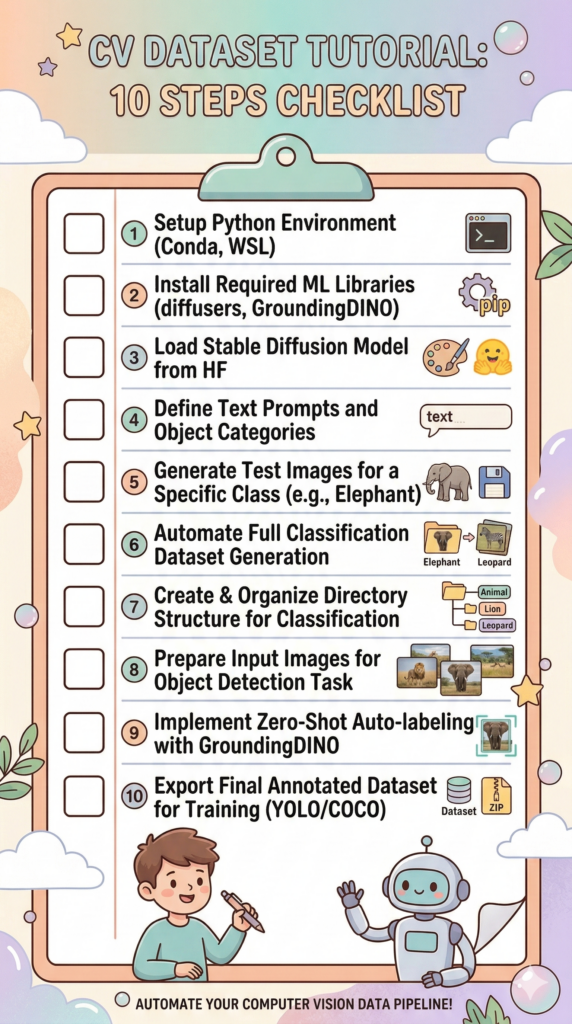
This tutorial explains how to build a professional-grade Python pipeline that uses Stable Diffusion to generate high-quality synthetic images and GroundingDINO to automatically label them for object detection and classification tasks.
The process of manual data annotation has long been the most significant bottleneck in developing high-performance machine learning models. This tutorial focuses on a revolutionary shift in the industry: leveraging Synthetic Data for Computer Vision to bypass the tedious weeks spent in labeling software. By combining the generative power of Stable Diffusion with the intelligent labeling capabilities of GroundingDINO, you will learn how to create a self-sustaining data factory that produces training-ready datasets in minutes rather than months.
The value of this workflow lies in its ability to solve the “data scarcity” problem that many developers and researchers face when working on niche or custom object detection tasks. Instead of searching for the perfect dataset or hiring a team of annotators, you gain the freedom to generate high-fidelity images that perfectly match your specific requirements. This guide provides a production-ready Python pipeline that handles everything from environment setup to final dataset exportation, ensuring you can scale your projects without increasing your manual workload.
To achieve this, we bridge the gap between two of the most powerful advancements in AI: Generative Models and Foundation Detection Models. We will start by configuring a Diffusion pipeline to synthesize photorealistic images of specific objects, such as African wildlife, based on text prompts. By controlling the generation process, we ensure that the visual variety—lighting, angles, and backgrounds—is optimized for training robust models that generalize well in real-world scenarios.
Once the images are generated, the pipeline utilizes Autodistill and GroundingDINO to perform zero-shot object detection. This means the system “looks” at the synthetic images and automatically draws precise bounding boxes around the objects based on text definitions you provide. By the end of this article, you will have a complete, labeled dataset ready for YOLO training, having successfully automated the most expensive and time-consuming part of the computer vision lifecycle.
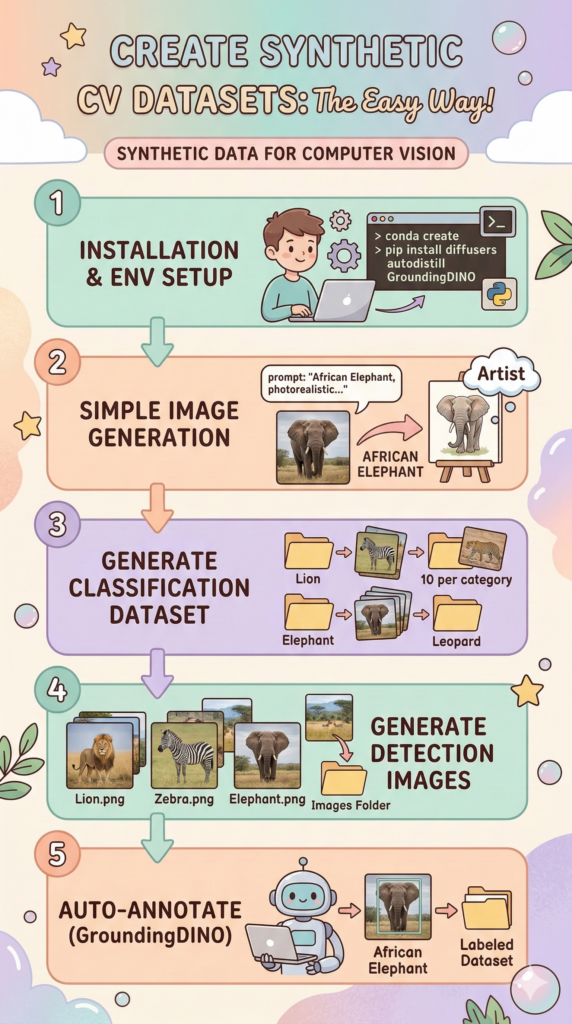
Setting the Foundation with WSL and Conda
Before we can generate a single pixel, we need a rock-solid environment that can handle heavy GPU computations. Windows users often struggle with library compatibility, which is why we utilize Windows Subsystem for Linux (WSL). This allows us to run a native Linux environment directly on Windows, providing the performance and stability required for high-end AI frameworks like PyTorch and Diffusers.
Isolating your project is the next critical step. By using Conda, we create a dedicated sandbox called diffusers311. This ensures that the specific versions of Python and its dependencies don’t conflict with other projects on your machine. Think of it as a clean, digital lab bench where every tool is in its right place and ready for high-performance work.
Once your environment is active, you are ready to bridge the gap between your local hardware and the most advanced open-source AI models. This setup is the “secret sauce” that allows professional developers to iterate quickly without fighting installation errors. With WSL and Conda, you have a production-ready foundation for any Synthetic Data for Computer Vision project.
Want the exact dataset so your results match mine?
If you want to reproduce the same training flow and compare your results to mine, I can share the dataset structure and what I used in this tutorial. Send me an email and mention “30 Musical Instruments CNN dataset” so I know what you’re requesting.
🖥️ Email: feitgemel@gmail.com
### Run Powershell as admin and enter the Linux environment wsl ### Create a new Conda environment for our diffusion pipeline conda create -n diffusers311 python=3.11 ### Activate the environment to start installing libraries conda activate diffusers311Equipping Your Lab with Essential ML Libraries
Now that our environment is ready, we need to install the heavy hitters of the AI world. The diffusers library is our primary engine for image generation, while transformers handles the complex text-to-image logic. These tools allow us to download and run state-of-the-art generative models with just a few lines of code, transforming your computer into a creative powerhouse.
For the automation side, we bring in Autodistill and GroundingDINO. These libraries are the “brain” of our annotation process. Instead of you manually drawing boxes, these tools use “Zero-Shot” logic to understand what an “Elephant” or a “Lion” looks like based purely on text descriptions. This is how we achieve 100% automated labeling for our object detection datasets.
Finally, we include utilities like opencv-python and scikit-learn to handle image processing and data organization. By installing specific versions, we ensure that the entire pipeline runs smoothly without “version hell” crashes. This carefully curated stack is what enables the transition from raw code to a functional Synthetic Data for Computer Vision pipeline.
### Install the core diffusion and transformer libraries for image generation pip install diffusers[torch]==0.16.1 pip install transformers==4.28.1 pip install huggingface-hub==0.14.1 pip install accelerate==0.19.0 pip install opencv-python==4.13.0.92 ### Install the automation tools for zero-shot object detection and labeling pip install autodistill==0.1.29 pip install autodistill-grounding-dino==0.1.4 pip install roboflow==1.2.15 ### Ensure OpenCV is correctly installed and add scikit-learn for data utilities pip uninstall -y opencv-python pip install opencv-python==4.13.0.92 pip install scikit-learn==1.8.0 ### Open VS Code in the current directory to start coding code .Bringing Your First Synthetic Image to Life
The first script is our “Hello World” of generative AI. We initialize a DiffusionPipeline using a specialized “nature-and-animals” model from Hugging Face. By moving the model to the CUDA device, we leverage the power of your NVIDIA GPU, allowing us to generate hyperrealistic images in seconds rather than minutes.
The magic happens in the prompt engineering. We don’t just ask for an “African elephant”; we specify the lens (50mm), the resolution (8k), and the artistic style (photorealistic). We also use a negative prompt to tell the AI exactly what we don’t want, such as cartoons, blurriness, or watermarks. This ensures the output is high-quality and suitable for a professional computer vision dataset.
After the AI generates the image, we use OpenCV to convert the data into a standard format and save it to your disk. This step proves that your pipeline is working and that you can successfully generate high-fidelity Synthetic Data for Computer Vision. Seeing that first elephant appear on your screen is the moment the potential of this technology becomes real.
import os from diffusers import DiffusionPipeline import torch import cv2 import numpy as np ### Define the specialized model and choose the GPU if available animals_models = "VuDucQuang/nature-and-animals" device = "cuda" if torch.cuda.is_available() else "cpu" ### Load the pipeline from Hugging Face with half-precision for speed pipline = DiffusionPipeline.from_pretrained( animals_models, torch_dtype=torch.float16 ) pipline.to(device) object_name = "African elephant" ### Create a high-quality prompt and a strict negative prompt for clean results prompt = f'Medium-shot of a {object_name}, front view, color photography, photorealistic, hyperrealistic, realistic, incredibly detailed, digital art, crisp focus, depth of field, 50mm, 8k' negative_prompt = '3d, cartoon, anime, sketches, (worst quality:2), (low quality:2), (normal quality:2), lowres, normal quality, ((monochrome)), ((grayscale)) Low Quality, Worst Quality, plastic, fake, disfigured, deformed, blurry, bad anatomy, blurred, watermark, grainy, signature' ### Generate the image and inform the user print("Generating image...") result = pipline(prompt=prompt, negative_prompt=negative_prompt).images[0] ### Convert the resulting image to a format OpenCV can save and display img = cv2.cvtColor(np.array(result), cv2.COLOR_RGB2BGR) ### Save the final image to your local temporary directory output_dir = "/mnt/d/temp" file_path = os.path.join(output_dir, f"{object_name}.png") cv2.imwrite(file_path, img) print(f"Image saved to: {file_path}") ### Show the result in a window to verify the generation quality cv2.imshow("Generated Image", img) cv2.waitKey(0) cv2.destroyAllWindows()Scaling Up to a Full Classification Dataset
Once the single image generation is verified, we can automate the creation of an entire classification dataset. This script iterates through a list of categories—from Lions to Wildebeests—and creates a dedicated folder for each. This organizational structure is exactly what deep learning frameworks like TensorFlow and PyTorch expect for training.
By wrapping our generation logic in a loop, we can create dozens or even thousands of images per category while you walk away from your computer. The code handles the file naming and path management, ensuring that every image is saved in the correct sub-directory. This is the first step in building a Synthetic Data for Computer Vision factory that works for you.
Notice how we keep the prompts consistent across all categories. This ensures that the only major variable in your dataset is the animal itself, which helps the future classification model learn the specific features of each species without being distracted by wildly different backgrounds or styles. This programmatic consistency is a major advantage over manual web scraping.
import os from diffusers import DiffusionPipeline import torch import cv2 import numpy as np ### Re-initialize the pipeline for our batch generation task animals_models = "VuDucQuang/nature-and-animals" device = "cuda" if torch.cuda.is_available() else "cpu" pipline = DiffusionPipeline.from_pretrained( animals_models, torch_dtype=torch.float16 ) pipline.to(device) ### Define the list of animals we want in our classification dataset categories = ['Lion', 'African Elephant', 'Leopard', 'Rhinocerous', 'Cape Buffalo', 'Cheetah' , 'Giraffe', 'Zebra' , 'Hippo' , 'Crocodile' , 'Wildebeest' , 'Warthhog' ] ### Create the directory structure for our synthetic dataset base_dir = "/mnt/d/Data-sets/synthetic/Animals-Classification" os.makedirs(base_dir, exist_ok=True) ### Loop through each category and create a folder for it for category in categories: category_path = os.path.join(base_dir, category) os.makedirs(category_path, exist_ok=True) print(f"Created directory: {category_path}") num_images_per_category = 10 ### Automatically generate and save the images into their folders for category in categories: for j in range(num_images_per_category): print(category + ":Image no." + str(j)) prompt = 'Medium-shot of a {} , front view, '.format(category) + \ 'photorealistic, hyperrealistic, realistic, incredibly detailed, digital art, crisp focus, depth of field, 50mm, 8k' negative_prompt = '3d, cartoon, anime, sketches, (worst quality:2), (low quality:2), (normal quality:2), lowres, normal quality, ((monochrome)), ' + \ '((grayscale)) Low Quality, Worst Quality, plastic, fake, disfigured, deformed, blurry, bad anatomy, blurred, watermark, grainy, signature' ### Generate and save the image directly using PIL img = pipline(prompt=prompt, negative_prompt=negative_prompt).images[0] file_name = category + str(j) + ".png" full_path = os.path.join(base_dir, category, file_name) print(f"Saving image to: {full_path}") img.save(full_path)


Preparing Images for Object Detection
Object detection requires a slightly different approach than classification. Instead of sorted folders, we usually want all our training images in a single “images” directory, with a corresponding set of label files. This script prepares that “raw” pool of images by generating various animals and saving them into one central location.
By generating a diverse set of images into a single folder, we create the perfect input for our upcoming auto-labeler. We want the images to be high-quality and centered, which makes it easier for the detection model (GroundingDINO) to find them. This phase is about building the “raw material” for your detection model.
This automated generation is a lifesaver for projects involving rare objects or specific viewpoints that don’t exist in standard datasets like COCO or Pascal VOC. You are essentially creating your own custom “mini-universe” of data, perfectly tailored to the needs of your Synthetic Data for Computer Vision detector.
import os from diffusers import DiffusionPipeline import torch ### Initialize the same high-end pipeline for detection image generation animals_models = "VuDucQuang/nature-and-animals" device = "cuda" if torch.cuda.is_available() else "cpu" pipline = DiffusionPipeline.from_pretrained( animals_models, torch_dtype=torch.float16 ) pipline.to(device) ### Define our list of targets for the detection task categories = ['Lion', 'African Elephant', 'Leopard', 'Rhinocerous', 'Cape Buffalo', 'cheetah' , 'Giraffe', 'Zebra' , 'Hippo' , 'Crocodile' , 'Wildebeest' , 'Warthhog' ] ### Create a single folder to hold all images for the detection pipeline base_dir = "/mnt/d/Data-sets/synthetic/Animals-Object-Detection/images" os.makedirs(base_dir, exist_ok=True) num_images_per_category = 10 ### Loop through categories and save all generated images to the same folder for category in categories: for j in range(num_images_per_category): print(category + ":Image no." + str(j)) prompt = 'Medium-shot of a {} , front view, '.format(category) + \ 'photorealistic, hyperrealistic, realistic, incredibly detailed, digital art, crisp focus, depth of field, 50mm, 8k' negative_prompt = '3d, cartoon, anime, sketches, (worst quality:2), (low quality:2), (normal quality:2), lowres, normal quality, ((monochrome)), ' + \ '((grayscale)) Low Quality, Worst Quality, plastic, fake, disfigured, deformed, blurry, bad anatomy, blurred, watermark, grainy, signature' ### Generate the image and save it with a unique name img = pipline(prompt=prompt, negative_prompt=negative_prompt).images[0] file_name = category + str(j) + ".png" full_path = os.path.join(base_dir, file_name) print(f"Saving image to: {full_path}") img.save(full_path)The Ultimate Automation: Zero-Shot Annotation
This is the peak of the tutorial. We define a CaptionOntology, which maps our animal names to the labels we want the computer to use. We then initialize the GroundingDINO model, which is a powerful “foundation model” that can detect almost anything described in text without being specifically trained on it.
The base_model.label() command is where the magic happens. The script scans your entire “images” folder, identifies the animals using the ontology, and automatically writes the bounding box coordinates into a new “dataset” folder. This effectively replaces hundreds of hours of manual clicking with a single command that runs in the background.
By the time this script finishes, you have a professional, training-ready dataset in standard formats (like YOLO). This is the true power of Synthetic Data for Computer Vision: you can go from an idea to a fully labeled dataset without ever manually labeling a single image. You are now a data architect, not a manual annotator.
import torch import os from autodistill.detection import CaptionOntology from autodistill_grounding_dino import GroundingDINO ### Define the mapping between what the AI "sees" and your dataset labels ontology = CaptionOntology({ "Lion": "Lion", "African Elephant": "African Elephant", "Leopard": "Leopard", "Rhinocerous": "Rhinocerous", "Cape Buffalo": "Cape Buffalo", "Cheetah": "Cheetah", "Giraffe": "Giraffe", "Zebra": "Zebra", "Hippo": "Hippo", "Crocodile": "Crocodile", "Wildebeest": "Wildebeest", "Warthhog": "Warthhog" }) ### Set the confidence thresholds for detection and text matching BOX_THRESHOLD = 0.3 TEXT_THRESHOLD = 0.3 ### Define the input image folder and the target output directory base_dir = "/mnt/d/Data-sets/synthetic/Animals-Object-Detection/images" DATASET_DIR_PTH = "/mnt/d/Data-sets/synthetic/Animals-Object-Detection/dataset" ### Initialize the GroundingDINO base model with our ontology base_model = GroundingDINO(ontology=ontology, box_threshold=BOX_THRESHOLD, text_threshold=TEXT_THRESHOLD) ### Run the labeling process to generate a complete, annotated dataset dataset = base_model.label(input_folder=base_dir, extension=".png", output_folder=DATASET_DIR_PTH)Summary of Your Synthetic Data Pipeline
In this tutorial, we successfully built an end-to-end Python workflow that solves the two biggest challenges in computer vision: data scarcity and manual annotation. By using Stable Diffusion, we generated high-quality, photorealistic images on demand. By integrating GroundingDINO via Autodistill, we automated the labeling process, creating a ready-to-train dataset without any manual labor. This pipeline is a game-changer for anyone building custom YOLO models or researchers working with niche datasets.
FAQ
What is synthetic data for computer vision?
Synthetic data consists of AI-generated images used to train machine learning models when real data is scarce or hard to label. It provides a scalable, cost-effective alternative to manual data collection.
Why use GroundingDINO for auto-labeling?
GroundingDINO is a zero-shot detector that identifies objects using natural language prompts. It eliminates the need for manual bounding box drawing by automatically annotating your synthetic images.
Do I need a GPU to run this synthetic data pipeline?
Yes, an NVIDIA GPU is required for efficient image generation and auto-labeling. Attempting to run Stable Diffusion or GroundingDINO on a CPU will be prohibitively slow for dataset creation.
What is an ontology in Autodistill?
An ontology is a mapping that tells the AI which text prompts (e.g., “African Elephant”) correspond to which dataset labels. This allows the system to organize auto-labeled data into correct categories.
How does synthetic data help with model training?
It helps by providing balanced datasets and simulating rare scenarios that are hard to capture in real life. This leads to more robust models that generalize better across different environments.
Can I use this pipeline for custom objects?
Absolutely. By changing the prompts in the Stable Diffusion step and the labels in the ontology, you can generate and label datasets for any object, from car parts to furniture.
Is it legal to use synthetic data for commercial AI?
Generally, yes, but it depends on the license of the generative model used. Always check the Hugging Face model card (e.g., CreativeML Open RAIL-M) for specific usage rights.
What is the main benefit of using WSL?
WSL allows Windows users to run a native Linux environment, which is much better supported by AI libraries like PyTorch. This prevents common installation errors found on native Windows.
Can I export this data to YOLO format?
Yes, the Autodistill framework used in the code automatically generates standard dataset structures compatible with YOLOv5, YOLOv8, and other popular detectors.
What are negative prompts?
Negative prompts are instructions given to the AI specifying what NOT to include. They are essential for removing artifacts like blur, watermarks, or low-quality features from your training data.
Conclusion: The End of Manual Labeling?
We have reached a turning point in how we develop computer vision systems. By mastering the generation of Synthetic Data for Computer Vision, you are no longer limited by the data you can find; you are only limited by the data you can imagine. This pipeline—combining Stable Diffusion’s creative power with GroundingDINO’s analytical precision—is more than just a shortcut. It is a fundamental shift toward “Data-Centric AI,” where the quality and programmatic control of your dataset determine the success of your model.
As generative models continue to improve, the gap between synthetic and real-world data will only narrow further. For developers, this means faster prototyping, easier entry into niche domains, and a massive reduction in the cost of building custom AI solutions. I encourage you to take this code, adapt it to your specific use case, and start building your own automated data factories. The future of computer vision isn’t just about better algorithms; it’s about better, more accessible data.
Connect :
☕ Buy me a coffee — https://ko-fi.com/eranfeit
🖥️ Email : feitgemel@gmail.com
🤝 Fiverr : https://www.fiverr.com/s/mB3Pbb
Enjoy,
Eran