 Skip to content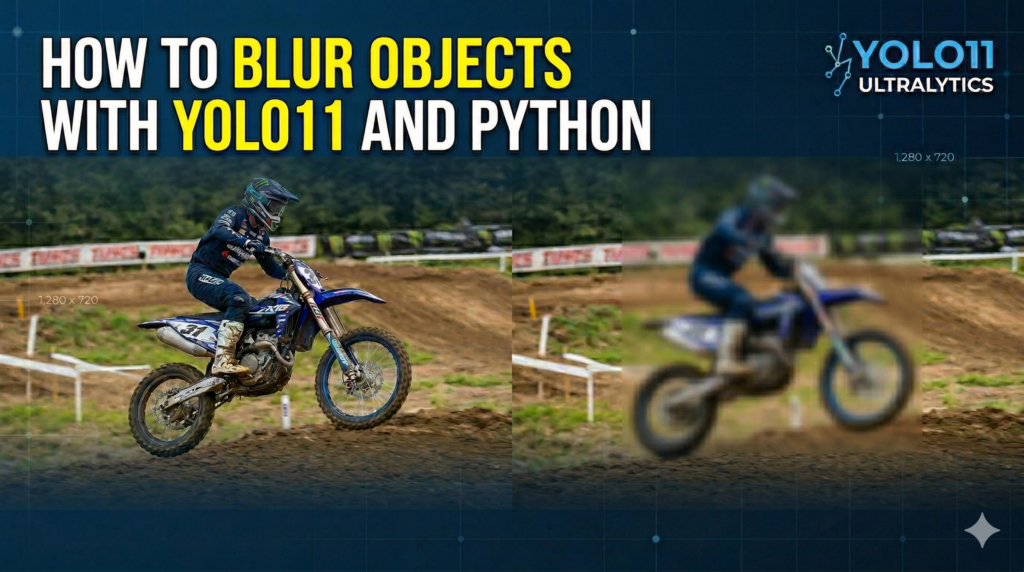
Last Updated on 22/03/2026 by Eran Feit
Modern data privacy is no longer a luxury; it is a technical and legal mandate. As video surveillance and public live-streaming become ubiquitous, the need to protect sensitive information like faces and license plates has skyrocketed. This article explores a cutting-edge approach to real-time AI video blurring using the high-performance YOLO11 model. By the end of this guide, you will understand how to leverage computer vision to identify specific objects and instantly obscure them, ensuring your visual data remains compliant and secure.
For developers and researchers, this tutorial provides a direct bridge between theoretical object detection and practical privacy engineering. The value lies in the transition from simply “finding” an object to “interacting” with it dynamically. Whether you are building a smart city application that needs to anonymize pedestrians or a sports broadcast tool that hides specific branding, the logic provided here serves as a production-ready foundation for any automated redaction project.
To achieve this, we will break down the process into clear, manageable technical stages. We begin with the environment setup, ensuring your system is optimized for the latest YOLO11 architecture and CUDA-enabled hardware. We then dive into the core Python logic, where we define our target classes—in this case, motorcycles—and establish the spatial coordinates needed for precise pixel manipulation. This structured approach ensures that you aren’t just copying code, but mastering the workflow of an AI-driven privacy system.
Finally, we will implement the Gaussian blur technique directly within the OpenCV frame-processing loop. You will see exactly how to extract a detected region of interest, apply the mathematical blurring kernel, and re-insert it into the video stream without losing real-time performance. By documenting the saving of both the processed video and individual blurred crops, this article provides a complete end-to-end solution for dataset preparation and professional video anonymization.
Why Real-time AI Video Blurring is a Game Changer for Privacy
The core objective of real-time AI video blurring is to automate the process of data anonymization at the source. Traditional video editing requires manual frame-by-frame masking, which is impossible to scale for live streams or massive archives. By using a neural network like YOLO11, the system can “see” and understand the context of a frame in milliseconds. This allows for the instantaneous protection of PII (Personally Identifiable Information) without human intervention, making it an essential tool for companies handling large volumes of sensitive visual data.
The target of such a system is precision. In computer vision, it isn’t enough to just blur a general area; the goal is to target specific COCO classes—such as “person,” “car,” or “cell phone”—and apply the blur only to those bounding boxes. This selective approach ensures that the rest of the video remains clear and useful for its intended purpose, while the sensitive elements are rendered unreadable. This balance of clarity and privacy is what makes AI-powered redaction so superior to old-school “black-box” methods.
From a high-level perspective, the system operates as a pipeline: the video frames are ingested, the AI model predicts the coordinates of the target objects, and an image processing filter is applied to those specific coordinates. Because YOLO11 is optimized for speed, this entire cycle happens fast enough to appear seamless to the human eye. This technology is currently being deployed in everything from autonomous vehicle testing to “smart” doorbell cameras, proving that AI is not just about gathering data, but also about protecting the people within it.

Let’s Build a Real-Time Privacy Shield with Python and YOLO11
This tutorial is designed to take you from a raw video file to a fully automated, AI-driven redaction system. Instead of focusing on theoretical detection, we are diving straight into the practical implementation of a “detect-and-modify” pipeline. By utilizing the latest Ultralytics framework and the efficient YOLO11 architecture, we will create a script that doesn’t just identify objects but actively interacts with them to ensure data privacy. Whether you are a developer looking to integrate privacy features into an app or a researcher preparing anonymized datasets, this step-by-step breakdown of the code will provide the exact logic needed to get the job done.
The process begins with environment orchestration, where we align the latest Python 3.12 capabilities with high-performance CUDA kernels. We then transition into the core script logic, which is built on a “single-pass” philosophy—detecting, processing, and saving in one fluid loop. This ensures that the overhead remains low enough for real-time applications. By the end of this tutorial, you will have a robust Python script capable of handling high-definition video input while maintaining a consistent frame rate for AI inference.
Making Privacy Automatic: How This YOLO11 Script Works Under the Hood
The primary target of this code is to provide a seamless, automated way to protect sensitive visual information without manual intervention. In our specific example, we are focusing on the “Motorcycle” class from the COCO dataset, but the logic is designed to be modular. By simply changing a single ID, the script can pivot to blurring faces, license plates, or any of the other 80 standard objects the model recognizes. The high-level goal is to create a dynamic mask that follows the target object across every frame, ensuring that privacy is maintained even as the camera or the object moves.
The script operates by first loading the pre-trained YOLO11 Nano model, which is optimized for high-speed inference. Once the video stream is opened using OpenCV, the code enters a continuous loop where each frame is analyzed. The model generates a set of bounding boxes—represented as mathematical coordinates—for every target detected. These coordinates are the “keys” to our privacy shield; they tell the script exactly which pixels need to be manipulated and which should be left untouched to preserve the background context.
After identifying the coordinates, the script performs a “Region of Interest” (ROI) extraction. This means it takes a temporary snapshot of just the area inside the bounding box. We then apply a Gaussian blur filter with a specific “blur ratio” defined in our settings. This mathematical operation averages the pixel values in the area, effectively destroying identifiable details while maintaining the overall shape and color of the object. This ensures the viewer knows an object is there, but cannot see any private details associated with it.
The final stage of the logic involves re-mapping this blurred snapshot back onto the original frame and saving the results. The code is dual-purpose: it writes a high-quality processed video file and simultaneously exports individual blurred image crops to a dedicated directory. This export feature is particularly valuable for developers who need to build “anonymized datasets” for further machine learning training. By the time the script finishes running, you have a fully redacted video and a folder full of processed evidence, all achieved with a few lines of Python.
Link to the video tutorial here .
Download the code for the tutorial here or here .
Best AI Photo Tools (Backgrounds, Objects, Headshots)


My Blog
Link for Medium users here .
Want to get started with Computer Vision or take your skills to the next level ?
Great Interactive Course : “Deep Learning for Images with PyTorch” here
If you’re just beginning, I recommend this step-by-step course designed to introduce you to the foundations of Computer Vision – Complete Computer Vision Bootcamp With PyTorch & TensorFlow
If you’re already experienced and looking for more advanced techniques, check out this deep-dive course – Modern Computer Vision GPT, PyTorch, Keras, OpenCV4

How to Blur Objects in Real-time with YOLO11 and AI
Modern data privacy is no longer a luxury; it is a technical and legal mandate. As video surveillance and public live-streaming become ubiquitous, the need to protect sensitive information like faces and license plates has skyrocketed. This article explores a cutting-edge approach to real-time AI video blurring using the high-performance YOLO11 model. By the end of this guide, you will understand how to leverage computer vision to identify specific objects and instantly obscure them, ensuring your visual data remains compliant and secure.
For developers and researchers, this tutorial provides a direct bridge between theoretical object detection and practical privacy engineering. The value lies in the transition from simply “finding” an object to “interacting” with it dynamically. Whether you are building a smart city application that needs to anonymize pedestrians or a sports broadcast tool that hides specific branding, the logic provided here serves as a production-ready foundation for any automated redaction project.
To achieve this, we will break down the process into clear, manageable technical stages. We begin with the environment setup, ensuring your system is optimized for the latest YOLO11 architecture and CUDA-enabled hardware. We then dive into the core Python logic, where we define our target classes—in this case, motorcycles—and establish the spatial coordinates needed for precise pixel manipulation. This structured approach ensures that you aren’t just copying code, but mastering the workflow of an AI-driven privacy system.
Finally, we will implement the Gaussian blur technique directly within the OpenCV frame-processing loop. You will see exactly how to extract a detected region of interest, apply the mathematical blurring kernel, and re-insert it into the video stream without losing real-time performance. By documenting the saving of both the processed video and individual blurred crops, this article provides a complete end-to-end solution for dataset preparation and professional video anonymization.
Setting Up Your High-Performance AI Environment
Before we can start blurring objects, we need to ensure our workspace is equipped with the right tools. Setting up a dedicated Conda environment is the best way to keep your dependencies clean and avoid version conflicts with other projects. By using Python 3.12 and the latest CUDA-enabled PyTorch, we unlock the full speed of your GPU, which is essential for achieving real-time AI video blurring without lag.
In this section, we focus on the foundation. Checking your CUDA version ensures that your NVIDIA hardware is ready to communicate with the YOLO11 model. Installing the ultralytics library gives us access to the state-of-the-art detection engine that makes this entire process possible with very few lines of code.
This part of the code handles the “boring but critical” infrastructure. Without a correctly mapped environment, the high-level Python commands won’t be able to access the hardware acceleration needed for video processing. Once these four steps are complete, your machine will be a localized powerhouse for computer vision.
Want to use the exact same test video?
If you want to ensure your results match mine perfectly and test the script with the same conditions shown in this tutorial, I can provide the original video file for free.
This is a great way to verify your setup before moving on to your own custom datasets. Send me an email and mention “Test video for YOLO Object Cropping” so I can send it over to you.
🖥️ Email: feitgemel@gmail.com
# 1. Crate a Conda enviroment : Python 3.12 # conda create -n YoloV11-312 python=3.12 # conda activate YoloV11-312 # 2. Find you Cuda version # nvcc --version ### Install Pytorch v2.9.1 with CUDA 12.8 support for hardware acceleration. # pip install torch==2.9.1 torchvision==0.24.1 torchaudio==2.9.1 --index-url https://download.pytorch.org/whl/cu128 ### Install the Ultralytics library which contains the YOLO11 model architecture. # pip install ultralytics==8.4.21Initializing the Brain of Our Privacy System
Once the environment is ready, we need to load the AI model and prepare our video stream. Loading the yolo11n.pt model gives us a lightweight yet powerful “brain” that can recognize objects in milliseconds. By defining our target class ID (in this case, 3 for motorcycles), we tell the AI exactly what it should be looking for amidst the thousands of other things it knows how to see.
Preparation is key for high-quality output. We use OpenCV to open the video file and extract its dimensions and frame rate so that our final blurred video looks exactly like the original. We also create a dedicated directory to store “crops” of the blurred objects, which is incredibly useful if you plan to use this data for further AI training or auditing.
The VideoWriter object acts as our digital recorder. It takes the frames we process and stitches them back together into a high-quality .avi file. This section essentially sets the stage, ensuring that every piece of data has a place to go once the AI starts its real-time work.
import os import cv2 from ultralytics import YOLO from ultralytics.utils.plotting import Annotator , colors ### Load the YOLO11 nano model which is optimized for speed. model = YOLO("yolo11n.pt") names = model.names ### Motorcycle class id in Coco dataset is 3. motocross_id = 3 ### Set the intensity of the Gaussian blur. blue_ratio = 50 ### Open the video file and verify it is accessible. cap = cv2.VideoCapture("Best-Object-Detection-models/Yolo-V11/Object Blurring using Ultralytics/motocross.mp4") assert cap.isOpened(), "Error opening video file" w , h, fps = (int(cap.get(x)) for x in (cv2.CAP_PROP_FRAME_WIDTH, cv2.CAP_PROP_FRAME_HEIGHT, cv2.CAP_PROP_FPS)) ### Create a directory to save individual blurred object images. crop_dir_name = "Best-Object-Detection-models/Yolo-V11/Object Blurring using Ultralytics/motocross_blur" if not os.path.exists(crop_dir_name): os.makedirs(crop_dir_name) ### Initialize the video writer to save our final processed result. video_writer = cv2.VideoWriter("Best-Object-Detection-models/Yolo-V11/Object Blurring using Ultralytics/motocross_blur.avi", cv2.VideoWriter_fourcc(*"mp4v"), fps, (w, h))
Detecting and Masking Targets in Every Frame
This is where the magic happens. As we loop through the video, the YOLO11 model analyzes every frame to find our target motorcycles. By using the model.predict command with a specific class filter, we ensure the AI only uses its processing power on the objects we actually want to blur, keeping the system running at high speeds.
For every detection, we extract the precise pixel coordinates of the bounding box. These coordinates allow us to “isolate” the object from the rest of the frame. We then apply a Gaussian blur directly to that region using OpenCV, which effectively scrambles the visual information within that box while leaving the rest of the scene untouched.
The integration step is crucial for visual continuity. We take that blurred patch and paste it back onto the original frame exactly where the object was found. This creates the “Real-time AI video blurring” effect you see in professional news broadcasts or security software, all happening automatically as the video plays.
idx = 0 ### Start the loop to process video frames one by one. while cap.isOpened(): success , im0 = cap.read() if not success: print("Error reading frame or Video frame is empty or Video proccesing has been completed.") break ### Run the YOLO11 model prediction on the current frame for the specific class. results = model.predict(im0, classes=[motocross_id], show=False) ### Extract bounding box coordinates for each detected object. boxes = results[0].boxes.xyxy.cpu().tolist() clss = results[0].boxes.cls.cpu().tolist() ### Initialize the annotator to draw labels and boxes. annotator = Annotator(im0, line_width=2, example=names) if boxes is not None: for box , cls in zip(boxes, clss): if cls == motocross_id: idx += 1 ### Draw the label on the frame for visual confirmation. annotator.box_label(box, color=colors(int(cls), True), label=names[int(cls)]) ### Slice the image to extract only the detected object. obj = im0[int(box[1]):int(box[3]), int(box[0]):int(box[2])] ### Apply the Gaussian blur to the extracted object region. blur_obj = cv2.blur(obj, (blue_ratio, blue_ratio) )
Finalizing the Output and Saving Your Work
The final step is to ensure all our hard work is recorded correctly. Not only do we apply the blur to the live frame, but we also save each individual blurred crop as a separate image file. This is a game-changer for auditing; it allows you to see exactly what the AI blurred and verify that no private data was missed.
As the loop continues, the video_writer saves the composite frames into our final .avi file. The cv2.imshow command lets you monitor the process in real-time, giving you immediate visual feedback on how well the YOLO11 model is performing. If the blur is too light or too heavy, you can simply adjust the blue_ratio variable we set earlier.
Once the video ends, we must release the video capture and writer objects to free up system memory. This clean-up ensures that your computer stays fast and the video files are finalized properly without corruption. You now have a complete, professional-grade AI video redaction tool ready for any project.
### Save the individual blurred crop to the specified directory. cv2.imwrite(os.path.join(crop_dir_name, str(idx) + ".png"), blur_obj) # Save the blur image ### Replace the original object area in the frame with the blurred version. im0[int(box[1]):int(box[3]), int(box[0]) : int(box[2] ) ] = blur_obj ### Display the live processed frame in a window. cv2.imshow("Original", im0) ### Write the processed frame to the final video file. video_writer.write(im0) ### Allow the user to exit the process by pressing the 'q' key. if cv2.waitKey(1) & 0xFF == ord("q"): break ### Release the video stream and finalized video file from memory. cap.release() video_writer.release() cv2.destroyAllWindows()Summary of the Process
We have successfully built an automated pipeline that leverages YOLO11 for precision object detection and OpenCV for real-time visual modification. By breaking the code into environment setup, model initialization, frame-by-frame processing, and final output management, we’ve created a tool that is both powerful and easy to customize for any privacy-related task.
FAQ
Why use YOLO11 instead of older versions for blurring?
YOLO11 offers significantly better accuracy-to-speed ratios, allowing for more reliable real-time detection on edge devices.
Can I use this to blur multiple types of objects at once?
Yes, simply pass a list of class IDs to the classes parameter in the model.predict function to target multiple categories.
What does the ‘blue_ratio’ variable actually do?
It defines the kernel size for the Gaussian blur; higher values result in a more intense and unreadable blur effect.
My video is running slowly. How can I speed it up?
Switch to a ‘Nano’ model version like yolo11n.pt and ensure your CUDA environment is correctly utilizing your GPU hardware.
Why save individual crops in addition to the video?
Saving crops allows for easier auditing and creates a database of processed objects for secondary verification or training.
Does this work on live webcam feeds?
Yes, by setting the VideoCapture index to 0, the script will process your live camera feed in real-time.
Is Gaussian blur better than a black box mask?
Gaussian blur is aesthetically softer and preserves the general visual flow of the video while still obscuring identifiable details.
How do I find the ID for other objects like faces?
You can print model.names in your Python console to see a full list of all 80 COCO classes and their IDs.
What happens if the AI misses a frame?
If a detection fails, the original object remains visible; using an object tracker can help bridge these gaps.
Can I save the output in a different format like .mp4?
Yes, adjust the filename extension and the FourCC codec in the VideoWriter to save as .mp4 or other formats.
Conclusion: Mastering Your AI Privacy Workflow
In an era where digital privacy is paramount, the ability to automate redaction is a massive advantage for any developer. We have moved from simple object detection to a full real-time AI video blurring solution that is fast, reliable, and easily adaptable. By combining the speed of YOLO11 with the versatile image processing of OpenCV, we’ve built a system that handles high-stakes privacy tasks with ease.
The real power of this tutorial lies in its modularity. While we focused on motorcycles, the same logic can be applied to thousands of different object classes, making it a “Swiss Army knife” for computer vision pipelines. Whether you are building security tools, anonymizing datasets, or simply exploring the latest AI models, the foundations laid here will serve you well in your future projects.
Connect :
☕ Buy me a coffee — https://ko-fi.com/eranfeit
🖥️ Email : feitgemel@gmail.com
🤝 Fiverr : https://www.fiverr.com/s/mB3Pbb
Enjoy,
Eran