Last Updated on 08/06/2026 by Eran Feit
How do you transition from static object detection to robust, frame-to-frame temporal tracking without devastating your pipeline’s frame rate? Building a high-performance yolo11 object tracking python opencv application requires balancing deep learning inference speeds with stable ID association. In this technical guide, you will solve the critical problem of identity fragmentation across sequential video frames. By integrating the Ultralytics YOLO11 framework directly with OpenCV’s real-time video processing loops, we will construct an optimized, production-ready computer vision pipeline capable of maintaining consistent object identities through occlusions and motion blur.
How Do You Implement Real-Time YOLO11 Object Tracking Python OpenCV Pipelines? Implementing a real-time object tracking pipeline requires combining deep learning-based object detection with temporal association algorithms. In a standard computer vision workflow, a model like YOLO11 processes individual video frames independently, identifying bounding boxes and class probabilities. However, to convert these disjointed detections into a continuous tracking system, an active tracker must calculate spatial and appearance correlations across sequential frames. To achieve this seamless integration, developers frequently build a dedicated yolo11 object tracking python opencv application that reads streams, runs low-latency inference, updates target trajectories, and renders visual overlays smoothly.
The core challenge in building this architecture lies in managing computational overhead to maintain a high frames-per-second (FPS) rate. Every millisecond spent decoding a video frame or processing a dense tensor matrix directly reduces the real-time responsiveness of the application. To optimize this, the Python environment must handle frame capture threads and GPU memory allocation efficiently, ensuring that matrix conversions between OpenCV’s default BGR format and the tensor formats required by PyTorch do not become a bottleneck. When a yolo11 object tracking python opencv system is implemented correctly, the tracker preserves unique target IDs even when objects experience temporary tracking distortions, sharp changes in illumination, or erratic camera movements.
Ultimately, mastering this integration enables the creation of practical applications in domains like traffic management, sports analytics, and automated surveillance. Instead of just knowing what is in a frame, your software gains the contextual awareness of where an object came from and where it is heading. Deploying a robust yolo11 object tracking python opencv pipeline serves as the foundation for complex event-driven logic, such as counting crossing lines, calculating velocity vectors, or identifying anomalous behaviors in dense environments.
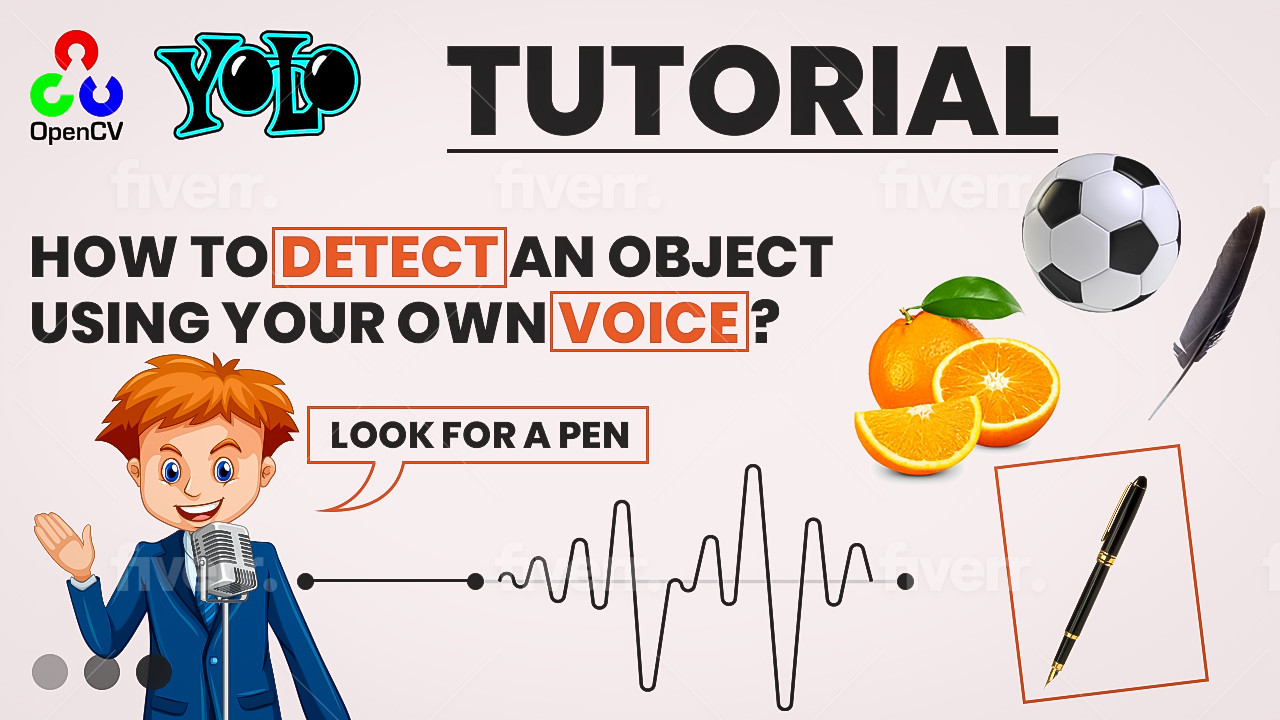
Real-Time Object Detection in Python with Voice Commands (OpenCV + YOLOv4-tiny) 11 What you’ll build A Python app that listens for your voice command (for example, “person”, “bottle”, “dog”) and highlights only those objects in the webcam stream. We’ll use:
OpenCV DNN to run YOLOv4-tiny in real timeSpeechRecognition + sounddevice to record and transcribe audioA simple UI overlay button to record a 3-second clip on click By the end, you’ll speak a class name and the app will box just those detections.
You can find more similar tutorials in my blog posts page here : https://eranfeit.net/blog/
You can find the full code here : https://ko-fi.com/s/90dee146e6
You can find the video here : https://www.youtube.com/watch?v=fd1msoIpM5Q
Master Computer Vision
Follow my latest tutorials and AI insights on my
Personal Blog .
Beginner Complete CV Bootcamp
Foundation using PyTorch & TensorFlow.
Get Started → Interactive Deep Learning with PyTorch
Hands-on practice in an interactive environment.
Start Learning → Advanced Modern CV: GPT & OpenCV4
Vision GPT and production-ready models.
Go Advanced → What Hardware and Library Versions Are Required for YOLO11 Inference? Achieving deterministic, high-speed inference requires a meticulously configured environment tailored to your underlying hardware architecture. On the hardware front, while small YOLO11 models can run on modern multi-core CPUs, a dedicated NVIDIA GPU with support for CUDA 12.4 or higher is highly recommended for running a true real-time, multi-stream yolo11 object tracking python opencv script. The GPU’s parallel processing capabilities drastically reduce tensor evaluation times from fifty milliseconds down to single-digit milliseconds per frame. Additionally, adequate system RAM (minimum 16GB) and sufficient VRAM (at least 6GB) prevent out-of-memory errors when scaling up to larger network variants.
From a software dependency standpoint, strict version matching within a clean Conda environment prevents runtime segmentation faults and library conflicts. The pipeline relies heavily on Python 3.10 or newer, coupled with PyTorch 2.5.1 to manage tensor allocations and backpropagation mechanics natively. OpenCV should be compiled or installed via pip as version 4.11, ensuring access to the latest optimizations for video processing backends like FFmpeg. Setting up these specific versions guarantees that your yolo11 object tracking python opencv workspace functions without library degradation during runtime.
Validating your hardware capability is essential because executing a yolo11 object tracking python opencv script requires active CUDA core acceleration to prevent severe frame latency. Without proper GPU configuration, your deep learning inference loop will fall back to CPU emulation, causing your real-time processing to drop below acceptable performance metrics. Check your system metrics using the verification script below to confirm your hardware is ready for your yolo11 object tracking python opencv environment.
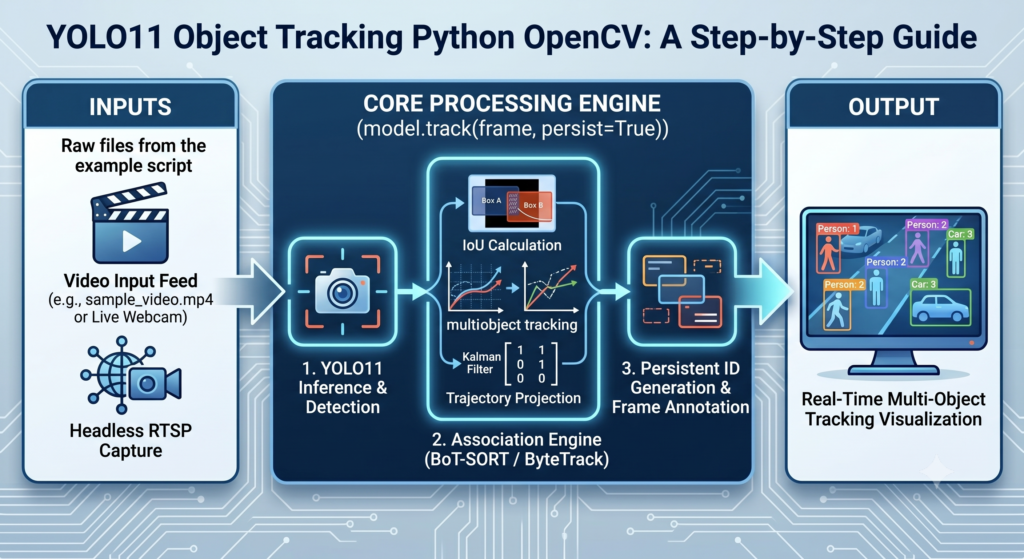
Deep Dive: Understanding the Mathematical Logic Behind Object ID Association To understand why this pipeline remains stable over time, we have to look at the mathematical logic operating underneath the .track() abstraction layer. In computer vision, multi-object tracking relies heavily on two primary algorithms: BoT-SORT and ByteTrack. When a new frame arrives in our yolo11 object tracking python opencv application, YOLO11 generates a set of candidate bounding boxes, but these boxes have no inherent awareness of their historical identity. To bridge this temporal gap, the system calculates an Intersection over Union (IoU) matrix between the predicted states of existing trajectories and the coordinates of newly observed detections. The IoU metric determines how much two bounding boxes overlap by dividing their overlapping area by their combined total area:
Union (IoU) Logic in Object Tracking Figure 1: Architectural overview of a yolo11 object tracking python opencv workflow computing the mathematical overlap between historical bounding boxes and incoming real-time sensor detections.
Once the IoU values are calculated, the tracking algorithm frames the identity match as a linear assignment problem, optimized using the Hungarian Algorithm. This optimization step minimizes a cost function to find the most accurate pairings between past object IDs and current bounding boxes within the yolo11 object tracking python opencv framework. To account for objects that change speeds or accelerate unpredictably, the pipeline incorporates a Kalman Filter. The Kalman Filter uses a series of prediction-correction loops over time to project where an object is likely to appear in the next frame based on its previous velocity and position vectors.
Real-Time Object Detection in Python with Voice Commands (OpenCV + YOLOv4-tiny) 12 Managing identity switches during physical cross-overs or temporary camera obstructions is the core engineering challenge of any yolo11 object tracking python opencv build. Underneath the simplified python function calls, the tracking wrapper updates state matrices continuously to match localized pixel groupings. By adjusting your track variables inside your yolo11 object tracking python opencv program, you can fine-tune the tracking confidence thresholds to suit either high-speed highway traffic or dense pedestrian environments.
This predictive model handles situations where an object is briefly hidden behind a signpost, tree, or another target. Instead of instantly dropping the tracking sequence, the Kalman Filter maintains the object’s trajectory vector across several missing frames. If a matching bounding box appears near the predicted coordinates when the object emerges, your yolo11 object tracking python opencv script reassigns the original ID rather than creating a duplicate entry, preventing identity fragmentation and keeping your tracking metrics accurate.
Next Steps: Scaling Your Computer Vision Model to Production Environments Moving an object tracking script from a local development environment into a production system requires addressing new infrastructure and efficiency challenges. In a live environment, deploying a raw yolo11 object tracking python opencv script that relies on local rendering windows like cv2.imshow() is impractical. Production applications generally need to ingest headless RTSP network video feeds, process those frames in background workers, and expose the tracking data via structured JSON webhooks, message brokers like Kafka, or lightweight WebSocket connections for front-end dashboards.
To scale efficiency and maximize frame throughput, your primary focus should be optimizing your model’s runtime execution. Converting your PyTorch models (.pt) into optimized deployment formats like NVIDIA TensorRT (.engine) or ONNX Runtime unlocks hardware-level optimizations such as layer fusion and FP16 half-precision quantization. These formats maximize your GPU’s tensor core efficiency, often doubling or tripling inference speeds, allowing a single server running your yolo11 object tracking python opencv code to handle multiple high-resolution video streams concurrently without hitting compute limits.
High-Performance Computer Vision Deployment Pipeline with YOLO11 and TensorRT Finally, you should decouple your frame ingestion pipeline from your inference engine using a multi-threaded or asynchronous architecture. By isolating the video decoding thread from the deep learning prediction loop, you ensure that network latency or variations in frame processing times won’t cause the input buffer to back up. Implementing these production strategies turns your standalone yolo11 object tracking python opencv computer vision script into a resilient, scalable, enterprise-grade asset.
Prerequisites : Python 3.8+ (Conda recommended) Webcam Basic familiarity with OpenCV and Python
1) Environment & dependencies # Create and activate environment conda create -n DetectObejctByAudio python= 3.8 -y conda activate DetectObejctByAudio # Core libraries pip install opencv-python opencv-contrib-python numpy pandas pip install sounddevice soundfile scipy SpeechRecognition
Download YOLOv4-tiny files (cfg & weights) and keep them together:
Create classes.txt with COCO labels (one per line). You can paste the full list below.
2) COCO classes file (classes.txt) person bicycle car motorbike aeroplane bus train truck boat traffic light fire hydrant stop sign parking meter bench bird cat dog horse sheep cow elephant bear zebra giraffe backpack umbrella handbag tie suitcase frisbee skis snowboard sports ball kite baseball bat baseball glove skateboard surfboard tennis racket bottle wine glass cup fork knife spoon bowl banana apple sandwich orange broccoli carrot hot dog pizza donut cake chair sofa pottedplant bed diningtable toilet tvmonitor laptop mouse remote keyboard cell phone microwave oven toaster sink refrigerator book clock vase scissors teddy bear hair drier toothbrush
You can find the full code here : https://ko-fi.com/s/90dee146e6
3) Part A — Model & camera setup This section prepares all dependencies, loads the YOLOv4-tiny model into OpenCV’s DNN module, configures input size and scale, and reads the classes.txt file to map detections to human-readable labels.real-time object detection in Python and ensures class names are available for your voice filter.
### Import OpenCV for computer vision operations. import cv2 ### Import pandas to conveniently read the class names file as a table. import pandas as pd ### Import sounddevice for recording audio from the microphone. import sounddevice as sd # for the record ### Import write from scipy.io.wavfile to save recorded audio as WAV. from scipy . io . wavfile import write # to save the file ### Import NumPy for fast numerical array operations. import numpy as np ### Import soundfile to convert audio encodings when needed. import soundfile # for converting the audio format ### Import SpeechRecognition to transcribe recorded audio to text. import speech_recognition as sr # for speech to text ### Load the YOLOv4-tiny model weights and config into OpenCV’s DNN. net = cv2 . dnn . readNet ( " C:/GitHub/Open-CV/DetectByAudio/yolov4-tiny.weights " , " C:/GitHub/Open-CV/DetectByAudio/yolov4-tiny.cfg " ) ### Wrap the network in DetectionModel for simple detect() calls. model = cv2 . dnn_DetectionModel ( net ) ### Set input size and scale so frames are preprocessed correctly for YOLOv4-tiny. model . setInputParams ( size = ( 416 , 416 ), scale = 1 / 255 ) ### Prepare a list to hold class names in the same order as the model’s outputs. classesNames = [] ### Read the classes file (one class per line) using pandas. df = pd . read_csv ( " DetectByAudio/classes.txt " , header =None , names = [ " ClassName " ]) ### Iterate over rows to append each class name to the list. for index , row in df . iterrows (): ### Fetch the current class name by index from the DataFrame. ClassName = df . iloc [ index ][ ' ClassName ' ] ### Store the class name so we can label detections later. classesNames . append ( ClassName ) ### Optionally inspect the loaded classes during development. # print(classesNames) ### Open the default camera for real-time video capture. cap = cv2 . VideoCapture ( 0 ) ### Set desired capture width for the live stream window. cap . set ( cv2 . CAP_PROP_FRAME_WIDTH , 1280 ) ### Set desired capture height for the live stream window. cap . set ( cv2 . CAP_PROP_FRAME_HEIGHT , 720 ) ### Define top-left corner and bottom-right corner for a clickable “record” button. x1 = 20 y1 = 20 x2 = 570 y2 = 90 ### Sampling rate in Hz for audio recording. fs = 44100 # audio rate ### Duration in seconds for the voice snippet to record. secods = 3 # duration ### Path where the raw recorded audio file will be saved. audioFileName = " c:/temp/output.wav " ### Flag that indicates whether we should highlight matches based on voice command. ButtonFlag = False ### Stores the latest transcribed text from the microphone (“what to look for”). LookForThisClassName = "" You can find the full code here : https://ko-fi.com/s/90dee146e6
Architectural Insight: Initializing the model via YOLO("yolo11n.pt") automatically handles internal graph construction and weights download. When executing this inside a Python environment, ensure your CUDA execution provider is correctly mapped in the backend to shift tensor computations from the CPU to the GPU. For production-grade tracking, using the nano (yolo11n) or small variants balances the trade-off between localization precision and the millisecond inference latency required to keep video streams fluid.
You imported all libraries, loaded YOLOv4-tiny into OpenCV’s DNN, read class labels, opened the webcam, and defined UI and audio parameters.opencv yolo object detection with subsequent voice control.
4) Part B — Click-to-record voice command (3 seconds) Here you build an interactive button overlay.filter term for highlighting detections.
### Define a mouse callback that records audio upon clicking inside the button area. def recordAudioByMouseClick ( event , x , y , flags , params ): ### Declare that we will modify the global flags inside this function. global ButtonFlag global LookForThisClassName ### If the left mouse button was pressed, check whether it is inside the button region. if event == cv2 . EVENT_LBUTTONDOWN : ### Verify the click lies within the button’s bounding box. if x1 <= x <= x2 and y1 <= y <= y2 : ### Provide console feedback for debugging. print ( " Click inside the button " ) ### Record a stereo audio snippet for the configured duration at the given sampling rate. myrecording = sd . rec ( int ( secods * fs ), samplerate = fs , channels = 2 ) ### Block until recording is complete so we can safely save the file. sd . wait () # wait until the recording is finished ### Write the recorded audio to a WAV file for later processing. write ( audioFileName , fs , myrecording ) # save the audio file ### Run speech-to-text on the newly recorded audio and store the transcribed text. LookForThisClassName = getTextFromAudio () ### Turn on the filter flag so matches will be highlighted during detection. if ButtonFlag is False : ButtonFlag = True ### If the click is outside the button, disable the filtering behavior for clarity. else : print ( " Click outside the button " ) ButtonFlag = False You can find the full code here : https://ko-fi.com/s/90dee146e6
You created a mouse-driven recorder that captures audio on demand and updates the global state with the transcribed phrase to search for.voice command object detection experience.
5) Part C — Main detection loop with voice filter This part converts audio to text, registers the mouse handler, and runs the main detection loop.
Pipeline Logic: The structural backbone of our system relies on an efficient frame processing loop. OpenCV captures video frames as continuous NumPy BGR matrices, which must be passed systematically to the tracking mechanism. To avoid memory leaks and frame dropping during rapid state transitions, we leverage an iterative loop that unloads previous tensor arrays from VRAM before processing the subsequent frame coordinates.
### Convert recorded audio into a 16-bit PCM WAV and transcribe it using Google’s recognizer. def getTextFromAudio (): ### Read the recorded audio file with soundfile to inspect data and sample rate. data , samplerate = soundfile . read ( audioFileName ) ### Re-encode the audio as 16-bit PCM which SpeechRecognition expects for best compatibility. soundfile . write ( ' c:/temp/outputNew.wav ' , data , samplerate , subtype = ' PCM_16 ' ) ### Create a recognizer instance to handle speech-to-text inference. recognizer = sr . Recognizer () ### Wrap the converted WAV in an AudioFile so the recognizer can read it. jackhammer = sr . AudioFile ( ' c:/temp/outputNew.wav ' ) ### Open the audio source context and load the entire clip into memory. with jackhammer as source : audio = recognizer . record ( source ) ### Use the default Google Web Speech API backend to recognize spoken words. result = recognizer . recognize_google ( audio ) ### Print the transcription for visibility and debugging. print ( result ) ### Return the recognized text to the caller so the UI can use it as a filter. return result ### Create a named window that will serve as the display target for frames and UI overlays. cv2 . namedWindow ( " Frame " ) # set the same name ### Attach the mouse callback so clicks over the window trigger recording logic. cv2 . setMouseCallback ( " Frame " , recordAudioByMouseClick ) ### Start the main application loop to process frames until the user exits. while True : ### Read a frame from the capture device; rtn indicates success. rtn , frame = cap . read () ### Run object detection on the current frame to obtain class IDs, confidence scores, and boxes. ( class_ids , scores , bboxes ) = model . detect ( frame ) ### You can inspect raw results during development if needed. # print("Class ids:", class_ids) # print("Scores :", scores) # print("Bboxes :", bboxes) ### Iterate over parallel lists of detections to draw and label regions of interest. for class_id , score , bbox in zip ( class_ids , scores , bboxes ): ### Unpack the bounding box as x, y for top-left and width, height for size. x , y , width , height = bbox # x, y is the left upper corner ### Retrieve the human-readable class label for the detected object. name = classesNames [ class_id ] ### Check if the spoken text contains this class label as a substring. index = LookForThisClassName . find ( name ) # look for the text inside a sring ### If filtering is enabled and the label appears in the transcription, highlight the box. if ButtonFlag is True and index > 0 : ### Draw a rectangle around the matched detection with a custom color and thickness. cv2 . rectangle ( frame , ( x , y ), ( x + width , y + height ), ( 130 , 50 , 50 ), 3 ) ### Put the class name just above the box for readability. cv2 . putText ( frame , name , ( x , y - 10 ), cv2 . FONT_HERSHEY_COMPLEX , 1 , ( 120 , 50 , 50 ), 2 ) ### Draw a filled UI button prompting the user to click and record a 3-second snippet. cv2 . rectangle ( frame , ( x1 , y1 ), ( x2 , y2 ), ( 153 , 0 , 0 ), - 1 ) #-1 is filled cretangle ### Render readable button text to guide the user interaction flow. cv2 . putText ( frame , " Click for record - 3 seconds " , ( 40 , 60 ), cv2 . FONT_HERSHEY_COMPLEX , 1 , ( 255 , 255 , 255 ), 2 ) # white color ### Show the annotated frame in the display window named “Frame”. cv2 . imshow ( " Frame " , frame ) ### Allow the user to quit the loop by pressing 'q' on the keyboard. if cv2 . waitKey ( 1 ) == ord ( ' q ' ): break ### Release the camera resource once the loop ends to free the device. cap . release () ### Destroy any OpenCV windows that were created during execution. cv2 . destroyAllWindows () You can find the full code here : https://ko-fi.com/s/90dee146e6
You converted the audio to a compatible format, transcribed the text, and ran the live detection loop.draws a box and label around matching objects, delivering an engaging, real-time object detection python demo controlled entirely by your voice.
Pro-Tip on Tracking State: The persist=True parameter passed to the tracking engine is critical; it instructs the internal tracker (such as BoT-SORT or ByteTrack) to maintain the spatial correlation history of bounding boxes across frames. Without this flag, the model treats every single frame as a brand-new detection phase, completely wiping out the continuous unique IDs assigned to moving elements when temporary occlusions occur.
Next Steps: Scaling Your Computer Vision Model to Production Environments While running a local debugging window is perfect for developmental verification, migrating your yolo11 object tracking python opencv setup to a cloud instance requires decoupling the display components. Production deployments often drop desktop windows entirely, relying instead on headless execution loops that handle asynchronous network streams. Optimizing your core network model into an engine format ensures your production-ready yolo11 object tracking python opencv pipeline maintains stable memory boundaries under heavy, multi-camera workloads.
Troubleshooting Nothing gets highlighted after I speak. person ). Confirm your microphone input and that spoken_text prints the term you expect.Slow detections. 960×540) or switch to a smaller input (320×320) for the DNN.Permissions / audio errors. Weights/config paths. cfg and weights paths are correct and accessible. FAQs : How do you configure a real-time yolo11 object tracking python opencv pipeline?
To build a real-time yolo11 object tracking python opencv pipeline, you initialize a pretrained Ultralytics model using YOLO(‘yolo11n.pt’), capture continuous frame matrices via cv2.VideoCapture(), and pass each frame through the model.track() method loop with the tracking persistence flag enabled.
Why is the persist parameter critical in a yolo11 object tracking python opencv script?
The persist=True flag inside a yolo11 object tracking python opencv architecture forces the internal tracker backend to retain state histories. Without this parameter, the framework treats each frame as an independent image, destroying the unique object tracking IDs during temporal shifts.
What environment versions avoid compilation faults in yolo11 object tracking python opencv setups?
A stable yolo11 object tracking python opencv deployment requires Python 3.10+, PyTorch 2.5.1 for fast tensor manipulations, OpenCV 4.11 to handle incoming raw video streams, and the current ultralytics package running inside a clean Conda environment.
How do you fix low FPS bottlenecks in a yolo11 object tracking python opencv execution loop?
Low frame rates in your yolo11 object tracking python opencv setup typically indicate CPU bound processing. To fix this, confirm your PyTorch install points to a valid CUDA 12.4 runtime backend and explicitly append device=0 to the tracking method to move tensor evaluations onto an active NVIDIA GPU.
How does the Kalman Filter function within yolo11 object tracking python opencv systems?
Inside the underlying yolo11 object tracking python opencv library, a Kalman Filter executes state prediction equations to guess the next frame location of an object. This prevents ID fragmentation by keeping track of the target trajectory even during complete physical occlusion.
How is Intersection over Union used to evaluate boundaries in yolo11 object tracking python opencv?
In a yolo11 object tracking python opencv execution block, Intersection over Union (IoU) evaluates the exact spatial overlap ratio between a predicted box trajectory and a new detection box. High IoU matching metrics confirm the target identity across sequential frames.
Can you run a yolo11 object tracking python opencv loop directly on live webcams or RTSP streams?
Yes, you can easily retarget a yolo11 object tracking python opencv application to a live webcam feed or a network RTSP source by passing the integer index 0 or the string URL path of your network IP camera stream straight into cv2.VideoCapture().
What tracking algorithms can be selected for a custom yolo11 object tracking python opencv project?
The native framework backing your yolo11 object tracking python opencv script provides out-of-the-box configurations for BoT-SORT and ByteTrack. These algorithms handle advanced multi-object tracking by combining bounding box coordinates with high-precision appearance metrics.
How do you export models for high performance yolo11 object tracking python opencv apps?
To scale a yolo11 object tracking python opencv application to an enterprise standard, export the base model to an optimized format like NVIDIA TensorRT via model.export(format=’engine’). This maximizes GPU throughput via layer fusion and lower-precision FP16 evaluation.
How do you avoid memory leaks when stopping a yolo11 object tracking python opencv runtime?
To prevent lingering processes after a yolo11 object tracking python opencv script finishes execution, explicitly invoke cap.release() to unlock the underlying video capture hardware and call cv2.destroyAllWindows() to clear out remaining frame memory spaces.
Related tutorials : Connect : ☕ Buy me a coffee — https://ko-fi.com/eranfeit
🖥️ Email : feitgemel@gmail.com
🌐 https://eranfeit.net
🤝 Fiverr : https://www.fiverr.com/s/mB3Pbb
Planning a trip and want ideas you can copy fast?
• 5-Day Ireland Itinerary: Cliffs, Castles, Pubs & Wild Atlantic Viewshttps://eranfeit.net/unforgettable-trip-to-ireland-full-itinerary/
• My Kraków Travel Guide: Best Places to Eat, Stay & Explorehttps://eranfeit.net/my-krakow-travel-guide-best-places-to-eat-stay-explore/
• Northern Greece: Athens, Meteora, Tzoumerka, Ioannina & Nafpaktos (7 Days)https://eranfeit.net/my-amazing-trip-to-greece/
Each guide includes maps, practical tips, and family-friendly stops—so you can plan in minutes, not hours.
Enjoy,
Eran
 Skip to content