 Skip to content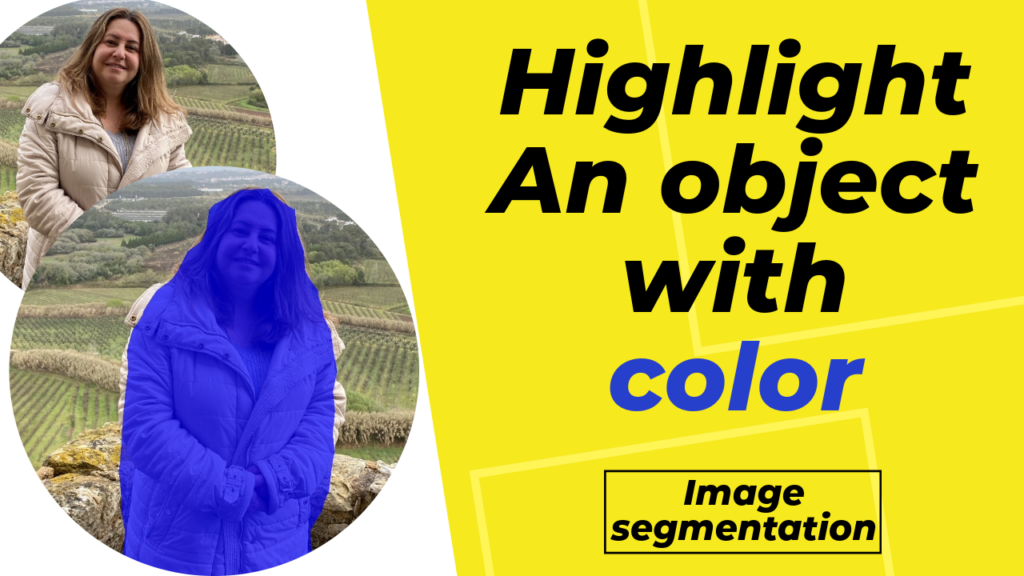
Last Updated on 19/01/2026 by Eran Feit
Introduction
Highlight object in image python is a common requirement in modern computer vision workflows, especially when building interactive applications that respond to user input. Instead of manually drawing masks or bounding boxes, segmentation models allow precise pixel-level control over which parts of an image are emphasized. This makes object highlighting far more accurate and visually appealing than traditional detection methods.
With recent advances in lightweight segmentation models, it’s now possible to highlight objects in images using Python in real time. MediaPipe brings this capability to developers by combining optimized models like DeepLabV3 with a simple and efficient API. This approach works well for tasks such as object emphasis, background suppression, and visual effects without requiring large training datasets.
In this tutorial, the focus is on interactive segmentation, where a single point or region guides the model to understand which object should be highlighted. This technique is especially useful when images contain multiple objects and you want fine-grained control over the result. Instead of segmenting everything, the model responds only to the selected region of interest.
By combining MediaPipe segmentation with OpenCV image processing, it becomes easy to blend colored overlays, control transparency, and create professional-looking results. The highlight object in image python workflow demonstrated here is practical, efficient, and suitable for real-world AI applications.
Highlight Object in Image Python Using MediaPipe Segmentation
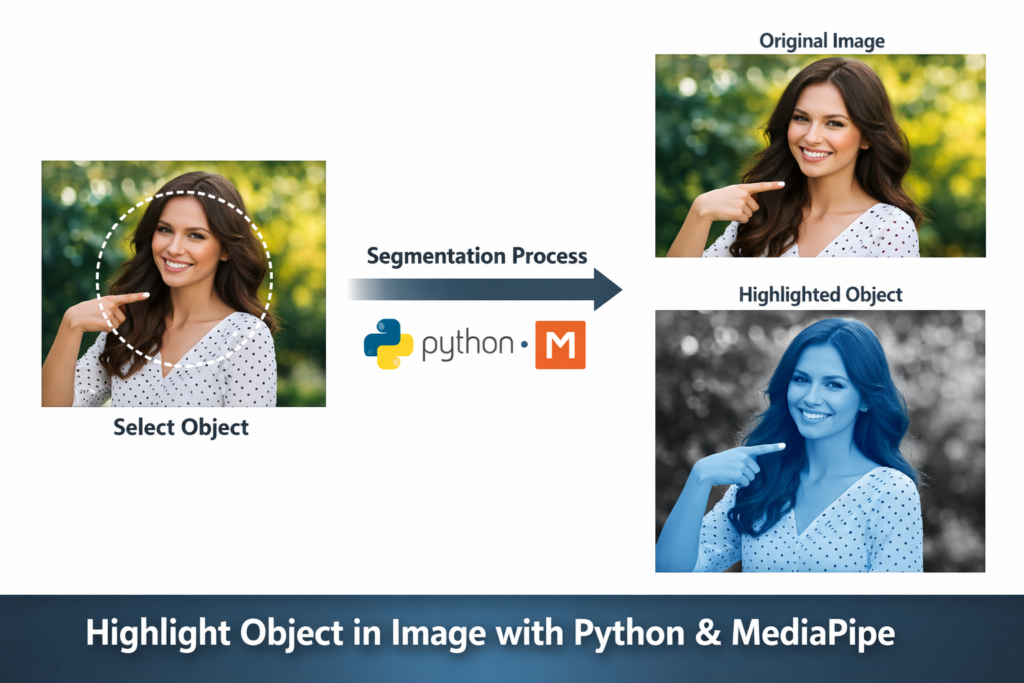
Highlight object in image python using MediaPipe is a powerful technique that enables precise object emphasis without manual annotation. Unlike bounding boxes, segmentation allows you to work at the pixel level, which results in cleaner edges and more natural highlights. This makes the approach ideal for tasks such as background removal, selective coloring, and interactive image editing.
At a high level, the goal is to guide a segmentation model toward a specific object in the image and then visually enhance it. MediaPipe’s interactive segmentation uses a region of interest defined by normalized keypoints. These keypoints act as hints, telling the model which object the user wants to highlight. This makes the system flexible and intuitive, even in complex scenes.
Once the segmentation mask is generated, it can be converted into an alpha channel that controls transparency. This mask allows you to blend a colored overlay directly onto the selected object while leaving the rest of the image unchanged. Using OpenCV, the original image and the overlay are merged smoothly, creating a clear visual separation between the highlighted object and its surroundings.
This approach is especially effective because it does not require model retraining or large datasets. The DeepLabV3 model used by MediaPipe is already optimized for semantic understanding, making it suitable for a wide range of images. By combining segmentation masks, alpha blending, and color overlays, highlight object in image python becomes a reliable and reusable technique for computer vision projects.
Link to the video tutorial : https://youtu.be/UsZlJV9amwI
You can download the code here or here
Best AI Photo Tools (Backgrounds, Objects, Headshots)
✅ Phot-AI packs more than 30 AI‑powered tools into one place—covering background and object removal/replacement, image extension and a suite of creative generators for art, icons and logos.
follow the link and start creating here
✅ Pixelcut uses AI to help you create professional photos and videos. You can instantly remove backgrounds, retouch, expand and upscale images, or generate new images and even videos from a simple text prompt or reference picture.
tap the link and start creating today!
✅ PhotoGPT AI acts as your personal photographer—just describe what you need and the platform generates high‑quality headshots or casual images within minutes.
Its built‑in photo editor lets you remove objects, replace backgrounds and make studio‑quality corrections with a single click.
You can even train your own AI model using a few selfies, receive context‑aware prompt suggestions and upscale images for print‑ready results.
Dive into this all‑in‑one AI photo studio here
My blog
Link to the post for Medium.com users here
You can follow my blog here : https://eranfeit.net/blog/
Want to get started with Computer Vision or take your skills to the next level ?
Great Interactive Course : “Deep Learning for Images with PyTorch” here : https://datacamp.pxf.io/zxWxnm
If you’re just beginning, I recommend this step-by-step course designed to introduce you to the foundations of Computer Vision – Complete Computer Vision Bootcamp With PyTorch & TensorFlow
If you’re already experienced and looking for more advanced techniques, check out this deep-dive course – Modern Computer Vision GPT, PyTorch, Keras, OpenCV4

Building an Interactive Object Highlighter with MediaPipe and Python
This tutorial focuses on the practical side of the code and its main goal: taking a single image and highlighting a specific object inside it using interactive segmentation. Instead of relying on bounding boxes or predefined classes, the code demonstrates how to guide the segmentation process using a simple point selection. This approach gives you precise control over which object is emphasized, even when multiple objects appear in the same image.
At a high level, the code loads an image with OpenCV, passes it into MediaPipe’s segmentation pipeline, and uses a pre-trained DeepLabV3 model to understand the image at the pixel level. The key idea is defining a region of interest using normalized coordinates. These coordinates act as a hint, telling the model where to focus its attention so it can generate a clean segmentation mask for the intended object.
Once the segmentation mask is produced, the code converts it into a usable format for image processing. The mask is transformed into an alpha channel that represents which pixels belong to the selected object and which do not. This step is crucial because it bridges the gap between machine learning output and traditional image manipulation techniques.
The final part of the code blends a colored overlay onto the original image using the alpha mask. By adjusting the overlay color and transparency, the highlighted object becomes visually distinct while still preserving the original image details. The result is saved to disk and displayed on screen, completing a full end-to-end workflow that combines model inference, interactive control, and visual output in a clear and reusable way.
How to Highlight Object in Image with MediaPipe and Python
Highlight object in image python is about taking a static photo, pointing at the object you want to emphasize, and programmatically drawing attention to it. Instead of simple bounding boxes, this tutorial uses segmentation masks that work at the pixel level. With MediaPipe’s segmentation tools and Python, we can generate clean overlays that make the selected object stand out.
This post walks you through a real interactive segmentation workflow. You’ll learn how to load an image with OpenCV, feed it to MediaPipe’s DeepLabV3 model, define a region of interest, and blend a colored highlight over your target object. The result looks professional and is useful for applications like object emphasis, background suppression, and interactive image editing.
The code shown here is complete and working. By the end of this guide, you’ll understand each part of it and be able to reuse it in your own projects. This is a practical, hands-on tutorial designed for developers who want to implement object highlighting with minimal setup.
Before diving into the segmented code parts, here’s a relevant internal post you might want to check out:
Setting Up the Environment for Image Highlighting
To begin working with Python, OpenCV, and MediaPipe, we first set up an isolated environment and install the required libraries. This ensures our segmentation workflow runs smoothly without interfering with other projects.
The first step is creating a new conda environment and installing specific versions of OpenCV and MediaPipe. Using pinned versions helps avoid compatibility issues. After setup, we’ll be ready to load images and execute segmentation models.
### Create a dedicated conda environment named RemoveBG with Python 3.11 conda create -n RemoveBG python=3.11 ### Activate the newly created environment conda activate RemoveBG ### Install the specific version of OpenCV required for image handling pip install opencv-python==4.10.0.84 ### Install the MediaPipe package that contains segmentation tools pip install mediapipe==0.10.14This environment setup prepares your system for the segmentation workflow used in this tutorial.
Preparing the Segmentation Models
Next, we need the DeepLabV3 and interactive segmentation models from MediaPipe. These models analyze pixel patterns and enable the interactive highlighting seen in this tutorial.
Download both .tflite models and store them in a folder that’s easy to reference. One model is used for general semantic segmentation and the other is specifically designed to support interactive segmentation based on keypoints.
### Download the DeepLabV3 TensorFlow Lite model for base segmentation https://storage.googleapis.com/mediapipe-models/image_segmenter/deeplab_v3/float32/1/deeplab_v3.tflite ### Download the interactive segmentation model (magic_touch) https://storage.googleapis.com/mediapipe-models/interactive_segmenter/magic_touch/float32/1/magic_touch.tflite Once the models are in place, we can reference them when creating the MediaPipe segmenter in Python.
Loading the Image and Required Libraries
In this section, we import necessary modules and read the image we want to process. OpenCV handles image loading and display, while numpy and MediaPipe provide support for numerical operations and segmentation.
Here is the Test image :

### Import OpenCV library to handle image I/O import cv2 ### Provide the path to the image you want to highlight an object in pathToImage = "Best-Semantic-Segmentation-models/Media Pipe Segmentation/image Segmentation and Highlight the object with color/lilach.jpg" ### Read the image from disk into memory img = cv2.imread(pathToImage) ### Display the original image in a window cv2.imshow("img", img) ### Import numpy for numerical array operations import numpy as np ### Import the main mediapipe module import mediapipe as mp ### Import core MediaPipe Python task modules from mediapipe.tasks import python from mediapipe.tasks.python import vision from mediapipe.tasks.python.components import containers At this stage, the image is loaded and we’re ready to configure the segmentation pipeline.
Defining Region of Interest and Segmenter Options
This code section sets up the region of interest (ROI) and segmentation options. The ROI tells MediaPipe where to focus its segmentation effort based on normalized coordinates.
We also specify the model to use and enable categorical masks, which let us extract the segmentation outcome for selected objects.
### Assign a horizontal normalized coordinate for the region of interest x = 0.5 #@param {type:"slider" , min:0 , max:1 , step:0.01} ### Assign a vertical normalized coordinate for the region of interest y = 0.5 #@param {type:"slider" , min:0 , max:1 , step:0.01} ### Create a mediapipe region of interest type region_of_interest = vision.InteractiveSegmenterRegionOfInterest ### Use normalized keypoints for ROI input normalized_keypoint = containers.keypoint.NormalizedKeypoint ### Create base options pointing to the downloaded DeepLabV3 model file base_options = python.BaseOptions(model_asset_path='D:/Temp/Models/MediaPipe/deeplab_v3.tflite') ### Enable category masks for detailed segmentation output options = vision.ImageSegmenterOptions(base_options=base_options, output_category_mask=True) ### Set the RGBA overlay color for highlighting the segmented object OVERLAY_COLOR = (255,0,0) # Blue color This configuration directs the segmenter where to look and how to create the visual mask.
Running the MediaPipe Segmenter and Blending the Highlight
Here we create the segmenter, feed the image and ROI into the model, and then blend the overlay color over the highlighted object. The final result is written to disk and displayed on the screen.
### Create the image segmenter with the specified options with python.vision.InteractiveSegmenter.create_from_options(options) as segmenter: ### Convert the input file to a MediaPipe image type image2 = mp.Image.create_from_file(pathToImage) ### Define the ROI using normalized keypoints roi = region_of_interest(format = region_of_interest.Format.KEYPOINT, keypoint = normalized_keypoint(x,y)) ### Run segmentation to get category masks segementation_result = segmenter.segment(image2, roi) ### Extract the category mask from result category_mask = segementation_result.category_mask ### Convert the MediaPipe image to RGB format for OpenCV image_data = cv2.cvtColor(image2.numpy_view(), cv2.COLOR_BGR2RGB) ### Create an overlay image filled with the highlight color overlay_image = np.zeros(image_data.shape , dtype=np.uint8) overlay_image[:] = OVERLAY_COLOR ### Create an alpha condition where mask values are above threshold alpha = np.stack((category_mask.numpy_view(),) * 3 , axis=-1) > 0.1 ### Convert the boolean mask into float with opacity alpha = alpha.astype(float) * 0.7 ### Blend original image and overlay using the alpha mask output_image2 = image_data * (1-alpha) + overlay_image * alpha output_image2 = output_image2.astype(np.uint8) ### Write the final output to disk cv2.imwrite("Best-Semantic-Segmentation-models/Media Pipe Segmentation/image Segmentation and Highlight the object with color/output_image2.jpg", output_image2) ### Display the output image in a window cv2.imshow("output_image2", output_image2) ### Wait for a key press to close windows cv2.waitKey(0) ### Close all OpenCV windows cv2.destroyAllWindows() After running this section, you’ll see your original image with the object under the ROI highlighted in blue. This is the heart of the segmentation highlight logic.
Summary of the Segmentation Workflow
In this post, we walked through a full Python code example that highlights an object in an image using MediaPipe’s interactive segmentation. You saw how to prepare your environment, load models, define a region of interest, and blend a colored overlay on the selected object.
The key takeaway is that segmentation masks provide pixel-precise control over what gets highlighted. The ROI based on normalized keypoints guides the model to the correct object. OpenCV then helps blend a custom color with adjustable opacity. This approach is clean, flexible, and reusable in many computer vision applications.
The result :

FAQ
What does “highlight object in image python” mean?
It means selecting a target object in an image and visually emphasizing it using code, usually with a mask and a colored overlay.
Why use segmentation instead of bounding boxes for highlighting?
Segmentation highlights at the pixel level, so the overlay follows the object’s true shape instead of a rectangular box.
What model does MediaPipe use in this tutorial?
This workflow uses MediaPipe’s DeepLabV3 TensorFlow Lite model to generate a segmentation mask for the selected region.
What is an ROI keypoint in interactive segmentation?
An ROI keypoint is a normalized (x, y) coordinate that tells the segmenter where to focus so it can pick the intended object.
Why are x and y values normalized between 0 and 1?
Normalized coordinates make the ROI independent of image resolution, so the same logic works for small and large images.
How do I change the highlight color in the output?
Change the OVERLAY_COLOR tuple. For example, (0, 255, 0) gives green and (0, 0, 255) gives red in RGB overlays.
How do I control the transparency of the highlighted overlay?
Adjust the opacity multiplier applied to alpha. For example, 0.3 is more transparent and 0.9 is more intense.
Why is there a threshold like > 0.1 for the mask?
The threshold removes weak or uncertain mask pixels, creating a cleaner highlight and reducing noisy edges.
Can I use this object highlighting method on video frames?
Yes. You can run the same segmentation steps per frame, but you’ll want optimizations to keep performance smooth in real time.
Conclusion
In this tutorial, you learned how to highlight an object in an image with Python and MediaPipe using interactive segmentation. We broke the process into logical parts, explained every step, and showed how segmentation masks let you blend visual overlays precisely. By combining MediaPipe models, ROI guidance, and OpenCV blending, you now have a complete workflow for dynamic object highlighting.
Feel free to adapt the code to work with video streams, different colors, or even real-time camera applications. This foundation unlocks many creative computer vision possibilities.
Connect :
☕ Buy me a coffee — https://ko-fi.com/eranfeit
🖥️ Email : feitgemel@gmail.com
🤝 Fiverr : https://www.fiverr.com/s/mB3Pbb
Enjoy,
Eran