 Skip to content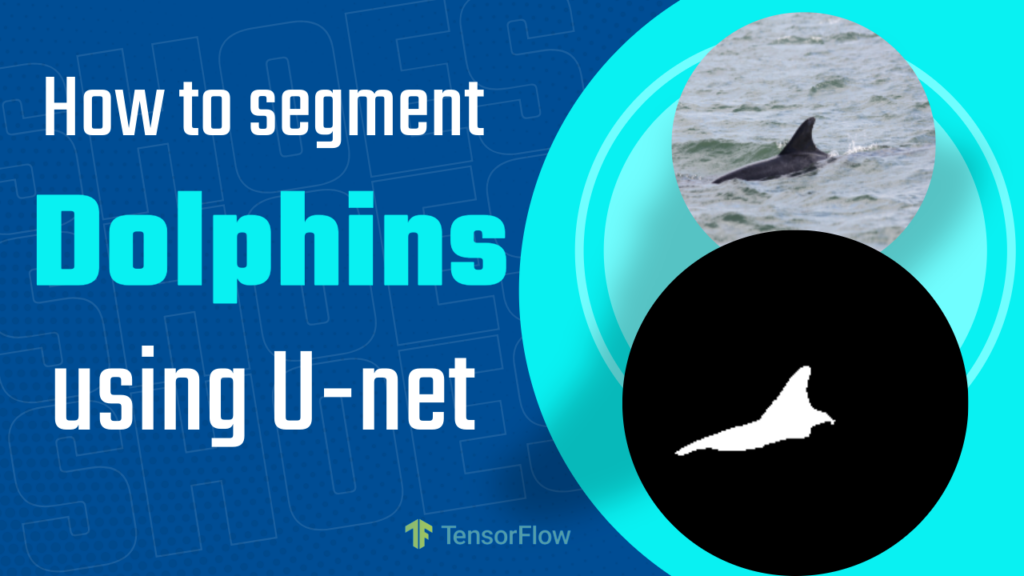
Last Updated on 19/04/2026 by Eran Feit
U-Net image segmentation in TensorFlow is a go-to approach when you need pixel-level predictions, not just a single label per image.
Instead of asking “is there a dolphin in this photo,” segmentation asks “which exact pixels belong to the dolphin,” producing a mask that matches the object shape.
TensorFlow/Keras makes this workflow accessible because you can build the architecture with familiar layers, train with standard losses like binary cross-entropy, and track learning curves with built-in history objects.
Once your data pipeline is stable, you can iterate quickly—adjust input resolution, change the number of filters, tune thresholds, or add callbacks—without rewriting the whole project.
What makes U-Net especially useful for custom datasets is how well it can learn from limited data when the preprocessing is done correctly.
With clean binary masks, consistent resizing, and proper normalization, U-Net learns a strong mapping from pixels to masks, and your trained model becomes a reusable tool for rapid inference on new images.
Let’s talk about UNet image segmentation tensorflow in a practical way
U-Net is designed for segmentation problems where you want accuracy around edges and shapes, not just coarse regions.
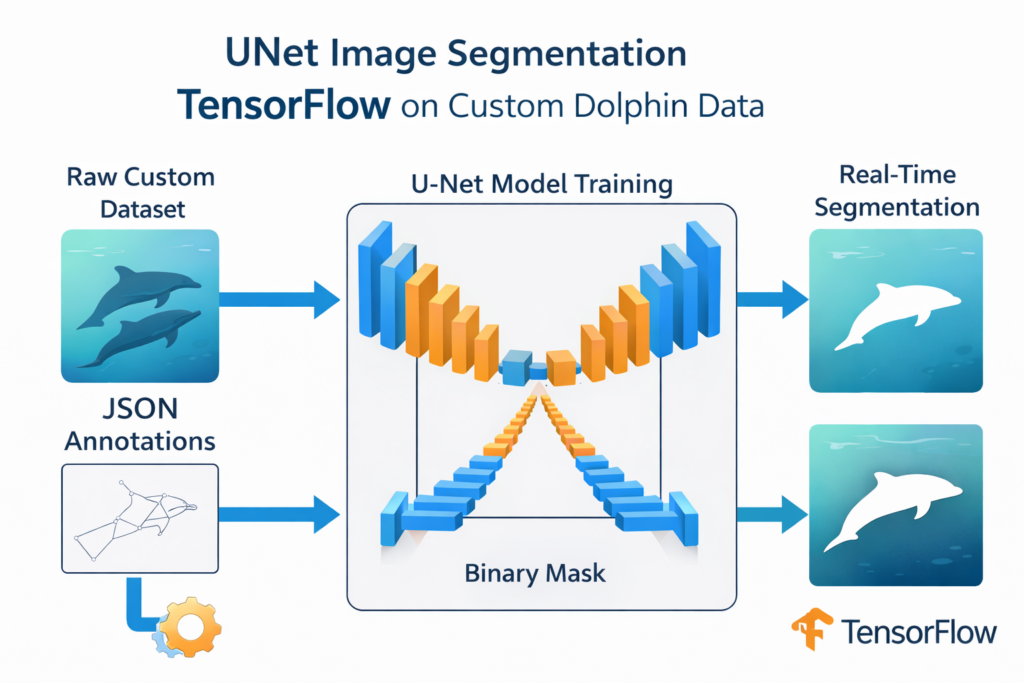
Its encoder compresses the image into higher-level features, while the decoder upsamples back to the original resolution to predict a mask, and the skip connections pass fine-grained details forward so small structures don’t get lost.
In TensorFlow, the biggest success factor is not only the architecture, but the end-to-end consistency of your data and shapes.
Your images must be resized to a fixed width and height, normalized to stable ranges, and paired with masks that are aligned pixel-for-pixel.
If the mask preprocessing is noisy—wrong thresholds, inconsistent resizing, or mismatch between image/mask names—the model may “train,” but it won’t learn meaningful segmentation.
The goal of this pipeline is to turn messy real-world annotation formats into a clean training signal that the network can learn from.
Polygon JSON annotations become binary masks with OpenCV, masks are converted to 0/1 labels, the dataset is split into train/validation/test, and the model is trained with callbacks so it stops early when improvement stalls and saves the best checkpoint.
From there, inference is simply feeding an image through the model, thresholding the output probabilities into a final mask, and visualizing the result to confirm the segmentation is doing what you expect.
Turn Dolphin JSON Annotations Into a Working U-Net Model in TensorFlow
This tutorial is designed to solve a common real-world segmentation problem.
You have images and JSON polygon annotations, but you can’t train a segmentation model until those polygons become pixel-perfect masks that match each image.
The first part of the code focuses on building trust in your labels.
It converts a single JSON file into a binary mask using OpenCV polygon filling, then visualizes the resized image and mask so you can confirm the annotation geometry is being translated correctly before processing the whole dataset.
After validation, the workflow scales to the entire dataset.
Every image/JSON pair is processed into a mask file, saved with a consistent naming convention, and previewed during processing so you can spot broken files, mismatched pairs, or unexpected mask shapes early—before they become training bugs.
Once masks are generated, the code shifts into “training mode” and prepares the data the way TensorFlow expects it.
Images are resized and normalized to float32, masks are resized and thresholded into clean 0/1 values, then everything is converted to NumPy arrays and split into train, validation, and test sets so evaluation is honest and repeatable.
The final goal is a U-Net that actually runs end-to-end: train, evaluate, and predict.
You build a U-Net in a separate UnetModel.py file, train it with checkpoints and early stopping, plot accuracy and loss to understand learning behavior, and then run inference on unseen images to generate a predicted dolphin mask you can view immediately.
Link to the video tutorial here
You can download the code for the tutorial here or here .
Best AI Photo Tools (Backgrounds, Objects, Headshots)


My Blog
Link for Medium users here
Want to get started with Computer Vision or take your skills to the next level ?
Great Interactive Course : “Deep Learning for Images with PyTorch” here
If you’re just beginning, I recommend this step-by-step course designed to introduce you to the foundations of Computer Vision – Complete Computer Vision Bootcamp With PyTorch & TensorFlow
If you’re already experienced and looking for more advanced techniques, check out this deep-dive course – Modern Computer Vision GPT, PyTorch, Keras, OpenCV4
How to UNet Image Segmentation TensorFlow on Custom Data | Dolphin Segmentation
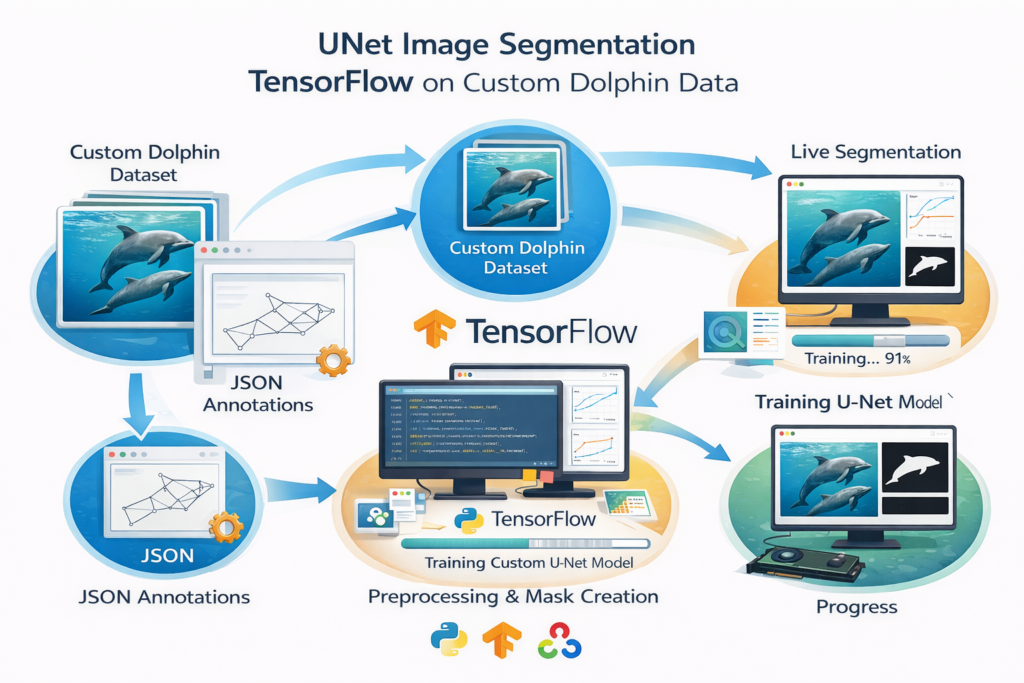
This tutorial shows how to build an end-to-end unet image segmentation tensorflow workflow that feels like a real project.
You start with raw dolphin photos and JSON polygon annotations.
You finish with a trained U-Net model that predicts clean dolphin masks on unseen images.
If you want to reproduce the same results, use the same dataset.
The dataset is large, so it is not practical to host directly inside the blog post.
You are welcome to email me, and I will send you the dataset so you can follow the exact steps and compare results fairly.
Want the exact dataset so you can follow the tutorial step-by-step?
If you’d like to reproduce this tutorial and get results that are as close as possible to what you see here, you’re welcome to email me and I’ll send you the dataset.
Since the dataset includes many images (and it’s not practical to host them directly inside the post), email delivery is the easiest way to share it without breaking downloads or compression limits.
Using the same dataset also helps you avoid “silent differences” that change results.
Even small changes in image quality, annotation style, mask thickness, or class balance can affect how well a U-Net learns and what the predicted masks look like during inference.
So if your goal is to learn the pipeline and compare your output to mine, start with the same dataset first.
Once the workflow is working end-to-end, you can swap in your own custom data with confidence.
Set Up a Clean TensorFlow U-Net Environment for Training
A stable environment is the difference between a smooth training run and a confusing night of dependency errors.
This setup keeps your U-Net training predictable across Windows, WSL2, and GPU machines.
It also makes it easier to share your tutorial steps with readers who want the same results.
The code targets TensorFlow 2.18.1, with an optional GPU path for CUDA 12.3 on WSL2.
That pairing is important because TensorFlow GPU support is picky about CUDA compatibility.
Checking nvcc --version early saves you from discovering a mismatch after your first training crash.
The rest of the installs are practical, not decorative.
OpenCV is used for polygon-to-mask conversion and visualization.
Scikit-learn is used for clean train and validation splits, and Matplotlib is used for training curves.
### Create a fresh Conda environment so dependencies do not collide with other projects. conda create -n U-Net3-12 python=3.12 ### Activate the environment before installing packages. conda activate U-Net3-12 ### Verify your CUDA compiler version if you plan to run on GPU in WSL2. nvcc --version ### Install TensorFlow with CUDA support for GPU training on WSL2. pip install tensorflow[and-cuda]==2.18.1 ### Install TensorFlow CPU-only if you are running on Windows without GPU acceleration. pip install tensorflow==2.18.1 ### Install OpenCV for mask creation, resizing, and visualization. pip install opencv-python==4.12.0.88 ### Install scikit-learn for train/validation/test splitting. pip install scikit-learn==1.7.1 ### Install Matplotlib for training curves and mask previews. pip install matplotlib==3.10.5 ### Install tqdm for progress bars when generating masks and building arrays. pip install tqdm==4.67.1 Short summary.
This setup keeps TensorFlow compatible with your machine, especially on WSL2 GPU.
It also installs the exact libraries your code uses for masks, splitting, and visualization.
Turn One Dolphin JSON Annotation Into a Binary Mask
Before you process an entire dataset, you want to prove one thing.
A single JSON file can become a correct binary mask that matches the dolphin silhouette.
This section is the fastest way to validate that your annotation format is understood correctly.
The core idea is simple and powerful.
JSON polygons are lists of points, and OpenCV can fill those polygons into a blank mask image.
Once the mask is correct, training becomes a data pipeline problem instead of an annotation mystery.
The quick visualization step matters more than it looks.
You resize both the mask and the image and display them side by side.
If the mask is shifted, inverted, or empty, you catch it immediately before wasting time generating hundreds of wrong files.
### Import JSON utilities to read annotation files. import json ### Import NumPy for array creation and point reshaping. import numpy as np ### Import OpenCV for polygon filling and image display. import cv2 ### Define a function that converts polygon annotations into a white-on-black binary mask. def create_binary_mask_from_json(json_data): """ Create a binary mask from JSON segmentation data. White polygons on black background. """ ### Read the original image height from the JSON metadata. height = json_data['size']['height'] ### Read the original image width from the JSON metadata. width = json_data['size']['width'] ### Initialize an empty black mask using the original image size. mask = np.zeros((height, width), dtype=np.uint8) ### Loop through all labeled objects and draw their polygons. for obj in json_data['objects']: ### Extract the exterior polygon points for this object. points = obj['points']['exterior'] ### Convert points to int32 for OpenCV. points_np = np.array(points, dtype=np.int32) ### Reshape points into the format expected by cv2.fillPoly. points_np = points_np.reshape((-1, 1, 2)) ### Fill the polygon area with 255 so dolphin pixels become white. cv2.fillPoly(mask, [points_np], color=255) ### Return the final binary mask. return mask ### Define a helper that reads a JSON file and writes the corresponding mask image. def process_json_file(json_path, output_path): """ Process a JSON file and save the resulting binary mask. """ ### Open and load JSON annotation content from disk. with open(json_path, 'r') as f: json_data = json.load(f) ### Convert the JSON polygons into a binary mask. mask = create_binary_mask_from_json(json_data) ### Save the mask to disk so it can be reused later. cv2.imwrite(output_path, mask) ### Return mask for optional inspection. return mask ### Run a single-file test so you can validate the annotation-to-mask logic quickly. if __name__ == "__main__": ### Set the example image path. img_path = '/mnt/d/Data-Sets-Object-Segmentation/The Northumberland Dolphin Dataset 2020/ds/img/above_337.jpg' ### Set the example JSON annotation path. json_path = '/mnt/d/Data-Sets-Object-Segmentation/The Northumberland Dolphin Dataset 2020/ds/ann/above_337.jpg.json' ### Load the JSON content for the example. with open(json_path, 'r') as f: json_data = json.load(f) ### Create the binary mask from JSON. mask = create_binary_mask_from_json(json_data) ### Choose a smaller scale for fast screen preview. scale_percent = 30 ### Compute resized width based on the scale. width = int(mask.shape[1] * scale_percent / 100) ### Compute resized height based on the scale. height = int(mask.shape[0] * scale_percent / 100) ### Pack the new size into a tuple for OpenCV. dim = (width, height) ### Resize the mask for display. resized_mask = cv2.resize(mask, dim, interpolation = cv2.INTER_AREA) ### Print the resized shape so you know what you are displaying. print('Resized Dimensions : ',resized_mask.shape) ### Show the resized mask preview window. cv2.imshow("masresizedk", resized_mask) ### Read the original image from disk. img = cv2.imread(img_path) ### Recompute width for image resize using the same scale. width = int(mask.shape[1] * scale_percent / 100) ### Recompute height for image resize using the same scale. height = int(mask.shape[0] * scale_percent / 100) ### Create the resize tuple for the image. dim = (width, height) ### Resize the image for display. resized_img = cv2.resize(img, dim, interpolation = cv2.INTER_AREA) ### Show the resized image preview window. cv2.imshow("img", resized_img) ### Block until a key is pressed. cv2.waitKey(0) ### Close all OpenCV windows cleanly. cv2.imwrite("segmentation_mask.png", mask) Short summary.
This validates your JSON polygon format and confirms OpenCV is drawing the mask correctly.
Once this looks right, everything else becomes repeatable automation.
Scale Mask Generation Across the Whole Dataset
Once a single example works, the real value comes from scaling.
This section converts every JSON file into a mask file and saves it with a consistent naming pattern.
That means your training code can load masks like normal images without caring about polygons anymore.
The dataset loop is designed to be resilient.
It checks folder existence, confirms files were found, and skips failures rather than crashing mid-run.
That matters because real datasets often contain a few broken images or annotation files.
The visual previews are a practical debugging tool.
Even a short delay display can reveal mismatched pairs, empty masks, and incorrect resizing assumptions.
You want to catch those issues here, not after you have trained a model that learns garbage labels.
### Import JSON utilities for reading annotation files. import json ### Import NumPy for array creation and point conversion. import numpy as np ### Import OpenCV for polygon filling, resizing, and visualization. import cv2 ### Import OS utilities for folder checks and path joining. import os ### Import glob to collect dataset files by pattern. from glob import glob ### Import Matplotlib if you want optional plotting workflows. import matplotlib.pyplot as plt ### Import tqdm for a clean progress bar while processing the dataset. from tqdm import tqdm # Added tqdm import ### Convert a JSON polygon annotation into a binary mask image. def create_binary_mask_from_json(json_data): """ Create a binary mask from JSON segmentation data. White polygons on black background. """ ### Read size from JSON so mask matches the original image geometry. height = json_data['size']['height'] width = json_data['size']['width'] ### Create a black mask canvas. mask = np.zeros((height, width), dtype=np.uint8) ### Fill each polygon as white pixels. for obj in json_data['objects']: points = obj['points']['exterior'] points_np = np.array(points, dtype=np.int32) points_np = points_np.reshape((-1, 1, 2)) cv2.fillPoly(mask, [points_np], color=255) ### Return the finished binary mask. return mask ### Process dataset folders and export one mask image per input image. def process_folders(image_folder, json_folder, output_folder): """ Process all images and JSON files in the given folders. Display images and masks side by side while processing. """ ### Validate that the image folder exists. if not os.path.exists(image_folder): raise ValueError(f"Image folder does not exist: {image_folder}") ### Validate that the JSON folder exists. if not os.path.exists(json_folder): raise ValueError(f"JSON folder does not exist: {json_folder}") ### Create the output folder if needed. if not os.path.exists(output_folder): print(f"Creating output folder: {output_folder}") os.makedirs(output_folder) ### Collect all image files and JSON files. image_files = sorted(glob(os.path.join(image_folder, '*.[jp][pn][g]'))) # matches .jpg, .png, .jpeg json_files = sorted(glob(os.path.join(json_folder, '*.json'))) ### Fail early if the dataset folders are empty. if not image_files: raise ValueError(f"No image files found in: {image_folder}") if not json_files: raise ValueError(f"No JSON files found in: {json_folder}") ### Print counts so you can sanity check the dataset size. print(f"Found {len(image_files)} images and {len(json_files)} JSON files") ### Iterate over image/JSON pairs with a progress bar. for img_path, json_path in tqdm(zip(image_files, json_files), total=len(image_files), desc="Processing images", unit="image"): ### Read the image from disk. image = cv2.imread(img_path) if image is None: print(f"Failed to read image: {img_path}") continue ### Read JSON and convert it into a mask. try: with open(json_path, 'r') as f: json_data = json.load(f) mask = create_binary_mask_from_json(json_data) except Exception as e: print(f"Error processing JSON file {json_path}: {str(e)}") continue ### Build a mask filename that matches the original image name. mask_filename = os.path.basename(img_path) mask_filename = os.path.splitext(mask_filename)[0] + '_mask.png' mask_path = os.path.join(output_folder, mask_filename) ### Save the mask to disk. cv2.imwrite(mask_path, mask) ### Resize for quick preview to avoid heavy UI windows. scale_percent = 15 width = int(mask.shape[1] * scale_percent / 100) height = int(mask.shape[0] * scale_percent / 100) dim = (width, height) ### Resize image and mask for display. resize_image = cv2.resize(image, dim, interpolation = cv2.INTER_AREA) resized_mask = cv2.resize(mask, dim, interpolation = cv2.INTER_AREA) ### Convert mask to 3-channel so it displays nicely. resized_mask = cv2.cvtColor(resized_mask, cv2.COLOR_GRAY2BGR) ### Show previews so you can spot problems early. cv2.imshow('image', resize_image) cv2.imshow('mask', resized_mask) ### Keep the loop responsive and allow ESC to stop. key = cv2.waitKey(5) if key == 27: break ### Close windows and confirm output location. cv2.destroyAllWindows() print(f"Processing complete. Masks saved in: {output_folder}") ### Run the folder processor with your dataset paths. if __name__ == "__main__": image_folder = '/mnt/d/Data-Sets-Object-Segmentation/The Northumberland Dolphin Dataset 2020/ds/img' json_folder = '/mnt/d/Data-Sets-Object-Segmentation/The Northumberland Dolphin Dataset 2020/ds/ann' output_folder = '/mnt/d/Data-Sets-Object-Segmentation/The Northumberland Dolphin Dataset 2020/ds/masks' process_folders(image_folder, json_folder, output_folder) Short summary.
This converts the entire dataset into reusable PNG mask files.
From this point on, your training pipeline can treat masks like a standard supervised segmentation dataset.
Package Images and Masks Into Training-Ready NumPy Arrays
Training gets much faster when your data is already in memory-friendly arrays.
This section reads images and masks, resizes them to a fixed shape, normalizes pixel values, and builds NumPy tensors.
It also saves train, validation, and test splits to .npy files so you can restart training instantly later.
The mask preprocessing is where segmentation training often goes wrong.
Your code thresholds mask values so the model sees a clean binary target, not fuzzy grayscale artifacts from resizing.
That single choice can improve training stability because the loss function receives consistent 0 and 1 labels.
The split strategy is also part of the model’s honesty.
A test set that never touches training is the only way to trust evaluation metrics.
Saving the splits makes results reproducible, which is critical for tutorials that readers want to replicate.
### Import OpenCV for image reading and resizing. import cv2 ### Import NumPy for array building and dtype conversion. import numpy as np ### Import OS for directory listing. import os ### Import Path utilities for clean filename handling. from pathlib import Path ### Import tqdm for a progress bar while building arrays. from tqdm import tqdm ### Define the training resolution used across images and masks. Height = 224 Width = 224 ### Allocate Python lists before converting to NumPy arrays. allImages = [] maskImages = [] ### Set the dataset root path. path = "/mnt/d/Data-Sets-Object-Segmentation/The Northumberland Dolphin Dataset 2020/ds/" ### Set the image folder. imagesPath = path + "img" ### Set the mask folder created in the previous step. maskPath = path + "masks" ### Print the list of images to sanity-check your folder. print("Images in folder : ") images = os.listdir(imagesPath) print(images) print(len(images)) ### Load one image and mask to visually confirm pairing and resizing. img = cv2.imread(imagesPath+"/above_337.jpg", cv2.IMREAD_COLOR) img = cv2.resize(img, (Width, Height), interpolation=cv2.INTER_AREA) mask = cv2.imread(maskPath+"/above_337_mask.png", cv2.IMREAD_GRAYSCALE) mask = cv2.resize(mask, (Width, Height), interpolation=cv2.INTER_AREA) ### Import Matplotlib for quick side-by-side visualization. import matplotlib.pyplot as plt ### Build a quick preview figure. plt.figure(figsize=(10, 5)) plt.subplot(1, 2, 1) plt.title('Image') plt.imshow(cv2.cvtColor(img, cv2.COLOR_BGR2RGB)) plt.axis('off') plt.subplot(1, 2, 2) plt.title('Mask') plt.imshow(mask, cmap='gray') plt.axis('off') plt.show() ### Inspect a small reduced mask to understand threshold behavior after resizing. reduced_mask = cv2.resize(mask, (16,16), interpolation=cv2.INTER_AREA) print(reduced_mask) reduced_mask[reduced_mask<50 ]=0 reduced_mask[reduced_mask>=50 ]=255 print(reduced_mask) ### Build arrays by iterating all images and matching masks by filename. for imagefile in tqdm(images): ### Load the image in color and resize to the training shape. file = imagesPath + "/" + imagefile img = cv2.imread(file, cv2.IMREAD_COLOR) img = cv2.resize(img, (Width, Height), interpolation=cv2.INTER_AREA) ### Normalize pixel values into [0, 1] float32. img = img / 255.0 img = img.astype(np.float32) allImages.append(img) ### Build the expected mask filename from the image filename stem. base_name = Path(imagefile).stem mask_filename = f"{base_name}_mask.png" ### Load the mask in grayscale and resize to the same shape. file = maskPath + "/" + mask_filename mask = cv2.imread(file, cv2.IMREAD_GRAYSCALE) mask = cv2.resize(mask, (Width, Height), interpolation=cv2.INTER_AREA) ### Threshold to strict binary labels for training. mask[mask <=50] = 0 mask[mask > 50] = 1 maskImages.append(mask) ### Convert Python lists into NumPy arrays for training. allImagesNP = np.array(allImages) maskImagesNP = np.array(maskImages) maskImagesNP = maskImagesNP.astype(int) ### Print shapes and dtypes to confirm everything is consistent. print("All images shape: ") print(allImagesNP.shape) print("Mask images shape: ") print(maskImagesNP.shape) print("All images data type: ", allImagesNP.dtype) print("Mask images data type: ", maskImagesNP.dtype) ### Split into train, validation, and test sets. from sklearn.model_selection import train_test_split X_train, X_test, y_train, y_test = train_test_split(allImagesNP, maskImagesNP, test_size=0.1, random_state=42) X_train, X_val, y_train, y_val = train_test_split(X_train, y_train, test_size=0.1, random_state=42) ### Print split shapes to verify expected proportions. print("Train data , validation data , test data shapes:") print(X_train.shape, y_train.shape) print(X_val.shape, y_val.shape) print(X_test.shape, y_test.shape) ### Save the splits so training can reload instantly without reprocessing. print("save the data to npy files") np.save('/mnt/d/temp/Unet-X_train-Dolphin-Images.npy', X_train) np.save('/mnt/d/temp/Unet-y_train-Dolphin-Masks.npy', y_train) np.save('/mnt/d/temp/Unet-X_val-Dolphin-Images.npy', X_val) np.save('/mnt/d/temp/Unet-y_val-Dolphin-Masks.npy', y_val) np.save('/mnt/d/temp/Unet-X_test-Dolphin-Images.npy', X_test) np.save('/mnt/d/temp/Unet-y_test-Dolphin-Masks.npy', y_test) print("Data saved successfully to npy files. ") Short summary.
This turns images and masks into consistent arrays that TensorFlow can train on directly.
It also locks in reproducible splits so your evaluation stays trustworthy.
Train a U-Net in TensorFlow and Save the Best Checkpoint
This section is where your pipeline becomes a real model.
You load preprocessed arrays, build the U-Net, compile it for binary segmentation, and train with validation tracking.
The goal is not just to fit, but to fit reliably and save the best version automatically.
Callbacks protect your time and your results.
ModelCheckpoint saves the best weights based on validation loss, so you do not accidentally keep a worse final epoch.
ReduceLROnPlateau helps the optimizer escape plateaus, and EarlyStopping prevents overfitting when improvement stops.
The training curves are your quickest truth check.
Accuracy and loss charts reveal if the model is learning meaningful masks or just collapsing to background predictions.
That feedback loop makes debugging far easier than guessing from a single inference image.
Before you train: this project depends on a separate UnetModel.py file
The training code in this tutorial is not fully standalone.
It assumes your project includes an additional Python file named UnetModel.py, which contains the build_model() function that defines the U-Net architecture.
During training, the line from UnetModel import build_model imports that function directly.
If the file is missing, saved under a different name, or not located in the same folder as your training script, the training step will fail before it even starts.
Later in this post, when you reach the U-Net architecture code, you must save that entire block into a file named UnetModel.py.
Once it is saved with that exact filename, the training script will be able to import the model and run correctly.
### Import NumPy to load saved arrays and compute steps per epoch. import numpy as np ### Load the saved NumPy arrays created in the preprocessing step. X_train = np.load('/mnt/d/temp/Unet-X_train-Dolphin-Images.npy') y_train = np.load('/mnt/d/temp/Unet-y_train-Dolphin-Masks.npy') X_val = np.load('/mnt/d/temp/Unet-X_val-Dolphin-Images.npy') y_val = np.load('/mnt/d/temp/Unet-y_val-Dolphin-Masks.npy') X_test = np.load('/mnt/d/temp/Unet-X_test-Dolphin-Images.npy') y_test = np.load('/mnt/d/temp/Unet-y_test-Dolphin-Masks.npy') ### Print shapes to confirm everything matches what the model expects. print("Train data , validation data , test data shapes:") print(X_train.shape, y_train.shape) print(X_val.shape, y_val.shape) print(X_test.shape, y_test.shape) ### Define the training resolution again for clarity and reuse. Height = 224 Width = 224 ### Import TensorFlow and your U-Net builder function. import tensorflow as tf from UnetModel import build_model from keras.callbacks import ModelCheckpoint, ReduceLROnPlateau, EarlyStopping ### Define the model input shape and training hyperparameters. shape = (Height, Width, 3) lr = 1e-4 batch_size = 8 epochs = 50 ### Build the U-Net model and print the summary for inspection. model = build_model(shape) print(model.summary()) ### Compile the model for binary segmentation. opt = tf.keras.optimizers.Adam(learning_rate=lr) model.compile(optimizer=opt, loss='binary_crossentropy', metrics=['accuracy']) ### Compute steps so training is consistent even if batch sizes do not divide evenly. stepsPerEpoch = int(np.ceil(len(X_train) / batch_size)) validationSteps = int(np.ceil(len(X_val) / batch_size)) ### Set a path for saving the best model checkpoint. best_model_file = "/mnt/d/temp/models/Dolphin-Model.keras" ### Configure callbacks to save best model, reduce LR, and stop early. callbacks = [ ModelCheckpoint(best_model_file, monitor='val_loss', save_best_only=True), ReduceLROnPlateau(monitor='val_loss', factor=0.1, patience=5, min_lr=1e-6), EarlyStopping(monitor='val_loss', patience=5, verbose=1) ] ### Train the model using the prepared arrays and validation split. history = model.fit( X_train, y_train, epochs=epochs, verbose=1, validation_data=(X_val, y_val), validation_steps=validationSteps, steps_per_epoch=stepsPerEpoch, shuffle=True, callbacks=callbacks) ### Plot training curves to understand learning behavior. import matplotlib.pyplot as plt acc = history.history['accuracy'] val_acc = history.history['val_accuracy'] loss = history.history['loss'] val_loss = history.history['val_loss'] epochs = range(len(acc)) plt.plot(epochs, acc, 'r', label='Training accuracy') plt.plot(epochs, val_acc, 'b', label='Validation accuracy') plt.xlabel('Epochs') plt.ylabel('Accuracy') plt.title('Training and validation accuracy') plt.legend(loc='lower right') plt.show() plt.plot(epochs, loss, 'r', label='Training loss') plt.plot(epochs, val_loss, 'b', label='Validation loss') plt.xlabel('Epochs') plt.ylabel('Loss') plt.title('Training and validation loss') plt.legend(loc='upper right') plt.show() ### Evaluate on the test set to measure real generalization. result_eval = model.evaluate(X_test, y_test, verbose=1) print(result_eval ) Short summary.
This trains a U-Net with safeguards that preserve your best validation model automatically.
The plots and the test evaluation help you confirm the model is learning masks, not guessing.
Build the U-Net Architecture With Skip Connections
A U-Net works because it balances two competing needs.
The encoder compresses the image to learn semantic context, and the decoder restores spatial detail to predict sharp masks.
Skip connections are the bridge that prevents fine edges from being erased during downsampling.
Your implementation uses a clean convolutional block repeated at each resolution level.
Batch normalization stabilizes training, and ReLU keeps gradients healthy in deeper stacks.
The number of filters is intentionally smaller than classic U-Net, which helps when your dataset is not huge or your GPU memory is limited.
The output layer is designed for binary segmentation.
A single channel with a sigmoid produces per-pixel probabilities of dolphin vs background.
That matches your binary masks and your chosen loss function, and it keeps inference simple with a single threshold step.
Save the following code as “UnetModel.py” :
### Import TensorFlow for defining layers and building the model graph. import tensorflow as tf ### Import all Keras layers in a compact way for this architecture file. from tensorflow.keras.layers import * ### Import Model so we can return a compiled Keras model object. from tensorflow.keras.models import Model ### Define the convolutional block used in both the encoder and decoder. def conv_block(x, num_filters): ### Apply a convolution to extract local features. x = Conv2D(num_filters, (3, 3), padding="same")(x) ### Normalize activations for more stable training. x = BatchNormalization()(x) ### Add non-linearity to learn complex patterns. x = Activation("relu")(x) ### Apply a second convolution to deepen feature extraction at this scale. x = Conv2D(num_filters, (3, 3), padding="same")(x) ### Normalize again for consistent gradients. x = BatchNormalization()(x) ### Apply ReLU again for non-linear modeling power. x = Activation("relu")(x) ### Return the transformed tensor for the next stage. return x ### Build the U-Net model using an encoder, bridge, and decoder. def build_model(shape): ### Choose filter sizes for each encoder stage. num_filters = [16, 32, 48, 64] ### Define the model input tensor. inputs = Input((shape)) ### Store skip features so the decoder can reuse high-resolution details. skip_x = [] x = inputs ### Encoder: downsample while increasing feature depth. for f in num_filters: x = conv_block(x, f) skip_x.append(x) x = MaxPool2D((2, 2))(x) ### Bridge: deeper features at the bottleneck. x = conv_block(x, 128) ### Reverse to build the decoder from deepest to shallowest. num_filters.reverse() skip_x.reverse() ### Decoder: upsample and fuse skip features for sharp boundaries. for i, f in enumerate(num_filters): x = UpSampling2D((2, 2))(x) xs = skip_x[i] x = Concatenate()([x, xs]) x = conv_block(x, f) ### Output: single-channel sigmoid for binary segmentation. x = Conv2D(1, (1, 1), padding="same")(x) x = Activation("sigmoid")(x) ### Return the final Keras model. return Model(inputs, x) Short summary.
This U-Net is compact, readable, and aligned with binary mask training.
The skip connections are what keep dolphin edges crisp instead of blurry blobs.
Run Inference and Visualize Dolphin Masks in Real Time
Inference is where the tutorial becomes satisfying.
You load the saved .keras model, run prediction on a test image, and view the predicted dolphin mask instantly.
This is the moment you confirm that training learned real shape boundaries, not just noise.
The model outputs probabilities, not a final mask.
That is why the threshold step matters, because it converts soft predictions into a clean binary image.
Keeping this step explicit also makes it easier to tune, especially if masks look too thick or too thin.
Displaying both the original image and the predicted mask helps you debug quickly.
If the mask is empty, you know you have a training or preprocessing mismatch.
If the mask is shifted or distorted, it usually points back to resizing consistency or mask alignment during dataset preparation.
Here is the test image :

### Import NumPy to load the test arrays. import numpy as np ### Import TensorFlow to load the saved model and run prediction. import tensorflow as tf ### Import OpenCV for image display windows. import cv2 ### Load the saved best model from disk. best_model_file = "/mnt/d/temp/models/Dolphin-Model.keras" model = tf.keras.models.load_model(best_model_file) ### Print a model summary so you confirm architecture and output shape. print(model.summary()) ### Define the expected input resolution. Height = 224 Width = 224 ### Load the saved test split arrays. X_test = np.load('/mnt/d/temp/Unet-X_test-Dolphin-Images.npy') y_test = np.load('/mnt/d/temp/Unet-y_test-Dolphin-Masks.npy') ### Pick one test image for inference preview. img = X_test[15] ### Add a batch dimension because Keras models expect batches. imgForModel = np.expand_dims(img, axis=0) predicted_mask = model.predict(imgForModel) ### Remove the batch dimension to get the single mask output. resultMask = predicted_mask[0] ### Print shape to confirm it matches your expected mask format. print("Shape of the predicted mask:", resultMask.shape) ### Threshold probabilities into a binary mask for display. resultMask[resultMask <= 0.5] = 0 resultMask[resultMask > 0.5] = 255 ### Display the original image and the predicted binary mask. cv2.imshow("Original image ", img) cv2.imshow("Predicted mask", resultMask) ### Wait for a keypress so you can inspect the result. cv2.waitKey(0) ### Close windows cleanly. cv2.destroyAllWindows() Short summary.
This completes the full unet image segmentation tensorflow workflow with a visual result.
Once inference works, you can iterate on data quality and model tweaks with immediate feedback.
Here is the result :

FAQ
Why convert JSON polygons into masks before training U-Net?
U-Net learns from pixel labels, not polygon coordinates. A binary mask turns polygons into per-pixel supervision that matches the model output.
What is the biggest sign that masks are misaligned?
You will see shifted silhouettes or almost-empty predictions. This usually comes from inconsistent resizing or mismatched image-mask pairing.
Why threshold the mask after resizing?
Resizing binary masks creates grayscale edge pixels. Thresholding restores clean 0/1 labels so training targets stay consistent.
Should masks be 0/255 or 0/1 during training?
Use 0/1 for training because sigmoid outputs and binary losses expect that range. Use 0/255 only when displaying masks as images.
Why use binary_crossentropy for this dolphin segmentation?
This task is foreground vs background with a single mask channel. Binary crossentropy pairs cleanly with sigmoid outputs and binary targets.
My validation loss stops improving quickly. What should I do?
Check mask quality first and confirm thresholds are correct. ReduceLROnPlateau and EarlyStopping help, but better labels usually help more.
Why save the dataset splits as .npy files?
It speeds up training and makes experiments reproducible. You can restart training without re-reading and reprocessing all images and masks.
Is accuracy a reliable metric for segmentation?
Accuracy can look high when background dominates. Always validate by visualizing predicted masks and watching the loss curve.
How do I handle class imbalance when dolphins are small?
Try Dice loss or focal loss, or add weighting to emphasize foreground pixels. Increasing input resolution can also help preserve small object details.
Why does inference need a threshold step?
The model outputs probabilities per pixel, not hard labels. Thresholding converts probabilities into a binary mask you can display or post-process.
Conclusion
You now have a complete unet image segmentation tensorflow workflow that goes from raw annotation geometry to real predictions.
The key is that each step removes uncertainty, first by validating one mask, then by scaling safely across the dataset.
That structure is what makes the pipeline easy to debug and easy to teach.
If your results are not strong on the first run, the fastest improvements usually come from the data layer.
Re-check mask alignment, confirm thresholds, and inspect a handful of image-mask pairs after resizing.
When those are correct, U-Net training becomes predictable and improvements become iterative instead of random.
From here, you can upgrade the same pipeline without changing the core story.
You can try a stronger encoder, experiment with Dice-based losses, increase resolution, or add augmentation.
But the foundation stays the same, because you already built the hardest part: a clean, reproducible custom segmentation pipeline.
Connect :
☕ Buy me a coffee — https://ko-fi.com/eranfeit
🖥️ Email : feitgemel@gmail.com
🤝 Fiverr : https://www.fiverr.com/s/mB3Pbb
Enjoy,
Eran