 Skip to content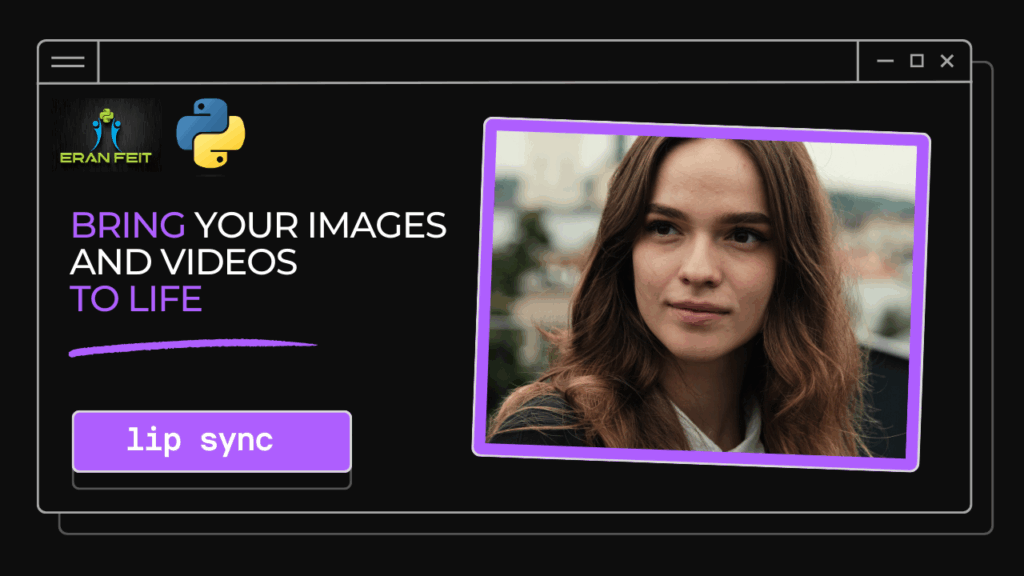
Last Updated on 26/02/2026 by Eran Feit
SadTalker tutorial: Bringing your portraits to life has never been easier. Imagine taking a static photo of a historical figure, a digital character, or even yourself, and making it speak with realistic facial expressions and head movements. In the past, this required a professional animation studio. Today, thanks to the SadTalker open-source project, you can achieve professional results for free on your own computer.
Imagine taking a static photo of a historical figure, a digital character, or even yourself, and making it speak with realistic facial expressions and head movements. In the past, this required a professional animation studio. Today, thanks to SadTalker, you can do it for free on your own computer.
SadTalker is an open-source project (featured at CVPR 2023) that has taken the AI community by storm. It doesn’t just “warp” a mouth onto a face; it uses 3D motion coefficients to learn how a real human head moves while speaking.

🌟 Why SadTalker is a Game-Changer
While there are paid services like D-ID and HeyGen, SadTalker offers professional-grade results for free and gives you full control.
- Realistic 3D Motion: Unlike 2D-based models, SadTalker generates 3D facial landmarks, meaning the head tilts and turns naturally as the person speaks.
- Audio-Driven Realism: The AI analyzes the tone and rhythm of your audio file to synchronize lip movements and blinking perfectly.
- One-Shot Animation: You only need one image. No training or multiple angles required.
- Face Enhancement: With built-in GFPGAN support, the AI can “upscale” and sharpen the face during animation, ensuring the final video looks crisp and high-quality.
🛠️ Getting Started: SadTalker Tutorial Installation Guide
You can run SadTalker locally on Windows or Linux. Based on the latest community best practices, here is how to set it up:
- Environment Setup: Use Python 3.10.6 and Git.
- Clone the Repo: Download the code directly from GitHub.
- Requirements: Install the necessary dependencies using
pip.
By following this SadTalker tutorial, you will avoid the common pitfalls of AI installation and get straight to creating your first talking avatar.
Check out our tutorial here : https://www.youtube.com/watch?v=dqkM0lxrruQ
Instructions for this video here : https://eranfeit.lemonsqueezy.com/buy/5b3128f4-7e63-49d0-ace6-5911db49fd3d or here : https://ko-fi.com/s/e371beb945
More relevant content in this playlist : https://www.youtube.com/playlist?list=PLdkryDe59y4bxVvpexwR6PMTHH6_vFXjA
You can find more tutorials, and join my newsletter here : https://eranfeit.net/blog
🛠️ Getting Started: Installation Guide
You can run SadTalker locally on Windows or Linux. Based on the excellent tutorial by Eran Feit, here is how to set it up:
1. Prerequisites
You’ll need to have the following installed on your machine:
- Python 3.10.6 (Crucial for compatibility)
- Git
- FFmpeg (For video processing)
- Conda (Recommended for managing environments)
2. Setup the Environment
Open your terminal and run:
https://github.com/OpenTalker/SadTalker =========================================== git clone https://github.com/OpenTalker/SadTalker.git cd SadTalker conda create --name sadTalk python=3.10.6 conda activate sadTalk #Install ffmpeg first : conda install -c conda-forge ffmpeg # -> get your cuda version nvcc --version Install Pytorch for for Cuda 11.16 : conda install pytorch==1.13.1 torchvision==0.14.1 torchaudio==0.13.1 pytorch-cuda=11.6 -c pytorch -c nvidia pip install -r requirements.txt 3. Download the “Brain” (Models)
The AI needs “checkpoints” (pre-trained weights) to work. You can download these via the script provided in the repo:
#Download the checkpoint models from here : mkdir checkpoints rem #### download the new links. wget -nc https://github.com/OpenTalker/SadTalker/releases/download/v0.0.2-rc/mapping_00109-model.pth.tar -O ./checkpoints/mapping_00109-model.pth.tar wget -nc https://github.com/OpenTalker/SadTalker/releases/download/v0.0.2-rc/mapping_00229-model.pth.tar -O ./checkpoints/mapping_00229-model.pth.tar wget -nc https://github.com/OpenTalker/SadTalker/releases/download/v0.0.2-rc/SadTalker_V0.0.2_256.safetensors -O ./checkpoints/SadTalker_V0.0.2_256.safetensors wget -nc https://github.com/OpenTalker/SadTalker/releases/download/v0.0.2-rc/SadTalker_V0.0.2_512.safetensors -O ./checkpoints/SadTalker_V0.0.2_512.safetensors rem ### enhancer mkdir gfpgan cd gfpgan mkdir weights cd .. wget -nc https://github.com/xinntao/facexlib/releases/download/v0.1.0/alignment_WFLW_4HG.pth -O ./gfpgan/weights/alignment_WFLW_4HG.pth wget -nc https://github.com/xinntao/facexlib/releases/download/v0.1.0/detection_Resnet50_Final.pth -O ./gfpgan/weights/detection_Resnet50_Final.pth wget -nc https://github.com/TencentARC/GFPGAN/releases/download/v1.3.0/GFPGANv1.4.pth -O ./gfpgan/weights/GFPGANv1.4.pth wget -nc https://github.com/xinntao/facexlib/releases/download/v0.2.2/parsing_parsenet.pth -O ./gfpgan/weights/parsing_parsenet.pth 
🎬 Tutorial: Generating Your First Talking Avatar
Once set up, bringing an image to life is just one command away.
Step 1: Prepare Your Files
- Source Image: A clear, front-facing portrait (e.g.,
my_photo.png). - Driven Audio: An MP3 or WAV file of the speech (e.g.,
speech.wav).
Step 2: Run the Inference
⚡ The Magic Command: Bringing Your Portrait to Life
Once your environment is set up and your models are downloaded, it’s time to move from code to cinema. This is the “Inference” stage—where the AI takes your static assets and weaves them into a fluid, speaking video.
Think of the inference.py script as the director of your digital studio. By passing specific “flags” (instructions) to this script, you tell the AI exactly which face to use, which voice to follow, and how much “polish” to apply to the final result.
Below is the standard command structure followed by a real-world example using a custom portrait.

You can find the audio file and all the rest of the instructions here or here
Run the SadTalker Model:
# General Syntax: Animating a portrait image from default config: python inference.py --driven_audio <audio.wav> \ --source_image <video.mp4 or picture.png> \ --enhancer gfpgan # Practical Example: Running a custom demo # --------------------------------------- python inference.py --driven_audio french-female.wav --source_image Lilach_face.png --enhancer gfpgan🔍 Command Breakdown
1. python inference.py
This tells your computer to run the main script (inference.py) using Python. This script acts as the conductor, loading the AI models and coordinating the transformation.
2. --driven_audio french-female.wav
- The “Driver”: This is the audio file that controls the animation.
- What happens: SadTalker doesn’t just look at the volume; it analyzes the phonemes (the distinct sounds of speech). If the audio says “Ooh,” the AI calculates the specific lip shape for that sound.
3. --source_image Lilach_face.png
- The “Canvas”: This is the static image you want to bring to life.
- Note: You can also use a
.mp4video here. If you use a video, SadTalker will “re-animate” the person in the video to match the new audio file (great for dubbing).
4. --enhancer gfpgan
- The “Secret Sauce”: This is arguably the most important flag for professional results.
- What it does: Standard AI animation can sometimes look slightly blurry or “mushy” around the teeth and eyes. GFPGAN is a secondary AI model that runs after the animation is done to sharpen the face, restore skin texture, and make the eyes look clear and realistic.
🔄 The SadTalker Workflow
To understand how these pieces fit together, here is the logical flow the software follows when you hit Enter:
- Cropping: The AI detects the face in
Lilach_face.pngand crops it to focus on the features. - 3D Mapping: It generates a 3D mesh of the face to understand the depth of the nose, eyes, and jaw.
- Motion Generation: It translates the
french-female.wavaudio into 3D head movements (nodding, blinking, and mouth shapes). - Face Enhancement: It applies the
gfpganfilter to ensure the output isn’t pixelated. - Stitching: It puts the animated face back onto the original background (if requested) and saves the video.
💡 Quick Troubleshooting for your Demo
If you run this and the head moves too much or the hair looks distorted, you can add one more flag:
--still: Adding this to your command (... --enhancer gfpgan --still) will keep the head mostly stationary while only moving the mouth and eyes. This is perfect for professional-looking avatars or corporate “talking head” videos.
🧍 Beyond the Headshot: Full-Image Animation
By default, SadTalker is designed for efficiency. When you run the basic command, it detects the face in your image, crops it tightly, animates it, and discards the rest. The result is a “floating head” video.
While this is fast and highlights the facial details, you often want to keep the entire context of your original photo—the hair, the shoulders, the clothing, and the background.
Fortunately, SadTalker has a built-in mode to handle precisely this.
🛠️ The Key Ingredient: --preprocess full
To tell the AI to preserve the entire original image, you need to change the preprocessing mode.
Normally, the preprocessor’s job is to “crop and focus.” By adding the flag --preprocess full, you are instructing the engine to animate the face and then seamlessly stitch it back onto the original, full-size canvas.
The Command Structure
Here is how you modify your command to get the full picture:
# General Syntax for Full Image Animation python inference.py --driven_audio <audio.wav> \ --source_image <picture.png> \ --enhancer gfpgan \ --preprocess full # Your Demo Adapted for Full Body: # --------------------------------------- python inference.py --driven_audio french-female.wav --source_image Lilach_face.png --enhancer gfpgan --preprocess full💡 Important Considerations for Full Mode
When using --preprocess full, keep these two things in mind:
- Processing Time: Because the AI has to manage larger frames and perform the extra step of “stitching” the face back onto the body, rendering will take longer than the default cropped mode.
- Movement Artifacts: If the head moves vigorously near the neck or shoulders, you might sometimes see slight blurring or distortions where the moving head meets the static body.
✨ Final Thoughts: The Future of Digital Expression
The ability to turn a single static portrait into a living, breathing, speaking character used to be the stuff of science fiction (or high-budget Hollywood visual effects). With SadTalker, that power is now on your desktop.
Whether you are looking to create engaging educational content, develop a unique brand mascot, or simply explore the frontiers of generative AI, SadTalker provides the most robust, open-source bridge between a still image and a dynamic video. By mastering the commands we’ve covered—from basic lip-syncing to full-body enhancement—you aren’t just running a script; you’re pioneering a new form of digital storytelling.
The best part? This is just the beginning. As models like SadTalker continue to evolve, the line between “static” and “cinematic” will disappear entirely.
❓ Frequently Asked Questions (FAQ)
What is SadTalker AI?
Do I need a GPU to run SadTalker?
How do I make the output video look high quality?
Can I prevent the head from moving too much?
Does SadTalker work with different languages?
How do I animate a full-sized photo instead of a crop?
What file formats does SadTalker support?
How can I fix “Out of Memory” errors?
What is “Pose Style” in SadTalker?
Is SadTalker free to use?
Connect :
☕ Buy me a coffee — https://ko-fi.com/eranfeit
🖥️ Email : feitgemel@gmail.com
🤝 Fiverr : https://www.fiverr.com/s/mB3Pbb
Enjoy,
Eran