 Skip to content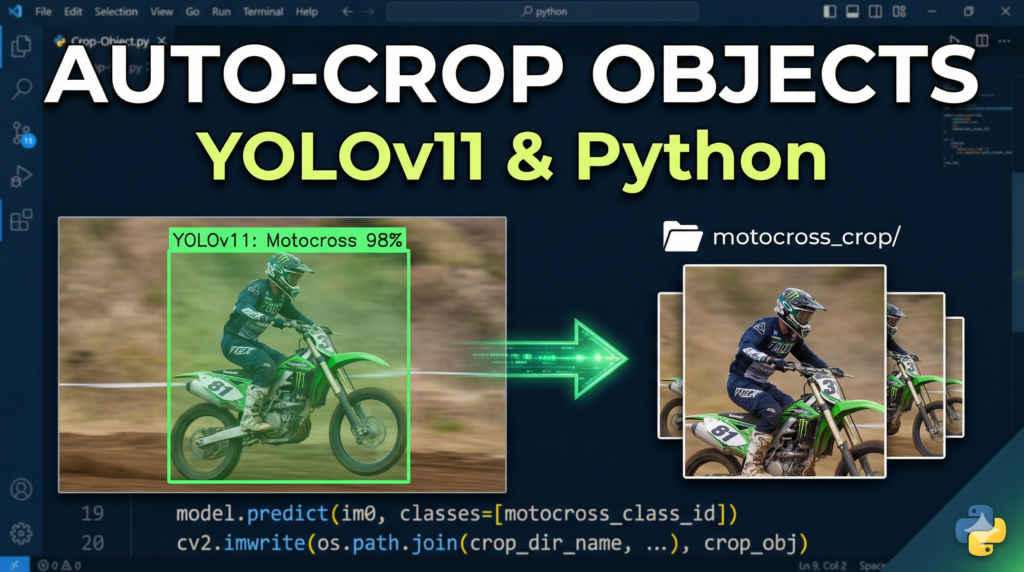
Last Updated on 21/03/2026 by Eran Feit
Master Automation: Extract Objects from Video Python
Building a high-quality dataset is often the most time-consuming part of any computer vision project. This article provides a comprehensive guide on how to Extract Objects from Video Python using the latest YOLOv11 framework and OpenCV. We move beyond simple detection and focus on the practical necessity of isolating specific targets from raw footage, turning hours of manual labor into a few seconds of automated processing.
If you have ever found yourself manually pausing videos to take screenshots for training data, this tutorial will be a massive productivity booster. By leveraging the speed of Ultralytics YOLO and the versatility of Python, you can generate thousands of perfectly cropped images for image classification or secondary detection models. This workflow ensures that your dataset is consistent, high-resolution, and perfectly tailored to the specific classes you need for your application.
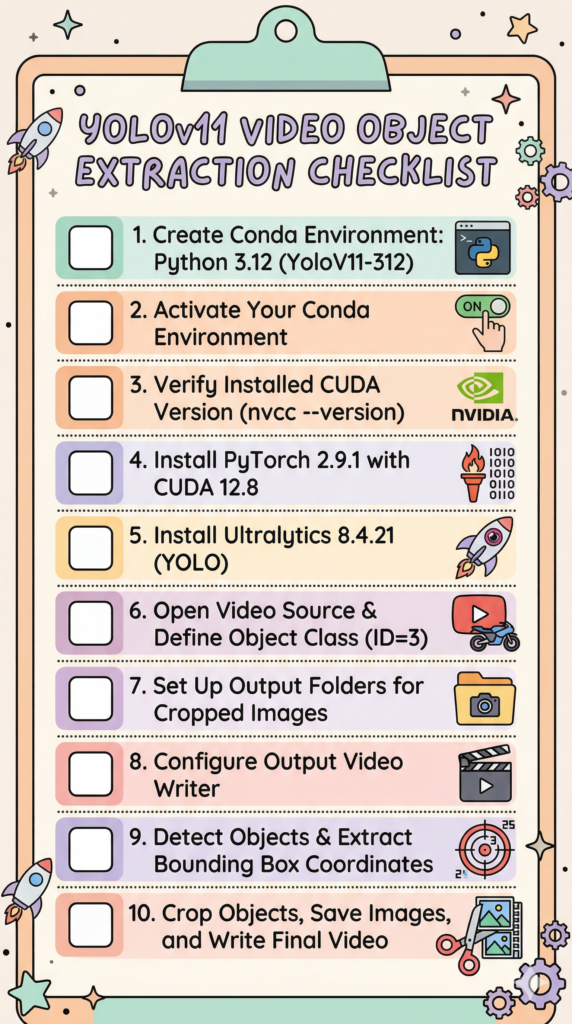
The guide is structured to take you from a clean environment setup to a fully functional script. We will walk through configuring a Conda environment with Python 3.12, installing the necessary CUDA-enabled PyTorch libraries, and implementing a robust Python script. You will learn how to target specific COCO class IDs—such as motorcycles or vehicles—to ensure your automation is precise and doesn’t waste storage on irrelevant data.
By the end of this read, you will have a professional-grade tool capable of handling various video formats and outputting organized directories of cropped images. We break down the logic of frame-by-frame processing, bounding box coordinate manipulation, and the automated file-saving system. This approach not only saves time but also creates a scalable pipeline that you can adapt for any object detection project in the future.
Why you should Extract Objects from Video Python for your AI projects
When developing advanced machine learning models, the “garbage in, garbage out” rule always applies. To Extract Objects from Video Python effectively means more than just running a script; it represents a fundamental shift in how you handle data preprocessing. Instead of relying on generic datasets, you can now pull real-world examples directly from your specific video use cases, ensuring your model learns from the exact environment it will eventually operate in. This level of customization is what separates basic hobbyist projects from production-ready AI systems.
The primary target of this methodology is the creation of “crops”—small, focused images that contain only the object of interest. By isolating these objects, you can build specialized classifiers that run after your initial detection phase. For instance, if your system detects a vehicle, a secondary model can then identify the specific make or model based on the high-quality crops generated by this script. This multi-stage pipeline is a standard practice in professional surveillance, autonomous driving, and industrial automation where precision is non-negotiable.
On a technical level, the process works by intercepting the detection coordinates (bounding boxes) provided by the YOLO model in real-time. The script uses these coordinates to define a region of interest within the video frame, which is then sliced out using NumPy-like indexing in OpenCV. This extracted region is then passed to a saving function that builds an organized image library on your local drive. This seamless integration between detection and file IO allows for a high-speed extraction process that can handle high-definition video streams without significant latency.

How We Turn Raw Video into a Precise Image Dataset with Python
At its core, this tutorial is designed to solve the “manual labor” bottleneck that plagues almost every computer vision project. We aren’t just running a generic detection script; we are building a specialized pipeline to Extract Objects from Video Python and convert them into isolated, high-quality image files. By targeting specific categories—like motorcycles in our example—we ensure that every single megabyte of data generated is relevant and ready for the next stage of your machine learning workflow.
The script acts as a bridge between the intelligence of the YOLOv11 model and the raw pixel manipulation power of OpenCV. The process begins by feeding a video file into the logic loop, where the YOLO model performs a real-time scan of every frame. Instead of just “seeing” everything, we use a class filter to tell the script exactly what to care about. This surgical precision is what allows the system to ignore background noise, pedestrians, or other vehicles, focusing exclusively on the motocross subjects we want to archive.
Once a target object is detected and verified against our specific COCO class ID, the “Crop-Object.py” script calculates the exact spatial coordinates of the bounding box. This is where the magic happens: the code uses NumPy-style slicing to “cut” that specific region out of the high-definition frame. Because we are working with the original frame data before any compression or resizing occurs, the resulting crops maintain the highest possible visual fidelity, which is critical for training secondary classifiers or performing deep feature analysis.
Finally, the script manages the heavy lifting of file organization and output. It automatically creates a structured directory and saves each extracted object with a unique index, preventing any data loss or overwriting. Simultaneously, it compiles an annotated version of the original video so you can visually verify the accuracy of the extraction process in real-time. This dual-output system gives you both the raw data (the crops) and the context (the video), providing a professional-grade solution for anyone looking to scale their data collection efforts without losing their mind to manual screenshots.
Link to the video tutorial here .
Download the code for the tutorial here or here
Best AI Photo Tools (Backgrounds, Objects, Headshots)


My Blog
Link for Medium users here
Want to get started with Computer Vision or take your skills to the next level ?
Great Interactive Course : “Deep Learning for Images with PyTorch” here
If you’re just beginning, I recommend this step-by-step course designed to introduce you to the foundations of Computer Vision – Complete Computer Vision Bootcamp With PyTorch & TensorFlow
If you’re already experienced and looking for more advanced techniques, check out this deep-dive course – Modern Computer Vision GPT, PyTorch, Keras, OpenCV4
Extract Objects from Video Python: YOLOv11 Guide
Building a high-quality dataset is often the most time-consuming part of any computer vision project. This article provides a comprehensive guide on how to Extract Objects from Video Python using the latest YOLOv11 framework and OpenCV. We move beyond simple detection and focus on the practical necessity of isolating specific targets from raw footage, turning hours of manual labor into a few seconds of automated processing.
If you have ever found yourself manually pausing videos to take screenshots for training data, this tutorial will be a massive productivity booster. By leveraging the speed of Ultralytics YOLO and the versatility of Python, you can generate thousands of perfectly cropped images for image classification or secondary detection models. This workflow ensures that your dataset is consistent, high-resolution, and perfectly tailored to the specific classes you need for your application.
The guide is structured to take you from a clean environment setup to a fully functional script. We will walk through configuring a Conda environment with Python 3.12, installing the necessary CUDA-enabled PyTorch libraries, and implementing a robust Python script. You will learn how to target specific COCO class IDs—such as motorcycles or vehicles—to ensure your automation is precise and doesn’t waste storage on irrelevant data.
By the end of this read, you will have a professional-grade tool capable of handling various video formats and outputting organized directories of cropped images. We break down the logic of frame-by-frame processing, bounding box coordinate manipulation, and the automated file-saving system. This approach not only saves time but also creates a scalable pipeline that you can adapt for any object detection project in the future.
Laying the Technical Foundation for High-Speed Detection
Before we can start the extraction process, we must ensure our development environment is optimized for AI workloads. This section focuses on creating a dedicated space where your Python libraries and GPU drivers work in perfect harmony. By using Conda, we isolate our project dependencies, preventing the “version hell” that often stalls computer vision projects.
Installing the correct versions of PyTorch and Ultralytics is the most critical step for performance. Since we are targeting YOLOv11 in 2026, leveraging CUDA 12.8 support allows your script to run detections at lightning speeds on NVIDIA hardware. This setup ensures that when we finally Extract Objects from Video Python, the process is smooth and utilizes every ounce of your hardware’s capability.
Setting up this environment is a one-time investment that pays off every time you run a detection pipeline. We choose Python 3.12 for its modern features and compatibility with the latest AI frameworks. Follow these commands strictly to mirror the professional environment used in this tutorial.
Want to use the exact same test video?
If you want to ensure your results match mine perfectly and test the script with the same conditions shown in this tutorial, I can provide the original video file for free.
This is a great way to verify your setup before moving on to your own custom datasets. Send me an email and mention “Test video for YOLO Object Cropping” so I can send it over to you.
🖥️ Email: feitgemel@gmail.com
### Create a new Conda environment with Python 3.12 conda create -n YoloV11-312 python=3.12 ### Activate the newly created environment conda activate YoloV11-312 ### Check your current CUDA version for compatibility nvcc --version ### Install PyTorch with CUDA 12.8 support pip install torch==2.9.1 torchvision==0.24.1 torchaudio==2.9.1 --index-url https://download.pytorch.org/whl/cu128 ### Install the latest Ultralytics package for YOLOv11 pip install ultralytics==8.4.21Loading the Intelligence and Preparing the Stream
Now that our environment is ready, we transition into the core script. The logic begins by loading the YOLOv11 model, which serves as the “brain” of our operation. We specify a class ID—in this case, ID 3 for motorcycles—to tell the model exactly what to look for while ignoring everything else in the frame.
To Extract Objects from Video Python, we utilize OpenCV to establish a stable video stream. This part of the code handles the file I/O, ensuring the video is accessible and reading its metadata like width, height, and frame rate. This information is vital because it allows us to create an output video that matches the original’s quality and speed.
We also automate the file management by checking for the existence of an output directory. If it doesn’t exist, the script creates it on the fly. This small but essential step keeps your project organized and ensures that the thousands of image crops we are about to generate have a safe place to land.
import os import cv2 from ultralytics import YOLO from ultralytics.utils.plotting import Annotator, colors ### Initialize the YOLOv11 model with pre-trained weights model = YOLO("yolov8n.pt") names = model.names ### Target specific object IDs (Motorcycle = 3 in COCO) motocross_class_id = 3 ### Open the video file for processing cap = cv2.VideoCapture("Best-Object-Detection-models/Yolo-V11/Crop objects using Ultralytics/motocross.mp4") assert cap.isOpened(), "Error opening video file" ### Extract video metadata for the writer w,h,fps = (int(cap.get(x)) for x in (cv2.CAP_PROP_FRAME_WIDTH, cv2.CAP_PROP_FRAME_HEIGHT, cv2.CAP_PROP_FPS)) ### Create directory for saved image crops crop_dir_name = "Best-Object-Detection-models/Yolo-V11/Crop objects using Ultralytics/motocross_crop" if not os.path.exists(crop_dir_name): os.makedirs(crop_dir_name)
Running the Real Time Detection Engine
The heart of the script lies in the processing loop. As the video streams frame by frame, the YOLO model performs a predict operation on each image. We pass a specific filter to the model, ensuring it only returns detections for our target class. This keeps the data clean and the processing overhead as low as possible.
Inside this loop, we handle the raw detection data. We extract the bounding boxes (coordinates) and the class labels from the model’s output. To help you visualize what the AI is seeing, we use the Annotator tool to draw boxes and labels directly onto the frames in real-time.
This step is where the intelligence meets the action. Each time the script finds a motorcycle, it prepares the specific pixels of that detection for the extraction process. By combining Extract Objects from Video Python with real-time visualization, you can monitor the progress and ensure the model is capturing exactly what you intended.
### Initialize the video writer for the annotated output video_writer=cv2.VideoWriter("Best-Object-Detection-models/Yolo-V11/Crop objects using Ultralytics/motocross_output.avi", cv2.VideoWriter_fourcc(*"mp4v"), fps, (w,h)) idx = 0 while cap.isOpened(): ### Read the next frame from the video success , im0 = cap.read() if not success: print("Video frame is empty or video processing has been successfully completed") break ### Run YOLO prediction restricted to our target class results = model.predict(im0, classes=[motocross_class_id], show=False) ### Extract bounding boxes and class data boxes = results[0].boxes.xyxy.cpu().tolist() clss = results[0].boxes.cls.cpu().tolist() ### Setup the annotator for visual feedback annotator = Annotator(im0, line_width=3, example=names)Surgical Cropping and Automated File Archiving
The final part of our workflow is where the data is actually “harvested.” For every detection that matches our criteria, the script performs a surgical crop using the bounding box coordinates. This converts the detected region into a standalone image, which is then saved to your hard drive using cv2.imwrite.
We use an index counter to give every image a unique name, ensuring we don’t overwrite any valuable data. Simultaneously, the script writes the annotated frame (the one with the bounding box) into a new video file. This provides a side-by-side audit trail: a folder full of raw crops and a video showing exactly how those crops were obtained.
Once the video ends, we properly release all resources. Releasing the capture and closing the windows prevents memory leaks and ensures your computer remains responsive. This complete cycle of Extract Objects from Video Python gives you a professional, automated solution for generating massive amounts of data with minimal effort.
if boxes is not None : for box , cls in zip(boxes , clss): if cls == motocross_class_id: idx += 1 ### Draw the label and box on the frame annotator.box_label(box , color=colors(int(cls),True), label=names[int(cls)]) ### Perform the surgical crop using NumPy slicing crop_obj = im0[int(box[1]) : int(box[3]) , int(box[0]) : int(box[2])] ### Save the isolated object image to disk cv2.imwrite(os.path.join(crop_dir_name, str(idx) + ".png"), crop_obj) ### Display the original video stream during processing cv2.imshow("Original Video",im0) video_writer.write(im0) ### Allow for early exit by pressing 'q' if cv2.waitKey(1) == ord("q"): break ### Clean up and release system resources cap.release() video_writer.release() cv2.destroyAllWindows()Summary
This tutorial demonstrated how to build a fully automated pipeline to Extract Objects from Video Python. By leveraging YOLOv11 for intelligent detection and OpenCV for frame manipulation, we successfully transformed a raw video file into an organized dataset of individual object crops. This workflow is essential for building custom training sets, performing secondary analysis, or archiving specific visual data at scale.
FAQ
Can I use this script for objects other than motorcycles?
Yes, simply update the class ID in the code to target any of the 80 COCO classes like cars, persons, or dogs.
Why should I use Conda for this tutorial?
Conda ensures your Python environment is isolated, which prevents version conflicts between AI libraries like PyTorch and Ultralytics.
Does the script support real-time webcam input?
Yes, changing the capture source to 0 allows the script to process and crop objects from a live camera feed.
How do I make the extraction process faster?
Using an NVIDIA GPU with CUDA drivers will accelerate the model inference significantly compared to using a CPU.
What happens if the output folder already exists?
The script checks for the folder; if it exists, it continues saving, and if not, it creates a new one automatically.
Can I save the extracted crops as JPG files?
Yes, simply change the file extension in the imwrite function to .jpg to save images in that format.
How do I exit the script while it’s processing?
Press the ‘q’ key on your keyboard while the preview window is active to safely close all windows and stop the script.
Is this code compatible with YOLOv8?
Absolutely, the Ultralytics library is backward compatible, so this script works perfectly with YOLOv8, v9, and v10 as well.
What if my video file won’t open in OpenCV?
Check the file path for typos and ensure that you have the correct video codecs installed for your operating system.
Can I extract multiple different classes simultaneously?
Yes, just add multiple class IDs to the predict function list to detect and crop various objects in one run.
Conclusion
Mastering the ability to Extract Objects from Video Python is a game-changing skill for any AI developer or researcher. Throughout this guide, we have moved from the initial environment setup to a fully automated pipeline that detects, crops, and organizes visual data with surgical precision. By leveraging YOLOv11 and OpenCV, you have built a tool that not only saves hundreds of hours of manual work but also ensures a level of dataset consistency that is impossible to achieve by hand.
The power of this workflow lies in its scalability. Whether you are building a specialized classifier for industrial parts, an autonomous monitoring system, or a research dataset for rare objects, the logic remains the same. You now have a reusable, professional-grade framework that bridges the gap between raw video footage and a structured image library ready for model training. As you continue to refine your computer vision pipelines, remember that the quality of your data is the most important factor in your model’s success—and with this automation, that quality is now firmly in your control.
Connect :
☕ Buy me a coffee — https://ko-fi.com/eranfeit
🖥️ Email : feitgemel@gmail.com
🤝 Fiverr : https://www.fiverr.com/s/mB3Pbb
Enjoy,
Eran