Last Updated on 22/04/2026 by Eran Feit
Object detection heatmap is a simple idea with a lot of power behind it.
This kind of visualization is especially useful when you want more than a single prediction at a single moment.
Under the hood, the idea is straightforward.
For developers, an object detection heatmap is a great bridge between raw model output and real-world decisions.
Why an object detection heatmap is perfect for tracking moving dogs When you track moving dogs in a video, it is easy to get overwhelmed by bounding boxes flickering frame after frame.
At a high level, the target is simple: convert dog detections into a spatial map that reflects how often each position is visited.
From a computer vision perspective, the pipeline remains clean and modular.
In more practical terms, this kind of visualization is valuable for both hobby and professional use.
In addition, using an object detection heatmap encourages better model debugging and camera placement.
If you want a complete YOLOv8 YouTube object detection workflow (auto-labeling, training, and live inference), follow this step-by-step guide: https://eranfeit.net/how-to-use-yolov8-for-object-detection-on-youtube-videos/
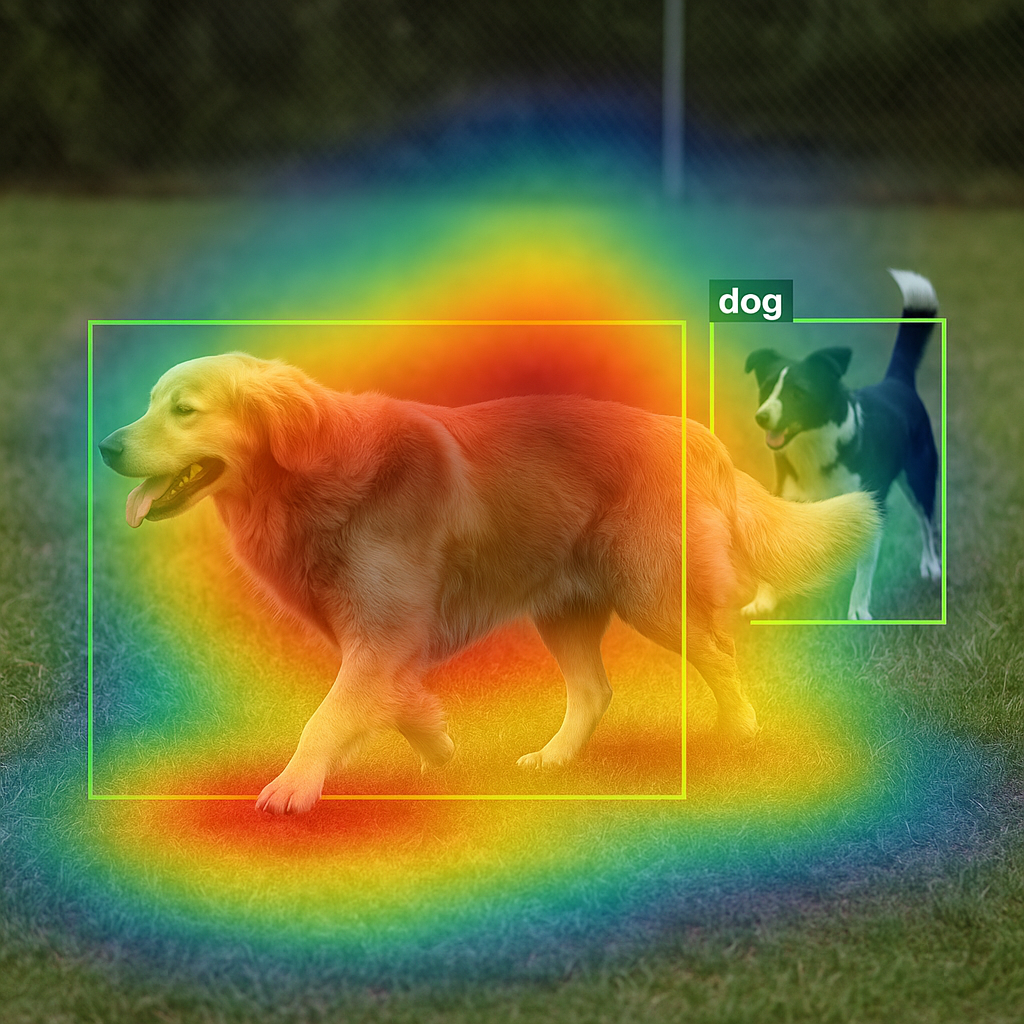
object detection heatmap When you look at the final video of colorful blobs showing where the dogs spent most of their time, it can feel almost magical.
The heart of the tutorial is a short, focused script that uses Ultralytics YOLO, OpenCV, and the built-in heatmap solution.
From an educational point of view, the goal is to connect the concept of an object detection heatmap with the actual implementation.cv2.VideoCapture, how we configure the writer to save the output, and what happens inside the main loop where frames are read, processed, and written back out.
Most importantly, the script is practical.
Walking through the code that powers the dog heatmap At a high level, the target of the code is simple to describe.
The first part of the code is all about preparation.YOLO and the heatmap solution from Ultralytics, and cv2 from OpenCV.cv2.VideoCapture.
Next comes the configuration of the object detection heatmap itself.Heatmap object and set arguments such as the colormap, the image width and height, and the visual style of the heatmap shape.
The main loop is where everything comes together.model.track so YOLOv8 can detect the dogs and keep their identities persistent over time.generate_heatmap function, which updates the heatmap based on the current positions of the dogs and returns a new frame with the colorful overlay.
Finally, the script takes care of cleanup.
Link for the video tutorial : https://youtu.be/ldf6ZACHIsI
Link to the code , and for the sample videos here : https://eranfeit.lemonsqueezy.com/buy/10413499-7dc0-4142-b117-8fbc136644b1
or here : https://ko-fi.com/s/21cb5fdeda
Link to the post for Medium users : https://medium.com/@feitgemel/object-detection-heatmap-for-tracking-moving-dogs-9a3304043c87
Master Computer Vision
Follow my latest tutorials and AI insights on my
Personal Blog .
Beginner Complete CV Bootcamp
Foundation using PyTorch & TensorFlow.
Get Started → Interactive Deep Learning with PyTorch
Hands-on practice in an interactive environment.
Start Learning → Advanced Modern CV: GPT & OpenCV4
Vision GPT and production-ready models.
Go Advanced →
Object Detection Heatmap for Tracking Moving Dogs Object detection heatmap is a powerful way to turn raw detections into a visual story about movement.
In this tutorial, we’ll build an object detection heatmap step by step using YOLOv8, OpenCV, and the Ultralytics heatmap solution.Ultralytics Docs+3Ultralytics Docs+3Ultralytics Docs+3
The focus here is practical and hands-on.
Getting your environment ready for YOLOv8 and heatmaps Before we can generate an object detection heatmap, we need a clean environment with the right versions of Python, PyTorch, CUDA, and Ultralytics.
Setting Up Your Environment To build this YOLO object tracking heatmap , you will need a Python environment with the following libraries installed:
Ultralytics YOLO: For state-of-the-art detection.OpenCV (cv2): For image manipulation and color mapping.NumPy: To manage the heatmap accumulation matrix. ### Create a new Conda environment named YoloV8 with Python 3.8. conda create -- name YoloV8 python = 3.8 ### Activate the environment so all packages are installed into this isolated space. conda activate YoloV8 ### Check the installed CUDA toolkit version using the NVIDIA CUDA compiler. nvcc -- version ### Install PyTorch, Torchvision, and Torchaudio with CUDA 11.8 support from the PyTorch and NVIDIA channels. conda install pytorch == 2.1 . 1 torchvision == 0.16 . 1 torchaudio == 2.1 . 1 pytorch - cuda = 11.8 - c pytorch - c nvidia ### Install the Ultralytics package that provides the YOLOv8 implementation and solutions such as the heatmap module. pip install ultralytics == 8.1 . 0 ### Install lapx for improved association and tracking utilities used by some tracking backends. pip install lapx >= 0.5 . 2 ### Install shapely for geometric operations that may be used by tracking or analytics helpers. pip install shapely ### Install lap as an additional dependency for linear assignment in tracking-related tasks. pip install lap After running these commands, you have a GPU-ready environment with YOLOv8 and all the tools needed to track objects in video and generate an object detection heatmap.
Loading YOLOv8, opening the video, and configuring the heatmap Now that the environment is ready, we can focus on the Python script.
### Import the YOLO class from Ultralytics so we can load a pretrained YOLOv8 model for detection and tracking. from ultralytics import YOLO ### Import the heatmap solution helper that accumulates object tracks into a visual object detection heatmap. from ultralytics . solutions import heatmap ### Import OpenCV to handle video reading, display, and writing operations. import cv2 ### Load the small YOLOv8n model weights so detection and tracking can run efficiently on standard hardware. model = YOLO ( " yolov8n.pt " ) ### Open the input video of moving dogs using OpenCV's VideoCapture. cap = cv2 . VideoCapture ( " Best-Object-Detection-models/Yolo-V8/Create-Heat-Map/dogs.mp4 " ) ### Verify that the video file was opened correctly and raise an error message if not. assert cap . isOpened (), " Error reading video file " ### Extract the frame width, frame height, and frames per second from the input video to reuse for the output writer. w , h , fps = ( int ( cap . get ( x )) for x in ( cv2 . CAP_PROP_FRAME_WIDTH , cv2 . CAP_PROP_FRAME_HEIGHT , cv2 . CAP_PROP_FPS )) ### Create a VideoWriter that will save the processed frames with the heatmap overlay into a new AVI file. video_writer = cv2 . VideoWriter ( " Best-Object-Detection-models/Yolo-V8/Create-Heat-Map/heatmap_output.avi " , cv2 . VideoWriter_fourcc ( * ' mp4v ' ), fps , ( w , h ) ) ### Initialize a Heatmap object that will accumulate tracks into an object detection heatmap over time. heatmap_obj = heatmap . Heatmap () ### Configure the heatmap appearance, including the colormap, frame dimensions, whether to show intermediate results, and the blob shape. heatmap_obj . set_args ( colormap = cv2 . COLORMAP_PARULA , imw = w , imh = h , view_img =True , shape = " circle " ) At this point, the core components are ready.
Running tracking and building the dog movement heatmap The final piece of the puzzle is the main processing loop.
### Loop over the video as long as the capture object reports that it is still open. while cap . isOpened (): ### Read the next frame from the input video stream. success , frame = cap . read () ### If no frame is returned, print a message and break out of the loop at the end of this iteration. if not success : print ( " Video frame is empty or completed. " ) break ### Run YOLOv8 tracking on the current frame, keeping track IDs persistent across frames and hiding built-in windows. tracks = model . track ( frame , persist =True , show =False ) ### Generate a new frame with the accumulated object detection heatmap drawn on top of the original image. im0 = heatmap_obj . generate_heatmap ( frame , tracks ) ### Display the frame with the heatmap overlay in a window named \"im0\" for visual feedback during processing. cv2 . imshow ( " im0 " , im0 ) ### Listen for a key press and stop the loop if the user presses the 'q' key. if cv2 . waitKey ( 1 ) == ord ( ' q ' ): break ### Write the processed frame with the heatmap overlay into the output video file. video_writer . write ( im0 ) ### Release the video capture resource now that we are done reading frames. cap . release () ### Release the video writer so the output file is properly finalized and saved to disk. video_writer . release () ### Close any OpenCV windows that were opened during processing. cv2 . destroyAllWindows () As the loop runs, YOLOv8 keeps tracking each dog with persist=True, while the Ultralytics heatmap solution updates the object detection heatmap with every new track.
How the YOLO Object Tracking Heatmap Logic Works The core of this project relies on an accumulation matrix. Every time the YOLO model detects a subject, the script identifies the center point of the bounding box and “paints” it onto a blank canvas.
As the dog moves, these points accumulate. We then apply a colormap (like ‘Jet’) to turn high-density areas red and low-density areas blue. This YOLO object tracking heatmap technique is invaluable for:
Animal Behavior Studies: Identifying preferred resting spots.Security Monitoring: Detecting unusual movement patterns.Retail Analytics: Mapping pathing in commercial spaces. FAQ: Object Detection Heatmap for Tracking Moving Dogs What is an object detection heatmap? An object detection heatmap is a visual overlay that accumulates detections over time and uses color to highlight regions with the most activity.
How does this tutorial track moving dogs? The script uses YOLOv8 in tracking mode to follow each dog across frames, then feeds the tracked positions into a heatmap generator that accumulates movement.
Which libraries are required to run the code? You need a Conda environment with Python, PyTorch with CUDA support, the Ultralytics package for YOLOv8, and OpenCV for handling video input and output.
What is the role of the Heatmap solution? The Heatmap solution receives tracking results and updates an internal canvas, gradually building a color-coded map that shows where dogs move most frequently.
Why do we use persist=true in model.track? Using persist=true keeps track IDs stable between frames, making it easier to follow the same dog across the video and generate a consistent heatmap.
Can I run the heatmap on a different object class? Yes, you can adjust the classes parameter in model.track and the heatmap will visualize movement for whichever object types you select.
What output do I get after running the script? You obtain a new video file where each frame contains the original scene plus a colorful heatmap overlay showing cumulative dog movement.
How can I change the look of the heatmap? You can adjust parameters in set_args, such as the colormap, shape, and image size, to control the colors and style of the heatmap overlay.
What if I want to save the result as MP4 instead of AVI? You can change the output file extension and choose a compatible fourcc code, as long as your OpenCV build and codecs support the selected format.
Is this pipeline suitable for real-time applications? With a fast GPU and the lightweight yolov8n model, the same code pattern can be adapted for real-time streams like webcams or IP cameras.
Conclusion Building an object detection heatmap for tracking moving dogs is a great way to turn raw detections into real insight.
In this post, you created a clean environment, installed YOLOv8 and its dependencies, loaded a pretrained model, and wired up OpenCV to read and write video.
From here, you can experiment with different models, classes, and scenes—switching from dogs to people, cars, or any other objects your detector understands.
Connect : ☕ Buy me a coffee — https://ko-fi.com/eranfeit
🖥️ Email : feitgemel@gmail.com
🌐 https://eranfeit.net
🤝 Fiverr : https://www.fiverr.com/s/mB3Pbb
Enjoy,
Eran
 Skip to content