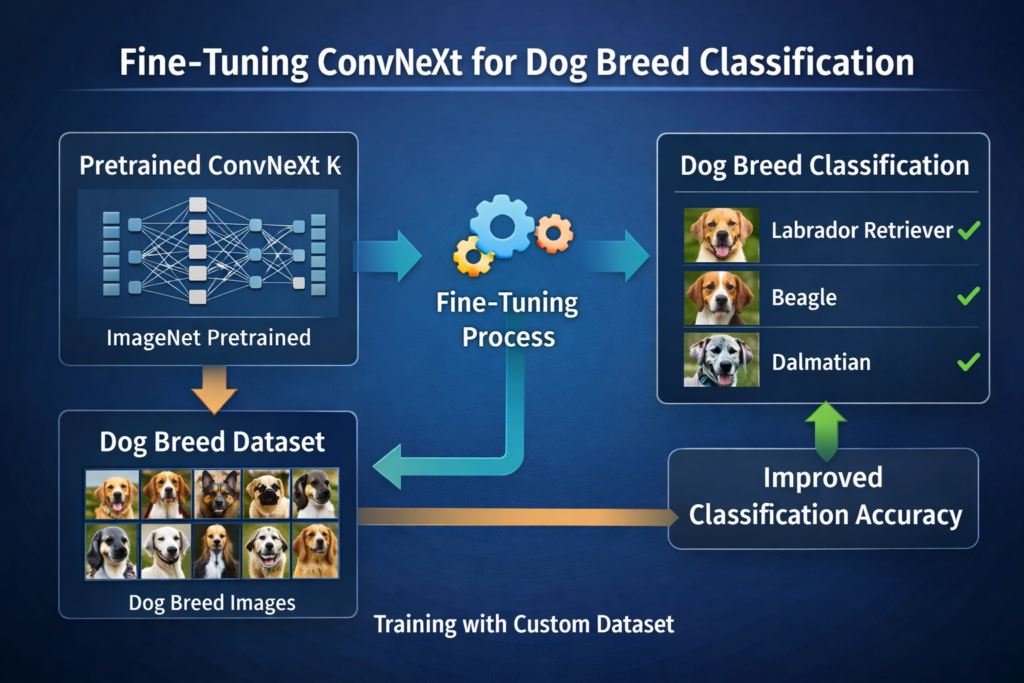
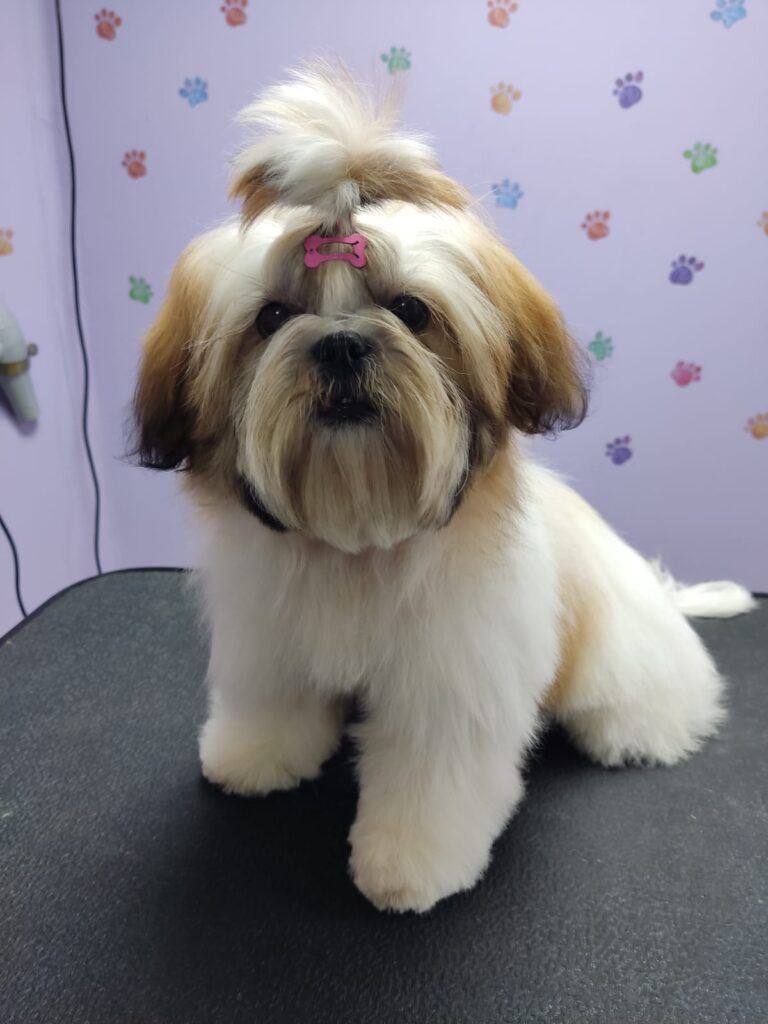
Amazing Guide to fine tune ConvNeXT Quickly / VIT, Image Classification, Pytorch Contents hide 1 Introduction 2 Why Fine-tuning ConvNeXt is the Modern Choice for Image Classification 3 Building a Practical Dog-Breed Classifier with ConvNeXt 3.1 Master Computer Vision 4 Fine Tune ConvNeXT for Custom Dog Breed Classification 5 Preparing the PyTorch Environment for ConvNeXt Training 6 Working With the Dog Breed Dataset 6.1 Where to Download the Dataset 6.2 Want the exact dataset so your results match mine? 7 Dataset Folder Structure 8 Loading and Preparing the Dog Breed Dataset 9 Building the ConvNeXt Fine-Tuning Pipeline for Custom Labels 10 Defining and Training the ConvNeXT Model 11 Loading the Trained Model and Preparing for Inference 12 Making Predictions on New Dog Images 13 Test Images 14 FAQ — Fine Tune ConvNeXT for Dog Breed Classification 14.1 What is fine tuning ConvNeXT? 14.2 Why is transfer learning useful? 14.3 Do I need a large dataset? 14.4 Can ConvNeXT classify dog breeds? 14.5 What framework does the tutorial use? 14.6 Is CUDA required for training? 14.7 How are predictions generated? 14.8 Can I customize the number of classes? 14.9 Does the model save automatically? 14.10 Can this be used for other image tasks? 15 Next Steps: Exporting and Deploying Your Fine-Tuned ConvNeXt Model 15.1 Connect : Last Updated on 03/09/2026 by Eran Feit Introduction If you are struggling to achieve high accuracy on niche image datasets using standard ResNet architectures, it’s time to modernize your pipeline. In this guide, you will learn exactly how to fine-tune ConvNeXt PyTorch custom dataset workflows to achieve state-of-the-art results. While Vision Transformers (ViT) are popular, ConvNeXt offers the efficiency of standard convolutions with the performance boost of transformer-inspired design. We will solve the problem of adapting pre-trained ImageNet-22k weights to your specific classes, ensuring your model generalizes well even with limited data. Fine-tuning starts with a model that has already learned general visual features — often trained on large datasets like ImageNet — and then continues its training on a smaller, task-specific dataset. This approach enables the model to build upon its broad understanding of images to learn the subtler patterns that distinguish, for example, different dog breeds. By doing so, it achieves better accuracy and faster convergence than training a model from scratch, especially when your dataset is limited in size. Using fine tune ConvNeXT for image classification tasks harnesses the strengths of deep convolutional layers, which efficiently extract hierarchical features such as edges, textures, and shapes. Modern variations of ConvNeXt incorporate design improvements inspired by Vision Transformer architectures, helping the model balance performance with computational efficiency. This makes it a compelling choice for real-world applications where accuracy, speed, and resource constraints all matter. In practice, fine-tuning involves careful preparation of your dataset, application of appropriate image transformations, and training the model with a suitable optimizer. The goal is to refine the weights of the ConvNeXt model so that it becomes highly specialized at distinguishing the unique classes — in your case, identifying and classifying different dog breeds. Done correctly, this strategy results in a robust model capable of reliable predictions across varied and unseen samples. Why Fine-tuning ConvNeXt is the Modern Choice for Image Classification Fine-tuning ConvNeXt is about customization — taking a strong visual recognition model that’s already learned general image features and tailoring it for a specific classification problem like dog breeds. Instead of training a network from scratch, which demands vast amounts of data and computational power, fine-tuning starts with a pretrained ConvNeXt model and continues training it on your labeled dataset. This process adjusts the model’s internal representations so it becomes more sensitive to the nuances of your particular task. The model you begin with has seen millions of images from broad datasets such as ImageNet. It has learned to recognize universal visual features like edges and object parts. When you fine-tune ConvNeXT for your dog breed classification dataset, you essentially guide the model to focus more on breed-specific characteristics, such as fur patterns, ear shapes, and facial features, while retaining the general image understanding it already possesses. At a high level, fine-tuning involves loading one of the pretrained ConvNeXt variants, replacing or adapting its classification head to match the number of classes in your dataset, and then continuing the training process with your custom data. During this training, the model’s earlier layers may change very little or be frozen, while later layers undergo larger updates to refine task-specific decision boundaries. The target of fine-tuning is two-fold: achieve high accuracy on your custom dataset and ensure that the trained model generalizes well to new, unseen images. By leveraging the initial learning embedded in ConvNeXt’s pretrained weights and focusing additional learning on your specific classification categories, fine tuning provides an efficient and effective path to building a high-performing image classifier for tasks like dog breed recognition. Subscription FormSend me tutorials Fine-tuning ConvNeXt for dog breeds Building a Practical Dog-Breed Classifier with ConvNeXt This tutorial walks you through a complete, end-to-end workflow to fine tune ConvNeXT for a real-world image classification task: recognizing different dog breeds from photos. Instead of training a deep learning model from scratch, the code shows how to start from a powerful pretrained ConvNeXt model and adapt it to your custom dataset. The result is a model that learns to accurately distinguish between breeds while being efficient to train — even on relatively small datasets. The process begins with setting up the environment and loading the dataset into a structure the model can use. You’ll see how the dataset is split into training and validation sets, as well as how image transformations such as resizing, normalization, and augmentation are applied. These steps are essential to ensure that the model sees consistent input and learns to generalize rather than memorize specific images. Next, the tutorial demonstrates how to load a pretrained ConvNeXt model and connect it to your custom labels. The final classification layer is adapted to match the number of dog breeds in your dataset. From there, the training loop handles forward passes, loss calculation, backpropagation, and optimization. You’ll also monitor accuracy and validation loss, implement early stopping, and save the best checkpoint — all the practical elements you’d expect in a production-ready workflow. Finally, the code shows how to reload the best saved model and run predictions on new images. This step completes the journey from raw dataset to working classifier. By the end, you’ll understand not just the theory behind transfer learning, but also the concrete, repeatable steps needed to build a custom ConvNeXt classifier that performs reliably on new dog breed images. Link for the video tutorial : https://youtu.be/8Ma4RfMTnkU Link to the code : https://eranfeit.lemonsqueezy.com/checkout/buy/1a8f80e0-6a66-4c1d-a36f-2256048fbec0 or here : https://ko-fi.com/s/9ad6a94c13 Link to the post for Medium users : https://medium.com/vision-transformers-tutorials/amazing-guide-to-fine-tune-convnext-quickly-a98c6c70aac5 TRY IT NOW Master Computer Vision Follow my latest tutorials and AI insights on my Personal Blog. Beginner Complete CV Bootcamp Foundation using PyTorch & TensorFlow. Get Started → Interactive Deep Learning with PyTorch Hands-on practice in an interactive environment. Start Learning → Advanced Modern CV: GPT & OpenCV4 Vision GPT and production-ready models. Go Advanced → Fine-tuning ConvNeXt for breed classification Fine Tune ConvNeXT for Custom Dog Breed Classification Training a deep learning model from scratch can be slow, difficult, and very data-hungry. That’s why transfer learning — and specifically the ability to fine tune ConvNeXT — is such a powerful approach. Instead of starting from zero, we begin with a pretrained ConvNeXT model that already understands general visual features and then refine it on a custom dog-breed dataset. In this tutorial, we’ll walk step-by-step through the entire pipeline. You’ll see how to prepare the dataset, apply image transformations, build dataloaders, configure ConvNeXT for your number of classes, train the model, monitor performance, save the best checkpoint, and finally test the model on new images. Everything is written in clear Python using PyTorch and Hugging Face libraries, so you don’t just learn the theory — you get a working, practical solution you can adapt to your own projects. Whether you’re exploring computer vision for fun, research, or production-grade work, this guide gives you a real-world, repeatable workflow you can trust. Start With Core Image Classification Tutorials How to Classify Images Using ConvNeXt — Easy Tutorial This post walks through a practical ConvNeXt image classification workflow, which complements the fine tuning approach in this tutorial. Vision Transformer Image Classification PyTorch Tutorial Explore how vision transformers tackle image classification — great preparatory context for transformer-inspired ConvNeXt workflows. Image Classification Tutorials Browse a collection of image classification guides to deepen your understanding of custom vision models and workflows. Preparing the PyTorch Environment for ConvNeXt Training Before we can fine tune ConvNeXT, we first prepare a clean Conda environment and install the required frameworks. This ensures that all dependencies are aligned and avoids conflicts with other projects. Creating a dedicated environment is a best practice when working with deep learning libraries. Next, we install PyTorch with CUDA support, along with libraries like transformers, timm, matplotlib, and opencv-python. These tools power our data loading, model building, training, visualization, and Hugging Face integrations. ### Create a new Conda environment named ConvNeXt with Python 3.11 conda create -n ConvNeXt python=3.11 ### Activate the environment so all installs go inside it conda activate ConvNeXt ### Check your CUDA version so you install a compatible PyTorch build nvcc --version ### Install PyTorch 2.5.0 with CUDA 12.4 support and essential vision/audio extras conda install pytorch==2.5.0 torchvision==0.20.0 torchaudio==2.5.0 pytorch-cuda=12.4 -c pytorch -c nvidia ### Install SymPy which is used internally by several frameworks pip install sympy==1.13.1 ### Install Hugging Face Transformers to load ConvNeXT and processors pip install transformers==4.46.2 ### Install the torch extras for Transformers pip install transformers[torch]==4.46.2 ### Install OpenCV for image handling pip install opencv-python==4.10.0.84 ### Install timm which contains model architectures including ConvNeXT pip install timm==1.0.12 ### Install Matplotlib for visualizations pip install matplotlib==3.10.0 ### Install HuggingFace Hub to interact with pretrained models pip install huggingface_hub ### Create a new Conda environment named ConvNeXt with Python 3.11 conda create -n ConvNeXt python=3.11 ### Activate the environment so all installs go inside it conda activate ConvNeXt ### Check your CUDA version so you install a compatible PyTorch build nvcc --version ### Install PyTorch 2.5.0 with CUDA 12.4 support and essential vision/audio extras conda install pytorch==2.5.0 torchvision==0.20.0 torchaudio==2.5.0 pytorch-cuda=12.4 -c pytorch -c nvidia ### Install SymPy which is used internally by several frameworks pip install sympy==1.13.1 ### Install Hugging Face Transformers to load ConvNeXT and processors pip install transformers==4.46.2 ### Install the torch extras for Transformers pip install transformers[torch]==4.46.2 ### Install OpenCV for image handling pip install opencv-python==4.10.0.84 ### Install timm which contains model architectures including ConvNeXT pip install timm==1.0.12 ### Install Matplotlib for visualizations pip install matplotlib==3.10.0 ### Install HuggingFace Hub to interact with pretrained models pip install huggingface_hub Summary:This section ensures your system is ready with a clean, GPU-enabled PyTorch environment and all the tools needed to fine tune ConvNeXT smoothly. Working With the Dog Breed Dataset Before we can fine tune ConvNeXT, we need a clean and well-structured dataset.In this tutorial, we use a dog breed image dataset containing folders of images — one folder per breed — which makes it perfectly suited for image classification and transfer learning workflows. Where to Download the Dataset You can download the dataset here: Want the exact dataset so your results match mine? If you want to reproduce the same training flow and compare your results to mine, I can share the dataset structure and what I used in this tutorial. Send me an email and mention the name of the tutorial / dataset , so I know what you’re requesting. 🖥️ Email: feitgemel@gmail.com Once downloaded, extract the dataset to a local directory on your machine.In the code example, the dataset path is: D:/Data-Sets-Image-Classification/9 dogs Breeds D:/Data-Sets-Image-Classification/9 dogs Breeds You can change this path based on where you store your files. Dataset Folder Structure The dataset must be organized in a simple ImageFolder-style structure.That means each dog breed has its own folder, and inside that folder are all the images for that breed. Your directory should look like this: 9 dogs Breeds/ │ ├── Beagle/ │ ├── img001.jpg │ ├── img002.jpg │ └── ... │ ├── Bulldog/ │ ├── img001.jpg │ ├── img002.jpg │ └── ... │ ├── Chihuahua/ │ ├── img001.jpg │ └── ... │ ├── Doberman/ │ └── ... │ ├── German Shepherd/ │ └── ... │ ├── Golden Retriever/ │ └── ... │ ├── Husky/ │ └── ... │ ├── Labrador/ │ └── ... │ └── Poodle/ └── ... 9 dogs Breeds/ │ ├── Beagle/ │ ├── img001.jpg │ ├── img002.jpg │ └── ... │ ├── Bulldog/ │ ├── img001.jpg │ ├── img002.jpg │ └── ... │ ├── Chihuahua/ │ ├── img001.jpg │ └── ... │ ├── Doberman/ │ └── ... │ ├── German Shepherd/ │ └── ... │ ├── Golden Retriever/ │ └── ... │ ├── Husky/ │ └── ... │ ├── Labrador/ │ └── ... │ └── Poodle/ └── ... Each folder name becomes the class label, and the datasets library automatically detects this when we load it using: dataset = load_dataset("imagefolder", data_dir="D:/Data-Sets-Image-Classification/9 dogs Breeds")dataset = load_dataset("imagefolder", data_dir="D:/Data-Sets-Image-Classification/9 dogs Breeds") Loading and Preparing the Dog Breed Dataset In this part, we load the dog-breed dataset from a directory using the Hugging Face datasets library. We split it into training and testing subsets and print useful metadata to understand its structure. This helps ensure the dataset is correctly recognized and balanced. We also visualize one sample image and inspect the label mappings. This mapping converts numeric IDs into human-readable class names and is later passed to the model so it knows what each output index ### Import PyTorch which powers deep learning operations import torch ### Import load_dataset to read image folders as datasets from datasets import load_dataset ### Load the dataset from a local directory of labeled folders dataset = load_dataset("imagefolder", data_dir="D:/Data-Sets-Image-Classification/9 dogs Breeds") ### Print dataset metadata print("Dataset : ") print(dataset) ### Split the dataset into train and test sets (80/20) split_dataset = dataset["train"].train_test_split(test_size=0.2, seed=42) ### Store training subset train_dataset = split_dataset["train"] ### Store test subset test_dataset = split_dataset["test"] ### Output dataset sizes print("Train dataset size: ", len(train_dataset)) print("Test dataset size: ", len(test_dataset)) ### Print details for inspection print("Train dataset : ") print(train_dataset) print("Test dataset : ") print(test_dataset) ### Print the feature keys available print("****************************************************") print("Train dataset keys : ") print(dataset["train"].features) ### Import PIL for image handling from PIL import Image ### Grab one example from the dataset exmple = dataset["train"][0] ### Extract the image first_image = exmple["image"] ### Extract its numeric label first_lebel = exmple["label"] ### Display type print(type(first_image)) print("Label value of the first image : ", str(first_lebel)) ### Show the image first_image.show() ### Get class names from the dataset metadata labels = dataset["train"].features["label"].names print("Labels - list of the class names : ") print(labels) ### Build mapping dictionaries id2label = {k:v for k,v in enumerate(labels)} label2id = {v:k for k,v in enumerate(labels)} print("id2label : ") print(id2label) ### Print first sample label name print("Label of the first image : ", labels[first_lebel]) ### Import PyTorch which powers deep learning operations import torch ### Import load_dataset to read image folders as datasets from datasets import load_dataset ### Load the dataset from a local directory of labeled folders dataset = load_dataset("imagefolder", data_dir="D:/Data-Sets-Image-Classification/9 dogs Breeds") ### Print dataset metadata print("Dataset : ") print(dataset) ### Split the dataset into train and test sets (80/20) split_dataset = dataset["train"].train_test_split(test_size=0.2, seed=42) ### Store training subset train_dataset = split_dataset["train"] ### Store test subset test_dataset = split_dataset["test"] ### Output dataset sizes print("Train dataset size: ", len(train_dataset)) print("Test dataset size: ", len(test_dataset)) ### Print details for inspection print("Train dataset : ") print(train_dataset) print("Test dataset : ") print(test_dataset) ### Print the feature keys available print("****************************************************") print("Train dataset keys : ") print(dataset["train"].features) ### Import PIL for image handling from PIL import Image ### Grab one example from the dataset exmple = dataset["train"][0] ### Extract the image first_image = exmple["image"] ### Extract its numeric label first_lebel = exmple["label"] ### Display type print(type(first_image)) print("Label value of the first image : ", str(first_lebel)) ### Show the image first_image.show() ### Get class names from the dataset metadata labels = dataset["train"].features["label"].names print("Labels - list of the class names : ") print(labels) ### Build mapping dictionaries id2label = {k:v for k,v in enumerate(labels)} label2id = {v:k for k,v in enumerate(labels)} print("id2label : ") print(id2label) ### Print first sample label name print("Label of the first image : ", labels[first_lebel]) Summary:Here we successfully load the dataset, split it into train/test sets, explore its structure, and prepare readable label mappings. Building the ConvNeXt Fine-Tuning Pipeline for Custom Labels To fine tune ConvNeXT effectively, images must be resized, normalized, and sometimes augmented. This section uses Hugging Face’s image processor and PyTorch transforms to prepare input tensors in the exact format ConvNeXT expects. We then wrap everything into PyTorch DataLoader objects, which efficiently batch and shuffle data during training. This keeps GPU utilization high and training smooth. ### Import AutoImageProcessor to get preprocessing config for ConvNeXT from transformers import AutoImageProcessor ### Load the image processor from a pretrained ConvNeXT model image_processor = AutoImageProcessor.from_pretrained("facebook/convnext-base-224") ### Print processor details print("Image processor : ") print(image_processor) ### Import PyTorch vision transforms from torchvision.transforms import ( Compose , Normalize, RandomHorizontalFlip, RandomResizedCrop, ToTensor) ### Create a normalization transform based on model expectations normalize = Normalize(mean=image_processor.image_mean, std=image_processor.image_std) ### Define a composed transform pipeline including resize, flip, tensor conversion, and normalization transform = Compose([ RandomResizedCrop(image_processor.size["shortest_edge"]), RandomHorizontalFlip(), ToTensor(), normalize ]) ### Define function to apply transform to each image def data_transform(examples): examples["pixel_values"] = [transform(image.convert("RGB")) for image in examples["image"]] return examples ### Apply transforms to train and test splits processed_train_dataset = train_dataset.with_transform(data_transform) processed_test_dataset = test_dataset.with_transform(data_transform) ### Confirm transformation output print("Processed train and test dataset : ") print(processed_train_dataset[[0]]) ### Import DataLoader for batching from torch.utils.data import DataLoader ### Create a function to collate batches into tensors def collate_fn(examples): pixel_values = torch.stack([example["pixel_values"] for example in examples]) labels = torch.tensor([example["label"] for example in examples]) return {"pixel_values": pixel_values, "labels": labels} ### Build training dataloader train_dataloader = DataLoader(dataset=processed_train_dataset, collate_fn=collate_fn, batch_size=8, shuffle=True) ### Build validation dataloader val_dataloader = DataLoader(dataset=processed_test_dataset, collate_fn=collate_fn, batch_size=8, shuffle=False) ### View the first batch structure batch = next(iter(train_dataloader)) for k, v in batch.items(): print(f"{k}: {v.shape}") ### Import AutoImageProcessor to get preprocessing config for ConvNeXT from transformers import AutoImageProcessor ### Load the image processor from a pretrained ConvNeXT model image_processor = AutoImageProcessor.from_pretrained("facebook/convnext-base-224") ### Print processor details print("Image processor : ") print(image_processor) ### Import PyTorch vision transforms from torchvision.transforms import ( Compose , Normalize, RandomHorizontalFlip, RandomResizedCrop, ToTensor) ### Create a normalization transform based on model expectations normalize = Normalize(mean=image_processor.image_mean, std=image_processor.image_std) ### Define a composed transform pipeline including resize, flip, tensor conversion, and normalization transform = Compose([ RandomResizedCrop(image_processor.size["shortest_edge"]), RandomHorizontalFlip(), ToTensor(), normalize ]) ### Define function to apply transform to each image def data_transform(examples): examples["pixel_values"] = [transform(image.convert("RGB")) for image in examples["image"]] return examples ### Apply transforms to train and test splits processed_train_dataset = train_dataset.with_transform(data_transform) processed_test_dataset = test_dataset.with_transform(data_transform) ### Confirm transformation output print("Processed train and test dataset : ") print(processed_train_dataset[[0]]) ### Import DataLoader for batching from torch.utils.data import DataLoader ### Create a function to collate batches into tensors def collate_fn(examples): pixel_values = torch.stack([example["pixel_values"] for example in examples]) labels = torch.tensor([example["label"] for example in examples]) return {"pixel_values": pixel_values, "labels": labels} ### Build training dataloader train_dataloader = DataLoader(dataset=processed_train_dataset, collate_fn=collate_fn, batch_size=8, shuffle=True) ### Build validation dataloader val_dataloader = DataLoader(dataset=processed_test_dataset, collate_fn=collate_fn, batch_size=8, shuffle=False) ### View the first batch structure batch = next(iter(train_dataloader)) for k, v in batch.items(): print(f"{k}: {v.shape}") Summary:We now have fully prepared, batched, and normalized image tensors ready to be passed into ConvNeXT during training. Complete Vision Model Workflows Build an Image Classifier with Vision Transformer This step-by-step guide complements the fine-tuning approach by showing another transformer-based classifier implementation. Image Captioning using PyTorch and Transformers Shows transformer use in vision and language tasks — useful for understanding transformer architectures in vision models. YOLOv5 Image Classification — Complete Tutorial An example of classification training code that highlights how to structure deep learning pipelines with PyTorch. Defining and Training the ConvNeXT Model Here we load a pretrained ConvNeXT model and adapt it to our number of dog-breed classes. We configure the optimizer, set up the training loop, calculate accuracy, and implement early stopping to prevent overfitting. We also save the best model checkpoint automatically so you always keep the strongest version of your classifier. ### Import ConvNeXT classification model from transformers import AutoModelForImageClassification ### Load pretrained ConvNeXT with custom label mappings model = AutoModelForImageClassification.from_pretrained( "facebook/convnext-base-224", id2label=id2label, label2id=label2id, ignore_mismatched_sizes=True, ) ### Import tqdm for progress bars from tqdm import tqdm ### Import OS for saving checkpoints import os ### Define checkpoint directory save_dir = "d:/temp/models/convnext-dogs-classification/checkpoints" os.makedirs(save_dir, exist_ok=True) ### Create AdamW optimizer optimizer = torch.optim.AdamW(model.parameters(), lr=5e-5) ### Select GPU if available device = "cuda" if torch.cuda.is_available() else "cpu" model.to(device) ### Put model into train mode model.train() ### Initialize tracking variables best_loss = float("inf") epochs_without_improvement = 0 patience = 10 max_epochs = 100 ### Start training loop for epoch in range(max_epochs): print(f"Epoch {epoch + 1} / {max_epochs}") train_loss = 0.0 train_correct = 0 train_total = 0 model.train() ### Loop over training batches for batch in tqdm(train_dataloader , desc = "Training"): batch = {k: v.to(device) for k, v in batch.items()} optimizer.zero_grad() outputs = model(pixel_values=batch["pixel_values"], labels=batch["labels"]) loss , logits = outputs.loss, outputs.logits loss.backward() optimizer.step() train_loss += loss.item() train_total += batch["labels"].shape[0] train_correct += (logits.argmax(-1) == batch["labels"]).sum().item() train_accuracy = train_correct / train_total avg_train_loss = train_loss / len(train_dataloader) print(f"Train Loss: {avg_train_loss:.4f}, Train Accuracy: {train_accuracy:.4f}") model.eval() val_loss = 0.0 val_correct = 0 val_total = 0 with torch.no_grad(): for batch in tqdm(val_dataloader, desc="Validation"): batch = {k: v.to(device) for k, v in batch.items()} outputs = model(pixel_values=batch["pixel_values"], labels=batch["labels"]) loss , logits = outputs.loss, outputs.logits val_loss += loss.item() val_total += batch["labels"].shape[0] val_correct += (logits.argmax(-1) == batch["labels"]).sum().item() val_accuracy = val_correct / val_total avg_val_loss = val_loss / len(val_dataloader) print(f"Validation Loss: {avg_val_loss:.4f}, Validation Accuracy: {val_accuracy:.4f}") ### Save best model if avg_val_loss < best_loss : best_loss = avg_val_loss epochs_without_improvement = 0 checkpoint_path = os.path.join(save_dir , "best_model.pth") torch.save(model.state_dict(), checkpoint_path) print(f"New best model saved with validation loss: {best_loss:.4f}") else: epochs_without_improvement += 1 print(f"No improvement in validation loss for {epochs_without_improvement} epochs") ### Early stopping rule if epochs_without_improvement >= patience: print(f"Early stopping after {patience} epochs without improvement.") break ### Import ConvNeXT classification model from transformers import AutoModelForImageClassification ### Load pretrained ConvNeXT with custom label mappings model = AutoModelForImageClassification.from_pretrained( "facebook/convnext-base-224", id2label=id2label, label2id=label2id, ignore_mismatched_sizes=True, ) ### Import tqdm for progress bars from tqdm import tqdm ### Import OS for saving checkpoints import os ### Define checkpoint directory save_dir = "d:/temp/models/convnext-dogs-classification/checkpoints" os.makedirs(save_dir, exist_ok=True) ### Create AdamW optimizer optimizer = torch.optim.AdamW(model.parameters(), lr=5e-5) ### Select GPU if available device = "cuda" if torch.cuda.is_available() else "cpu" model.to(device) ### Put model into train mode model.train() ### Initialize tracking variables best_loss = float("inf") epochs_without_improvement = 0 patience = 10 max_epochs = 100 ### Start training loop for epoch in range(max_epochs): print(f"Epoch {epoch + 1} / {max_epochs}") train_loss = 0.0 train_correct = 0 train_total = 0 model.train() ### Loop over training batches for batch in tqdm(train_dataloader , desc = "Training"): batch = {k: v.to(device) for k, v in batch.items()} optimizer.zero_grad() outputs = model(pixel_values=batch["pixel_values"], labels=batch["labels"]) loss , logits = outputs.loss, outputs.logits loss.backward() optimizer.step() train_loss += loss.item() train_total += batch["labels"].shape[0] train_correct += (logits.argmax(-1) == batch["labels"]).sum().item() train_accuracy = train_correct / train_total avg_train_loss = train_loss / len(train_dataloader) print(f"Train Loss: {avg_train_loss:.4f}, Train Accuracy: {train_accuracy:.4f}") model.eval() val_loss = 0.0 val_correct = 0 val_total = 0 with torch.no_grad(): for batch in tqdm(val_dataloader, desc="Validation"): batch = {k: v.to(device) for k, v in batch.items()} outputs = model(pixel_values=batch["pixel_values"], labels=batch["labels"]) loss , logits = outputs.loss, outputs.logits val_loss += loss.item() val_total += batch["labels"].shape[0] val_correct += (logits.argmax(-1) == batch["labels"]).sum().item() val_accuracy = val_correct / val_total avg_val_loss = val_loss / len(val_dataloader) print(f"Validation Loss: {avg_val_loss:.4f}, Validation Accuracy: {val_accuracy:.4f}") ### Save best model if avg_val_loss < best_loss : best_loss = avg_val_loss epochs_without_improvement = 0 checkpoint_path = os.path.join(save_dir , "best_model.pth") torch.save(model.state_dict(), checkpoint_path) print(f"New best model saved with validation loss: {best_loss:.4f}") else: epochs_without_improvement += 1 print(f"No improvement in validation loss for {epochs_without_improvement} epochs") ### Early stopping rule if epochs_without_improvement >= patience: print(f"Early stopping after {patience} epochs without improvement.") break Summary:Your ConvNeXT model is now fully trained using transfer learning, and the best-performing version is safely stored. Loading the Trained Model and Preparing for Inference Now that the model is trained, we load the saved checkpoint back into ConvNeXT. This restores the trained weights so the model can be used for real-world predictions without needing to retrain. We also reload the dataset metadata so we can map predicted class IDs back to meaningful dog breed names. ### Import PyTorch again for inference operations import torch ### Import dataset loader for class names from datasets import load_dataset ### Import transforms for preprocessing from torchvision.transforms import Compose, Normalize , ToTensor, Resize ### Import Matplotlib for visualization import matplotlib.pyplot as plt ### Import PIL Image to process input image from PIL import Image ### Reload dataset to fetch labels dataset = load_dataset("imagefolder", data_dir="D:/Data-Sets-Image-Classification/9 dogs Breeds") ### Detect GPU availability device = "cuda" if torch.cuda.is_available() else "cpu" ### Get class names list labels = dataset["train"].features["label"].names print("Labels - list of the class names : ") print(labels) ### Build conversion dictionaries id2label = {k:v for k,v in enumerate(labels)} label2id = {v:k for k,v in enumerate(labels)} print("id2label : ") print(id2label) ### Load image processor again from transformers import AutoImageProcessor image_processor = AutoImageProcessor.from_pretrained("facebook/convnext-base-224") ### Create preprocessing transform pipeline transform = Compose([ Resize(image_processor.size["shortest_edge"]), ToTensor(), Normalize(mean=image_processor.image_mean, std=image_processor.image_std) ]) ### Import the classification model from transformers import AutoModelForImageClassification ### Load pretrained ConvNeXT with label mappings model = AutoModelForImageClassification.from_pretrained( "facebook/convnext-base-224", id2label=id2label, label2id=label2id, ignore_mismatched_sizes=True, ) ### Path to saved best model checkpoint_path = "D:/Temp/Models/convnext-dogs-classification/checkpoints/best_model.pth" ### Load state dictionary state_dict = torch.load(checkpoint_path) ### Apply trained weights to model model.load_state_dict(state_dict) ### Switch to evaluation mode model.eval() ### Move model to device model.to(device) ### Import PyTorch again for inference operations import torch ### Import dataset loader for class names from datasets import load_dataset ### Import transforms for preprocessing from torchvision.transforms import Compose, Normalize , ToTensor, Resize ### Import Matplotlib for visualization import matplotlib.pyplot as plt ### Import PIL Image to process input image from PIL import Image ### Reload dataset to fetch labels dataset = load_dataset("imagefolder", data_dir="D:/Data-Sets-Image-Classification/9 dogs Breeds") ### Detect GPU availability device = "cuda" if torch.cuda.is_available() else "cpu" ### Get class names list labels = dataset["train"].features["label"].names print("Labels - list of the class names : ") print(labels) ### Build conversion dictionaries id2label = {k:v for k,v in enumerate(labels)} label2id = {v:k for k,v in enumerate(labels)} print("id2label : ") print(id2label) ### Load image processor again from transformers import AutoImageProcessor image_processor = AutoImageProcessor.from_pretrained("facebook/convnext-base-224") ### Create preprocessing transform pipeline transform = Compose([ Resize(image_processor.size["shortest_edge"]), ToTensor(), Normalize(mean=image_processor.image_mean, std=image_processor.image_std) ]) ### Import the classification model from transformers import AutoModelForImageClassification ### Load pretrained ConvNeXT with label mappings model = AutoModelForImageClassification.from_pretrained( "facebook/convnext-base-224", id2label=id2label, label2id=label2id, ignore_mismatched_sizes=True, ) ### Path to saved best model checkpoint_path = "D:/Temp/Models/convnext-dogs-classification/checkpoints/best_model.pth" ### Load state dictionary state_dict = torch.load(checkpoint_path) ### Apply trained weights to model model.load_state_dict(state_dict) ### Switch to evaluation mode model.eval() ### Move model to device model.to(device) Summary:The trained ConvNeXT model is restored and ready to classify new dog images. Making Predictions on New Dog Images In this final step, we load a single image, preprocess it, send it through the model, and display both the image and the predicted label. This verifies that our training pipeline worked successfully. Seeing the prediction visually also makes the output more intuitive and useful beyond raw numerical IDs. Run prediticions Test Images Here are some test images Test image Golden Retriever ### Path to test image image_path = "Visual-Language-Models-Tutorials/Fine tune Image Classificatrion using ConvNext for custom dataset/Dori.jpg" ### Read the image with Matplotlib image = plt.imread(image_path) ### Preprocess and add batch dimension input_image = transform(Image.fromarray(image).convert("RGB")).unsqueeze(0).to(device) ### Disable gradient tracking with torch.no_grad(): ### Run forward pass outputs = model(pixel_values=input_image) logits = outputs.logits ### Get predicted class ID predicted_class_id = logits.argmax(-1).item() print(f"Predicted class id: {predicted_class_id}") ### Convert ID to label name predicted_label = id2label[predicted_class_id] ### Show image with title plt.imshow(image) plt.title(f"Predicted label: {predicted_label}") plt.axis("off") plt.show() ### Path to test image image_path = "Visual-Language-Models-Tutorials/Fine tune Image Classificatrion using ConvNext for custom dataset/Dori.jpg" ### Read the image with Matplotlib image = plt.imread(image_path) ### Preprocess and add batch dimension input_image = transform(Image.fromarray(image).convert("RGB")).unsqueeze(0).to(device) ### Disable gradient tracking with torch.no_grad(): ### Run forward pass outputs = model(pixel_values=input_image) logits = outputs.logits ### Get predicted class ID predicted_class_id = logits.argmax(-1).item() print(f"Predicted class id: {predicted_class_id}") ### Convert ID to label name predicted_label = id2label[predicted_class_id] ### Show image with title plt.imshow(image) plt.title(f"Predicted label: {predicted_label}") plt.axis("off") plt.show() Summary:Your ConvNeXT model now successfully predicts dog breeds from new images — completing the full transfer learning workflow. Extend Your Learning Complete YOLOv8 Classification Tutorial For Beginners Learn another classification pipeline with PyTorch and Ultralytics YOLOv8 — good for comparing model approaches. Alien vs Predator Image Classification with ResNet50 This tutorial shows how transfer learning works in practice with ResNet50 — conceptually similar to fine tuning ConvNeXt. How to Use Vision Transformer for Image Classification Offers more context on transformer-based classifiers, ideal before diving into custom fine-tuning tasks. FAQ — Fine Tune ConvNeXT for Dog Breed Classification What is fine tuning ConvNeXT? Fine tuning ConvNeXT means adapting a pretrained ConvNeXT model so it learns your specific classification task. Why is transfer learning useful? Transfer learning saves time and improves accuracy by starting from a model that already understands visual features. Do I need a large dataset? Fine tuning works well even with relatively small datasets when the base model is pretrained. Can ConvNeXT classify dog breeds? Yes, when fine tuned on a labeled dog breed dataset, ConvNeXT can learn to recognize each breed. What framework does the tutorial use? This tutorial uses PyTorch together with Hugging Face Transformers. Is CUDA required for training? CUDA is not strictly required but makes training significantly faster. How are predictions generated? An image is preprocessed, passed through ConvNeXT, and the highest scoring class is selected. Can I customize the number of classes? Yes, the final classification head is adapted to match the number of labels in your dataset. Does the model save automatically? The tutorial includes logic to save the best-performing model checkpoint. Can this be used for other image tasks? Yes, simply replace the dataset with another labeled image collection. Modern Architecture Deep Dive Beyond CNNs: Image Classification with Vision Transformers Using Cheap Cloud GPUs Looking to compare ConvNeXt results against Transformer architectures? Follow this hands-on pipeline to train ViT models cost-effectively on affordable cloud GPUs. Explore the ViT Workflow → Next Steps: Exporting and Deploying Your Fine-Tuned ConvNeXt Model Fine tuning ConvNeXT gives you the best of both worlds — the strength of a pretrained, state-of-the-art architecture and the flexibility to adapt it to your own custom dog-breed dataset. In this post, you learned how to prepare data, build dataloaders, adapt the model head, train with early stopping, save the best checkpoint, reload the trained model, and finally make real predictions. This workflow is powerful, repeatable, and efficient. You can now confidently apply the same structure to other datasets and image-classification challenges. As you continue experimenting, you’ll discover how small adjustments in transforms, batch sizes, or learning rates can further improve accuracy and generalization. If you’re passionate about computer vision, this fine-tuning approach unlocks a world of opportunities for building practical, high-performing models without needing massive data or compute. Connect : ☕ Buy me a coffee — https://ko-fi.com/eranfeit 🖥️ Email : feitgemel@gmail.com 🌐 https://eranfeit.net 🤝 Fiverr : https://www.fiverr.com/s/mB3Pbb Enjoy, Eran








 Skip to content