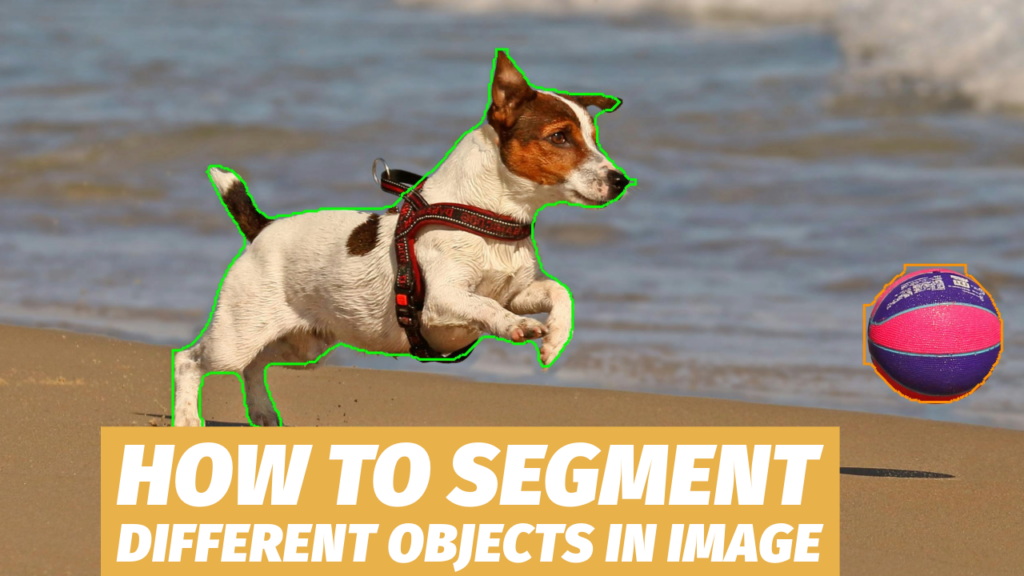
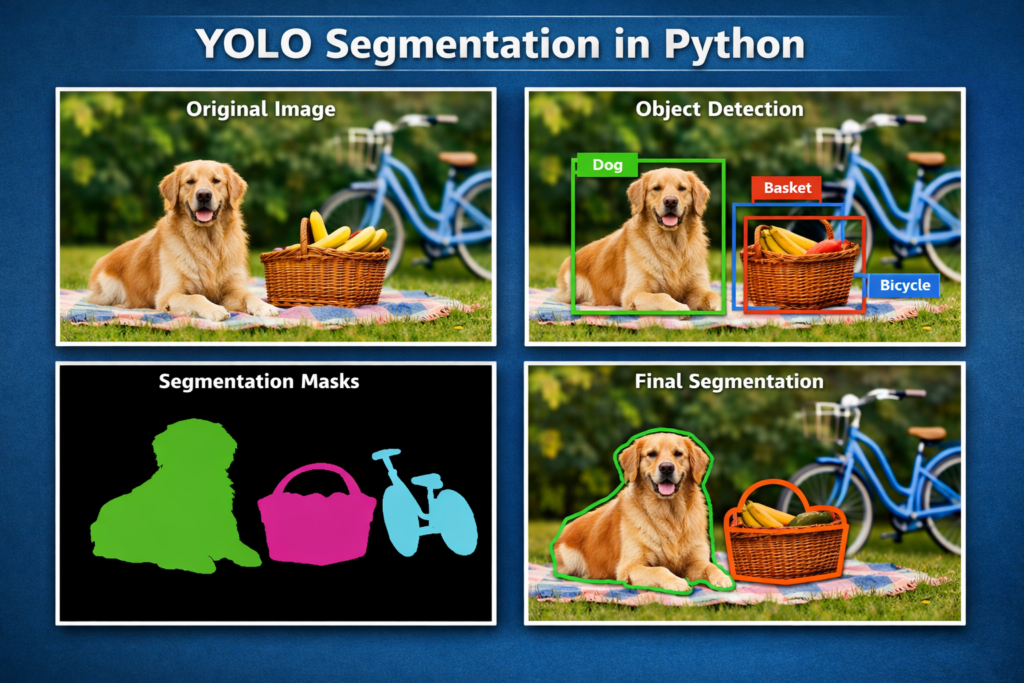
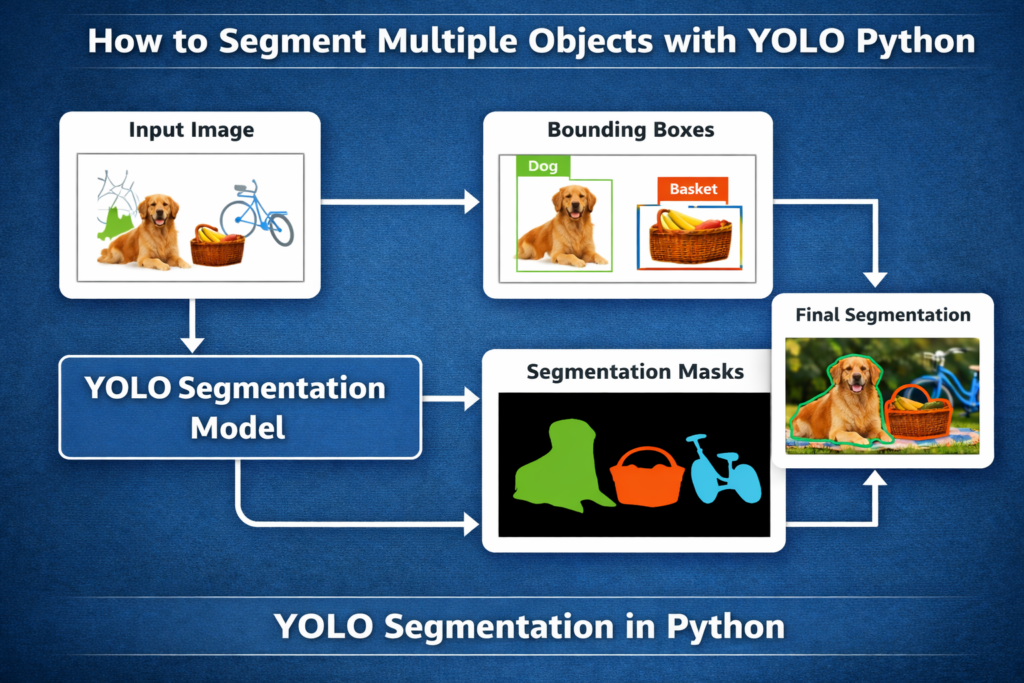
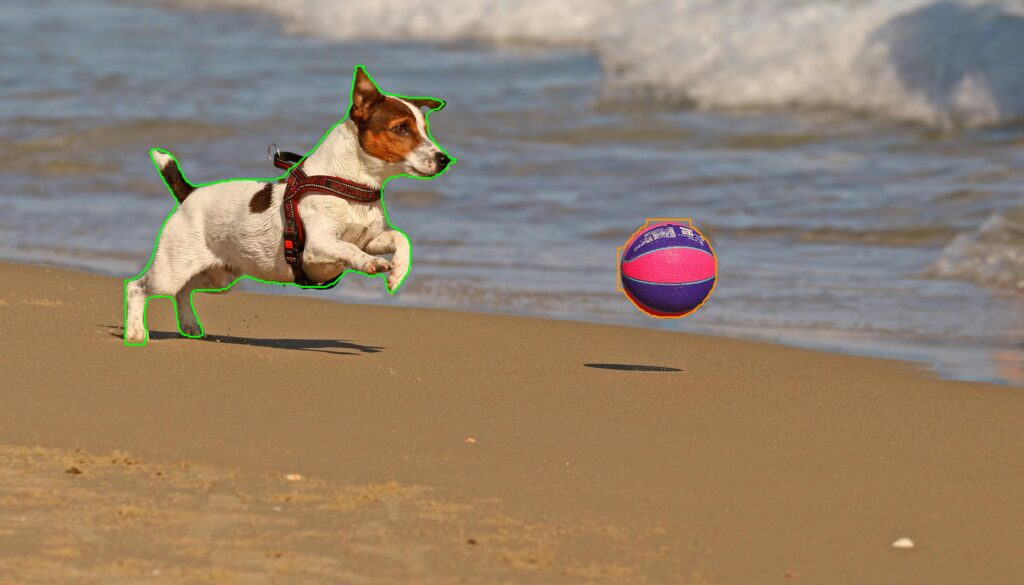
How to segment multiple objects with YOLO Python / Image Segmentation, Pytorch Contents hide 1 YOLO segmentation tutorial Python: segmenting multiple objects with confidence 2 A practical look at YOLO segmentation tutorial Python 2.1 Master Computer Vision 3 Building a YOLO segmentation pipeline in Python from start to finish 4 How to segment multiple objects with YOLO Python 5 Setting up a clean environment for YOLO V11 segmentation 6 Loading the model and opening the image you want to segment 7 Running YOLO segmentation and extracting masks and polygons 8 Outlining multiple objects and saving the final segmented image 9 FAQ 9.1 What does “yolo segmentation tutorial python” mean in practice? 9.2 What is the difference between object detection and instance segmentation? 9.3 Why does the code use result = results[0]? 9.4 What is stored inside result.masks? 9.5 Why convert masks with .cpu().numpy()? 9.6 What is mask1.xy[0] used for? 9.7 How do I avoid errors when only one object is detected? 9.8 Why use Pillow for polygon drawing in this script? 9.9 How can I color many objects automatically? 9.10 What should I do if result.masks is None? 10 Conclusion 10.1 Connect : Last Updated on 22/04/2026 by Eran Feit YOLO segmentation tutorial Python: segmenting multiple objects with confidence YOLO segmentation tutorial Python is a practical and modern way to understand how computers can go beyond bounding boxes and truly understand the shape of objects inside an image.Instead of only detecting where an object is, segmentation allows us to identify the exact pixels that belong to each object, even when multiple objects appear in the same scene.This approach is essential when precision matters, such as image analysis, automation, and visual understanding tasks where object boundaries are important. By using a YOLO segmentation model, it becomes possible to process a single image and separate every detected object into its own mask.Each mask represents the object’s real shape, making it easier to analyze, visualize, or post-process the results.When combined with Python, this workflow becomes accessible, flexible, and easy to customize for different projects and datasets. A YOLO segmentation tutorial Python workflow typically focuses on speed and clarity.YOLO models are designed to run fast while still producing accurate segmentation results, which makes them suitable for both experimentation and real-world applications.This balance between performance and accuracy is one of the main reasons YOLO segmentation has become so popular among computer vision practitioners. Understanding this process at a high level helps build intuition before diving into code.Once the concept of segmentation masks and object polygons is clear, implementing the solution in Python feels much more natural and structured. More YOLO segmentation workflows to compare Fast YOLOv8 Dog Segmentation Tutorial for Video & Images See a complete segmentation workflow that goes beyond a single image and shows how to apply masks on both images and video frames. Boost Your Dataset with YOLOv8 Auto-Label Segmentation Learn how segmentation outputs can be saved and organized for dataset building, which is a natural next step after visualizing masks. Quick Yolov5 Segmentation Tutorial in Minutes Get a quick comparison perspective by seeing a different YOLO generation and how the segmentation workflow feels in practice. Subscription FormSend me tutorials YOLO segmentation tutorial in Python A practical look at YOLO segmentation tutorial Python YOLO segmentation tutorial Python focuses on teaching how to segment multiple objects inside a single image in a clean and reproducible way.The main target is to take an input image, run it through a YOLO segmentation model, and receive pixel-accurate masks for every detected object.These masks allow us to move from simple detection to a deeper understanding of object shapes and boundaries. At a high level, the process starts by loading a pretrained YOLO segmentation model.This model has already learned how to recognize common objects and predict their segmentation masks.Once an image is passed through the model, it outputs a set of results that include object masks and polygon coordinates for each detected instance. The next step in a YOLO segmentation tutorial Python workflow is visualization.Segmentation masks can be converted into polygons and drawn directly on the original image.Using different colors for each object makes it easy to distinguish between multiple instances and visually validate the results. This approach is especially useful when working with images that contain overlapping or closely packed objects.By relying on segmentation rather than bounding boxes alone, the output becomes more precise and informative.The final result is an image where every object is clearly outlined, making the segmentation output both readable and practical for further use. Link to the video tutorial : https://youtu.be/u7JA2ukJyCI You can download the code here or here . Link to the post for Medium.com users can be found here You can follow my blog here . TRY IT NOW Master Computer Vision Follow my latest tutorials and AI insights on my Personal Blog. Beginner Complete CV Bootcamp Foundation using PyTorch & TensorFlow. Get Started → Interactive Deep Learning with PyTorch Hands-on practice in an interactive environment. Start Learning → Advanced Modern CV: GPT & OpenCV4 Vision GPT and production-ready models. Go Advanced → Building a YOLO segmentation pipeline in Python from start to finish YOLO segmentation workflow diagram2 This tutorial is all about turning a single image into a clear, visual segmentation result using a YOLO segmentation model and a small, readable Python script.The target of the code is simple: load a pretrained YOLO V11 segmentation checkpoint, run inference on an image, extract the masks that the model returns, and convert those masks into polygon outlines that you can actually see on top of the original photo. The workflow begins with setting up a clean environment so the code runs smoothly and uses the GPU correctly.That includes creating a dedicated Conda environment, checking your CUDA version, installing a matching PyTorch build, and then installing the exact Ultralytics and Pillow versions used in the script.This matters because segmentation models rely heavily on the right CUDA and PyTorch pairing, and small version mismatches can cause confusing runtime issues. Once the environment is ready, the code loads the YOLO V11 segmentation model using the Ultralytics YOLO() API.Then it loads an image with Pillow, sends that image into model.predict(), and pulls out the first prediction result.From there, the code focuses on result.masks, which is where YOLO stores the segmentation output for each detected object. The key learning goal is understanding what the model gives you and how to use it.Each detected object includes a mask tensor (pixel-level segmentation) and a polygon representation that traces the object boundary.The code converts the mask tensor into a NumPy array for visualization, and it uses the polygon coordinates to draw clean outlines directly on the original image. Finally, the script demonstrates a practical visualization style for multi-object segmentation.It draws each object polygon in a different color so it’s easy to distinguish between multiple detections in the same image.At the end, it saves the final annotated image to disk, giving you a reusable template for your own projects where you want fast, accurate segmentation and a clear visual output. How to segment multiple objects with YOLO Python If you want a fast and practical yolo segmentation tutorial python workflow, this post is designed to be copy-paste friendly and easy to follow.The goal is to take a single image, run YOLO V11 segmentation, and get clean object outlines you can actually see.Instead of stopping at detection boxes, you will extract segmentation masks and convert them into polygons that wrap each object’s shape.By the end, you will save a final image where multiple objects are outlined in different colors. More YOLO segmentation workflows to compare Fast YOLOv8 Dog Segmentation Tutorial for Video & Images See a complete segmentation workflow that goes beyond a single image and shows how to apply masks on both images and video frames. Boost Your Dataset with YOLOv8 Auto-Label Segmentation Learn how segmentation outputs can be saved and organized for dataset building, which is a natural next step after visualizing masks. Quick Yolov5 Segmentation Tutorial in Minutes Get a quick comparison perspective by seeing a different YOLO generation and how the segmentation workflow feels in practice. Setting up a clean environment for YOLO V11 segmentation A reliable setup makes this yolo segmentation tutorial python feel smooth instead of frustrating.The idea is to create a dedicated Conda environment, confirm CUDA, and install a matching PyTorch build so the GPU is used correctly.When CUDA, PyTorch, and your Ultralytics version align, segmentation inference becomes fast and consistent.That stability matters even for a short script, because segmentation models are heavy and version mismatches show up quickly. This setup also keeps your main Python environment clean.When you isolate YOLO V11 segmentation into its own environment, upgrading or testing new versions later becomes much safer.You can reproduce the same results months from now by re-creating the environment exactly as shown.That is especially useful when you publish tutorials and want readers to get the same outcome. # ### Create a fresh Conda environment for YOLO V11 segmentation with Python 3.11. conda create --name YoloV11-311 python=3.11 # ### Activate the environment so every install happens inside it. conda activate YoloV11-311 # ### Check your CUDA compiler version to confirm GPU compatibility. nvcc --version # ### Install a PyTorch build that matches CUDA 12.4 for GPU acceleration. # Cuda 12.4 conda install pytorch==2.5.0 torchvision==0.20.0 torchaudio==2.5.0 pytorch-cuda=12.4 -c pytorch -c nvidia # ### Install Ultralytics for YOLO V11 usage and Pillow for polygon drawing and image I/O. # install YoloV11 pip install ultralytics==8.3.59 pip install pillow==11.1.0 # ### Create a fresh Conda environment for YOLO V11 segmentation with Python 3.11. conda create --name YoloV11-311 python=3.11 # ### Activate the environment so every install happens inside it. conda activate YoloV11-311 # ### Check your CUDA compiler version to confirm GPU compatibility. nvcc --version # ### Install a PyTorch build that matches CUDA 12.4 for GPU acceleration. # Cuda 12.4 conda install pytorch==2.5.0 torchvision==0.20.0 torchaudio==2.5.0 pytorch-cuda=12.4 -c pytorch -c nvidia # ### Install Ultralytics for YOLO V11 usage and Pillow for polygon drawing and image I/O. # install YoloV11 pip install ultralytics==8.3.59 pip install pillow==11.1.0 The environment is now ready for running segmentation inference.You have PyTorch, Ultralytics, and Pillow installed in a clean setup that is easy to reproduce. Loading the model and opening the image you want to segment This part is where the tutorial becomes real code.You load the YOLO V11 segmentation model, point to an image path, and open the image using Pillow.The target is to keep the workflow simple: load model, load image, then run prediction next.This makes the script easy to reuse for any image you want to test. It also helps to display the image early.When you visually confirm the input image before inference, it becomes easier to debug paths and verify you are processing the file you expect.This is especially helpful when you work with multiple test images and different folders.A quick image preview can save a lot of time later. The test images : Dog Test image Dog Test image 2 # ### Import the YOLO class from Ultralytics so we can load a segmentation model and run inference. from ultralytics import YOLO # ### Import Pillow tools to open the image and draw polygons on top of it. from PIL import Image , ImageDraw # ### Load a YOLO V11 segmentation checkpoint. model = YOLO("yolo11m-seg.pt") # Medium size # ### Define the path to your test image. img_path = "Best-Semantic-Segmentation-models/Yolo-V11/How to segment different objects in image python/test_img.jpg" # ### Optional alternative image path you can switch to for testing. #img_path = "Best-Semantic-Segmentation-models/Yolo-V11/How to segment different objects in image python/test_img2.jpg" # ### Open the image from disk into memory using Pillow. img = Image.open(img_path) # ### Display the original image so you can confirm it loaded correctly. img.show() # ### Import the YOLO class from Ultralytics so we can load a segmentation model and run inference. from ultralytics import YOLO # ### Import Pillow tools to open the image and draw polygons on top of it. from PIL import Image , ImageDraw # ### Load a YOLO V11 segmentation checkpoint. model = YOLO("yolo11m-seg.pt") # Medium size # ### Define the path to your test image. img_path = "Best-Semantic-Segmentation-models/Yolo-V11/How to segment different objects in image python/test_img.jpg" # ### Optional alternative image path you can switch to for testing. #img_path = "Best-Semantic-Segmentation-models/Yolo-V11/How to segment different objects in image python/test_img2.jpg" # ### Open the image from disk into memory using Pillow. img = Image.open(img_path) # ### Display the original image so you can confirm it loaded correctly. img.show() You now have a YOLO segmentation model in memory and a Pillow image loaded.The next step is to run prediction and work with masks and polygons. Running YOLO segmentation and extracting masks and polygons This is the core of a yolo segmentation tutorial python pipeline.You run model.predict on the image and collect the first result object that contains the segmentation output.From there, you access result.masks, which holds mask data and polygon coordinates for each detected object.This is the bridge between model inference and visual explanation. A useful habit is to print how many masks were detected.It gives you immediate feedback about whether the model found objects and whether you should expect multiple polygons.Then you extract the first mask, convert it to NumPy, and visualize it as an image.Finally, you draw the first polygon on top of the original image so the segmentation becomes easy to understand. # ### Run YOLO V11 segmentation inference on the image. # Segmenation results = model.predict(img) # ### Take the first prediction result for a single image input. result = results[0] # ### Extract the masks object which stores segmentation outputs. masks = result.masks # ### Print a quick summary of how many masks were detected. print("Masks:") print(len(masks)) # Number of masks detected # ### Select the first detected mask object. # Extract the first mask and polygon mask1 = masks[0] # ### Convert the first mask tensor to a NumPy array so it can be visualized and inspected. mask = mask1.data[0].cpu().numpy() # Convert to numpy array # ### Extract the polygon coordinates that outline the segmented object. polygon = mask1.xy[0] # ### Turn the mask array into a Pillow image so it can be displayed. mask_img = Image.fromarray(mask,"I") # ### Display the mask image to see the segmented region clearly. mask_img.show() # ### Create a drawing context on top of the original image. # Draw a polygon of the mask1 on the image draw = ImageDraw.Draw(img) # ### Draw the polygon outline for the first object using a visible color and line width. draw.polygon(polygon, outline="#00FF00", width=6) # Green color # ### Display the image with the first object outline. img.show() # ### Run YOLO V11 segmentation inference on the image. # Segmenation results = model.predict(img) # ### Take the first prediction result for a single image input. result = results[0] # ### Extract the masks object which stores segmentation outputs. masks = result.masks # ### Print a quick summary of how many masks were detected. print("Masks:") print(len(masks)) # Number of masks detected # ### Select the first detected mask object. # Extract the first mask and polygon mask1 = masks[0] # ### Convert the first mask tensor to a NumPy array so it can be visualized and inspected. mask = mask1.data[0].cpu().numpy() # Convert to numpy array # ### Extract the polygon coordinates that outline the segmented object. polygon = mask1.xy[0] # ### Turn the mask array into a Pillow image so it can be displayed. mask_img = Image.fromarray(mask,"I") # ### Display the mask image to see the segmented region clearly. mask_img.show() # ### Create a drawing context on top of the original image. # Draw a polygon of the mask1 on the image draw = ImageDraw.Draw(img) # ### Draw the polygon outline for the first object using a visible color and line width. draw.polygon(polygon, outline="#00FF00", width=6) # Green color # ### Display the image with the first object outline. img.show() You have successfully segmented at least one object and visualized its mask and polygon.The next part repeats the same logic for another object and then saves the final annotated image. More ways to visualize and segment objects Image Segmentation with MediaPipe: Replace Background See an alternative segmentation workflow focused on background separation, which pairs well with learning mask visualization and overlays. How to Use Grounding DINO with Segment Anything Tutorial Explore a modern detection-to-segmentation pipeline that complements YOLO by showing promptable segmentation and more flexible object targeting. Image Segmentation in OpenCV with Python and Contours Compare deep learning masks to classic contour-based segmentation, which helps build intuition about polygons and boundaries. Outlining multiple objects and saving the final segmented image Once you understand one mask, the multi-object case is mostly repetition.You select another mask from the list, extract its polygon coordinates, and draw it using a different color.That color separation is important because it makes multi-object segmentation readable at a glance.The target is a final image that clearly shows several segmented objects without confusion. Saving the result is the practical finish.A saved output file turns this from a quick demo into a reusable tool you can run on any image.It also makes it easy to share results, compare models, and build a visual dataset of segmentation outputs.This is one of the simplest ways to make your yolo segmentation tutorial python workflow feel complete. # ### Select the second detected mask object. # Extract the second mask and polygon mask2 = masks[1] # ### Convert the second mask tensor to a NumPy array for visualization. mask = mask2.data[0].cpu().numpy() # Convert to numpy array # ### Extract the polygon coordinates for the second object. polygon = mask2.xy[0] # ### Convert the second mask into a Pillow image for display. mask_img = Image.fromarray(mask,"I") # ### Display the second mask so you can verify it matches the expected object. mask_img.show() # ### Draw the second polygon outline on the same original image using a different color. draw.polygon(polygon, outline="#ff9100", width=6) # Orange color # ### Display the image with both outlines visible. img.show() # ### Save the final annotated image to disk. # Save the final image img.save("Best-Semantic-Segmentation-models/Yolo-V11/How to segment different objects in image python/segmented_image.jpg") # ### Select the second detected mask object. # Extract the second mask and polygon mask2 = masks[1] # ### Convert the second mask tensor to a NumPy array for visualization. mask = mask2.data[0].cpu().numpy() # Convert to numpy array # ### Extract the polygon coordinates for the second object. polygon = mask2.xy[0] # ### Convert the second mask into a Pillow image for display. mask_img = Image.fromarray(mask,"I") # ### Display the second mask so you can verify it matches the expected object. mask_img.show() # ### Draw the second polygon outline on the same original image using a different color. draw.polygon(polygon, outline="#ff9100", width=6) # Orange color # ### Display the image with both outlines visible. img.show() # ### Save the final annotated image to disk. # Save the final image img.save("Best-Semantic-Segmentation-models/Yolo-V11/How to segment different objects in image python/segmented_image.jpg") You have segmented multiple objects and drawn clear polygons for each one.You also saved a final output image that shows the segmentation result in a clean and shareable format. The result : Segmented image Go deeper into segmentation concepts and models Detectron2 Panoptic Segmentation Made Easy for Beginners Learn how panoptic segmentation combines scene-wide labeling with per-instance masks, which adds useful context beyond instance segmentation alone. Make Instance Segmentation Easy with Detectron2 See another strong instance segmentation framework and compare how masks, classes, and visualizations differ from the Ultralytics YOLO workflow. Complete YOLOv8 Classification Tutorial for Beginners Round out your YOLO toolbox by learning classification mode, which helps you decide when segmentation is needed versus simple image-level labeling. FAQ What does “yolo segmentation tutorial python” mean in practice? It means you load a YOLO segmentation model in Python, run inference on an image, and get a mask for each detected object. You visualize masks or polygons to see object shapes instead of only boxes. What is the difference between object detection and instance segmentation? Detection returns bounding boxes around objects. Instance segmentation returns pixel-accurate masks for each object instance. Why does the code use result = results[0]? model.predict returns a list of results, one per input image. With one image input, the first item contains the masks and predictions. What is stored inside result.masks? It stores segmentation outputs for each detected object. You typically get mask data and polygon coordinates for visualization. Why convert masks with .cpu().numpy()? The model outputs tensors that may live on the GPU. Moving to CPU and converting to NumPy makes inspection and visualization straightforward. What is mask1.xy[0] used for? It gives polygon points that outline the segmented object. Drawing the polygon creates a clean boundary overlay on the original image. How do I avoid errors when only one object is detected? Check len(masks) before accessing masks[1]. If there is only one mask, skip the second extraction or loop over masks safely. Why use Pillow for polygon drawing in this script? Pillow keeps the workflow simple for loading images and drawing polygons with ImageDraw. It is lightweight and beginner-friendly. How can I color many objects automatically? Loop over all masks and pick a color by index or class ID. This scales well when many objects appear in one image. What should I do if result.masks is None? It usually means no objects were segmented. Try a different image, a different checkpoint, or confirm the model supports segmentation. Conclusion This yolo segmentation tutorial python showed a clean end-to-end pattern for segmenting multiple objects in a single image.You loaded a YOLO V11 segmentation model, ran inference, and accessed the masks produced by the network.You then converted mask tensors into visual outputs and used polygon coordinates to draw clear object outlines.Finally, you saved a ready-to-share segmented image to disk. Once this workflow feels comfortable, the next upgrade is to loop over every mask instead of selecting only the first two.That change lets you segment any number of objects automatically and apply unique colors without manual editing.Another useful improvement is filling polygons or blending masks for a stronger “segmentation overlay” look.With those small additions, the same script becomes a flexible template you can reuse across many computer vision projects. Connect : ☕ Buy me a coffee — https://ko-fi.com/eranfeit 🖥️ Email : feitgemel@gmail.com 🌐 https://eranfeit.net 🤝 Fiverr : https://www.fiverr.com/s/mB3Pbb Enjoy, Eran








 Skip to content