Last Updated on 22/04/2026 by Eran Feit
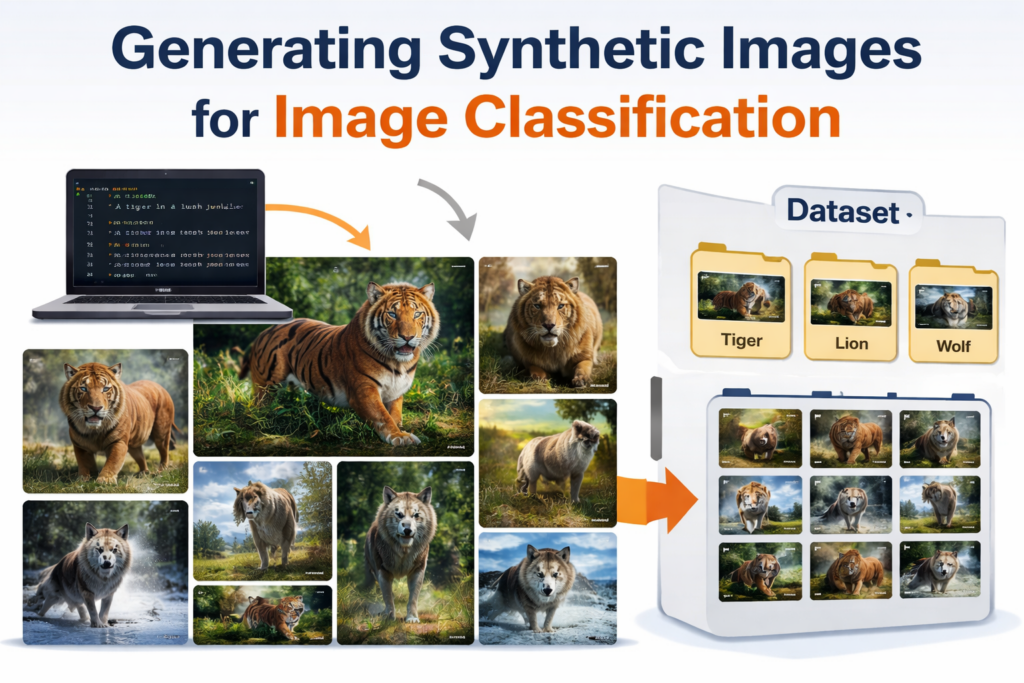
This article explains how to generate synthetic images for image classification using Python, Hugging Face Diffusers, and Stable Diffusion. It focuses on building a practical workflow that turns text prompts into high-quality training images, helping developers and researchers create datasets without scraping the web or manually collecting photos. By following a reproducible pipeline, you can produce consistent, labeled images tailored to your exact classification needs.
Access to clean and balanced data is one of the biggest challenges in computer vision. Learning to generate synthetic images for image classification enables you to control lighting, backgrounds, poses, and class distribution, which directly improves model performance and reduces bias. This approach is especially useful when working with rare objects, privacy-sensitive domains, or projects where collecting real images is expensive or impractical.
The article demonstrates how to achieve this through a structured, step-by-step process. You’ll see how to configure Diffusers, design prompts that yield reliable outputs, and fine-tune parameters such as inference steps, resolution, and negative prompts to reduce blur and artifacts. By generating multiple variations per class and previewing results, you can quickly evaluate dataset quality and refine your prompts before scaling up.
By the end, you will have a complete workflow to generate synthetic images for image classification and automatically organize them into labeled folders ready for training. This makes it easy to integrate the generated data into TensorFlow or PyTorch pipelines, accelerating experimentation and enabling you to build more accurate models with less manual effort.
Generating synthetic images for image classification in a practical way Generating synthetic images for image classification is about creating realistic, diverse, and well-labeled visuals that can be used to train machine learning models. Instead of relying solely on real-world photos, synthetic generation allows you to define exactly what the model should learn by controlling prompts, styles, and conditions. This level of control helps ensure that each class is represented clearly and consistently, reducing ambiguity during training.
The target of this approach is anyone building computer vision systems who needs reliable data without the overhead of manual collection. Developers, researchers, and students can use synthetic generation to prototype ideas quickly, test edge cases, and balance datasets that would otherwise be skewed. For example, if one class is underrepresented in real data, synthetic images can fill the gap while maintaining visual consistency with the rest of the dataset.
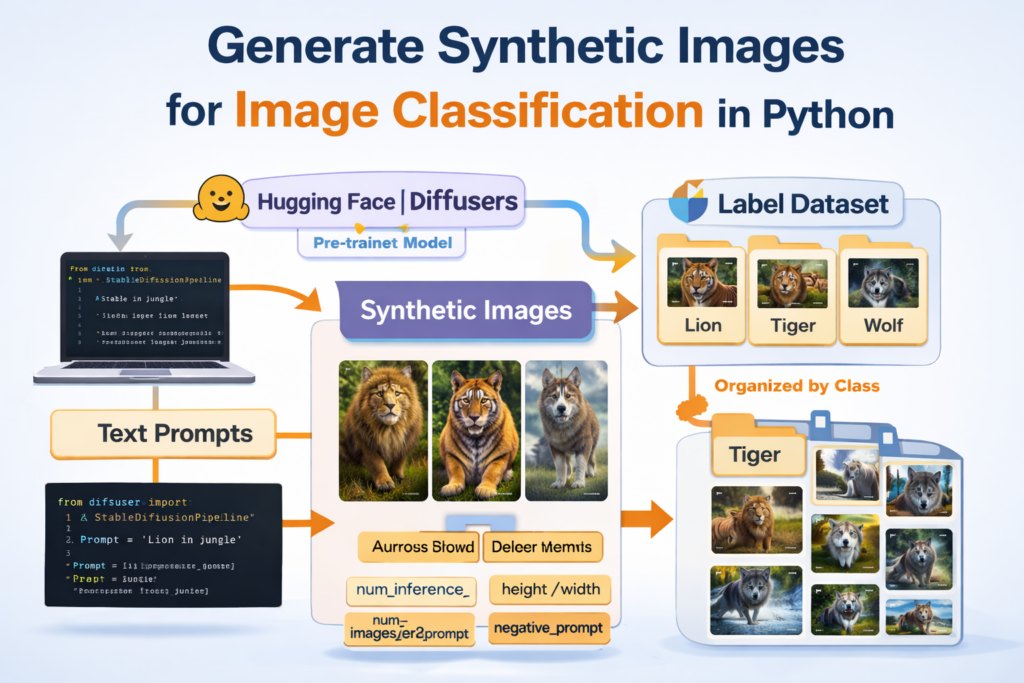
At a high level, the process involves using a text-to-image model to create images from carefully crafted prompts, then refining the output through parameter tuning and quality controls. By adjusting image size, inference steps, and negative prompts, you can improve clarity and reduce artifacts. Organizing the generated images into class-based folders completes the workflow, producing a structured dataset that can be immediately used in training pipelines for image classification tasks.
Synthetic image generation for classification Build a Python pipeline that generates labeled training images automatically This tutorial’s code is designed to help you turn Stable Diffusion into a practical dataset generator for image classification. Instead of generating a few “cool” images and stopping there, the goal is to create a repeatable pipeline that can produce many images per class, keep the output consistent, and save everything into a clean folder structure your training loop can read immediately.
The workflow starts by loading a Stable Diffusion model through Hugging Face Diffusers and validating that your environment is working end-to-end. You generate a few baseline images from prompts and preview them with Matplotlib, which is a simple but important step: it confirms the model loads, the GPU is used correctly, and the prompts are producing the type of images you expect before you scale up.
Next, the code focuses on the knobs that matter when you want dataset-quality outputs. Parameters like num_inference_steps influence detail and stability, height and width enforce consistent input dimensions, and num_images_per_prompt lets you generate variation without rewriting prompts. The negative_prompt is used as a quality filter, pushing the model away from blur, distortions, and low-quality artifacts that can pollute a training set.
Finally, the pipeline scales the exact same idea into dataset generation: a list of classes, a dictionary of prompts per class, and a loop that generates images in batches while saving them into per-class folders. The end result is a labeled dataset on disk—organized, reproducible, and ready to plug into an image classification training pipeline in TensorFlow or PyTorch.
Link to the video here
Download the code here or here
Master Computer Vision
Follow my latest tutorials and AI insights on my
Personal Blog .
Beginner Complete CV Bootcamp
Foundation using PyTorch & TensorFlow.
Get Started → Interactive Deep Learning with PyTorch
Hands-on practice in an interactive environment.
Start Learning → Advanced Modern CV: GPT & OpenCV4
Vision GPT and production-ready models.
Go Advanced →
Generating synthetic images for classification Generate synthetic images for image classification in Python Generate synthetic images for image classification in Python by turning a Stable Diffusion pipeline into a repeatable dataset factory.
This approach is especially useful when real data is limited, expensive, or inconsistent.
The tutorial code builds confidence step by step.
By the end, you will generate synthetic images for image classification at scale.
Set up Diffusers and Stable Diffusion so your GPU is ready A synthetic dataset pipeline is only as reliable as the environment it runs in.
When your goal is to generate synthetic images for image classification, reproducibility matters.
You also want to confirm GPU readiness early.
Quick takeaway: A clean environment plus the correct CUDA build prevents most setup headaches later.
### Create a new Conda environment for dataset generation with Python 3.11. conda create -- name generate - Dataset python = 3.11 ### Activate the environment so installs go into the right place. conda activate generate - Dataset ### Verify that CUDA is available on your machine. nvcc -- version ### Install PyTorch with CUDA 12.4 support for GPU acceleration. conda install pytorch == 2.5 . 1 torchvision == 0.20 . 1 torchaudio == 2.5 . 1 pytorch - cuda = 12.4 - c pytorch - c nvidia ### Install fsspec for model and file handling dependencies. pip install fsspec == 2025.2 . 0 ### Install sympy to satisfy common deep learning dependency chains. pip install sympy == 1.13 . 1 ### Install OpenCV for saving and previewing generated images. pip install opencv - python == 4.11 . 0.86 ### Install Matplotlib for quick visual previews. pip install matplotlib == 3.10 . 1 ### Install Diffusers for Stable Diffusion pipelines. pip install diffusers == 0.32 . 2 ### Install Transformers for text encoder components used by diffusion models. pip install transformers == 4.49 . 0 ### Install Accelerate for device placement and performance utilities. pip install accelerate == 1.4 . 0 Short summary: You now have a GPU-ready environment that can reliably run Diffusers and Stable Diffusion for dataset generation.
Load the pipeline and sanity-check your first generations Before you scale anything, you want proof the pipeline works end-to-end.
This is a key habit when you generate synthetic images for image classification.
You also preview results immediately with Matplotlib.
Quick takeaway: Generate one image first, verify quality, then scale.
### Import the Stable Diffusion pipeline class from Diffusers. from diffusers import StableDiffusionPipeline ### Import Matplotlib for displaying generated images. import matplotlib.pyplot as plt ### Import Torch for dtype control and CUDA usage. import torch ### Choose the model checkpoint to load from the Hugging Face Hub. model_id1 = " dreamlike-art/dreamlike-diffusion-1.0 " ### Load the pretrained Stable Diffusion pipeline in float16 for faster GPU inference. pipe = StableDiffusionPipeline.from_pretrained ( model_id1 , torch_dtype = torch.float16 , use_safetensors = True ) ### Move the pipeline to the CUDA device for GPU generation. pipe = pipe.to ( " cuda " ) ### Define a baseline prompt to validate the pipeline output. prompt = " A brave young girl dressed in medieval leather armor stands in an enchanted forest. Sunlight filters through the tall, ancient trees, casting golden beams on her as she holds a longsword. Her determined gaze suggests she is ready for battle. The background is filled with magical creatures peeking from the shadows. The art style is semi-realistic with fantasy elements, detailed textures, and rich colors. " ### Generate one image from the prompt and take the first result. image = pipe ( prompt ) .images [ 0 ] ### Print the prompt so your logs always match the generated output. print ( " [PROMPT]: " , prompt ) ### Display the generated image in the notebook or script window. plt.imshow ( image ) ### Hide axes for a clean preview. plt.axis ( " off " ) ### Render the preview window. plt.show () ### Define a second prompt to test a different scene and composition. prompt2 = " A cheerful young girl with braided auburn hair carries a basket of apples in a bustling medieval market. Wooden stalls line the cobblestone streets, selling fresh bread, textiles, and trinkets. Townsfolk chat, and a bard plays a lute nearby. The art style is colorful and slightly stylized, reminiscent of medieval storybook illustrations. " ### Generate one image from the second prompt. image = pipe ( prompt2 ) .images [ 0 ] ### Print the second prompt for traceability. print ( " [PROMPT]: " , prompt2 ) ### Display the generated image. plt.imshow ( image ) ### Hide axes for a clean preview. plt.axis ( " off " ) ### Render the preview. plt.show () ### Define a third prompt to test lighting, mood, and detail levels. prompt3 = " A girl dressed in a dark hooded cloak stands in the ruins of an old cathedral, holding an ancient book of spells. The full moon shines through the broken stained-glass windows, casting colorful reflections on the stone floor. Her eyes glow faintly with magic as she whispers an incantation. The scene has a gothic fantasy style, with deep shadows and glowing magical effects. " ### Generate one image from the third prompt. image = pipe ( prompt3 ) .images [ 0 ] ### Print the third prompt for tracking. print ( " [PROMPT]: " , prompt3 ) ### Display the generated image. plt.imshow ( image ) ### Hide axes for a clean preview. plt.axis ( " off " ) ### Render the preview. plt.show () Short summary: You confirmed the model loads, runs on GPU, and produces images that match your prompts.
Generate synthetic images (step 1): Generate synthetic images for image classification in Python 23 Generate synthetic images for image classification in Python 24 Generate synthetic images for image classification in Python 25
Tune parameters that actually improve dataset quality Once the baseline works, the next step is quality control.
This section introduces a simple helper function that lets you test parameters quickly.
That makes experimentation fast and structured.
Quick takeaway: A small wrapper function turns random generation into controlled experiments.
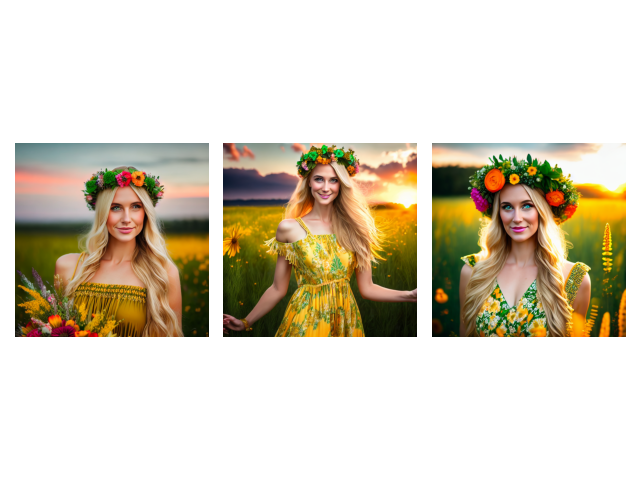
### Import the Stable Diffusion pipeline for text-to-image generation. from diffusers import StableDiffusionPipeline ### Import Torch for float16 and CUDA device placement. import torch ### Import Matplotlib for side-by-side previews. import matplotlib.pyplot as plt ### Choose the same model checkpoint used for generation. model_id1 = " dreamlike-art/dreamlike-diffusion-1.0 " ### Load the pipeline with float16 for faster GPU inference. pipe = StableDiffusionPipeline.from_pretrained ( model_id1 , torch_dtype = torch.float16 , use_safetensors = True ) ### Move the pipeline to the CUDA device. pipe = pipe.to ( " cuda " ) ### Define a function that generates one or more images using a params dictionary. def generate_image ( pipe , prompt , params ) : ### Run the pipeline with the prompt and any provided parameters. img = pipe ( prompt , ** params ) .images ### Count how many images were generated for display logic. num_images = len ( img ) ### If multiple images were generated, show them in a single row for comparison. if num_images > 1 : ### Create a horizontal subplot grid sized to the number of images. fig , ax = plt.subplots ( nrows = 1 , ncols = num_images ) ### Loop over images and render each one into its subplot. for i in range ( num_images ) : ### Display each generated image. ax [ i ] .imshow ( img [ i ]) ### Hide axes for a clean grid. ax [ i ] .axis ( " off " ) ### If only one image was generated, display it as a single figure. else : ### Create a new figure for the single image case. fig = plt.figure () ### Display the first and only generated image. plt.imshow ( img [ 0 ]) ### Hide axes for a clean preview. plt.axis ( " off " ) ### Tighten layout so images do not overlap. plt.tight_layout () ### Define a prompt that is suitable for testing portrait consistency. prompt = " portrait of a pretty blonde girl, a flower crown, flowing maxi dress with colorful patterns and fringe, a sunset or nature scene, green and gold color scheme " ### Start with an empty params dict to see the baseline output. params = {} ### Print a baseline label before generating. print ( " No prameters " ) ### Generate an image using the baseline configuration. generate_image ( pipe , prompt , params ) ### Render the Matplotlib figure. plt.show () Short summary: You now have a reusable generation wrapper and a baseline result to compare against tuned settings.
Clean up artifacts with negative prompts and consistency settings Now you start dialing in settings that matter for classification datasets.
This is where “generation” becomes “dataset generation.”
Negative prompts are especially useful here.
Quick takeaway: These parameters are your dataset quality controls.
### Define a higher number of inference steps for improved detail. params = { " num_inference_steps " : 100 } ### Print the current parameter configuration. print ( params ) ### Generate and preview an image using the new settings. generate_image ( pipe , prompt , params ) ### Render the preview. plt.show () ### Define explicit output dimensions to keep classifier inputs consistent. params = { " num_inference_steps " : 100 , " height " : int ( 640 * 1.5 ) , " width " : 512 } ### Print the dimension-tuned parameters. print ( params ) ### Generate and preview an image at the chosen dimensions. generate_image ( pipe , prompt , params ) ### Render the preview. plt.show () ### Generate multiple images per prompt to increase variation within the same class idea. params = { " num_inference_steps " : 100 , " num_images_per_prompt " : 3 } ### Print the multi-image parameters. print ( params ) ### Generate and preview a small grid of images. generate_image ( pipe , prompt , params ) ### Render the preview. plt.show () ### Add a negative prompt to reduce low-quality outputs and common artifacts. params = { " num_inference_steps " : 100 , " num_images_per_prompt " : 3 , ' negative_prompt ' : ' ugly, distorted, low quality ' } ### Print the final tuned parameters. print ( params ) ### Generate and preview images with negative prompting enabled. generate_image ( pipe , prompt , params ) ### Render the preview. plt.show () Short summary: You built a repeatable tuning workflow that improves clarity, consistency, and usefulness for image classification datasets.
Generate synthetic images (step 2): Generate synthetic images for image classification in Python 26 Generate synthetic images for image classification in Python 27 Generate synthetic images for image classification in Python 28 Generate synthetic images for image classification in Python 29 Generate synthetic images for image classification in Python 30 Turn class prompts into a labeled dataset plan This is where the tutorial shifts from “make images” to “make training data.”
The code defines your classes as a list and your prompts as a dictionary.
You also define a single generation configuration that stays consistent.
Quick takeaway: Classes plus prompts plus shared params equals a clean dataset blueprint.
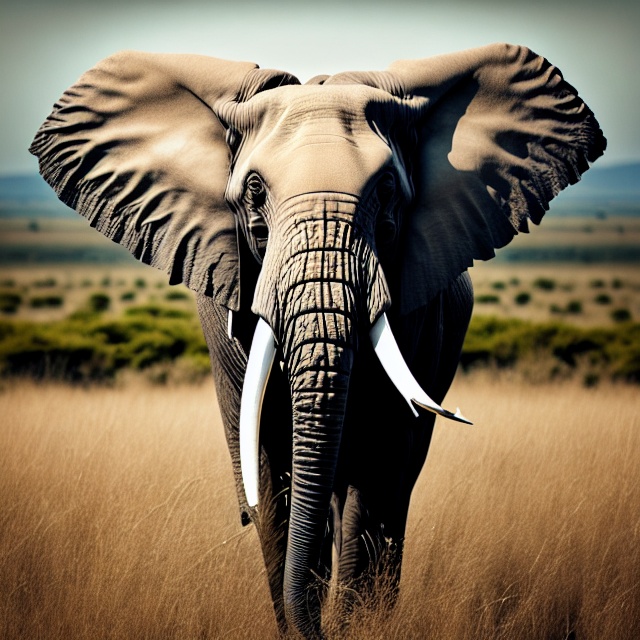
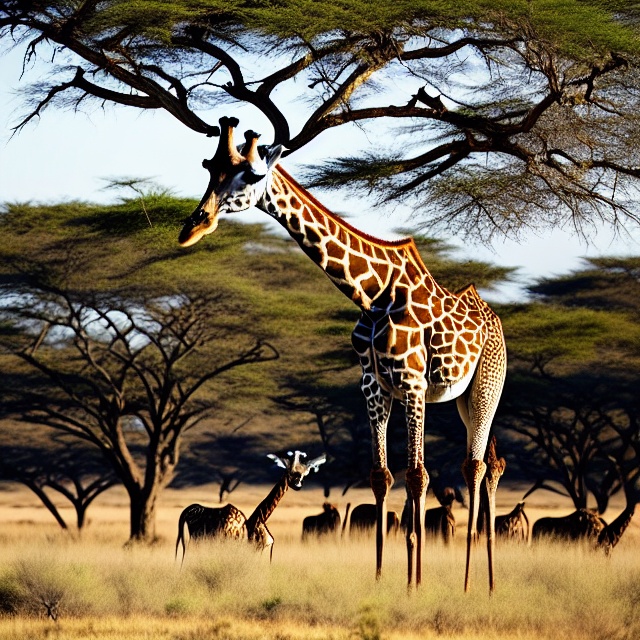
### Import OS utilities for directory creation and file paths. import os ### Import OpenCV for saving and previewing images. import cv2 ### Import Torch for float16 and CUDA usage. import torch ### Import NumPy for image conversion and array handling. import numpy as np ### Import the Stable Diffusion pipeline for text-to-image generation. from diffusers import StableDiffusionPipeline ### Define the class names you want in your dataset. wild_animal_classes = [ " Lion " , " Tiger " , " Elephant " , " Leopard " , " Wolf " , " Bear " , " Giraffe " , " Zebra " , " Cheetah " , " Hippopotamus " ] ### Define one high-quality prompt per class so labels stay consistent. animal_prompts = { " Lion " : " A majestic lion standing in the savannah, golden fur, realistic, ultra-detailed, sharp focus, photorealistic " , " Tiger " : " A powerful Bengal tiger walking in a dense jungle, orange fur with black stripes, ultra-detailed, photorealistic " , " Elephant " : " A giant African elephant standing in a grassland, large ears, realistic texture, photorealistic " , " Leopard " : " A spotted leopard climbing a tree in the wild, muscular body, sharp gaze, ultra-detailed, photorealistic " , " Wolf " : " A wild gray wolf howling in a snowy forest, thick fur, sharp eyes, ultra-detailed, photorealistic " , " Bear " : " A massive brown bear standing near a river, wet fur, muscular body, ultra-detailed, photorealistic " , " Giraffe " : " A tall giraffe eating leaves from a tree in the African savannah, long neck, ultra-detailed, photorealistic " , " Zebra " : " A zebra running across the grasslands, black and white stripes, ultra-detailed, photorealistic " , " Cheetah " : " A fast cheetah sprinting through the savannah, spotted fur, muscular legs, ultra-detailed, photorealistic " , " Hippopotamus " : " A large hippopotamus standing in a river, wet skin, powerful body, ultra-detailed, photorealistic " } ### Define a negative prompt to reduce blur and unrealistic artifacts across all classes. negative_prompt = " blurry, distorted, unrealistic, low-quality, bad anatomy, extra limbs, unnatural colors " ### Select the Stable Diffusion model checkpoint to use for generation. model_id = " dreamlike-art/dreamlike-diffusion-1.0 " ### Load the pipeline in float16 for faster GPU inference. pipe = StableDiffusionPipeline.from_pretrained ( model_id , torch_dtype = torch.float16 , use_safetensors = True ) ### Move the pipeline to the CUDA device. pipe = pipe.to ( " cuda " ) ### Define the dataset output directory. output_dir = " d:/temp/wildlife_dataset " ### Create the output directory if it does not exist. os.makedirs ( output_dir , exist_ok = True ) ### Choose how many images to generate per class. num_images = 100 ### Choose a fixed image size for consistent classifier inputs. image_size = 640 ### Define shared generation parameters for all classes. params = { ' num_inference_steps ' : 100 , ' width ' : image_size , ' height ' : image_size , ' negative_prompt ' : negative_prompt } Short summary: Your dataset plan is now structured, class-labeled, and ready to scale with consistent generation settings.
Batch-generate images into folders your training loop can read This final section is the “dataset factory.”
The folder structure is the key output here.
The optional preview step is useful for spot-checking.
Quick takeaway: This loop is how you generate synthetic images for image classification at scale.
### Loop over each animal class to create a labeled folder. for animal in wild_animal_classes: ### Create a folder path for the current class. class_dir = os.path.join ( output_dir , animal ) ### Create the class folder if it does not exist. os.makedirs ( class_dir , exist_ok = True ) ### Generate a fixed number of images per class. for i in range ( num_images ) : ### Print progress so you can track long runs. print ( f " Generating {animal} image {i+1}/{num_images} " ) ### Generate one image using the class-specific prompt and shared params. img = pipe ( animal_prompts [ animal ] , ** params ) .images [ 0 ] ### Convert the PIL image to a NumPy array and switch RGB to BGR for OpenCV. img_array = np.array ( img )[ : , : , :: -1 ] # Convert to BGR for OpenCV ### Build the output filename for the generated image. image_path = os.path.join ( class_dir , f " {animal}_{i+1}.jpg " ) ### Save the image to disk. cv2.imwrite ( image_path , img_array ) ### Display the generated image in a window for a quick visual check. cv2.imshow ( f " {animal} {i+1}/{num_images} " , img_array ) ### Keep the preview visible briefly before moving on. cv2.waitKey ( 1000 ) # Display for 1000ms ### Close the window to avoid too many open windows. cv2.destroyAllWindows () ### Print a completion message once all classes are generated. print ( " Dataset generation complete! " ) Short summary: You now have a labeled folder dataset on disk, generated entirely in Python, ready for image classification training.
Result of generate synthetic images (step 3): Quick summary of the full tutorial You set up a stable environment, validated Stable Diffusion generation, and learned how to tune parameters for clearer outputs.
FAQ What does it mean to generate synthetic images for image classification? It means creating labeled training images with a generative model instead of collecting photos manually. The result is a folder dataset a classifier can train on.
Why pin height and width during generation? Fixed dimensions keep inputs consistent for training and reduce surprises in preprocessing. It also makes prompt and parameter comparisons more meaningful.
What does num_inference_steps change in Stable Diffusion? More steps often improves detail and stability but increases runtime. For datasets, choose a setting that looks clean without being too slow to scale.
When should I use num_images_per_prompt? Use it to generate variety fast while keeping the same label and prompt. It’s an easy way to boost diversity without changing your dataset structure.
What is a negative prompt and why does it help? A negative prompt tells the model what to avoid, like blur and distortions. It helps reduce low-quality samples that can confuse a classifier.
How do I keep the style consistent across classes? Keep a shared prompt template and reuse the same generation parameters across classes. Only change the subject description so labels stay clean.
Should I preview images while generating a dataset? Previewing helps catch prompt issues early, but it slows large runs. Many workflows preview only the first few images per class.
Can synthetic datasets introduce bias? Yes, because prompts and model training data influence what gets generated. Add prompt variety and validate on real images when possible.
How many images per class do I need? Start with a small baseline like 50–200 per class and measure results. Scale based on validation performance instead of guessing.
What’s the easiest way to use this dataset in training? Use one folder per class and a standard directory-based loader. This structure works well across common TensorFlow and PyTorch pipelines.
Conclusion Generate synthetic images for image classification in Python when you want speed, control, and repeatability in your dataset creation workflow.
The real win is the final folder structure.
As you scale, treat generation like data engineering.
Connect : ☕ Buy me a coffee — https://ko-fi.com/eranfeit
🖥️ Email : feitgemel@gmail.com
🌐 https://eranfeit.net
🤝 Fiverr : https://www.fiverr.com/s/mB3Pbb
Enjoy,
Eran
 Skip to content