Last Updated on 04/05/2026 by Eran Feit
Free AI image generator in Python — if you’re looking for a practical way to generate images from text using AI, this tutorial will walk you through the entire process step by step. You’ll learn how to use modern models like Stable Diffusion to turn simple text prompts into high-quality images, all using Python. By the end of this guide, you’ll be able to build your own text-to-image pipeline, customize outputs, and understand exactly how AI image generation works behind the scenes.
Modern AI image generators often rely on latent diffusion models. These models first compress an image into a lower‑dimensional latent space using an autoencoder, then progressively add and remove noise through a diffusion process guided by a denoising neural network and a text encoder. By operating in latent space, the model can work with more compact representations, making training and inference more efficient. The text component is handled by a language model that converts a user’s prompt into a vector of semantic information, which guides the diffusion model as it removes noise to reveal the final image
Other AI image generators use generative adversarial networks (GANs). In a GAN, two networks compete in a game: a generator tries to create realistic images, and a discriminator tries to distinguish between real and synthetic data. Over time the generator learns to produce increasingly convincing images as it seeks to fool the discriminator. Though diffusion models are more prominent today, GANs were among the first techniques to demonstrate high‑quality image synthesis and still underpin many creative applications.
Create AI Images with Your Face How to Build a Free AI Image Generator with Python and Stable Diffusion To truly master the ability to build a free AI image generator with Python and Stable Diffusion , it is essential to understand the underlying architecture of Latent Diffusion Models (LDMs). Unlike earlier generative models that attempted to manipulate pixels directly—which is computationally expensive—Stable Diffusion operates in a “Latent Space.” This means the model works on a compressed, mathematical representation of an image, allowing it to generate high-resolution visuals even on consumer-grade GPUs with limited VRAM.
The Role of the Text Encoder and CLIP The process begins with your text prompt. When you input a description, a specialized component called a CLIP (Contrastive Language-Image Pre-training) Text Encoder translates your human language into a numerical vector (an “embedding”). This embedding acts as a compass for the AI, guiding it to understand the semantic meaning of your request. By leveraging the Hugging Face Diffusers library, our Python script seamlessly passes these embeddings into the diffusion pipeline, ensuring that the final visual output aligns perfectly with your creative intent.
Iterative Denoising and the U-Net Architecture The actual “generation” is an iterative process of denoising. The model starts with a canvas of pure Gaussian noise—essentially digital static. Through a series of steps (controlled by the num_inference_steps parameter), a neural network known as a U-Net identifies and removes noise based on the guidance from your text prompt. With each pass, the U-Net “cleans” the latent image, slowly revealing structured patterns, textures, and shapes until a coherent image emerges. This is why Stable Diffusion is so efficient; it isn’t “drawing” from scratch but rather “finding” the image within the noise.
Hardware Acceleration with CUDA and PyTorch The efficiency of this local AI pipeline is largely dependent on hardware-software synergy. By utilizing PyTorch and CUDA acceleration , our script offloads the heavy mathematical tensors to the NVIDIA GPU’s cores. This parallel processing is what allows a complex text-to-image synthesis to complete in seconds rather than minutes. Understanding this technical logic is crucial for developers looking to optimize their scripts for speed or scale, making this Python-based approach a superior, cost-effective alternative to cloud-hosted APIs.
PhotoMaker vs. InstantID: Choosing the Best Free AI Tool for Consistent Characters Technical Comparison: The “Identity Preservation” Trio In the open-source (Python/ComfyUI) ecosystem, three tools dominate the “zero-shot” identity niche.
Feature PhotoMaker (V2/V3) InstantID PuLID Best For High speed & artistic style transfer. Extreme facial fidelity (1:1 match). Precise identity without “leakage.” Input Requirement 1–4+ reference images. Single face image + facial landmarks. 1 reference + lightning-fast encoding. Technical Logic Uses “Stacked ID Embeddings” to merge face features into text tokens. Combines ControlNet (IP-Adapter) with facial landmark detection. Uses “Contrastive Alignment” to keep the face but allow expression changes. Hardware Strain Low: Very efficient on VRAM.High: Heavy due to dual-model architecture.Medium: Optimized for SDXL and Flux 2.
Step-by-Step free AI image generator in Python The heart of this tutorial is the step-by-step code that turns your computer into a personal ai image generator. Instead of relying on a hosted service, you’ll see how a few well-chosen commands give you a complete local setup. The target of the code is to make the whole process “install → run → generate” as smooth as possible, even if you’re not used to working with deep-learning repos. Think of it as a blueprint that you can copy, tweak, and reuse for other AI projects later.
We start with environment preparation. The code creates a new Conda environment named photomaker and installs a specific Python version. This isolates all dependencies so you don’t accidentally break other projects or system libraries. After activating the environment, the next commands clone the PhotoMaker repository and move into its folder. At this stage you basically have the source code of an ai image generator on your machine, but it’s not “alive” yet — it still needs the right libraries and GPU support.
The installation block is where the engine comes together. The script installs PyTorch with a CUDA build that matches your GPU drivers, so the heavy image generation work runs on the graphics card instead of the CPU. Then it adjusts the Windows requirements file, changing the omegaconf constraint so all packages can coexist. This tiny edit solves a version conflict that would otherwise crash the installation. The following pip commands pull in all the supporting pieces: tensor rearrangement (einops), GPU-accelerated inference (onnxruntime-gpu), image augmentation (albumentations), and diffusion tooling (diffusers). Together, these libraries make the PhotoMaker pipeline stable and fast.
Finally, the code shifts from setup to action. The python gradio_demo/app.py command launches a local Gradio application that wraps the model in a simple browser interface. When you open the printed URL, you see controls for choosing example presets (like the Newton template), uploading 3–4 photos of your face, and entering your prompts that must include the special img keyword. From your perspective it feels like a friendly web app, but everything is driven by the code you ran: it loads your images, encodes your identity, merges it with the prompt, and calls the diffusion model to generate new portraits. High-level summary: the target of this code is to give you a reliable, repeatable pipeline that turns a raw research repo into a practical, free tool for creating AI images with your face.
Link for the video tutorial here
You can find the instructions and the demo files here : https://eranfeit.lemonsqueezy.com/buy/8df92c64-a47b-40d1-b1b3-2b99baff2761 or here : https://ko-fi.com/s/3acd8c881f
Link to the full post for Medium users here .
Master Computer Vision
Follow my latest tutorials and AI insights on my
Personal Blog .
Beginner Complete CV Bootcamp
Foundation using PyTorch & TensorFlow.
Get Started → Interactive Deep Learning with PyTorch
Hands-on practice in an interactive environment.
Start Learning → Advanced Modern CV: GPT & OpenCV4
Vision GPT and production-ready models.
Go Advanced →
Configuring Your Environment: PyTorch and Diffusers Setup Before diving into identity-consistent generation, establishing a stable, isolated development environment is critical. In the rapidly evolving landscape of 2026’s generative AI, dependency conflicts are the leading cause of failed builds. By utilizing a dedicated Conda environment with Python 3.10, we ensure that the specific versions of PyTorch and the Hugging Face diffusers library required by PhotoMaker do not interfere with other computer vision projects on your system. Python 3.10 remains the “stability sweet spot,” offering the best compatibility with the underlying C++ backends utilized by modern tensor libraries.
Hardware-software synergy is the next pillar of a successful setup. Many developers overlook the Microsoft Visual Studio Redistributable , yet it is the essential “glue” for the CUDA-accelerated libraries that handle high-performance GPU tensors. Without these C++ runtime components, your system cannot properly interface with the NVIDIA driver’s low-level kernels. Verifying your CUDA installation with the nvcc command isn’t just a formality; it’s a diagnostic step to ensure your hardware is ready to handle the heavy VRAM demands of PhotoMaker’s stacked ID embedding architecture.
Finally, cloning the official PhotoMaker repository provides more than just the source code—it gives you access to the pre-configured weight-loading logic and specialized model architectures that define this tool. By navigating into the directory and preparing your workspace, you are setting the stage for a “Zero-Shot” inference pipeline. This localized approach allows for faster experimentation compared to cloud-based alternatives, giving you the freedom to iterate on your synthetic datasets or artistic profiles without worrying about latency or per-image costs.
### Install the Microsoft Visual Studio Redistributable needed for GPU libraries # (download and install manually) # https://aka.ms/vs/17/release/vc_redist.x64.exe ### Create a new Conda environment dedicated to PhotoMaker conda create -- name photomaker python = 3.10 ### Activate the new AI environment conda activate photomaker ### Clone the PhotoMaker GitHub repository into your working folder git clone https: // github.com / bmaltais / PhotoMaker.git ### Enter the PhotoMaker folder so we can install requirements and run the tool cd PhotoMaker ### Check your CUDA installation to confirm GPU compatibility nvcc -- version Summary of Environment Readiness :
With these steps completed, your workstation is now configured as a professional-grade AI development hub. You have successfully isolated your dependencies, bridged the gap between your OS and GPU hardware, and secured the necessary architectural files from the repository. This foundation is what allows for the seamless execution of complex identity-preservation tasks. From here, the next stage is installing the specific Python requirements to bridge these tools into a functional inference engine.
Why We Use the Latent Diffusion Architecture Most beginners mistake Stable Diffusion for a standard pixel-based generator. In reality, it operates in Latent Space . Instead of manipulating millions of pixels simultaneously—which would destroy your VRAM—the model works on a compressed “latent” representation of the image.
Pro-Engineer Tip: If you are running this on an NVIDIA RTX 3060 Ti or similar 8GB cards, you might encounter “Out of Memory” (OOM) errors. To mitigate this, we use the pipe.enable_attention_slicing() command. This breaks the high-resolution tensor operations into smaller steps, allowing high-quality generation even on mid-range consumer hardware without a significant performance hit.
Technical Comparison Table Feature Stable Diffusion v1.5 Stable Diffusion v2.1 SDXL 1.0 Native Resolution 512×512 768×768 1024×1024 VRAM Requirement ~4GB – 6GB ~6GB – 8GB 12GB+ Best For Fast prototyping Higher clarity Professional art Hugging Face ID runwayml/stable-diffusion-v1-5stabilityai/stable-diffusion-2-1stabilityai/stable-diffusion-xl-base-1.0
Installing PhotoMaker and Required AI Libraries The backbone of any local generative AI pipeline is the precise alignment between the deep learning framework and the GPU hardware. By installing PyTorch 2.0.1 with CUDA 11.8 support , we are establishing a deterministic environment that maximizes the throughput of NVIDIA’s Ampere and Ada Lovelace architectures. This specific versioning is crucial because it ensures that the tensor operations—the mathematical heavy lifting of the AI—are offloaded correctly to the GPU’s CUDA cores, preventing the dreaded “CPU fallback” that can make image generation 100x slower.
Effective AI development often requires what I call “Dependency Surgery.” In this setup, we manually adjust the OmegaConf version and force-install Einops 0.4.1 . These adjustments are not arbitrary; they solve critical “Version Hell” conflicts where the default GitHub requirements might accidentally exclude compatible stable releases or overlook specific tensor rearrangement logic required by the PhotoMaker architecture. By forcing these specific versions, we ensure that the model’s internal configuration remains consistent, preventing runtime crashes during the complex “Stacked ID Embedding” process.
To transition from a research script to a high-performance tool, we integrate an acceleration stack consisting of ONNX Runtime, Albumentations, and Diffusers . Utilizing onnxruntime-gpu allows us to leverage specialized hardware kernels for faster inference, while albumentations provides the robust image transformation logic necessary for prepping your reference photos. Finally, by pinning diffusers to version 0.29.1 , we secure a stable API for the underlying generative model, ensuring that future updates to the Hugging Face ecosystem don’t break your local implementation.
### Install PyTorch and TorchVision compiled specifically for CUDA 11.8 pip install torch == 2.0 . 1 + cu118 torchvision == 0.15 . 2 + cu118 -- index - url https: // download.pytorch.org / whl / cu118 ### Fix the omegaconf version conflict in the requirements file # Edit requirements-windows.txt and change: # "omegaconf>-2.3.0" # to: # "omegaconf>=2.3.0" ### Install all PhotoMaker dependency libraries pip install - r requirements - windows.txt ### Force-install einops, used for tensor operations in the model pip3 install -- force einops == 0.4 . 1 ### Install ONNX GPU runtime for accelerated inference pip install onnxruntime - gpu ### Install Albumentations for image transformations and augmentations pip install albumentations == 1.3 . 0 ### Install Diffusers for the underlying generative model pipeline pip install diffusers == 0.29 . 1 Summary of Library Configuration :
By following this surgical installation approach, you have moved beyond a “standard” install and created a hardware-optimized AI environment . You have successfully aligned your CUDA drivers with PyTorch, resolved deep-seated dependency conflicts, and installed a professional-grade acceleration stack. This meticulous setup is the key to achieving high-speed, identity-consistent image generation without the instability common in generic AI setups.
Running the Local PhotoMaker Demo Launching the local PhotoMaker demo represents the shift from environment configuration to active inference. By executing the app.py script, you are initializing a Gradio-based web interface , which serves as a professional-grade bridge between your Python backend and a user-friendly browser environment. This setup allows for real-time parameter manipulation—such as adjusting “Style Strength” or “ID Fidelity”—enabling you to observe how subtle changes in the latent diffusion process affect the final visual output without needing to re-run your script for every iteration.
On your first execution, the pipeline will automatically interface with the Hugging Face Hub to retrieve the necessary pre-trained model weights. These weights include the core Stable Diffusion XL (SDXL) architecture and the specialized PhotoMaker ID-encoder, which typically require approximately 15–20GB of disk space. Ensuring a stable internet connection during this initial download is vital; once these assets are cached locally, future launches will be nearly instantaneous, allowing for a completely offline, high-performance generative workflow that bypasses the latency of remote cloud APIs.
A significant advantage of running this demo locally via 127.0.0.1 (localhost) is the absolute privacy it affords. In identity-preservation tasks, you are often working with personal or sensitive reference photos to guide the AI. By hosting the inference engine on your own NVIDIA hardware, you ensure that these data points never leave your local machine, avoiding the privacy risks and restrictive content policies associated with centralized platforms like Midjourney or DALL-E. This local-first approach is the gold standard for engineers building custom applications or proprietary synthetic datasets.
Pro-Tip (VRAM Management): When loading the model, we use torch_dtype=torch.float16. This is a crucial optimization for consumer-grade GPUs. By using half-precision instead of the standard float32, you reduce the VRAM requirement by nearly 50% with negligible loss in image quality, allowing the generator to run smoothly on cards with as little as 4GB to 6GB of memory.
### Launch the PhotoMaker Gradio application locally python gradio_demo / app.py ### Wait for the model weights to download on the first run # This may take a few minutes depending on your connection. ### Copy the local URL printed in the terminal into your browser # Example: # http://127.0.0.1:7860 Once the UI is open, you’re ready to upload your face images and generate new portraits.
Summary of Launch and Execution With the Gradio server active and the local URL accessed, you have successfully deployed a state-of-the-art identity-preserving AI generator . You are no longer reliant on external subscriptions or cloud availability. Your local environment is now optimized to transform text prompts into high-fidelity, consistent characters—providing a robust foundation for everything from creative art projects to professional-grade synthetic data generation for Computer Vision models.
The magic of this generator lies in the ‘Latent Space.’ Instead of generating pixels directly, the model works in a compressed mathematical representation of the image. It starts with pure Gaussian noise and, guided by your text prompt, iteratively ‘denoises’ the latent image until a coherent visual structure emerges. This iterative process is controlled by the num_inference_steps parameter; more steps generally lead to higher quality but require more processing time.
Example Prompts to Generate AI Images of Yourself Mastering identity-consistent generation requires a nuanced understanding of Prompt Engineering and token weighting. In the PhotoMaker architecture, the keyword img serves as a critical “trigger token.” When you wrap a description like (a man img inside 50 years old with glasses), you are not just describing a person; you are instructing the model to inject the facial features extracted from your reference photos into that specific semantic slot. This allows the AI to blend your unique identity with complex thematic elements—such as a mechanical warmachine—while maintaining the age and stylistic markers (like glasses) defined in your text.
The complexity of the prompt—utilizing terms like “subsurface scattering,” “hyper-realistic,” and “concept art”—is designed to guide the Latent Diffusion Model toward high-fidelity regions of its training data. By specifying the lighting and material properties (ivory, gold, and black), you are narrowing the mathematical “search space” within the model’s latent representation. This results in a more coherent image where the mechanical textures and the human identity coexist without the “visual noise” or blurring common in simpler, low-effort prompts.
Complementing the positive prompt is the Negative Prompt , which acts as a set of boundary constraints for the AI. By using weighted tokens like (worst quality:1.4) and (watermark:1.2), you are effectively telling the model to subtract these unwanted vectors from the generation process. This is particularly important for local generation, where the model might default to “low-res” or “airbrushed” aesthetics if not strictly forbidden. This surgical approach to prompt design ensures that the final output is an “award-winning” masterpiece rather than a generic, distorted AI artifact.
Instructions : Inside the Gradio interface, choose the Newton example (the second one).
Below is the full prompt workflow, embedded directly into the tutorial.
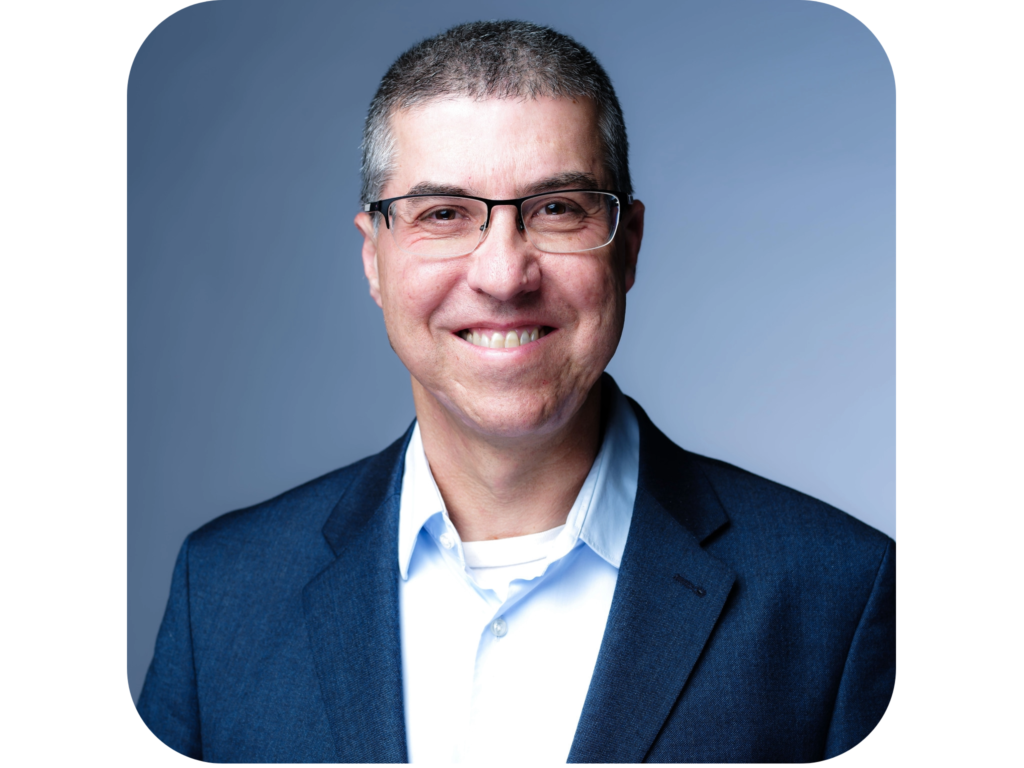
Here is my test image :
Eran Feit Image 1 Prompt : “cinematic photo long shot portrait of a (blue) ivory mechanical warmachine ( a man img inside 50 years old with glasses) with (gold) and (black) on a scifi battlefield, high details, sci-fi, subsurface scattering, hyper realistic, concept art, illustration, extremely detailed, 4K, smooth, masterpiece, award-winning”
Negative prompts to prevent unwanted defects :“beard , (Oriental, chinese, japanese)(necklace:1.4),(wrinkles on the forehead:1),(worst quality, low quality, normal quality, lowres, low details, oversaturated, undersaturated, overexposed, underexposed, grayscale, bw, bad photo, bad photography, bad art:1.4), (watermark, signature, text font, username, error, logo, words, letters, digits, autograph, trademark, name:1.2), (blur, blurry, grainy), morbid, ugly, asymmetrical, mutated malformed, mutilated, poorly lit, bad shadow, draft, cropped, out of frame, cut off, censored, jpeg artifacts, out of focus, glitch, duplicate, (airbrushed, cartoon, anime, semi-realistic, cgi, render, blender, digital art, manga, amateur:1.3), (3D ,3D Game, 3D Game Scene, 3D Character:1.1), (bad hands, bad anatomy, bad body, bad face, bad teeth, bad arms, bad legs, deformities:1.3) “
Image generation settings : Seed: 1567720731
Here is the result :
Free AI Image Generator in Python – Build Your Own Text-to-Image Model 11 Image 2 Prompt (Another angle and style focusing on realism and outdoor lighting ): “photo of a man img ,dr3w3, facial hair, highres, realistic, from below, from side, looking down, looking at viewer, medium closeup, a homoerotic man in a hat standing in front of tropical trees, (wearing a summer shirt,:1.2) miami, 1boy, solo, bara, hat, abs, sky, cloud, outdoors, (tattoo:1.2), day, tree, earring, male focus, muscular male, facial hair, very short hair, perfect face, perfect eyes, dynamic angle”
Negative prompts to avoid distortions “beard, (deformed iris, deformed pupils, semi-realistic, cgi, 3d, render, sketch, cartoon, drawing, anime, mutated hands and fingers:1.4), (deformed, distorted, disfigured:1.3), poorly drawn, bad anatomy, wrong anatomy, extra limb, missing limb, mutation, ugly, amputation, bad-hands-5, BadDream, (UnrealisticDream:1.2), nsfw:1.3 “
Seed: 1447017537
Here is the result :
Free AI Image Generator in Python – Build Your Own Text-to-Image Model 12 Image 3 Prompt : “a man img in a leather jacket standing in a city at night with neon signs on the buildings behind him, Colin Middleton, blade runner, cyberpunk art, retrofuturism”
Negative prompt : “(low quality) “
Seed: 1100574280
Summary of free AI image generator in Python By utilizing these high-precision prompts, you have successfully moved from basic image gcontrolled identity synthesis . You now understand how to use the img trigger to bridge the gap
Expert Insight: To improve your results, consider the ‘Inference Steps’ parameter (default is usually 50). Increasing this value allows the model to perform more denoising passes, resulting in higher detail but slower generation times. For rapid prototyping, you can drop this to 20-30 steps to find a composition you like before committing to a high-quality render.
FAQ — Common Questions About This AI Face Generator Do I need a GPU for the PhotoMaker tutorial? A GPU is recommended for fast generation, but CPU mode also works with slower performance.
Why must my prompt include the img keyword? The img keyword tells the model where to place your face within the generated image.
How many photos should I upload? Uploading 3–5 photos from different angles provides enough identity detail for accurate generation.
Why use negative prompts? Negative prompts reduce distortion, artifacts, and other quality issues in your final images.
What does the guidance scale do? Guidance scale controls how closely the image should follow your prompt, balancing creativity and accuracy.
My output looks blurry. How can I improve it? Increase sampling steps, adjust guidance scale, or improve the lighting in your uploaded photos.
Can I generate cinematic or stylized pictures? Yes, you can choose any artistic or cinematic style as long as the img token remains in your prompt.
Does PhotoMaker work offline? Yes, after downloading model weights, everything runs fully offline and locally.
Is this method private and secure? Yes, since you’re not uploading photos to any server, all image processing stays on your machine.
Can I change the reference images later? Absolutely — you can upload new face photos anytime to guide the identity of future images.
Conclusion Creating AI images with your own face has never been easier, and PhotoMaker provides a powerful, free, and privacy-friendly way to experiment with identity-based image generation. By setting up a clean environment, installing the correct libraries, and running the Gradio demo locally, you gain full creative control without relying on external services.
The included prompts and examples give you a strong starting point for generating high-quality results, whether you prefer cinematic sci-fi armor, lifestyle portraits, or stylized cyberpunk scenes. As you explore further, you’ll discover that modifying guidance scales, seeds, and descriptive terms can dramatically influence your outcomes — making this workflow an endlessly creative tool.
Whether you’re a beginner exploring AI art for the first time or an experienced creator adding a new workflow to your toolset, this tutorial equips you with everything needed to generate stunning, personalized AI images. Enjoy the process, experiment boldly, and make it your own.
Connect : ☕ Buy me a coffee — https://ko-fi.com/eranfeit
🖥️ Email : feitgemel@gmail.com
🌐 https://eranfeit.net
🤝 Fiverr : https://www.fiverr.com/s/mB3Pbb
Enjoy,
 Skip to content