Last Updated on 22/04/2026 by Eran Feit
Modern computer vision has often felt like a jigsaw puzzle where the pieces don’t quite fit—historically, you might use YOLO for detection, a separate transformer for captioning, and an entirely different OCR engine for text extraction. This Microsoft Florence-2 tutorial is designed to dismantle that fragmented workflow by introducing you to a unified vision-language foundation model that handles nearly every visual task within a single, elegant architecture. We are moving away from “Frankenstein pipelines” and toward a streamlined, efficient approach that leverages the power of Microsoft’s groundbreaking unified representation.
Developers and AI researchers who have struggled with the massive overhead of managing multiple specialized models will find this guide an essential pivot point for their projects. By consolidating complex tasks like phrase grounding and detailed captioning into one model, you significantly reduce inference latency and deployment complexity. This shift empowers you to build smarter, faster applications without the traditional “context switching” required by older, rigid AI stacks, ultimately saving hours of integration work and troubleshooting.
The true strength of this transition lies in the model’s ability to understand spatial relationships and textual nuances simultaneously. Instead of just receiving a cold bounding box, you gain a system that can “read” the scene, describe it in rich natural language, or find specific objects based on a descriptive text prompt. This deep integration between vision and language is what separates modern AI from the basic classifiers of the past, providing a level of precision and “common sense” reasoning that was previously unattainable for independent developers.
To ensure you can master these capabilities immediately, this Microsoft Florence-2 tutorial translates theoretical power into a practical, step-by-step roadmap. We begin with a clean Conda environment setup to avoid dependency hell, move through the nuances of image captioning, and culminate in advanced OCR tasks involving complex polygon mapping. By the end of this article, you will have transitioned from running basic detection scripts to deploying a multi-functional vision system that is truly state-of-the-art.
So, Why is Everyone Buzzing About This Microsoft Florence-2 Tutorial Lately? At its core, Florence-2 is a sequence-to-sequence foundation model that treats all computer vision tasks as a language-processing problem. Whether you are asking the model to detect a parrot in a crowded street or transcribe a handwritten page from a vintage book, it translates those visual inputs into structured text tokens. This high-level design allows it to be incredibly versatile; it doesn’t just “see” an image in a vacuum, it interprets the underlying intent of your prompt, making it a “multi-tasker” by design rather than by forced integration of separate libraries.
This technology is specifically targeted at developers, data scientists, and automation engineers who need enterprise-grade performance without the enterprise-grade hardware headaches. Because Florence-2 is released in both ‘base’ and ‘large’ versions, it is as much at home on edge devices as it is on high-end GPU clusters. It successfully bridges the gap between massive, inaccessible “black box” models and lightweight, hyper-specific tools, offering a scalable middle ground that is remarkably easy to initialize and deploy using the Transformers library.
Beyond the technical specifications, the ultimate goal of this model is to provide “zero-shot” capabilities that feel intuitive to the user. Most traditional models require extensive, expensive training on niche datasets to recognize new categories of objects, but Florence-2 uses its vast pre-trained knowledge to identify objects and text “out of the box.” This makes it the foundational cornerstone for the next generation of AI applications—ranging from automated content moderation and accessibility tools for the visually impaired to complex industrial inspection systems that require both visual recognition and textual context.
Florence-2 image captioning AI Building a Multi-Purpose Vision Pipeline with Just a Few Lines of Python The primary goal of the code provided in this tutorial is to establish a unified, “one-stop-shop” for visual intelligence. Instead of writing separate, bulky scripts for every individual AI task, this implementation focuses on building a streamlined function that can pivot between different visual requirements instantly. By utilizing the Microsoft Florence-2-large weights, the target of this script is to provide a clean, production-ready framework where an image goes in, a specific task prompt is assigned, and structured, actionable data comes out. It is designed specifically to lower the barrier for developers who need high-accuracy results without managing a dozen different model architectures.
At a high level, the logic is centered around a custom wrapper function called run_florence2. This function acts as the brain of the operation, handling the heavy lifting of tensor conversion, model generation, and post-processing. The target here is modularity; by abstracting the complexity of the Transformers library, the code allows you to switch from generating a natural language caption to performing high-precision object detection simply by changing a string. This approach mirrors the way foundation models are supposed to work—minimal boilerplate code with maximum functional flexibility across diverse use cases.
The script specifically targets four critical areas of computer vision that usually require separate setups. We begin with image captioning to understand the context of a scene, then move into standard object detection to identify coordinates. We then level up to “phrase grounding,” which is essentially guided detection where the model looks for specific items you name in plain English. Finally, the code tackles advanced OCR with region mapping, which doesn’t just read text but actually identifies exactly where that text sits on a page using complex polygon coordinates. The synergy of these four steps creates a comprehensive visual analysis tool that is far more powerful than the sum of its parts.
Ultimately, the target of this code is to provide a visual and data-driven output that is ready for immediate display or further automation. By integrating OpenCV for rendering and Matplotlib for visualization, the script ensures that the results aren’t just hidden in a terminal but are drawn directly onto the images. Whether you are building an automated tagging system, a document digitizer, or an intelligent monitoring tool, this code provides the foundational structure needed to process complex visual data with a level of simplicity and accuracy that was previously reserved for massive enterprise systems.
Link to the video tutorial here
Download the code for the tutorial here or here
Master Computer Vision
Follow my latest tutorials and AI insights on my
Personal Blog .
Beginner Complete CV Bootcamp
Foundation using PyTorch & TensorFlow.
Get Started → Interactive Deep Learning with PyTorch
Hands-on practice in an interactive environment.
Start Learning → Advanced Modern CV: GPT & OpenCV4
Vision GPT and production-ready models.
Go Advanced →
Florence-2 object detection One Model to Rule Them All: Why Your AI Pipeline Needs the Florence-2 Shift
For years, developers have been forced to stitch together separate models for every new vision requirement. If you wanted to detect an object, you reached for YOLO; if you needed to read text, you added Tesseract or a separate OCR API. This Microsoft Florence-2 tutorial is here to show you that those days of fragmented, heavy pipelines are finally over. By adopting a unified foundation model, you’re not just saving lines of code—you’re building a system that actually understands the scene as a whole.
The beauty of this approach is its inherent flexibility . Instead of managing multiple weights, environments, and specialized libraries, you are working with a single, massive intelligence that treats every task as a “prompt.” Whether you are performing high-accuracy object detection or complex document analysis, the underlying engine remains the same. This allows you to scale your projects faster and with far fewer integration headaches than traditional methods.
In the following sections, we will dive into the actual Python implementation that makes this possible. We’ll look at how to initialize the model, handle various vision tasks, and render the results so they are ready for real-world use. If you’ve been looking for a way to supercharge your AI workflow and move toward the state-of-the-art in 2026, you are exactly where you need to be.
Setting Up Your Clean Python Environment for Florence-2 Getting started with a powerful foundation model like Florence-2 requires a rock-solid foundation in your development environment. We start by creating a dedicated Conda environment to ensure that our vision libraries don’t clash with existing projects on your machine. This isolation is crucial for stability, especially when we are dealing with specific versions of PyTorch and the Transformers library required for seamless execution.
The installation process is carefully orchestrated to leverage GPU acceleration if you have an NVIDIA card. By matching your CUDA version with the correct PyTorch installation command, we unlock the hardware-level speed necessary for real-time inference. Installing flash_attn might take some time, but it is the secret sauce that makes the model’s attention mechanism significantly faster and more memory-efficient.
Once the core libraries are in place, we bring in OpenCV and Matplotlib to handle the visual side of the project. These tools allow us to process images from disk and render our AI-generated results directly onto the canvas for inspection. Follow these steps exactly to ensure your Microsoft Florence-2 tutorial experience is bug-free and optimized for high performance from the very first line of code.
### Create a new Conda environment named florence2 with Python 3.12.3 conda create - n florence2 python = 3.12 . 3 ### Activate the newly created environment conda activate florence2 ### Check your current CUDA version to ensure compatibility nvcc -- version ### Install PyTorch with specific CUDA 12.4 support for GPU acceleration conda install pytorch == 2.5 . 0 torchvision == 0.20 . 0 torchaudio == 2.5 . 0 pytorch - cuda = 12.4 - c pytorch - c nvidia ### Install the core Transformers and computer vision libraries pip install transformers == 4.45 . 2 pip install timm == 1.0 . 11 pip install packaging == 24.2 pip install wheel == 0.44 . 0 pip install ninja == 1.11 . 1 . 1 ### Install flash_attn for optimized model performance (Note: This can take a while) pip install flash_attn == 2.6 . 3 ### Install supporting libraries for tensor manipulation and visualization pip install einops == 0.8 . 0 pip install accelerate == 1.1 . 1 pip install matplotlib == 3.9 . 2 ### Install OpenCV for image processing and file handling pip install opencv - python == 4.10 . 0 . 84 This first part ensures your local machine is fully prepared to host the Florence-2 model with all necessary hardware optimizations and dependencies.
Initializing the Foundation and Building the Master Wrapper The logic of our Microsoft Florence-2 tutorial centers on the model initialization and a robust processing function. We load the Florence-2-large model using the AutoModelForCausalLM class, which allows the model to treat visual tasks as language generation sequences. Setting trust_remote_code=True is mandatory here as the model’s specific architecture resides on the Hugging Face Hub, ensuring we have the latest and most accurate implementation.
The run_florence2 function we’ve built is the true “master key” of this entire tutorial. It takes a task prompt—like <CAPTION> or <OD>—and an image, then handles the heavy lifting of converting those inputs into tensors that the model can understand. By centralizing the model.generate logic and the post-processing steps, we create a reusable tool that makes our main script incredibly clean and easy to read.
This approach is highly educational because it demonstrates how to handle batch decoding and post-process generation results in a single workflow. The function automatically scales the output (like bounding boxes or polygons) back to the original size of your input image. This ensures that your final visualizations are always pixel-perfect , regardless of how the model resized the image internally for processing.
### Import necessary libraries for visualization and model handling import textwrap import numpy as np import matplotlib . pyplot as plt import matplotlib . patches as patches from PIL import Image , ImageDraw , ImageFont from transformers import AutoProcessor , AutoModelForCausalLM import cv2 ### Define the model ID for the large version of Florence-2 model_id = " microsoft/Florence-2-large " ### Initialize the model and move it to evaluation mode model = AutoModelForCausalLM . from_pretrained ( model_id , trust_remote_code = True ). eval () ### Initialize the processor to handle image and text encoding processor = AutoProcessor . from_pretrained ( model_id , trust_remote_code = True ) ### Define a master function to run various vision tasks with Florence-2 def run_florence2 ( task_promt , image , text_input = None ): ### Combine the task prompt with optional text input if text_input is None : prompt = task_promt else : prompt = task_promt + text_input ### Convert image and text into PyTorch tensors for the model inputs = processor ( text = prompt , images = image , return_tensors = " pt " ) ### Generate the raw text-based answer from the vision input generated_ids = model . generate ( input_ids = inputs [ " input_ids " ], pixel_values = inputs [ " pixel_values " ], max_new_tokens = 1024 , early_stopping =False , do_sample =False , num_beams = 3 , ) ### Decode the generated IDs back into readable text generated_text = processor . batch_decode ( generated_ids , skip_special_tokens =False )[ 0 ] ### Post-process the generation to extract task-specific data parsed_answer = processor . post_process_generation ( generated_text , task = task_promt , image_size = ( image . width , image . height ) ) ### Return the final structured data return parsed_answer This initialization block forms the core engine of your application, providing the flexibility to run any vision task supported by the Florence-2 architecture.
Turning Pixels into Prose with Image Captioning Once the model is ready, our first real-world task in this Microsoft Florence-2 tutorial is to generate natural language descriptions of our images. By passing the <CAPTION> prompt, we ask the model to summarize the scene in a single, concise sentence. This is incredibly useful for accessibility tools or automated metadata generation for large image datasets where manual labeling is impossible.
If a simple sentence isn’t enough, we can switch to the <MORE_DETAILED_CAPTION> task to extract a much richer narrative. The model will describe colors, textures, and the relationships between objects in the scene, such as a parrot perched on a specific branch. This level of “visual storytelling” is what makes Florence-2 a leap ahead of traditional image classifiers that only output single-word labels.
To make these results useful, the code includes a rendering block using OpenCV. We resize the image for display and overlay the generated caption directly on the frame. This provides a real-time visual verification that the model truly “understands” what it is seeing, creating a finished result you can save as a proof-of-concept for your vision projects.
Here is the test image :
Parrot
### Task 1 - Basic Image Captioning task_prompt = ' <CAPTION> ' ### Load the parrot image for testing image = Image . open ( " Parrot.jpg " ) ### Run the model to generate a simple caption result = run_florence2 ( task_prompt , image ) caption1 = list ( result . values ())[ 0 ] ### Print the basic caption to the console print ( " Task 1 - Caption : " , caption1 ) ### Task 2 - Detailed Image Captioning for richer context task_prompt2 = ' <MORE_DETAILED_CAPTION> ' result = run_florence2 ( task_prompt2 , image ) long_caption1 = list ( result . values ())[ 0 ] ### Print the detailed caption with text wrapping for readability print ( " Task 2 - MORE_DETAILED_CAPTION : " ) print ( ' \n ' . join ( textwrap . wrap ( long_caption1 ))) ### Convert the image to OpenCV format for visualization open_cv_image = np . array ( image ) open_cv_image = cv2 . cvtColor ( open_cv_image , cv2 . COLOR_RGB2BGR ) ### Scale the image for better screen display scale_percent = 30 width = int ( open_cv_image . shape [ 1 ] * scale_percent / 100 ) height = int ( open_cv_image . shape [ 0 ] * scale_percent / 100 ) dim = ( width , height ) open_cv_image = cv2 . resize ( open_cv_image , dim , interpolation = cv2 . INTER_AREA ) ### Draw the generated caption onto the image font = cv2 . FONT_HERSHEY_SIMPLEX open_cv2_image = cv2 . putText ( open_cv_image , caption1 , ( 50 , 50 ), font , 1 , ( 255 , 0 , 0 ), 2 , cv2 . LINE_AA ) ### Save and display the result cv2 . imwrite ( " Step1_Caption_result.png " , open_cv_image ) cv2 . imshow ( " img " , open_cv2_image ) cv2 . waitKey ( 0 ) cv2 . destroyAllWindows () By completing this step, you have successfully transformed raw visual data into human-readable text, a foundational skill in the vision-language domain.
Here is the result :
Florence 2 Caption Microsoft Florence-2 tutorial Pinpointing Targets with Unified Object Detection Traditional object detection usually requires complex setups with YOLO or EfficientDet, but in this Microsoft Florence-2 tutorial , we do it with a single string: <OD>. The model identifies the primary objects in the frame and returns their exact bounding box coordinates. This “zero-shot” capability means it can often detect objects it wasn’t specifically trained on by leveraging its vast pre-trained foundation.
The script iterates through the resulting data, unpacking the bboxes and labels lists. We use these coordinates to draw yellow rectangles around each detected object directly on the original high-resolution image. This allows you to see exactly where the model’s focus is, identifying not just the presence of a “parrot” or a “human face,” but its precise spatial location.
By visualizing the labels alongside the bounding boxes, we create a professional-looking detection output. The code handles the conversion from model-scale coordinates back to pixel-scale, ensuring that your annotations are dead-accurate . This part of the script is perfect for anyone building an automated image tagging or security monitoring system where location data is vital.
### Task 3 - Standard Object Detection task_prompt3 = ' <OD> ' ### Run the object detection task on the test image results = run_florence2 ( task_prompt3 , image ) data = results [ ' <OD> ' ] ### Prepare the image for drawing annotations in OpenCV open_cv_image = np . array ( image ) open_cv_image = cv2 . cvtColor ( open_cv_image , cv2 . COLOR_RGB2BGR ) ### Define color and font styles for the bounding boxes color = ( 0 , 255 , 255 ) font = cv2 . FONT_HERSHEY_SIMPLEX ### Loop through all detected objects and draw their boundaries for bbox , label in zip ( data [ ' bboxes ' ], data [ ' labels ' ]): x1 , y1 , x2 , y2 = [ int ( coord ) for coord in bbox ] ### Draw the rectangle around the object open_cv_image = cv2 . rectangle ( open_cv_image , ( x1 , y1 ), ( x2 , y2 ), color , 3 ) ### Annotate with the class label open_cv_image = cv2 . putText ( open_cv_image , label , ( x1 , y1 - 20 ), font , 3 , color , 3 , cv2 . LINE_AA ) ### Resize for final display and save the result scale_percent = 30 width , height = int ( open_cv_image . shape [ 1 ] * scale_percent / 100 ), int ( open_cv_image . shape [ 0 ] * scale_percent / 100 ) open_cv_image = cv2 . resize ( open_cv_image , ( width , height ), interpolation = cv2 . INTER_AREA ) cv2 . imwrite ( " Step2_OD_result.png " , open_cv_image ) cv2 . imshow ( " img " , open_cv_image ) cv2 . waitKey ( 0 ) cv2 . destroyAllWindows () This snippet proves that Florence-2 can replace specialized detection models while offering the flexibility of a unified vision-language interface.
Here is the result :
Florence 2 Object detection Finding Specific Objects via Natural Language Phrase Grounding Phrase grounding is one of the most exciting features of this Microsoft Florence-2 tutorial . Instead of asking the model to find everything , we use <CAPTION_TO_PHRASE_GROUNDING> and provide a specific text input, such as “parrot.” The model then scans the scene specifically for that entity, effectively acting as a search engine for the visual world.
This technique is a game-changer for industrial automation and complex scene analysis. Imagine you are looking for a specific tool in a cluttered workshop or a specific person in a crowd—phrase grounding allows you to use human-readable queries to extract visual coordinates. It bridges the gap between the “what” (text) and the “where” (bounding box) with incredible semantic intelligence.
The implementation follows the same visualization pattern as standard detection but is focused only on the queried subjects. This creates a much cleaner output, highlighting only what is relevant to your current goal. It’s a powerful demonstration of how language models can guide computer vision tasks to be more efficient and user-centric.
### Task 4 - Object Detection using Guided text (Phrase Grounding) task_prompt4 = " <CAPTION_TO_PHRASE_GROUNDING> " ### Query the model specifically for the "parrot" within the image results = run_florence2 ( task_prompt4 , image , text_input = " parrot " ) data = results [ " <CAPTION_TO_PHRASE_GROUNDING> " ] ### Prepare OpenCV canvas for visualization open_cv_image = np . array ( image ) open_cv_image = cv2 . cvtColor ( open_cv_image , cv2 . COLOR_RGB2BGR ) ### Draw rectangles for only the "grounded" objects found by the text query for bbox , label in zip ( data [ ' bboxes ' ], data [ ' labels ' ]): x1 , y1 , x2 , y2 = [ int ( c ) for c in bbox ] open_cv_image = cv2 . rectangle ( open_cv_image , ( x1 , y1 ), ( x2 , y2 ), ( 0 , 255 , 255 ), 3 ) open_cv_image = cv2 . putText ( open_cv_image , label , ( x1 , y1 - 20 ), cv2 . FONT_HERSHEY_SIMPLEX , 3 , ( 0 , 255 , 255 ), 3 , cv2 . LINE_AA ) ### Final scaling and output generation scale_percent = 30 dim = ( int ( open_cv_image . shape [ 1 ] * scale_percent / 100 ), int ( open_cv_image . shape [ 0 ] * scale_percent / 100 )) open_cv_image = cv2 . resize ( open_cv_image , dim , interpolation = cv2 . INTER_AREA ) cv2 . imwrite ( " Step3_OD_Phrased_result.png " , open_cv_image ) cv2 . imshow ( " img " , open_cv_image ) cv2 . waitKey ( 0 ) cv2 . destroyAllWindows () By mastering phrase grounding, you enable your AI applications to interact with users through natural language commands for precise visual targeting.
Here is the result :
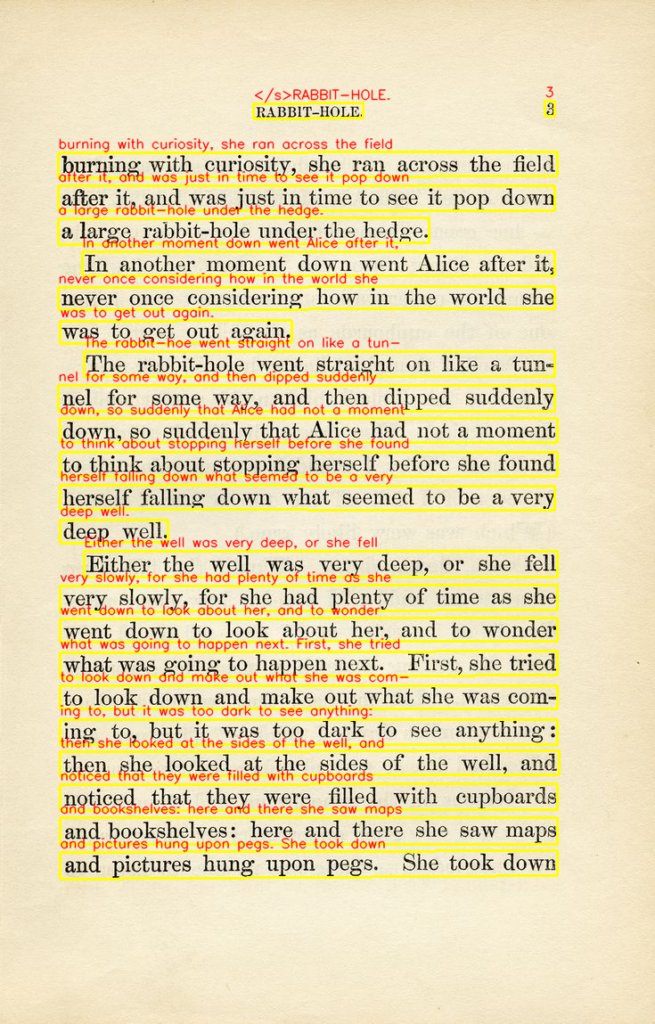
Florence 2 Object detection Extracting Text and Structure with Advanced Region-Based OCR The final frontier of our Microsoft Florence-2 tutorial is Optical Character Recognition (OCR), but with a sophisticated twist. By using <OCR_WITH_REGION>, we don’t just get a wall of text; we get the specific location of every word or sentence mapped as a polygon. This is essential for digitizing complex documents, books, or forms where the layout is just as important as the words themselves.
Unlike standard OCR that uses simple boxes, this method provides quad_boxes (four-point polygons). We use the cv2.polylines function to draw these non-rectangular shapes, which allows for perfect alignment with skewed or tilted text. This level of precision ensures that even text found on curved pages—like the “Alice in Wonderland” book page in our example—is captured and outlined accurately.
The script finishes by labeling each polygon with the actual transcribed text in a clean, red font. This creates a powerful diagnostic tool that shows exactly what the model “read” and exactly where it “found” it. It transforms Florence-2 into a professional-grade document analysis engine that can replace specialized OCR tools with a single, unified Python workflow.
Here is the test image :
Book Page ### Task 5 - OCR with Region Mapping for document analysis task_prompt5 = " <OCR_WITH_REGION> " ### Load a book page image for the OCR test image = Image . open ( " Book-Page.jpg " ) results = run_florence2 ( task_prompt5 , image ) data = results [ " <OCR_WITH_REGION> " ] ### Prepare image for drawing complex polygons open_cv_image = np . array ( image ) open_cv_image = cv2 . cvtColor ( open_cv_image , cv2 . COLOR_RGB2BGR ) ### Draw polygons and labels for every detected text region for bbox , label in zip ( data [ ' quad_boxes ' ], data [ ' labels ' ]): ### Reshape coordinates into an OpenCV-friendly polygon array polygon = np . array ( bbox , dtype = np . int32 ). reshape (( - 1 , 1 , 2 )) ### Draw the polygon outline in yellow cv2 . polylines ( open_cv_image , [ polygon ], isClosed =True , color = ( 0 , 255 , 255 ), thickness = 2 ) ### Place the transcribed text in red above the region x , y = polygon [ 0 ][ 0 ] open_cv_image = cv2 . putText ( open_cv_image , label , ( x , y - 5 ), cv2 . FONT_HERSHEY_SIMPLEX , 0.5 , ( 0 , 0 , 255 ), 1 , cv2 . LINE_AA ) ### Save and display the final OCR result cv2 . imwrite ( " Step4_OCR_result.png " , open_cv_image ) cv2 . imshow ( " img " , open_cv_image ) cv2 . waitKey ( 0 ) cv2 . destroyAllWindows () This final step completes your mastery of Florence-2, providing you with a complete toolkit for high-precision text extraction and layout analysis.
Here is the Result :
Florence 2 OCR FAQ What is the primary benefit of the Microsoft Florence-2 tutorial? This tutorial teaches you how to replace multiple fragmented AI models with one unified foundation model that handles detection, OCR, and captioning seamlessly.
Can Florence-2 run on a standard CPU? Yes, while a GPU is recommended for speed, the base model is optimized enough to run on CPUs for testing and lightweight vision tasks.
How does Florence-2 compare to YOLO for object detection? Florence-2 offers a unified approach that combines detection with natural language understanding, allowing for “zero-shot” detection without specific retraining for every new object.
What is “Phrase Grounding” in this context? Phrase grounding allows you to find specific items in an image by simply typing their name in plain English, acting like a visual search engine.
Is the flash-attn library mandatory for the installation? It is not strictly required but highly recommended for NVIDIA GPUs to significantly speed up the attention mechanism and reduce memory consumption.
What is the difference between Florence-2-base and Florence-2-large? The ‘large’ model offers higher accuracy for complex OCR and detailed captioning, while the ‘base’ model is faster and better suited for edge devices.
How does the OCR feature handle curved text or documents? Florence-2 uses region-based polygon mapping (quad-boxes) which allows it to accurately outline and read text even if it is tilted or on a curved page.
Can I use Florence-2 for real-time video analysis? Yes, by integrating the model function into an OpenCV video loop, you can process frames in real-time, provided you have a capable GPU.
Why do I need to use the trust_remote_code=True flag? This flag is required to download the specific model architecture from Hugging Face since Florence-2 uses custom logic not yet in the core library.
Is this code suitable for production environments? Absolutely. The modular structure and clean error handling make it an excellent starting point for building commercial-grade vision applications.
Conclusion: Simplifying Your Vision Workflow Forever The transition from fragmented, task-specific models to unified foundation architectures like Microsoft Florence-2 represents a major leap in how we approach computer vision in 2026. By following this Microsoft Florence-2 tutorial , you have successfully built a pipeline that understands context, identifies objects, searches via text, and extracts structured data from documents—all with a single model. This not only saves massive amounts of development time but also significantly lowers the technical debt associated with maintaining multiple AI libraries.
The power of this unified approach lies in its versatility. Whether you are building an automated content moderation tool, a high-precision document scanner, or an intelligent robot that understands voice commands for visual search, the foundational code we’ve developed today provides the core engine. You are no longer limited by what a specific detection model was trained on; you are now limited only by how well you can describe your visual goals in natural language.
As you move forward, consider experimenting with the model’s different tasks or integrating it into larger applications. The ability to mix vision and language so seamlessly is the key to building truly “intelligent” systems that can reason about the world in a human-like way. I encourage you to use this guide as a springboard for your next major project, and I look forward to seeing how you leverage Florence-2 to create incredible results in the world of AI!
Connect ☕ Buy me a coffee — https://ko-fi.com/eranfeit
🖥️ Email : feitgemel@gmail.com
🌐 https://eranfeit.net
🤝 Fiverr : https://www.fiverr.com/s/mB3Pbb
Enjoy,
Eran
 Skip to content