Last Updated on 01/05/2026 by Eran Feit
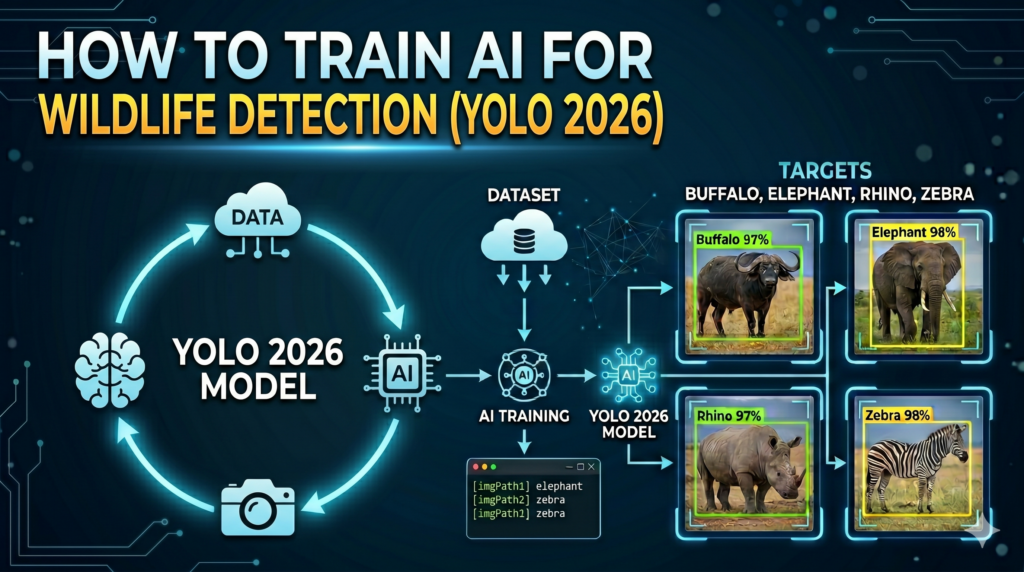
This guide is a comprehensive, hands-on technical tutorial to building a state-of-the-art computer vision pipeline specifically tailored for detecting diverse animal species in their natural habitats. Using modern training techniques, you will learn how to configure your environment, train a deep learning model on a custom dataset, and accurately run inference to recognize wildlife in real time.
In the rapidly evolving field of artificial intelligence, transitioning from standard benchmarking datasets to real-world scenarios is where true mastery happens. Working through the complete implementation of African wildlife detection YOLO models provides you with concrete skills that go beyond basic theory, empowering you to solve complex visual recognition challenges such as handling diverse lighting, camouflaged subjects, and intricate background environments.
To ensure you can successfully reproduce and adapt these techniques, this guide breaks down the technical process into clearly defined, practical milestones. We begin by setting up a robust Python environment featuring the latest PyTorch and CUDA drivers, move directly into custom dataset configuration, and execute an advanced 200-epoch training run.
Finally, the tutorial explores visual inference strategies, teaching you how to evaluate the model’s performance on new imagery using OpenCV and extract critical bounding box metadata. Whether you are aiming to enhance an ecological monitoring project or build up your computer vision portfolio, you will walk away with a functional, production-ready implementation.
Getting Started with African Wildlife Detection Using YOLO Building an effective computer vision pipeline for wildlife monitoring requires targeting specific mammal species that are critical to conservation efforts. In this implementation, the primary focus is on identifying and localizing four distinct classes of iconic fauna: buffalos, elephants, rhinos, and zebras. Each of these animals poses distinct visual challenges for an algorithm, such as varying scales, different skin or fur texture patterns, and environmental occlusions like dense brush, high grass, or changing shadows.
The underlying strategy relies on the high-speed and accurate inference capabilities of the YOLO architecture to map out bounding boxes and predict classification probabilities in a single pass. By feeding the neural network annotated images containing these targeted wildlife classes, the model iteratively adjusts its internal weights to recognize specific visual features—like the unique silhouette of a rhino’s horn or the high-contrast stripes of a zebra. This architecture is particularly valuable because it balances real-time processing speed with precise localization, making it ideal for continuous trail camera footage or automated drone surveys.
At its core, this custom African wildlife detection YOLO system processes a standardized evaluation dataset to establish a robust baseline of visual patterns. Through careful adjustment of training hyperparameters, such as batch sizes, image resolutions, and early stopping patience metrics, the model stabilizes its learning curve to ensure high performance on unseen test images. The end result is a highly adaptable neural network capable of predicting the exact coordinates of multiple animals in a single frame, providing conservationists and AI developers with a practical tool for automated ecological auditing.
Train YOLO for African Wildlife Detection 14 Building Your First African Wildlife Detection YOLO Pipeline from Scratch Why is the YOLO architecture ideal for spotting animals in the wild? An African wildlife detection YOLO pipeline provides the ultimate combination of inference speed and high accuracy, which is essential when tracking fast-moving animals or processing continuous video feeds. By processing an image in a single pass through the neural network, this architecture can localize and classify multiple targets simultaneously without causing the massive computational bottlenecks seen in older region-proposal networks. This makes the code highly practical for field deployment, where real-time analysis is required.
To achieve this, the technical implementation begins with establishing a clean development environment using Conda and installing matching dependencies like PyTorch 2.9.1 and CUDA 12.8. By ensuring the underlying compute layers are aligned, the Python script can offload heavy matrix multiplications directly to the GPU. With ultralytics handling the neural network architecture and opencv-python managing the image input/output operations, the environment becomes a fast, reliable foundation for deep learning tasks.
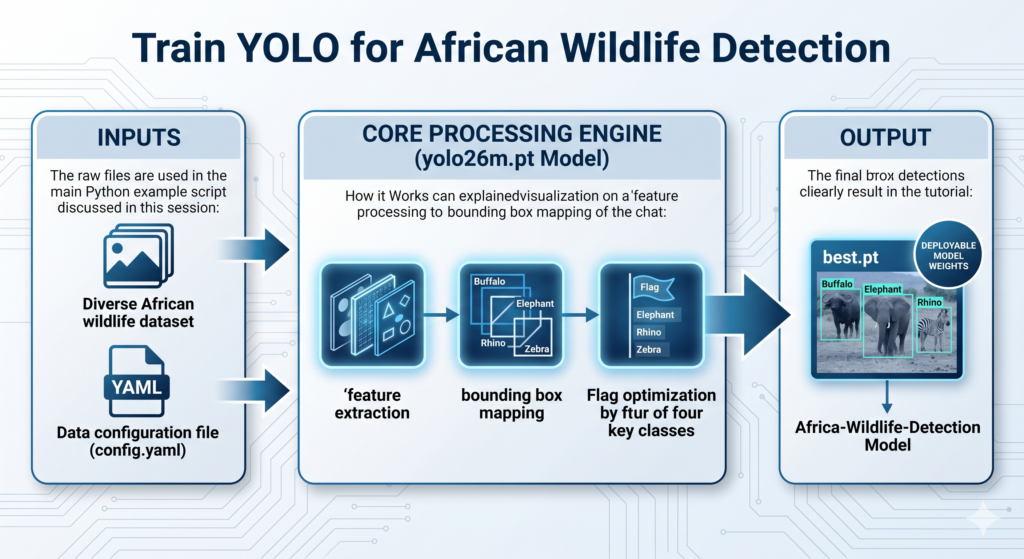
The training script itself is designed to fine-tune the yolo26m.pt model using a custom dataset of African fauna. The script reads a structured config.yaml file, which maps the exact locations of the training, validation, and test images while defining the specific classes to identify: Buffalos, Elephants, Rhinos, and Zebras. By executing the training loop over 200 epochs with a batch size of 16, the model adjusts its weights to reliably isolate the distinct patterns, textures, and silhouettes of these four species within their natural environments.
Once training is complete, the testing and inference phase takes over to evaluate the newly learned model weights (best.pt). The inference code feeds new test images into the trained network, retrieves the bounding box coordinates, and pulls out class names from the prediction results. It then uses OpenCV to automatically render the bounding boxes over the original frames and saves the annotated results to your local drive. This creates a fully automated, end-to-end workflow capable of taking a raw image and turning it into a rich visual output within milliseconds.
Link to the tutorial here .
Download the code for the tutorial here or here
Link for Medium users here
Master Computer Vision
Follow my latest tutorials and AI insights on my
Personal Blog .
Beginner Complete CV Bootcamp
Foundation using PyTorch & TensorFlow.
Get Started → Interactive Deep Learning with PyTorch
Hands-on practice in an interactive environment.
Start Learning → Advanced Modern CV: GPT & OpenCV4
Vision GPT and production-ready models.
Go Advanced → YOLO26 tutorial Setting Up a Scalable Deep Learning Workspace Preparing a solid foundation is the critical first step for training a high-performance African wildlife detection YOLO model. By configuring a dedicated isolated virtual environment, you ensure that specific dependency versions never conflict with other development projects on your system. This approach eliminates version mismatches and keeps your environment clean and stable.
We leverage Anaconda to manage our packages because it handles hardware drivers and deep learning dependencies with complete accuracy. Installing matched drivers like CUDA 12.8 directly alongside PyTorch ensures that your neural network can instantly communicate with your graphics processor. This deep hardware integration allows the training script to process massive image datasets at incredible speeds.
The initial steps prepare the exact prerequisites required to build the visual pipeline without experiencing typical installation roadblocks. By pulling the precise versions of the Ultralytics framework and the OpenCV image manipulation library, you guarantee that every single line of downstream code executes flawlessly. Let us examine the exact commands required to get your machine fully prepared.
Want the exact dataset so your results match mine? If you want to reproduce the same training flow and compare your results to mine, I can share the dataset structure and what I used in this tutorial. Send me an email and mention the name of this tutorial, so I know what you’re requesting.
🖥️ Email: feitgemel@gmail.com
Why do we isolate our workspace with Conda before installing deep learning libraries? Using isolated virtual environments prevents version conflicts between different project dependencies and ensures that PyTorch installs exactly the required drivers without interfering with global system packages. This maintains absolute reproducibility and safeguards your runtime environment from breaking.
### Create a clean Conda environment with Python 3.11 installed. conda create -- name YoloV2026 - Torch291 python = 3.11 ### Activate the newly created environment to start adding libraries. conda activate YoloV2026 - Torch291 ### Check the installed NVIDIA CUDA compiler version to match it with PyTorch. nvcc -- version ### Install the exact versions of PyTorch and torchvision compiled for CUDA 12.8. pip install torch == 2.9 . 1 torchvision == 0.24 . 1 torchaudio == 2.9 . 1 -- index - url https : // download . pytorch . org / whl / cu128 ### Install the specific Ultralytics package version for training the model. pip install ultralytics == 8.4 . 42 ### Install OpenCV for loading and saving testing and inference images. pip install opencv - python == 4.13 . 0 . 92 In summary, running these setup steps creates a modern and fully optimized deep learning environment that is ready to execute neural network workloads.
Launching the Training Process with Pretrained Model Weights Once your environment is up and running, we begin writing the Python training logic to instantiate our neural network. The code imports the powerful YOLO interface and defines a main execution scope to safely manage computational resources during model training. This guarantees that all memory is allocated efficiently and prevents runtime issues when handling the image files.
We initialize our training pipeline using the yolo26m.pt pretrained model weights, which act as a solid analytical baseline. Starting with weights that have already learned generic features—such as edge detection and basic shapes—drastically decreases total training time. Instead of teaching the AI to understand images from scratch, we direct its focus onto extracting the specific visual patterns of wildlife.
By wrapping this execution flow inside a proper Python function, the training initialization remains modular and clean. This functional structure is highly recommended because it supports multiprocessing when launching massive training jobs across multiple graphical compute cores. Let us look at how the model initialization and the primary execution entry point are constructed.
How does the YOLO initialization function load the model into memory? The initialization function calls the prebuilt architecture and downloads the initial weights from a remote server, holding the network structure in memory so that it can be adjusted through training. This establishes the neural network’s baseline knowledge before tuning it on your custom images.
### Import the specific YOLO framework module to build and fine-tune models. from ultralytics import YOLO ### Define the main functional execution scope to manage multiprocessing resources properly. def main () : ### Load the foundational pretrained model weights file to initiate transfer learning. model = YOLO ( ' yolo26m.pt ' )
Directing the Learning Loop with Custom Training Settings Configuring your dataset paths and training hyperparameters carefully determines how effectively your neural network understands African wildlife detection YOLO tasks. The script defines exact parameters that guide how long the model analyzes the custom imagery and how it manages visual features. By pointing the algorithm directly to our local dataset via a specific path, the model knows exactly where to find training images and annotations.
The code defines critical training conditions such as the batch size, total training epochs, image dimensions, and validation triggers. Limiting our training runs to 200 epochs and setting a patience value of 20 allows the algorithm to learn effectively without overfitting the data. This automated validation step continuously inspects training metrics to maintain the highest balance of accuracy.
All training configurations are clearly specified inside the execution block to allow complete adjustments at a single glance. By setting explicit flags for logging and hardware utilization, you can observe the optimization results in real time. Let us inspect the exact training configuration block used to optimize the network.
What is the role of the patience hyperparameter during training? The patience parameter instructs the training loop to continuously monitor validation loss, automatically stopping the process if performance fails to improve after 20 consecutive epochs. This keeps the model from overfitting and saves substantial computational time.
### Specify the absolute path to the data configuration file for the model. dataset_path = " Best-Object-Detection-models/YOLO26/How to detect African Wildlife animals using YoloV2026/config.yaml " ### Set the number of training images processed together in each learning step. batch_size = 16 ### Define the target drive path where your model results will be stored. project = " d:/temp/models/african-wildlife-detection " ### Name the specific training run to isolate this experiment from others. experiment = " My-Model-yolo26m " ### Run the entire training loop with all defined hyperparameters and visual targets. results = model . train ( data = dataset_path , epochs = 200 , project = project , name = experiment , batch = batch_size , device = 0 , imgsz = 640 , patience = 20 , verbose =True , val =True ) ### Ensure that the script runs correctly as a standalone Python process. if __name__ == " __main__ " : main () In summary, this script takes your local dataset and carefully fine-tunes the network over 200 epochs to produce highly specific model weights.
Defining the Classes and Locations in the Configuration File A critical part of the object detection training flow is explicitly establishing the dataset structure via a dedicated YAML configuration file. This specific file lists where your training, validation, and testing images reside on your local storage drive. By defining these absolute or relative data paths, you enable the YOLO algorithm to access the visual samples accurately.
The data configuration also lists the exact names and numeric identifiers of the classes we are trying to detect. In our example, we create a strict numerical mapping for our four specific African mammal targets: Buffalos, Elephants, Rhinos, and Zebras. This simple index mapping prevents any confusion during the model evaluation phase.
By creating a clean and human-readable YAML structure, updating class counts or changing test directories takes just a few seconds. This allows you to scale up the detection system effortlessly to support hundreds of new classes over time. Let us inspect the exact layout of our dataset configuration file.
How does the configuration file direct the training loop to locate images? The configuration file outlines the root directory path alongside specific folders for training, validation, and testing data. This informs the neural network precisely where to pull the training images and corresponding bounding box labels.
Here is the config.yaml file : ### Set the root path of the custom African wildlife dataset on disk. path : ' D:/Data-Sets-Object-Detection/african-wildlife ' ### Specify the relative directory containing the training images. train : ' train/images ' ### Specify the relative directory containing the validation images. val : ' valid/images ' ### Specify the relative directory containing the testing images. test : ' test/images ' ### Provide the numeric keys and exact class names for the dataset targets. names : 0 : Buffalo 1 : Elephant 2 : Rhino 3 : Zebra In summary, the YAML file maps your image data storage layout and specifies the classes that the model will learn to detect.
Train YOLO for African Wildlife Detection 15 Running Inference and Visualizing Predictions with Best Model Weights Once training is complete, the immediate next step is taking our trained weights and running inference on new test images. The inference code loads your customized weights file (best.pt) directly back into memory using the same model interface. This confirms that the learned features are successfully applied to detect wildlife accurately.
The script passes a collection of testing image paths to the trained network to run predictions. These prediction queries yield a collection of results containing precise coordinates, label tags, and confidence scores for each frame. By converting the numerical indices back into their readable category names, the predictions make sense to human reviewers.
This verification pipeline ensures that your newly trained system functions perfectly outside of the training environment. It allows you to confirm that the model correctly separates the target classes from their backgrounds without experiencing false positives. Let us examine the Python inference code that handles these operations.
The prediction method passes new images through the model’s layers and extracts bounding box dimensions, confidence scores, and class IDs. This allows the program to pinpoint exactly where an animal is located in the image.
### Import the YOLO module to load the fine-tuned model weights. from ultralytics import YOLO ### Import OpenCV to handle saving and rendering the predicted visual outputs. import cv2 ### Import NumPy to perform any array manipulations on image pixels if needed. import numpy as np ### Define the path to your optimized best performing training weights file. weights_file = " d:/temp/models/african-wildlife-detection/My-Model-yolo26m/weights/best.pt " ### Load the optimized weights file into memory to begin predictions. model = YOLO ( weights_file ) ### Define the first test image path for inference testing. imgPath1 = " Best-Object-Detection-models/YOLO26/How to detect African Wildlife animals using YoloV2026/Elephant2.jpg " ### Define the second test image path for inference testing. imgPath2 = " Best-Object-Detection-models/YOLO26/How to detect African Wildlife animals using YoloV2026/Zebra_test.jpg " ### Execute inference on both image files simultaneously to generate predictions. results = model . predict ([ imgPath1 , imgPath2 ]) ### Pull the complete dictionary of original class names from the model results. names_dict = results [ 0 ]. names ### Print the categories dictionary to verify valid label mapping. print ( " Categories : " ) print ( names_dict ) In summary, this inference script loads the fine-tuned weights file to analyze new test images and extract prediction metadata.
Extracting Bounding Boxes and Saving the Results The final step in our workflow processes the generated prediction results to visualize and export the detection output. The logic loops over every analyzed image to pull out underlying data such as bounding box points, prediction masks, and class probabilities. This structured visual metadata allows you to review the exact locations where our animal detection pipeline spotted targets.
The Python script uses numerical conversions to transform internal PyTorch prediction tensors into standard NumPy arrays. This ensures you can easily map the detected object indices back into human-readable strings for clear visual feedback. By generating these descriptive overlays, anyone inspecting the outputs can instantly read the classification tags.
Finally, the code calls the internal visualization functions to draw bounding boxes and confidence flags directly over the images. OpenCV takes these enriched image arrays and saves them to local disk storage for record-keeping and further analysis. Let us inspect the exact iterative loop used to output and display the predictions.
Extracting the tensor data into a standard NumPy array allows for easy compatibility with standard image processing libraries like OpenCV. This enables efficient post-processing and text annotation steps on the images without running into platform-specific issues.
### Loop through the prediction outputs to process and visualize each image individually. for i , result in enumerate ( results ): ### Extract the bounding box coordinates from the inference predictions. boxes = result . boxes ### Extract visual segmentation masks if available from your model output. masks = result . masks ### Extract human pose keypoints if using specialized tracking configurations. keypoints = result . keypoints ### Extract classification probabilities for high level classification results. probs = result . probs ### Extract oriented bounding boxes for directional object detection tasks. obb = result . obb ### Extract the class IDs as a standard NumPy array of integers. class_ids = result . boxes . cls . cpu (). numpy (). astype ( int ) ### Print the predicted class IDs to confirm correct classification outputs. print ( " Predicted class Ids: " , class_ids ) ### Map the numerical class IDs back to their human-readable names. class_names = [ names_dict [ class_id ] for class_id in class_ids ] ### Print the exact names of detected classes found within the frame. print ( " Predicted class names: " , class_names ) ### Draw the visual bounding box overlays onto the original raw image. annotated_frame = result . plot () ### Save the processed image with bounding boxes to disk using OpenCV. cv2 . imwrite ( f "Best-Object-Detection-models/YOLO26/How to detect African Wildlife animals using YoloV2026/output_image_ { i } .jpg" , annotated_frame ) ### Display the interactive window showing prediction results on screen. result . show () In summary, this script processes all predicted coordinates, renders bounding box overlays onto the images, and exports the final results to your computer.
Conclusion Building a custom African wildlife detection YOLO model opens up fantastic opportunities for both computer vision engineers and ecological researchers. By establishing an isolated development environment with matched CUDA libraries, you maximize processing speeds and prevent system dependency issues. Following a structured, step-by-step workflow—from setting up Conda to fine-tuning with a custom YAML file—ensures that your model achieves high testing performance. Whether you intend to scale this neural network to track dozens of new wildlife classes or deploy the detection pipeline onto lightweight Edge devices, the workflow remains completely accessible and highly reproducible.
FAQ : Why should I train my YOLO model for 200 epochs? Training for 200 epochs gives the model ample time to identify subtle features within the dataset while using patience triggers to stop early if performance levels off. This strikes a careful balance between underfitting and overheating your compute resources.
What does CUDA 12.8 add to the YOLO training process? Using CUDA 12.8 enables modern hardware optimizations on NVIDIA graphics chips, resulting in significantly faster matrix multiplications. This reduces total training times from hours down to just a few minutes.
How do I prevent my model from overfitting to the background of training images? You can use diverse images from different locations and times of day to force the model to identify specific animal features. Adding varied imagery prevents the algorithm from relying on background colors to predict animal classes.
Do I need a massive graphics processing unit to run this inference code? No, running inference requires very low computational overhead compared to the heavy training step. You can perform fast inference using a consumer CPU, though a dedicated GPU will make processing video feeds even faster.
Why does the script use early stopping patience settings? Patience halts training when the validation loss stops dropping for a specified number of consecutive epochs. This keeps your model from memorizing the specific training images instead of generalizing effectively.
What is the purpose of the config.yaml file? The YAML file tells the algorithm where the training, testing, and validation folders live on your computer. It also maps the specific numerical class IDs to their corresponding human-readable animal names.
Can I add more than four classes to this wildlife detection model? Yes, you can add dozens of classes by expanding your labels and updating the YAML configuration file. Just ensure that each new class has enough annotated training images to allow the network to learn its distinct shapes.
Why do we convert PyTorch tensor class IDs to NumPy arrays during inference post-processing? PyTorch tensors are stored in GPU memory, while standard plotting tools like OpenCV expect regular CPU memory arrays. Converting tensors into NumPy arrays makes drawing bounding boxes and labels simple and efficient.
What does the imgsz=640 parameter control? This sets the training image resolution to a standard size of 640×640 pixels. Standardizing image dimensions balances fast processing times with detailed object visibility.
How can I use this code to process custom videos instead of photos? You can pass a video file path directly to the predict method instead of an image path. The model will process the video frame-by-frame, applying your custom bounding box overlays in real time.
Connect ☕ Buy me a coffee — https://ko-fi.com/eranfeit
🖥️ Email : feitgemel@gmail.com
🌐 https://eranfeit.net
🤝 Fiverr : https://www.fiverr.com/s/mB3Pbb
Enjoy,
Eran
 Skip to content