 Skip to content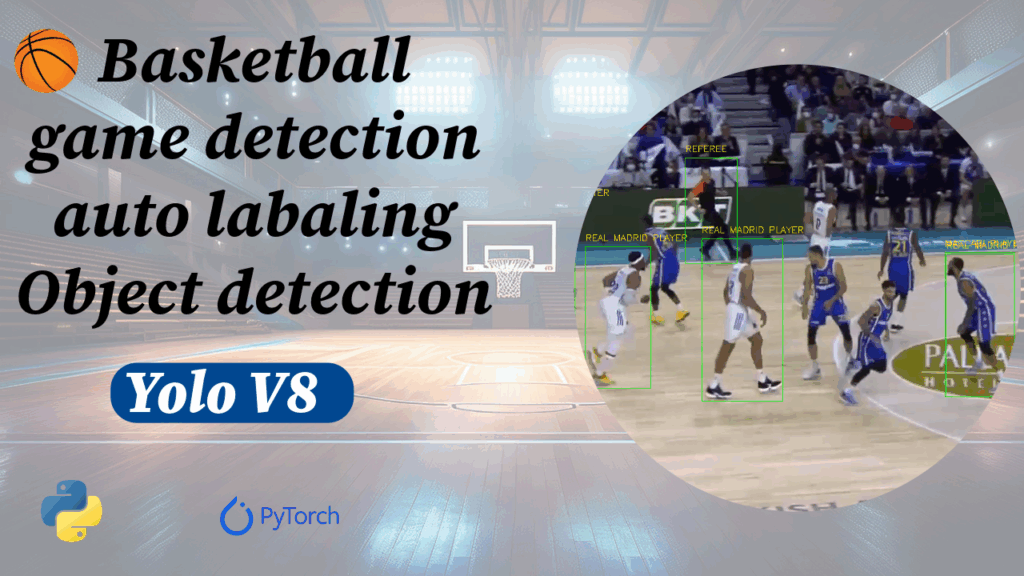
Last Updated on 23/02/2026 by Eran Feit
YOLOv8 YouTube object detection in Python: a full pipeline you can reuse
YOLOv8 YouTube object detection is one of the fastest ways to move from “demo code” to a real computer-vision workflow.
Instead of training on random images, you build a dataset from actual video footage that matches what you want the model to learn.
In this tutorial, you’ll stream basketball games from YouTube, extract frames, and turn those frames into a structured dataset for training.
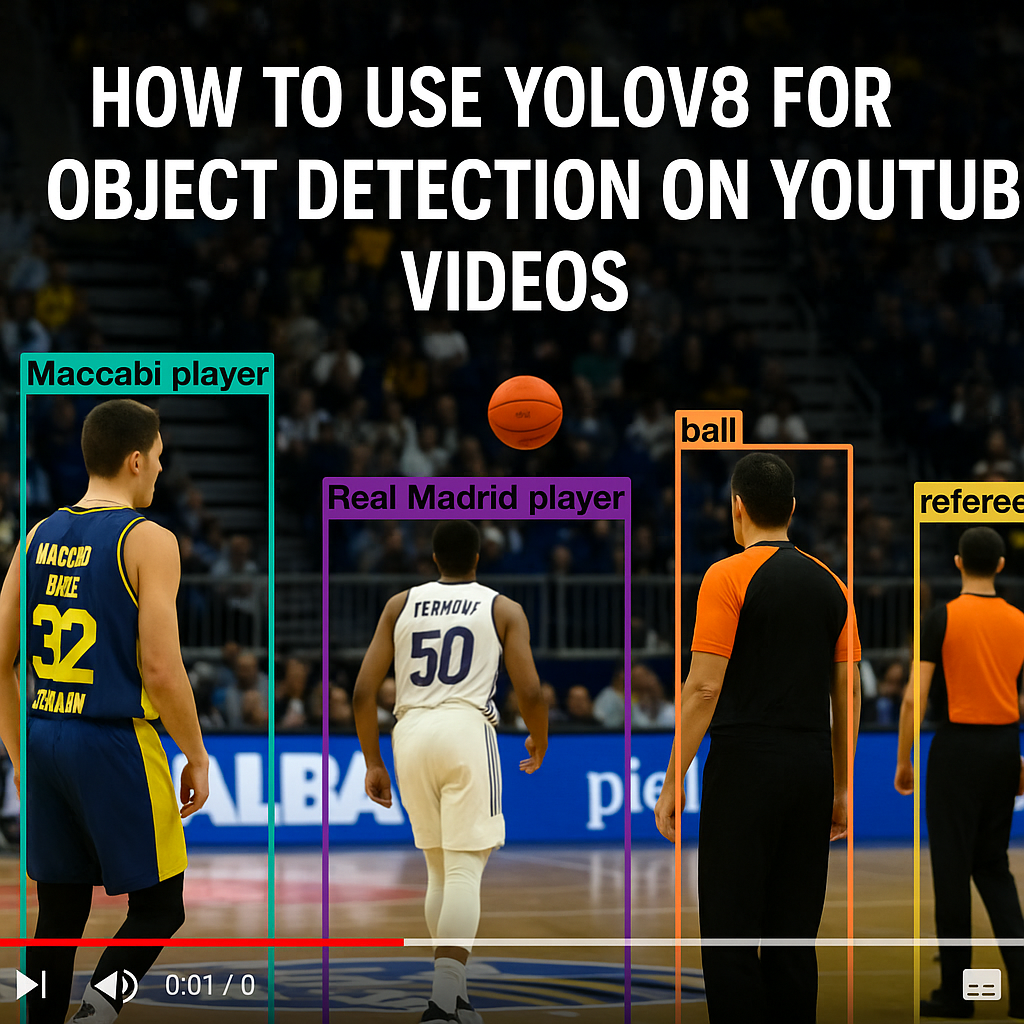
You’ll then auto-label the images using GroundingDINO through Autodistill by defining a simple text ontology for four classes: Maccabi player, Real Madrid player, ball, and referee.
Before training, you’ll run a quick visual sanity-check that draws YOLO boxes back onto random images.
This step catches the mistakes that silently ruin training—wrong class IDs, shifted boxes, inconsistent labeling, or prompts that don’t match the visual reality.
By the end, you’ll train a custom YOLOv8 model and run live inference on a new YouTube stream.
You’ll also have a reusable template you can adapt to other sports, cameras, or any topic where you can get consistent video footage.
What you’ll build in this tutorial
You’ll build a YOLOv8 YouTube object detection pipeline that does four things:
- Stream YouTube videos and extract frames.
- Auto-label frames using GroundingDINO via Autodistill.
- Train a custom YOLOv8 model on the generated dataset.
- Run live inference on a new YouTube video stream.
Prerequisites
You should be comfortable running Python scripts and installing packages in a clean environment.
A GPU is recommended for training, but you can still run extraction, auto-labeling, and inference tests on CPU.
Let’s walk through the code we’ll use in this tutorial
The code you’ll use in this tutorial is organized into clear steps, each one moving you closer to a fully working object detection system for YouTube basketball videos.
It starts with environment setup, where you create a dedicated Conda environment, install the correct PyTorch and CUDA versions, and bring in libraries like Ultralytics YOLOv8, CamGear, and yt_dlp.
This foundation is critical: once CUDA, PyTorch, and your dependencies are aligned, the rest of the pipeline runs smoothly and you can focus on the logic instead of fighting with installs.
Next comes the video-to-images stage.
Using CamGear and OpenCV, the code streams each YouTube game and reads it frame by frame.
For every frame, it resizes the image to 640×640, saves it to disk, and overlays a simple frame counter so you can visually confirm progress while the script runs.
This step turns your YouTube links into a real training corpus of basketball images that YOLOv8 can learn from later.
The third part of the code is all about automatic labeling.
Here you define a CaptionOntology with classes such as “Maccabi player”, “Real Madrid player”, “ball”, and “referee”, then plug that ontology into Grounding DINO through Autodistill.
The script scans all the extracted PNG images, detects objects that match your text prompts, and writes YOLO-format label files into a structured dataset folder.
The result is a ready-to-train dataset created from raw YouTube footage without any manual drawing of bounding boxes.
After the labels are generated, the tutorial includes a verification phase to make sure everything looks right.
The code randomly selects images from the training folder, reads the corresponding label files, converts normalized YOLO coordinates into pixel boxes, and draws them back onto the images with class names.
You can visually inspect several samples in OpenCV windows to confirm that players, referees, and the ball are being detected and labeled correctly before committing time and GPU resources to training.
Once the dataset is validated, the training script takes over.
You initialize a YOLOv8 model from a YAML configuration, point it to your custom data.yaml file that describes the train and validation image folders and the four class names, and then call the training function with parameters such as epochs, batch size, image size, and early stopping patience.
Checkpoints are saved in a dedicated project directory so you can later load the best-performing weights without digging through temporary files.
The final step of the code puts everything together in a live demo.
You load the best.pt weights, open a new YouTube video stream, and run YOLOv8 inference on each frame in real time.
For each detection above the chosen confidence threshold, the script draws bounding boxes and labels directly on the video frames, so you can watch the model follow players and the ball as the game unfolds.
At this point, the original goal of the code is fully realized: a complete, end-to-end pipeline that performs object detection on YouTube videos using a model you trained yourself from automatically labeled data.
Set up a clean YOLOv8 environment that won’t fight you later
When you’re training YOLOv8, small environment issues tend to show up at the worst time.
A clean Conda environment makes debugging easier because you can trust your dependencies and reproduce runs without guesswork.
If you have a GPU, confirm CUDA early.
If you don’t, you can still run the full pipeline on CPU for extraction, labeling, and testing—then move training to a GPU machine later.
Use the exact setup commands below:
### Create a new Conda environment named Autodistill with Python 3.8 so we can keep this project isolated. conda create --name Autodistill python=3.8 ### Activate the Autodistill environment so every package we install is scoped to this tutorial. conda activate Autodistill ### Check that the CUDA toolkit is available and verify its version on your system. nvcc --version ### Install PyTorch 2.1.1, torchvision 0.16.1, torchaudio 2.1.1, and the CUDA 11.8 runtime from the official channels. conda install pytorch==2.1.1 torchvision==0.16.1 torchaudio==2.1.1 pytorch-cuda=11.8 -c pytorch -c nvidia ### Install the Ultralytics package which provides YOLOv8 models and convenient training and inference utilities. pip install ultralytics==8.1.0 ### Install the Vidgear library so we can use CamGear to stream frames directly from YouTube videos. pip install vidgear ### Install yt_dlp in case we want to download YouTube videos instead of streaming them. pip install yt_dlp With this environment in place, you’re ready to build a full end-to-end pipeline that connects YouTube videos to YOLOv8 object detection.
Turn YouTube basketball games into a training image folder
The first real step is turning YouTube videos into frames you can train on.
You’re not “downloading a dataset” here—you’re creating one from scratch, based on the exact content you want your model to understand.
The extraction script below streams YouTube videos and saves resized frames to disk.
Resizing everything to 640×640 keeps your training consistent with a common YOLOv8 setup and avoids random aspect-ratio surprises later.
These frames will become the input for our automatic annotation step later.
Run this as-is:
### Import the OpenCV library so we can read, resize, draw on, and save video frames as images. import cv2 ### Import the os module to work with directories, paths, and file system checks. import os ### Import CamGear from the vidgear package to stream frames directly from YouTube URLs. from vidgear.gears import CamGear ### Define a list of YouTube URLs that will act as our training video sources for basketball object detection. train_URLs = ['https://youtu.be/32bsPfx1kmY?si=JzcaFYrmkp9ubB3O', 'https://youtu.be/QxzdEivMbvE?si=JuJMv-dzVSvkHouG'] ### Start a frame counter so each saved image gets a unique index in its filename. numerator = 0 ### Define the local folder where all extracted training images will be stored. output_path_images = "c:/data-sets/Mac-Real/images" ### Create the output folder if it does not already exist so the script will not crash. if not os.path.exists(output_path_images): os.makedirs(output_path_images) ### Loop over every YouTube URL in the training list. for url in train_URLs: ### Print the current URL so you can see which video is being processed. print(url) ### Create a CamGear stream from the YouTube URL in stream_mode with logging enabled. stream = CamGear(source=url , stream_mode=True, logging=True ).start() ### Read and display the video frames one by one in a loop. while True : ### Grab the next frame from the CamGear stream. frame = stream.read() ### Print the current frame index to track progress in the console. print(numerator) ### Increase the frame counter by one after reading a frame. numerator = numerator + 1 ### If no frame is returned, the stream has ended, so we break out of the loop. if frame is None: break ### Build the full output path for the current image using the counter in the filename. image_output_path = output_path_images + "/" + "images" + str(numerator) + ".png" ### Resize the frame to 640x640 pixels so it matches the expected YOLOv8 input size. resized = cv2.resize(frame , (640,640) , interpolation=cv2.INTER_AREA) ### Save the resized frame to disk as a PNG file in the images folder. cv2.imwrite(image_output_path, resized) ### Overlay the frame index on the image so you can see which frame is being displayed. cv2.putText(frame , "imag no. " + str(numerator), (100,100), cv2.FONT_HERSHEY_SIMPLEX, 3, (0,255,0), 4) ### Show the current frame in a window named 'img' so you can monitor the extraction process visually. cv2.imshow("img", frame) ### Wait for 25 milliseconds and allow the user to quit the loop by pressing the 'q' key. if cv2.waitKey(25) & 0xFF == ord('q'): break ### Close all OpenCV windows when the extraction loop is finished. cv2.destroyAllWindows() ### Stop the CamGear stream and release any underlying resources. stream.stop() After this step, you have a folder full of basketball frames taken directly from YouTube games.
These images are the raw material for building a custom dataset tailored to your object detection on YouTube videos project.
🚀 Recommended for You:
Ready to take your object detection skills to the next level? Learn how to handle live data with our latest guide: YouTube Stream Frame Extraction and Real-Time YOLOv8 Detection .
- Eliminate stream lag with advanced buffer management.
- Connect YOLOv8 directly to any YouTube URL.
- Optimized for low-latency real-time inference.
Auto-label frames with Grounding DINO and a simple text ontology
Labeling is the bottleneck in most custom detection projects.
Instead of manually drawing boxes, you’ll use a vision-language detector to generate labels automatically from text prompts.
The key is the ontology: you describe what you want in natural language and map it to clean class names.
You can iterate here fast—change prompts, adjust thresholds, relabel, and improve dataset quality in minutes.
Here is the exact labeling block:
### Import the CaptionOntology helper so we can map text prompts to clean class names. from autodistill.detection import CaptionOntology ### Define the text based ontology that connects descriptive prompts to short label names. ontology = CaptionOntology({ "basketball player with blue shirt": "Maccabi player", "basketball player with white shirt": "Real Madrid player", "Baskball orange ball": "ball", "person with black or orange shirt" : "referee", }) ### Set the path where the extracted PNG images from the YouTube videos are stored. IMAGE_DIR_PATH = "C:/Data-sets/Mac-Real/images" ### Set the folder where the labeled YOLO dataset will be written. DATASET_DIR_PTH = "C:/Data-sets/Mac-Real/dataset" ### Choose the minimum score for bounding boxes to be kept by the detector. BOX_THRESHOLD = 0.3 ### Choose the minimum confidence score for the text grounding step. TEXT_THRESHOLD = 0.3 ### Import the GroundingDINO autodistill wrapper which uses the ontology to detect objects. from autodistill_grounding_dino import GroundingDINO ### Create the GroundingDINO base model with our ontology and threshold values. base_model = GroundingDINO(ontology=ontology , box_threshold=BOX_THRESHOLD, text_threshold=TEXT_THRESHOLD) ### Run automatic labeling on all PNG images in the input folder and save YOLO labels into the dataset directory. dataset = base_model.label(input_folder=IMAGE_DIR_PATH , extension=".png" , output_folder=DATASET_DIR_PTH) By the end of this block, your images folder is accompanied by labels files that follow the YOLO format.
Each line corresponds to a detected Maccabi player, Real Madrid player, ball, or referee, with normalized coordinates that YOLOv8 can understand.
Your dataset directory should contain images plus YOLO-format label files.
That means you’re ready to validate label quality before training.
Sanity-check your labels before you train
This is the step most people skip—and it costs them days.
If your labels are shifted, wrong class IDs, or wildly inconsistent, YOLOv8 will “train” but never learn what you think it’s learning.
The script below randomly samples images and draws the YOLO boxes back on top of them.
You’re looking for fast signals: are players boxed correctly, is the ball detected at all, are referees mislabeled as players, and are boxes roughly tight.
Use the validation code exactly as written:
### Import the os module to list files and build full paths for images and labels. import os ### Import the random module so we can sample a subset of images for quick inspection. import random ### Import matplotlib.pyplot in case you want to extend this script to use Matplotlib plots. import matplotlib.pyplot as plt ### Import OpenCV to load images and draw rectangles and text on them. import cv2 ### Define the human readable class names in the same index order used in the YOLO label files. label_names=["Maccabi player", "Real Madrid player", "ball", "referee"] ### Define a helper function that reads a YOLO label file and returns a list of annotations. def get_annoations(original_img,label_file): ### Open the label file in read mode so we can parse every line. with open(label_file, 'r') as file: lines = file.readlines() ### Create an empty list that will store tuples of (label, x, y, w, h). annotations = [] ### Loop through each line in the label file to extract the label and bounding box coordinates. for line in lines: ### Split the line on whitespace to separate the label index and the four coordinate values. values = line.split() ### The first value in the line is the class label index as a string. label = values[0] ### The remaining four values are the normalized x, y, w, and h values which we convert to floats. x, y, w, h = map(float, values[1:]) ### Append the parsed annotation as a tuple to the list. annotations.append((label, x, y, w, h)) ### Return the complete list of annotations read from the label file. return annotations ### Define a helper function that draws all annotations on top of an image. def put_annoations_in_image(image,annotations): ### Extract the image height, width, and number of channels from the array shape. H, W, _ = image.shape ### Loop over every annotation tuple to convert coordinates and draw boxes. for annotation in annotations: ### Unpack the label index and normalized coordinates from the tuple. label, x, y, w, h = annotation ### Print the raw values to the console for debugging if needed. print(label, x, y, w, h) ### Map the numeric label index to a human readable class name. label_name = label_names[int(label)] ### Convert normalized YOLO coordinates into pixel coordinates for the top left and bottom right corners. x1 = int((x - w / 2) * W) y1 = int((y - h / 2) * H) x2 = int((x + w / 2) * W) y2 = int((y + h / 2) * H) ### Draw the bounding box rectangle on the image using a visible color and line thickness. cv2.rectangle(image, (x1, y1), (x2, y2), (200, 200, 0), 1) ### Draw the class name text slightly above the top left corner of the bounding box. cv2.putText(image, label_name, (x1, y1 - 5), cv2.FONT_HERSHEY_SIMPLEX, 0.5, (200, 200, 0), 2), cv2.LINE_AA ### Return the image with all annotations drawn so it can be displayed. return image ### Define a function that picks random images and visualizes their annotations. def display_random_images(folder_path, num_images, label_folder): ### Build a list of all image filenames in the given folder. image_files = [f for f in os.listdir(folder_path) if os.path.isfile(os.path.join(folder_path, f))] ### Randomly choose the required number of image filenames from the list. selected_images = random.sample(image_files, num_images) ### Iterate through each randomly selected image for visualization. for i, image_file in enumerate(selected_images): ### Read the current image from disk using its filename. img = cv2.imread(os.path.join(folder_path, image_file)) ### Build the matching label filename with a .txt extension. label_file = os.path.splitext(image_file)[0] + '.txt' ### Build the full path to the label file inside the labels folder. label_file_path = os.path.join(label_folder, label_file) ### Read annotations from the label file and store them in YOLO format. annotations_Yolo_format = get_annoations(img,label_file_path) ### Draw bounding boxes and labels on a copy of the image using the parsed annotations. image_with_anotations = put_annoations_in_image(img,annotations_Yolo_format) ### Print the resulting image shape to confirm that dimensions are preserved. print(image_with_anotations.shape) ### Show the annotated image in its own OpenCV window so you can inspect it visually. cv2.imshow("img no. " + str(i),image_with_anotations) ### Wait for a key press before moving on to the next random image. cv2.waitKey(0) ### After reviewing all selected images, close any Matplotlib figures if used later. plt.show() ### Set the path to the YOLO training images generated by the automatic labeling step. images_path = 'C:/Data-sets/Mac-Real/dataset/train/images' ### Set the path to the YOLO label files that match the training images. label_folder = 'C:/Data-sets/Mac-Real/dataset/train/labels' ### Choose how many random images you want to visualize from the training set. num_images = 4 ### Call the helper function to display random annotated training images. display_random_images(images_path, num_images, label_folder) If the boxes look reasonable on random samples, you’re ready to train.
By quickly scanning a few annotated images, you can confirm that the ontology prompts and thresholds are working well before spending time on a long YOLOv8 training run.
Link for the video tutorial : https://youtu.be/i8k8YP0oy00
Code for the tutorial here or here
Link for Medium users here
You can follow my blog here : https://eranfeit.net/blog/
Want to get started with Computer Vision or take your skills to the next level ?
If you’re just beginning, I recommend this step-by-step course designed to introduce you to the foundations of Computer Vision – Complete Computer Vision Bootcamp With PyTorch & TensorFlow
If you’re already experienced and looking for more advanced techniques, check out this deep-dive course – Modern Computer Vision GPT, PyTorch, Keras, OpenCV4
Train YOLOv8 and keep the best checkpoint
Now you’ll train a YOLOv8 model on your auto-labeled dataset.
The idea is to start from a small model configuration, point training at your data.yaml, and let YOLOv8 handle the rest.
If you hit memory limits, batch size is usually the first lever to reduce.
Also, don’t ignore validation—tracking metrics early helps you spot label problems quickly.
Here is the training script :
### Import the YOLO class from the ultralytics package so we can create and train YOLOv8 models. from ultralytics import YOLO ### Define the main training function that will configure and run the YOLOv8 experiment. def main(): ### Load the YOLOv8 small model architecture from the provided YAML configuration file. model = YOLO('yolov8s.yaml') # load the small model ### Define the path to the custom data configuration file that describes the dataset and class names. config_file_path = "Best-Object-Detection-models/Yolo-V8/Auto-Annotation-FromYotube-Maccabi/data.yaml" ### Set the directory where YOLOv8 will store training runs, logs, and checkpoints. project = "C:/Data-sets/Mac-Real/dataset/checkpoints" ### Name this particular experiment so you can easily find its results and weights. experiment = "small-Model" ### Choose the batch size for training and reduce it if you encounter GPU memory issues. batch_size = 32 # reduce to 16 if you have memory errors ### Start the YOLOv8 training process using the custom dataset configuration and training parameters. results = model.train(data=config_file_path, epochs=300, project=project, name=experiment, batch=batch_size, device=0, patience=40, imgsz=640, verbose=True, val=True) ### Run the main function only when this script is executed directly. if __name__ =="__main__": main() And here is the data.yaml file that describes the dataset and classes for the model:
train : C:/Data-sets/Mac-Real/dataset/train/images val : C:/Data-sets/Mac-Real/dataset/valid/images #class names nc: 4 names : - Maccabi player - Real Madrid player - ball - referee After training, the best model weights are stored inside the checkpoints/small-Model/weights folder, ready to be used for inference on new basketball games.
Run live object detection on a new YouTube basketball video
This is the payoff step.
You load your trained weights, connect to a new YouTube video, and run YOLOv8 frame-by-frame.
If your model is good, you’ll see stable player detections and a ball detector that doesn’t “flicker” constantly.
If detections look chaotic, that’s usually a label quality issue—not a YOLO issue.
Run the inference script below:
### Import OpenCV to read frames from the stream and draw bounding boxes and labels on them. import cv2 ### Import the YOLO class so we can load the trained model and run inference on each frame. from ultralytics import YOLO ### Import the os module to help build file paths in a cross-platform way. import os ### Import CamGear from vidgear to stream frames directly from a YouTube URL in real time. from vidgear.gears import CamGear ### Define the YouTube URL for the test basketball video we want to run detection on. test_url = 'https://youtu.be/7qKU1b2Shr8?si=XWTU1Fbc0XtIs-yv' ### Build the full path to the best model weights produced during training. model_path = os.path.join("C:/Data-sets/Mac-Real/dataset/checkpoints","small-Model","weights","best.pt") ### Load the YOLOv8 model from the saved weights so it is ready to process new frames. model = YOLO(model_path) ### Set the confidence threshold so only reliable detections are drawn on the video. threshold = 0.25 ### Initialize a simple frame counter in case you want to log or debug frame numbers. n= 0 ### Create a CamGear stream for the YouTube video in stream mode with logging enabled. stream = CamGear(source=test_url, stream_mode= True, logging=True).start() ### Loop forever and process frames from the YouTube stream one at a time. while True : ### Read the next frame from the CamGear stream. frame = stream.read() ### If no frame is returned, it means the stream has ended, so break out of the loop. if frame is None: break ### Run the YOLOv8 model on the current frame and take the first result object. results = model(frame)[0] ### Loop over all detected boxes returned by YOLOv8 for this frame. for result in results.boxes.data.tolist(): ### Unpack the bounding box coordinates, confidence score, and class index from the result. x1, y1, x2, y2 , score, class_id = result ### Convert the floating point coordinates into integer pixel positions. x1 = int(x1) y1 = int(y1) x2 = int(x2) y2 = int(y2) ### Only draw the box and label if the detection confidence is above the chosen threshold. if score > threshold : ### Draw the bounding box rectangle for the detected object in a visible color. cv2.rectangle(frame , (x1,y1), (x2,y2), (3,240,252), 1) ### Draw the class name text just above the bounding box using the names dictionary from YOLOv8. cv2.putText(frame , results.names[int(class_id)].upper(), (x1,y1-10), cv2.FONT_HERSHEY_SIMPLEX, 0.5, (3,240,252), 1) ### Show the annotated frame in a window named 'img' so you can see detections in real time. cv2.imshow('img', frame) ### Break out of the loop and stop the stream when the user presses the 'q' key. if cv2.waitKey(25) & 0XFF == ord('q'): break ### Close all OpenCV windows to clean up the display. cv2.destroyAllWindows() ### Stop the CamGear stream and release the underlying resources. stream.stop() At this point, you have a complete pipeline: from YouTube URLs to training images, automatic labeling, YOLOv8 training, and live object detection on new videos.
Results from this YOLOv8 YouTube object detection workflow
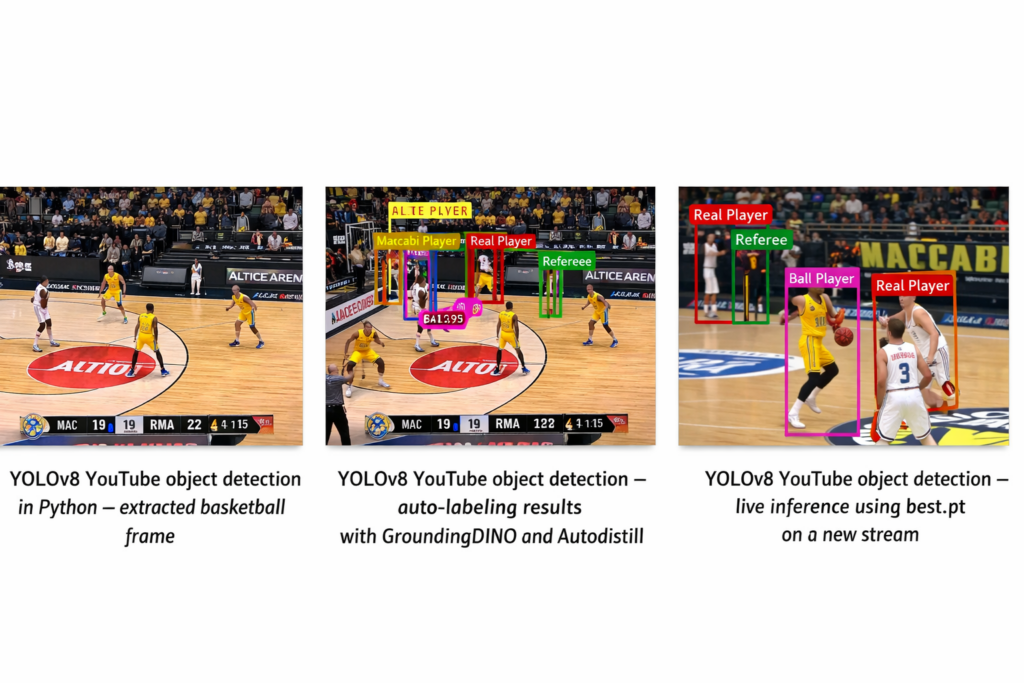
To make this tutorial reproducible, I recommend validating the pipeline with three screenshots:
(1) a sample extracted frame,
(2) the same frame after auto-labeling (boxes + class names),
and (3) a live inference frame using best.pt.
Troubleshooting that saves you hours
If training runs but results are bad:
Start by suspecting label quality, not model size. Re-check random samples and confirm boxes are tight and class IDs match your names order.
If you get class mismatch errors:
Confirm that nc: 4 matches the number of class names and that your label IDs are in the range 0–3.
If streaming fails or returns None quickly:
Try another video URL and verify the stream is accessible from your region/network. You can also switch to downloading videos locally later if needed.
If GPU memory errors appear:
Reduce batch size as your code already suggests. Also consider shorter runs (fewer epochs) while validating the pipeline.
FAQ — Object detection on YouTube videos with YOLOv8
What does this basketball YouTube tutorial cover?
This tutorial covers a full pipeline for object detection on YouTube videos, from extracting basketball frames and auto-labeling them to training YOLOv8 and running live inference.
Which objects are detected in the final model?
The model is trained to detect Maccabi players, Real Madrid players, the basketball, and the referee in YouTube game footage.
Why do we use Autodistill instead of manual labeling?
Autodistill automatically generates YOLO labels from text prompts, which saves a huge amount of time compared to drawing bounding boxes by hand on every frame.
How does Grounding DINO help in auto-labeling?
Grounding DINO connects your natural-language prompts to specific regions in each image, allowing Autodistill to create accurate bounding boxes for the classes you care about.
What is the role of the data.yaml file in YOLOv8 training?
The data.yaml file tells YOLOv8 where the training and validation images are stored and lists the exact order of class names used during training and inference.
Can I change the classes for a different sport or domain?
Yes, you can edit the ontology prompts, update the class names in data.yaml, and point to new YouTube videos to train a model for any other sport or object type.
Do I need to download YouTube videos to disk?
No, the example uses CamGear to stream frames directly from YouTube, but you can also download videos with yt_dlp if you prefer working with local files.
What image size is used for training YOLOv8?
The tutorial resizes all frames to 640×640 pixels, which is a common and efficient resolution for YOLOv8 object detection models.
How can I monitor training progress?
YOLOv8 prints training metrics to the console and saves detailed logs and plots in the project folder so you can track loss and mAP over time.
Is this pipeline suitable for real-time deployment?
With a suitable GPU and the small YOLOv8 model, you can process YouTube frames in real time, making this pipeline a solid starting point for live dashboards or analytic tools.
Conclusion
Building object detection on YouTube videos around YOLOv8 and automatic labeling gives you a practical blueprint for real-world computer vision projects.
You start from simple YouTube links, extract frames, auto-label them, validate label quality, train YOLOv8, and then deploy the result back onto new videos.
If you adapt the ontology, classes, and paths to your own project, you can quickly build models for many other sports, scenes, and domains—while keeping the exact same pipeline structure.
Misaligned boxes: Usually caused by resizing/overlay mismatch. Ensure your preview uses the same frame size as your training images.
Wrong class names: Check that nc and names order match your label IDs (0–3).
No detections on live video: Lower the confidence threshold temporarily to verify the model is actually firing, then raise it back to reduce noise.
Ball detection is weak: the ball is small and fast, so you need more close-ups, tighter labels, and more “ball-visible” frames. Consider increasing training image size (e.g., 960/1024), sampling sharper frames to reduce blur, and re-labeling with stricter thresholds for the ball prompt.
Connect
☕ Buy me a coffee — https://ko-fi.com/eranfeit
🖥️ Email : feitgemel@gmail.com
🤝 Fiverr : https://www.fiverr.com/s/mB3Pbb
Enjoy,
Eran