 Skip to content
Last Updated on 03/12/2025 by Eran Feit
Image captioning python is all about teaching a computer to look at a picture and describe it in natural language. Instead of manually writing alt-text or descriptions for every image, you use deep learning models to generate sentences automatically. With a few lines of code in Python, you can load a pre-trained vision–language model, pass in an image, and get a caption like “a dog running on the beach” or “two friends smiling at the camera.” This makes image captioning a powerful tool for accessibility, search, and content automation.
Behind the scenes, image captioning in Python combines computer vision and natural language processing in a single pipeline. A vision model first turns the raw pixels into a dense representation, capturing objects, textures, and relationships in the scene. A language model then takes that visual representation and generates a sequence of words, one token at a time, forming a grammatically correct and semantically meaningful description. Modern systems often use Vision Transformers (ViT) as the encoder and GPT-style decoders to get fluent, human-like text.
Python is the natural choice for this task because it is the standard language for deep learning frameworks like PyTorch and libraries like Hugging Face Transformers. With these tools, you don’t need to implement every neural network layer from scratch. Instead, you can load a pre-trained model such as nlpconnect/vit-gpt2-image-captioning, move it to GPU with a single line of code, and focus on data handling and experimentation. This lets you go from “idea” to “working image captioning demo” in minutes rather than weeks.
In real-world projects, image captioning python can support a wide range of use cases. It can generate alt-text for visually impaired users, index large image collections for search, help content creators quickly describe photos, or even act as a preprocessing step for more complex multimodal systems. As models continue to improve, captions become more detailed and context-aware, making this technique increasingly practical outside of research labs and into everyday applications.
How image captioning in Python fits into your projects
When you build image captioning in Python, the main target is to convert visual information into clear, readable text that humans can understand at a glance. The typical architecture follows an encoder–decoder pattern: an image encoder extracts visual features, and a text decoder generates a caption word by word. Earlier systems used CNN encoders and RNN decoders such as LSTMs or GRUs; today, Transformer-based encoders and decoders are increasingly common because they model long-range dependencies better and train efficiently on GPUs.
At a high level, the pipeline starts with an image going through a vision backbone like a CNN or Vision Transformer. This encoder transforms the image into a compact feature vector or a sequence of visual tokens representing objects, shapes, and spatial relationships. Then, a language model (for example GPT-2) receives those features as context and begins predicting the next token in the caption: first a start token, then the first word, then the second, and so on until it reaches an end token. Beam search or similar decoding strategies are often used to explore multiple possible captions and pick the one with the highest overall probability.
Python gives you a clean, flexible way to wire all of this together. With PyTorch, you can control the device placement (CPU vs GPU), customize batch sizes, and profile performance. With Hugging Face Transformers, you can load encoder–decoder models like ViT-GPT2 and use high-level APIs for tokenization, generation, and post-processing. This makes it easy to wrap the entire image captioning flow into a single function: load image → preprocess → send through model → decode tokens → return a polished caption string.
Once you understand the high-level flow, you can extend image captioning in Python in many directions. You can fine-tune the model on a domain-specific dataset (for example, medical images or e-commerce product photos), add constraints such as including certain keywords, or integrate the captions into a web app or desktop tool. You might also combine captioning with other multimodal tasks like image–text retrieval or visual question answering. The same encoder–decoder ideas apply, so skills you build here will carry over to a broad family of vision–language problems

Image captioning python is much easier to understand when you see the full code in action. Instead of discussing the theory only, this tutorial walks line by line through a real script that installs the right libraries, loads a pre-trained model, and generates captions for your own images. The goal is to give you a practical starting point: something you can copy, adapt, and integrate into your own projects without needing a deep background in machine learning.
The code is built as a complete mini-pipeline. It starts with setting up a clean Conda environment, installing PyTorch with GPU support, and adding a few key Python packages such as Transformers and OpenCV. From there, it loads a vision–language model that can look at an image and describe it in natural language. All of this is wrapped in a small Python function so that, once everything is configured, generating captions becomes as simple as passing in a list of image paths.
Another important aspect of the tutorial is that it shows how to work with real hardware. The script checks whether a CUDA device is available and automatically moves the model and tensors to GPU when possible. This means the same code can run both on a laptop CPU and on a powerful GPU machine with minimal changes. For anyone who wants to scale image captioning python to many images or larger projects, this pattern of device handling is essential.
Finally, the example ends by drawing the generated captions directly onto the images using OpenCV and displaying them in a window. This gives you immediate visual feedback: you see the original picture and the model’s description on top of it. It turns an abstract model into a concrete tool that you can experiment with, debug, and extend for your own needs.
Walking through the image captioning code step by step
The main target of the code is simple: take one or more image files on disk, send them through a pre-trained model, and return human-readable captions for each one. To do that, the script first imports the building blocks it needs: the VisionEncoderDecoderModel, image processor, and tokenizer from the Transformers library, along with PyTorch, Pillow, and OpenCV. These imports define the three pillars of the pipeline: deep learning, image loading, and visualization. Once those are in place, the model is loaded from its pre-trained weights and prepared for inference.
After loading the model, the code creates a feature extractor and tokenizer that match the same checkpoint. The feature extractor is responsible for turning raw images into normalized tensors with the right size and format for the vision encoder. The tokenizer handles the text side, converting between token IDs and readable words. By keeping all three components in sync, the script ensures that the visual features and the generated tokens speak the same “language” internally, which is crucial for accurate captions.
The device configuration is handled with a short, clear pattern. The code checks whether CUDA is available and sets the device to either “cuda” or “cpu” accordingly. The model is then moved to this device, and later the image tensors are moved as well. This approach keeps the rest of the image captioning python logic unchanged: you do not need separate code paths for CPU and GPU, which makes the tutorial easier to maintain and reuse.
The heart of the script is the predict_the_caption function. It accepts a list of image paths, opens each image with Pillow, and converts any non-RGB images into RGB to avoid channel mismatch issues. All images are then passed through the feature extractor, which returns a batch of pixel values as a PyTorch tensor. This tensor is moved to the chosen device and fed into the model’s generate method, which uses parameters like maximum caption length and number of beams to produce high-quality text sequences.
Once the model outputs token IDs, the function decodes them using the tokenizer into readable sentences, trims extra spaces, and prints the final list of captions. The last part of the code loops over each image path and its predicted text, reads the image with OpenCV, overlays the caption using cv2.putText, and shows the result in a window. This final step connects everything together: it demonstrates how the underlying deep learning model, Python code, and visual output combine to deliver a complete, working example of image captioning in Python.
Link to the video description : https://youtu.be/eSmBjyLODZ4
Link to the code here : https://eranfeit.lemonsqueezy.com/buy/774a981d-ab09-48b7-8c4b-c98f705d0b32 or here : https://ko-fi.com/s/818412f2cc
Link for Medium users : https://medium.com/cool-python-pojects/image-captioning-using-pytorch-and-transformers-in-python-0bfd2829476b
You can follow my blog here : https://eranfeit.net/blog/
Want to get started with Computer Vision or take your skills to the next level ?
If you’re just beginning, I recommend this step-by-step course designed to introduce you to the foundations of Computer Vision – Complete Computer Vision Bootcamp With PyTorch & TensorFlow
If you’re already experienced and looking for more advanced techniques, check out this deep-dive course – Modern Computer Vision GPT, PyTorch, Keras, OpenCV4

Image Captioning using PyTorch and Transformers in Python
Image captioning python is a powerful way to turn images into short, meaningful sentences using deep learning.
Instead of manually writing descriptions for every picture, you can let a model “look” at the image and generate a caption automatically.
In this tutorial, we’ll build a complete image captioning pipeline in Python using PyTorch, Hugging Face Transformers, and OpenCV so you can run everything on your own machine.
The goal is to give you a practical, end-to-end example.
We’ll start from setting up a clean environment, move on to loading the nlpconnect/vit-gpt2-image-captioning model, and then write a function that accepts multiple images and returns natural-language captions.
Finally, we’ll overlay those captions on the images so you can see the results visually, not just as text in the console.
You don’t need to be an expert in deep learning to follow along.
As long as you’re comfortable with basic Python, you’ll see how the different pieces fit together: environment setup, GPU usage, pre-trained models, tokenization, and image handling.
By the end, you’ll have a reusable template you can adapt for your own projects, whether that’s accessibility, search, or automating alt-text.
Getting the environment ready for image captioning python
Before we write any Python code, we need a stable environment that has the correct version of Python, PyTorch, CUDA, and the main libraries used in this project.
Using a dedicated Conda environment is a great way to keep this tutorial isolated from your other experiments so versions don’t conflict.
In this section, we’ll create a new environment called image-captioning, install PyTorch with GPU support (for CUDA 11.8 or CUDA 12.1), and add a few extra libraries like transformers, opencv-python, and mkl.
Each command is annotated so you understand exactly what it does and can easily tweak it for your own setup.
### Create a new Conda environment named "image-captioning" with Python 3.8 so the libraries we use are fully compatible. conda create --name image-captioning python=3.8 ### Activate the new "image-captioning" environment so all subsequent installs go into this isolated setup. conda activate image-captioning ### Check the installed CUDA toolkit version on your system to match it with the correct PyTorch build. nvcc --version ### Install PyTorch, Torchvision, and Torchaudio with CUDA 11.8 support from the official PyTorch and NVIDIA channels. conda install pytorch==2.3.1 torchvision==0.18.1 torchaudio==2.3.1 pytorch-cuda=11.8 -c pytorch -c nvidia ### Alternatively, install the same PyTorch stack but with CUDA 12.1 support if that matches your GPU drivers. conda install pytorch==2.3.1 torchvision==0.18.1 torchaudio==2.3.1 pytorch-cuda=12.1 -c pytorch -c nvidia ### Install the Intel MKL library for optimized numerical operations used internally by PyTorch and other libraries. pip install mkl==2021.4.0 ### Install the Hugging Face Transformers library so we can use the ViT-GPT2 image captioning model. pip install transformers ### Install OpenCV for Python so we can read images from disk and overlay captions directly on the pictures. pip install opencv-python Once these commands complete successfully, your environment is ready.
You now have Python, PyTorch, CUDA support, Transformers, and OpenCV set up for the rest of the tutorial.
Loading the model and building the captioning function
With the environment ready, we can move to the core of image captioning python: loading the pre-trained model and building a function that turns images into captions.
In this part, we import the necessary libraries, load the ViT-GPT2 encoder–decoder model, set up the feature extractor and tokenizer, configure the device (CPU or GPU), and write a predict_the_caption function that processes multiple images at once.
The idea is simple but powerful.
We open each image, convert it to RGB, turn it into tensors with the feature extractor, send the batch through the model, and then decode the output token IDs into readable text.
We also print intermediate values so you can see what’s happening under the hood while still having a clean function that returns a list of captions.
### Import the VisionEncoderDecoderModel, image processor, and tokenizer classes from Hugging Face Transformers. from transformers import VisionEncoderDecoderModel, ViTImageProcessor, AutoTokenizer ### Import the main PyTorch library so we can work with tensors and devices. import torch ### Import the Image class from Pillow to handle image loading and basic conversions. from PIL import Image ### Import OpenCV so we can later draw captions on images and display them in windows. import cv2 ### Load a pre-trained VisionEncoderDecoderModel that combines a Vision Transformer encoder with a GPT2 text decoder for image captioning. model = VisionEncoderDecoderModel.from_pretrained("nlpconnect/vit-gpt2-image-captioning") ### Create a feature extractor that will preprocess images into tensors suitable for the vision encoder. feature_extractor = ViTImageProcessor.from_pretrained("nlpconnect/vit-gpt2-image-captioning") ### Load the tokenizer that knows how to convert between token IDs and readable text for the GPT2 decoder. tokenizer = AutoTokenizer.from_pretrained("nlpconnect/vit-gpt2-image-captioning") ### Detect whether a CUDA-capable GPU is available and choose "cuda" or "cpu" accordingly as the computation device. device = torch.device("cuda" if torch.cuda.is_available() else "cpu") ### Move the image captioning model to the selected device so all computations run on GPU when available. model.to(device) ### Set the maximum caption length so generated sentences are short and focused. max_length = 16 ### Configure the number of beams for beam search to improve caption quality by exploring multiple candidate sequences. num_beams = 4 ### Pack the generation configuration into a dictionary that we can pass directly into the model.generate() method. gen_kwargs = {"max_length": max_length, "num_beams": num_beams} ### Define a function that receives a list of image paths and returns a list of generated captions. def predict_the_caption(image_paths): ### Initialize an empty list that will hold the loaded PIL images. images = [] ### Loop over every file path provided in the image_paths list. for image_path in image_paths: ### Open the current image file using Pillow so we can work with it in memory. i_image = Image.open(image_path) ### If the image is not already in RGB mode, convert it to RGB to avoid issues with channels. if i_image.mode != "RGB": ### Perform the actual conversion to RGB color space. i_image = i_image.convert(mode="RGB") ### Append the processed image to the images list so we can handle them as a batch. images.append(i_image) ### Use the feature extractor to convert the list of images into a batch of pixel values as a PyTorch tensor. pixel_values = feature_extractor(images=images, return_tensors="pt").pixel_values ### Print a separator line so the pixel values section is easy to spot in the console. print("**************") ### Print a label so you know the next output corresponds to pixel_values. print("pixel_values :") ### Print the actual tensor of pixel values to inspect its shape and basic content. print(pixel_values) ### Move the pixel_values tensor to the same device as the model (CPU or GPU). pixel_values = pixel_values.to(device) ### Generate output token IDs from the model using the configured generation arguments. output_ids = model.generate(pixel_values, **gen_kwargs) ### Print another separator line before showing the raw output IDs from generation. print("**************") ### Print a label so you know the next output corresponds to output_ids. print("output_ids :") ### Print the tensor of token IDs that represent the generated captions. print(output_ids) ### Decode the batch of token IDs into human-readable text strings, skipping any special tokens. preds = tokenizer.batch_decode(output_ids, skip_special_tokens=True) ### Strip leading and trailing whitespace from each prediction to clean up the captions. preds = [pred.strip() for pred in preds] ### Print a final separator so the resulting captions stand out clearly in the logs. print("**************") ### Print a label indicating that the next lines show the final caption results. print("Final result :") ### Print the list of generated captions for all input images. print(preds) ### Return the list of caption strings so the caller can use them programmatically. return preds At this point, you have a reusable function that takes a list of image paths and returns a list of captions.
The model, processor, and tokenizer are all correctly wired together, and the code is ready to be plugged into any image captioning python workflow.
Running the captioning function and visualizing the results
The final step is to call predict_the_caption on real images and visualize what the model generates.
In this part, we prepare a list of image paths, run the function, and then use OpenCV to draw the resulting captions directly on each image.
This gives you a simple but powerful way to validate your results and show them to others.
We’ll loop over the images and captions together, write the text at the top of each image, and display them one by one in a window.
You can hit any key to move to the next image.
Once you close all windows, the script ends and you’ll have completed a full image captioning python pipeline from environment setup to visual output.
Here are the 2 test images :
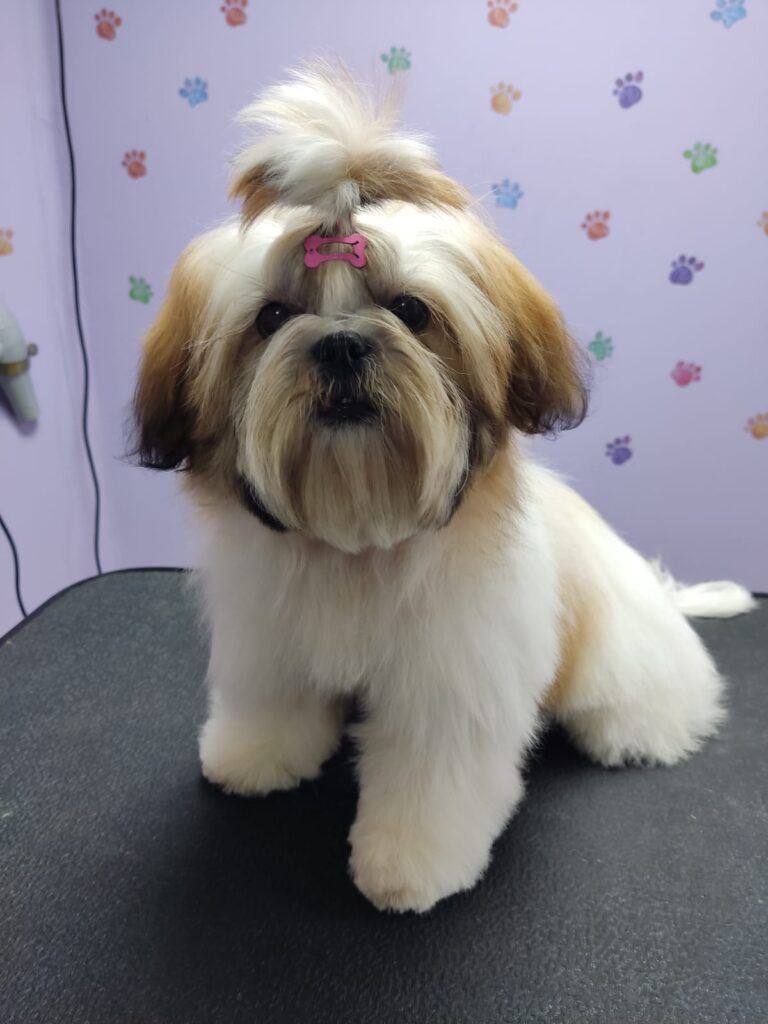

### Define a list of image paths that we want to caption using the model. images_paths = [ r"Python-Code-Cool-Stuff\Image Captions\Dori.jpg", r"Python-Code-Cool-Stuff\Image Captions\haverim.jpg" ] ### Call the caption prediction function with the list of image paths and store the resulting captions. results = predict_the_caption(images_paths) ### Loop over each image path together with its corresponding generated caption. for image_path, text in zip(images_paths, results): ### Read the current image from disk using OpenCV so we can draw on it. image = cv2.imread(image_path) ### Draw the generated caption text near the top-left corner of the image using a clear font. cv2.putText(image, text, (10, 50), cv2.FONT_HERSHEY_SIMPLEX, 1, (0, 0, 255), 2) ### Show the annotated image in a window so you can visually inspect the caption. cv2.imshow("image", image) ### Wait for a key press before closing the window and moving to the next image. cv2.waitKey(0) ### After all images have been displayed, close any remaining OpenCV windows. cv2.destroyAllWindows() After running this code, you should see each image pop up with a red caption overlay describing what the model “sees” in the picture.
From here you can refine fonts and positions, save the annotated images to disk, or integrate this logic into a larger application or API.
FAQ — Image captioning python in practice
What is image captioning python in simple terms?
Image captioning python is the process of using Python and deep learning models to automatically describe images with short sentences. It combines computer vision and natural language processing in one pipeline.
Do I need a GPU to run this tutorial?
You can run the code on CPU, but a GPU will generate captions much faster, especially for larger batches. The device selection in the script automatically uses CUDA when available.
Which pre-trained model does this tutorial use?
The tutorial uses a VisionEncoderDecoder model that pairs a Vision Transformer encoder with a GPT2-based decoder. This combination allows the model to turn visual features into fluent captions.
Why are feature extractor and tokenizer both needed?
The feature extractor prepares images as tensors for the vision encoder, while the tokenizer manages tokens and text for the decoder. Using the matching pair ensures the model components work together correctly.
Can I caption my own custom images?
Yes, you can pass any valid image paths into the predict_the_caption function. As long as the files can be opened and converted to RGB, the pipeline will generate captions for them.
How can I save the annotated images to disk?
After drawing text with OpenCV, you can call cv2.imwrite to save each image to a file. This is ideal if you want a permanent record of all your captioned images.
What do max_length and num_beams control?
max_length sets the maximum caption length, while num_beams defines how many caption candidates are explored in beam search. Adjusting them lets you trade off between speed and caption richness.
Will this work with grayscale or non-RGB images?
Yes, the code converts any non-RGB image to RGB before processing. This ensures consistent input channels for the vision encoder regardless of the original format.
Can I deploy this image captioning python pipeline as an API?
You can load the model once in a FastAPI or Flask app and expose an endpoint that accepts images and returns captions. This makes it easy to integrate into web services or dashboards.
How can I improve poor or repetitive captions?
You can tweak generation settings like max_length, num_beams, and temperature, or fine-tune the model on a domain-specific dataset. Better data and tuned parameters usually lead to more accurate captions.
Conclusion
Image captioning python brings together several powerful ideas into one clean, repeatable workflow.
By setting up a dedicated environment, loading a pre-trained VisionEncoderDecoder model, and wiring up a simple function, you can go from raw images on disk to polished, natural-language captions in just a few lines of code.
This tutorial shows that you don’t need to build complex architectures from scratch to get real value out of modern deep learning.
Beyond the basic example, the same structure can power a wide range of applications.
You can generate alt-text for accessibility, build smarter internal search tools, pre-label data for other models, or create interactive demos that explain what your system “sees.”
Because the code is modular, it’s easy to swap images, adjust generation parameters, and embed the pipeline into larger projects or APIs.
Most importantly, this workflow helps you think in terms of end-to-end solutions.
You learned how to manage environments, use GPUs when available, handle images robustly, and present results visually with OpenCV.
From here, you can experiment with fine-tuning, try other encoder–decoder models, or connect this pipeline with your existing computer vision projects across your blog and portfolio.
Connect :
☕ Buy me a coffee — https://ko-fi.com/eranfeit
🖥️ Email : feitgemel@gmail.com
🤝 Fiverr : https://www.fiverr.com/s/mB3Pbb
Enjoy,
Eran