 Skip to content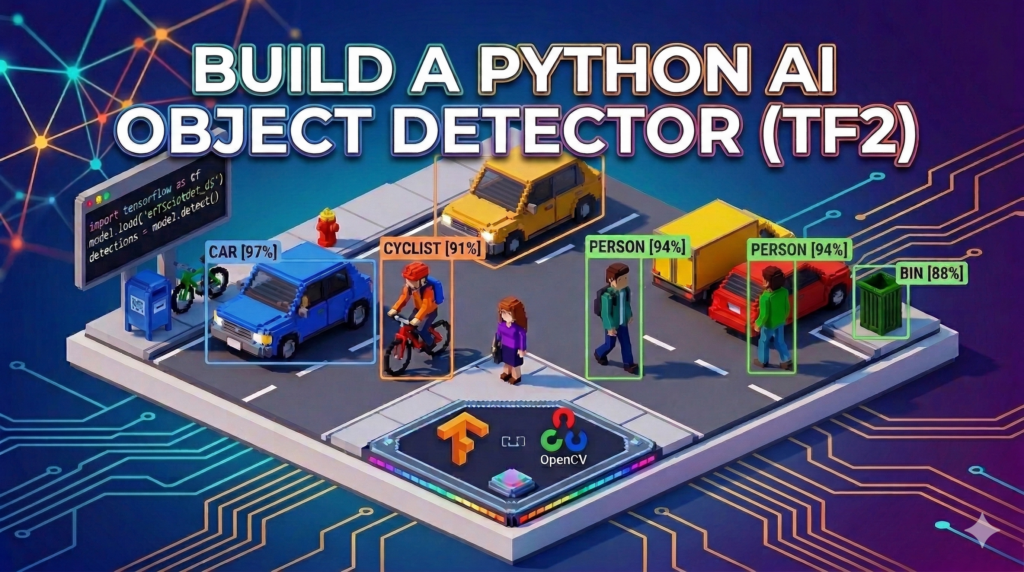
Last Updated on 10/03/2026 by Eran Feit
Imagine having a library of the world’s most advanced computer vision models at your fingertips, ready to deploy with a single script. This article is a deep dive into the TensorFlow 2 Object Detection Tutorial ecosystem, specifically focusing on the “Model Zoo”—a repository of pre-trained architectures that allow you to skip the expensive and time-consuming process of training AI from scratch. Whether you are a researcher aiming for high-precision results or a developer building real-time mobile apps, the ability to rapidly swap between 40+ different models is a game-changer for your workflow.
The real value for you lies in moving past the “Hello World” phase of AI and into professional-grade implementation. Instead of struggling with version conflicts or custom training datasets, you will gain the ability to leverage Google’s massive compute power for your own local projects. By the end of this guide, you won’t just have a script; you’ll have a flexible framework that lets you test different architectures like EfficientDet and SSD in seconds, ensuring you always pick the best tool for your specific hardware and accuracy requirements.
We achieve this by breaking down the complexity of the TensorFlow 2 Object Detection Tutorial into a streamlined, four-step Python pipeline. We start with the essential environment setup—covering the often-tricky GPU and WSL configurations for 2026—and move directly into automating the model retrieval process. By using the get_file utility, we remove the manual labor of downloading and extracting large model files, allowing the code to handle the heavy lifting of file management and directory structuring for you.
Finally, we bridge the gap between raw data and visual insight using OpenCV and TensorFlow’s inference engine. You will see exactly how to convert standard images into tensors, pass them through the pre-trained neural networks, and clean up the results using Non-Maximum Suppression (NMS). This hands-on approach ensures that you understand not just how to run the code, but the logic behind the detections, giving you the confidence to adapt this TensorFlow 2 Object Detection Tutorial to your own unique use cases.
Why a TensorFlow 2 Object Detection Tutorial is Your New Secret Weapon
When we talk about a TensorFlow 2 Object Detection Tutorial, we aren’t just talking about drawing boxes on a screen; we are talking about giving your software the ability to perceive and understand the physical world. The primary target of this approach is to democratize high-end computer vision. In the past, achieving high mAP (Mean Average Precision) scores required thousands of dollars in cloud computing costs and weeks of data labeling. The pre-trained models we use here are trained on the COCO dataset, which includes 80 different categories ranging from people and cars to obscure household items, providing a robust foundation that works right out of the box.
The high-level logic behind this tutorial is centered on modularity and “Plug-and-Play” AI. TensorFlow 2 introduced a much more “Pythonic” and user-friendly way to handle models compared to its predecessor. By utilizing the SavedModel format, the internal weights and the graph architecture are bundled together, meaning you don’t need to manually define the layers of a neural network in your code. You simply point your script to the model’s location, and TensorFlow handles the mathematical complexity of the forward pass, returning a dictionary of detections that includes everything from location coordinates to class labels and confidence scores.
Ultimately, the goal of mastering this tutorial is to find the perfect balance between speed and precision. Every project has different constraints; a security camera might prioritize low latency, while a medical imaging tool requires absolute accuracy. Because the TensorFlow 2 Object Detection Tutorial framework is standardized, you can experiment with the entire “Zoo” of models—testing how a lightweight SSD MobileNet performs against a heavy-duty EfficientDet-D7—without ever having to rewrite your core image processing logic. This flexibility is what separates a hobbyist from a professional AI engineer.
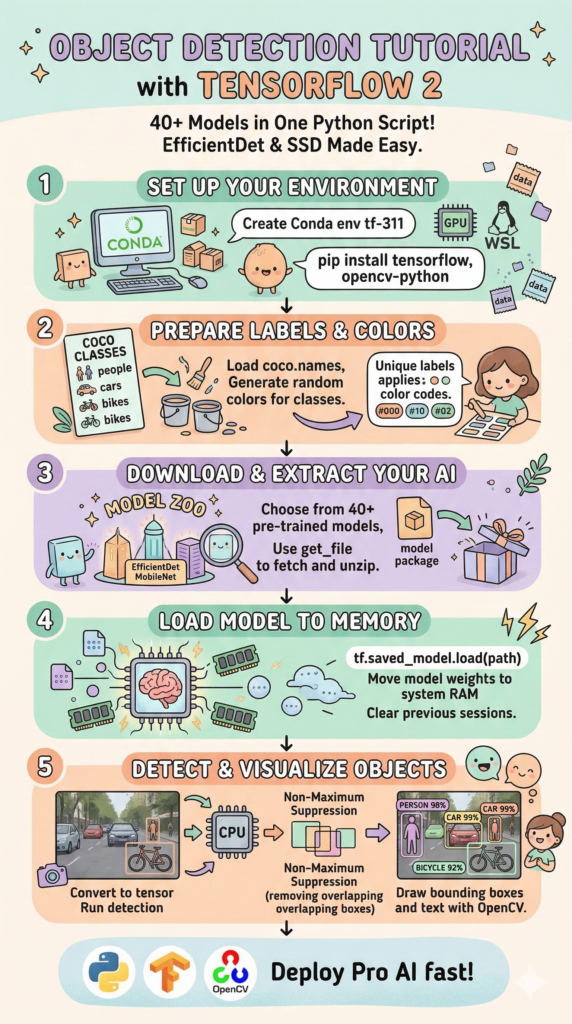
Let’s Break Down How This One Script Controls 40 Different AI Models
The primary objective of this code is to provide a standardized, reusable pipeline that can interface with any model from the TensorFlow 2 Detection Model Zoo. Instead of writing unique logic for every different architecture, this script acts as a universal adapter. By simply pointing the code to a specific model URL, the script handles the entire lifecycle of the AI—from automated downloading and folder organization to loading the neural network into system memory. This approach effectively removes the “friction” of switching between different AI models, allowing you to focus on the results rather than the setup.
At its core, the script is designed to automate the heavy lifting of environment management. Using the get_file utility, it reaches out to Google’s servers, pulls down the specified pre-trained weights, and extracts them into a structured directory on your local machine. This ensures that your workspace remains clean and that the model is ready for immediate deployment. By clearing the Keras backend session before loading, the code also optimizes your hardware resources, ensuring that your GPU or CPU isn’t bogged down by previous tasks when the actual object detection begins.
The script then transitions from file management to active computer vision. It processes your input image by converting it into a numerical format—a tensor—that the model can understand. This involves a color-space conversion from BGR (standard for OpenCV) to RGB (standard for TensorFlow), followed by a dimensional expansion to create a “batch” for the AI. The target here is to prepare the raw data so perfectly that the model can perform its inference pass in milliseconds, returning a raw dictionary of every object it identifies in the frame.
Finally, the code focuses on “cleaning” the data to produce a professional-grade visual output. Because AI models often detect the same object multiple times with slight variations, the script implements Non-Maximum Suppression (NMS). This mathematical filter compares overlapping bounding boxes and suppresses the ones with lower confidence scores, leaving you with a single, precise box for every detected person, car, or bicycle. The end result is a polished image where each object is clearly labeled and color-coded, ready to be saved or displayed in a real-time application.
Link to the video tutorial here
Download the code for the tutorial here or here
Best AI Photo Tools (Backgrounds, Objects, Headshots)


My Blog
Link for Medium users here
Want to get started with Computer Vision or take your skills to the next level ?
Great Interactive Course : “Deep Learning for Images with PyTorch” here
If you’re just beginning, I recommend this step-by-step course designed to introduce you to the foundations of Computer Vision – Complete Computer Vision Bootcamp With PyTorch & TensorFlow
If you’re already experienced and looking for more advanced techniques, check out this deep-dive course – Modern Computer Vision GPT, PyTorch, Keras, OpenCV4
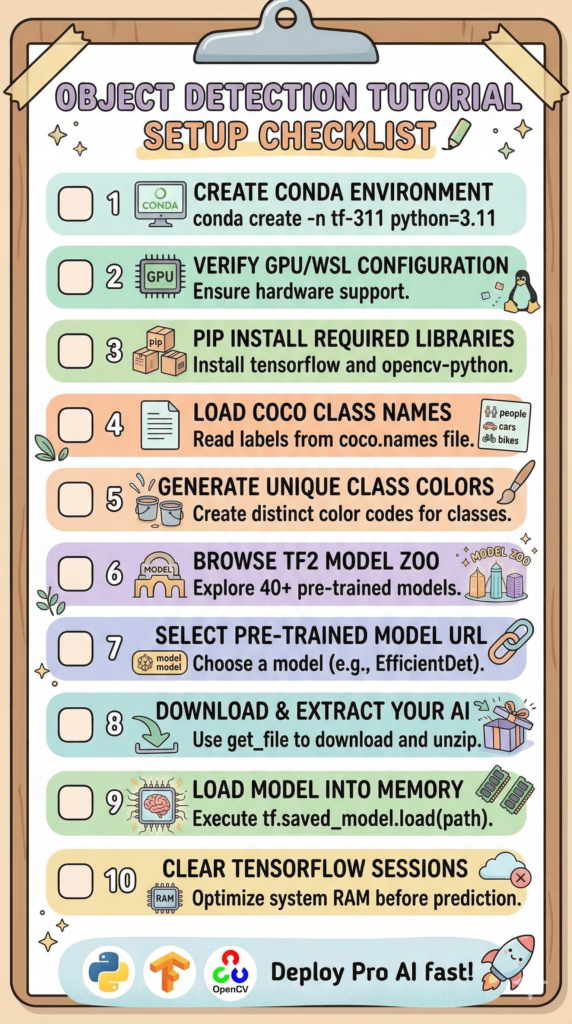
The Ultimate AI Kit: 40 Models in 1 Python Script
Imagine having a library of the world’s most advanced computer vision models at your fingertips, ready to deploy with a single script. This article is a deep dive into the TensorFlow 2 Object Detection Tutorial ecosystem, specifically focusing on the “Model Zoo”—a repository of pre-trained architectures that allow you to skip the expensive and time-consuming process of training AI from scratch. Whether you are a researcher aiming for high-precision results or a developer building real-time mobile apps, the ability to rapidly swap between 40+ different models is a game-changer for your workflow.
The real value for you lies in moving past the “Hello World” phase of AI and into professional-grade implementation. Instead of struggling with version conflicts or custom training datasets, you will gain the ability to leverage Google’s massive compute power for your own local projects. By the end of this guide, you won’t just have a script; you’ll have a flexible framework that lets you test different architectures like EfficientDet and SSD in seconds, ensuring you always pick the best tool for your specific hardware and accuracy requirements.
We achieve this by breaking down the complexity of the TensorFlow 2 Object Detection Tutorial into a streamlined, six-step Python pipeline. We start with the essential environment setup and move directly into automating the model retrieval process. By using the get_file utility, we remove the manual labor of downloading and organizing large model files, allowing the code to handle the heavy lifting of file management for you.
Zero to Detection: Preparing Your Python Environment
Before we can run high-end AI, we need a stable foundation. This installation part is the most critical hurdle for beginners and pros alike, especially when dealing with GPU acceleration. We utilize Conda to create an isolated environment, ensuring that our TensorFlow 2.16 installation doesn’t conflict with other projects on your machine.
For those running on Windows, the modern standard is to use WSL2 (Windows Subsystem for Linux). This allows you to tap into the full power of your NVIDIA GPU with native Linux performance, which is a requirement for the latest TensorFlow versions. By following these specific steps, you bypass the common “DLL not found” errors that plague many local AI setups.
Once the environment is active, we install the core components: TensorFlow for the brain and OpenCV for the eyes. Running the verification command ensures your GPU is actually “seen” by the software. This preparation phase is the difference between a script that crashes and a robust system that detects objects in milliseconds.
### 0. For GPU use Powershell as admin + run wsl ### This ensures your hardware acceleration is available to the environment. ### 1. Create Conda environment: ### conda create -n tf-311 python=3.11 ### conda activate tf-311 ### 2. Install Tensorflow: ### For GPU users (Linux/WSL) ### pip install tensorflow[and-cuda]==2.16.2 ### 2a. Check on the prompt: ### python ### import tensorflow as tf ### print(tf.config.list_physical_devices('GPU')) ### 3. Install Opencv: ### pip install opencv-python==4.10.0.84 ### 4. Run vscode: ### code .Summary: You now have a clean, GPU-accelerated environment ready to execute the main detection logic.
Gathering the Essential Tools for Machine Vision
To begin our journey into high-level object detection, we must first assemble our digital toolkit. This part of the script is about more than just loading libraries; it’s about establishing the communication bridge between your local hardware and the pre-trained neural networks we will be fetching from the web. We import OpenCV for visual handling, NumPy for the math, and specifically the get_file utility from TensorFlow to automate our model management.
Setting up this environment correctly ensures that your code is portable and robust. By importing the os and time modules, we prepare the script to handle file paths dynamically across different operating systems while also giving us the ability to measure how fast our AI is “thinking.” This foundational layer is what makes the rest of the script feel like a seamless, automated experience.
The use of tensorflow.keras.utils.get_file is a professional touch that separates hobbyist scripts from production-ready code. Instead of asking a user to manually download a 100MB model and place it in a specific folder, our code will handle the retrieval, caching, and extraction in the background. This creates a “frictionless” experience that allows you to focus purely on the results of your TensorFlow 2 Object Detection Tutorial.
### First, we bring in OpenCV to handle image reading and writing tasks. import cv2 ### We use the time library to track how long our AI takes to process each frame. import time ### The os module allows us to manage file paths and directories across different systems. import os ### TensorFlow is the core engine that will run our deep learning models. import tensorflow as tf ### NumPy is essential for handling the heavy numerical arrays that represent our images. import numpy as np ### This utility is key; it allows us to download and unzip models directly from the web. from tensorflow.keras.utils import get_fileSummary: We’ve successfully imported the necessary libraries to handle images, manage files, and run the TensorFlow engine.
Defining the Labels and Visual Identity of the Objects
Before an AI can tell you what it sees, it needs a vocabulary. In this section, we load the COCO class names, which is a list of 80 standard objects ranging from people to umbrellas. By reading this from a text file, we make our code modular—meaning you could swap this file out later for a different dataset without having to rewrite a single line of Python logic.
To make our final output easy to read, we don’t just want a list of names; we want a colorful visual output. We use a random seed to ensure that every class gets a unique, vibrant color assigned to it. This means that in your final image, every “Person” detected will have a consistently colored box, while “Cars” or “Dogs” will stand out in their own distinct shades, making the data instantly interpretable at a glance.
This part of the script is also our first “sanity check.” By printing out the total number of classes and the generated color list, we confirm that our data has loaded correctly and our visual palette is ready. It’s a small step that ensures the “UI” of our detection script is just as polished as the “AI” running under the hood.
Here is the coco.names file :
__background__ person bicycle car motorcycle airplane bus train truck boat traffic light fire hydrant street sign stop sign parking meter bench bird cat dog horse sheep cow elephant bear zebra giraffe hat backpack umbrella shoe eye glasses handbag tie suitcase frisbee skis snowboard sports ball kite baseball bat baseball glove skateboard surfboard tennis racket bottle plate wine glass cup fork knife spoon bowl banana apple sandwich orange broccoli carrot hot dog pizza donut cake chair couch potted plant bed mirror dining table window desk toilet door tv laptop mouse remote keyboard cell phone microwave oven toaster sink refrigerator blender book clock vase scissors teddy bear hair drier toothbrush hair brushHere is the code :
# Step1 - Load classes and attach colors to each class ### We set a seed so the random colors are the same every time we run the code. np.random.seed(100) ### Define the path to the text file containing the 80 COCO object names. classFilePath = "Best-Object-Detection-models/Object Detection with 40 Models/coco.names" ### Open the label file and read all lines into a clean list of strings. with open(classFilePath, 'r') as f: classesList = f.read().splitlines() ### Generate a matrix of random colors, one unique RGB color for every class label. colorList = np.random.uniform(low=0, high=255, size=(len(classesList), 3)) ### Display the total count of classes found to verify the labels loaded correctly. print("Total Number of Classes Detected: ", str(len(classesList))) ### Print the actual labels to the console for a quick verification. print(classesList) ### Show the color list to ensure we have a valid palette for our bounding boxes. print("Color List: ", colorList)Summary: We have loaded the object labels and generated a unique color palette to distinguish between different detected categories.
Accessing the 40 Model Zoo via Automated Downloads
This is where the “40 models in 1 script” promise comes to life. Instead of being locked into a single detector, we define a Model URL from the official TensorFlow repository. Whether you want the lightweight SSD for speed or the heavy-duty EfficientDet for accuracy, all you have to do is change this one URL. The script handles the rest of the complicated web and file logic.
The code is designed to be intelligent about your storage. It extracts the filename from the URL, creates a local saveFolder, and checks if you’ve already downloaded the model. By using os.path.basename, the script knows exactly what it’s looking for, ensuring that you don’t waste bandwidth downloading the same 300MB file every time you hit “Run.”
The extraction process is fully automated. By setting extract = True in the get_file command, we tell Python to not only download the compressed model but to unzip it into a structured directory. This turns a multi-step manual process into a single, elegant line of code that prepares the AI’s “brain” for immediate use on your machine.
# Step2 - Load the model ### Here we define the URL for the EfficientDet-D5 model from the official TF2 repository. modelUrl = "http://download.tensorflow.org/models/object_detection/tf2/20200711/efficientdet_d5_coco17_tpu-32.tar.gz" ### We extract the base filename from the URL so we can save it locally. fileName = os.path.basename(modelUrl) print("File Name: ", fileName) ### We strip the extension to get a clean name for our local model folder. onlyFileName = fileName[:fileName.index('.')] print("Only File Name: ", onlyFileName) # Download the model and extract it ### Create a local directory on your drive to store the downloaded AI models. saveFolder = "/mnt/d/Temp/Models/40Models" os.makedirs(saveFolder, exist_ok=True) ### This powerful command downloads, caches, and unzips the model in one step. get_file(fname = onlyFileName, origin = modelUrl, cache_dir = saveFolder, cache_subdir = "checkpoints", extract = True) ### Let the user know the model is ready on the hard drive. print("Model Downloaded and Extracted Successfully")Summary:
The script has automatically downloaded and extracted the pre-trained model into a local directory, ready for loading.
Loading the AI Model and Pre-processing Your Vision
Now that the model files are on our drive, we need to move them into the system memory (RAM). This section of the script clears any previous AI sessions to ensure we have a fresh start without memory leaks. By constructing the full path to the saved_model directory, we tell TensorFlow exactly where to find the neural network’s weights and architecture.
Before we can ask the model “what is in this image?”, we have to translate our image into a language the AI understands. This is called Pre-processing. OpenCV loads images in BGR format, but TensorFlow models expect RGB. We perform this color conversion and then transform the image into a “tensor”—a mathematical array that the AI can process at high speeds.
Models are built to process images in “batches,” even if we are only looking at one picture. We add an extra dimension to our tensor using tf.newaxis to match the model’s expected input shape. This step is often the most confusing for beginners, but it’s the secret to making your script compatible with the industry-standard TensorFlow inference engine.
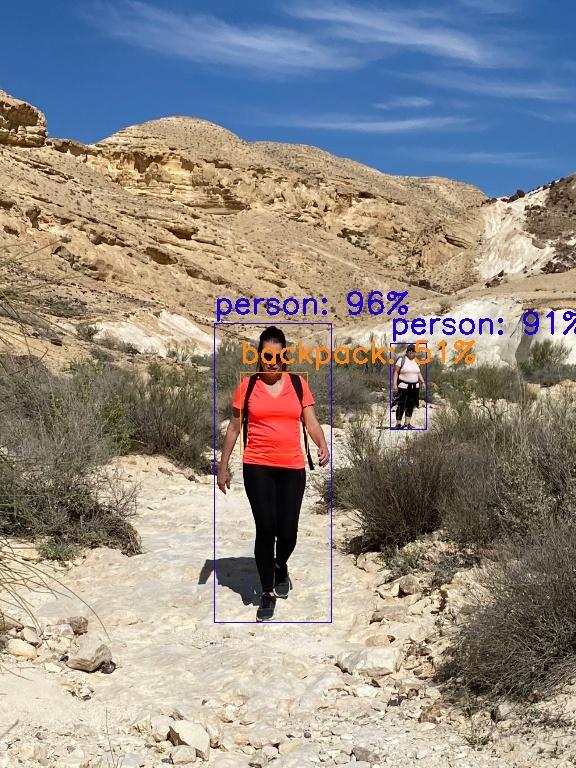
Here is the test image :

# Step 3 - Load the model into memory ### Inform the user that the heavy loading process is beginning. print("Loading the model into memory...") ### We clear any previous Keras sessions to free up RAM and prevent errors. tf.keras.backend.clear_session() ### Construct the exact path to the 'saved_model' folder inside our checkpoints. fullPath = os.path.join(saveFolder, "checkpoints", onlyFileName, onlyFileName, "saved_model") print("Full Path: ", fullPath) ### This command loads the entire pre-trained neural network into memory. model = tf.saved_model.load(fullPath) ### Success! The model is now loaded and ready for prediction. print("Model "+ onlyFileName + " loaded successfully") # Step 4 = Predict Image ### We set a confidence threshold of 50% to ignore uncertain results. threshold = 0.5 ### Point the script to the image file you want to analyze. imagePath = "Best-Object-Detection-models/Object Detection with 40 Models/Inbal-Midbar 768.jpg" ### Load the image using OpenCV and make a copy to keep the original clean. original_image = cv2.imread(imagePath) image = original_image.copy() ### Convert the color from BGR to RGB to satisfy the model's requirements. inputTensor = cv2.cvtColor(image, cv2.COLOR_BGR2RGB) ### Convert the image array into a TensorFlow-compatible tensor of integers. inputTensor = tf.convert_to_tensor(inputTensor, dtype=tf.uint8) ### Add a "batch" dimension to the image so it fits the model's input signature. inputTensor = inputTensor[tf.newaxis, ...]Summary: The model is now loaded into memory, and the input image has been converted into a mathematical tensor ready for the AI.
Executing the Inference and Managing the Raw Data
This is the “Brain” of the script. We pass our prepared tensor to the model function, which triggers millions of calculations to identify patterns in the image. The result is a dictionary containing the Detection Boxes, Class Indexes, and Scores. This raw data is everything the AI “saw” in that split second of processing.
Raw data can be overwhelming, so we extract the specific pieces we need into NumPy arrays. We grab the box coordinates (where the objects are), the class IDs (what the objects are), and the confidence scores (how sure the AI is). We also measure the dimensions of our original image so we can accurately rescale those “AI coordinates” back into real-world pixels later.
The script is built to handle multiple objects at once. By converting the model’s output into standard Python-friendly formats, we make it easy to loop through the results. At this stage, the AI has done its job, and it’s up to us to refine these raw results into something a human can actually use and understand.
# Get detections ### We pass the image tensor into the model and store the raw results. detections = model(inputTensor) ### Print the raw dictionary to see the complex data the AI returns. print("Detections: ", detections) ### Extract the bounding box coordinates for every object detected. bboxes = detections['detection_boxes'][0].numpy() ### Extract the category IDs for the objects and convert them to integers. classIndexes = detections['detection_classes'][0].numpy().astype(np.int32) ### Extract the confidence scores so we know how accurate each detection is. ClassScores = detections['detection_scores'][0].numpy() ### Get the height, width, and channels of the image for coordinate scaling. H , W, C = image.shapeSummary: The AI has completed its analysis, and we have extracted the raw coordinates and labels for all detected objects.
Refining Results with NMS and Visualizing the Masterpiece
AI models are often “too enthusiastic”—they might draw five different boxes around the same person. This final part of the script uses Non-Maximum Suppression (NMS) to fix that. NMS is a clever algorithm that looks at all overlapping boxes and only keeps the one with the highest confidence score, ensuring a clean and professional output.
Now we bridge the gap between AI math and visual reality. The model returns coordinates as percentages (0 to 1), so we multiply them by the image width and height to find the exact pixel locations. We then use OpenCV’s rectangle and putText functions to draw the boxes and labels directly onto our image copy, using the unique colors we generated back in Step 1.
The tutorial concludes by showing you the finished product. We save the detected image to your drive and open a window to display the results. This visual confirmation is the “Aha!” moment where you see your code successfully identifying objects in the real world. It’s the perfect end to a powerful, automated object detection pipeline.
# Reduce the overlap of the bounding boxes using Non-Maximum Suppression ### NMS filters out overlapping boxes, keeping only the best detection for each object. bboxIdx = tf.image.non_max_suppression(bboxes, ClassScores, max_output_size=50, iou_threshold= threshold, score_threshold= threshold) ### Display the indices of the "winning" boxes that survived the filter. print("bboxIdx: ", bboxIdx) # Display the results based on the reduced bounding boxes ### If we found any objects, we start a loop to draw them on the screen. if len(bboxIdx) != 0: for i in bboxIdx: ### Extract the specific box, confidence, and label for this detection. bbox = tuple(bboxes[i].tolist()) classConfidence = round(100 * ClassScores[i] ) classIndex = classIndexes[i] ### Get the human label and color for this specific object. classLabelText = classesList[classIndex] classColor = colorList[classIndex] ### Create the text string that shows the name and confidence percentage. displayText = "{}: {}%".format(classLabelText, classConfidence) ### Rescale the normalized coordinates back to the actual pixel size. ymin, xmin, ymax, xmax = bbox xmin, xmax, ymin, ymax = (xmin * W, xmax * W, ymin * H, ymax * H) ### Convert coordinates to integers for the OpenCV drawing tools. xmin , xmax, ymin, ymax = int(xmin), int(xmax), int(ymin), int(ymax) ### Draw the rectangle and the text label on the output image. cv2.rectangle(image, (xmin, ymin), (xmax, ymax), color=classColor, thickness=1) cv2.putText(image, displayText, (xmin, ymin-10), cv2.FONT_HERSHEY_SIMPLEX, 1, classColor, thickness=2) ### Show the original image and save the detected version to your drive. cv2.imshow("Original", original_image) cv2.imwrite("Best-Object-Detection-models/Object Detection with 40 Models/Output.jpg", image) ### Display the final detection window to the user. cv2.imshow("Detection", image) ### Wait for a key press before closing the windows and ending the script. cv2.waitKey(0) cv2.destroyAllWindows()Summary: We cleaned the detections using NMS and visualized the final results with bounding boxes and labels using OpenCV.
Result :
FAQ
What is the TensorFlow 2 Detection Model Zoo?
The TF2 Model Zoo is a repository of pre-trained AI models that allow you to perform object detection without training a neural network from scratch.
Why do we use Non-Maximum Suppression (NMS)?
NMS is used to clean up overlapping detection boxes, ensuring that only the most confident box is shown for a single object.
Can I run this on my laptop without a GPU?
Yes, the code will run on a CPU, though detection will be slower. For real-time applications, a GPU is recommended.
How do I switch between different models?
You can change models by simply swapping the modelUrl variable with another link from the official TensorFlow Model Zoo GitHub.
Why is the color conversion step necessary?
OpenCV reads images in BGR format, but TensorFlow models are trained on RGB. Proper conversion is vital for detection accuracy.
What is the COCO dataset?
COCO is a standard dataset of 80 objects used to train most general-purpose AI detectors.
Does this script require a GPU?
No, it will run on a CPU, but a CUDA-enabled GPU will make the inference significantly faster.
What are normalized coordinates?
These are values between 0 and 1 representing box positions. We multiply them by pixel width/height to draw them accurately.
Why set the threshold to 0.5?
It ensures the AI only shows objects it is at least 50% sure about, filtering out noise and false positives.
What is a Tensor?
A tensor is a multi-dimensional array (like a NumPy array) that TensorFlow uses to perform deep learning math.
Final Thoughts: Building Professional AI Solutions Fast
This TensorFlow 2 Object Detection Tutorial has given you a blueprint for building professional-grade vision systems with minimal effort. By leveraging the TF2 Model Zoo, we’ve bypassed the weeks of data labeling and training that usually stop AI projects before they start. You now have a script that can fetch over 40 different pre-trained models, automate their setup, and run inference with high precision. Whether you are building an automated surveillance tool, a robot vision system, or a research prototype, this modular approach is your foundation. I encourage you to experiment with different models from the zoo—compare the speed of SSD with the depth of EfficientDet—and see which one brings your vision to life.
Connect :
☕ Buy me a coffee — https://ko-fi.com/eranfeit
🖥️ Email : feitgemel@gmail.com
🤝 Fiverr : https://www.fiverr.com/s/mB3Pbb
Enjoy,
Eran